phone CADILLAC CT6 2017 1.G Owners Manual
[x] Cancel search | Manufacturer: CADILLAC, Model Year: 2017, Model line: CT6, Model: CADILLAC CT6 2017 1.GPages: 337, PDF Size: 3.89 MB
Page 9 of 337
Cadillac CT6 Owner Manual (GMNA-Localizing-MidEast-10293390) - 2017 -
CRC - 6/21/16
8 IN BRIEF
20.Cruise Control 0211.
Adaptive Cruise Control 0213 (If
Equipped).
Phone Button. See “Steering
Wheel Controls ”in the
infotainment manual.
21. Data Link Connector (DLC) (Out of View). See Malfunction
Indicator Lamp (Check Engine
Light) 0127.
22. Instrument Panel Storage 0103.
Instrument Panel Fuse
Block 0272.
23. Electric Parking Brake 0205.
Instrument Panel Illumination
Control 0167 (Out of View).
Head-Up Display (HUD) 0138 (If
Equipped) (Out of View).Initial Drive Information
This section provides a brief overview
about some of the important features
that may or may not be on your
specific vehicle.
For more detailed information, refer to
each of the features which can be
found later in this owner manual.
Stop/Start System
The vehicle has a fuel saving stop/
start system to shut off the engine
and help conserve fuel.
When the brakes are applied and the
vehicle is at a complete stop, the
engine may turn off. When the brake
pedal is released or the accelerator
pedal is pushed, the engine will
restart.
If equipped, the automatic engine
stop/start function can be disabled
using the switch. See Starting the
Engine 0196.
Remote Keyless Entry
(RKE) System
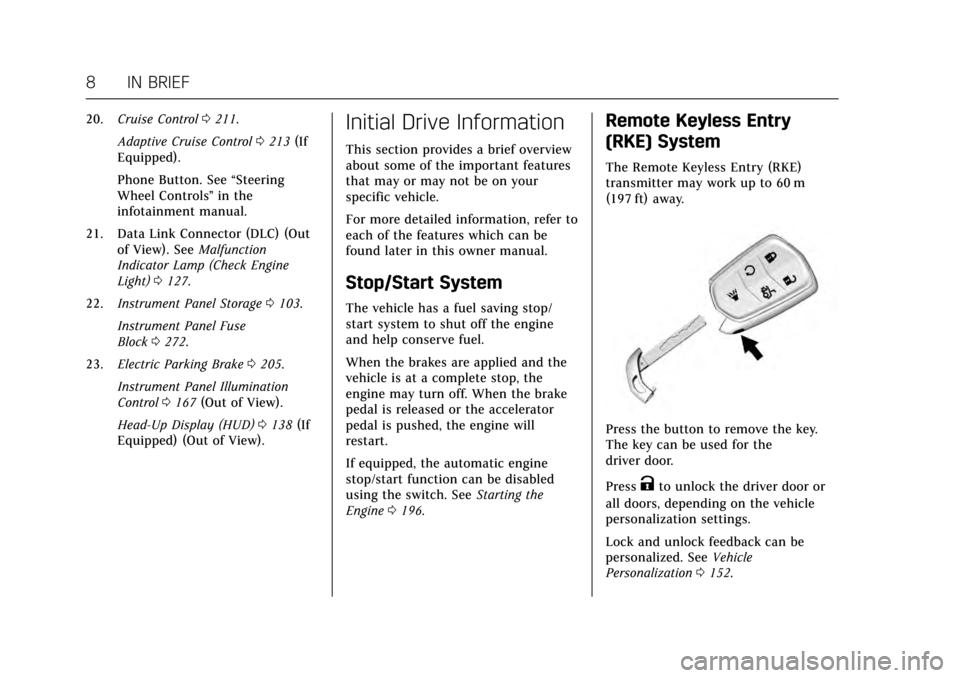
The Remote Keyless Entry (RKE)
transmitter may work up to 60 m
(197 ft) away.
Press the button to remove the key.
The key can be used for the
driver door.
Press
Kto unlock the driver door or
all doors, depending on the vehicle
personalization settings.
Lock and unlock feedback can be
personalized. See Vehicle
Personalization 0152.
Page 20 of 337

Cadillac CT6 Owner Manual (GMNA-Localizing-MidEast-10293390) - 2017 -
CRC - 6/21/16
IN BRIEF 19
Climate Touch Screen Controls
1. Outside Temperature Display
2. Driver and Passenger Temperature Controls
3. Fan Control
4. A/C (Air Conditioning)
5. Climate Control Selection (Application Tray Button)
6. SYNC (Synchronized Temperature)
7. Driver and Passenger Air Delivery Mode Controls
8. Defog 9. Ionizer Status Indicator (If
Equipped)
See Automatic Climate Control System
(Quad Zone) 0171 orAutomatic
Climate Control System (Dual
Zone) 0178.
Transmission
Tap Shift
Vehicles equipped with Tap Shift
allow shifting an automatic
transmission similar to a manual
transmission. Tap Shift can be
enabled through the shift lever or the
Tap Shift controls on the back of the
steering wheel. See Manual
Mode 0203.
Vehicle Features
Infotainment System
See the infotainment manual for
information on the radio, audio
players, rear seat infotainment, phone,
navigation system, and voice or
speech recognition. It also includes
information on settings.
Steering Wheel Controls
The infotainment system can be
operated by using the steering wheel
controls. See "Steering Wheel
Controls" in the infotainment manual.
Page 24 of 337
Cadillac CT6 Owner Manual (GMNA-Localizing-MidEast-10293390) - 2017 -
CRC - 6/21/16
IN BRIEF 23
displays, and beeps. When the vehicle
speed is below 30 km/h (18 mph),
touch
Oto enable the system.
See “Automatic Parking Assist (APA)”
under Assistance Systems for Parking
or Backing 0222.
Reverse Automatic
Braking (RAB)
If the vehicle has Adaptive Cruise
Control (ACC) it also has the RAB
system, which is designed to help
avoid or reduce the harm caused by
backing crashes when the vehicle is
shifted into R (Reverse). If the system
detects the vehicle is backing too fast
to avoid a crash with a detected object
behind your vehicle in your path, it
may automatically brake hard to
a stop.
See Assistance Systems for Parking or
Backing 0222.
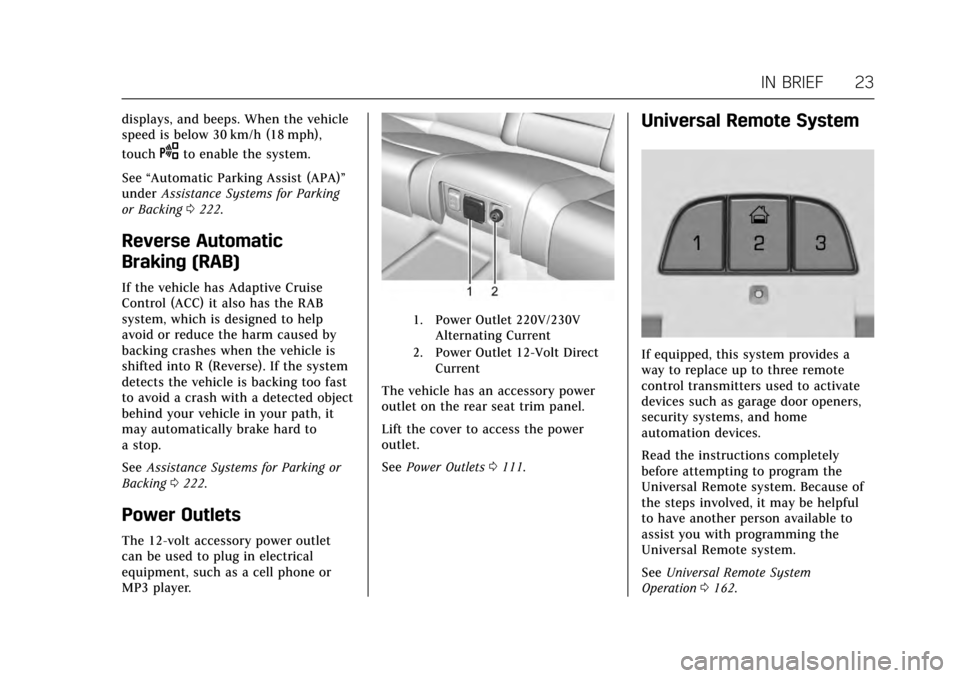
Power Outlets
The 12-volt accessory power outlet
can be used to plug in electrical
equipment, such as a cell phone or
MP3 player.
1. Power Outlet 220V/230V
Alternating Current
2. Power Outlet 12-Volt Direct Current
The vehicle has an accessory power
outlet on the rear seat trim panel.
Lift the cover to access the power
outlet.
See Power Outlets 0111.
Universal Remote System
If equipped, this system provides a
way to replace up to three remote
control transmitters used to activate
devices such as garage door openers,
security systems, and home
automation devices.
Read the instructions completely
before attempting to program the
Universal Remote system. Because of
the steps involved, it may be helpful
to have another person available to
assist you with programming the
Universal Remote system.
See Universal Remote System
Operation 0162.
Page 112 of 337
Cadillac CT6 Owner Manual (GMNA-Localizing-MidEast-10293390) - 2017 -
CRC - 6/21/16
INSTRUMENTS AND CONTROLS 111
lever returns to its starting position
when released. SeeRear Camera
Mirror 047.
Clock
The infotainment system controls are
used to access the time and date
settings through the menu system.
See “Home Page ”in the infotainment
manual for information about how to
use the menu system.
Setting the Clock
Time
To set the time:
1. From the Home Page, touch the SETTINGS screen button, then
touch Time and Date.
2. Touch Set Time, then touch + or −to increase or decrease hours
or minutes, and change AM
or PM.
3. Touch 12-24 Hr for a 12 or 24 hour clock.
4. Touch
0to go back to the
previous menu. Date
To set the date:
1. Touch the SETTINGS screen button, then touch Time
and Date.
2. Touch Set Date, then touch + or −to increase or decrease month,
day, or year.
3. Touch
0to go back to the
previous menu.
Auto Set
When on, the time and date will
automatically update.
To set auto set: 1. Touch the SETTINGS screen button, then touch Time
and Date.
2. Touch Set Time or Set Date.
3. Touch Auto Set, then select On-Cell Network or Off-Manual
to manually set the time
and date.
4. Touch
0to go back to the
previous menu. If auto set is on, the time displayed on
the clock may not update immediately
when driving into a new time zone.
Clock Display
When on, the digital clock will display
on the infotainment screen.
To set the clock display:
1. Touch the SETTINGS screen button, then touch Time
and Date.
2. Touch Clock Display, then select Off or On.
3. Touch
0to go back to the
previous menu.
Power Outlets
Power Outlet 12-Volt Direct Current
The 12-volt accessory power outlet
can be used to plug in electrical
equipment, such as a cell phone or
MP3 player.
The vehicle has an accessory power
outlet on the rear seat trim panel.
Page 113 of 337
Cadillac CT6 Owner Manual (GMNA-Localizing-MidEast-10293390) - 2017 -
CRC - 6/21/16
112 INSTRUMENTS AND CONTROLS
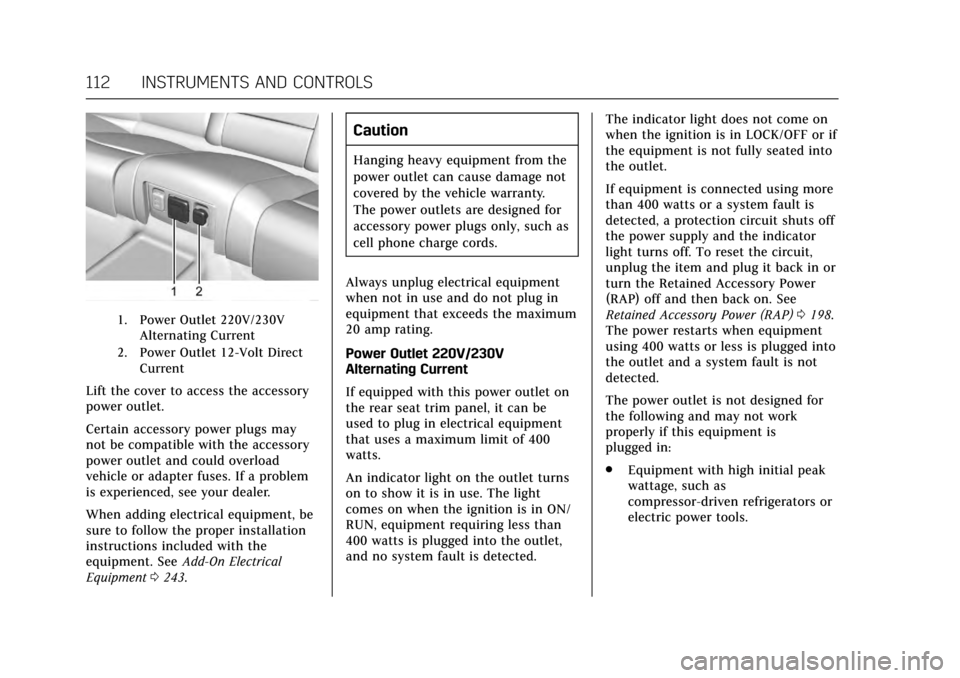
1. Power Outlet 220V/230VAlternating Current
2. Power Outlet 12-Volt Direct Current
Lift the cover to access the accessory
power outlet.
Certain accessory power plugs may
not be compatible with the accessory
power outlet and could overload
vehicle or adapter fuses. If a problem
is experienced, see your dealer.
When adding electrical equipment, be
sure to follow the proper installation
instructions included with the
equipment. See Add-On Electrical
Equipment 0243.
Caution
Hanging heavy equipment from the
power outlet can cause damage not
covered by the vehicle warranty.
The power outlets are designed for
accessory power plugs only, such as
cell phone charge cords.
Always unplug electrical equipment
when not in use and do not plug in
equipment that exceeds the maximum
20 amp rating.
Power Outlet 220V/230V
Alternating Current
If equipped with this power outlet on
the rear seat trim panel, it can be
used to plug in electrical equipment
that uses a maximum limit of 400
watts.
An indicator light on the outlet turns
on to show it is in use. The light
comes on when the ignition is in ON/
RUN, equipment requiring less than
400 watts is plugged into the outlet,
and no system fault is detected. The indicator light does not come on
when the ignition is in LOCK/OFF or if
the equipment is not fully seated into
the outlet.
If equipment is connected using more
than 400 watts or a system fault is
detected, a protection circuit shuts off
the power supply and the indicator
light turns off. To reset the circuit,
unplug the item and plug it back in or
turn the Retained Accessory Power
(RAP) off and then back on. See
Retained Accessory Power (RAP)
0198.
The power restarts when equipment
using 400 watts or less is plugged into
the outlet and a system fault is not
detected.
The power outlet is not designed for
the following and may not work
properly if this equipment is
plugged in:
. Equipment with high initial peak
wattage, such as
compressor-driven refrigerators or
electric power tools.
Page 114 of 337

Cadillac CT6 Owner Manual (GMNA-Localizing-MidEast-10293390) - 2017 -
CRC - 6/21/16
INSTRUMENTS AND CONTROLS 113
.Other equipment requiring an
extremely stable power supply,
such as microcomputer-controlled
electric blankets or touch sensor
lamps.
. Medical equipment.
. Equipment with high initial peak
wattage, such as
compressor-driven refrigerators or
electric power tools.
. Other equipment requiring an
extremely stable power supply,
such as microcomputer-controlled
electric blankets or touch sensor
lamps.
. Medical equipment.
Wireless Charging
The vehicle may have wireless
charging in the storage under the
armrest. The system wirelessly
charges one PMA or Qi compatible
mobile device. To check for phone or
other device compatibility, see your
dealer for details.
{Warning
Wireless charging can affect the
operation of an implanted
pacemaker or other medical devices.
If you have one, it is recommended
to consult with your doctor before
using the wireless charging system.
The vehicle must be in ON/RUN, ACC/
ACCESSORY, or Retained Accessory
Power (RAP). The wireless charging
feature may not correctly indicate
charging when the vehicle is in RAP.
See Retained Accessory Power
(RAP) 0198.
The operating temperature is −20 °C
(−4 °F) to 60 °C (140 °F) for the
charging system and 0 °C (32 °F) to
35 °C (95 °F) for the phone.
{Warning
Remove all metal objects from the
charging pad before charging your
mobile device. Metal objects, such
as coins, keys, rings, or paper clips,
(Continued)
Warning (Continued)
between the phone and charging
pad will become very hot. On the
rare occasion that the charging
system does not detect a metal
object, and the object gets wedged
between the phone and charger,
remove the phone and allow the
metallic object to cool before
removing it from the charging pad,
to prevent burns.
Page 115 of 337
Cadillac CT6 Owner Manual (GMNA-Localizing-MidEast-10293390) - 2017 -
CRC - 6/21/16
114 INSTRUMENTS AND CONTROLS
To charge a mobile device:1. Remove all objects from the charging pad. The system may
not charge if there are any
objects on the charging pad.
2. Place the mobile device face up on the
@symbol on the
charging pad and align it to the
left wall of the charging bin.
3. The
~will display on theV
on the infotainment screen. This
indicates that the mobile device
is properly positioned and
charging. If a phone is placed on
the charging pad and
~does
not display, remove the phone
from the pad, turn 180 degrees
and wait three seconds before
placing/aligning the phone on
the pad again.
Cigarette Lighter
There may be a cigarette lighter inside
the center console storage area.
To use the cigarette lighter, push it in
all the way, and let go. When it is
ready, it will pop back out by itself.
Caution
Holding a cigarette lighter in while
it is heating does not let the lighter
back away from the heating
element when it is hot. Damage
from overheating can occur to the
lighter or heating element, or a fuse
could be blown. Do not hold a
cigarette lighter in while it is
heating.
Ashtrays
There are front and rear ashtrays.
Caution
If papers, pins, or other flammable
items are put in the ashtray, hot
cigarettes or other smoking
materials could ignite them and
possibly damage the vehicle. Never
put flammable items in the ashtray.
Warning Lights, Gauges,
and Indicators
Warning lights and gauges can signal
that something is wrong before it
becomes serious enough to cause an
expensive repair or replacement.
Paying attention to the warning lights
and gauges could prevent injury.
Some warning lights come on briefly
when the engine is started to indicate
they are working. When one of the
warning lights comes on and stays on
while driving, or when one of the
gauges shows there may be a problem,
check the section that explains what
to do. Waiting to do repairs can be
costly and even dangerous.
Page 117 of 337

Cadillac CT6 Owner Manual (GMNA-Localizing-MidEast-10293390) - 2017 -
CRC - 6/21/16
116 INSTRUMENTS AND CONTROLS
Cluster Menu
There is an interactive display area in
the center of the instrument cluster.
Use the right steering wheel control to
open and scroll through the different
items and displays.
Press
Sto access the cluster
applications. Use
yorzto scroll
through the list of available
applications. Not all applications will
be available on all vehicles.
. Info App. This is where the
selected Driver Information Center
(DIC) displays can be viewed. See
Driver Information Center
(DIC) 0136.
. Audio
. Phone
. Navigation
. Settings Audio
Press SEL to select the Audio app,
then press
Tto enter the Audio
menu. In the Audio menu browse for
music, select from the favorites,
or change the audio source. Use
yor
zto change the station or go to the
next or previous track.
Phone
Press SEL to select the Phone app,
then press
Tto enter the Phone
menu. In the Phone menu, if there is
no active phone call, view recent calls,
or scroll through contacts. If there is
an active call, mute the phone or
switch to handset operation.
Navigation
Press SEL to select the Navigation
app, then press
Tto enter the
Navigation menu. If there is no active
route, you can resume the last route
and turn the voice prompts on/off.
If there is an active route, press SEL
to cancel or resume route guidance or
turn the voice prompts on or off. Settings
Press SEL to select the Settings app,
then press
Tto enter the Settings
menu. Use
yorzto scroll through
items in the Settings menu.
Units : Press
Twhile Units is
displayed to enter the Units menu.
Choose English, Imperial, or metric
units by pressing SEL while the
desired item is highlighted.
A checkmark will be displayed next to
the selected item.
Display Themes : There are three
instrument cluster display
configurations to choose from:
Standard, Technology, and Media.
Info Pages : Press
Twhile Info Pages
is displayed to enter the Info Pages
menu and select the items to be
displayed in the Info app. See Driver
Information Center (DIC) 0136.
Page 120 of 337

Cadillac CT6 Owner Manual (GMNA-Localizing-MidEast-10293390) - 2017 -
CRC - 6/21/16
INSTRUMENTS AND CONTROLS 119
Reconfigurable Instrument
Cluster
The cluster display layout can be
changed.
Balanced Configuration
The Balanced configuration has three
interactive display zones: one in the
center of each of the gauges.
Enhanced Configuration
The Enhanced configuration has three
interactive display zones.
Performance Configuration (If Equipped)
The Performance configuration has
two interactive display zones.
Use the five-way control on the right
side of the steering wheel to move
between the different display zones
and scroll through the different
displays.
To change the cluster configuration:
1. Find the Options page in one of the interactive display zones on
the cluster.
2. Press SEL to enter the Options menu.
3. Scroll down to highlight Display Layout. Then press SEL to
select it. 4. Each layout in the menu is
represented by a small preview
image of the display layout.
Scroll up or down and highlight
the selection. Press SEL to select
the desired cluster configuration.
5. Exit the Display Layout menu by pressing
S.
Cluster Application Displays
The cluster can display information
regarding Navigation, Audio, and
Phone.
Navigation
If there is no active route, a compass
will be displayed. If there is an active
route, press SEL to end route guidance
or turn the voice prompts on or off.
Audio
While the Audio application page is
displayed, press SEL to enter the
Audio menu. In the Audio menu,
search for music, select from favorites,
or change the audio source
Page 121 of 337

Cadillac CT6 Owner Manual (GMNA-Localizing-MidEast-10293390) - 2017 -
CRC - 6/21/16
120 INSTRUMENTS AND CONTROLS
Phone
While the Phone application page is
displayed, press SEL to enter the
Phone menu. In the Phone menu,
if there is no active phone call, view
recent calls, select from favorites,
or scroll through contacts. If there is
an active call, mute the phone or
switch to handset operation.
Cluster Options Menu
To enter the cluster Options menu:1. Use the five-way control on the right side of the steering wheel
to find the Options page in one
of the interactive display zones
on the cluster.
2. Press SEL on the center of the five-way control to enter the
Options menu.
Units : Press SEL while Units is
highlighted to enter the Units menu.
Choose US or metric units by pressing
SEL while the desired item is
highlighted. A checkmark will be
displayed next to the selected item. Info Pages :
Press SEL while Info
Pages is highlighted to select the
items to be displayed in the DIC info
displays. See Driver Information Center
(DIC) 0136.
Fav Button Options : Press SEL while
Fav Button Options is highlighted to
select between FAV Primary and SEEK
Primary. This selection allows for
configuration of the
CandB
steering wheel controls. When FAV
Primary is selected, pressing
Cand
Bwill go to the next or previous
favorite and pressing and holding
C
andBwill seek. When SEEK Primary
is selected, pressing
CandBwill
seek and pressing and holding
Cand
Bwill go to the next or previous
favorite.
Display Layout : Press SEL while
Display Layout is highlighted to
change the configuration of the
cluster. See “Reconfigurable
Instrument Cluster” earlier in this
section. Head-up Display (HUD) Rotation :
This feature allows for adjusting the
angle of the HUD image. Press SEL on
the steering wheel controls while
Head-up Display Rotation is
highlighted to enter Adjust Mode.
Press
yorzto adjust the angle of
the HUD display. Press
SorTto
highlight OK, then press SEL to save
the setting. Cancel can also be
selected to cancel the setting. The
vehicle must be in P (Park).
Tire Loading : Press SEL while Tire
Loading is highlighted to change the
tire loading setting. Choose Light (for
comfort pressure up to three people),
Eco (for Eco pressure up to three
people), or Max (for full loading) by
pressing SEL while the desired item is
highlighted.
Open Source Software : Press SEL
while Open Source Software is
highlighted to display open source
software information.