buttons CADILLAC CTS 2012 2.G Infotainment Manual
[x] Cancel search | Manufacturer: CADILLAC, Model Year: 2012, Model line: CTS, Model: CADILLAC CTS 2012 2.GPages: 76, PDF Size: 0.61 MB
Page 25 of 76

Black plate (25,1)Cadillac CTS/CTS-V Navigation System (Includes Mex) - 2012
Infotainment System 25
TUNE/TONE Knob:Turn to go to
the next or previous track.
q r(Category): Select the left or
right arrow to go to the previous or
next folder/Artist/Album/Genre on
the disc.
uSEEK /tSEEK:
1. Press the right arrow to go to the next track.
2. Press the left arrow to go to the start of the current track, if more
than five seconds have played
or to the previous track,
if five seconds or less have
played.
3. If either arrow is pressed more than once, the player will
continue moving backward or
forward through the CD. The
sound mutes while seeking.
Music Navigator: Press the center
button on the main screen to display
Music Navigator. Selecting any of the following
screen buttons, when in MP3,
displays the Music Navigator screen
for each of the following categories:
.All Songs: Press this to view all
songs stored on the Disc. Select
a song name from that list.
It may take a few minutes for the
system to show the list. Once a
song has been selected from
this category, the song name will
appear in the center button on
the main screen.
.Folder: Press to view the folders
that have been stored on the
Disc. Select a folder name to
view all songs in this folder,
select a song. It may take a few
minutes for the system to show
a list. Once a song has been
selected from this category, the
folder name appears in the
center button on the main
screen to show that music is
being played from a specific
folder.
.Artist: Press to view the artists
that have been stored on the
Disc. Select an artist name to
view all songs on that list, select
a song. It may take a few
minutes for the system to show
the list. Once a song has been
selected from this category, the
artist name appears in the
center button on the main
screen to show that music is
being played from a specific
artist.
.Album: Press to view the
albums that have been stored on
the Disc. Select an album name
to view all songs on that list,
select a song. It may take a few
minutes for the system to show
the list. Once a song has been
selected from this category, the
album name appears in the
center button on the main
screen to show that music is
being played from a specific
album.
Page 29 of 76
Black plate (29,1)Cadillac CTS/CTS-V Navigation System (Includes Mex) - 2012
Infotainment System 29
q r(Category):
1. Select the left or right arrow to go to the previous or next
Album/Playlist/Artist/Genre/
Audiobook on the HDD.
2. Press the center button on the main screen to display Music
Navigator.
Music Navigator Screen
Selecting any of the following
screen buttons, when in HDD,
displays the Music Navigator screen
for each of the following categories.
All Songs:
1. Press to view all songs storedon HDD.
2. Select a song name from that list. It may take a few minutes for
the system to show the list.
Once a song has been selected
from this category, the song
name will appear in the center
button on the main screen. Playlists:
1. Press to view the playlists that
have been stored on the HDD.
2. Select a playlist name to view all songs that have been stored in
this list, select a song. Once a
song has been selected from
this category, the "Playlist”
appears in the center button on
the main screen to show that
music is being played in
this mode.
Under the playlist category, there is
a submenu button called, More
Like This.
1. Press this button to see a playlist of songs similar to the
current song is generated by
music recognition technology
and related data that are
provided by Gracenote.
2. Select a song to listen to after the list is created.
3. Press the Refresh screen button to generate the new list. Once a song has been selected
from this category, the
“AutoPlay”
appears in the center button on the
main screen to show music is being
played in this mode.
Artists:
1. Press to view the artists that have been stored on the HDD.
2. Select an artist name to view all songs in this list, select a song
to listen to.
Once a song has been selected
from this category, the “Artist”
appears in the center button on the
main screen to show that music is
being played in this mode.
Albums:
1. Press to view the albums that have been stored on the HDD.
2. Select an album name to view all songs in this list, select a
song to listen to.
Page 31 of 76
Black plate (31,1)Cadillac CTS/CTS-V Navigation System (Includes Mex) - 2012
Infotainment System 31
Power Mode
If the system is turned off during a
CD or USB recording process, it will
stop. When the radio is turned back
on, the recording process needs to
be started again.
Saving HDD Favorites
During HDD playback, select one of
the lower buttons to save songs in
its category. Each category has six
presets.
To add a song from a category, you
must be listening to the song. Press
and hold the lower button until
“Favorite saved...”displays on the
screen.
Audio Book
The system is able to play back
audio book content downloaded
from www.audible.com. This content
can be transferred into the system
by either burning it to a CD or
recording it to a USB storage
device. The audio book playback requires
activation of the vehicle as a player
for downloaded content. The radio
system activates the audio-book
system when information is found
on either a CD inserted into the CD
player or if a USB storage device is
connected. Make sure the activation
file is copied onto a CD or a USB
storage device so that the
downloaded media is supported.
In the process of activation, the
Vehicle Identification Number (VIN)
number is required in order to
activate your vehicle.
Auxiliary Devices
The navigation system has an
auxiliary input jack located in the
center console. This is not an audio
output; do not plug the headphone
set into the front auxiliary input jack.
You can however, connect an
external audio device such as an
iPod, laptop computer, MP3 player,
CD changer, or cassette tape
player, etc. to the auxiliary input jack
for use as another source for audio
listening.
Drivers are encouraged to set up
any auxiliary device while the
vehicle is in P (Park). See
“Defensive Driving”
in the Index of
the vehicle owner manual for more
information on driver distraction.
To use a portable audio player,
connect a 3.5 mm (1/8 in) cable to
the auxiliary input jack. When a
device is connected, the system
detects and automatically begins
playing audio from the device over
the vehicle's speakers.
If a device is connected and you are
listening to another source (FM, XM
(if equipped), CD, MP3, etc.), press
the AUDIO control button then press
AUDIO repeatedly until AUX is
selected or press the AUX screen
button. An auxiliary device must be
connected for the AUX screen
button to appear as an option to
select.
Page 32 of 76
Black plate (32,1)Cadillac CTS/CTS-V Navigation System (Includes Mex) - 2012
32 Infotainment System
The screen buttons are dependent
of the type of auxiliary device that
you are using.
USB Host Support
The USB connector uses the
USB 2.0.
USB Supported Devices
.USB Flash Sticks (Pen Drives)
.Portable USB Hard Drives
.Compact Flash (or other
portable media) adapters
Depending on the USB mass
storage device, some devices may
not be recognized. The HUB device
is not supported.
USB Playback
Music can be played directly from
the USB device and controlled
through the radio's MP3 control
functions and the Music Navigator.
USB Media Recording
A USB Mass Storage device such
as a “pen drive” or a portable USB
hard drive can be connected to the
USB port to record media contents,
such as compressed audio files
from the USB storage device onto
the HDD. The USB port is located in
the center console bin, between the
Accessory Power Outlet (APO)
socket and the auxiliary input jack.
In addition to recording the content
from the USB storage device,
content can be played back directly
from the USB device.
USB Background Recording
If the content of a USB device is
chosen to be copied, these media
files are copied to the hard drive.
The recording process occurs in the
background and does not affect
playback from any source, including
the USB device itself. The quality of
the listening experience should be
the same whether recording in the background or not, and the speed of
the recording process does not take
any longer than normal.
Timeshift cannot be activated during
the background recording function.
Using the Radio Controls to
Connect and Control
Your iPod
®
An iPod can be controlled using the
radio buttons and knobs and display
your iPod song information on the
radio’s display. To connect and
control an iPod using the radio
controls, the vehicle must have a
USB port. If it does, it is located in
the center console bin. A special
iPod connection cable is needed
that came with the vehicle, from
your dealer. See your dealer for
more information.
This feature supports the following
iPod models:
.Fifth generation or later iPod
.First or Second generation or
later iPod Nano*
Page 34 of 76
Black plate (34,1)Cadillac CTS/CTS-V Navigation System (Includes Mex) - 2012
34 Infotainment System
Updating the Gracenote Database
1. Turn the ignition on.
2. Press
Oto turn the system on.
3. Insert the update disc part way into the slot, label side up. The
player pulls it in.
4. Update Confirmation screen displays along with the version
information. Press the Update
screen button.
5. The system reboots and starts updating the database.
A progress bar displays.
6. The disc automatically ejects after the update is completed.
The system reboots.
Navigation
Using the Navigation
System
This section presents basic
information needed to operate the
navigation system.
Use the navigation control buttons
located on the infotainment system
along with the available
touch-screen buttons on the
navigation screen to operate the
system. See Overview on page 4 for
more information.
Once the vehicle is moving, various
functions are disabled to reduce
driver distractions.
Navigation Control Buttons
The following control buttons are
located on the navigation system:
VOL/
O(Volume/Power):
1. Press to turn the system on and off.
2. Turn this knob to increase or decrease the volume. The
volume works for the features
that are currently being used;
audio, OnStar
®(if equipped)
changes the volume for the
phone, voice guidance, and
speech recognition changes the
volume of voice prompts.
NAV
n m(Navigation Screen Up/
Down): Press to make the screen
go up and down. In the up position,
all touch-screen buttons can be
viewed or used. In the down
position, a portion of the screen will
be shown that displays the current
audio source and temperature.
Page 35 of 76
Black plate (35,1)Cadillac CTS/CTS-V Navigation System (Includes Mex) - 2012
Infotainment System 35
!(Dimming Change Button):
The dimming change button on the
navigation faceplate is used to
toggle between these dimming
modes.
NAV (Navigation): Press to view
your vehicle's current position on
the map screen. Each press of this
key cycles through Full Map and the
tab that displays the current audio
source (AM, FM, XM (if equipped),
CD, etc.). Full Map displays the
screen in full map view. Selecting
the audio tab splits the screen
between the map screen and the
current audio source screen menu.
See Configure Menu on page 55 for
more information.
qMENUrSELECT: Turn the
MENU knob to highlight a feature.
Press this knob to select the
highlighted feature.
CONFIG (Configure): Press to
adjust features for sound, radio,
navigation, display, and clock. See
Configure Menu on page 55 for
more information. RPT (Navigation Repeat):
Press
to repeat the last voice guidance
prompt. See Destination on
page 42.
DEST (Destination): Press to
access the Route screen to plan a
destination. If route guidance is
active, press this key to access the
Route screen. See Destination on
page 42 for more information.
DEL (Delete): Press to delete XM
categories (if equipped) and
information from the hard drive. See
Hard Drive Device (HDD) on
page 26 for more information.
INFO (Information): Press for
Speech Help. See Speech
Recognition on page 66 for more
information on Speech Help.
Touch-Screen Buttons
Touch-screen buttons are located on
the screen. Screen buttons are
highlighted when a feature is
available. There are also some toggle screen buttons that highlight
when active and grey-out when
inactive.
Alpha-Numeric Keyboard
Letters of the alphabet, symbols,
punctuation, and numbers, when
available, display on the navigation
screen as an alpha or numeric
keyboard. The alpha keyboard
displays when the system requires
entry of a name.
All characters are touch-screen
buttons. Press a character to
select it.
À-Ý (Accent Alphabet):
Select
letters with accent symbols.
A-Z (Alphabet): Select letters from
the alphabet.
0-9 (Numbers): Select numbers.
Sym (Symbols): Select symbols.
Space: Select to enter a space
between characters or the words of
a name.
Page 37 of 76
Black plate (37,1)Cadillac CTS/CTS-V Navigation System (Includes Mex) - 2012
Infotainment System 37
Handling the DVD Map Disc
When handling the DVD map disc,
be careful of the following:
.Handle the disc very carefully to
avoid contamination or flaws.
Signals may not read out
properly if the disc gets
contaminated or flawed.
.If the disc gets soiled, use a soft
cloth to gently wipe it out from
the center of the disc to the
outside. Do not use
photographic record cleaner,
solvents, or other cleaners.
.Do not use the disc to rest on
while writing or drawing using
any writing utensil or attach a
seal to any of the sides or
the disc.
.Do not keep the disc in direct
sunlight, high temperatures,
or humidity.
.After using the disc, place it
back into the original case.
Map Adjustments
The scale of view on the map can
be adjusted. Also, the map moves
automatically based on the direction
the vehicle is being travelled.
Map Scales
V/U(Zoom In/Zoom Out):Press
the zoom in or out screen buttons or
the scale on the bar to change the
level of map detail. The scale
appears on the screen once the
zoom in or zoom out screen buttons
are selected. The system adjusts
the map accordingly. The scale of a
map can range from 50 m (1/32 of a
mile) to 550 km (350 mi). To change
from English or metric, see “DIC
Operation and Displays” in the
Index of your vehicle's owner
manual.
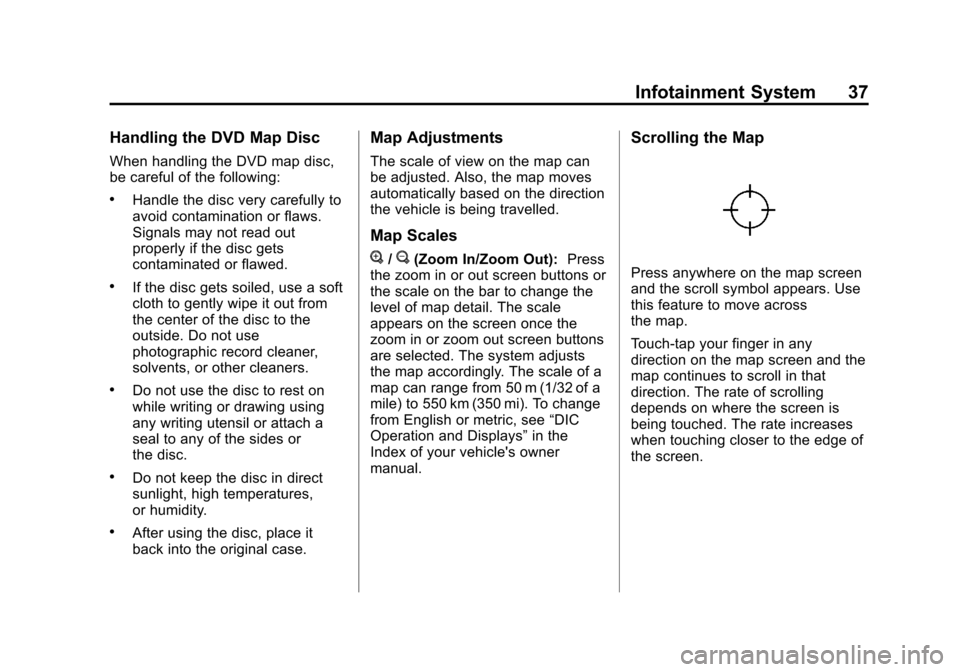
Scrolling the Map
Press anywhere on the map screen
and the scroll symbol appears. Use
this feature to move across
the map.
Touch-tap your finger in any
direction on the map screen and the
map continues to scroll in that
direction. The rate of scrolling
depends on where the screen is
being touched. The rate increases
when touching closer to the edge of
the screen.
Page 48 of 76
Black plate (48,1)Cadillac CTS/CTS-V Navigation System (Includes Mex) - 2012
48 Infotainment System
3. Press the Go screen button,located next to the destination.
The system calculates the route.
4. Select the route preference (Fastest, Shortest, or Easy). The
system highlights the route.
5. Press the Start Guidance screen button. The route is now ready
to be started.
See “Getting Started on Your
Route” later in this section for
more information.
See “Adding Destinations to the
Address Book” in this section.OnStar®Destination Download
(If Equipped)
OnStar®Destination Download
(if equipped) is a service available
for OnStar* subscribers that makes
operating your navigation system
much simpler. It allows subscribers
to request and receive navigation
assistance on-the-go.
Using OnStar®Destination
Download (If Equipped)
Press the blue OnStar button
and an Advisor can locate a
point-of-interest or an address and
download the necessary information
or coordinates to your navigation
system. Once the destination is
downloaded, the navigation system
will search for the address in the
mapping disc's database. When the
address is found, it will be shown on
your navigation system's screen
along with the buttons described
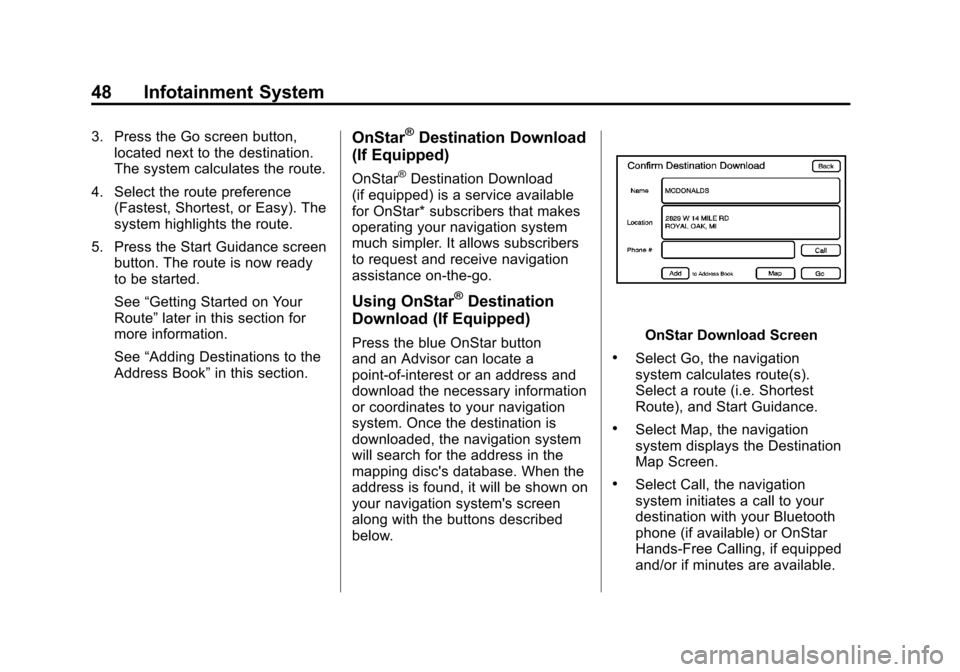
below.OnStar Download Screen
.Select Go, the navigation
system calculates route(s).
Select a route (i.e. Shortest
Route), and Start Guidance.
.Select Map, the navigation
system displays the Destination
Map Screen.
.Select Call, the navigation
system initiates a call to your
destination with your Bluetooth
phone (if available) or OnStar
Hands-Free Calling, if equipped
and/or if minutes are available.
Page 49 of 76
Black plate (49,1)Cadillac CTS/CTS-V Navigation System (Includes Mex) - 2012
Infotainment System 49
.Select Add to Address Book, the
navigation system copies the
downloaded destination to the
address book and displays the
new address book entry.
.Select Back, the navigation
system cancels your OnStar
Destination Download and
returns to the previous screen.
The downloaded address will not
be added to the previous
destinations
Route Guidance Not Active
If an OnStar destination is
downloaded while route guidance is
not active, the navigation system
displays an OnStar Destination
Download Screen and operations
will continue as outlined in the
Using OnStar Destination Download
section:
Route Guidance Active
If OnStar downloads a destination
while route guidance is already
active, the navigation system adds
the downloaded destination as the next waypoint in the existing route.
All features such as Call and Add to
Address Book will be available for
the waypoint. Refer to the section
on Waypoints for more information.
Previous Destinations
Previous OnStar Destination
Downloads are saved under
Previous Destinations in the
navigation system where they can
be accessed or saved to the
address book.
Important Notes regarding OnStar
Destination Download:
.If the navigation system is
turned off when the destination
download is attempted, the
navigation system will
automatically turn on and
display the OnStar Destination
Download Screen. The radio will
remain on after the download
occurs.
.If OnStar downloads a
destination and the address is
not found in the mapping disc’s
database and routing by
coordinates is not available, the
Go and Map buttons gray out
and routing will not be available.
Press the blue OnStar button for
further assistance.
.The Call button grays out when
there is no phone number
available for your destination
and while connected to OnStar.
Map Destination Screen Functions
If the map screen is used to show
destination, it will have map screen
capabilities such as Go, Mark,
Zoom, Scroll, etc. The address is
shown at the top of the screen.
Page 51 of 76
Black plate (51,1)Cadillac CTS/CTS-V Navigation System (Includes Mex) - 2012
Infotainment System 51
q(Reverse Scroll):Press to
reverse scroll to the start point.
r(Fast Reverse Scroll): Press to
fast reverse scroll to the start point.
This button displays once the
reverse scroll button has been
selected.
j(Pause): Press to pause the
route preview, while in reverse, fast
reverse, forward, or fast forward
scroll.
r(Forward Scroll): Press to
forward scroll to the final
destination.
[(Fast Forward Scroll): Press to
fast forward scroll to the final
destination. This button displays
once the forward scroll button has
been selected.
u(Fast Forward Skip): Press to
go to the final destination. Detour
Detour:
Press this screen button
from the Route screen, then select
to detour 2, 5, 10, 20, or 40 km
(1, 3, 5, 15, or 25 miles) around the
current route. Select Entire Route to
detour the entire route. This option
is only available while driving on a
route.
Voice Volume
Press this screen button from the
Route screen to change the volume
of voice prompts. Press the Voice
Guidance, Traffic Event Voice
Prompt, Speech Recognition
Prompt, and Speech Confirmation
Prompt screen buttons to turn voice
prompts on or off for each voice
category. See “Nav”under
Configure Menu on page 55 for
more information. Add Waypoint
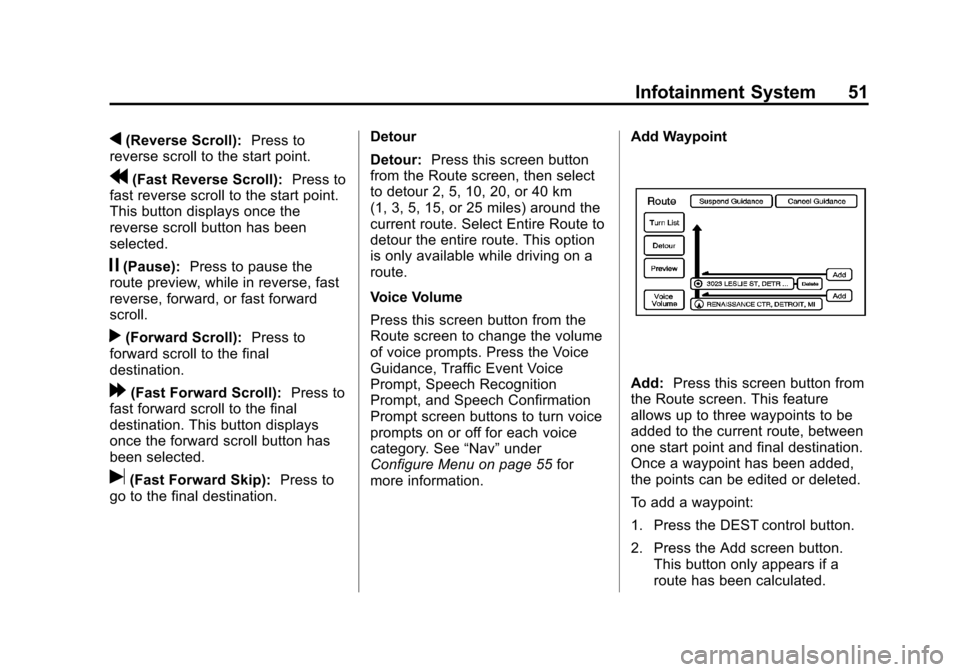
Add:
Press this screen button from
the Route screen. This feature
allows up to three waypoints to be
added to the current route, between
one start point and final destination.
Once a waypoint has been added,
the points can be edited or deleted.
To add a waypoint:
1. Press the DEST control button.
2. Press the Add screen button.
This button only appears if a
route has been calculated.