infotainment CADILLAC CTS 2017 3.G Owner's Manual
[x] Cancel search | Manufacturer: CADILLAC, Model Year: 2017, Model line: CTS, Model: CADILLAC CTS 2017 3.GPages: 352, PDF Size: 3.99 MB
Page 171 of 352

Cadillac CTS/CTS-V Owner Manual (GMNA-Localizing-MidEast-10293089) -
2017 - crc - 6/22/16
170 INFOTAINMENT SYSTEM
.Event Odometer: Displays the
distance driven since the recording
began.
. Drive Mode: Displays the vehicle’s
current drive mode.
Performance Timing:
Displays these vehicle metrics:
. Vehicle Speed: Same as Sport.
. Engine Rotations Per Minute
(RPMs): Same as Sport.
. Transmission State (Current Gear):
Same as Sport.
. 0–100 km/h (0–60 mph), 0–
200 km/h (0–100 mph), 400 m (1/
4 mi), and 0–200–0 km/h (0–100–
0 mph): The timer starts recording
as soon as the vehicle accelerates. As the vehicle passes each speed
and distance milestone, it is
displayed on the overlay.
. Throttle Position: Displays
the percentage of throttle applied
from 0–100%.
. StabiliTrak Active Indicator: The
graphic only displays if the active
handling systems are activated.
Naming Convention
The recorded video file name is stored
as the recorded date and the length of
the recording.
If the recorded session was recorded
while the system was in Valet Mode,
the file name will display the mode,
date, and length of time.
Settings
Touch the Settings button from the
PDR menu to display settings.
Valet Mode Recording : Allows
recording preferences to be selected.
It is recommended that a blank SD
card be used. Available choices are:
. Automatically record when in
Valet Mode: Enables the PDR to
begin recording as soon as the
vehicle is in Valet Mode.
. Overwrite existing data when
memory full: Allows manual
overwriting of previous recordings,
one at a time starting with the
oldest, when the current recording
requires additional storage to
continue.
Page 172 of 352

Cadillac CTS/CTS-V Owner Manual (GMNA-Localizing-MidEast-10293089) -
2017 - crc - 6/22/16
INFOTAINMENT SYSTEM 171
Audio will not record during
Valet Mode.
Record Audio :Allows audio to be
recorded along with video.
Audio will not record during
Valet Mode.
Software Information : Displays PDR
software information and version
numbers.
Toolbox Software : Allows for the
evaluation of the driver and the
vehicle performance on a personal
computer after a recorded event. See
your dealer for details.
Page 174 of 352

Cadillac CTS/CTS-V Owner Manual (GMNA-Localizing-MidEast-10293089) -
2017 - crc - 6/22/16
CLIMATE CONTROLS 173
Climate Touch Screen Controls
1. Outside Temperature Display
2. Driver and Passenger Temperature Controls
3. Fan Control
4. SYNC (Synchronized Temperature)
5. A/C Mode (Air Conditioning)
6. Climate Control Selection (Application Tray Button)
7. Rear (Rear Climate Control Touch Screen)
8. Air Delivery Mode Control Climate Control Touch Screen
The fan, air delivery mode, air
conditioning, driver and passenger
temperatures, and SYNC settings can
be controlled by pressing CLIMATE on
the infotainment home screen or the
climate button in the touch screen
application tray. A selection can then
be made on the front climate control
page displayed. See the infotainment
manual.
Climate Control Status Screen
The climate control status screen
appears briefly when the climate
control buttons on the faceplate are adjusted. The air delivery mode can be
adjusted on the climate control status
screen.
Climate Control Function with Stop/
Start (If Equipped)
The climate control system depends
on other vehicle systems for heat and
power input. The climate control
system will balance stop/start
efficiency with air conditioning
comfort and defog operation. Certain
climate control settings can result in
fewer Auto Stops.
The following are climate control
settings that result in fewer Auto
Stops:
.
The defrost mode.
. High fan speed settings.
. Extreme temperature settings.
For maximum air conditioning
comfort, use the stop/start disable
switch. See “Auto Engine Stop/Start ”
under Starting the Engine 0198.
Page 183 of 352

Cadillac CTS/CTS-V Owner Manual (GMNA-Localizing-MidEast-10293089) -
2017 - crc - 6/22/16
182 DRIVING AND OPERATING
Driving Information
Distracted Driving
Distraction comes in many forms and
can take your focus from the task of
driving. Exercise good judgment and
do not let other activities divert your
attention away from the road. Many
local governments have enacted laws
regarding driver distraction. Become
familiar with the local laws in
your area.
To avoid distracted driving, keep your
eyes on the road, keep your hands on
the steering wheel, and focus your
attention on driving.
.Do not use a phone in demanding
driving situations. Use a
hands-free method to place or
receive necessary phone calls.
. Watch the road. Do not read, take
notes, or look up information on
phones or other electronic devices.
. Designate a front seat passenger
to handle potential distractions. .
Become familiar with vehicle
features before driving, such as
programming favorite radio
stations and adjusting climate
control and seat settings. Program
all trip information into any
navigation device prior to driving.
. Wait until the vehicle is parked to
retrieve items that have fallen to
the floor.
. Stop or park the vehicle to tend to
children.
. Keep pets in an appropriate carrier
or restraint.
. Avoid stressful conversations
while driving, whether with a
passenger or on a cell phone.
{Warning
Taking your eyes off the road too
long or too often could cause a
crash resulting in injury or death.
Focus your attention on driving. See the infotainment manual for
information on that system or the
navigation system, if equipped,
including pairing and using a cell
phone.
Defensive Driving
Defensive driving means
“always
expect the unexpected.” The first step
in driving defensively is to wear the
safety belt. See Safety Belts064.
. Assume that other road users
(pedestrians, bicyclists, and other
drivers) are going to be careless
and make mistakes. Anticipate
what they might do and be ready.
. Allow enough following distance
between you and the driver in
front of you.
. Focus on the task of driving.
Control of a Vehicle
Braking, steering, and accelerating are
important factors in helping to control
a vehicle while driving.
Page 215 of 352

Cadillac CTS/CTS-V Owner Manual (GMNA-Localizing-MidEast-10293089) -
2017 - crc - 6/22/16
214 DRIVING AND OPERATING
Steering (Assist Effort)
Adjusts from a lighter steering feel in
Tour mode to reduced assist in Sport
and Track mode for more
steering feel.
Magnetic Ride Control (if equipped)
Adjusts the shock dampening
firmness from a comfort tune in Tour
mode to an optimized responsiveness
tune in Sport and Track.
Launch Control (V-Series Only)
Available only in Track mode for
maximum“off–the–line ”acceleration
when in Competitive or PTM modes.
Stability Control
. Competitive mode allows less
computer control to permit some
slide and drift and is selected with
the button –only available in
Track mode.
. StabiliTrak can be turned off by
pressing and holding the button
for five seconds. PTM (Performance Traction
Management) (if equipped)
(V-Series Only)
.
Available in Track mode.
. There are five selectable settings.
Driver Mode Customization
The Engine Sound Management,
steering, and suspension drive modes
can be set to the driver’s preference.
See “Driving Mode ”under
“Personalization Menus ”in Vehicle
Personalization 0149.
When in the Track main vehicle mode,
you cannot overwrite the Steering or
Suspension settings. These settings
are designed to interact with the
advanced functions in the Track Mode
and cannot be overwritten.
The selections made in the Driving
Mode menu overwrite the main
vehicle mode selection via the buttons
or switch on the center console. In
order to customize and overwrite, the
driver select one of the three settings
by touching the infotainment display. When in the customization screen for
each system, select one of the
available options:
.
Auto (Follows the mode switch)
. Tour
. Sport
. Track
The default will be to follow the
vehicle mode switch settings, but the
main vehicle mode selection for the
currently selected system can be
overwritten using this menu. The
settings selected in this menu will set
the vehicle behavior in all selected
vehicle modes, and will be retained
over each ignition cycle. They do not
have to be reset each time the vehicle
is started.
Competitive Driving Mode
To select this optional handling mode,
press
Yquickly two times and the
DIC will display the appropriate
message. While in the Competitive
Driving Mode, the traction off light
i
and StabiliTrak OFF lightgwill come
on in the instrument cluster. TCS does
Page 229 of 352

Cadillac CTS/CTS-V Owner Manual (GMNA-Localizing-MidEast-10293089) -
2017 - crc - 6/22/16
228 DRIVING AND OPERATING
Warning (Continued)
.Detect vehicles or objects
outside the area monitored by
the system.
. Work at all driving speeds.
. Warn you or provide you with
enough time to avoid a crash.
. Work under poor visibility or
bad weather conditions.
. Work if the detection sensor
is not cleaned or is covered
by ice, snow, mud, or dirt.
. Work if the detection sensor
is covered up, such as with a
sticker, magnet, or metal
plate.
. Work if the area surrounding
the detection sensor is
damaged or not properly
repaired.
Complete attention is always
required while driving, and you
should be ready to take action and
apply the brakes and/or steer the
vehicle to avoid crashes. Audible or Safety Alert Seat
Some driver assistance features alert
the driver of obstacles by beeping. To
change the volume of the warning
chime, see
“Comfort and Convenience ”
under Vehicle Personalization 0149.
If equipped with the Safety Alert Seat,
the driver seat cushion may provide a
vibrating pulse alert instead of
beeping. To change this, see
“Collision/Detection Systems” under
Vehicle Personalization 0149.
Assistance Systems for
Parking or Backing
If equipped, the Rear Vision Camera
(RVC), Rear Parking Assist (RPA),
Front Parking Assist (FPA), Surround
Vision, Front Vision Camera, Curb
View Camera, Reverse Automatic
Braking (RAB) and Backing Warning
System, Rear Cross Traffic Alert
(RCTA), and Automatic Parking Assist
(APA) may help the driver park or
avoid objects. Always check around
the vehicle when parking or backing. Rear Vision Camera (RVC)
When the vehicle is shifted into
R (Reverse), the RVC displays an
image of the area behind the vehicle
in the infotainment display. The
previous screen displays when the
vehicle is shifted out of R (Reverse)
after a short delay. To return to the
previous screen sooner, press any
button on the infotainment system,
shift into P (Park), or reach a vehicle
speed of 8 km/h (5 mph). Select Front
or Rear Camera on the camera screen
to view the front or rear camera views.
Select Guidance Lines on the camera
screen to enable or disable the
guidance lines.
Page 230 of 352
Cadillac CTS/CTS-V Owner Manual (GMNA-Localizing-MidEast-10293089) -
2017 - crc - 6/22/16
DRIVING AND OPERATING 229
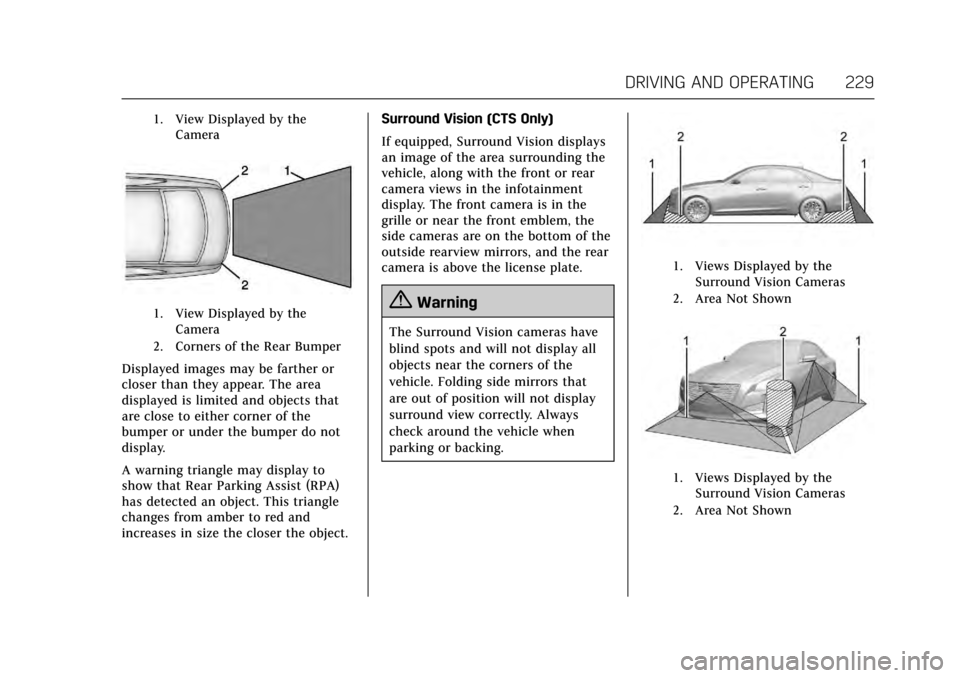
1. View Displayed by theCamera
1. View Displayed by theCamera
2. Corners of the Rear Bumper
Displayed images may be farther or
closer than they appear. The area
displayed is limited and objects that
are close to either corner of the
bumper or under the bumper do not
display.
A warning triangle may display to
show that Rear Parking Assist (RPA)
has detected an object. This triangle
changes from amber to red and
increases in size the closer the object. Surround Vision (CTS Only)
If equipped, Surround Vision displays
an image of the area surrounding the
vehicle, along with the front or rear
camera views in the infotainment
display. The front camera is in the
grille or near the front emblem, the
side cameras are on the bottom of the
outside rearview mirrors, and the rear
camera is above the license plate.
{Warning
The Surround Vision cameras have
blind spots and will not display all
objects near the corners of the
vehicle. Folding side mirrors that
are out of position will not display
surround view correctly. Always
check around the vehicle when
parking or backing.
1. Views Displayed by the
Surround Vision Cameras
2. Area Not Shown
1. Views Displayed by the Surround Vision Cameras
2. Area Not Shown
Page 231 of 352

Cadillac CTS/CTS-V Owner Manual (GMNA-Localizing-MidEast-10293089) -
2017 - crc - 6/22/16
230 DRIVING AND OPERATING
Front Vision Camera (CTS Only)
If equipped, a view of the area in front
of the vehicle displays in the
infotainment display. The view
displays after shifting from R (Reverse)
to a forward gear, or by pressing
CAMERA in the center stack, and
when the vehicle is moving forward
slower than 8 km/h (5 mph).
If equipped, the front view camera
also displays when the Parking Assist
system detects an object within
30 cm (12 in).Curb View Camera (CTS-V
Series Only)
If equipped, a view of the area in front
of the vehicle displays in the center
stack. The display shows a top down
view on the top of the screen and left
and right front camera images on the
bottom. The front views display after
shifting from R (Reverse) to a forward
gear, or by pressing CAMERA in the
center stack, and when the vehicle is
moving forward slower than 8 km/h
(5 mph). If equipped, the front camera
images also display when the Parking
Assist system detects an object within
60 cm (24 in). The front cameras are
on both sides of the front fascia.
{Warning
The camera(s) do not display
children, pedestrians, bicyclists,
crossing traffic, animals, or any
other object outside of the cameras’
field of view, below the bumper,
or under the vehicle. Shown
distances may be different from
actual distances. Do not drive or
park the vehicle using only these
camera(s). Always check behind and
around the vehicle before driving.
Failure to use proper care may
result in injury, death, or vehicle
damage.
Parking Assist
With RPA, and if equipped with FPA,
as the vehicle moves at speeds of less
than 8 km/h (5 mph) the sensors on
the bumpers may detect objects up to
2.5 m (8 ft) behind and 1.2 m (4 ft) in
front of the vehicle within a zone
25 cm (10 in) high off the ground and
below bumper level. These detection
distances may be shorter during
warmer or humid weather. Blocked
Page 233 of 352

Cadillac CTS/CTS-V Owner Manual (GMNA-Localizing-MidEast-10293089) -
2017 - crc - 6/22/16
232 DRIVING AND OPERATING
Warning (Continued)
far from the vehicle. In some
situations, such as at higher
backing speeds, there may not be
enough time for the short, sharp
application of the vehicle brake
system to occur. To prevent injury,
death, or vehicle damage, even with
the Backing Warning System,
always check the area around the
vehicle and check all mirrors before
backing.
When the vehicle is in R (Reverse),
if the system detects the vehicle is
backing too fast to avoid a crash with
a detected object behind your vehicle
in your path, it may automatically
brake hard to a stop to help avoid or
reduce the harm caused by a backing
crash.
{Warning
RAB may not avoid many types of
backing crashes. Do not wait for the
automatic braking to apply. This
system is not designed to replace
driver braking and only works in
R (Reverse) when an object is
detected directly behind the vehicle.
It may not brake or stop in time to
avoid a crash. It will not brake for
objects when the vehicle is moving
at very low speeds. It does not
detect children, pedestrians,
bicyclists, animals, or objects below
the bumper or that are too close or
too far from the vehicle. To prevent
injury, death, or vehicle damage,
even with RAB, always check the
area around the vehicle before and
while backing.
Pressing the brake pedal after the
vehicle comes to a stop will release
the Reverse Automatic Braking. If the
brake pedal is not pressed soon after
the stop, the electric parking brake
may be set. When it is safe, press the accelerator pedal firmly at any time to
override the Reverse Automatic
Braking.
{Warning
There may be instances where
unexpected or undesired automatic
braking occurs. If this happens,
either press the brake pedal or
firmly press the accelerator pedal to
release the brakes from the RAB
system. Before releasing the brakes,
check the RVC screen and check the
area around the vehicle to make
sure it is safe to proceed.
Rear Cross Traffic Alert (RCTA)
If equipped, RCTA displays a red
warning triangle with a left or right
pointing arrow on the infotainment
display to warn of traffic coming from
the left or right. This system detects
objects coming from up to 20 m (65 ft)
from the left or right side of the
vehicle. When an object is detected,
either three beeps sound from the left
or right or three Safety Alert Seat
Page 341 of 352
Cadillac CTS/CTS-V Owner Manual (GMNA-Localizing-MidEast-10293089) -
2017 - crc - 6/22/16
340 CUSTOMER INFORMATION
Customer
Information
Vehicle Data Recording and
Privacy
Vehicle Data Recording andPrivacy . . . . . . . . . . . . . . . . . . . . . . . . . . . 340
Event Data Recorders . . . . . . . . . . . . 340
Infotainment System . . . . . . . . . . . . . 341
Vehicle Data Recording
and Privacy
The vehicle has a number of
computers that record information
about the vehicle’s performance and
how it is driven. For example, the
vehicle uses computer modules to
monitor and control engine and
transmission performance, to monitor
the conditions for airbag deployment
and deploy them in a crash, and,
if equipped, to provide antilock
braking to help the driver control the
vehicle. These modules may store data
to help the dealer technician service
the vehicle. Some modules may also
store data about how the vehicle is
operated, such as rate of fuel
consumption or average speed. These
modules may retain personal
preferences, such as radio presets, seat
positions, and temperature settings.
Event Data Recorders
This vehicle is equipped with an event
data recorder (EDR). The main
purpose of an EDR is to record, in
certain crash or near crash-like situations, such as an airbag
deployment or hitting a road obstacle,
data that will assist in understanding
how a vehicle's systems performed.
The EDR is designed to record data
related to vehicle dynamics and safety
systems for a short period of time,
typically 30 seconds or less. The EDR
in this vehicle is designed to record
such data as:
.
How various systems in your
vehicle were operating.
. Whether or not the driver and
passenger safety belts were
buckled/fastened;
. How far (if at all) the driver was
depressing the accelerator and/or
brake pedal; and
. How fast the vehicle was traveling.
These data can help provide a better
understanding of the circumstances in
which crashes and injuries occur.
Note
EDR data are recorded by your vehicle
only if a non-trivial crash situation
occurs. No data are recorded by the
EDR under normal driving conditions
and no personal data (e.g., name,