service CADILLAC DTS 2009 1.G Workshop Manual
[x] Cancel search | Manufacturer: CADILLAC, Model Year: 2009, Model line: DTS, Model: CADILLAC DTS 2009 1.GPages: 462, PDF Size: 2.46 MB
Page 222 of 462

SERVICE SUSPENSION SYS (System)
This message displays when the magnetic ride
control or automatic leveling control system is not
operating properly. Have your vehicle serviced by
your dealer/retailer.
SERVICE THEFT DETERRENT SYSTEM
This message displays when there is a problem with
the theft-deterrent system programmed in the key. A fault
has been detected in the system which means that the
system is disabled and it is not protecting the vehicle.
The vehicle usually restarts; however, you may want to
take the vehicle to your dealer/retailer before turning off
the engine. SeePASS-Key
®III+ Electronic Immobilizer
Operation on page 2-23for more information.
SERVICE TIRE MONITOR SYSTEM
On vehicles with the Tire Pressure Monitor System
(TPMS), this message displays if a part on the TPMS
is not working properly. The tire pressure light
also ashes and then remains on during the same
ignition cycle. SeeTire Pressure Light on page 3-60.
Several conditions may cause this message to appear.
SeeTire Pressure Monitor Operation on page 5-61for
more information. If the warning comes on and stays
on, there may be a problem with the TPMS, see your
dealer/retailer.
SERVICE TRACTION CONTROL
This message displays when there is a problem with the
Traction Control System (TCS). When this message is
displayed, the system will not limit wheel spin. Adjust your
driving accordingly. See your dealer/retailer for service.
SeeTraction Control System (TCS) on page 4-6for more
information.
SERVICE TRANSMISSION
This message displays when there is a problem with the
vehicle’s transmission. Have your vehicle serviced by
your dealer/retailer.
SERVICE VEHICLE SOON
This message displays when a non-emissions related
malfunction occurs. Have your vehicle serviced by your
dealer/retailer as soon as possible.
SET SPD (Speed)
If your vehicle has Adaptive Cruise Control (ACC),
this message displays whenever the cruise control is
set. First, the “CRUISE SET TO XXX MPH (km/h)”
message appears. After a few seconds, the “CRUISE
SET TO XXX MPH (km/h)” message clears and the
message “SET SPD XX” displays at the bottom of the
DIC. See “CRUISE SET TO XXX MPH (km/h)” earlier in
this section andAdaptive Cruise Control on page 3-19
for more information.
3-82
Page 223 of 462

SIDE BLIND ZONE ALERT
SYSTEM OFF
If your vehicle has the Side Blind Zone Alert (SBZA)
system, this message displays when the SBZA system
has been turned off. SeeSide Blind Zone Alert (SBZA) on
page 2-45andDIC Operation and Displays on page 3-68
for more information.
SIDE BLIND ZONE SYSTEM
UNAVAILABLE
If your vehicle has the Side Blind Zone Alert (SBZA)
system, this message displays when the SBZA system is
disabled because the sensor is blocked and cannot
detect vehicles in your blind zone. The sensor may be
blocked by mud, dirt, snow, ice, or slush. This message
may also display during heavy rain or due to road spray.
It may also come on when driving in isolated areas with
no guardrails, trees, or road signs and light traffic. Your
vehicle does not need service. For cleaning instructions,
seeWashing Your Vehicle on page 5-90. SeeSide Blind
Zone Alert (SBZA) on page 2-45for more information.
SPEED LIMIT XXX MPH (km/h)
This message displays when the Speed Alert has been
turned on through the DIC Information Menu and the
vehicle is at or above the speed limit. SeeDIC Operation
and Displays on page 3-68for more information.
SPEED LIMITED TO XXX MPH (km/h)
This message displays when your vehicle speed
is limited to 80 mph (128 km/h) because the vehicle
detects a problem in the speed variable assist steering,
magnetic ride control, or automatic leveling control
systems. Have your vehicle serviced by your
dealer/retailer.
STABILITRAK NOT READY
If your vehicle has StabiliTrak, this message may
display and the Traction Control System and StabiliTrak
Warning Light on the instrument panel cluster may
be on after rst driving the vehicle and exceeding
19 mph (30 km/h) for 30 seconds. The StabiliTrak
system is not functional until the light has turned off.
SeeStabiliTrak
®System on page 4-6for more
information.
3-83
Page 224 of 462
STARTING DISABLED SERVICE
THROTTLE
This message displays when your vehicle’s throttle
system is not functioning properly. Have your vehicle
serviced by your dealer/retailer.
THEFT ATTEMPTED
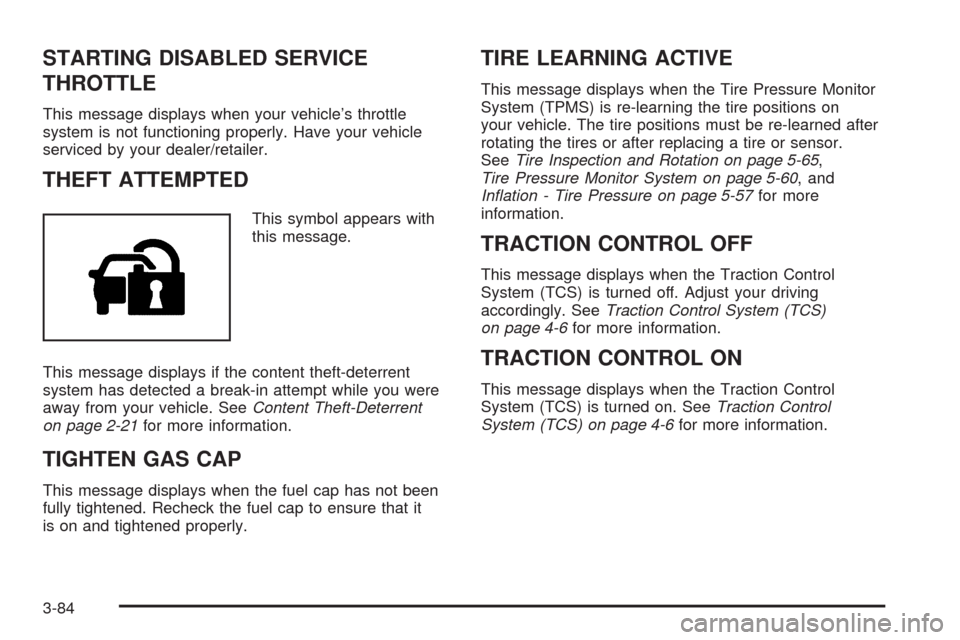
This symbol appears with
this message.
This message displays if the content theft-deterrent
system has detected a break-in attempt while you were
away from your vehicle. SeeContent Theft-Deterrent
on page 2-21for more information.
TIGHTEN GAS CAP
This message displays when the fuel cap has not been
fully tightened. Recheck the fuel cap to ensure that it
is on and tightened properly.
TIRE LEARNING ACTIVE
This message displays when the Tire Pressure Monitor
System (TPMS) is re-learning the tire positions on
your vehicle. The tire positions must be re-learned after
rotating the tires or after replacing a tire or sensor.
SeeTire Inspection and Rotation on page 5-65,
Tire Pressure Monitor System on page 5-60, and
Inflation - Tire Pressure on page 5-57for more
information.
TRACTION CONTROL OFF
This message displays when the Traction Control
System (TCS) is turned off. Adjust your driving
accordingly. SeeTraction Control System (TCS)
on page 4-6for more information.
TRACTION CONTROL ON
This message displays when the Traction Control
System (TCS) is turned on. SeeTraction Control
System (TCS) on page 4-6for more information.
3-84
Page 241 of 462
Finding a Station
BAND:Press to switch between AM, FM, or XM™.
The selection displays.
a(Tune):Turn to select radio stations.
©SEEK¨:Press the arrows to go to the next or to
the previous station and stay there.
To scan stations, press and hold either arrow for
three seconds until a beep sounds. The radio goes
to a station, plays for a few seconds, then goes to the
next station. Press either arrow again to stop scanning.
The radio only seeks and scans stations with a
strong signal that are in the selected band.
4(Information) (XM™ Satellite Radio Service,
MP3/WMA, and RDS Features):Press this button to
display additional text information related to the current
FM-RDS or XM station, or MP3/WMA song. A choice of
additional information such as: Channel, Song, Artist,
CAT (category) can display. Continue pressing the
information button to highlight the desired label, or press
the pushbutton positioned under any one of the tabs and
the information about that tab displays.
When information is not available, No Info displays.
Storing a Radio Station as a Favorite
Drivers are encouraged to set up their radio station
favorites while the vehicle is in P (Park). Tune to
favorite stations using the presets, favorites button,
and steering wheel controls, if the vehicle has this
feature. SeeDefensive Driving on page 4-2.
FAV (Favorites):A maximum of 36 stations can be
programmed as favorites using the six pushbuttons
positioned below the radio station frequency tabs and
by using the radio favorites page button. Press the
FAV button to go through up to six pages of favorites,
each having six favorite stations available per page.
Each page of favorites can contain any combination of
AM, FM, or XM stations. To store a station as a favorite:
1. Tune to the desired radio station.
2. Press the FAV button to display the page where
you want the station stored.
3. Press and hold one of the six pushbuttons until a
beep sounds. When that pushbutton is pressed
and released, the station that was set, returns.
4. Repeat the steps for each pushbutton radio station
you want stored as a favorite.
3-101
Page 245 of 462

Undesired XM categories can be removed through the
setup menu. To remove an undesired category:
1. Press the MENU button to display the radio
setup menu.
2. Press the pushbutton located below the
XM CAT tab.
3. Turn the
aknob to display the category to be
removed.
4. Press the pushbutton located under the Remove
tab until the category name along with the word
Removed displays.
5. Repeat the steps to remove more categories.
Removed categories can be restored by pressing
the pushbutton under the Add label when a removed
category is displayed or by pressing the pushbutton
under the Restore All label.
The radio does not let you remove or add categories
while the vehicle is moving faster than 5 mph (8 km/h).
The CAT button also toggles between compressed
and uncompressed audio when a mixed disc is present.
See “Compressed Audio” later in this section.
Radio Message
Locked:This message displays when the
THEFTLOCK®system has locked up the radio.
Take the vehicle to your dealer/retailer for service.
If any error occurs repeatedly or if an error cannot be
corrected, contact your dealer/retailer.
XM™ Satellite Radio Service
XM is a satellite radio service that is based in the
48 contiguous United States and 10 Canadian provinces.
XM Satellite Radio has a wide variety of programming
and commercial-free music, coast-to-coast, and in
digital-quality sound. During your trial or when you
subscribe, you will get unlimited access to XM Radio
Online for when you are not in the vehicle. A service
fee is required to receive the XM service. For more
information, contact XM at xmradio.com or call
1-800-929-2100 in the U.S. and xmradio.ca or
call 1-877-438-9677 in Canada.
Radio Messages for XM™ Only
SeeXM Radio Messages on page 3-115later in this
section for further detail.
3-105
Page 255 of 462

BAND:Press to listen to the radio when a CD is
playing. The inactive CD remains inside the radio for
future listening.
CD/AUX (CD/Auxiliary):Press to play a CD when
listening to the radio. The CD icon and a message
showing disc and/or track number displays when a
CD is in the player. Press this button again and
the system automatically searches for an auxiliary
input device such as a portable audio player. If a
portable audio player is not connected, “No Aux
Input Device Found” displays.
XM Radio Messages
XL (Explicit Language Channels):These channels,
or any others, can be blocked at a customer’s request,
by calling 1-800-852-XMXM (9696).
XM Updating:The encryption code in the receiver is
being updated, and no action is required. This process
should take no longer than 30 seconds.
No XM Signal:The system is functioning correctly,
but the vehicle is in a location that is blocking the XM™
signal. When the vehicle is moved into an open area,
the signal should return.Loading XM:The audio system is acquiring and
processing audio and text data. No action is needed.
This message should disappear shortly.
Channel Off Air:This channel is not currently in
service. Tune in to another channel.
Channel Unauth:This channel is blocked or cannot be
received with your XM Subscription package.
Channel Unavail:This previously assigned channel is
no longer assigned. Tune to another station. If this station
was one of the presets, choose another station for that
preset button.
No Artist Info:No artist information is available at this
time on this channel. The system is working properly.
No Title Info:No song title information is available
at this time on this channel. The system is working
properly.
No CAT Info:No category information is available at
this time on this channel. The system is working properly.
No Information:No text or informational messages are
available at this time on this channel. The system is
working properly.
3-115
Page 256 of 462

CAT Not Found:There are no channels available for
the selected category. The system is working properly.
XM Theftlocked:The XM receiver in the vehicle could
have previously been in another vehicle. For security
purposes, XM receivers cannot be swapped between
vehicles. If this message is received after having the
vehicle serviced, check with your dealer/retailer.
XM Radio ID:If tuned to channel 0, this message
alternates with the XM™ Radio 8 digit radio ID label.
This label is needed to activate the service.
Unknown:If this message is received when tuned to
channel 0, there could be a receiver fault. Consult
with your dealer/retailer.
Check XM Receivr:If this message does not clear
within a short period of time, the receiver could have
a fault. Consult with your dealer/retailer.
XM Not Available:If this message does not clear
within a short period of time, the receiver could have
a fault. Consult with your dealer/retailer.
Navigation/Radio System
For vehicles with a navigation radio system, see the
separate Navigation System manual.
Bluetooth®
Vehicles with a Bluetooth system can use a Bluetooth
capable cell phone with a Hands Free Prole to make
and receive phone calls. The system can be used while
the key is in ON/RUN or ACC/ACCESSORY position.
The range of the Bluetooth system can be up to 30 ft.
(9.1 m). Not all phones support all functions, and not
all phones are guaranteed to work with the in-vehicle
Bluetooth system. See gm.com/bluetooth for more
information on compatible phones.
Voice Recognition
The Bluetooth system uses voice recognition to interpret
voice commands to dial phone numbers and name tags.
Noise:Keep interior noise levels to a minimum.
The system may not recognize voice commands if
there is too much background noise.
When to Speak:A short tone sounds after the system
responds indicating when it is waiting for a voice
command. Wait until the tone and then speak.
How to Speak:Speak clearly in a calm and natural
voice.
3-116
Page 263 of 462
3. Say the name tag of the person to call.
If the system clearly recognizes the name tag it
responds with “OK, calling,
dials the number.
If the system is unsure it recognizes the right
name tag, it conrms the name tag followed by
a tone. If the name tag is correct, say “Yes”. The
system responds with “OK, calling,
and dials the number. If the name tag is not
correct, say “No”. The system will ask for the
name tag to be re-entered.
Once connected, the person called will be heard
through the audio speakers.
Using the Re-dial Command
1. Press and holdbgfor two seconds. The system
responds with “Ready” followed by a tone.
2. After the tone, say “Re-dial”. The system responds
with “Re-dial using
last number called from the connected Bluetooth
phone.
Once connected, the person called will be heard
through the audio speakers.
Receiving a Call
When an incoming call is received, the audio system
mutes and a ring tone is heard in the vehicle.
Pressbgand begin speaking to answer the call.
Presscxto ignore a call.
Call Waiting
Call waiting must be supported on the Bluetooth phone
and enabled by the wireless service carrier to work.
Pressbgto answer an incoming call when
another call is active. The original call is placed
on hold.
Pressbgagain to return to the original call.
To ignore the incoming call, continue with the
original call with no action.
Presscxto disconnect the current call and
switch to the call on hold.
3-123
Page 264 of 462
Three-Way Calling
Three-Way Calling must be supported on the
Bluetooth phone and enabled by the wireless service
carrier to work.
1. While on a call press
bg. The system responds
with “Ready” followed by a tone.
2. Say “Three-way call”. The system responds with
“Three-way call, please say dial or call”.
3. Use the dial or call command to dial the number of
the third party to be called.
4. Once the call is connected, press
bgto link all
the callers together.
Ending a Call
Presscxto end a call.
Muting a Call
During a call, all sounds from inside the vehicle can
be muted so that the person on the other end of the
call cannot hear them.
To Mute a call
1. Pressbg. The system responds with “Ready”
followed by a tone.
2. Say “Mute Call”. The system responds with
“Call muted”.
To Cancel Mute
1. Pressbg. The system responds with “Ready”
followed by a tone.
2. After the tone, say “Mute Call”. The system
responds with “Resuming call”.
Transferring a Call
Audio can be transferred between the in-vehicle
Bluetooth system and the cell phone.
To Transfer Audio to the Cell Phone
During a call with the audio in the vehicle:
1. Press
bg. The system responds with “Ready”
followed by a tone.
2. Say “Transfer Call.” The system responds with
“Transferring call” and the audio will switch from
the vehicle to the cell phone.
3-124
Page 266 of 462
Sending a Stored Name Tag During a Call
1. Pressbg. The system responds with “Ready”
followed by a tone.
2. Say “Send name tag.” The system responds with
“Say a name tag to send tones” followed by a tone.
3. Say the name tag to send.
If the system clearly recognizes the name tag it
responds with “OK, Sending
the dial tones are sent and the call continues.
If the system is not sure it recognized the
name tag properly, it responds “Dial
Please say yes or no?” followed by a tone.
If the name tag is correct, say “Yes”. The system
responds with “OK, Sending
the dial tones are sent and the call continues.
Clearing the System
Unless information is deleted out of the in-vehicle
Bluetooth system, it will be retained indenitely.
This includes all saved name tags in the phonebook
and phone pairing information. For information on
how to delete this information, see the above sections
on Deleting a Paired Phone and Deleting Name Tags.
Other Information
The Bluetooth®word mark and logos are owned by the
Bluetooth®SIG, Inc. and any use of such marks by
General Motors is under license. Other trademarks
and trade names are those of their respective owners.
This device complies with Part 15 of the FCC Rules.
Operation is subject to the following two conditions:
1. This device may not cause harmful interference.
2. This device must accept any interference received,
including interference that may cause undesired
operation.
This device complies with RSS-210 of Industry Canada.
Operation is subject to the following two conditions:
1. This device may not cause interference.
2. This device must accept any interference received,
including interference that may cause undesired
operation of the device.
Changes or modications to this system by other than
an authorized service facility could void authorization to
use this equipment.
3-126