radio CADILLAC DTS 2010 1.G User Guide
[x] Cancel search | Manufacturer: CADILLAC, Model Year: 2010, Model line: DTS, Model: CADILLAC DTS 2010 1.GPages: 480, PDF Size: 17.56 MB
Page 156 of 480

This symbol will change to amber and flash and threebeeps will sound if you cross a detected lane markingwithout using the turn signal.
If the LDW symbol does not appear, LDW is notcurrently operating and will not warn you.
To change the volume of the warning chime, see ChimeVolume underDIC Vehicle Customization on page 4-80for more information.
When the System Does Not Seem To Work
Properly
The LDW symbol will not appear when the system ishaving difficulty seeing the lines on the road or ifthe view of the camera on the windshield is blockedwith mud, dirt, snow, ice, or slush, if the windshield isdamaged, or when weather limits visibility, such as whiledriving in fog, rain, or snow conditions. This is normaloperation, the vehicle does not need service. Forcleaning instructions, seeWashing Your Vehicle onpage 6-95.
LDW warnings may occasionally occur due to tar marks,shadows, cracks in the road, or other roadimperfections. This is normal system operation, thevehicle does not need service.
LDW Error Message
SERVICE LANE DEPARTURE SYSTEM:Thismessage may appear in the DIC to indicate that LDW isnot working properly. If this message remains onafter continued driving, the system needs service.Take your vehicle to your dealer/retailer.
LANE DEPARTURE SYSTEM UNAVAILABLE:Thismessage may appear in the DIC if LDW does notactivate due to a temporary condition.
Universal Home Remote
System
SeeRadio Frequency Statement on page 8-20forinformation regarding Part 15 of the FederalCommunications Commission (FCC) Rules andRSS-210/211 of Industry and Science Canada.
3-48
Page 168 of 480

Charging System Light . . . . . . . . . . . . . . . . . . . . . . . . . . . . . . . . . .4-52Brake System Warning Light . . . . . . . . . . . . . . . . . . . . . . . . . .4-52Antilock Brake System (ABS) Warning Light . . . . .4-53Traction Control System (TCS) Warning Light . . . . . .4-54StabiliTrak®Indicator Light . . . . . . . . . . . . . . . . . . . . . . . . . . . . .4-54Lane Departure Warning (LDW) Light . . . . . . . . . . . . . .4-55Engine Coolant Temperature Warning Light . . . . . .4-55Engine Coolant Temperature Gage . . . . . . . . . . . . . . . . . .4-56Tire Pressure Light . . . . . . . . . . . . . . . . . . . . . . . . . . . . . . . . . . . . . . .4-56Malfunction Indicator Lamp . . . . . . . . . . . . . . . . . . . . . . . . . . . . .4-57Oil Pressure Light . . . . . . . . . . . . . . . . . . . . . . . . . . . . . . . . . . . . . . . . .4-59Security Light . . . . . . . . . . . . . . . . . . . . . . . . . . . . . . . . . . . . . . . . . . . . . . .4-60Fog Lamp Light . . . . . . . . . . . . . . . . . . . . . . . . . . . . . . . . . . . . . . . . . . . .4-60Lights On Reminder . . . . . . . . . . . . . . . . . . . . . . . . . . . . . . . . . . . . . .4-60Cruise Control Light . . . . . . . . . . . . . . . . . . . . . . . . . . . . . . . . . . . . . .4-60Highbeam On Light . . . . . . . . . . . . . . . . . . . . . . . . . . . . . . . . . . . . . . .4-61Fuel Gage . . . . . . . . . . . . . . . . . . . . . . . . . . . . . . . . . . . . . . . . . . . . . . . . . . .4-61
Driver Information Center (DIC). . . . . . . . . . . . . . . . . . . . . . .4-61DIC Operation and Displays . . . . . . . . . . . . . . . . . . . . . . . . . . .4-62DIC Warnings and Messages . . . . . . . . . . . . . . . . . . . . . . . . .4-67DIC Vehicle Customization . . . . . . . . . . . . . . . . . . . . . . . . . . . . .4-80
Audio System(s). . . . . . . . . . . . . . . . . . . . . . . . . . . . . . . . . . . . . . . . . . . . .4-88Setting the Clock . . . . . . . . . . . . . . . . . . . . . . . . . . . . . . . . . . . . . . . . . .4-89Radio(s) (MP3) . . . . . . . . . . . . . . . . . . . . . . . . . . . . . . . . . . . . . . . . . . . . .4-92Using an MP3 . . . . . . . . . . . . . . . . . . . . . . . . . . . . . . . . . . . . . . . . . . . .4-102XM Radio Messages . . . . . . . . . . . . . . . . . . . . . . . . . . . . . . . . . . .4-107Navigation/Radio System . . . . . . . . . . . . . . . . . . . . . . . . . . . . . .4-108Bluetooth®. . . . . . . . . . . . . . . . . . . . . . . . . . . . . . . . . . . . . . . . . . . . . . . . .4-108Theft-Deterrent Feature . . . . . . . . . . . . . . . . . . . . . . . . . . . . . . . .4-119Audio Steering Wheel Controls . . . . . . . . . . . . . . . . . . . . . .4-119Radio Reception . . . . . . . . . . . . . . . . . . . . . . . . . . . . . . . . . . . . . . . . .4-120Backglass Antenna . . . . . . . . . . . . . . . . . . . . . . . . . . . . . . . . . . . . . .4-121XM™ Satellite Radio Antenna System . . . . . . . . . . . .4-121
Section 4 Instrument Panel
4-2
Page 172 of 480

Turn Signal On Chime
If the turn signal is left on, a warning chime sounds andthe Driver Information Center (DIC) will display TURNSIGNAL ON after driving about a mile as a reminder toturn it off. SeeDIC Warnings and Messages onpage 4-67.
Headlamp High/Low-Beam Changer
Push forward to change the headlamps from lowbeam to high. Pull the lever back and then release it tochange from high beam to low.
This light on the instrumentpanel cluster will be on,indicating high-beamusage.
Forward Collision Alert (FCA)
System
If your vehicle has this feature, be sure to read thisentire section before using it.
The system operates on a radio frequency subject toFederal Communications Commission (FCC) Rules andwith Industry Canada.
This device complies with Part 15 of the FCC Rules.Operation is subject to the following two conditions:
1. This device may not cause interference.
2. This device must accept any interference received,including interference that may cause undesiredoperation of the device.
This device complies with RSS-210 of Industry Canada.Operation is subject to the following two conditions:
1. This device may not cause interference.
2. This device must accept any interference received,including interference that may cause undesiredoperation of the device.
Changes or modifications to this system by other thanan authorized service facility could void authorization touse this equipment.
4-6
Page 181 of 480

Using Cruise Control on Hills
How well your cruise control works on hills dependsupon the vehicle speed, load, and the steepness of thehills. When going up steep hills, you might have tostep on the accelerator pedal to maintain the vehicle’sspeed. When going downhill, you might have to brake orshift to a lower gear to keep the vehicle’s speeddown. Applying the brake or shifting into a lower gearends cruise control. If you need to apply the brakeor shift to a lower gear due to the grade of the downhillslope, you might not want to attempt to use thecruise control feature.
Ending Cruise Control
To turn off the cruise control, step lightly on the brakepedal, or press the cancel button on the steering wheel.
Erasing Speed Memory
The cruise control set speed memory is erased whenthe cruise control or the ignition is turned off.
Adaptive Cruise Control
For vehicles with this feature, be sure to read this entiresection before using it.
The system operates on a radio frequency subject toFederal Communications Commission (FCC) Rules andwith Industry Canada.
This device complies with Part 15 of the FCC Rules.Operation is subject to the following two conditions:
1. This device may not cause interference.
2. This device must accept any interference received,including interference that may cause undesiredoperation of the device.
This device complies with RSS-210 of Industry Canada.Operation is subject to the following two conditions:
1. This device may not cause interference.
2. This device must accept any interference received,including interference that may cause undesiredoperation of the device.
Changes or modifications to this system by other thanan authorized service facility could void authorization touse this equipment.
Adaptive Cruise Control (ACC) is an enhancement totraditional cruise control. It allows you to keep cruisecontrol engaged in moderate traffic conditions withouthaving to constantly reset your cruise control.ACC uses radar to detect a vehicle directly ahead inyour path, within a distance of 100 m (330 ft), andoperates at speeds above 40 km/h (25 mph). When it isengaged by the driver, the system can apply limitedbraking or acceleration of the vehicle automatically tomaintain a selected follow distance to the vehicle ahead.Braking is limited to 2.45 m/sec2 (0.25 g’s) ofdeceleration, which is comparable to moderate
4-15
Page 201 of 480

Follow the proper installation instructions that areincluded with any electrical equipment you install.
Notice:Improper use of the power outlet cancause damage not covered by the vehicle warranty.Do not hang any type of accessory or accessorybracket from the plug because the power outlets aredesigned for accessory power plugs only.
Ashtray(s)
Notice:If papers, pins, or other flammable itemsare put in the ashtray, hot cigarettes or othersmoking materials could ignite them and possiblydamage the vehicle. Never put flammable itemsin the ashtray.
Front Ashtray
With the full floor console, the ashtray is located belowthe climate control system. To open, push down andthen release the cover. To clean the ashtray, push thelip of the ashtray to remove it. Push the oppositeside of the ashtray’s lip to install.
For vehicles without the floor console, pull the traylocated below the climate controls to reveal the ashtray.The ashtray can be removed by pulling on the ledgelocated at the top of the ashtray.
Rear Ashtray
The ashtrays are located on the door armrests. To usean ashtray, lift the lid.
Analog Clock
The analog clock is located on the instrument panelabove the radio. The clock is not connected withany other vehicle system and runs by itself. To adjustthe clock:
1. Locate the adjustment button directly below theclock face.
2. Push and hold the adjustment button to advancethe clock hands. Holding the button down willcause the clock to advance faster. Release thebutton before reaching the desired time.
3. Push and release the button to increase the time byone minute increments until the desired time isreached.
4-35
Page 218 of 480
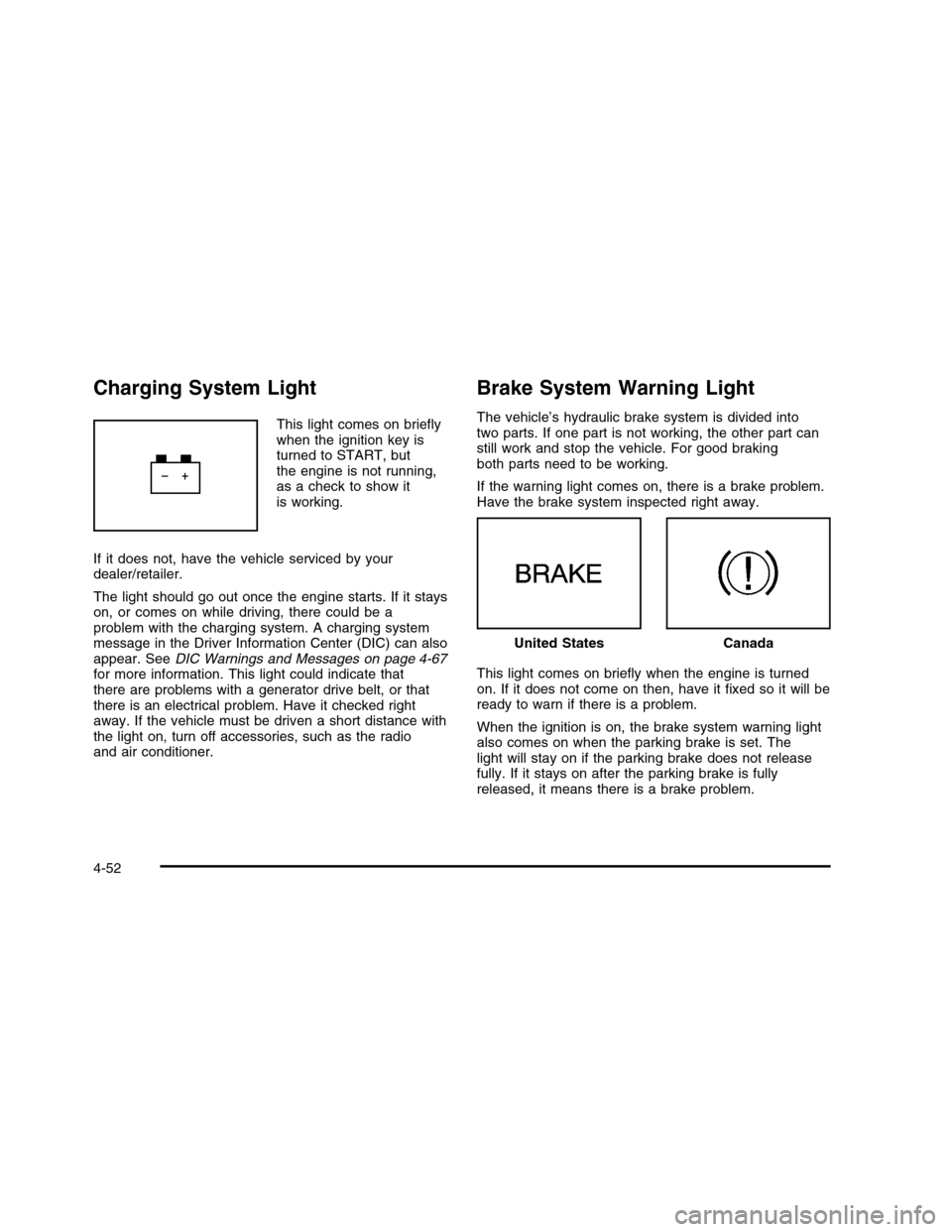
Charging System Light
This light comes on brieflywhen the ignition key isturned to START, butthe engine is not running,as a check to show itis working.
If it does not, have the vehicle serviced by yourdealer/retailer.
The light should go out once the engine starts. If it stayson, or comes on while driving, there could be aproblem with the charging system. A charging systemmessage in the Driver Information Center (DIC) can alsoappear. SeeDIC Warnings and Messages on page 4-67for more information. This light could indicate thatthere are problems with a generator drive belt, or thatthere is an electrical problem. Have it checked rightaway. If the vehicle must be driven a short distance withthe light on, turn off accessories, such as the radioand air conditioner.
Brake System Warning Light
The vehicle’s hydraulic brake system is divided intotwo parts. If one part is not working, the other part canstill work and stop the vehicle. For good brakingboth parts need to be working.
If the warning light comes on, there is a brake problem.Have the brake system inspected right away.
This light comes on briefly when the engine is turnedon. If it does not come on then, have it fixed so it will beready to warn if there is a problem.
When the ignition is on, the brake system warning lightalso comes on when the parking brake is set. Thelight will stay on if the parking brake does not releasefully. If it stays on after the parking brake is fullyreleased, it means there is a brake problem.
United StatesCanada
4-52
Page 254 of 480
FACTORY SETTINGS
This feature allows you to set all of the customizationfeatures back to their factory default settings.
Press the customization button until FACTORYSETTINGS appears on the DIC display. Press theset/reset button once to access the settings forthis feature. Then press the menu up/down button toscroll through the following settings:
RESTORE ALL (default):The customization featureswill be set to their factory default settings.
DO NOT RESTORE:The customization features willnot be set to their factory default settings.
To select a setting, press the set/reset button while thedesired setting is displayed on the DIC.
Exiting the Feature Settings Menu
The feature settings menu will be exited when any ofthe following occurs:
•The vehicle is shifted out of P (Park).
•The vehicle is no longer in ON/RUN.
•The trip/fuel or vehicle information DIC buttons
are pressed.
•The end of the feature settings menu is reached
and exited.
•A 40 second time period has elapsed with no
selection made.
Audio System(s)
Determine which radio the vehicle has and read thefollowing pages to become familiar with its features.
{WARNING:
Taking your eyes off the road for extended periods
could cause a crash resulting in injury or death to
you or others. Do not give extended attention to
entertainment tasks while driving.
This system provides access to many audio and nonaudio listings.
To minimize taking your eyes off the road while driving,do the following while the vehicle is parked:
•Become familiar with the operation and controls of
the audio system.
•Set up the tone, speaker adjustments, and preset
radio stations.
For more information, seeDefensive Driving onpage 5-2.
4-88
Page 255 of 480

Notice:Contact your dealer/retailer before addingany equipment.
Adding audio or communication equipment couldinterfere with the operation of the vehicle’s engine,radio, or other systems, and could damage them.Follow federal rules covering mobile radio andtelephone equipment.
The vehicle has Retained Accessory Power (RAP). WithRAP, the audio system can be played even after theignition is turned off. SeeRetained Accessory Power(RAP) on page 3-24for more information.
Setting the Clock
Radio with a Single CD or a Six-Disc
CD Player
The vehicle has an analog clock as well as the digitalradio clock. At the time of new vehicle delivery, thedigital radio clock display should be disabled. Ifyou decide to use the digital radio clock as well as theanalog clock, you can change the setting to enablethe radio clock display.
Enabling/Disabling the Digital Radio
Clock
For the Single CD Player
To turn the radio clock display on or off:
1. Turn the radio on.
2. Press theHbutton until the clock and date setting
menus appear.
3. Press the pushbutton located under the forwardarrow tab until the menu for default clock anddate settings appear.
4. Press the pushbutton located under the currentlydisplayed status of either ON or OFF. The ONdisplay indicates the radio clock display is disabledand the OFF display indicates the radio clockdisplay is enabled. Press this pushbutton to togglethe radio clock display on or off.
If the radio clock display is turned on, the screendisplays Radio Clock ON for 10 seconds, thenreturns to the original clock display menu.
If the radio clock display is turned off, the screendisplays Radio Clock OFF for 10 seconds. Themenus for clock and date settings are removed, andON displays as a current status indicating that theclock display can be turned on, if desired.
The radio clock and analog clock are not synchronized.Occasionally you might need to set the digital radio clockusing the procedure below to synchronize both clocks.
4-89
Page 256 of 480

For a Six-Disc CD Player
To turn the radio clock display on or off:
1. Turn the radio on.
2. Press the MENU button untilHis displayed
3. Press the pushbutton located underHuntil the
clock and date settings appear.
4. Press the pushbutton located under the forwardarrow tab until the menu for default clock anddate settings appear.
5. Press the pushbutton located under thecurrently displayed status of either ON or OFF.The ON display indicates the radio clock display isdisabled and the OFF display indicates the radioclock display is enabled. Press this pushbuttonto toggle the radio clock display on or off.
If the radio clock display is turned on, the screendisplays Radio Clock ON for 10 seconds, thenreturns to the original clock display menu.
If the radio clock display is turned off, the screendisplays Radio Clock OFF for 10 seconds. Themenus for clock and date settings are removed, andON displays as a current status indicating that theclock display can be turned on, if desired.
Setting the Time and Date
For the Single CD Player
This type of radio has aHbutton for setting the time
and date. To set the time and date:
1. Turn the radio on.
2. PressHand HR, MIN, MM, DD, YYYY (hour,
minute, month, day, and year) displays.
3. Press the pushbutton located under any one of thetabs that you want to change. Every time thepushbutton is pressed again, the time or the date ifselected, increases by one.
•Another way to increase the time or
date, is to press the right SEEK arrow or
the\FWD button.
•To decrease the time or date, press the left
SEEK arrow or thesREV button. You can also
turn theaknob, located on the upper right
side of the radio faceplate, to adjust theselected setting.
4-90
Page 257 of 480

For a Six-Disc CD Player
This type of radio has a MENU button for setting thetime and date. To set the time and date:
1. Turn the radio on.
2. Press the MENU button untilHoption is displayed.
3. Press the pushbutton located underHand the
HR, MIN, MM, DD, YYYY (hour, minute, month,day, and year) displays.
4. Press the pushbutton located under any one of thetabs that you want to change. Every time thepushbutton is pressed again, the time or the date ifselected, increases by one.
•Another way to increase the time or
date, is to press the right SEEK arrow or
the\FWD button.
•To decrease the time or date, press the left
SEEK arrow or thesREV button. You can also
turn theaknob, located on the upper right
side of the radio faceplate, to adjust theselected setting.
Changing the Time and Date Default
Setting
For the Single CD Player
To change the time and date default setting:
1. Change the time default setting from 12 hour to24 hour or the date default setting frommonth/day/year to day/month/year, by pressing
theHbutton.
2. Once the clock and date settings display along withthe forward arrow tab, press the pushbutton locatedunder the forward arrow tab until the time 12Hand 24H, and the date MM/DD/YYYY (month, day,and year) and DD/MM/YYYY (day, month, andyear) displays.
3. Press the pushbutton located under the desired
option, then press theHbutton again to apply
the selected default, or let the screen time out.
4-91