steering CADILLAC ESCALADE 2009 3.G Owner's Manual
[x] Cancel search | Manufacturer: CADILLAC, Model Year: 2009, Model line: ESCALADE, Model: CADILLAC ESCALADE 2009 3.GPages: 586, PDF Size: 4.47 MB
Page 186 of 586
If the vehicle is started in a dark garage, the automatic
headlamp system will come on immediately. Once
the vehicle leaves the garage, it takes approximately
one minute for the automatic headlamp system to
change to DRL if it is bright enough outside. During that
delay, the instrument panel cluster may not be as
bright as usual. Make sure the instrument panel
brightness control is in the full bright position. See
Instrument Panel Brightness on page 3-21.
To idle the vehicle with the automatic headlamp system
off, turn the control to the off position.
The headlamps will also stay on after you exit the
vehicle. This feature can be programmed using the
Driver Information Center (DIC). SeeDIC Vehicle
Customization on page 3-62.
The regular headlamp system can be turned on when
needed.Fog Lamps
For vehicles with fog lamps, the control is located next
to the exterior lamps control on the instrument panel
to the left of the steering column.
#(Fog Lamps):Press the button to turn the fog
lamps on or off. A indicator light comes on in the
instrument panel cluster. The ignition must be in the
ON/RUN position for the fog lamps to come on.
When the fog lamps are turned on, the headlamps
automatically turn on.
When the headlamps are changed to high-beam, the
fog lamps also go off. When the high-beam headlamps
go off, the fog lamps will come on again.
Some localities have laws that require the headlamps to
be on along with the fog lamps.
3-20
Page 187 of 586
Instrument Panel Brightness
D(Instrument Panel Brightness):This feature
controls the brightness of the instrument panel lights and
is located next to the exterior lamp control.
Push the knob to extend out and then it can be turned.
Turn the knob clockwise or counterclockwise to
brighten or dim the instrument panel lights. Turning the
knob to the farthest clockwise position turns on the
dome lamps.
Dome Lamps
The dome lamps come on when any door is opened.
They turn off after all the doors are closed.
The dome lamps can also be turned on by turning the
instrument panel brightness knob, located on the
instrument panel to the left of the steering column,
clockwise to the farthest position. In this position, the
dome lamps remain on whether a door is opened
or closed.
Dome Lamp Override
The dome lamp override button is located next to the
exterior lamps control.
k(Dome Off):Press the button in and the dome
lamps remain off when a door is opened. Press the
button again to return it to the extended position so that
the dome lamps come on when a door is opened.
Entry Lighting
The vehicle has an illuminated entry feature.
When the doors are opened, the dome lamps will come
on if the dome override button is in the extended
position. If the dome override button is pressed in, the
lamps will not come on.
Exit Lighting
The interior lamps come on when the key is removed
from the ignition. They turn off automatically in
20 seconds. The lights do not come on if the dome
override button is pressed in.
3-21
Page 212 of 586
Here are some situations owners may experience with
the fuel gage. None of these indicate a problem
with the fuel gage.
At the gas station, the fuel pump shuts off before
the gage reads full.
It takes a little more or less fuel to ll up than the
fuel gage indicated. For example, the gage may
have indicated the tank was half full, but it actually
took a little more or less than half the tank’s
capacity to ll the tank.
The gage goes back to empty when the ignition is
turned off.
Driver Information Center (DIC)
Your vehicle has a Driver Information Center (DIC).
The DIC displays information about your vehicle. It also
displays warning messages if a system problem is
detected. The DIC also allows some features to
be customized. SeeDIC Vehicle Customization on
page 3-62for more information.All messages will appear in the DIC display located in
the center of the instrument panel cluster.
The DIC comes on when the ignition is on. After a short
delay, the DIC will display the information that was
last displayed before the engine was turned off.
SeeDIC Operation and Displays on page 3-46andDIC
Vehicle Customization on page 3-62for the displays
available.
DIC Operation and Displays
The DIC has different displays which can be accessed
by pressing the DIC buttons located on the instrument
panel, next to the steering wheel.
The DIC displays trip, fuel, and vehicle system
information, and warning messages if a system problem
is detected. A digital speedometer also appears at
the bottom of the DIC display. The digital speedometer
can be enabled or disabled. See “DISPLAY DIGITAL
SPEED” underDIC Vehicle Customization on page 3-62
for more information.
3-46
Page 235 of 586
EASY EXIT RECALL
If your vehicle has this feature, it allows you to select
your preference for the automatic easy exit seat feature.
SeeMemory Features on page 1-7for more information.
Press the customization button until EASY EXIT
RECALL appears on the DIC display. Press the set/reset
button once to access the settings for this feature.
Then press the customization button to scroll through
the following settings:
DOOR BUTTON ONLY:No automatic seat exit recall
will occur. The recall will only occur after pressing
the easy exit seat button.
BUTTON AND KEY OUT (default):If the features are
enabled through the EASY EXIT SETUP menu, the
driver’s seat will move back, and if the vehicle has the
power tilt wheel feature, the power steering column
will move up when the key is removed from the ignition
or after pressing the easy exit seat button.
The automatic easy exit seat movement will only occur
one time after the key is removed from the ignition.
If the automatic movement has already occurred, and
you put the key back in the ignition and remove it again,
the seat and steering column will stay in the original
exit position, unless a memory recall took place prior to
removing the key again.NO CHANGE:No change will be made to this feature.
The current setting will remain.
To select a setting, press the set/reset button while the
desired setting is displayed on the DIC.
EASY EXIT SETUP
If your vehicle has this feature, it allows you to select
which areas will recall with the automatic easy exit seat
feature. It also allows you to turn off the automatic
easy exit feature. SeeMemory Features on page 1-7
and “EASY EXIT RECALL” earlier for more information.
Press the customization button until EASY EXIT
SETUP appears on the DIC display. Press the set/reset
button once to access the settings for this feature.
Then press the menu up/down button to scroll through
the following settings:
OFF:No automatic seat exit will recall.
SEAT ONLY:The driver’s seat will recall.
TILT ONLY:The steering wheel tilt feature will recall.
ALL (default):The driver’s seat and the steering wheel
tilt feature will recall.
NO CHANGE:No change will be made to this feature.
The current setting will remain.
To select a setting, press the set/reset button while the
desired setting is displayed on the DIC.
3-69
Page 240 of 586
Bluetooth®Controls
Use the buttons located on the steering wheel to
operate the in-vehicle Bluetooth®system. SeeAudio
Steering Wheel Controls on page 3-113for more
information.
bg(Push To Talk):Press to answer incoming calls,
to conrm system information, and to start speech
recognition.
cx(Phone On Hook):Press to end a call, reject a
call, or to cancel an operation.
Pairing
A Bluetooth®enabled cell phone must be paired to the
in-vehicle Bluetooth®system rst and then connected
to the vehicle before it can be used. See the cell phone
manufacturers user guide for Bluetooth
®functions
before pairing the cell phone. If a Bluetooth®phone is
not connected, calls will be made using OnStar®
Hands-Free Calling, if available. Refer to the OnStar®
owner’s guide for more information.Pairing Information:
Up to ve cell phones can be paired to the in-vehicle
Bluetooth®system.
The pairing process is disabled when the vehicle is
moving.
The in-vehicle Bluetooth®system automatically links
with the rst available paired cell phone in the order
the phone was paired.
Only one paired cell phone can be connected to the
in-vehicle Bluetooth®system at a time.
Pairing should only need to be completed once,
unless changes to the pairing information have
been made or the phone is deleted.
To link to a different paired phone, see Linking to a
Different Phone later in this section.
3-74
Page 279 of 586
PROG (Program):Press this button to go to the next
preset radio station or channel set on the main
radio. This function is inactive, with some radios, if the
front seat passengers are listening to the radio.
When a CD or DVD audio disc is playing, press this
button to go to the beginning of the CD or DVD audio.
This function is inactive, with some radios, if the
front seat passengers are listening to the disc.
When a disc is playing in the CD or DVD changer,
press this button to select the next disc, if multiple discs
are loaded. This function is inactive, with some radios,
if the front seat passengers are listening to the disc.
When a DVD video menu is being displayed, press the
PROG button to perform the menu function, enter.
Theft-Deterrent Feature
THEFTLOCK®is designed to discourage theft of the
vehicle’s radio by learning a portion of the Vehicle
Identication Number (VIN). The radio does not operate
if it is stolen or moved to a different vehicle.
Audio Steering Wheel Controls
Vehicles with audio
steering wheel controls
could differ depending
on the vehicle’s options.
Some audio controls
can be adjusted at the
steering wheel.
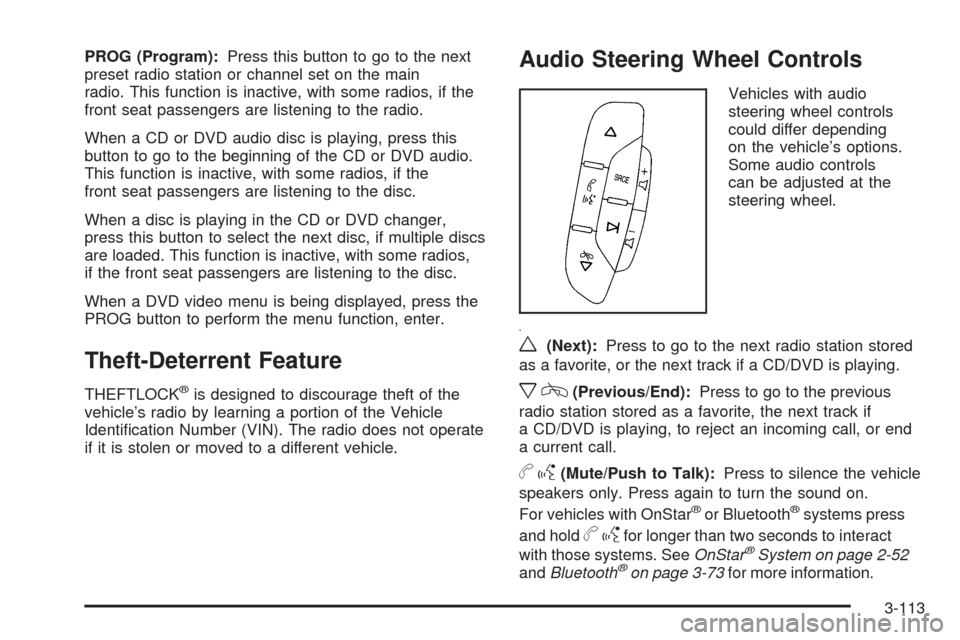
w(Next):Press to go to the next radio station stored
as a favorite, or the next track if a CD/DVD is playing.
xc(Previous/End):Press to go to the previous
radio station stored as a favorite, the next track if
a CD/DVD is playing, to reject an incoming call, or end
a current call.
bg(Mute/Push to Talk):Press to silence the vehicle
speakers only. Press again to turn the sound on.
For vehicles with OnStar
®or Bluetooth®systems press
and hold
bgfor longer than two seconds to interact
with those systems. SeeOnStar®System on page 2-52
andBluetooth®on page 3-73for more information.
3-113
Page 364 of 586
3. For the second row display select the Rear AUX
screen button next to Rear Display 1 and for the
third row display select the Rear AUX screen button
next to Rear Display 2. Each screen works
independently of the other. The second row screen
can watch a DVD while the third row screen can
use the auxiliary device.
The rear seat passengers can also use the remote
control to change the functions of the RSE. SeeRear
Seat Entertainment (RSE) System (Overhead) on
page 3-85orRear Seat Entertainment (RSE) System
(Headrest DVD) on page 3-95for more information.
Voice Recognition
The navigation system’s voice recognition allows for
hands-free operation of the navigation system,
audio system, and OnStar
®features. The DVD map
disc must be installed in the navigation system for voice
recognition to work. See “Installing the DVD Map
Disc” underMaps on page 4-14for more information.
Voice recognition can be used when the ignition is on or
when Retained Accessory Power (RAP) is active. See
“Retained Accessory Power (RAP)” in the Index of
your vehicle’s owner manual for more information.To use voice recognition, do the following:
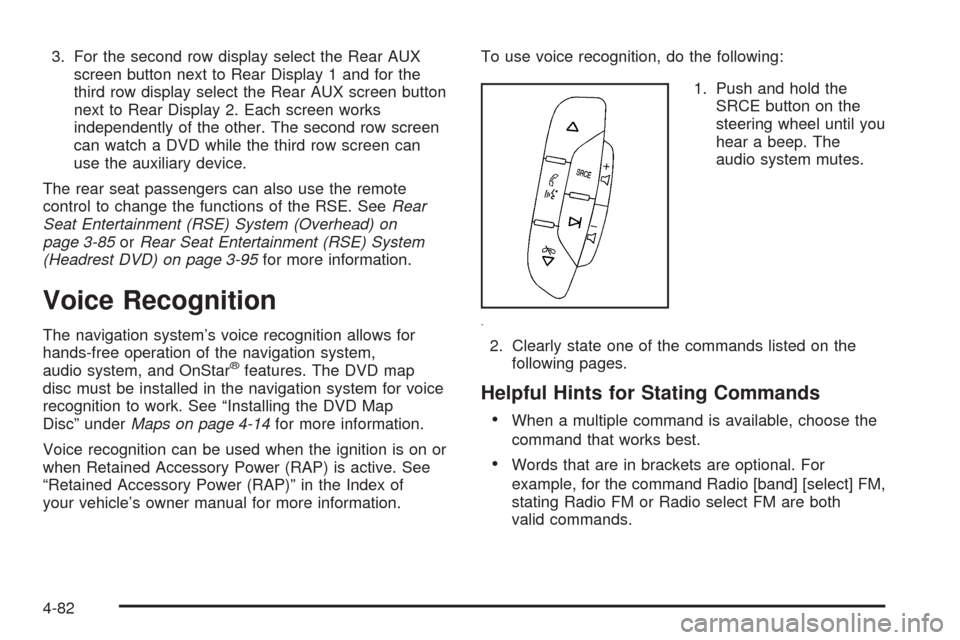
1. Push and hold the
SRCE button on the
steering wheel until you
hear a beep. The
audio system mutes.
2. Clearly state one of the commands listed on the
following pages.
Helpful Hints for Stating Commands
When a multiple command is available, choose the
command that works best.
Words that are in brackets are optional. For
example, for the command Radio [band] [select] FM,
stating Radio FM or Radio select FM are both
valid commands.
4-82
Page 369 of 586
Your Driving, the Road, and the Vehicle............5-2
Driving for Better Fuel Economy.......................5-2
Defensive Driving...........................................5-2
Drunk Driving.................................................5-3
Control of a Vehicle........................................5-3
Braking.........................................................5-4
Antilock Brake System (ABS)...........................5-5
Braking in Emergencies...................................5-6
StabiliTrak
®System........................................5-6
Magnetic Ride Control™..................................5-9
Road Sensing Suspension...............................5-9
Locking Rear Axle..........................................5-9
All-Wheel Drive (AWD) System.........................5-9
Steering......................................................5-10
Off-Road Recovery.......................................5-11
Passing.......................................................5-12
Loss of Control.............................................5-12
Off-Road Driving...........................................5-13Driving at Night............................................5-24
Driving in Rain and on Wet Roads..................5-25
Before Leaving on a Long Trip.......................5-26
Highway Hypnosis........................................5-26
Hill and Mountain Roads................................5-27
Winter Driving..............................................5-28
If Your Vehicle is Stuck in Sand,
Mud, Ice, or Snow.....................................5-30
Rocking Your Vehicle to Get It Out.................5-30
Recovery Hooks...........................................5-31
Loading the Vehicle......................................5-32
Towing..........................................................5-38
Towing Your Vehicle.....................................5-38
Recreational Vehicle Towing...........................5-38
Level Control...............................................5-41
Autoride
®.....................................................5-42
Towing a Trailer...........................................5-42
Trailer Recommendations...............................5-55
Section 5 Driving Your Vehicle
5-1
Page 371 of 586
Drunk Driving
{CAUTION:
Drinking and then driving is very dangerous. Your
reexes, perceptions, attentiveness, and judgment
can be affected by even a small amount of
alcohol. You can have a serious — or even
fatal — collision if you drive after drinking. Do not
drink and drive or ride with a driver who has been
drinking. Ride home in a cab; or if you are with a
group, designate a driver who will not drink.
Death and injury associated with drinking and driving is
a global tragedy.
Alcohol affects four things that anyone needs to drive a
vehicle: judgment, muscular coordination, vision, and
attentiveness.
Police records show that almost 40 percent of all motor
vehicle-related deaths involve alcohol. In most cases,
these deaths are the result of someone who was drinking
and driving. In recent years, more than 17,000 annual
motor vehicle-related deaths have been associated with
the use of alcohol, with about 250,000 people injured.For persons under 21, it is against the law in every
U.S. state to drink alcohol. There are good medical,
psychological, and developmental reasons for
these laws.
The obvious way to eliminate the leading highway
safety problem is for people never to drink alcohol
and then drive.
Medical research shows that alcohol in a person’s
system can make crash injuries worse, especially
injuries to the brain, spinal cord, or heart. This means
that when anyone who has been drinking — driver
or passenger — is in a crash, that person’s chance
of being killed or permanently disabled is higher
than if the person had not been drinking.
Control of a Vehicle
The following three systems help to control the vehicle
while driving — brakes, steering, and accelerator.
At times, as when driving on snow or ice, it is easy to
ask more of those control systems than the tires
and road can provide. Meaning, you can lose control of
the vehicle. SeeStabiliTrak
®System on page 5-6.
Adding non-dealer/non-retailer accessories can affect
vehicle performance. SeeAccessories and Modifications
on page 6-3.
5-3
Page 374 of 586
Using ABS
Do not pump the brakes. Just hold the brake pedal
down rmly and let antilock work. The brakes might
vibrate or some noise might be heard, but this is normal.
Braking in Emergencies
ABS allows the driver to steer and brake at the same
time. In many emergencies, steering can help more than
even the very best braking.
Brake Assist
This vehicle has a Brake Assist feature designed to
assist the driver in stopping or decreasing vehicle speed
in emergency driving conditions. This feature uses the
stability system hydraulic brake control module to
supplement the power brake system under conditions
where the driver has quickly and forcefully applied
the brake pedal in an attempt to quickly stop or slow
down the vehicle. The stability system hydraulic
brake control module increases brake pressure at each
corner of the vehicle until the ABS activates. Minor
brake pedal pulsations or pedal movement during this
time is normal and the driver should continue to
apply the brake pedal as the driving situation dictates
The Brake Assist feature will automatically disengage
when the brake pedal is released or brake pedal
pressure is quickly decreased.
StabiliTrak®System
The vehicle has a vehicle stability enhancement system
called StabiliTrak. It is an advanced computer
controlled system that assists the driver with directional
control of the vehicle in difficult driving conditions.
StabiliTrak
®activates when the computer senses a
discrepancy between the intended path and the direction
the vehicle is actually traveling. StabiliTrak
®selectively
applies braking pressure at any one of the vehicle’s
brakes to assist the driver with keeping the vehicle on
the intended path.
When the vehicle is started and begins to move, the
system performs several diagnostic checks to insure
there are no problems. The system may be heard or felt
while it is working. This is normal and does not mean
there is a problem with the vehicle. The system
should initialize before the vehicle reaches 20 mph
(32 km/h). In some cases, it may take approximately
two miles of driving before the system initializes.
If cruise control is being used when StabiliTrak
®
activates, the cruise control automatically disengages.
The cruise control can be re-engaged when road
conditions allow. SeeCruise Control on page 3-11.
5-6