lights CADILLAC ESCALADE 2010 3.G Owner's Manual
[x] Cancel search | Manufacturer: CADILLAC, Model Year: 2010, Model line: ESCALADE, Model: CADILLAC ESCALADE 2010 3.GPages: 616, PDF Size: 39.41 MB
Page 219 of 616

Automatic Operation, If Equipped.
AUTO :Press the air delivery mode button until thissetting is selected to control the inside temperature, airdelivery, and fan speed. AUTO appears in the displaywhen automatic operation is active.
+/!(Increase/Decrease Temperature) :Pressthe + or!buttons to increase or decrease the cabintemperature. The rear control temperature display willshow the temperature setting increasing or decreasing.
The display only indicates climate control functionswhen the system is in rear independent mode.
Manual Operation
DC(Fan Control):Press these buttons on the rearseat audio control panel to increase or decrease theairflow. Pressing the fan up button when the system isoff will turn the system on. The air delivery mode willremain under automatic control.
+/!(Temperature Control) :Press these buttons toadjust the temperature of the air flowing into thepassenger area. Press the + button for warmer air andpress the!button for cooler air.
N(Air Delivery Mode Control):Press the modebutton to change the direction of the airflow in thevehicle. Repeatedly press the button until the desiredmode appears on the display. Multiple presses will cyclethrough the delivery selections.
Warning Lights, Gages, and
Indicators
Warning lights and gages can signal that something iswrong before it becomes serious enough to cause anexpensive repair or replacement. Paying attention to thewarning lights and gages could prevent injury.
Warning lights come on when there might be or there isa problem with one of the vehicle's functions. Somewarning lights come on briefly when the engine isstarted to indicate they are working.
Gages can indicate when there might be or there is aproblem with one of the vehicle's functions. Often gagesand warning lights work together to indicate a problemwith the vehicle.
When one of the warning lights comes on and stays onwhile driving, or when one of the gages shows therecould be a problem, check the section that explainswhat to do. Follow this manual's advice. Waiting to dorepairs can be costly and even dangerous.
4-27
Page 222 of 616

Passenger Safety Belt Reminder Light
For vehicles equipped with the passenger safety beltreminder light, several seconds after the engine isstarted, a chime sounds for several seconds to remindthe front passenger to buckle their safety belt. Thepassenger safety belt light, located on the overheadconsole, comes on and stays on for several seconds,flashes for several more seconds and then comes onsolid for several more.
This chime and lightsequence is repeated ifthe passenger remainsunbuckled and the vehicleis in motion.
If the passenger safety belt is buckled, neither thechime nor the light comes on.
The front passenger safety belt warning light and chimemay turn on if an object is put on the seat such as abriefcase, handbag, grocery bag, laptop or otherelectronic device. To turn off the warning light and orchime, remove the object from the seat or buckle thesafety belt.
Airbag Readiness Light
The system checks the airbag's electrical system forpossible malfunctions. If the light stays on it indicatesthere is an electrical problem. The system checkincludes the airbag sensor, the pretensioners, theairbag modules, the wiring and the crash sensing anddiagnostic module. For more information on the airbagsystem, seeAirbag System on page 2!74.
The airbag readiness lightcomes on solid for a fewseconds when the engineis started. If the light doesnot come on then, have itfixed immediately.
4-30
Page 224 of 616

If the word ON or the on symbol is lit on the passengerairbag status indicator, it means that the right frontpassenger frontal airbag is enabled (may inflate).
If the word OFF or the off symbol is lit on the airbagstatus indicator, it means that the passenger sensingsystem has turned off the right front passenger frontalairbag.
If, after several seconds, both status indicator lightsremain on, or if there are no lights at all, there may be aproblem with the lights or the passenger sensingsystem. See your dealer/retailer for service.
{WARNING:
If the airbag readiness light ever comes on and
stays on, it means that something may be wrong
with the airbag system. To help avoid injury to
yourself or others, have the vehicle serviced right
away. SeeAirbag Readiness Lighton page 4!30
for more information, including important safety
information.
Charging System Light
This light comes on brieflywhen the ignition key isturned to START, but theengine is not running, asa check to show it isworking.
If it does not, have the vehicle serviced by your dealer/retailer.
The light should go out once the engine starts. If it stayson, or comes on while driving, there could be a problemwith the charging system. A charging system messagein the Driver Information Center (DIC) can also appear.SeeDIC Warnings and Messageson page 4!48formore information. This light could indicate that there areproblems with a generator drive belt, or that there is anelectrical problem. Have it checked right away. If thevehicle must be driven a short distance with the light on,turn off accessories, such as the radio and airconditioner.
4-32
Page 231 of 616
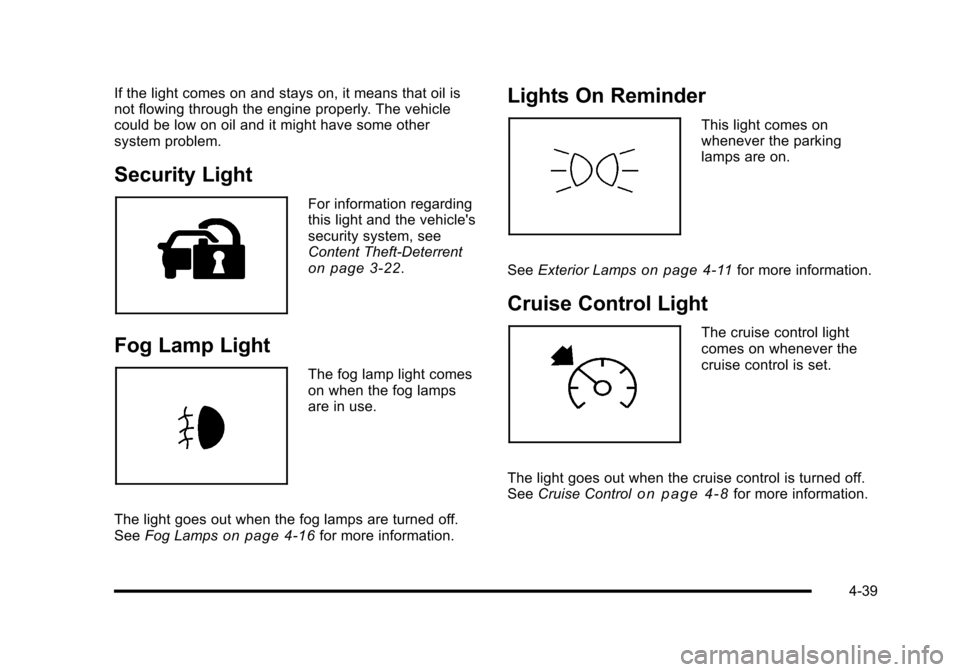
If the light comes on and stays on, it means that oil isnot flowing through the engine properly. The vehiclecould be low on oil and it might have some othersystem problem.
Security Light
For information regardingthis light and the vehicle'ssecurity system, seeContent Theft-Deterrenton page 3!22.
Fog Lamp Light
The fog lamp light comeson when the fog lampsare in use.
The light goes out when the fog lamps are turned off.SeeFog Lampson page 4!16for more information.
Lights On Reminder
This light comes onwhenever the parkinglamps are on.
SeeExterior Lampson page 4!11for more information.
Cruise Control Light
The cruise control lightcomes on whenever thecruise control is set.
The light goes out when the cruise control is turned off.SeeCruise Controlo n p a g e 4!8for more information.
4-39
Page 252 of 616
REMOTE DOOR LOCK
This feature allows you to select the type of feedbackyou will receive when locking the vehicle with theRemote Keyless Entry (RKE) transmitter. You will notreceive feedback when locking the vehicle with the RKEtransmitter if the doors are open. SeeRemote KeylessEntry (RKE) System Operationo n p a g e 3!4for moreinformation.
Press the customization button until REMOTE DOORLOCK appears on the DIC display. Press the set/resetbutton once to access the settings for this feature. Thenpress the customization button to scroll through thefollowing settings:
OFF :There will be no feedback when you press thelock button on the RKE transmitter.
LIGHTS ONLY :The exterior lamps will flash when youpress the lock button on the RKE transmitter.
HORN ONLY :The horn will sound on the second pressof the lock button on the RKE transmitter.
HORN & LIGHTS (default) :The exterior lamps willflash when you press the lock button on the RKEtransmitter, and the horn will sound when the lockbutton is pressed again within five seconds of theprevious command.
NO CHANGE :No change will be made to this feature.The current setting will remain.
To select a setting, press the set/reset button while thedesired setting is displayed on the DIC.
REMOTE DOOR UNLOCK
This feature allows you to select the type of feedbackyou will receive when unlocking the vehicle with theRemote Keyless Entry (RKE) transmitter. You will notreceive feedback when unlocking the vehicle with theRKE transmitter if the doors are open. SeeRemoteKeyless Entry (RKE) System Operationo n p a g e 3!4for more information.
Press the customization button until REMOTE DOORUNLOCK appears on the DIC display. Press the set/reset button once to access the settings for this feature.Then press the customization button to scroll throughthe following settings:
LIGHTS OFF :The exterior lamps will not flash whenyou press the unlock button on the RKE transmitter.
LIGHTS ON (default) :The exterior lamps will flashwhen you press the unlock button on the RKEtransmitter.
NO CHANGE :No change will be made to this feature.The current setting will remain.
To select a setting, press the set/reset button while thedesired setting is displayed on the DIC.
4-60
Page 254 of 616
APPROACH LIGHTING
This feature allows you to select whether or not to havethe exterior lights turn on briefly during low light periodsafter unlocking the vehicle using the Remote KeylessEntry (RKE) transmitter.
Press the customization button until APPROACHLIGHTING appears on the DIC display. Press the set/reset button once to access the settings for this feature.Then press the customization button to scroll throughthe following settings:
OFF :The exterior lights will not turn on when youunlock the vehicle with the RKE transmitter.
ON (default) :If it is dark enough outside, the exteriorlights will turn on briefly when you unlock the vehiclewith the RKE transmitter.
The lights will remain on for 20 seconds or until the lockbutton on the RKE transmitter is pressed, or the vehicleis no longer off. SeeRemote Keyless Entry (RKE)System Operationo n p a g e 3!4for more information.
NO CHANGE :No change will be made to this feature.The current setting will remain.
To select a setting, press the set/reset button while thedesired setting is displayed on the DIC.
AUTO HIGH BEAMS
If your vehicle has this feature, it allows you to select tohave the Intellibeam®system turned off or on. SeeExterior Lampson page 4!11for more information.
Press the customization button until AUTO HIGHBEAMS appears on the DIC display. Press the set/resetbutton once to access the settings for this feature. Thenpress the customization button to scroll through thefollowing settings:
OFF (default) :The Intellibeam®system will beturned off.
ON :The Intellibeam®system will be turned on.
NO CHANGE :No change will be made to this feature.The current setting will remain.
To select a setting, press the set/reset button while thedesired setting is displayed on the DIC.
4-62
Page 309 of 616
7. Select the state/province screen button, if needed,to change the current state or province. A list of allof the available states and provinces appear.Select the state or province.
8. Once a state or province has been selectedthe City name category is automatically selectedfor entry.
If five or less names are available, a list displays.If more than five are available, the List screenbutton displays a number. This number representsthe number of available cities. Select this button toview the list and select a city.
9. Once a city has been selected the Street namecategory is automatically selected for entry.
If five or less streets are available for the selectedcity, the system displays the list of streets. If morethan five streets are available the system displaysthe alpha keyboard. Start entering the street name.If five or less names are available, a list displays.If more than five are available, the List screenbutton displays a number. This button representsthe number of available streets. Select this buttonto view the list and select a street.
10. Once a street has been selected, select theHouse # screen button to enter the house number.The system displays the house number range thatis available for the street.
11. Select the Go screen button. A map screen, withthe destination marked appears.
12. Select the route preference (Fastest, Shortest,or Other). The system calculates and highlightsthe route.
13. Select the Start Guidance screen button. You arenow ready to start your route.
See“Address Entry”underDestinationon page 5!24for more information.
Entering a Point of Interest (POI)
To set a destination by entering a Point of Interest(POI), do the following:
1. If the radio is already on with a map disc inserted,skip to Step 5.
2. PressOto turn the system on.
3. Insert the DVD map disc. See“Installing the MapDVD”underMapson page 5!14for moreinformation.
4. A caution may appear. Touch the OK screen buttonto proceed.
5. Press the DEST hard key.
6. Press theiPoint of Interest screen button.
5-9
Page 310 of 616

7. Select the state/province screen button, if needed,to change the current state or province. A list of allof the available states and provinces appear.Select the state or province.
8. Enter the specific title of the POI in the POI namespace (e.g. Washington Monument).
If five or less names are available, a list displays.If more than five are available, the List screenbutton displays a number. This button representsthe number of available POIs. Select this button toview the list.
9. Select the Go screen button next to the POI.A map screen, with the destination markedappears.
10. Select the route preference (Fastest, Shortest,or Other). The system calculates and highlightsthe route.
11. Select the Start Guidance screen button. The routeis now ready to be started.
See“Point of Interest (POI)”underDestinationonpage 5!24for more information.
Storing Preset Destinations
1. If the radio is already on with a map disc inserted,skip to Step 5.
2. PressOto turn the system on.
3. Insert the DVD map disc. See“Installing theMap DVD”underMapson page 5!14for moreinformation.
4. A caution may appear. Touch the OK screen buttonto proceed.
5. Press the DEST hard key.
Enter a destination. SeeDestinationon page 5!24for more information on how to enter a destination.
6. Press the DEST hard key, the Route screendisplays. Press the Final Destination or Stopoverscreen button. The information screen displays forthat location. Press the Add to Address Bookscreen button. The address book screen appears.
7. Select the Name screen button. An alpha-keyboarddisplays. Enter the name. Select the Back screenbutton.
8. Press and hold one of the screen buttons at thebottom of the screen until the name appears in thescreen button on the display.
The name appears in that preset destinationscreen button and is now available to select fromthe Destination Entry screen. See“Using YourStored Preset Destinations”next in this section toselect it as a destination.
See“Adding or Changing Preset Destinations”underDestinationon page 5!24for moreinformation on how to add preset destinations.
5-10
Page 311 of 616
Using Your Stored Preset Destinations
These destinations are available for selection whiledriving.
1. If the radio is already on with a map disc inserted,skip to Step 5.
2. PressOto turn the system on.
3. Insert the DVD map disc. See“Installing the MapDVD”underMapson page 5!14for moreinformation.
4. A caution may appear. Touch the OK screen buttonto proceed.
5. Press the DEST hard key.
6. Select one of the available preset destinationscreen buttons. A map screen, with the destinationmarked appears.
7. Select the route preference (Fastest, Shortest,or Other). The system calculates and highlights theroute.
8. Select the Start Guidance screen button. The routeis now ready to be started.
See“Preset Destination”underDestinationonpage 5!24for more information.
Canceling Guidance
Guidance is canceled once the final destination isreached. To cancel guidance prior to arrival at the finaldestination:
1. Press the DEST hard key.
2. Press the Cancel Guidance screen button.
3. Press OK to confirm.
Guidance Volume
Adjust the volume of voice guidance prompts:
1. Press the CONFIG hard key to enter the menuoptions, then press the CONFIG key repeatedlyuntil Nav is selected or touch the Nav screenbutton.
2. Press the Voice Prompt screen button.
3. Press the + (plus) or–(minus) screen buttons toincrease or to decrease the volume of the voiceprompts. The system responds with the adjustedvoice level.
See“Voice Prompt”underConfigure Menuonpage 5!42for more information.
Cleaning the Display
Use a soft clean cotton cloth dampened withclean water.
5-11
Page 314 of 616
U(Space):Select to enter a space betweencharacters or the words of a name.
Backspace :Select if an incorrect character hasbeen entered.
To make name entries easier, the system only highlightsthe characters that can follow the last one entered. Forexample, if a Z is entered, a T may not be available forselection.
If a name does not display after entry, it may need to beentered differently or the map DVD disc may not containthat information. SeeDatabase Coverage Explanationson page 5!59for more information.
Maps
This section includes basic information that you need toknow about the map database.
The maps are stored on a DVD. The United States,Canada, and Puerto Rico are contained on one disc.
Detailed Areas
Road network attributes are contained in the mapdatabase for detailed areas. Attributes includeinformation such as street names, street address, turnrestrictions, etc. A detailed area includes all majorhighways, service roads, and residential roads. Thedetailed areas include points of interest (POI) such as:restaurants, airports, banks, hospitals, police stations,gas stations, tourist attractions, historical monuments,etc. The map database may not include data for newlyconstructed areas or map database corrections thatare completed after the production of the disc. Thenavigation system provides full route guidance in thedetailed map areas.
Limited Guidance Areas
Any area that is not classified as detailed, is a limitedguidance area. Limited guidance streets are displayedon the map but route guidance may not be given onthese streets. Some POI categories, such as the citycenter POI category, and some street addresses areincluded in the limited guidance areas.
The navigation system informs through voice promptswhen you are traveling into a limited guidance areawhere route guidance is not available. The street mapsand the directional arrow displayed on the navigationsystem can then be used to determine the remainingroute to your destination.
5-14