light CADILLAC ESCALADE 2011 3.G Owners Manual
[x] Cancel search | Manufacturer: CADILLAC, Model Year: 2011, Model line: ESCALADE, Model: CADILLAC ESCALADE 2011 3.GPages: 558, PDF Size: 7.59 MB
Page 280 of 558
Black plate (74,1)Cadillac Escalade/Escalade ESV Owner Manual - 2011
7-74 Infotainment System
To use the address book entry
method:
1. Press the DEST control button.
2. Select
g.
A list of the address book
addresses display.
3. Select GO, located next to the destination. The map screen,
with the destination marked
displays.
4. Select the route preference (Fastest, Shortest, or Other).
The system calculates and
highlights the route.
5. Select Start Guidance. The route is now ready to be started.
See “Getting Started on Your
Route” in this section for more
information.
See “Adding Destinations to the
Address Book” in this section. Previous Destination
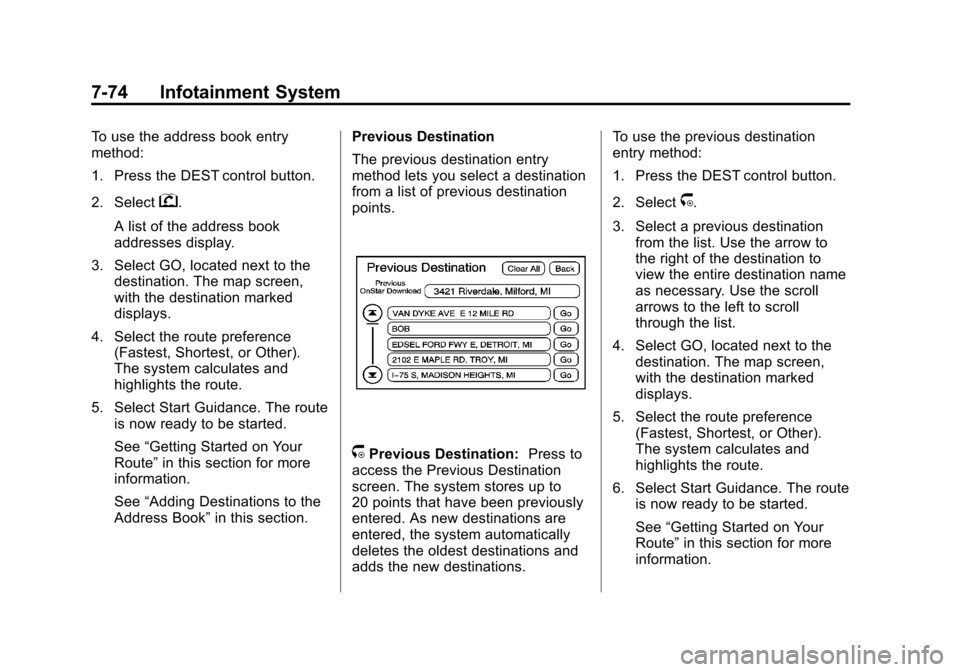
The previous destination entry
method lets you select a destination
from a list of previous destination
points.
/Previous Destination:
Press to
access the Previous Destination
screen. The system stores up to
20 points that have been previously
entered. As new destinations are
entered, the system automatically
deletes the oldest destinations and
adds the new destinations. To use the previous destination
entry method:
1. Press the DEST control button.
2. Select
/.
3. Select a previous destination from the list. Use the arrow to
the right of the destination to
view the entire destination name
as necessary. Use the scroll
arrows to the left to scroll
through the list.
4. Select GO, located next to the destination. The map screen,
with the destination marked
displays.
5. Select the route preference (Fastest, Shortest, or Other).
The system calculates and
highlights the route.
6. Select Start Guidance. The route is now ready to be started.
See “Getting Started on Your
Route” in this section for more
information.
Page 281 of 558
Black plate (75,1)Cadillac Escalade/Escalade ESV Owner Manual - 2011
Infotainment System 7-75
From Map
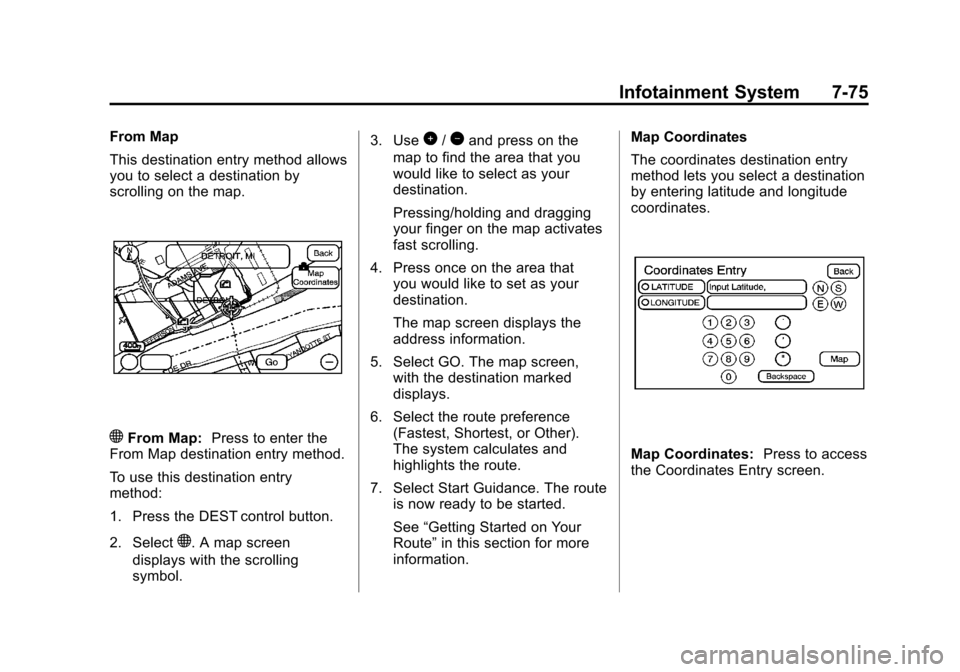
This destination entry method allows
you to select a destination by
scrolling on the map.
)From Map:Press to enter the
From Map destination entry method.
To use this destination entry
method:
1. Press the DEST control button.
2. Select
). A map screen
displays with the scrolling
symbol. 3. Use
0/1and press on the
map to find the area that you
would like to select as your
destination.
Pressing/holding and dragging
your finger on the map activates
fast scrolling.
4. Press once on the area that you would like to set as your
destination.
The map screen displays the
address information.
5. Select GO. The map screen, with the destination marked
displays.
6. Select the route preference (Fastest, Shortest, or Other).
The system calculates and
highlights the route.
7. Select Start Guidance. The route is now ready to be started.
See “Getting Started on Your
Route” in this section for more
information. Map Coordinates
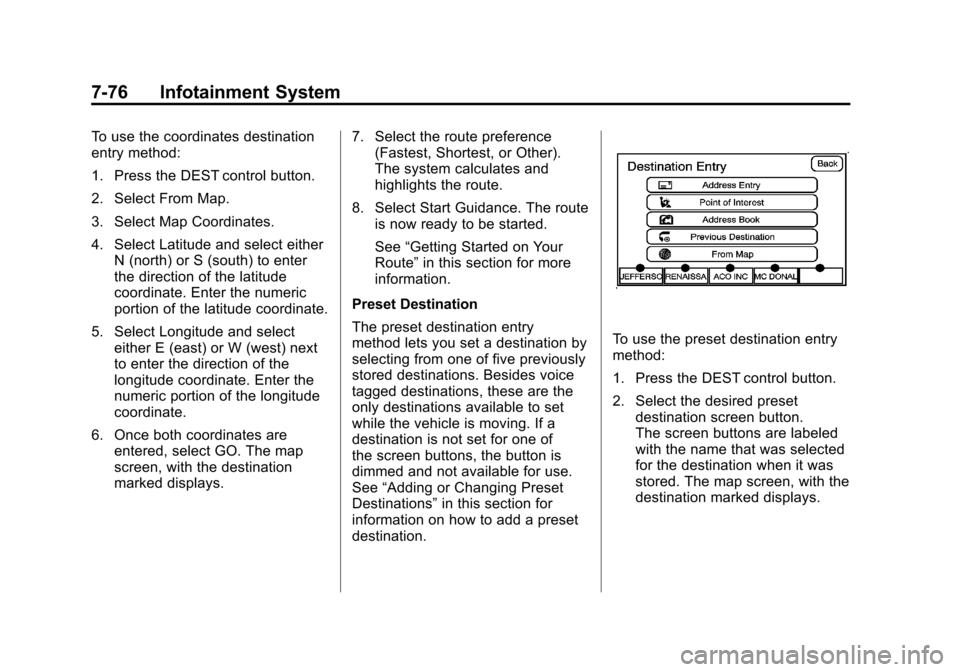
The coordinates destination entry
method lets you select a destination
by entering latitude and longitude
coordinates.
Map Coordinates:
Press to access
the Coordinates Entry screen.
Page 282 of 558
Black plate (76,1)Cadillac Escalade/Escalade ESV Owner Manual - 2011
7-76 Infotainment System
To use the coordinates destination
entry method:
1. Press the DEST control button.
2. Select From Map.
3. Select Map Coordinates.
4. Select Latitude and select eitherN (north) or S (south) to enter
the direction of the latitude
coordinate. Enter the numeric
portion of the latitude coordinate.
5. Select Longitude and select either E (east) or W (west) next
to enter the direction of the
longitude coordinate. Enter the
numeric portion of the longitude
coordinate.
6. Once both coordinates are entered, select GO. The map
screen, with the destination
marked displays. 7. Select the route preference
(Fastest, Shortest, or Other).
The system calculates and
highlights the route.
8. Select Start Guidance. The route is now ready to be started.
See “Getting Started on Your
Route” in this section for more
information.
Preset Destination
The preset destination entry
method lets you set a destination by
selecting from one of five previously
stored destinations. Besides voice
tagged destinations, these are the
only destinations available to set
while the vehicle is moving. If a
destination is not set for one of
the screen buttons, the button is
dimmed and not available for use.
See “Adding or Changing Preset
Destinations” in this section for
information on how to add a preset
destination.
To use the preset destination entry
method:
1. Press the DEST control button.
2. Select the desired preset destination screen button.
The screen buttons are labeled
with the name that was selected
for the destination when it was
stored. The map screen, with the
destination marked displays.
Page 283 of 558
Black plate (77,1)Cadillac Escalade/Escalade ESV Owner Manual - 2011
Infotainment System 7-77
3. Select the route preference(Fastest, Shortest, or Other).
The system calculates and
highlights the route.
4. Select Start Guidance. The route is now ready to be started.
See “Getting Started on Your
Route” in this section for more
information.
Map Destination Screen Functions
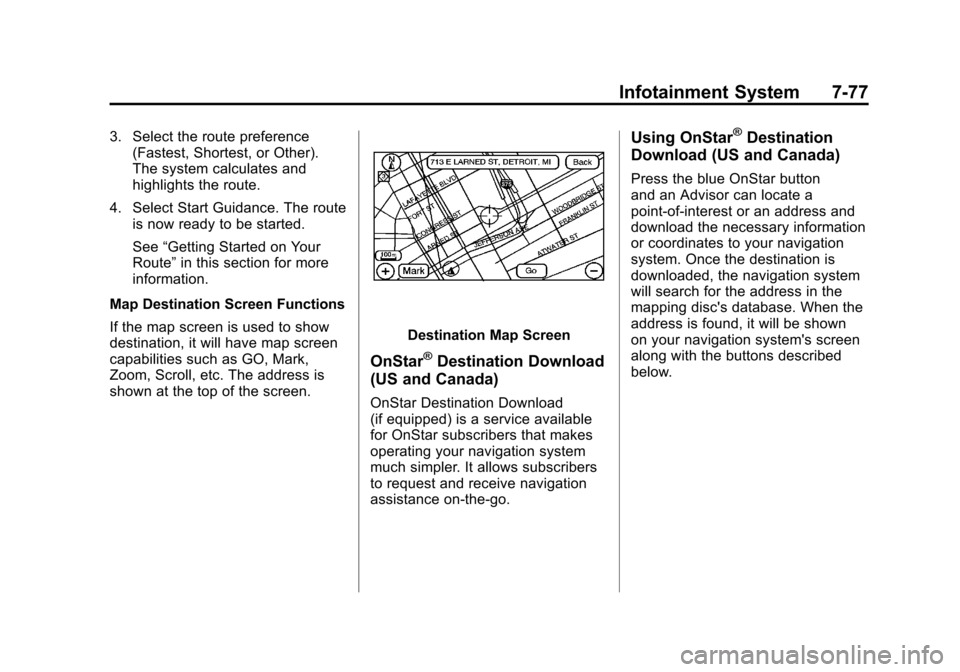
If the map screen is used to show
destination, it will have map screen
capabilities such as GO, Mark,
Zoom, Scroll, etc. The address is
shown at the top of the screen.
Destination Map Screen
OnStar®Destination Download
(US and Canada)
OnStar Destination Download
(if equipped) is a service available
for OnStar subscribers that makes
operating your navigation system
much simpler. It allows subscribers
to request and receive navigation
assistance on-the-go.
Using OnStar®Destination
Download (US and Canada)
Press the blue OnStar button
and an Advisor can locate a
point-of-interest or an address and
download the necessary information
or coordinates to your navigation
system. Once the destination is
downloaded, the navigation system
will search for the address in the
mapping disc's database. When the
address is found, it will be shown
on your navigation system's screen
along with the buttons described
below.
Page 287 of 558
Black plate (81,1)Cadillac Escalade/Escalade ESV Owner Manual - 2011
Infotainment System 7-81
r/[(Fast Forward Scroll):
Select to scroll to the next
stopover or to the final destination.
The
u(fast forward skip) button
changes to a fast speed fast
forward.
u(Fast Forward Skip): Select to
go to the next stopover or to the
final destination.
Detour
Detour: Select this screen button
from the Route screen, then select
to detour 2 km, 5 km, 10 km (1 mile,
3 miles, or 5 miles) around the
current route. This can also be
selected to detour the whole route
if necessary. The detour option is
only available while driving on a
current planned route.
Voice Volume
Select this screen button from the
Route screen to turn voice guidance
on or off and to change the volume
of voice prompts. See “Nav”under
Configure Menu on page 7‑83 for
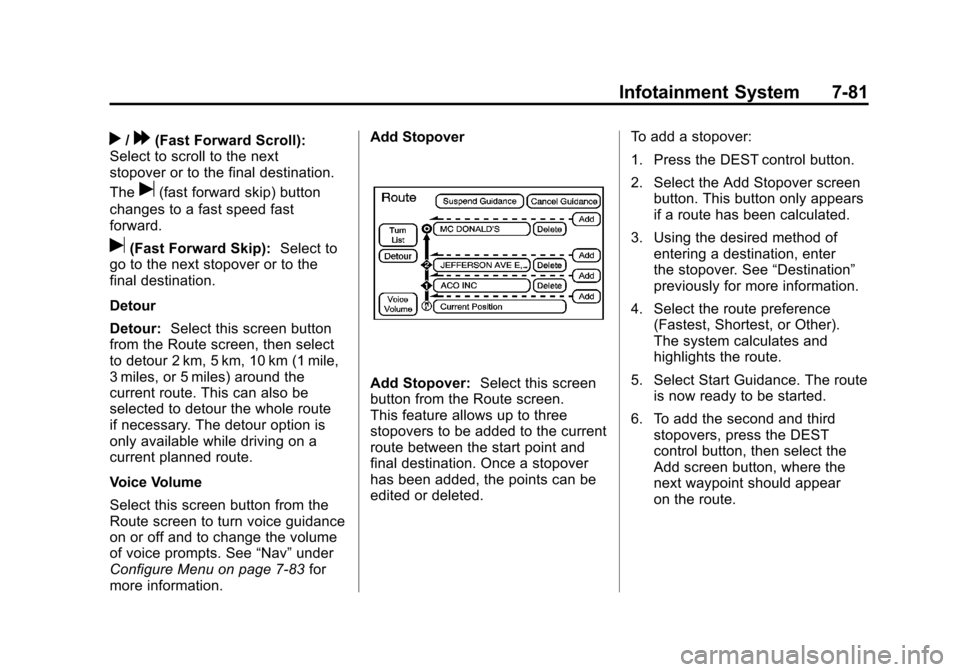
more information. Add Stopover
Add Stopover:
Select this screen
button from the Route screen.
This feature allows up to three
stopovers to be added to the current
route between the start point and
final destination. Once a stopover
has been added, the points can be
edited or deleted. To add a stopover:
1. Press the DEST control button.
2. Select the Add Stopover screen
button. This button only appears
if a route has been calculated.
3. Using the desired method of entering a destination, enter
the stopover. See “Destination”
previously for more information.
4. Select the route preference (Fastest, Shortest, or Other).
The system calculates and
highlights the route.
5. Select Start Guidance. The route is now ready to be started.
6. To add the second and third stopovers, press the DEST
control button, then select the
Add screen button, where the
next waypoint should appear
on the route.
Page 288 of 558
Black plate (82,1)Cadillac Escalade/Escalade ESV Owner Manual - 2011
7-82 Infotainment System
7. Select the route preference(Fastest, Shortest, or Other).
The system calculates and
highlights the route.
8. Select Start Guidance. The route is now ready to be started.
To delete a stopover from the
current route:
1. Press the DEST control button.
2. Select Delete for the desired stopover to delete.
3. The system displays a pop-up confirmation message. Press
Yes to delete the stopover; press
No to cancel this operation.
4. Select the route preference (Fastest, Shortest, or Other).
The system calculates and
highlights the route.
5. Select Start Guidance. The route is now ready to be started.
Suspend Guidance
Press this screen button, from the
Route screen, to put the current
route on hold. Resume Guidance
Press this screen button, from the
Route screen, to resume guidance
on the current route.
Cancel Guidance
Press this screen button, from the
Route screen, to cancel the current
route.
Adding Destinations to the
Address Book
There are two ways to add a
destination to the address book:
.To add the current vehicle
position to the address
book, press the Mark screen
button from the map screen.
The system automatically saves
the current vehicle information
in the address book. When
scrolling on the map the Mark
screen button automatically adds
the current scrolled position
information in the address book.
.Press the Add to Address
Book screen button when
available on POI information
screens, Destination Entry
screens, or POI screens.
The system automatically
saves this information in the
address book.
See “Nav” under Configure Menu on
page 7‑83 for information on editing
address book entries.
Adding or Changing Preset
Destinations
This feature allows additions
or changes one of five preset
destinations. When a destination
has been added as a preset
destination, it is available to select
from the Destination Entry screen.
See “Preset Destination” previously
for information on how to select
a preset destination as a final
destination.
Page 293 of 558
Black plate (87,1)Cadillac Escalade/Escalade ESV Owner Manual - 2011
Infotainment System 7-87
Off-Road Mode
To turn the Off-road mode on or off:
1. Press the CONFIG controlbutton.
2. Press the Nav screen button.
3. Press Off-Road mode. The button will be highlighted
when the feature is on.
When the off-road mode is turned
on, the navigation system will show
the path being traveled by the
vehicle when not on a marked road.
This path will be a simulation since
the map database coverage will
not have these roads on the DVD.
This path will be stored in the
navigation system's memory,
see “Previous Destination” under
Destination on page 7‑69 for more
information.
See Defensive Driving on page 9‑2
for more information about off-road
driving.Traffic Options
(US and Canada)
Read the following Options
descriptions to understand how
the XM NavTraffic™ operates.
XM NavTraffic™
(USA and Canada)
Vehicles with the navigation system
have an XM NavTraffic™ receiver.
XM NavTraffic™ is a subscription
service provided via XM™ Satellite
Radio. XM NavTraffic ™provides
real-time traffic information fully
integrated to the navigation
system to display current traffic
conditions for a driver ’s chosen
route. XM NavTraffic™ allows
drivers to make the most informed,
timesaving routing decisions.
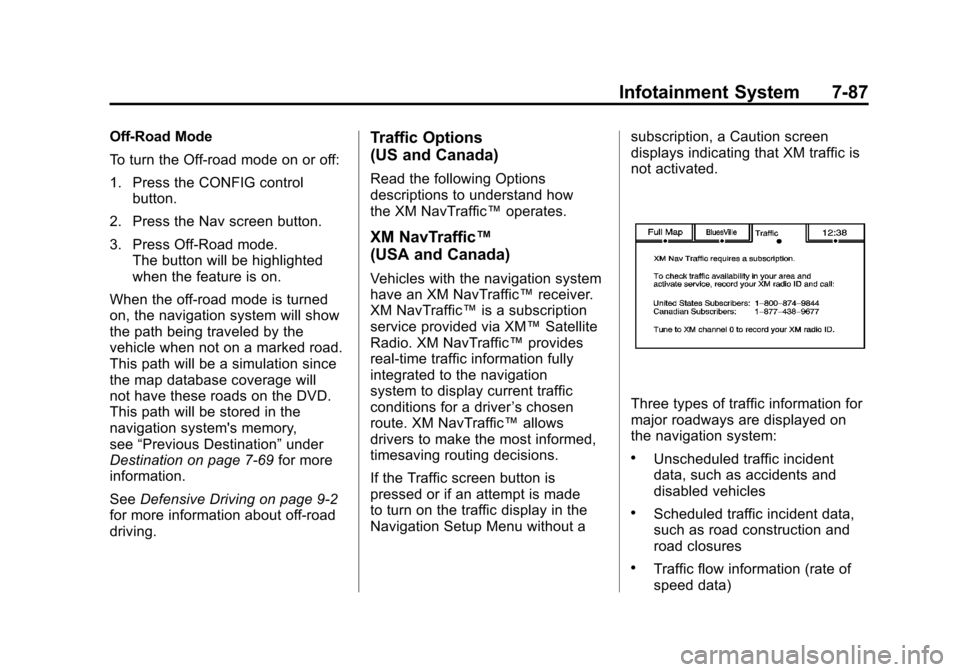
If the Traffic screen button is
pressed or if an attempt is made
to turn on the traffic display in the
Navigation Setup Menu without a subscription, a Caution screen
displays indicating that XM traffic is
not activated.
Three types of traffic information for
major roadways are displayed on
the navigation system:
.Unscheduled traffic incident
data, such as accidents and
disabled vehicles
.Scheduled traffic incident data,
such as road construction and
road closures
.Traffic flow information (rate of
speed data)
Page 294 of 558
Black plate (88,1)Cadillac Escalade/Escalade ESV Owner Manual - 2011
7-88 Infotainment System
Traffic information is delivered
to the vehicle by the XM™Radio
satellites. XM NavTraffic™ makes it
possible for the navigation system
to provide continuously updated
traffic information personalized
for a driver ’s needs.
XM NavTraffic™ currently
broadcasts the traffic information
for many markets nationally,
and the service may be available
in more cities in the future. Visit
www.xmnavtraffic.com for more
details on local coverage.
A service fee is required in order
to receive the XM NavTraffic™
service. Turning XM NavTraffic™
On
and Off
To turn traffic on or off:
1. Press the CONFIG control
button, then press CONFIG
again, repeatedly until Nav is
selected or press the Nav
screen button.
2. Press the Traffic Options button.
3. Press the Traffic button. This button is highlighted
when it is active.
Selecting Alert for Approaching
Traffic Events enables the
system to show a pop-up screen
that notifies of possible traffic
issues ahead.
When this feature is highlighted,
while traveling on a route,
accidents located on the route
are indicated and can be
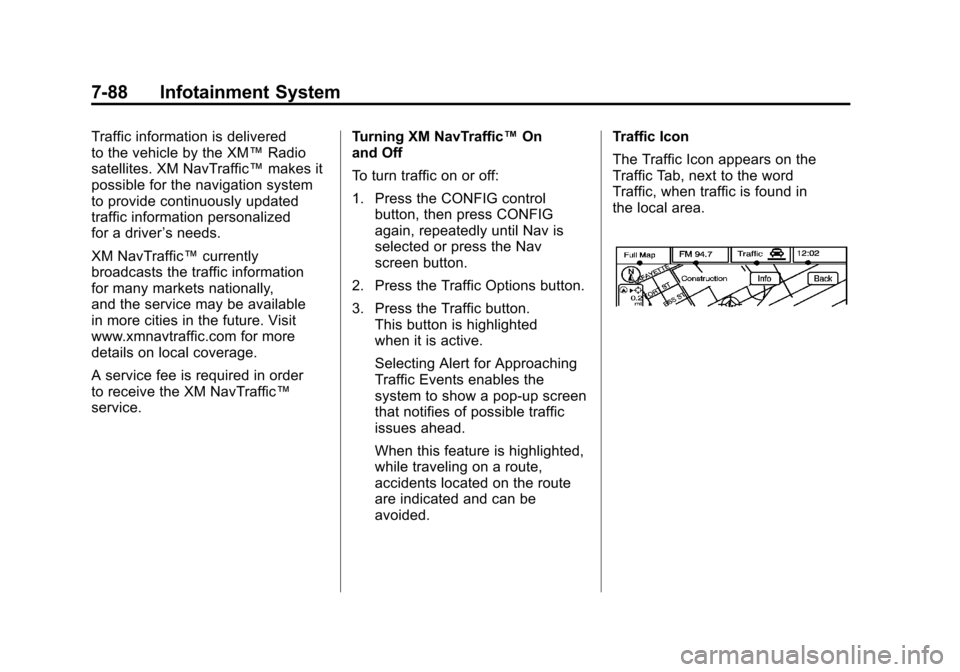
avoided. Traffic Icon
The Traffic Icon appears on the
Traffic Tab, next to the word
Traffic, when traffic is found in
the local area.
Page 297 of 558
Black plate (91,1)Cadillac Escalade/Escalade ESV Owner Manual - 2011
Infotainment System 7-91
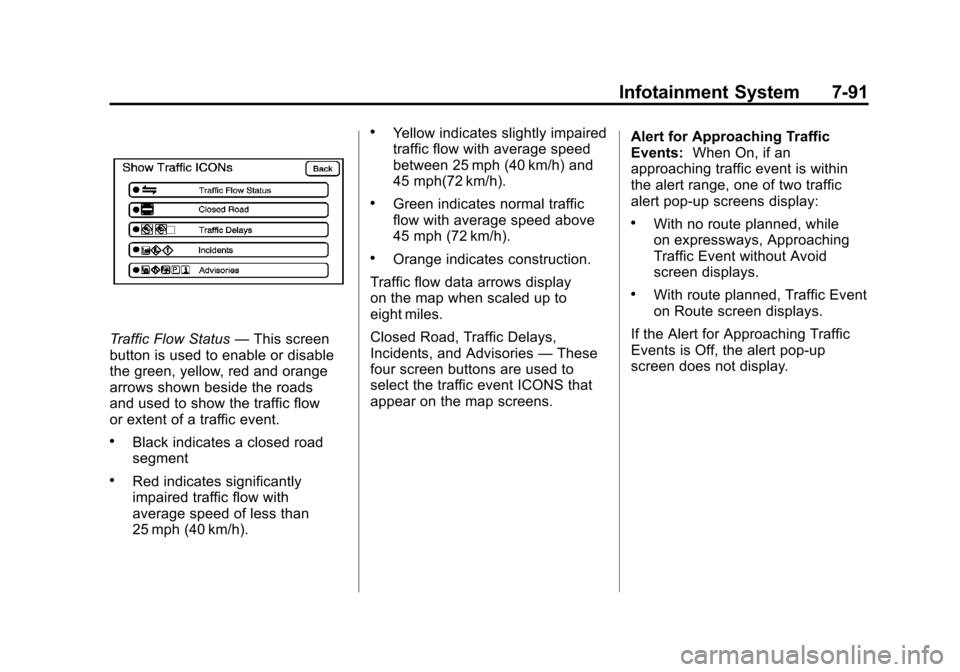
Traffic Flow Status—This screen
button is used to enable or disable
the green, yellow, red and orange
arrows shown beside the roads
and used to show the traffic flow
or extent of a traffic event.
.Black indicates a closed road
segment
.Red indicates significantly
impaired traffic flow with
average speed of less than
25 mph (40 km/h).
.Yellow indicates slightly impaired
traffic flow with average speed
between 25 mph (40 km/h) and
45 mph(72 km/h).
.Green indicates normal traffic
flow with average speed above
45 mph (72 km/h).
.Orange indicates construction.
Traffic flow data arrows display
on the map when scaled up to
eight miles.
Closed Road, Traffic Delays,
Incidents, and Advisories —These
four screen buttons are used to
select the traffic event ICONS that
appear on the map screens. Alert for Approaching Traffic
Events:
When On, if an
approaching traffic event is within
the alert range, one of two traffic
alert pop-up screens display:
.With no route planned, while
on expressways, Approaching
Traffic Event without Avoid
screen displays.
.With route planned, Traffic Event
on Route screen displays.
If the Alert for Approaching Traffic
Events is Off, the alert pop-up
screen does not display.
Page 301 of 558
Black plate (95,1)Cadillac Escalade/Escalade ESV Owner Manual - 2011
Infotainment System 7-95
Display Off
Press this screen button to turn the
display off. Press any control button
to view the display.
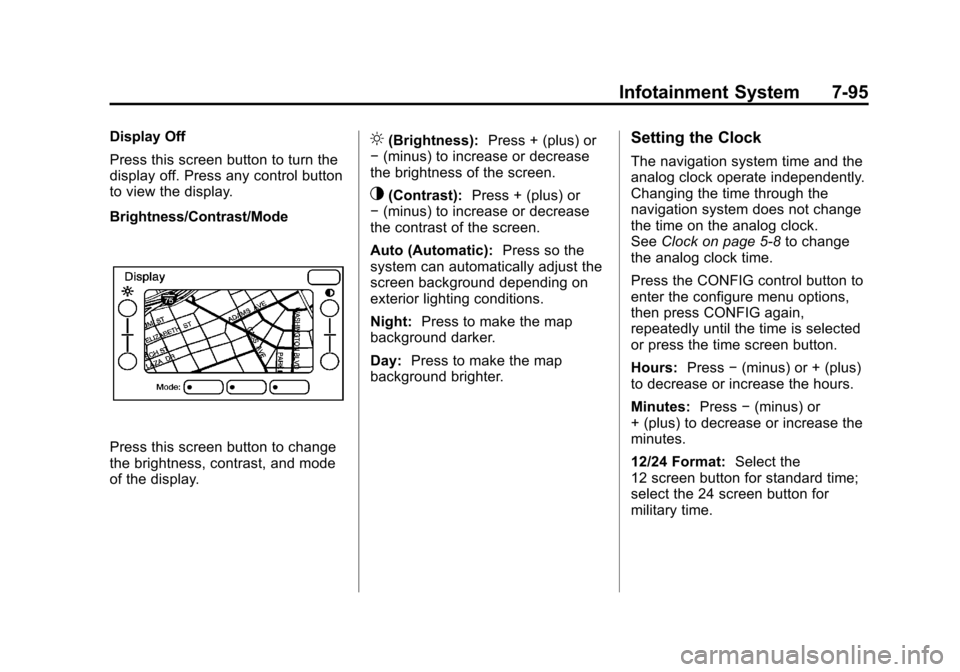
Brightness/Contrast/Mode
Press this screen button to change
the brightness, contrast, and mode
of the display.
](Brightness):Press + (plus) or
− (minus) to increase or decrease
the brightness of the screen.
_(Contrast): Press + (plus) or
− (minus) to increase or decrease
the contrast of the screen.
Auto (Automatic): Press so the
system can automatically adjust the
screen background depending on
exterior lighting conditions.
Night: Press to make the map
background darker.
Day: Press to make the map
background brighter.
Setting the Clock
The navigation system time and the
analog clock operate independently.
Changing the time through the
navigation system does not change
the time on the analog clock.
See Clock on page 5‑8 to change
the analog clock time.
Press the CONFIG control button to
enter the configure menu options,
then press CONFIG again,
repeatedly until the time is selected
or press the time screen button.
Hours: Press−(minus) or + (plus)
to decrease or increase the hours.
Minutes: Press−(minus) or
+ (plus) to decrease or increase the
minutes.
12/24 Format: Select the
12 screen button for standard time;
select the 24 screen button for
military time.