remote start CADILLAC ESCALADE 2012 3.G Owner's Manual
[x] Cancel search | Manufacturer: CADILLAC, Model Year: 2012, Model line: ESCALADE, Model: CADILLAC ESCALADE 2012 3.GPages: 538, PDF Size: 7.59 MB
Page 214 of 538

Black plate (30,1)Cadillac Escalade/Escalade ESV Owner Manual - 2012
7-30 Infotainment System
Random:
1. Press to hear the tracks inrandom, rather than sequential,
order.
2. Press Random again to turn off random play.
r(Rewind):
1. Press and hold to rewind quickly through a track selection. You
will hear sound at a reduced
volume.
2. Release to stop rewinding. The display will show the elapsed
time of the track.
[(Forward):
1. Press and hold to fast forward quickly through a track selection.
You will hear sound at a reduced
volume.
2. Release to stop fast forwarding. The display shows the elapsed
time of the track.
q r(Folder/Artist/Album):
1. Select the left or right arrow to go to the previous or next folder,
artist, or album on the disc.
2. Press the middle screen button, with the folder, artist, or album
name, to sort the MP3 by folder,
artist, or album. It may take a
few minutes for the system to
sort the MP3.
y/©or¨/z(Seek/Scan):
1. To seek tracks, press the up arrow to go to the next track.
2. Press the down arrow to go to the start of the current track,
if more than eight seconds have
played.
3. If either arrow is pressed more than once, the player continues
moving backward or forward
through the CD. The sound
mutes while seeking.
w(Tuning Knob):
1. Turn counterclockwise one notch to go to the start of the current
track, turn it again to go to the
previous track.
2. Turn clockwise to go to the next track.
When playing an MP3 the rear seat
operator can power on the RSE
video screen and use the remote
control to navigate through the MP3.
Auxiliary Devices
Using the Auxiliary Input Jack
The navigation system has an
auxiliary input jack located on the
faceplate and in the center console.
This is not an audio output; do not
plug the headphone set into the
front auxiliary input jack. An external
audio device such as an iPod,
laptop computer, MP3 player, CD
player, or cassette tape player, etc.
can be connected to the auxiliary
input jack for use as another audio
source.
Page 216 of 538

Black plate (32,1)Cadillac Escalade/Escalade ESV Owner Manual - 2012
7-32 Infotainment System
Rear Seat
Infotainment
Rear Seat Entertainment
(RSE) System (Overhead)
The vehicle may have an
Overhead DVD Rear Seat
Entertainment (RSE) system.
The RSE system works with the
vehicle's audio system. The DVD
player is part of the front radio. The
RSE system includes a radio with a
DVD player, a video display screen,
and if the vehicle has a third row
seat, it could have a second video
display screen, audio/video jacks,
two wireless headphones, and a
remote control. SeeCD/DVD Player
on page 7‑18 for more information
on the vehicle's DVD system.
Before Driving
The RSE is designed for rear seat
passengers only. The driver cannot
safely view the video screen while
driving and should not try to do so.
In severe or extreme weather
conditions, the RSE system might
not work until the temperature is
within the operating range. The
operating range for the RSE system
is above −20°C (−4°F) or below
60°C (140°F). If the temperature of
the vehicle is outside this range,
heat or cool the vehicle until the
temperature is within the operating
range of the RSE system.
Parental Control
The RSE system may have a
Parental Control feature, depending
on which radio the vehicle has. To
start Parental Control, press and
hold the radio power button for more than two seconds to stop all system
features such as: radio, video
screen, Rear Seat Audio (RSA),
DVD, and/or CD. While Parental
Control is on, a padlock icon
displays.
The radio can be turned back on
with a single press of the power
button, but the RSE system will
remain under Parental Control.
To turn Parental Control off, press
and hold the radio power button for
more than two seconds. The RSE
returns from where it was previously
left and the padlock icon disappears
from the radio display.
Parental Control can also be turned
off by inserting or ejecting any disc,
pressing the play icon on the radio
DVD display menu, or changing an
ignition position.
Page 221 of 538

Black plate (37,1)Cadillac Escalade/Escalade ESV Owner Manual - 2012
Infotainment System 7-37
Objects blocking the line of sight
could also affect the function of the
remote control.
If a CD or DVD is in the Radio DVD
slot, the remote control
O(power)
button can be used to turn on the
video screen display and start the
disc. The radio can also turn on the
video screen display. See CD/DVD
Player on page 7‑18 for more
information.
Notice: Storing the remote
control in a hot area or in direct
sunlight can damage it, and the
repairs will not be covered by the
warranty. Storage in extreme cold
can weaken the batteries. Keep
the remote control stored in a
cool, dry place.
If the remote control becomes
lost or damaged, a new universal
remote control can be purchased.
If this happens, make sure the
universal remote control uses a
code set of Toshiba
®. Remote Control Buttons
O(Power):
Press this button to
turn the video screen on and off.
P(Illumination): Press this button
to turn the remote control backlight
on. The backlight automatically
times out after 7 to 10 seconds if no
other button is pressed while the
backlight is on.
v(Title): Press this button to
return the DVD to the main menu of
the DVD. This function could vary
for each disc.
y(Main Menu): Press this button
to access the DVD menu. The DVD
menu is different on every DVD.
Use the navigation arrows to move
the cursor around the DVD menu.
After making a selection press the
enter button. This button only
operates when using a DVD.
n,q,p,o(Menu Navigation
Arrows): Use the arrow buttons to
navigate through a menu.
r(Enter): Press this button to
select the choice that is highlighted
in any menu.
z(Display Menu): Press this
button to adjust the brightness,
screen display mode (normal,
full, or zoom), and display the
language menu.
q(Return): Press this button to
exit the current active menu and
return to the previous menu. This
button operates only when the
display menu or a DVD menu is
active.
c(Stop): Press this button to
stop playing, fast reversing, or fast
forwarding a DVD. Press this button
twice to return to the beginning of
the DVD.
Page 224 of 538

Black plate (40,1)Cadillac Escalade/Escalade ESV Owner Manual - 2012
7-40 Infotainment System
Tips and Troubleshooting Chart
ProblemRecommended Action
There is no power. The ignition might not be turned to ON/RUN or ACC/
ACCESSORY.
The picture does not fill the screen. There are black
borders on the top and bottom or on both sides, or the
picture looks stretched out. Check the display mode settings in the setup menu by
pressing the display menu button on the remote control.
In auxiliary mode, the picture moves or scrolls. Check the auxiliary input connections at both devices.
The remote control does not work. Check to make sure there is no obstruction between the
remote control and the transmitter window.
Check the batteries to make sure they are not dead or
installed incorrectly.
After stopping the player, and pushing Play, sometimes
the DVD starts where it left off and sometimes at the
beginning. If the stop button was pressed one time, the DVD player
resumes playing where the DVD was stopped. If the
stop button was pressed two times, the DVD player
begins to play from the beginning of the DVD.
The auxiliary source is running, but there is no picture or
sound. Check that the RSE video screen is in the auxiliary
source mode.
Check the auxiliary input connections at both devices.
Page 227 of 538

Black plate (43,1)Cadillac Escalade/Escalade ESV Owner Manual - 2012
Infotainment System 7-43
along with a disc indicator, and
playback starts. If the disc is
inserted incorrectly, the DVD player
ejects the disc and No Disc
displays.
Some DVDs do not allow fast
forwarding or skipping of the
copyright information or previews.
If the DVD does not begin playing at
the main title, refer to the on-screen
instructions.
The DVD player can be controlled
by using the buttons located below
the video display screen or by using
the buttons on the system’s remote
control. See “Remote Control” later
for more information.
The following discs are compatible
with the DVD player:
.DVD-Video: A DVD that has
video.
.CD-DA: A CD that has music or
sound content only.
.CD-Video: A CD that has a
movie.
.CD-R/RW: A disc that has
audio files such as CD-R with
downloaded MP3 files, MPEG,
or JPEG files.
The DVD player and discs are
coded by global region. The DVD
players are set to Region 1. Discs
with other region codes will not work
in the players.
If an error message displays on the
video screen, see “DVD Messages”
later in this section.
While the vehicle is moving,
passengers should not unfasten
their safety belts to make
adjustments to the video screen
control buttons. See Safety Belts on
page 3‑17. Use the remote control
for any necessary adjustments.
See “Remote Control” later in this
section.
POWER
O: Press to turn the
power on or off. Each video
screen can be powered on or off
independently. EJECT
X:
Press to eject a disc
from the DVD slot.
If a disc is ejected from the player,
but not removed, it will automatically
reload into the player. Another way
to reload a disc that has been
ejected, but not removed from the
DVD player, is to press the eject
button or the play button.
PLAY
r: Press this button located
below the video display screen to
start playback of a disc. On DVDs
and video CDs with playback
control (PBC), menu screens can
display automatically. It might be
necessary to press the play button
again to begin play.
There is a play position memory
feature for DVD and video CD only.
If the DVD player is turned off and
then turned back on, the DVD
player resumes playback where
the disc stopped. The play position
memory is erased if the disc is
removed.
Page 228 of 538

Black plate (44,1)Cadillac Escalade/Escalade ESV Owner Manual - 2012
7-44 Infotainment System
STOPc:Press once to stop
playing a DVD.
There is a pre-stop feature for DVD
and video CD only. This feature
resumes playback of the disc where
it was stopped. Press the stop
button once during disc playback
and
cdisplays on the DVD startup
screen. This icon disappears after a
few seconds. Press the stop button
a second time, or eject the disc, to
cancel the pre-stop feature and to
clear the disc position memory.
SOURCE: Press to select between
Monitor 3, Monitor 4, or the
AV INPUT.
Each video display screen can be
adjusted independently, as well as
display information from both DVD
players and both A/V inputs. Infrared Remote Sensor:
Located
in the top center of the video display
screen. Do not block the signal from
the remote to the sensor.
Infrared Transmitters: Located in
the top center of the video display
screen. Do not block the signal from
the headphones to the transmitter.
Video Display Screen: Located on
the back of each headrest.
AV OUTPUT (Audio/Video Output
Jack): Located on the lower left
side of the screen and is identified
on the video screen panel as the AV
OUTPUT.
Headphone Jack: Wired
headphones can be plugged
into the headphone jack with
one-eighth inch stereo plugs. AV INPUT: (Audio/Video Input
Jack):
The audio/video input jack
is located below the video display
screen and allows viewing of
auxiliary sources such as portable
DVD players, game stations,
or video cameras, on each screen..Video Input —The yellow
connector is used for video
input.
.L Audio —The white connector
is used for the left side audio.
.R Audio —The red connector is
used for the right side audio.
Level Lock and Release Latch:
The viewing angle of the video
screen can be adjusted by releasing
the latch and gently moving the
screen. Then lock it into a secure
position.
Page 232 of 538

Black plate (48,1)Cadillac Escalade/Escalade ESV Owner Manual - 2012
7-48 Infotainment System
REPEAT7:Press to repeat
part or all of a chapter, title, track,
or the entire disc after using the
A‐B button to setup repeat preset
sections.
RETURN
8: This button is not
used with the system.
A‐B: This button is used to setup
repeat preset sections. Press this
button once while the disc is playing
to select the starting position. Press
a second time to select the end
position. Press a third time to turn
the function off. To view the preset
section, press
7.
AUTO MEMORY: This button is not
used with the system.
SEARCH/SKIP: This button is not
used with the system.
ERASE/ADD: This button is not
used with the system.
R-S: This button is not used with
the system. TITLE:
Press to enter the disc
title mode. The title feature is
disc-specific, and may not be
available on all discs.
SUBTITLE: Press to change the
subtitle language to another
available language or to turn
subtitles off.
ANGLE: Press to select a different
viewing angle for discs that are
recorded with different camera
angles.
AUDIO: Press to select a different
language for discs that are recorded
with different languages.
0‐9 (Numbers): The numbers
located on the lower left side of the
remote control can be used to enter
numbered menu options, channels,
or track numbers.
GOTO: Press to enter the GOTO
menu to choose a desired title,
chapter, track, or song inside
the disc. DISPLAY:
Press to scroll through
display information on the upper left
corner of the screen, such as title,
chapter/track, time elapsed, and
time remaining, or to turn off the
display
PROGRAM: Press to edit a
playback program containing
desired titles in the DVD or tracks
in the CD-DA.
3D: Press to change between
different 3D audio modes for DVD
or CD.
The options for DVD are: Off, Rock,
Pop, Live, Dance, Techno, Classic,
and Soft.
The options for CD are: Off,
Concert, Living room, Hall,
Bathroom Cave, Arena, and
Church.
RANDOM: Press to play titles
randomly.
PLAY/PAUSE
r/j: Press to start
playback of the disc, or to pause
playback.
Page 233 of 538

Black plate (49,1)Cadillac Escalade/Escalade ESV Owner Manual - 2012
Infotainment System 7-49
STOPc:Press to stop playback
of a disc.
.To resume disc playback,
press PLAY.
.To start playback from the
beginning of the disc, press
STOP, STOP, then PLAY .
ZOOM: Press to either enlarge the
viewed image by 2X, 3X, and 4X,
or reduce the image by 1/2X, 1/3X,
and 1/4X.
PBC (Playback Control): Press to
turn video CD playback control on
or off.
FR
r(Fast Reverse): Press to
fast reverse the disc. Press multiple
times to choose between 2X, 4X,
8X, 16X, and 32X speeds.
FF
[(Fast Forward): Press to
fast forward the disc. Press multiple
times to choose between 2X, 4X,
8X, 16X, and 32X speeds. PREV
g(Previous):
Press to
play the previous chapter or track.
To return to previous chapters or
tracks one at a time, press and
release multiple times until the
desired chapter or track is reached.
NEXT
l: Press to play the next
chapter or track. To go to the next
chapter or track one at a time, press
and release multiple times until the
desired chapter or track is reached.
Battery Replacement
To change batteries in the remote
control:
1. Turn the remote control face down.
2. Press down on the ridged area of the battery cover and slide
it off. 3. Install two AAA batteries into the
battery compartment.
4. Slide the cover back on until it clicks.
If the remote control is to be stored
for a long period of time, remove the
batteries and keep it in a cool, dry
place.
Using the RSE On-Screen
Display (OSD) Menus
Use the OSD setup display
menus for:
.Initial setup
.Display setup
.Parental control setup
.Adjusting the picture quality
.Setting the various outputs
.On‐screen display language
Page 239 of 538
Black plate (55,1)Cadillac Escalade/Escalade ESV Owner Manual - 2012
Infotainment System 7-55
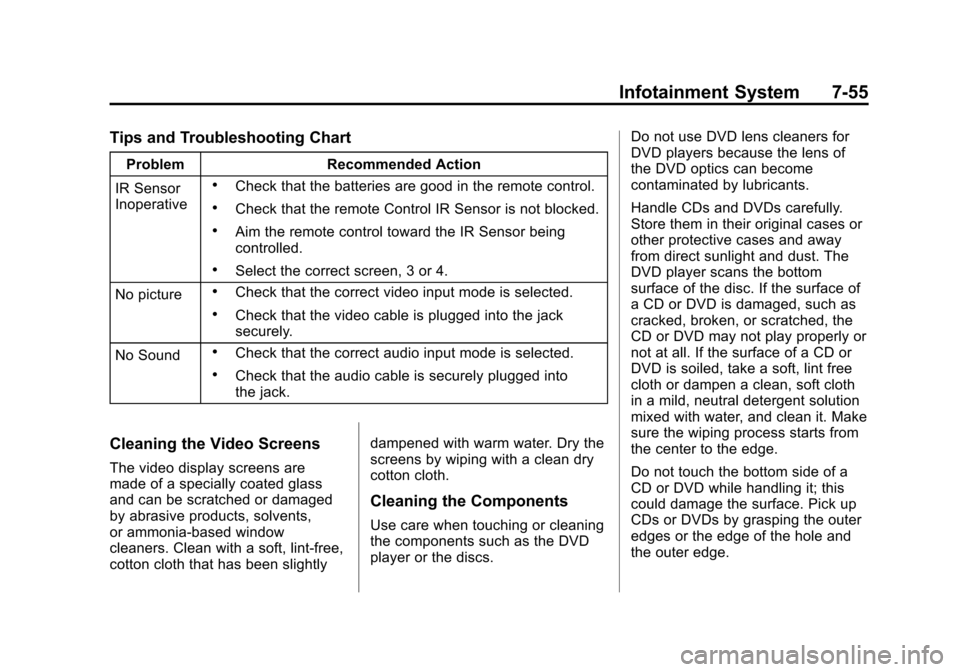
Tips and Troubleshooting Chart
ProblemRecommended Action
IR Sensor
Inoperative
.Check that the batteries are good in the remote control.
.Check that the remote Control IR Sensor is not blocked.
.Aim the remote control toward the IR Sensor being
controlled.
.Select the correct screen, 3 or 4.
No picture
.Check that the correct video input mode is selected.
.Check that the video cable is plugged into the jack
securely.
No Sound
.Check that the correct audio input mode is selected.
.Check that the audio cable is securely plugged into
the jack.
Cleaning the Video Screens
The video display screens are
made of a specially coated glass
and can be scratched or damaged
by abrasive products, solvents,
or ammonia-based window
cleaners. Clean with a soft, lint-free,
cotton cloth that has been slightly dampened with warm water. Dry the
screens by wiping with a clean dry
cotton cloth.
Cleaning the Components
Use care when touching or cleaning
the components such as the DVD
player or the discs.Do not use DVD lens cleaners for
DVD players because the lens of
the DVD optics can become
contaminated by lubricants.
Handle CDs and DVDs carefully.
Store them in their original cases or
other protective cases and away
from direct sunlight and dust. The
DVD player scans the bottom
surface of the disc. If the surface of
a CD or DVD is damaged, such as
cracked, broken, or scratched, the
CD or DVD may not play properly or
not at all. If the surface of a CD or
DVD is soiled, take a soft, lint free
cloth or dampen a clean, soft cloth
in a mild, neutral detergent solution
mixed with water, and clean it. Make
sure the wiping process starts from
the center to the edge.
Do not touch the bottom side of a
CD or DVD while handling it; this
could damage the surface. Pick up
CDs or DVDs by grasping the outer
edges or the edge of the hole and
the outer edge.
Page 375 of 538
Black plate (7,1)Cadillac Escalade/Escalade ESV Owner Manual - 2012
Vehicle Care 10-7
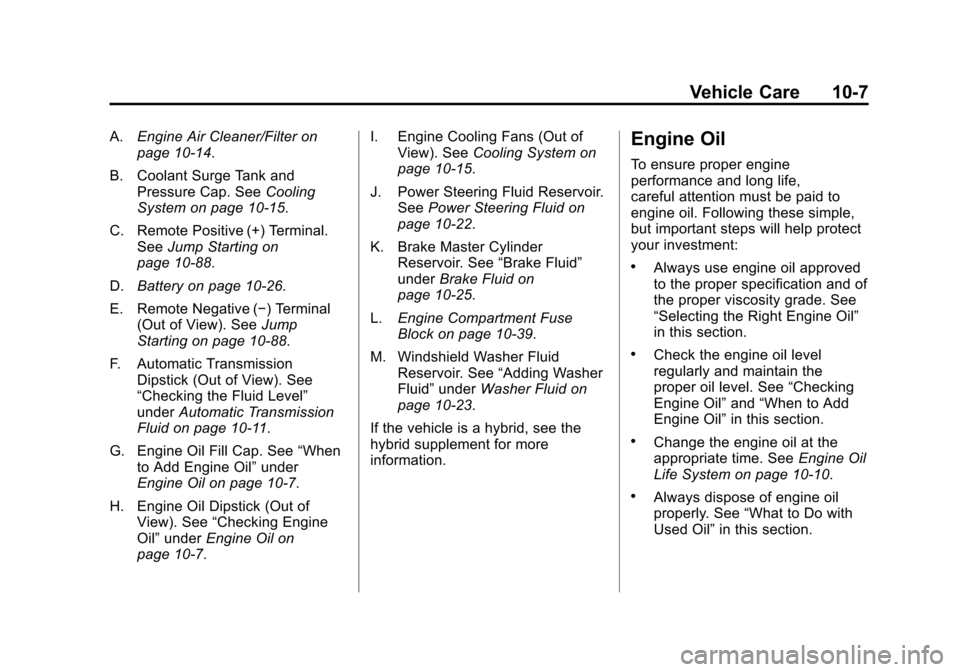
A.Engine Air Cleaner/Filter on
page 10‑14.
B. Coolant Surge Tank and Pressure Cap. See Cooling
System on page 10‑15.
C. Remote Positive (+) Terminal. See Jump Starting on
page 10‑88.
D. Battery on page 10‑26.
E. Remote Negative (−) Terminal (Out of View). See Jump
Starting on page 10‑88.
F. Automatic Transmission Dipstick (Out of View). See
“Checking the Fluid Level”
under Automatic Transmission
Fluid on page 10‑11.
G. Engine Oil Fill Cap. See “When
to Add Engine Oil” under
Engine Oil on page 10‑7.
H. Engine Oil Dipstick (Out of View). See “Checking Engine
Oil” under Engine Oil on
page 10‑7. I. Engine Cooling Fans (Out of
View). See Cooling System on
page 10‑15.
J. Power Steering Fluid Reservoir. See Power Steering Fluid on
page 10‑22.
K. Brake Master Cylinder Reservoir. See “Brake Fluid”
under Brake Fluid on
page 10‑25.
L. Engine Compartment Fuse
Block on page 10‑39.
M. Windshield Washer Fluid Reservoir. See “Adding Washer
Fluid” under Washer Fluid on
page 10‑23.
If the vehicle is a hybrid, see the
hybrid supplement for more
information.Engine Oil
To ensure proper engine
performance and long life,
careful attention must be paid to
engine oil. Following these simple,
but important steps will help protect
your investment:
.Always use engine oil approved
to the proper specification and of
the proper viscosity grade. See
“Selecting the Right Engine Oil”
in this section.
.Check the engine oil level
regularly and maintain the
proper oil level. See “Checking
Engine Oil” and“When to Add
Engine Oil” in this section.
.Change the engine oil at the
appropriate time. See Engine Oil
Life System on page 10‑10.
.Always dispose of engine oil
properly. See “What to Do with
Used Oil” in this section.