audio CADILLAC ESCALADE 2013 3.G Owner's Guide
[x] Cancel search | Manufacturer: CADILLAC, Model Year: 2013, Model line: ESCALADE, Model: CADILLAC ESCALADE 2013 3.GPages: 532, PDF Size: 7.69 MB
Page 212 of 532
Black plate (30,1)Cadillac Escalade/Escalade ESV Owner Manual - 2013 - CRC 2nd Edition - 10/
9/12
7-30 Infotainment System
When playing an MP3 the rear seat
operator can power on the RSE
video screen and use the remote
control to navigate through the MP3.
Auxiliary Devices
Using the Auxiliary Input Jack
The navigation system has an
auxiliary input jack located on the
faceplate and in the center console.
This is not an audio output; do not
plug the headphone set into the
front auxiliary input jack. An external
audio device such as an iPod,
laptop computer, MP3 player, CD
player, or cassette tape player, etc.
can be connected to the auxiliary
input jack for use as another audio
source.
Drivers are encouraged to set up
any auxiliary device while the
vehicle is in P (Park). SeeDefensive
Driving on page 9‑3 for more
information on driver distraction. To use a portable audio player,
connect a 3.5 mm (1/8 in) cable to
the radio's front auxiliary input jack.
When a device is connected, press
AUDIO, then press AUDIO again
until AUX is selected or press the
AUX screen button to begin playing
audio from the device over the
vehicle speakers.
For optimal sound quality, increase
the portable audio device's volume
to the loudest level.
It is always best to power the
portable audio device through its
own battery while playing.
The vehicle may have a rear
entertainment system (RSE) with a
second and third row screen. The
RSE has audio adapters to allow
you to connect auxiliary devices.
The audio can be heard through the
speakers or through the wireless or
wired headphones. See the Rear
Seat Infotainment user guide for
more information.Drivers are encouraged to set up
any auxiliary device while the
vehicle is in P (Park). See
Defensive Driving on page 9‑3
for
more information on driver
distraction.
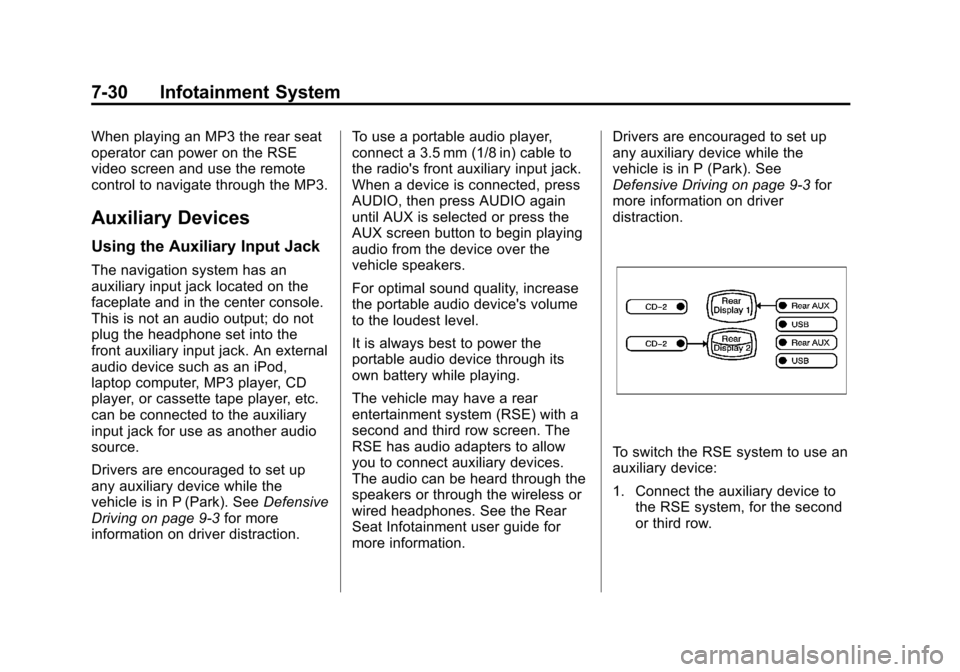
To switch the RSE system to use an
auxiliary device:
1. Connect the auxiliary device to the RSE system, for the second
or third row.
Page 213 of 532
Black plate (31,1)Cadillac Escalade/Escalade ESV Owner Manual - 2013 - CRC 2nd Edition - 10/
9/12
Infotainment System 7-31
2. Press AUDIO then press AUDIOagain, repeatedly until AUX
(auxiliary) is selected or press
the AUX screen button. An
auxiliary device must be
connected for the AUX screen
button to appear as an option to
select.
3. For the second row display select the Rear AUX screen
button next to Rear Display
1 and for the third row display
select the Rear AUX screen
button next to Rear Display 2.
Each screen works
independently of the other. The
second row screen can watch a
DVD while the third row screen
can use the auxiliary device.
The rear seat passengers can also
use the remote control to change
the functions of the RSE. See the
Rear Seat Infotainment user guide
for more information.Rear Seat
Infotainment
Rear Seat Entertainment
(RSE) System
(Headrest DVD)
Vehicles with an RSE system
include two head restraint video
display screens with integrated DVD
players, auxiliary inputs, two
wireless headphones, and a remote
control. This system works
independently from the vehicle's
Overhead DVD RSE system. See
Rear Seat Entertainment (RSE)
System (Headrest DVD) on
page 7‑31 orRear Seat
Entertainment (RSE) System
(Overhead) on page 7‑50 for
information about the Overhead
DVD RSE system.
The vehicle has a feature called
Retained Accessory Power (RAP).
With RAP, the RSE system can be
played even after the ignition is turned off. See
Retained Accessory
Power (RAP) on page 9‑26 for more
information.
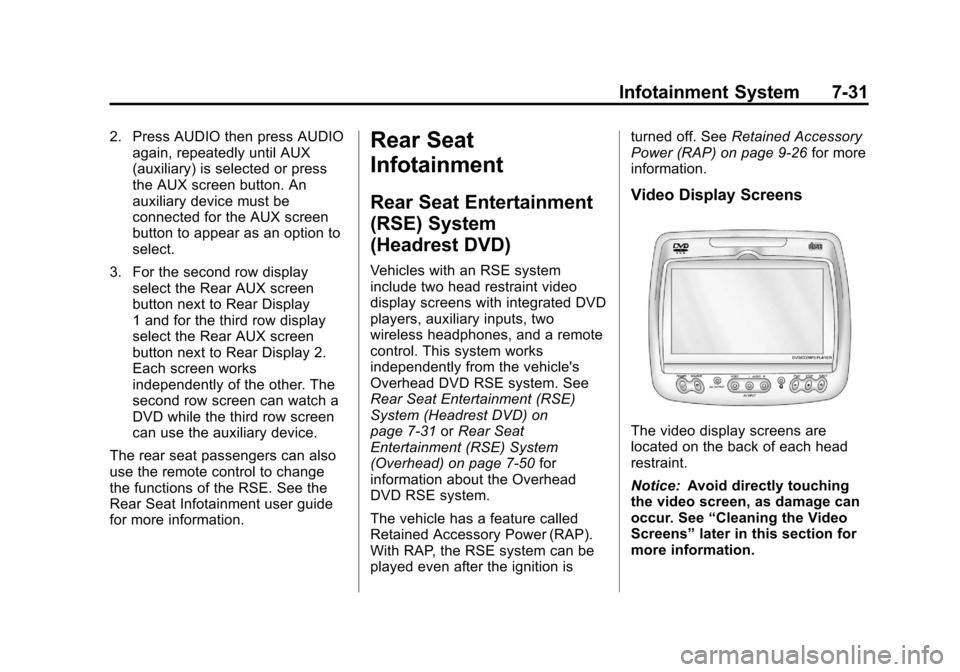
Video Display Screens
The video display screens are
located on the back of each head
restraint.
Notice: Avoid directly touching
the video screen, as damage can
occur. See “Cleaning the Video
Screens” later in this section for
more information.
Page 214 of 532
Black plate (32,1)Cadillac Escalade/Escalade ESV Owner Manual - 2013 - CRC 2nd Edition - 10/
9/12
7-32 Infotainment System
Overview RSE Base System
Some DVDs do not allow fast
forwarding or skipping of the
copyright information or previews.
If the DVD does not begin playing at
the main title, refer to the on-screen
instructions.
The DVD player can be controlled
by using the buttons located below
the video display screen or by using
the buttons on the system’s remote
control. See “Remote Control” later
for more information.
The following discs are compatible
with the DVD player:
.DVD-Video: A DVD that has
video.
.CD-DA: A CD that has music or
sound content only.
.CD-Video: A CD that has a
movie.
.CD-R/RW: A disc that has audio
files such as CD-R with
downloaded MP3 files, MPEG,
or JPEG files.
The DVD player and discs are
coded by global region. The DVD
players are set to Region 1. Discs
with other region codes will not work
in the players.
If an error message displays on the
video screen, see “DVD Messages”
later in this section.
While the vehicle is moving,
passengers should not unfasten
their safety belts to make
adjustments to the video screen
control buttons. See Safety Belts on
page 3‑16. Use the remote control
for any necessary adjustments. See
“Remote Control” later in this
section.
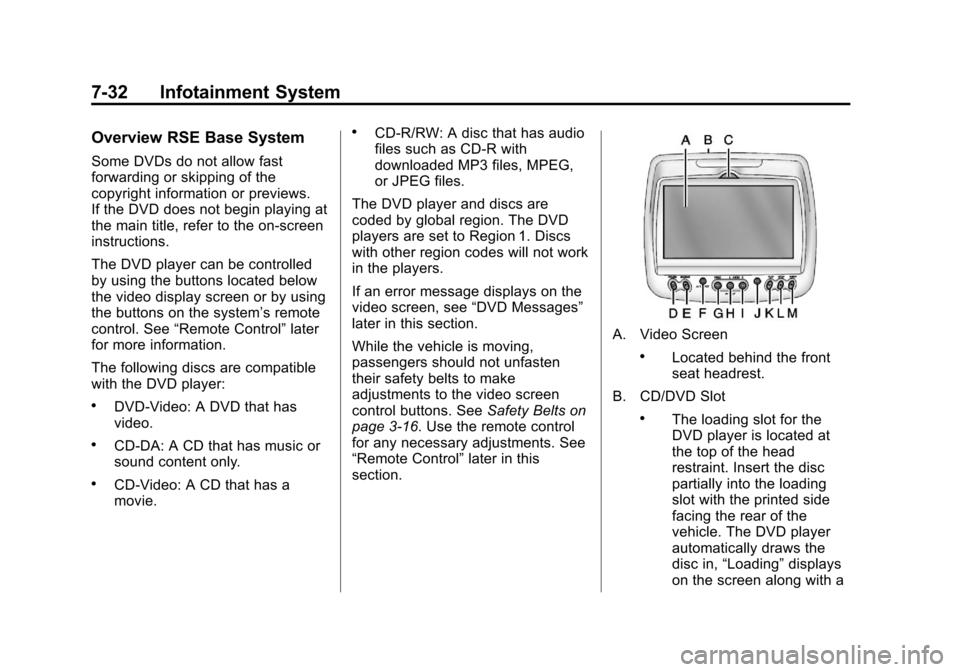
A. Video Screen
.Located behind the front
seat headrest.
B. CD/DVD Slot
.The loading slot for the
DVD player is located at
the top of the head
restraint. Insert the disc
partially into the loading
slot with the printed side
facing the rear of the
vehicle. The DVD player
automatically draws the
disc in, “Loading” displays
on the screen along with a
Page 215 of 532

Black plate (33,1)Cadillac Escalade/Escalade ESV Owner Manual - 2013 - CRC 2nd Edition - 10/
9/12
Infotainment System 7-33
disc indicator, and
playback starts. If the disc
is inserted incorrectly, the
DVD player ejects the disc
and No Disc displays.
C. Level Lock and Release Latch
.The viewing angle of the
video screen can be
adjusted by releasing the
latch and gently moving
the screen. Then lock it
into a secure position.
D. POWER
O
.Press to turn the power on
or off. Each video screen
can be powered on or off
independently.
E. SOURCE
.Press to select between
Monitor 3, Monitor 4, or the
AV INPUT.
Each video display screen
can be adjusted
independently, as well as display information from
both DVD players and both
A/V inputs.
F. AV OUTPUT (Audio/Video Output Jack)
.Wired headphones or
video output can be
plugged in with a 3.5 mm
(1/8 in) jack to listen to
music or show the video
on another device.
G. Video Input
.The yellow connector is
used for video input.
H. Left Audio Input
.The white connector is
used for the left side audio.
I. Right Audio Input
.The red connector is used
for the right side audio.
J. 3.5 mm (1/8 in) Output Jack
.Wired headphones can be
plugged in with a 3.5 mm
(1/8 in) jack. K. PLAY
r
.Press this button located
below the video display
screen to start playback of
a disc. On DVDs and video
CDs with playback
control (PBC), menu
screens can display
automatically. It might be
necessary to press the
play button again to
begin play.
There is a play position
memory feature for DVD
and video CD only. If the
DVD player is turned off
and then turned back on,
the DVD player resumes
playback where the disc
stopped. The play position
memory is erased if the
disc is removed.
Page 220 of 532
Black plate (38,1)Cadillac Escalade/Escalade ESV Owner Manual - 2013 - CRC 2nd Edition - 10/
9/12
7-38 Infotainment System
RSE Overview Uplevel System
The loading slot for the DVD player
is located at the top of the head
restraint. Insert the disc partially into
the loading slot with the printed side
facing the rear of the vehicle. The
DVD player automatically draws the
disc in,“Loading” displays on the
screen along with a disc indicator,
and playback starts. If the disc is
inserted incorrectly, the DVD player
ejects the disc and No Disc
displays.
Some DVDs do not allow fast
forwarding or skipping of the
copyright information or previews.
If the DVD does not begin playing at
the main title, refer to the on-screen
instructions.
The DVD player can be controlled
by using the buttons located below
the video display screen or by using
the buttons on the system’ s remote
control. See “Remote Control” later
for more information. The following discs are compatible
with the DVD player:.DVD-Video: A DVD that has
video.
.CD-DA: A CD that has music or
sound content only.
.CD-Video: A CD that has a
movie.
.CD-R/RW: A disc that has audio
files such as CD-R with
downloaded MP3 files, MPEG,
or JPEG files.
The DVD player and discs are
coded by global region. The DVD
players are set to Region 1. Discs
with other region codes will not work
in the players.
If an error message displays on the
video screen, see “DVD Messages”
later in this section. While the vehicle is moving,
passengers should not unfasten
their safety belts to make
adjustments to the video screen
control buttons. See
Safety Belts on
page 3‑16. Use the remote control
for any necessary adjustments. See
“Remote Control” later in this
section.
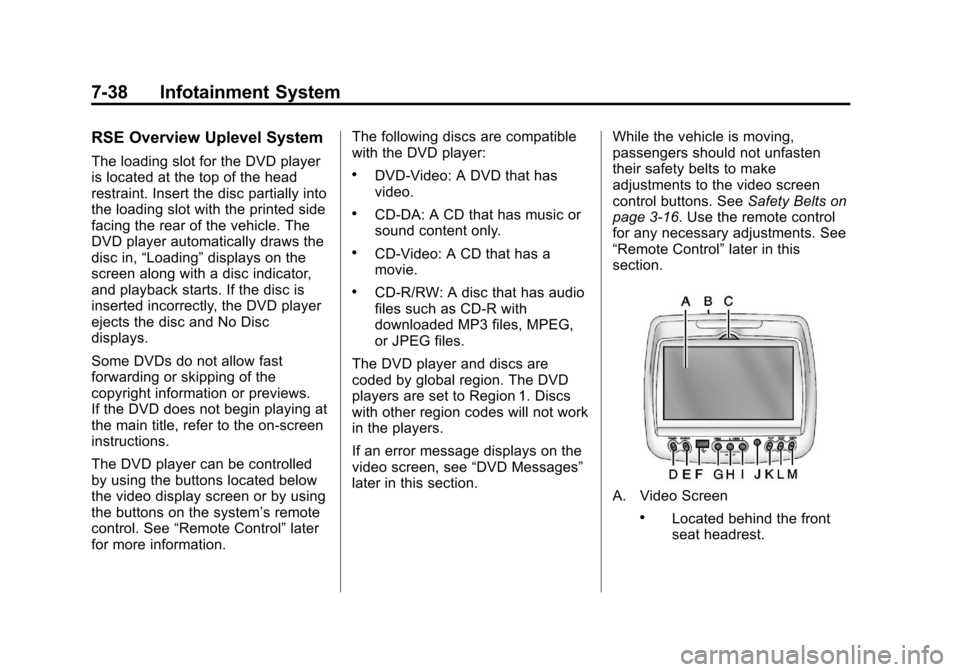
A. Video Screen
.Located behind the front
seat headrest.
Page 221 of 532

Black plate (39,1)Cadillac Escalade/Escalade ESV Owner Manual - 2013 - CRC 2nd Edition - 10/
9/12
Infotainment System 7-39
B. CD/DVD Slot
.The loading slot for the
DVD player is located at
the top of the head
restraint. Insert the disc
partially into the loading
slot with the printed side
facing the rear of the
vehicle. The DVD player
automatically draws the
disc in,“Loading” displays
on the screen along with a
disc indicator, and
playback starts. If the disc
is inserted incorrectly, the
DVD player ejects the disc
and No Disc displays.
C. Level Lock and Release Latch
.The viewing angle of the
video screen can be
adjusted by releasing the
latch and gently moving
the screen. Then lock it
into a secure position. D. POWER
O
.Press to turn the power on
or off. Each video screen
can be powered on or off
independently.
E. SOURCE
.Press to select between
Monitor 3, Monitor 4, or the
AV INPUT. Each video
display screen can be
adjusted independently, as
well as display information
from both DVD players and
both A/V inputs.
F. USB Port
.Connect USB drive to
listen to music or view
pictures. To charge
devices, connect it to the
USB port. Not all devices
are able to be charged. For
playback, the formats
available are:
‐ JPEG
‐ JPG ‐
M2V
‐ MP3
‐ MPE
‐ MPEG-1
‐ MPEG-2
‐ MPEG-4
‐ MPG
‐ OGG
‐ WMA
‐ MWA
G. Video Input
.The yellow connector is
used for video input.
H. Left Audio Input
.The white connector is
used for the left side audio.
I. Right Audio Input
.The red connector is used
for the right side audio.
Page 223 of 532
Black plate (41,1)Cadillac Escalade/Escalade ESV Owner Manual - 2013 - CRC 2nd Edition - 10/
9/12
Infotainment System 7-41
Using the Uplevel RSE
On-Screen Display (OSD)
Menus
Use the OSD setup display
menus for:
.General Setup
.Audio Setup
.Quality Setup
.Preference Setup
To use the OSD menus while using
the DVD player or an auxiliary
device:
1. Press the SETUP button on the remote control to display the
icons and pages on the display
screen.
2. Select the desired page by using the left/right navigation arrows to
move the cursor.
3. Press the SETUP button again on the remote control to cancel
use of the setup display. Not all DVDs support all of the
feature defaults in the setup menus.
If a feature is not supported, the
defaults are provided by the DVD
media.
General Setup Menu
To set the language for the OSD:
1. Press the SETUP button on the
remote control.
2. Use the left/right navigation arrows to navigate the General
Setup Page, then use the down
navigation arrow to select the
OSD language.
3. Press the ENTER button and then use the right or left
navigation arrows to select
English, Simple/Traditional
Chinese, French, German,
Italian, Spanish, Portuguese,
or Korean. Press the left
navigation arrow to go back to
the previous menu. The angle mark allows different
viewing angles on the DVD player.
To set the angle mark:
1. Press the SETUP button on the
remote control.
2. Use the left/right navigation arrows to navigate the General
Setup Page, then use the down
navigation arrow to select the
OSD language.
3. Press the ENTER button and then use the right or left
navigation arrows to select On
or Off. Press the left navigation
arrow to go back to the
previous menu.
Audio Setup Menu
The Audio Setup Menu is available
when a disc is not loaded.
To set the speaker setup:
1. Press the SETUP button on the remote control.
2. Use the left/right navigation arrows to navigate the Audio
Setup Page.
Page 224 of 532
Black plate (42,1)Cadillac Escalade/Escalade ESV Owner Manual - 2013 - CRC 2nd Edition - 10/
9/12
7-42 Infotainment System
3. Press the down navigation arrowto select Speaker Setup
sub-menu and to adjust the
speakers setting. Choose from
LT/RT, Stereo, V SURR,
and OFF
4. Press the ENTER button and then use the left or right
navigation arrows to select a
speaker option. Press the left
navigation arrow to go back to
the previous menu.
The Dolby Digital Setup Menu
speaker options are L-Mono,
R-Mono, and Mix-Mono.
Quality Setup Menu
To setup the video quality
setup menu:
1. Press the SETUP button on the remote control.
2. Use the left/right and down navigation arrows on the remote
control to select the Video
Quality Setup sub-menu. 3. Press the ENTER button, use
the left or right navigation arrows
to adjust the following:
Sharpness: Adjust to soften or
sharpen the picture. Use the right or
left navigation arrows to choose
from Low, Med, or High.
Brightness: Adjust to brighten or
darken the picture. Use the right or
left navigation arrows to choose
from −20 to +20.
Contrast: Adjust to increase or
decrease the picture contrast. Use
the right or left navigation arrows to
choose from −16 to +16.
Hue: Adjust to increase or
decrease the color hue. Use the
right or left navigation arrows to
choose from −9 to +9.
Saturation: Adjust to increase or
decrease color intensity. Use the
right or left navigation arrows to
choose from −9 to +9 Preference Setup Menu
To set the audio playback language:
1. Press the SETUP button on the
remote control.
2. Use the left/right and down navigation arrows on the remote
control to select the Audio
sub-menu under the
Preference Page.
To turn the Subtitles on or off:
1. Press the SETUP button on the remote control.
2. Use the left/right and down navigation arrows on the remote
control to select the Subtitle
sub-menu under the Preference
Page and use the left or right
navigation arrows to choose On
or Off. Press the left navigation
arrow to go back to the
previous menu.
Page 226 of 532
Black plate (44,1)Cadillac Escalade/Escalade ESV Owner Manual - 2013 - CRC 2nd Edition - 10/
9/12
7-44 Infotainment System
5. At the Confirm PWD option,confirm the new password by
entering the new password
again.
6. Scroll to the OK button and press ENTER. The message
“Your password has been
changed” displays.
To reset the system back to the
factory default settings:
1. Press the SETUP button on the remote control.
2. Use the left/right and down navigation arrows on the remote
control to select the Default
sub-menu under the Preference
Page and press the ENTER
button to reset the settings. The
parental settings will not be
affected.Vehicle Speakers
Audio from the DVD player or an
auxiliary device can be heard
through the vehicle speakers or the
wireless/wired headphones, while
the radio is tuned to one of the six
frequencies selected on the Sound
Around portion of the system’s
remote control. See “Remote
Control” later in this section.
Only one audio source can be heard
through the vehicle’ s speakers at a
time. The audio source being used
is specified by the A/V (audio/video)
source selected on the driver side
head restraint video display screen.
To turn the RSE system audio
output to the vehicle’s speakers,
press Sound Around ON, on the
system’ s remote control. The audio
from the RSE system can be heard
through the wireless/wired
headphones and the vehicle’s
speakers at the same time. The
volume on the radio can vary when
switching between the radio, CD,
DVD, MP3, or an auxiliary device.
Wireless Headphones
The two wireless headphones
included with the Headrest DVD
RSE system will only work with the
Headrest DVD RSE system and are
marked for channel 3 and 4. The
wireless headphones must be used
within a line of sight of the
transmitter that is located above the
video display screen.
3-4 Channel Selector: This is
located on the right earpiece. Either
Channel 3 or 4 can be selected with
the channel selector. The driver side
monitor is designated as Channel 3,
and the passenger side as Channel
4. Set the channel selector switch
according to the video display
screen being viewed. The message,
“To listen to this monitor tune your
headphones to Channel 3 (or 4)”
displays for five seconds then
disappears when the video display
screen is turned on.
Page 228 of 532

Black plate (46,1)Cadillac Escalade/Escalade ESV Owner Manual - 2013 - CRC 2nd Edition - 10/
9/12
7-46 Infotainment System
SETUP:Press to change the
default settings, see “Using the RSE
On-Screen Display (OSD) Menus”
later in this manual. There are four
main menu screens, each screen
displays a menu to select different
setting options. The screens are:
1. General Setup —adjusts screen
settings.
2. Audio Setup —sets the
language.
3. Preference Screen —sets the
subtitles and parental controls.
4. Password Setup —allows a
password to be set.
Press SETUP again to exit.
EJECT
X: Press to eject or
reload a disc.
DVD-Video Screen 3: Press the
DVD button located under 3 to
transmit IR codes for DVD mode on
Video Screen 3.
TV-Video Screen 3: This button is
not used with the system. DVD-Video Screen 4:
Press the
DVD button located under 4 to
transmit IR codes for DVD mode on
Video Screen 4.
TV-Video Screen 4: This button is
not used with the system.
SOUND AROUND ON/OFF: Press
to turn the FM Transmitter power on
or off.
MUTE
>(For DVD Only): Press to
turn off the headphone sound. Press
again to turn the sound on again.
PIX (Picture Selection): Press to
adjust the picture’s On Screen
Display (OSD). Each time this
button is pressed, the picture
adjustment OSD, cycles through
bars for BRIGHTNESS,
CONTRAST, COLOR, and TINT.
Use the right/left navigation arrows
to adjust the setting. This feature
automatically shuts off id another
button is pressed or adjustments
are not made within six seconds. SOUND AROUND SELECT:
Press
to select an FM transmitter channel.
The SOUND AROUND SELECT
lets the DVD audio play over the
vehicle’s sound system by tuning
the radio to one of the six FM
frequencies listed below.
.CH1 : 88.3MHz
.CH2 : 88.7MHz
.CH3 : 89.1MHz
.CH4 : 89.5MHz
.CH5 : 89.9MHz
.CH6 : 90.3MHz
MENU: Press to enter the DVD
disc menu while the disc is playing.
Q,R,q,r(Navigation Arrows):
Press to navigate through menus.
ENTER: Press to enter a selected
function or to begin playback of
the disc.