phone CADILLAC ESCALADE 2021 User Guide
[x] Cancel search | Manufacturer: CADILLAC, Model Year: 2021, Model line: ESCALADE, Model: CADILLAC ESCALADE 2021Pages: 492, PDF Size: 7.92 MB
Page 161 of 492
Cadillac Escalade Owner Manual (GMNA-Localizing-U.S./Canada/Mexico-
13690472) - 2021 - CRC - 8/10/21
160 INFOTAINMENT SYSTEM
There will always be 10 icons per page
except on the last page. If an icon is
moved from the first page to the
second, then that icon from the
second page will replace the one
removed from the first.
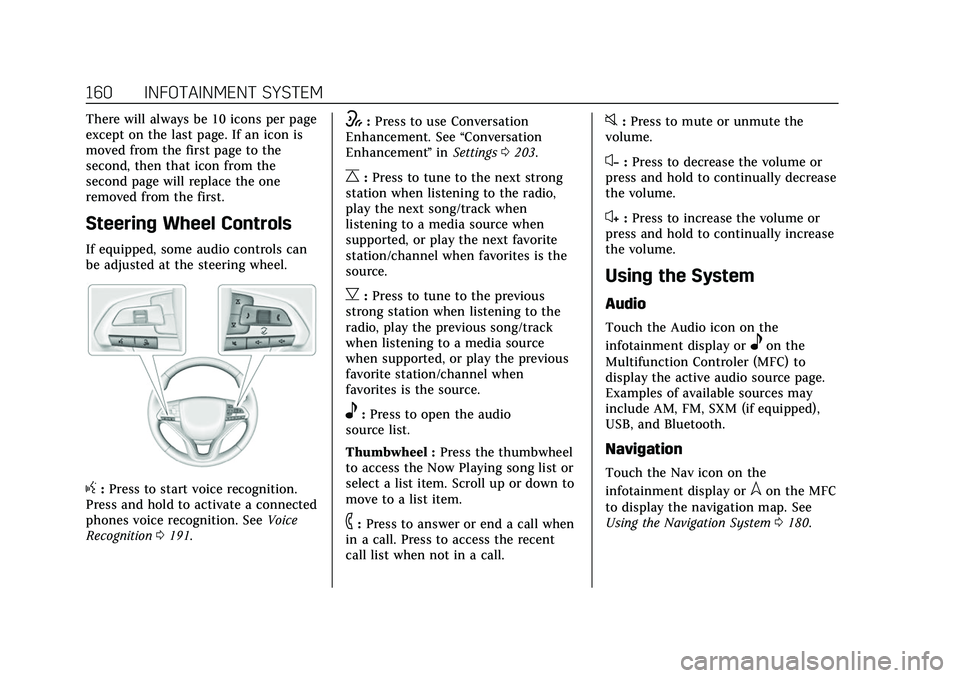
Steering Wheel Controls
If equipped, some audio controls can
be adjusted at the steering wheel.
g:Press to start voice recognition.
Press and hold to activate a connected
phones voice recognition. See Voice
Recognition 0191.
w:Press to use Conversation
Enhancement. See “Conversation
Enhancement ”in Settings 0203.
C:Press to tune to the next strong
station when listening to the radio,
play the next song/track when
listening to a media source when
supported, or play the next favorite
station/channel when favorites is the
source.
B: Press to tune to the previous
strong station when listening to the
radio, play the previous song/track
when listening to a media source
when supported, or play the previous
favorite station/channel when
favorites is the source.
e: Press to open the audio
source list.
Thumbwheel : Press the thumbwheel
to access the Now Playing song list or
select a list item. Scroll up or down to
move to a list item.
6: Press to answer or end a call when
in a call. Press to access the recent
call list when not in a call.
0: Press to mute or unmute the
volume.
x− :Press to decrease the volume or
press and hold to continually decrease
the volume.
x+ : Press to increase the volume or
press and hold to continually increase
the volume.
Using the System
Audio
Touch the Audio icon on the
infotainment display or
eon the
Multifunction Controler (MFC) to
display the active audio source page.
Examples of available sources may
include AM, FM, SXM (if equipped),
USB, and Bluetooth.
Navigation
Touch the Nav icon on the
infotainment display or
lon the MFC
to display the navigation map. See
Using the Navigation System 0180.
Page 162 of 492
Cadillac Escalade Owner Manual (GMNA-Localizing-U.S./Canada/Mexico-
13690472) - 2021 - CRC - 8/10/21
INFOTAINMENT SYSTEM 161
Phone
Touch the Phone icon on the
infotainment display or
6on the MFC
to display the Phone menu. See
Bluetooth (Pairing and Using a Phone)
0 197 or
Bluetooth (Overview) 0196.
Vehicle Information
TouchTon the infotainment
display or press
Ton the MFC. See
Vehicle Information 0134.
Apple CarPlay
Touch the Apple CarPlay icon to
activate Apple CarPlay (if equipped)
after a supported device is connected.
See Apple CarPlay and Android Auto
0 202.
Android Auto
Touch the Android Auto icon to
activate Android Auto (if equipped)
after a supported device is connected.
See Apple CarPlay and Android Auto
0 202.
Users
Touch the Users icon to sign in or
create a new user profile, and follow
the on-screen instructions.
Only four user profiles can be active at
one time in the vehicle. It may be
necessary to remove a profile from the
menu before creating or signing into
an existing profile. The removed
profile can be logged into at a
later time.
Settings
Touch the Settings icon to display the
Settings menu. See Settings0203.
Apps
If equipped, in-vehicle apps are
available for download. Touch the
Apps icon on the Home Page to begin.
Downloading and using in-vehicle
apps requires Internet connectivity
which can be accessed with a data
plan through the vehicle’s built-in 4G
LTE Wi-Fi hotspot, if equipped, or a
compatible mobile device hotspot. On
most mobile devices, activation of the
Wi-Fi hotspot is in the device’s Settings menu under Mobile Network
Sharing, Personal Hotspot, Mobile
Hotspot, or similar.
Availability of apps and connectivity
varies by vehicle, conditions, and
location. Data plan rates apply.
Features are subject to change. For
more information, see
www.my.cadillac.com/learn for US/
Canada and see my.cadillac.com.mx.
for Mexico.
OnStar Services
If equipped, touch the OnStar Services
icon to display the OnStar Services
and Account pages. See
OnStar
Overview 0471 and
OnStar System 0172.
Camera
Touch the Camera icon to access the
camera application. See Assistance
Systems for Parking or Backing 0299.
Rear Media
If equipped, touch the Rear Media
icon to access the Rear Seat
Infotainment application. See Rear
Seat Infotainment (RSI) System 0173.
Page 165 of 492
Cadillac Escalade Owner Manual (GMNA-Localizing-U.S./Canada/Mexico-
13690472) - 2021 - CRC - 8/10/21
164 INFOTAINMENT SYSTEM
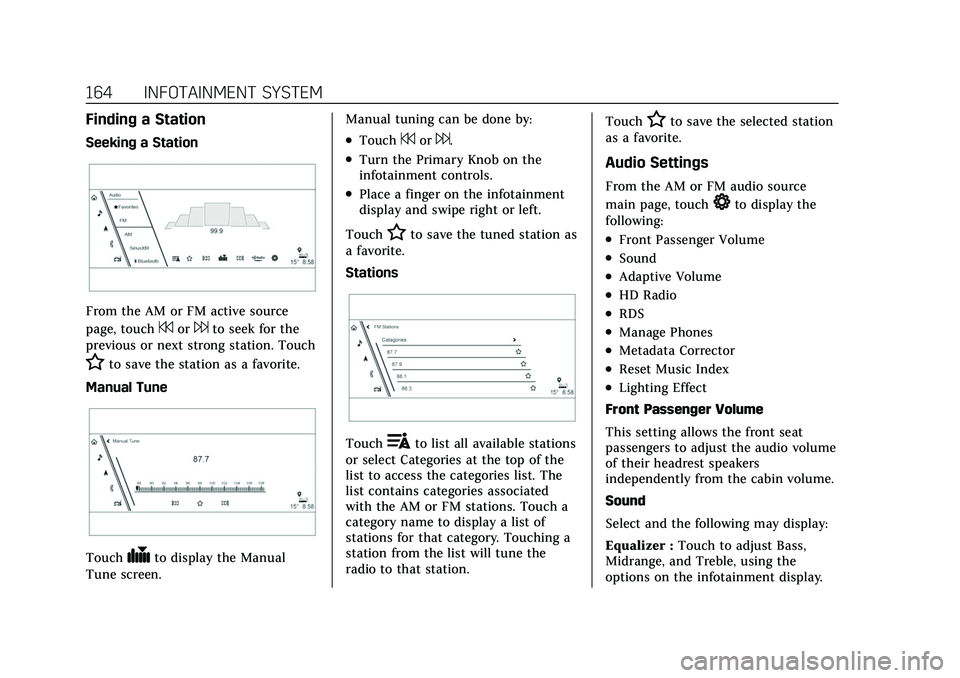
Finding a Station
Seeking a Station
From the AM or FM active source
page, touch
7or6to seek for the
previous or next strong station. Touch
Hto save the station as a favorite.
Manual Tune
Touch#to display the Manual
Tune screen. Manual tuning can be done by:
.Touch7or6.
.Turn the Primary Knob on the
infotainment controls.
.Place a finger on the infotainment
display and swipe right or left.
Touch
Hto save the tuned station as
a favorite.
Stations
Touch!to list all available stations
or select Categories at the top of the
list to access the categories list. The
list contains categories associated
with the AM or FM stations. Touch a
category name to display a list of
stations for that category. Touching a
station from the list will tune the
radio to that station. Touch
Hto save the selected station
as a favorite.
Audio Settings
From the AM or FM audio source
main page, touch
*to display the
following:
.Front Passenger Volume
.Sound
.Adaptive Volume
.HD Radio
.RDS
.Manage Phones
.Metadata Corrector
.Reset Music Index
.Lighting Effect
Front Passenger Volume
This setting allows the front seat
passengers to adjust the audio volume
of their headrest speakers
independently from the cabin volume.
Sound
Select and the following may display:
Equalizer : Touch to adjust Bass,
Midrange, and Treble, using the
options on the infotainment display.
Page 166 of 492
Cadillac Escalade Owner Manual (GMNA-Localizing-U.S./Canada/Mexico-
13690472) - 2021 - CRC - 8/10/21
INFOTAINMENT SYSTEM 165
Fade/Balance :Touch to adjust by
using the controls on the
infotainment display.
Sound Mode : Touch to select Front
or Rear and to adjust Surround or
Surround 3D.
Adaptive Volume
This feature will automatically adjust
the audio volume based on vehicle
speed and road noise.
Touch Off or On.
HD Radio
Enhances AM and FM radio with
digital channels for better sound
quality and information.
Touch Off or On.
RDS
Radio Data System (RDS) displays
information about the currently
playing radio content such as song or
program name.
Touch Off or On. Manage Phones
Select to manage the vehicles phone
connections such as Near Field
Communication (NFC) pairing or
Bluetooth pairing.
Metadata Corrector
This feature, when on, will add and
correct information associated with
the media files on connected devices.
Touch Off or On.
Reset Music Index
Select to clear the metadata from the
connected USB devices.
Lighting Effect
This feature animates the radio
background in the color associated
with the currently playing content.
Touch Off or On.
Favorites
From the active audio source page,
choose
qFavorites from the list at
the left side to display a list of audio
favorites. Favorites are stored by touching
H.
This will highlight indicating that it is
now saved as a favorite.
HD Radio Technology
If equipped, HD Radio is a free service
with features such as digital quality
sound, more stations available on a
single frequency such as HD2 and
HD3, and display information such as
artist and song title.
From the Now Playing display, touch
the HD Radio icon to turn HD on
or off.
Station Access
To access HD Radio stations:
1. Tune the radio to the station. If HD Radio is turned on and the station
is broadcasting in HD Radio, the
radio will automatically tune to the
HD version of the current channel
(HD1) after several seconds. The
radio will also display icons
representing additional channels
(HD2, ...HD8), that may be
available. When the radio
Page 172 of 492
Cadillac Escalade Owner Manual (GMNA-Localizing-U.S./Canada/Mexico-
13690472) - 2021 - CRC - 8/10/21
INFOTAINMENT SYSTEM 171
Composers:1. Touch to view the composers on the USB.
2. Touch a Composer to view a list of albums by that composer.
3. Touch an album or All Songs to view a list of songs.
4. Touch a song from the list to begin playback.
Folders: 1. Touch to view the directories on the USB.
2. Touch a folder to view a list of all files.
3. Touch a file from the list to begin playback.
Podcasts : Touch to view the podcasts
on the connected Apple device and
get a list of podcast episodes.
Audiobooks:
1. Touch to view the audiobooks stored on the Apple device.
2. Touch an audiobook to get a list of chapters.
3. Touch the chapter from the list to begin playback. File System and Naming
File systems supported by the USB
may include:
.FAT32
.NTFS
.HFS+
The songs, artists, albums, and genres
are taken from the file’s song
information and are only displayed if
present. The radio displays the file
name as the track name if the song
information is not available.
Supported Apple Devices
To view supported devices, see
my.cadillac.com/learn.
Media Playback and Mute
USB playback will be paused if the
system is muted. If the steering wheel
mute control is pressed again,
playback will resume.
If the source is changed while in
mute, playback resumes and audio
will unmute.
Bluetooth Audio
Music may be played from a paired
Bluetooth device. See Bluetooth
(Pairing and Using a Phone) 0197 or
Bluetooth (Overview) 0196 for help
pairing a device.
Volume and song selection may be
controlled by using the infotainment
controls or the mobile device.
If Bluetooth is selected and no volume
is present, check the volume setting
on both your mobile device and the
infotainment system.
Music can be launched by touching
Bluetooth from the recent sources list
on the left of the display or by
touching the More option and then
touching the Bluetooth device.
To play music via Bluetooth:
1. Power on the device, and pair to connect the device.
2. Once paired, touch Audio from the Home Page, then touch Bluetooth
from the recent sources list on the
left of the display.
Page 173 of 492
Cadillac Escalade Owner Manual (GMNA-Localizing-U.S./Canada/Mexico-
13690472) - 2021 - CRC - 8/10/21
172 INFOTAINMENT SYSTEM
Bluetooth Sound Menu
See“Infotainment System Sound
Menu ”under AM-FM Radio 0163.
Manage Bluetooth Devices
From the Home Page: 1. Touch Audio.
2. Touch Bluetooth.
3. Touch Devices to add or delete devices.
When touching Bluetooth, the radio
may not be able to launch the audio
player on the connected device to
start playing. When the vehicle is not
moving, use the mobile device to
begin playback.
All devices launch audio differently.
When selecting Bluetooth as a source,
the radio may show as paused on the
display. Press play on the device or
touch
pon the display to begin
playback.
Browse functionality will be provided
where supported by the Bluetooth
device. This media content will not be
part of the MyMedia source mode. Some smartphones support sending
Bluetooth music information to
display on the radio. When the radio
receives this information, it will check
to see if any is available and display it.
For more information about supported
Bluetooth features, see
my.cadillac.com/learn.
OnStar System
4G LTE
If equipped with 4G LTE, up to seven
devices, such as smartphones, tablets,
and laptops, can be connected to
high-speed Internet through the
vehicle’s built-in Wi-Fi hotspot.
Call 1-888-4ONSTAR (1-888-466-7827)
to connect to an OnStar Advisor for
assistance. See www.onstar.com for
vehicle availability, details, and system
limitations. Service and connectivity
may vary by make, model, year,
carrier, availability, and conditions. 4G
LTE service is available in select
markets. 4G LTE performance is based
on industry averages and vehicle
systems design. Some services require
a data plan.
The OnStar App
If equipped, the infotainment system
has OnStar controls in the embedded
OnStar app on the Home Page. Most
OnStar functions that can be
performed with the buttons can be
done using the app. To open the app,
touch the OnStar icon on the Home
Page. App updates require a
corresponding service plan. Features
vary by region and model. Features
are subject to change. For more
information, see my.cadillac.com/learn
or press
Q.
Services
The Services tab displays the default
view for the app. Use this page to
launch the available OnStar services.
Touch a service to open its display.
Touch Wi-Fi to launch the
connections manager. Advisor Call,
Account, and Help are the other tiled
options.
Advisor Call
Selecting Advisor Call is the same as
pressing
Qor calling 1-888-4ONSTAR
(1-888-466-7827). The X option in the
Page 174 of 492
Cadillac Escalade Owner Manual (GMNA-Localizing-U.S./Canada/Mexico-
13690472) - 2021 - CRC - 8/10/21
INFOTAINMENT SYSTEM 173
upper right corner of the screen does
not end the call, but returns to the
previous screen.
Wi-Fi Hotspot
Touch to display the Settings page,
which shows the configurations for
the vehicle hotspot and allows them
to be changed.
For more information, see
www.onstar.com.
Account
The Account tab displays a snapshot
of the account linked with the vehicle.
If there is no such account, this tab
will show all values as——. The call
advisor call icon will be active even if
there is no active account.
Help
Selecting Help is the same as pressing
>. See OnStar Overview 0471.
Rear Seat Infotainment
Rear Seat Infotainment
(RSI) System
If equipped, the system includes two
rear USB-C ports, two HDMI inputs,
and two wireless headphones.
The RSI system may not operate
properly until the temperature is
above −20 °C (−4 °F) and below 55 °C
(131 °F).
System Operation
The video screens are in back of the
driver and front passenger seats.
To use:
1. Touch either screen to Power On and view the Home screen.
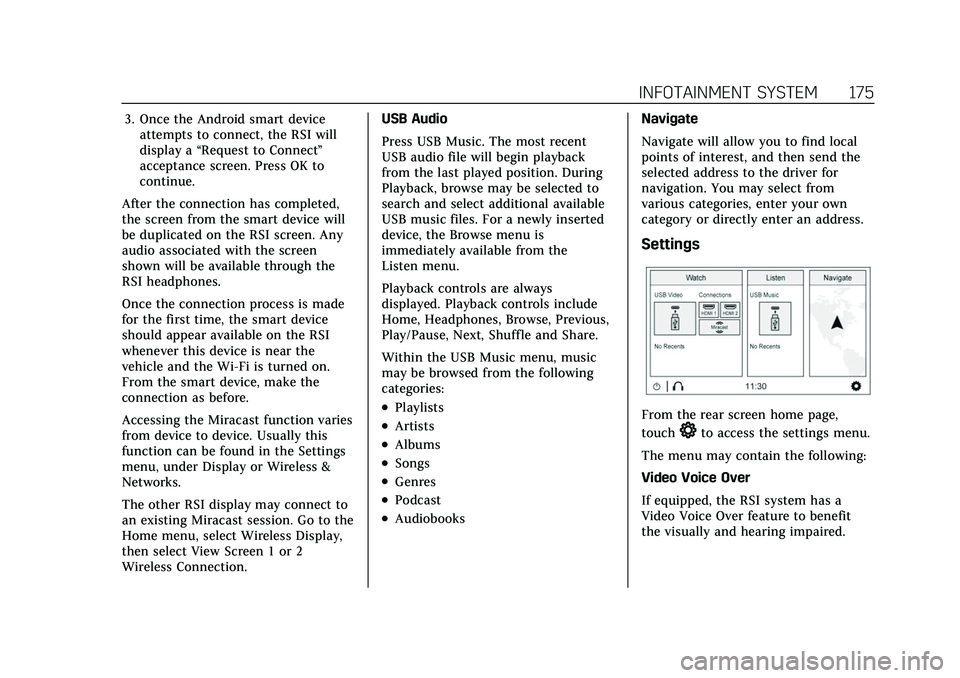
2. Select from the Watch, Listen or Navigate menus.
If Remember Screen Power Status was
selected in the settings, the screens
will return to the same Power Status
as when the vehicle was turned off.
See “Remember Screen Power Status ”
later in this section.
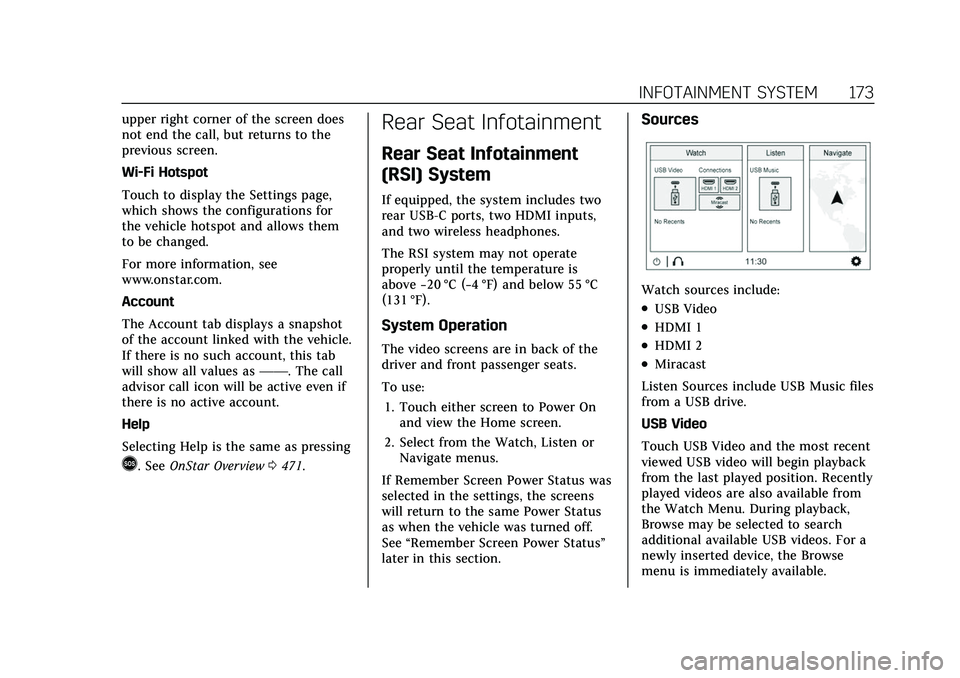
Sources
Watch sources include:
.USB Video
.HDMI 1
.HDMI 2
.Miracast
Listen Sources include USB Music files
from a USB drive.
USB Video
Touch USB Video and the most recent
viewed USB video will begin playback
from the last played position. Recently
played videos are also available from
the Watch Menu. During playback,
Browse may be selected to search
additional available USB videos. For a
newly inserted device, the Browse
menu is immediately available.
Page 175 of 492
Cadillac Escalade Owner Manual (GMNA-Localizing-U.S./Canada/Mexico-
13690472) - 2021 - CRC - 8/10/21
174 INFOTAINMENT SYSTEM
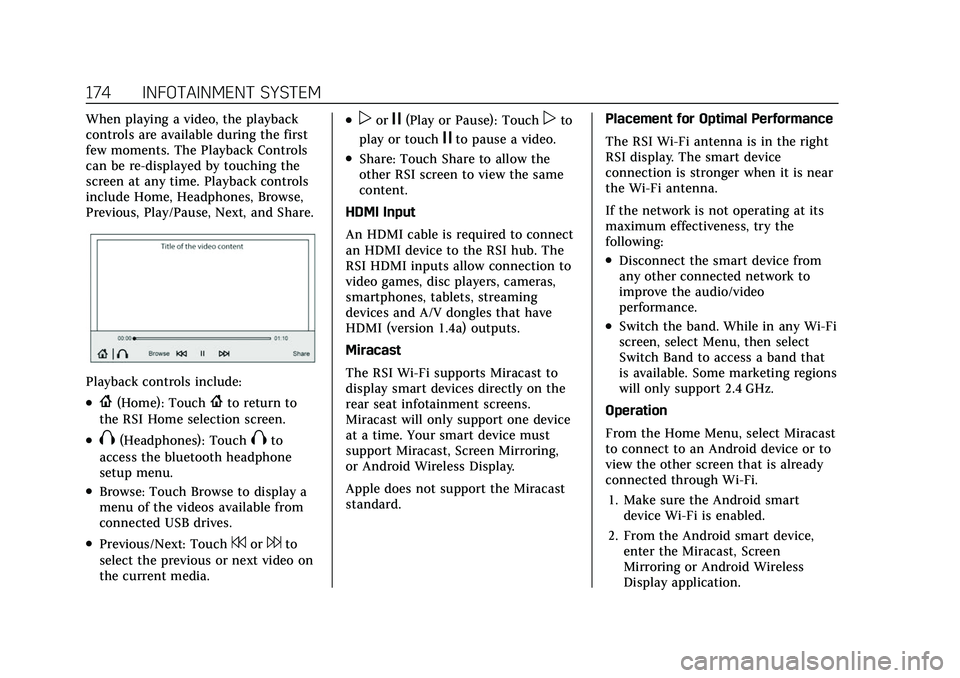
When playing a video, the playback
controls are available during the first
few moments. The Playback Controls
can be re-displayed by touching the
screen at any time. Playback controls
include Home, Headphones, Browse,
Previous, Play/Pause, Next, and Share.
Playback controls include:
.{(Home): Touch{to return to
the RSI Home selection screen.
.X(Headphones): TouchXto
access the bluetooth headphone
setup menu.
.Browse: Touch Browse to display a
menu of the videos available from
connected USB drives.
.Previous/Next: Touch7or6to
select the previous or next video on
the current media.
.porj(Play or Pause): Touchpto
play or touch
jto pause a video.
.Share: Touch Share to allow the
other RSI screen to view the same
content.
HDMI Input
An HDMI cable is required to connect
an HDMI device to the RSI hub. The
RSI HDMI inputs allow connection to
video games, disc players, cameras,
smartphones, tablets, streaming
devices and A/V dongles that have
HDMI (version 1.4a) outputs.
Miracast
The RSI Wi-Fi supports Miracast to
display smart devices directly on the
rear seat infotainment screens.
Miracast will only support one device
at a time. Your smart device must
support Miracast, Screen Mirroring,
or Android Wireless Display.
Apple does not support the Miracast
standard. Placement for Optimal Performance
The RSI Wi-Fi antenna is in the right
RSI display. The smart device
connection is stronger when it is near
the Wi-Fi antenna.
If the network is not operating at its
maximum effectiveness, try the
following:
.Disconnect the smart device from
any other connected network to
improve the audio/video
performance.
.Switch the band. While in any Wi-Fi
screen, select Menu, then select
Switch Band to access a band that
is available. Some marketing regions
will only support 2.4 GHz.
Operation
From the Home Menu, select Miracast
to connect to an Android device or to
view the other screen that is already
connected through Wi-Fi. 1. Make sure the Android smart device Wi-Fi is enabled.
2. From the Android smart device, enter the Miracast, Screen
Mirroring or Android Wireless
Display application.
Page 176 of 492
Cadillac Escalade Owner Manual (GMNA-Localizing-U.S./Canada/Mexico-
13690472) - 2021 - CRC - 8/10/21
INFOTAINMENT SYSTEM 175
3. Once the Android smart deviceattempts to connect, the RSI will
display a “Request to Connect ”
acceptance screen. Press OK to
continue.
After the connection has completed,
the screen from the smart device will
be duplicated on the RSI screen. Any
audio associated with the screen
shown will be available through the
RSI headphones.
Once the connection process is made
for the first time, the smart device
should appear available on the RSI
whenever this device is near the
vehicle and the Wi-Fi is turned on.
From the smart device, make the
connection as before.
Accessing the Miracast function varies
from device to device. Usually this
function can be found in the Settings
menu, under Display or Wireless &
Networks.
The other RSI display may connect to
an existing Miracast session. Go to the
Home menu, select Wireless Display,
then select View Screen 1 or 2
Wireless Connection. USB Audio
Press USB Music. The most recent
USB audio file will begin playback
from the last played position. During
Playback, browse may be selected to
search and select additional available
USB music files. For a newly inserted
device, the Browse menu is
immediately available from the
Listen menu.
Playback controls are always
displayed. Playback controls include
Home, Headphones, Browse, Previous,
Play/Pause, Next, Shuffle and Share.
Within the USB Music menu, music
may be browsed from the following
categories:
.Playlists
.Artists
.Albums
.Songs
.Genres
.Podcast
.Audiobooks
Navigate
Navigate will allow you to find local
points of interest, and then send the
selected address to the driver for
navigation. You may select from
various categories, enter your own
category or directly enter an address.
Settings
From the rear screen home page,
touch
*to access the settings menu.
The menu may contain the following:
Video Voice Over
If equipped, the RSI system has a
Video Voice Over feature to benefit
the visually and hearing impaired.
Page 177 of 492
Cadillac Escalade Owner Manual (GMNA-Localizing-U.S./Canada/Mexico-
13690472) - 2021 - CRC - 8/10/21
176 INFOTAINMENT SYSTEM
When activated, the RSI will read
aloud menu titles, menu listings,
pop-ups, alerts, and file titles from
audio and video media. Titles with
gibberish, special characters,
or foreign text may not be read aloud.
To turn Video Voice Over on or off,
touch
*, touch the toggle and then
press OK to confirm. Video Voice Over
will remain active over ignition cycles
until it is turned off.
Bluetooth Headphone Setup
Your system will support Bluetooth
headphones. Up to 9 Bluetooth
headphones can be paired to each
REAR SCREEN. To pair Bluetooth
headphones to one of the rear screens:
1. Touch
Xfrom the desired Rear
Screen Home Page.
2. Select Add New Headphones.
3. Make sure your Bluetooth headphones are in pairing mode.
Once recognized by the system,
your Bluetooth headphones will be
displayed on the list of Available
Headphones. 4. Select your Bluetooth headphones
from the list. Touch OK once the
Pairing Successful pop-up displays.
The headphones may need to be
unpaired from your phone before
pairing to the RSI.
5. An option will be given to create a custom name for this pair of
headphones –touch Yes if you
want to create a unique name for
these headphones in this vehicle.
Screen Brightness
Each screen can be individually
adjusted for brightness. Move the bar
left or right to adjust the display
brightness. Each screen may be
uniquely adjusted.
Remember Screen Power Status
Each screen can be individually set to
return to the On Status after an
ignition cycle (if On prior to leaving
vehicle) or to remain off after each
ignition cycle.
Video Auto Play
Enabling Video Auto Play will cause
the next available video to
automatically begin playing when the previous video has ended. Disabling
Video Auto Play will cause the video
playback to pause until another video
is selected for playback.
Clear All Miracast Data
Selecting Clear All Miracast Data will
cause the RSI system to forget the
Wi-Fi connection settings for any
phones that had been previously
paired.
RSI Video App Front Screen
The RSI Video App will allow a front
user to control the Rear Seat Video
Screen sources. To access the RSI
Video App, touch the RSI Video App
icon from the Home Page.