light CADILLAC ESCALADE 2021 Repair Manual
[x] Cancel search | Manufacturer: CADILLAC, Model Year: 2021, Model line: ESCALADE, Model: CADILLAC ESCALADE 2021Pages: 492, PDF Size: 7.92 MB
Page 156 of 492
Cadillac Escalade Owner Manual (GMNA-Localizing-U.S./Canada/Mexico-
13690472) - 2021 - CRC - 8/10/21
LIGHTING 155
the dome lamp override is activated.
Press OFF
jagain to deactivate
this feature and the indicator light will
turn off. The dome lamps will come
on when any door is opened,
Kon the
remote key is pressed, or when the
ignition is switched off.
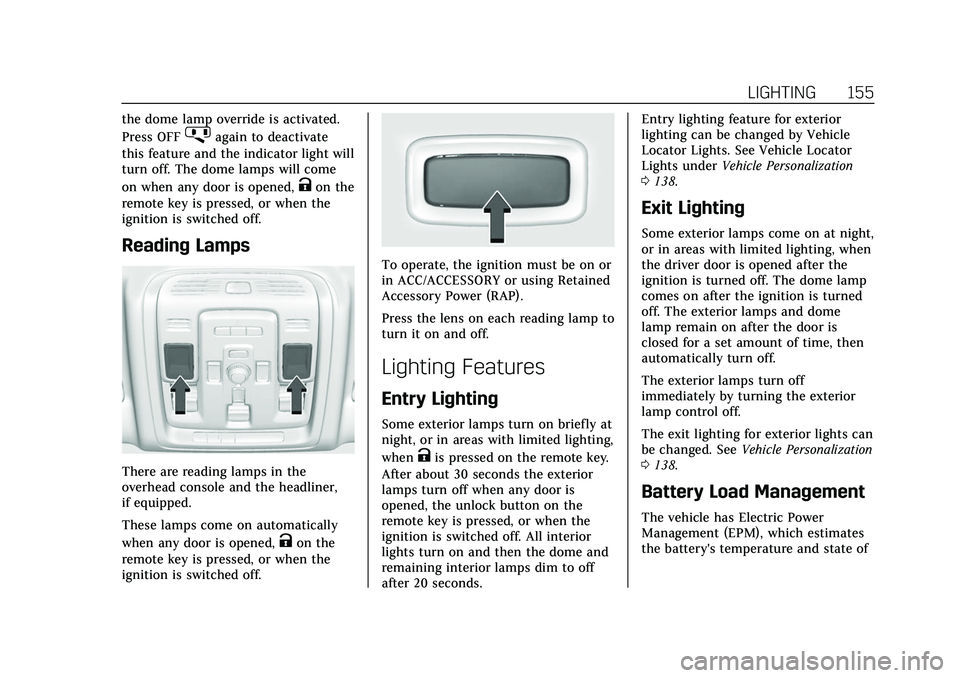
Reading Lamps
There are reading lamps in the
overhead console and the headliner,
if equipped.
These lamps come on automatically
when any door is opened,
Kon the
remote key is pressed, or when the
ignition is switched off.
To operate, the ignition must be on or
in ACC/ACCESSORY or using Retained
Accessory Power (RAP).
Press the lens on each reading lamp to
turn it on and off.
Lighting Features
Entry Lighting
Some exterior lamps turn on briefly at
night, or in areas with limited lighting,
when
Kis pressed on the remote key.
After about 30 seconds the exterior
lamps turn off when any door is
opened, the unlock button on the
remote key is pressed, or when the
ignition is switched off. All interior
lights turn on and then the dome and
remaining interior lamps dim to off
after 20 seconds. Entry lighting feature for exterior
lighting can be changed by Vehicle
Locator Lights. See Vehicle Locator
Lights under
Vehicle Personalization
0 138.
Exit Lighting
Some exterior lamps come on at night,
or in areas with limited lighting, when
the driver door is opened after the
ignition is turned off. The dome lamp
comes on after the ignition is turned
off. The exterior lamps and dome
lamp remain on after the door is
closed for a set amount of time, then
automatically turn off.
The exterior lamps turn off
immediately by turning the exterior
lamp control off.
The exit lighting for exterior lights can
be changed. See Vehicle Personalization
0 138.
Battery Load Management
The vehicle has Electric Power
Management (EPM), which estimates
the battery's temperature and state of
Page 157 of 492

Cadillac Escalade Owner Manual (GMNA-Localizing-U.S./Canada/Mexico-
13690472) - 2021 - CRC - 8/10/21
156 LIGHTING
charge. It then adjusts the voltage for
best performance and extended life of
the battery.
When the battery's state of charge is
low, the voltage is raised slightly to
quickly bring the charge back up.
When the state of charge is high, the
voltage is lowered slightly to prevent
overcharging. The voltmeter gauge or
the voltage display on the Driver
Information Center (DIC), if equipped,
may show the voltage moving up or
down. This is normal. If there is a
problem, an alert will be displayed.
The battery can be discharged at idle
if the electrical loads are very high.
This is true for all vehicles. This is
because the generator (alternator)
may not be spinning fast enough at
idle to produce all the power that is
needed for very high electrical loads.
A high electrical load occurs when
several of the following are on, such
as: headlamps, high beams, fog lamps,
rear window defogger, climate control
fan at high speed, heated seats, engine
cooling fans, trailer loads, and loads
plugged into accessory power outlets.EPM works to prevent excessive
discharge of the battery. It does this
by balancing the generator's output
and the vehicle's electrical needs.
It can increase engine idle speed to
generate more power, whenever
needed. It can temporarily reduce the
power demands of some accessories.
Normally, these actions occur in steps
or levels, without being noticeable. In
rare cases at the highest levels of
corrective action, this action may be
noticeable to the driver. If so, a DIC
message might be displayed and it is
recommended that the driver reduce
the electrical loads as much as
possible.
Battery Power Protection
This feature shuts off any interior
lamps if they are left on for more than
10 minutes when the ignition is off.
This will keep the battery from
running down.
Exterior Lighting Battery
Saver
The exterior lamps turn off about
10 minutes after the ignition is turned
off, if the parking lamps or headlamps
have been manually left on. This
protects against draining the battery.
To restart the 10-minute timer, turn
the exterior lamp control to the
O
position and then back to the;or
2position.
To keep the lamps on for more than
10 minutes, the ignition must be on
or in ACC/ACCESSORY.
Page 160 of 492
Cadillac Escalade Owner Manual (GMNA-Localizing-U.S./Canada/Mexico-
13690472) - 2021 - CRC - 8/10/21
INFOTAINMENT SYSTEM 159
.Press and hold to access the
Apple CarPlay or Android Now
Playing View, if connected.
If the current audio source is
the radio, the Apple CarPlay
or Android Auto Now Playing
View with the audio source
plays the radio.
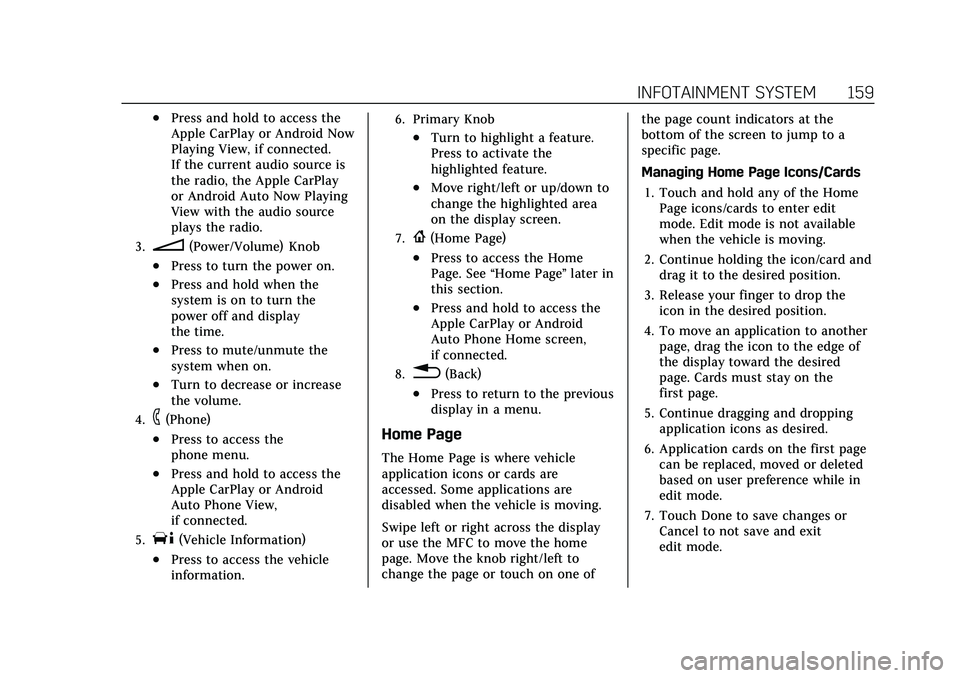
3.n(Power/Volume) Knob
.Press to turn the power on.
.Press and hold when the
system is on to turn the
power off and display
the time.
.Press to mute/unmute the
system when on.
.Turn to decrease or increase
the volume.
4.6(Phone)
.Press to access the
phone menu.
.Press and hold to access the
Apple CarPlay or Android
Auto Phone View,
if connected.
5.T(Vehicle Information)
.Press to access the vehicle
information.
6. Primary Knob
.Turn to highlight a feature.
Press to activate the
highlighted feature.
.Move right/left or up/down to
change the highlighted area
on the display screen.
7.{(Home Page)
.Press to access the Home
Page. See“Home Page ”later in
this section.
.Press and hold to access the
Apple CarPlay or Android
Auto Phone Home screen,
if connected.
8.0(Back)
.Press to return to the previous
display in a menu.
Home Page
The Home Page is where vehicle
application icons or cards are
accessed. Some applications are
disabled when the vehicle is moving.
Swipe left or right across the display
or use the MFC to move the home
page. Move the knob right/left to
change the page or touch on one of the page count indicators at the
bottom of the screen to jump to a
specific page.
Managing Home Page Icons/Cards
1. Touch and hold any of the Home Page icons/cards to enter edit
mode. Edit mode is not available
when the vehicle is moving.
2. Continue holding the icon/card and drag it to the desired position.
3. Release your finger to drop the icon in the desired position.
4. To move an application to another page, drag the icon to the edge of
the display toward the desired
page. Cards must stay on the
first page.
5. Continue dragging and dropping application icons as desired.
6. Application cards on the first page can be replaced, moved or deleted
based on user preference while in
edit mode.
7. Touch Done to save changes or Cancel to not save and exit
edit mode.
Page 165 of 492
Cadillac Escalade Owner Manual (GMNA-Localizing-U.S./Canada/Mexico-
13690472) - 2021 - CRC - 8/10/21
164 INFOTAINMENT SYSTEM
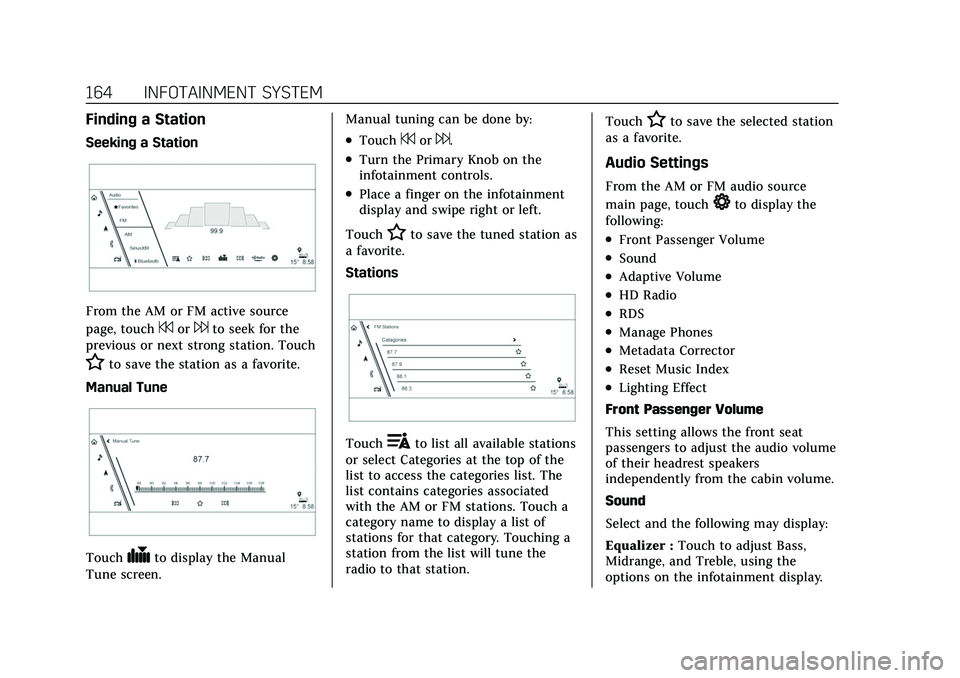
Finding a Station
Seeking a Station
From the AM or FM active source
page, touch
7or6to seek for the
previous or next strong station. Touch
Hto save the station as a favorite.
Manual Tune
Touch#to display the Manual
Tune screen. Manual tuning can be done by:
.Touch7or6.
.Turn the Primary Knob on the
infotainment controls.
.Place a finger on the infotainment
display and swipe right or left.
Touch
Hto save the tuned station as
a favorite.
Stations
Touch!to list all available stations
or select Categories at the top of the
list to access the categories list. The
list contains categories associated
with the AM or FM stations. Touch a
category name to display a list of
stations for that category. Touching a
station from the list will tune the
radio to that station. Touch
Hto save the selected station
as a favorite.
Audio Settings
From the AM or FM audio source
main page, touch
*to display the
following:
.Front Passenger Volume
.Sound
.Adaptive Volume
.HD Radio
.RDS
.Manage Phones
.Metadata Corrector
.Reset Music Index
.Lighting Effect
Front Passenger Volume
This setting allows the front seat
passengers to adjust the audio volume
of their headrest speakers
independently from the cabin volume.
Sound
Select and the following may display:
Equalizer : Touch to adjust Bass,
Midrange, and Treble, using the
options on the infotainment display.
Page 166 of 492
Cadillac Escalade Owner Manual (GMNA-Localizing-U.S./Canada/Mexico-
13690472) - 2021 - CRC - 8/10/21
INFOTAINMENT SYSTEM 165
Fade/Balance :Touch to adjust by
using the controls on the
infotainment display.
Sound Mode : Touch to select Front
or Rear and to adjust Surround or
Surround 3D.
Adaptive Volume
This feature will automatically adjust
the audio volume based on vehicle
speed and road noise.
Touch Off or On.
HD Radio
Enhances AM and FM radio with
digital channels for better sound
quality and information.
Touch Off or On.
RDS
Radio Data System (RDS) displays
information about the currently
playing radio content such as song or
program name.
Touch Off or On. Manage Phones
Select to manage the vehicles phone
connections such as Near Field
Communication (NFC) pairing or
Bluetooth pairing.
Metadata Corrector
This feature, when on, will add and
correct information associated with
the media files on connected devices.
Touch Off or On.
Reset Music Index
Select to clear the metadata from the
connected USB devices.
Lighting Effect
This feature animates the radio
background in the color associated
with the currently playing content.
Touch Off or On.
Favorites
From the active audio source page,
choose
qFavorites from the list at
the left side to display a list of audio
favorites. Favorites are stored by touching
H.
This will highlight indicating that it is
now saved as a favorite.
HD Radio Technology
If equipped, HD Radio is a free service
with features such as digital quality
sound, more stations available on a
single frequency such as HD2 and
HD3, and display information such as
artist and song title.
From the Now Playing display, touch
the HD Radio icon to turn HD on
or off.
Station Access
To access HD Radio stations:
1. Tune the radio to the station. If HD Radio is turned on and the station
is broadcasting in HD Radio, the
radio will automatically tune to the
HD version of the current channel
(HD1) after several seconds. The
radio will also display icons
representing additional channels
(HD2, ...HD8), that may be
available. When the radio
Page 169 of 492
Cadillac Escalade Owner Manual (GMNA-Localizing-U.S./Canada/Mexico-
13690472) - 2021 - CRC - 8/10/21
168 INFOTAINMENT SYSTEM
Favorites are stored by touchingH.
This will highlight indicating that it is
now saved as a favorite.
User Settings
From the SiriusXM source main page,
touch
%to display the following:
.Audio Settings
.Listener Options
.Account Information
Audio Settings
Touch
*to display the Audio
Settings menu. See “Audio Settings”in
AM-FM Radio 0163.
Listener Options
Select and the following may display:
SiriusXM Favorites : Touch to show
XM favorite channels.
History : Touch to show history of
channels.
Listener Settings : Touch to hide
explicit language channels and
content, start songs at the beginning
when tuning a music channel, or reset
the listening history. Account Information
Select to show the XM account
information.
Radio Reception
Unplug electronic devices from the
accessory power outlets if there is
interference or static in the radio.
FM
FM signals only reach about 16 to
65 km (10 to 40 mi). Although the
radio has a built-in electronic circuit
that automatically works to reduce
interference, some static can occur,
especially around tall buildings or
hills, causing the sound to fade in
and out.
AM
The range for most AM stations is
greater than for FM, especially at
night. The longer range can cause
station frequencies to interfere with
each other. Static can also occur when
things like storms and power lines
interfere with radio reception. When
this happens, try reducing the treble
on the radio.
SiriusXM Satellite Radio Service
If equipped, SiriusXM Satellite Radio
Service provides digital radio
reception. Tall buildings or hills can
interfere with satellite radio signals,
causing the sound to fade in and out.
In addition, traveling or standing
under heavy foliage, bridges, garages,
or tunnels may cause loss of the
SiriusXM signal for a period of time.
Some cellular services may interfere
with SXM reception causing loss of
signal.
Mobile Device Usage
Mobile device usage, such as making
or receiving calls, charging, or just
having the mobile device on may
cause static interference in the radio.
Unplug the mobile device or turn it
off if this happens.
Multi-Band Antenna
The roof antenna may be used for
radio, navigation, and OnStar,
depending on the equipped options.
Keep clear of obstructions for clear
Page 178 of 492
Cadillac Escalade Owner Manual (GMNA-Localizing-U.S./Canada/Mexico-
13690472) - 2021 - CRC - 8/10/21
INFOTAINMENT SYSTEM 177
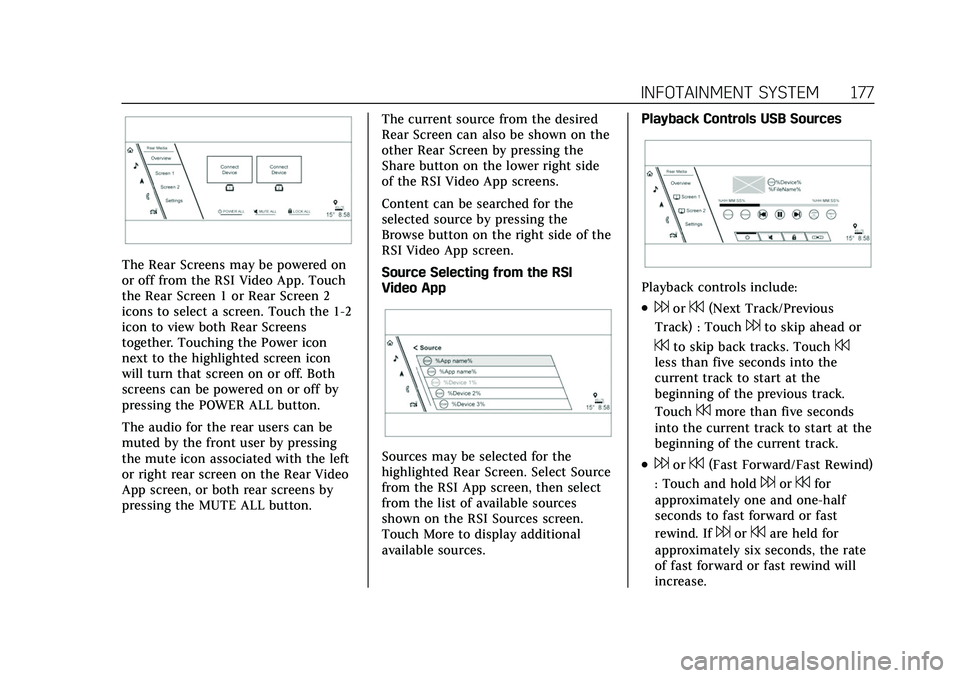
The Rear Screens may be powered on
or off from the RSI Video App. Touch
the Rear Screen 1 or Rear Screen 2
icons to select a screen. Touch the 1-2
icon to view both Rear Screens
together. Touching the Power icon
next to the highlighted screen icon
will turn that screen on or off. Both
screens can be powered on or off by
pressing the POWER ALL button.
The audio for the rear users can be
muted by the front user by pressing
the mute icon associated with the left
or right rear screen on the Rear Video
App screen, or both rear screens by
pressing the MUTE ALL button.The current source from the desired
Rear Screen can also be shown on the
other Rear Screen by pressing the
Share button on the lower right side
of the RSI Video App screens.
Content can be searched for the
selected source by pressing the
Browse button on the right side of the
RSI Video App screen.
Source Selecting from the RSI
Video App
Sources may be selected for the
highlighted Rear Screen. Select Source
from the RSI App screen, then select
from the list of available sources
shown on the RSI Sources screen.
Touch More to display additional
available sources.Playback Controls USB Sources
Playback controls include:
.6or7(Next Track/Previous
Track) : Touch
6to skip ahead or
7to skip back tracks. Touch7less than five seconds into the
current track to start at the
beginning of the previous track.
Touch
7more than five seconds
into the current track to start at the
beginning of the current track.
.6or7(Fast Forward/Fast Rewind)
: Touch and hold
6or7for
approximately one and one-half
seconds to fast forward or fast
rewind. If
6or7are held for
approximately six seconds, the rate
of fast forward or fast rewind will
increase.
Page 179 of 492
Cadillac Escalade Owner Manual (GMNA-Localizing-U.S./Canada/Mexico-
13690472) - 2021 - CRC - 8/10/21
178 INFOTAINMENT SYSTEM
.porj(Play or Pause): Touchpto
play or touch
jto pause depending
on the current selection.
.Listen: Touch Listen to hear the
audio source on the vehicle
speakers.
Auxiliary Inputs
Rear Media Connections
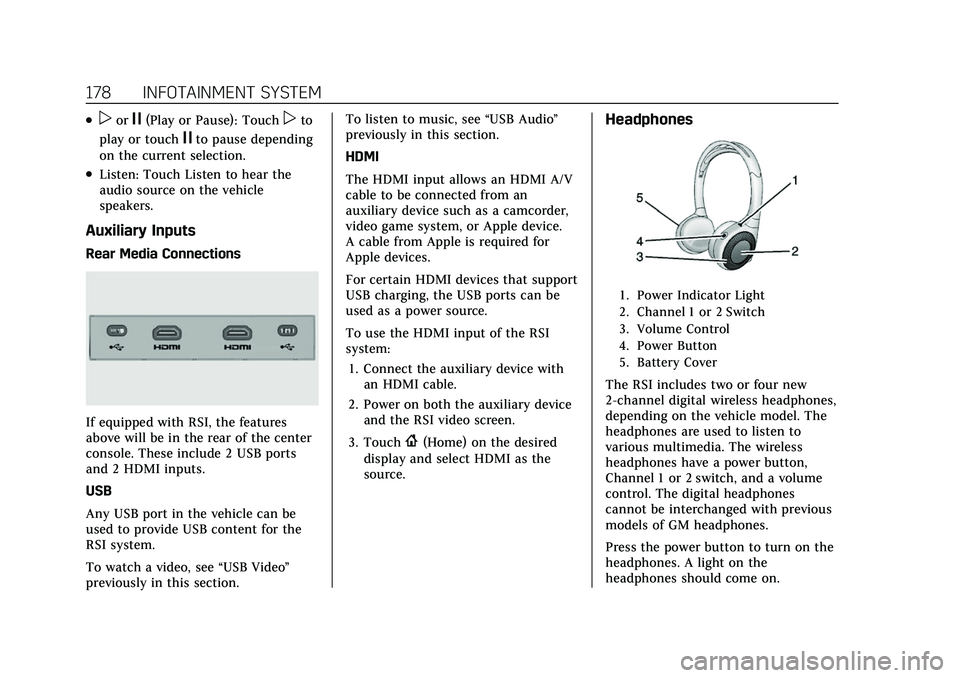
If equipped with RSI, the features
above will be in the rear of the center
console. These include 2 USB ports
and 2 HDMI inputs.
USB
Any USB port in the vehicle can be
used to provide USB content for the
RSI system.
To watch a video, see “USB Video”
previously in this section. To listen to music, see
“USB Audio”
previously in this section.
HDMI
The HDMI input allows an HDMI A/V
cable to be connected from an
auxiliary device such as a camcorder,
video game system, or Apple device.
A cable from Apple is required for
Apple devices.
For certain HDMI devices that support
USB charging, the USB ports can be
used as a power source.
To use the HDMI input of the RSI
system:
1. Connect the auxiliary device with an HDMI cable.
2. Power on both the auxiliary device and the RSI video screen.
3. Touch
{(Home) on the desired
display and select HDMI as the
source.
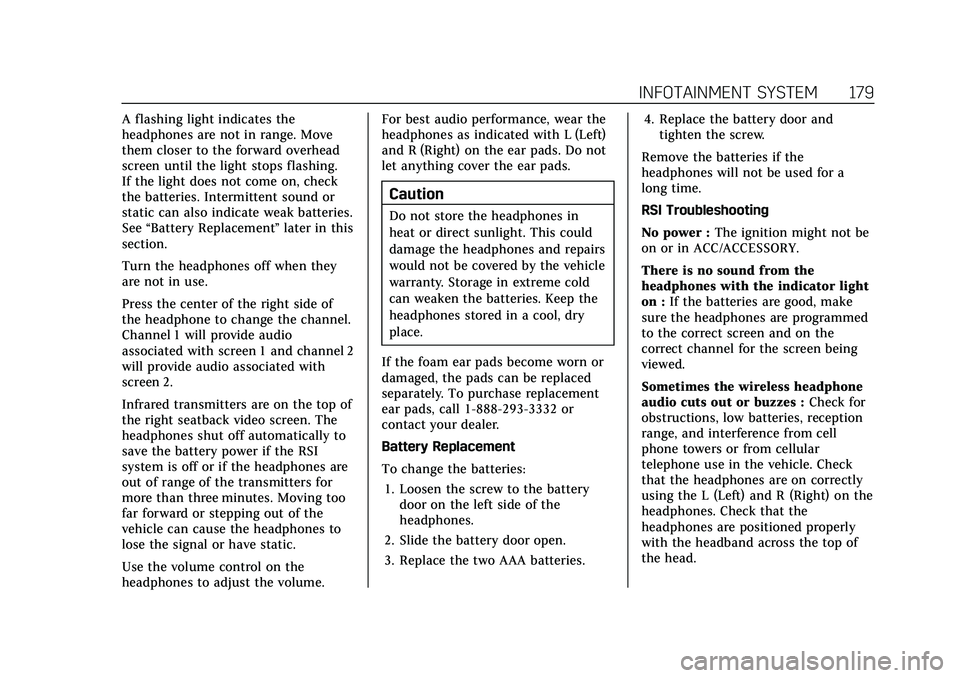
Headphones
1. Power Indicator Light
2. Channel 1 or 2 Switch
3. Volume Control
4. Power Button
5. Battery Cover
The RSI includes two or four new
2-channel digital wireless headphones,
depending on the vehicle model. The
headphones are used to listen to
various multimedia. The wireless
headphones have a power button,
Channel 1 or 2 switch, and a volume
control. The digital headphones
cannot be interchanged with previous
models of GM headphones.
Press the power button to turn on the
headphones. A light on the
headphones should come on.
Page 180 of 492
Cadillac Escalade Owner Manual (GMNA-Localizing-U.S./Canada/Mexico-
13690472) - 2021 - CRC - 8/10/21
INFOTAINMENT SYSTEM 179
A flashing light indicates the
headphones are not in range. Move
them closer to the forward overhead
screen until the light stops flashing.
If the light does not come on, check
the batteries. Intermittent sound or
static can also indicate weak batteries.
See“Battery Replacement ”later in this
section.
Turn the headphones off when they
are not in use.
Press the center of the right side of
the headphone to change the channel.
Channel 1 will provide audio
associated with screen 1 and channel 2
will provide audio associated with
screen 2.
Infrared transmitters are on the top of
the right seatback video screen. The
headphones shut off automatically to
save the battery power if the RSI
system is off or if the headphones are
out of range of the transmitters for
more than three minutes. Moving too
far forward or stepping out of the
vehicle can cause the headphones to
lose the signal or have static.
Use the volume control on the
headphones to adjust the volume. For best audio performance, wear the
headphones as indicated with L (Left)
and R (Right) on the ear pads. Do not
let anything cover the ear pads.
Caution
Do not store the headphones in
heat or direct sunlight. This could
damage the headphones and repairs
would not be covered by the vehicle
warranty. Storage in extreme cold
can weaken the batteries. Keep the
headphones stored in a cool, dry
place.
If the foam ear pads become worn or
damaged, the pads can be replaced
separately. To purchase replacement
ear pads, call 1-888-293-3332 or
contact your dealer.
Battery Replacement
To change the batteries: 1. Loosen the screw to the battery door on the left side of the
headphones.
2. Slide the battery door open.
3. Replace the two AAA batteries. 4. Replace the battery door and
tighten the screw.
Remove the batteries if the
headphones will not be used for a
long time.
RSI Troubleshooting
No power : The ignition might not be
on or in ACC/ACCESSORY.
There is no sound from the
headphones with the indicator light
on : If the batteries are good, make
sure the headphones are programmed
to the correct screen and on the
correct channel for the screen being
viewed.
Sometimes the wireless headphone
audio cuts out or buzzes : Check for
obstructions, low batteries, reception
range, and interference from cell
phone towers or from cellular
telephone use in the vehicle. Check
that the headphones are on correctly
using the L (Left) and R (Right) on the
headphones. Check that the
headphones are positioned properly
with the headband across the top of
the head.
Page 181 of 492
Cadillac Escalade Owner Manual (GMNA-Localizing-U.S./Canada/Mexico-
13690472) - 2021 - CRC - 8/10/21
180 INFOTAINMENT SYSTEM
Newer mobile phones and tablets emit
infrared light for features like face and
iris detection. This infrared light can
interfere with both the headphone
operation. If your headphones
experience static or dropouts, place
your mobile device away from the rear
seat displays.
I lost the headphones :See your
dealer for assistance.
Video Distortion
Video distortion can occur when
operating cellular phones, scanners,
CB radios, Global Positioning Systems
(GPS), two-way radios, mobile faxes,
or walkie talkies.
It might be necessary to turn off the
video player when operating one of
these devices in or near the vehicle.
Navigation
Using the Navigation
System
If equipped, launch the Nav
application by touching the Nav icon
on the Home Page or on the shortcut
tray near the left side of the
infotainment display.
When the Nav application is launched
for the first time, a product
walkthrough is available. Use of the
feature requires the Terms and
Conditions and the Privacy statement
to be confirmed. If available and
signed into a profile, it is also
suggested to enable and confirm
Personalized Navigation.
Personalized Navigation (If
Equipped)
If Personalized Navigation is available
and confirmed, this feature learns
preferences by remembering where
the vehicle has been. It uses the
locations and navigation history to
personalize routes and results. Personalized Navigation may learn
elements such as:
.Personalized routes based on
preferred streets.
.Search results that provide best
matches at the top of the list.
.Predictive traffic.
.Local map content updating.
Personalized Navigation can also be
enabled or disabled at a later time.
Select Settings, then Navigation
Privacy, and then change setting for
Collect Data with Profile Information.
See Settings 0203.
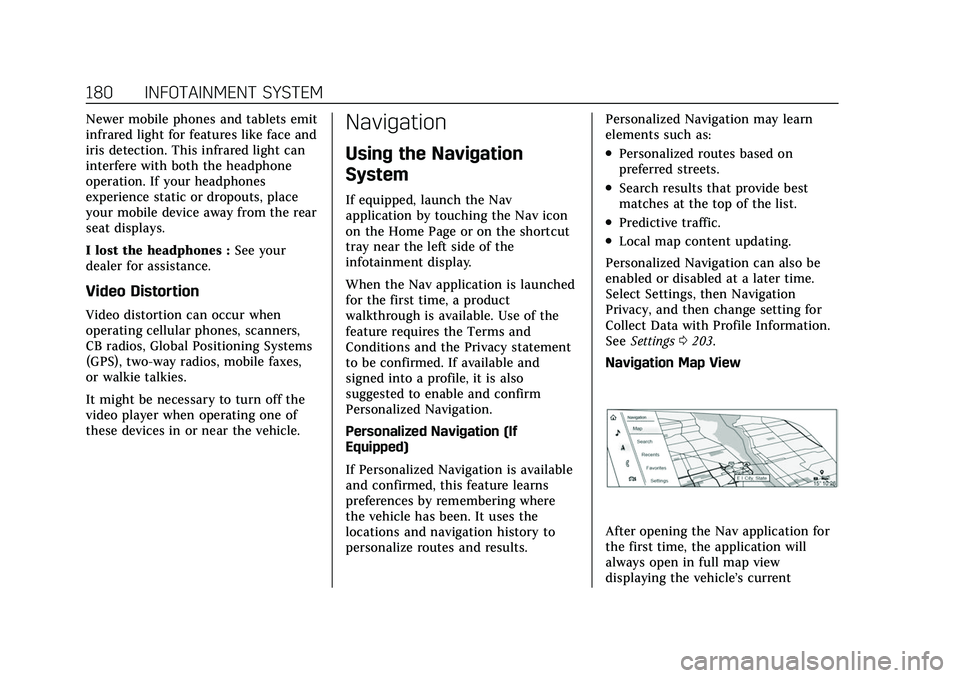
Navigation Map View
After opening the Nav application for
the first time, the application will
always open in full map view
displaying the vehicle’s current