steering CADILLAC ESCALADE 2021 Repair Manual
[x] Cancel search | Manufacturer: CADILLAC, Model Year: 2021, Model line: ESCALADE, Model: CADILLAC ESCALADE 2021Pages: 492, PDF Size: 7.92 MB
Page 294 of 492

Cadillac Escalade Owner Manual (GMNA-Localizing-U.S./Canada/Mexico-
13690472) - 2021 - CRC - 8/10/21
DRIVING AND OPERATING 293
Steering WheelLight Bar Instrument Cluster Light Super Cruise Description
Off Off Super Cruise is off. There is no automatic steering. Operate the
vehicle manually.
Off White Super Cruise is available and can be engaged.
Solid Green Solid Green Super Cruise is steering. Pay attention to the road and vehicle
operation.
Flashing Blue Solid Blue Super Cruise is not steering. Operate the vehicle manually. See
“Steering Manually and Changing Lanes”
previously in this section.
Flashing Green Solid Green Super Cruise has detected you are not paying sufficiently close
attention to the road. Pay attention to the road. See
“Attention to
the Road” previously in this section.
Flashing Red Solid Red Take over steering immediately. Super Cruise will disengage. See
“Take Over Alert
”previously in this section.
Disengaging Super Cruise
There are two ways to disengage
Super Cruise:
.Press]while your hands are on
the steering wheel. The Super Cruise
steering will disengage.
.Press the brake pedal while your
hands are on the steering wheel.
Both Super Cruise steering and
Adaptive Cruise Control will
disengage.
Super Cruise Messages
If
^does not appear,]can be
pressed to display a DIC message as to
why the system is unavailable. Immediately after a disengagement,
pressing the
]within 10 seconds will
display a DIC message with the reason
for Super Cruise disengagement.
Page 297 of 492

Cadillac Escalade Owner Manual (GMNA-Localizing-U.S./Canada/Mexico-
13690472) - 2021 - CRC - 8/10/21
296 DRIVING AND OPERATING
Super Cruise Message Summary (cont'd)
Unavailable Sensor Can’t See Face Clearly.Sun is shining into the Driver Attention System (DAS)
camera.
.Dawn or dusk sun glare is on the driver’s face.
.Cups, food, hands, or other objects are obscuring the
DAS view of the driver’s face.
.The steering column is pointed too high or low for the
DAS to see the driver. Adjust the steering column or the
seat if the message occurs frequently.
Unavailable Looking Away From Road for Too Long The DAS system detects that the driver is not looking at the road.
Unavailable Driving Too Fast The vehicle is traveling faster than 137 km/h (85 mph). The maximum Super Cruise speed in curves will vary based
on how sharp the curve is. The vehicle will automatically
decrease speed if needed.
Unavailable Driving in Exit Lane The Super Cruise system has detected that the vehicle is in an exit lane.
Unavailable Press OnStar Button The Super Cruise system has lost connectivity.
.There is poor reception in isolated areas.
.Reception is being blocked by buildings or other large
structures.
.Super Cruise subscription is required.
Unavailable You Have Taken Vehicle Control
.The brake pedal is being pressed.
.The Adaptive Cruise Control has been canceled or
turned off.
Page 299 of 492

Cadillac Escalade Owner Manual (GMNA-Localizing-U.S./Canada/Mexico-
13690472) - 2021 - CRC - 8/10/21
298 DRIVING AND OPERATING
System Care
The camera on the steering column
has a lens cover that may become
dirty over time and affect camera
performance. Clean the lens cover
with a soft cloth sprayed with glass
cleaner. Wipe the lens gently, then dry
it. Never use abrasive cloths/cleaners
or corrosive chemicals of any kind on
the lens cover.
Super Cruise uses the front radar,
front camera, and 360 degree cameras
for its operation. Clean surfaces are
required for Super Cruise operation.
SeeAdaptive Cruise Control (Advanced)
0 274, “Surround Vision Camera ”
under Assistance Systems for Parking
or Backing 0299, and Lane Keep Assist
(LKA) 0324 for care information.
Caution
The Super Cruise system is a highly
sophisticated system and should
only be serviced by technicians
with the proper training, tools, and
safety instructions, which your
(Continued)
Caution (Continued)
dealer has. Without proper training
and tools the vehicle may become
damaged.
Driver Assistance
Systems
This vehicle may have features that
work together to help avoid crashes or
reduce crash damage while driving,
backing, and parking. Read this entire
section before using these systems.
{Warning
Do not rely on the Driver
Assistance Systems. These systems
do not replace the need for paying
attention and driving safely. You
may not hear or feel alerts or
warnings provided by these
systems. Failure to use proper care
when driving may result in injury,
death, or vehicle damage. See
Defensive Driving0231.
(Continued)
Warning (Continued)
Under many conditions, these
systems will not:
.Detect children, pedestrians,
bicyclists, or animals.
.Detect vehicles or objects outside
the area monitored by the
system.
.Work at all driving speeds.
.Warn you or provide you with
enough time to avoid a crash.
.Work under poor visibility or bad
weather conditions.
.Work if the detection sensor is
not cleaned or is covered by ice,
snow, mud, or dirt.
.Work if the detection sensor is
covered up, such as with a
sticker, magnet, or metal plate.
.Work if the detection sensor
viewing zone is interrupted by an
installed accessory, such as a
bike rack, or hitch mounted
cargo carrier. (Continued)
Page 304 of 492
Cadillac Escalade Owner Manual (GMNA-Localizing-U.S./Canada/Mexico-
13690472) - 2021 - CRC - 8/10/21
DRIVING AND OPERATING 303
that guidance lines are not available.
Certain views do not support guidance
lines.
.Standard Guidance lines are
available in Front/Rear Standard
Views, Front/Rear Top-Down Views,
and Surround View when the
vehicle guidance mode is selected.
Standard guidance lines show the
current and intended vehicle path.
.Hitch Guidance lines are available
in Rear Standard View when the
Trailering Guidance Mode is
selected. Hitch Guidance displays a
single, centered, guidance line on
the infotainment display to assist
with aligning the vehicle’s hitch
with a trailer coupler by
continuously steering the vehicle to
keep the guidance line centered
with the coupler when backing. Park
Assist overlays will not display
when Hitch Guidance is active.
.Rear Trailer Guidance lines are
available in Rear Trailer View when
Trailering Guidance Mode is
selected, and the rear camera
calibration has been successfully
completed. Rear Trailer Guidance
lines show the intended path(yellow), and the current path (blue)
of the trailer. The current path
guidance lines will converge with
the intended path guidance lines.
Hitch View : Displays a magnified
view of the hitch area to assist with
aligning the vehicle’s hitch ball with
the trailer coupler, and for monitoring
the trailer connection. Shifting into
P (Park) will automatically engage the
Electronic Parking Brake (EPB).
{Warning
Use Hitch Guidance only to help
back the vehicle to a trailer hitch
or, when traveling above 12 km/h
(8 mph), to briefly check the status
of your trailer. Do not use for any
other purpose, such as making lane
change decisions. Before making a
lane change, always check the
mirrors and glance over your
shoulder. Improper use could result
in serious injury to you or others.
Interior Trailer View : Displays a
view of the interior of the trailer. The
feature is available when a trailer is
connected. The feature requires user installation of an accessory trailer
camera on the interior of the trailer
per the accessory trailer camera
installation instructions (see your
dealer for accessory trailer camera(s)
and information).
Rear Trailer View :
Displays a view
of the area behind the trailer when a
trailer is connected. The feature
requires user installation of an
accessory trailer camera on the rear
exterior surface of the trailer per the
accessory trailer camera installation
instructions (see your dealer for
accessory trailer camera(s) and
information).
Aux/Trailer View : Displays a
rearward split view of the left and
right sides of the vehicle and trailer,
when a trailer is connected. The view
will automatically pan to show more
of the left or right side based on the
position of the trailer when a
compatible profile is configured and
selected via the Trailering App.
Picture-in-Picture Side View :
Displays a rearward split view of the
left and right sides of the vehicle and
trailer with an overlay view of the area
Page 306 of 492

Cadillac Escalade Owner Manual (GMNA-Localizing-U.S./Canada/Mexico-
13690472) - 2021 - CRC - 8/10/21
DRIVING AND OPERATING 305
.Standard Guidance Lines
.Hitch Guidance
Troubleshooting
The Trailer Camera calibration may
take longer than expected or not
calibrate if:
.The vehicle is driven too fast during
calibration. Speed should be
maintained below 50 km/h
(31 mph).
.The vehicle is not driven straight
during calibration. Steering should
be maintained as straight as
possible, excessive steering during
calibration may extend
calibration time.
.The calibration is attempted in low
light conditions. Calibration should
be attempted when there is enough
light.
.The calibration is attempted during
poor weather conditions. Calibration
during conditions such as snow or
heavy rain should be avoided.
.The road surface is not ideal for
calibration. Calibration should be
attempted on an alternate road
surface.
.The accessory trailer cameras are
swapped at the hitch connector.
Ensure that the camera mounted to
the rear of the trailer is connected
to the rear trailer camera input.
.The accessory trailer camera is
mounted, angled or rotated outside
of the defined mounting location
(see camera installation
instructions).
.The vehicle or accessory trailer
camera is obstructed by dirt or
debris. Check cameras and clean as
needed.
.The accessory trailer camera is
mounted such that obstructions are
visible in the view (spare tire, bike/
cargo racks, etc.). Calibration should
be attempted with obstruction
temporarily removed. Shadows
resulting from driving toward the
sun may be perceived as
obstructions, attempt to calibrate
driving in an alternate direction if
possible.
.The entered trailer profile
dimensions are inaccurate.
Measurements are expected to be
made to the nearest 1 inch (25 mm). Enter accurate
measurements and reattempt
calibration.
Distortion or inaccuracy may be
observed in a rear trailer camera
view if:
.The accessory trailer camera is
mounted, angled or rotated outside
of the defined mounting location
(see camera installation
instructions).
.The entered trailer profile
dimensions are inaccurate.
Measurements are expected to be
made to the nearest 1 inch
(25 mm). Enter accurate
measurements and reattempt
calibration.
The preview may not display or the
wrong preview may be displayed if:
.The accessory cameras are not
recognized. Ensure that the
accessory camera(s) are connected
and power cycle the vehicle.
.The accessory trailer cameras are
swapped at the hitch connector.
Ensure that the accessory camera(s)
are connected to the correct camera
input.
Page 311 of 492

Cadillac Escalade Owner Manual (GMNA-Localizing-U.S./Canada/Mexico-
13690472) - 2021 - CRC - 8/10/21
310 DRIVING AND OPERATING
Use caution while backing up when
towing a trailer, as the RCTA
detection zones that extend out from
the back of the vehicle do not move
further back when a trailer is towed.
Turning the Features On or Off
To turn the RPA symbols, guidance
lines, or Rear Cross Traffic Alert on or
off, see Rear Camera and Collision/
Detection Systems underVehicle
Personalization 0138. On some
models, select the guidance lines
button on the infotainment display to
turn them on or off.
Enhanced Automatic Parking
Assist (APA)
If equipped, under certain conditions
Enhanced Automatic Parking Assist
(APA) can use sensors based on sonar
technology along the vehicle’s front,
rear and sides to detect a parking spot
and automatically park the vehicle.
The vehicle will automatically
maneuver into a detected spot moving
at or near idle speed. It does this by
automatically steering, braking,
accelerating, and gear shifting. The
driver must always be prepared to apply braking if necessary. A display
and beeps help to guide the parking
maneuvers.
{Warning
APA may not always detect objects
in the parking space, objects that
are not rigid (e.g. shrubs and
chain-link fences), objects below the
bumper, objects high off the ground
(e.g. flatbed trucks), hanging
objects, objects below ground level
(e.g. large potholes), or moving
objects (e.g. pedestrians, cyclists,
vehicles). Always verify that the
parking space is appropriate for
parking a vehicle. APA may not
respond to changes in the parking
space, such as movement of an
adjacent vehicle, or a person or
object entering the parking space.
APA does not detect or avoid traffic
that is behind or alongside of the
vehicle. Always be prepared to stop
the vehicle during the parking
maneuver.
How to Activate Automatic Parking
To activate APA, press
Oon the
Home Page of the infotainment
display for the system to begin
searching for a parking space while
driving forward at no greater than
30 km/h (18 mph). By default, APA
searches for parallel parking spaces to
the right of the vehicle up to the
sensors ’range of 1.5 m (5 ft). To
search for a parking space to the left,
turn on the left turn signal or,
if available, change the side selection
in the infotainment display. To switch
the parking mode between parallel
and perpendicular press and hold
O
while searching for a valid parking
spot or, if available, change the
parking mode in the infotainment
display.
APA cannot park in all empty parking
spots. The parking spot must:
.Be sufficiently large to fit the
vehicle comfortably.
.Have an adjacent vehicle, wall,
or pillar for the system to align to.
Page 312 of 492
Cadillac Escalade Owner Manual (GMNA-Localizing-U.S./Canada/Mexico-
13690472) - 2021 - CRC - 8/10/21
DRIVING AND OPERATING 311
After completely passing an eligible
parking spot, a beep sounds and a red
stop symbol is displayed in the driver
information center. Generally, APA
selects the nearest empty parking spot
behind the vehicle, but under some
conditions may select a space that is
further back. Slow down and bring the
vehicle to a complete stop to begin.
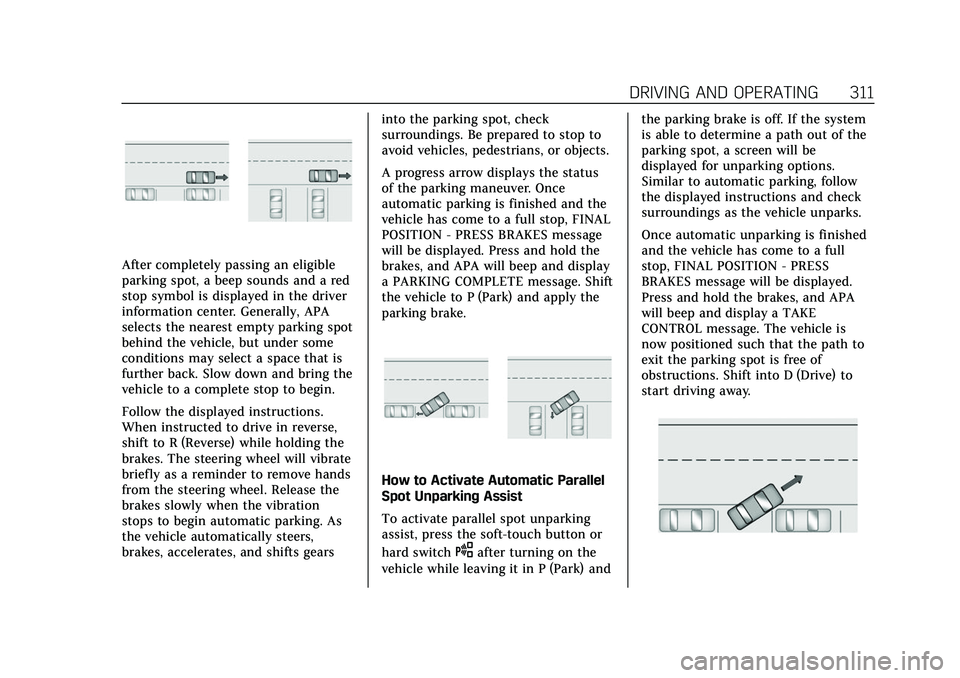
Follow the displayed instructions.
When instructed to drive in reverse,
shift to R (Reverse) while holding the
brakes. The steering wheel will vibrate
briefly as a reminder to remove hands
from the steering wheel. Release the
brakes slowly when the vibration
stops to begin automatic parking. As
the vehicle automatically steers,
brakes, accelerates, and shifts gearsinto the parking spot, check
surroundings. Be prepared to stop to
avoid vehicles, pedestrians, or objects.
A progress arrow displays the status
of the parking maneuver. Once
automatic parking is finished and the
vehicle has come to a full stop, FINAL
POSITION - PRESS BRAKES message
will be displayed. Press and hold the
brakes, and APA will beep and display
a PARKING COMPLETE message. Shift
the vehicle to P (Park) and apply the
parking brake.
How to Activate Automatic Parallel
Spot Unparking Assist
To activate parallel spot unparking
assist, press the soft-touch button or
hard switch
Oafter turning on the
vehicle while leaving it in P (Park) and the parking brake is off. If the system
is able to determine a path out of the
parking spot, a screen will be
displayed for unparking options.
Similar to automatic parking, follow
the displayed instructions and check
surroundings as the vehicle unparks.
Once automatic unparking is finished
and the vehicle has come to a full
stop, FINAL POSITION - PRESS
BRAKES message will be displayed.
Press and hold the brakes, and APA
will beep and display a TAKE
CONTROL message. The vehicle is
now positioned such that the path to
exit the parking spot is free of
obstructions. Shift into D (Drive) to
start driving away.
Page 316 of 492

Cadillac Escalade Owner Manual (GMNA-Localizing-U.S./Canada/Mexico-
13690472) - 2021 - CRC - 8/10/21
DRIVING AND OPERATING 315
When your vehicle approaches
another detected vehicle too rapidly,
the red FCA display will flash on the
windshield. Also, eight rapid
high-pitched beeps will sound from
the front, or both sides of the Safety
Alert Seat will pulse five times. When
this Collision Alert occurs, the brake
system may prepare for driver braking
to occur more rapidly which can cause
a brief, mild deceleration. Continue to
apply the brake pedal as needed.
Tailgating Alert
The vehicle ahead indicator will
display amber when you are following
a vehicle ahead much too closely.
Selecting the Alert Timing
The Collision Alert control is on the
steering wheel. Press
[to set the
FCA timing to Far, Medium, or Near.
The first button press shows the
current setting on the DIC. Additional button presses will change this
setting. The chosen setting will
remain until it is changed and will
affect the timing of both the Collision
Alert and the Tailgating Alert features.
The timing of both alerts will vary
based on vehicle speed. The faster the
vehicle speed, the farther away the
alert will occur. Consider traffic and
weather conditions when selecting the
alert timing. The range of selectable
alert timings may not be appropriate
for all drivers and driving conditions.
Unnecessary Alerts
FCA may provide unnecessary alerts
for turning vehicles, vehicles in other
lanes, objects that are not vehicles,
or shadows. These alerts are normal
operation and the vehicle does not
need service.
Cleaning the System
If the FCA system does not seem to
operate properly, this may correct the
issue:
.Clean the outside of the windshield
in front of the rearview mirror.
.Clean the entire front of the vehicle.
.Clean the headlamps.
Automatic Emergency
Braking (AEB)
The AEB system may help avoid or
reduce the harm caused by front-end
crashes. AEB also includes Intelligent
Brake Assist (IBA). When the system
detects a vehicle ahead in your path
that is traveling in the same direction
that you may be about to crash into, it
can provide a boost to braking or
automatically brake the vehicle. This
can help avoid or lessen the severity
of crashes when driving in a forward
gear. Depending on the situation, the
vehicle may automatically brake
moderately or hard. This Automatic
Emergency Braking can only occur if a
vehicle is detected. This is shown by
the FCA vehicle ahead indicator being
lit. See
Forward Collision Alert (FCA)
System 0313.
The system works when driving in a
forward gear between 8 km/h (5 mph)
and 80 km/h (50 mph), or on vehicles
with Adaptive Cruise Control (ACC)
Page 325 of 492
Cadillac Escalade Owner Manual (GMNA-Localizing-U.S./Canada/Mexico-
13690472) - 2021 - CRC - 8/10/21
324 DRIVING AND OPERATING
extend back from the side of the
vehicle do not move further back
when a trailer is towed. Use caution
while changing lanes when towing a
trailer. LCA/ESBZA may alert to
objects attached to the vehicle, such
as a trailer, bicycle, or object
extending out to either side of the
vehicle or trailer. This is normal
system operation; the vehicle does not
need service.
LCA/ESBZA may not always alert the
driver to vehicles in the side blind
zone, especially in wet conditions. The
system does not need to be serviced.
The system may light up due to
guardrails, signs, trees, shrubs, and
other non-moving objects. This is
normal system operation; the vehicle
does not need service.
LCA/ESBZA may not operate when the
LCA/ESBZA sensors in the left or right
corners of the rear bumper are
covered with mud, dirt, snow, ice,
or slush, or in heavy rainstorms. For
cleaning instructions, see "Washing
the Vehicle" underExterior Care0432.
If the DIC displays the system
unavailable message after cleaning both sides of the vehicle toward the
rear corners of the vehicle, see your
dealer.
If the DIC displays the system
unavailable message after cleaning
both sides of the vehicle toward the
rear corners of the vehicle, see your
dealer
If the LCA/ESBZA displays do not
light up when vehicles are in the blind
zone and the system is clean, the
system may need service. Take the
vehicle to your dealer.
When ESBZA is disabled for any
reason other than the driver turning it
off, the Extended Side Blind Zone
Alert On option will not be available
on the personalization menu.
Driving with a Trailer
Although this system is intended to
help drivers avoid lane change
crashes, it does not replace driver
vision and therefore should be
considered a lane change aid. Even
with the ESBZA system, the driver
must check carefully for objects
outside of the reporting zone (e.g., a
fast approaching vehicle) or vehicle
along the side of the trailer before
changing lanes.
Use caution while changing lanes
when towing a trailer.
Lane Keep Assist (LKA)
If equipped, LKA may help avoid
crashes due to unintentional lane
departures. This system uses a camera
to detect lane markings between
60 km/h (37 mph) and 180 km/h
(112 mph). It may assist by gently
turning the steering wheel if the
vehicle approaches a detected lane
marking. It may also provide a Lane
Departure Warning (LDW) alert if the
vehicle crosses a detected lane
marking. LKA can be overridden by
turning the steering wheel. This
system is not intended to keep the
vehicle centered in the lane. LKA will
not assist and alert if the turn signal
is active in the direction of lane
departure, or if it detects that you are
accelerating, braking or actively
steering.
Page 326 of 492

Cadillac Escalade Owner Manual (GMNA-Localizing-U.S./Canada/Mexico-
13690472) - 2021 - CRC - 8/10/21
DRIVING AND OPERATING 325
{Warning
The LKA system does not
continuously steer the vehicle.
It may not keep the vehicle in the
lane or give a Lane Departure
Warning (LDW) alert, even if a lane
marking is detected.
The LKA and LDW systems
may not:
.Provide an alert or enough
steering assist to avoid a lane
departure or crash.
.Detect lane markings under poor
weather or visibility conditions.
This can occur if the windshield
or headlamps are blocked by dirt,
snow, or ice; if they are not in
proper condition; or if the sun
shines directly into the camera.
.Detect road edges.
.Detect lanes on winding or hilly
roads.
If LKA only detects lane markings
on one side of the road, it will only
assist or provide an LDW alert (Continued)
Warning (Continued)
when approaching the lane on the
side where it has detected a lane
marking. Even with LKA and LDW,
you must steer the vehicle. Always
keep your attention on the road and
maintain proper vehicle position
within the lane, or vehicle damage,
injury, or death could occur. Always
keep the windshield, headlamps,
and camera sensors clean and in
good repair. Do not use LKA in bad
weather conditions or on roads with
unclear lane markings, such as
construction zones.
{Warning
Using LKA while towing a trailer or
on slippery roads could cause loss
of control of the vehicle and a
crash. Turn the system off.
How the System Works
LKA uses a camera sensor installed on
the windshield ahead of the rearview
mirror to detect lane markings. It may provide brief steering assist if it
detects an unintended lane departure.
It may further provide an audible alert
or the driver seat may pulse indicating
that a lane marking has been crossed.
To turn LKA on and off, press
Aon
the center console. If equipped, the
indicator light on the button comes
on when LKA is on and turns off
when LKA is disabled.
When on,
Ais white, if equipped,
indicating that the system is not
ready to assist.
Ais green if LKA is
ready to assist. LKA may assist by
gently turning the steering wheel if
the vehicle approaches a detected
lane marking.
Ais amber when
assisting. It may also provide a Lane
Departure Warning (LDW) alert by
flashing
Aamber if the vehicle
crosses a detected lane marking.
Additionally, there may be three
beeps, or the driver seat may pulse
three times, on the right or left,
depending on the lane departure
direction.