trailer CADILLAC ESCALADE 2023 Owner's Manual
[x] Cancel search | Manufacturer: CADILLAC, Model Year: 2023, Model line: ESCALADE, Model: CADILLAC ESCALADE 2023Pages: 461, PDF Size: 7.99 MB
Page 259 of 461

Cadillac Escalade Owner Manual (GMNA-Localizing-U.S./Canada/Mexico-
16417396) - 2023 - CRC - 5/11/22
Driving and Operating 257
ACC may detect a vehicle that is not in your
lane and apply the brakes.
ACC may occasionally provide an alert and/
or braking that is considered unnecessary.
It could respond to vehicles in different
lanes, signs, guardrails, and other stationary
objects when entering or exiting a curve.
This is normal operation. The vehicle does
not need service.
Other Vehicle Lane Changes
ACC will not detect a vehicle ahead until it
is completely in the lane. The brakes may
need to be manually applied.
Objects Not Directly in Front of Your Vehicle
The detection of objects in front of the
vehicle may not be possible if:
.The vehicle or object ahead is not within
your lane.
.The vehicle ahead is shifted, not centered,
or is shifted to one side of the lane.
Driving in Narrow Lanes
Vehicles in adjacent traffic lanes or roadside
objects may be incorrectly detected when
located along the roadway.
Do Not Use ACC on Hills
Do not use ACC when driving on steep hills
as ACC may not detect a vehicle ahead. Towing with ACC
If equipped when towing a trailer, ACC
driving characteristics such as following gap,
acceleration rates and braking rates may be
modified to provide a better towing
experience.
ACC should not be used while towing a
trailer with an aftermarket trailer brake
controller. Aftermarket trailer brake
controllers may not function properly with
the ACC system.
ACC may be used when towing a trailer
when trailer attached is within GM-approved
allowable size and weight limits. See
Trailer
Towing 0309.
When towing a trailer with ACC, it is
important to properly set the Trailer Gain.
See “Integrated Trailer Brake Control
System” inTowing Equipment 0313 for
Trailer Gain Adjustment Procedure.
Use Tow/Haul mode when driving down
steep hills or mountain grades, or when
hauling heavy loads. See Driver Mode
Control 0240.
Disengaging ACC
There are three ways to disengage ACC:
.Step lightly on the brake pedal.
Page 262 of 461

Cadillac Escalade Owner Manual (GMNA-Localizing-U.S./Canada/Mexico-
16417396) - 2023 - CRC - 5/11/22
260 Driving and Operating
Warning (Continued)
use a hand-held device while driving,
even with Super Cruise engaged. To
prevent serious injury or death:
.Always remain properly seated in the
driver seat with your seat belt
fastened.
.Never remove your hands from the
steering wheel when Super Cruise is
not operating.
.Always make sure traffic conditions
are safe before using Super Cruise.
.Always keep the entire vehicle and the
sensors clean. Sensors are on the
front, sides, and rear of the vehicle.
.Always observe posted speed limits.
Only use Super Cruise at or below the
posted speed limit.
Super Cruise should not be used in
complex or uncertain driving conditions,
including:
.Not in construction zones.
.Not when approaching or exiting toll
plazas. (Continued)
Warning (Continued)
.Not when approaching an intersection
that is controlled with a traffic light,
stop sign, or other traffic control
device.
.Not when lane markings are not
present or cannot be detected. For
example, there is too much glare,
weather conditions are poor, or lanes
are poorly marked.
.Not on slippery or icy roads.
.Not in adverse weather conditions,
including rain, sleet, fog, ice, or snow.
.Not on winding or hilly roads.
.Not for city driving.
.Not during heavy or emergency
braking.
.Not on surface streets.
.Not on a road shoulder, service drive,
or under an elevated freeway.
.Not when towing a trailer that does
not meet GM approved guidelines.
.Not in a highway exit lane. When Super Cruise is Available
Super Cruise Indicator
Super Cruise is designed to operate
only when:
.ACC is on. See Adaptive Cruise Control
(Advanced) 0248.
.Teen Driver is not active.
.The GPS detects the vehicle is on a
compatible road.
.Both the camera and the radar sensors
are functioning and not covered,
obstructed, or damaged.
.The Driver Attention System (DAS) detects
the driver's head and eyes are directed
toward the road ahead.
.The lane markings are clearly visible and
able to be detected by the system.
Page 265 of 461

Cadillac Escalade Owner Manual (GMNA-Localizing-U.S./Canada/Mexico-
16417396) - 2023 - CRC - 5/11/22
Driving and Operating 263
Change feature can be enabled or disabled
through the vehicle personalization menu.
Touch the Settings icon on the infotainment
home page. Select“Vehicle”to display the
list of available options and select “Super
Cruise Lane Change.”
Super Cruise Lane change is disabled when
attached trailer is detected.
Do not use Super Cruise Lane Change
feature when towing a trailer.
{Warning
Super Cruise Lane Change may not detect
a vehicle in an adjacent lane. Always
supervise the driving task and monitor
traffic conditions when using the Super
Cruise Lane Change feature. Only request
a lane change when traffic conditions are
safe for a lane change, and always be
ready to manually steer the vehicle. See
“Steering Manually and Changing Lanes”
listed previously in this section. Take Over Alert
{Warning
Super Cruise will not maintain the
vehicle’s speed while the steering wheel
light bar is flashing red. If the steering
wheel light bar flashes red, immediately
resume manual steering to prevent
serious injury or death. If you do not
resume manual steering, the vehicle will
begin to slow in the same lane and
eventually come to a complete stop on
the road.
Any time the steering wheel light bar
flashes red, resume manual steering
immediately.
To begin steering manually, hold the
steering wheel firmly (with both hands)
using the highlighted regions as shown in
the picture below.
The instrument cluster light^, will also
turn red and a message will display in the
Driver Information Center (DIC). In addition,
beeps will sound, or the Safety Alert Seat
will vibrate. To view Collision and Detection
options, touch the Settings icon on the
infotainment home page. Select “Vehicle”to
display the list of available options and
select “Collision/Detection Systems”. After
you begin steering manually, then Super
Cruise will disengage.
The red flashing steering wheel light bar
could occur under any of the following
conditions:
.Lane markings are poor, or visibility is
limited.
Page 268 of 461

Cadillac Escalade Owner Manual (GMNA-Localizing-U.S./Canada/Mexico-
16417396) - 2023 - CRC - 5/11/22
266 Driving and Operating
Stationary or Very Slow-Moving Objects;
Cross-Traffic
{Warning
Super Cruise is not a crash avoidance
system. Super Cruise does not steer to
prevent a crash with stopped or slow
moving vehicles, or with vehicles crossing
the road such as those that are traveling
through intersections. You must supervise
the driving task and may need to steer
and brake to prevent a crash, especially
in stop-and-go traffic or when a vehicle
suddenly enters your lane. Always pay
attention when using Super Cruise.
Failure to do so could result in a crash
involving serious injury or death.
Curves in the Road
{Warning
The vehicle could drift out of your lane of
travel. To prevent crashes, always be
ready to manually steer.
Super Cruise may not detect your lane on
curves in the road. Super Cruise may not
detect the markings that show your lane. (Continued)
Warning (Continued)
You may not have time to react to a
vehicle in the lane next to your vehicle
while on curves in the road.
Super Cruise may hand control back to the
driver more often driving around a sharp
curve while towing a trailer.
Super Cruise may operate differently in
sharp curves. It may drift out of your lane
of travel if the curve is too sharp.
When entering a curve, Super Cruise may
not detect the lane markings and may not
adjust the steering enough to stay in your
lane of travel. When this happens, you will
need to steer the vehicle.
Super Cruise may detect other lane
markings that are not in your lane and may
or may not steer appropriately to maintain
your lane.
Super Cruise may occasionally provide an
alert and/or steering that is considered
unnecessary. It could respond to lane
markings in different lanes, signs, guardrails,
and other stationary objects when entering
or exiting a curve. This is normal operation.
The vehicle does not need service.
Page 269 of 461

Cadillac Escalade Owner Manual (GMNA-Localizing-U.S./Canada/Mexico-
16417396) - 2023 - CRC - 5/11/22
Driving and Operating 267
Other Vehicles Entering Your Lane
Super Cruise may not detect a vehicle that
enters your lane, or may not brake fast
enough to avoid a crash. You must manually
brake and steer the vehicle.
Intersections; Vehicles Crossing the Road
Ahead
Super Cruise will not brake the vehicle when
approaching an intersection that is
controlled by a traffic light or stop sign.
Super Cruise will not detect vehicles crossing
the road ahead, including at intersections,
and will not automatically steer or brake to
prevent a collision. You must manually
brake and steer the vehicle.Towing a Trailer
Super Cruise may be used when towing a
trailer when Trailer attached is within size
and weight limits designated in the Trailer
Towing section, see Trailer Towing.
When Super Cruise is used with vehicles
equipped with aftermarket trailer brake
controller, Super Cruise may not disengage
when manual trailer brake is applied.
Do not use Super Cruise Lane Change when
towing a trailer.
For additional information on towing a
trailer, see
Trailer Towing 0309.
Super Cruise on Hills
Super Cruise on Non-Divided Roads
Super Cruise may be available on
non-divided roads that are mapped, outside
of urbanized areas and have a road speed
limit above 28 km/h (45 mph).
Do not use Super Cruise while driving on
steep hills. Super Cruise Indicator Light SummaryThe steering wheel light bar and instrument
cluster light provide the following important
information about Super Cruise operation:
Page 273 of 461
Cadillac Escalade Owner Manual (GMNA-Localizing-U.S./Canada/Mexico-
16417396) - 2023 - CRC - 5/11/22
Driving and Operating 271
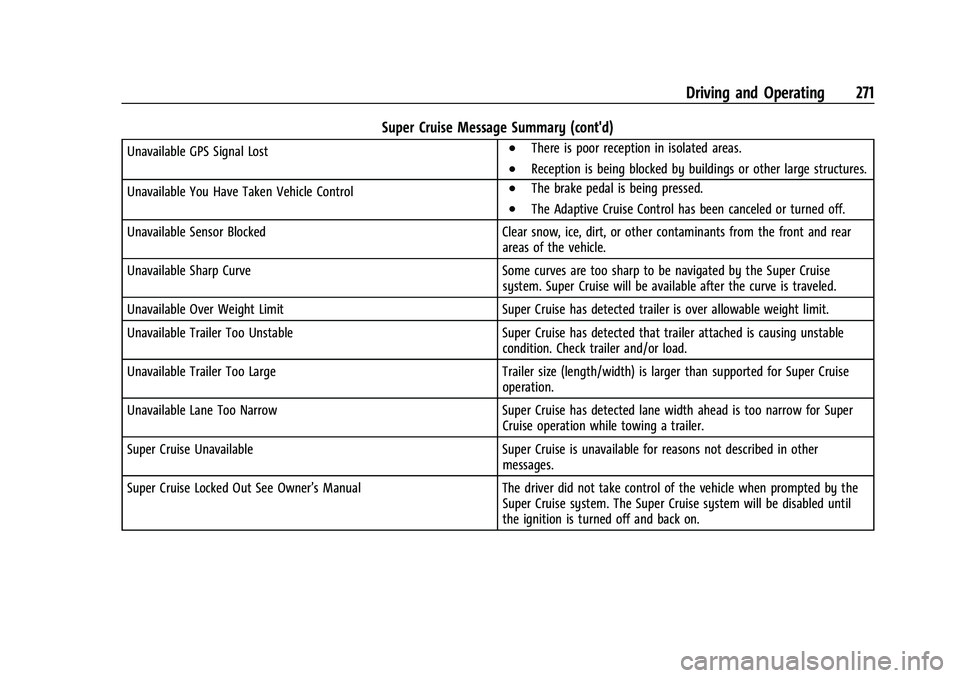
Super Cruise Message Summary (cont'd)
Unavailable GPS Signal Lost.There is poor reception in isolated areas.
.Reception is being blocked by buildings or other large structures.
Unavailable You Have Taken Vehicle Control
.The brake pedal is being pressed.
.The Adaptive Cruise Control has been canceled or turned off.
Unavailable Sensor Blocked Clear snow, ice, dirt, or other contaminants from the front and rear
areas of the vehicle.
Unavailable Sharp Curve Some curves are too sharp to be navigated by the Super Cruise
system. Super Cruise will be available after the curve is traveled.
Unavailable Over Weight Limit Super Cruise has detected trailer is over allowable weight limit.
Unavailable Trailer Too Unstable Super Cruise has detected that trailer attached is causing unstable
condition. Check trailer and/or load.
Unavailable Trailer Too Large Trailer size (length/width) is larger than supported for Super Cruise
operation.
Unavailable Lane Too Narrow Super Cruise has detected lane width ahead is too narrow for Super
Cruise operation while towing a trailer.
Super Cruise Unavailable Super Cruise is unavailable for reasons not described in other
messages.
Super Cruise Locked Out See Owner’s Manual The driver did not take control of the vehicle when prompted by the
Super Cruise system. The Super Cruise system will be disabled until
the ignition is turned off and back on.
Page 278 of 461
Cadillac Escalade Owner Manual (GMNA-Localizing-U.S./Canada/Mexico-
16417396) - 2023 - CRC - 5/11/22
276 Driving and Operating
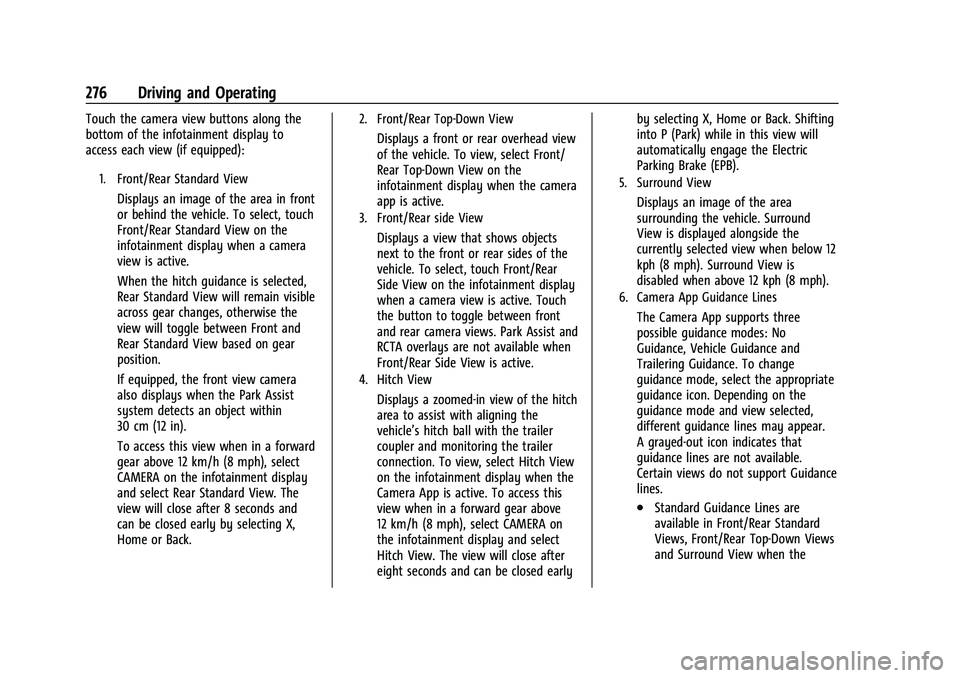
Touch the camera view buttons along the
bottom of the infotainment display to
access each view (if equipped):
1. Front/Rear Standard View
Displays an image of the area in front
or behind the vehicle. To select, touch
Front/Rear Standard View on the
infotainment display when a camera
view is active.
When the hitch guidance is selected,
Rear Standard View will remain visible
across gear changes, otherwise the
view will toggle between Front and
Rear Standard View based on gear
position.
If equipped, the front view camera
also displays when the Park Assist
system detects an object within
30 cm (12 in).
To access this view when in a forward
gear above 12 km/h (8 mph), select
CAMERA on the infotainment display
and select Rear Standard View. The
view will close after 8 seconds and
can be closed early by selecting X,
Home or Back.
2. Front/Rear Top-Down View
Displays a front or rear overhead view
of the vehicle. To view, select Front/
Rear Top-Down View on the
infotainment display when the camera
app is active.
3. Front/Rear side View
Displays a view that shows objects
next to the front or rear sides of the
vehicle. To select, touch Front/Rear
Side View on the infotainment display
when a camera view is active. Touch
the button to toggle between front
and rear camera views. Park Assist and
RCTA overlays are not available when
Front/Rear Side View is active.
4. Hitch View
Displays a zoomed-in view of the hitch
area to assist with aligning the
vehicle’s hitch ball with the trailer
coupler and monitoring the trailer
connection. To view, select Hitch View
on the infotainment display when the
Camera App is active. To access this
view when in a forward gear above
12 km/h (8 mph), select CAMERA on
the infotainment display and select
Hitch View. The view will close after
eight seconds and can be closed earlyby selecting X, Home or Back. Shifting
into P (Park) while in this view will
automatically engage the Electric
Parking Brake (EPB).
5. Surround View
Displays an image of the area
surrounding the vehicle. Surround
View is displayed alongside the
currently selected view when below 12
kph (8 mph). Surround View is
disabled when above 12 kph (8 mph).
6. Camera App Guidance Lines
The Camera App supports three
possible guidance modes: No
Guidance, Vehicle Guidance and
Trailering Guidance. To change
guidance mode, select the appropriate
guidance icon. Depending on the
guidance mode and view selected,
different guidance lines may appear.
A grayed-out icon indicates that
guidance lines are not available.
Certain views do not support Guidance
lines.
.Standard Guidance Lines are
available in Front/Rear Standard
Views, Front/Rear Top-Down Views
and Surround View when the
Page 279 of 461
Cadillac Escalade Owner Manual (GMNA-Localizing-U.S./Canada/Mexico-
16417396) - 2023 - CRC - 5/11/22
Driving and Operating 277
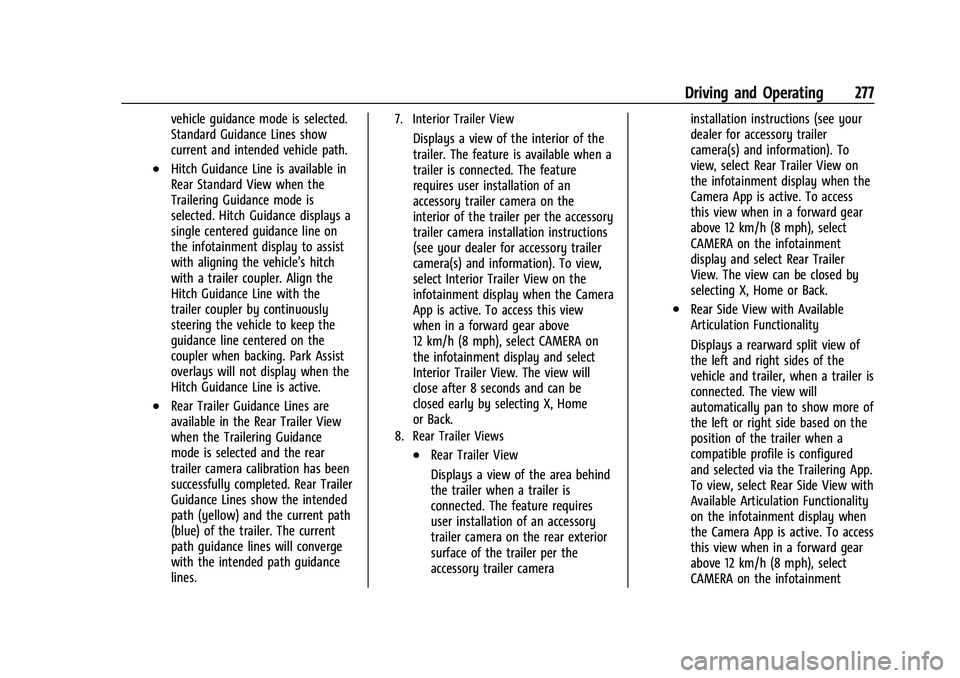
vehicle guidance mode is selected.
Standard Guidance Lines show
current and intended vehicle path.
.Hitch Guidance Line is available in
Rear Standard View when the
Trailering Guidance mode is
selected. Hitch Guidance displays a
single centered guidance line on
the infotainment display to assist
with aligning the vehicle’s hitch
with a trailer coupler. Align the
Hitch Guidance Line with the
trailer coupler by continuously
steering the vehicle to keep the
guidance line centered on the
coupler when backing. Park Assist
overlays will not display when the
Hitch Guidance Line is active.
.Rear Trailer Guidance Lines are
available in the Rear Trailer View
when the Trailering Guidance
mode is selected and the rear
trailer camera calibration has been
successfully completed. Rear Trailer
Guidance Lines show the intended
path (yellow) and the current path
(blue) of the trailer. The current
path guidance lines will converge
with the intended path guidance
lines.
7. Interior Trailer View
Displays a view of the interior of the
trailer. The feature is available when a
trailer is connected. The feature
requires user installation of an
accessory trailer camera on the
interior of the trailer per the accessory
trailer camera installation instructions
(see your dealer for accessory trailer
camera(s) and information). To view,
select Interior Trailer View on the
infotainment display when the Camera
App is active. To access this view
when in a forward gear above
12 km/h (8 mph), select CAMERA on
the infotainment display and select
Interior Trailer View. The view will
close after 8 seconds and can be
closed early by selecting X, Home
or Back.
8. Rear Trailer Views
.Rear Trailer View
Displays a view of the area behind
the trailer when a trailer is
connected. The feature requires
user installation of an accessory
trailer camera on the rear exterior
surface of the trailer per the
accessory trailer camerainstallation instructions (see your
dealer for accessory trailer
camera(s) and information). To
view, select Rear Trailer View on
the infotainment display when the
Camera App is active. To access
this view when in a forward gear
above 12 km/h (8 mph), select
CAMERA on the infotainment
display and select Rear Trailer
View. The view can be closed by
selecting X, Home or Back.
.Rear Side View with Available
Articulation Functionality
Displays a rearward split view of
the left and right sides of the
vehicle and trailer, when a trailer is
connected. The view will
automatically pan to show more of
the left or right side based on the
position of the trailer when a
compatible profile is configured
and selected via the Trailering App.
To view, select Rear Side View with
Available Articulation Functionality
on the infotainment display when
the Camera App is active. To access
this view when in a forward gear
above 12 km/h (8 mph), select
CAMERA on the infotainment
Page 280 of 461
Cadillac Escalade Owner Manual (GMNA-Localizing-U.S./Canada/Mexico-
16417396) - 2023 - CRC - 5/11/22
278 Driving and Operating
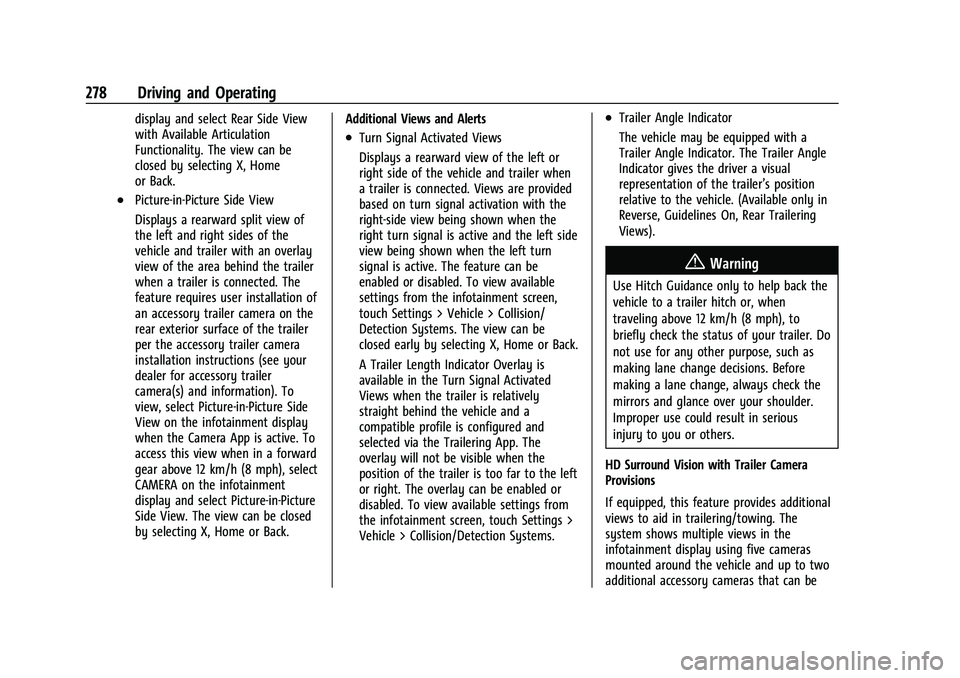
display and select Rear Side View
with Available Articulation
Functionality. The view can be
closed by selecting X, Home
or Back.
.Picture-in-Picture Side View
Displays a rearward split view of
the left and right sides of the
vehicle and trailer with an overlay
view of the area behind the trailer
when a trailer is connected. The
feature requires user installation of
an accessory trailer camera on the
rear exterior surface of the trailer
per the accessory trailer camera
installation instructions (see your
dealer for accessory trailer
camera(s) and information). To
view, select Picture-in-Picture Side
View on the infotainment display
when the Camera App is active. To
access this view when in a forward
gear above 12 km/h (8 mph), select
CAMERA on the infotainment
display and select Picture-in-Picture
Side View. The view can be closed
by selecting X, Home or Back.Additional Views and Alerts
.Turn Signal Activated Views
Displays a rearward view of the left or
right side of the vehicle and trailer when
a trailer is connected. Views are provided
based on turn signal activation with the
right-side view being shown when the
right turn signal is active and the left side
view being shown when the left turn
signal is active. The feature can be
enabled or disabled. To view available
settings from the infotainment screen,
touch Settings > Vehicle > Collision/
Detection Systems. The view can be
closed early by selecting X, Home or Back.
A Trailer Length Indicator Overlay is
available in the Turn Signal Activated
Views when the trailer is relatively
straight behind the vehicle and a
compatible profile is configured and
selected via the Trailering App. The
overlay will not be visible when the
position of the trailer is too far to the left
or right. The overlay can be enabled or
disabled. To view available settings from
the infotainment screen, touch Settings >
Vehicle > Collision/Detection Systems.
.Trailer Angle Indicator
The vehicle may be equipped with a
Trailer Angle Indicator. The Trailer Angle
Indicator gives the driver a visual
representation of the trailer’s position
relative to the vehicle. (Available only in
Reverse, Guidelines On, Rear Trailering
Views).
{Warning
Use Hitch Guidance only to help back the
vehicle to a trailer hitch or, when
traveling above 12 km/h (8 mph), to
briefly check the status of your trailer. Do
not use for any other purpose, such as
making lane change decisions. Before
making a lane change, always check the
mirrors and glance over your shoulder.
Improper use could result in serious
injury to you or others.
HD Surround Vision with Trailer Camera
Provisions
If equipped, this feature provides additional
views to aid in trailering/towing. The
system shows multiple views in the
infotainment display using five cameras
mounted around the vehicle and up to two
additional accessory cameras that can be
Page 281 of 461

Cadillac Escalade Owner Manual (GMNA-Localizing-U.S./Canada/Mexico-
16417396) - 2023 - CRC - 5/11/22
Driving and Operating 279
mounted on or in a trailer. The front camera
is in the grille under the front emblem, the
side cameras are on the bottom of the
outside mirrors, the rear camera is in the
tailgate handle and the bed camera is
mounted on the rear of the cab.
Additionally, up to two accessory cameras
can be mounted to the rear and/or interior
of the trailer. See your dealer for accessory
trailer cameras. To access, touch CAMERA on
the infotainment display or shift to
R (Reverse). To return to the previous screen
when not in reverse, touch the Home or
Back buttons on the infotainment display.
Certain trailer views require a compatible
trailer profile be configured and selected.
A compatible trailer is a box type trailer
(cargo, camper, etc.) with a conventional
hitch.
Available camera views:
.Front/Rear Standard View
.Front/Rear Top-Down View
.Front/Rear Side View
.Hitch View
.Rear trailer View
.Rear Side view with a available
articulation functionality
.Picture-in-Picture Side View
.Interior Trailer View
.Surround View
.Guidance Lines
.Hitch Guidance
Surround Vision (360 Degrees)
If equipped, the Surround Vision system can
display various views surrounding the
vehicle in the infotainment display using
four cameras mounted around the vehicle.
The front camera is in the grille under the
front emblem, the side cameras are on the
bottom of the outside mirrors, and the rear
camera is in the tailgate handle.
The Surround Vision system can be accessed
by selecting CAMERA in the infotainment
display or when the vehicle is shifted into
R (Reverse). To return to the previous screen
sooner, when not in R (Reverse), press the
Home or Back button on the infotainment
system, shift into P (Park), or, while in D
(Drive), reach a vehicle speed of
approximately 12 km/h (8 mph).
Available camera views:
.Front/Rear Standard View
.Front/Rear Top-Down View
.Front/Rear Side View
.Hitch View
.Surround View
.Guidance Lines
.Hitch Guidance
Troubleshooting
The Transparent Trailer calibration may take
longer than expected or not calibrate if:
.The vehicle is driven too fast during
calibration. Speed should be maintained
below 50 km/h (31 mph).
.The vehicle is not driven straight during
calibration. Steering should be maintained
as straight as possible, excessive steering
during calibration may extend
calibration time.
.The calibration is attempted in low light.
Calibration should be attempted when
there is enough light.
.The calibration is attempted during
adverse weather conditions. Calibration
during conditions such as snow or heavy
rain should be avoided.
.The road surface is not ideal for
calibration. Calibration should be
attempted on an alternate road surface.