change CADILLAC ESCALADE 2023 Manual Online
[x] Cancel search | Manufacturer: CADILLAC, Model Year: 2023, Model line: ESCALADE, Model: CADILLAC ESCALADE 2023Pages: 461, PDF Size: 7.99 MB
Page 261 of 461

Cadillac Escalade Owner Manual (GMNA-Localizing-U.S./Canada/Mexico-
16417396) - 2023 - CRC - 5/11/22
Driving and Operating 259
Super Cruise uses the following to detect
the current lane position and lane markings
ahead on compatible roads under certain
conditions:
.Cameras
.Global Positioning System (GPS) sensing
.A high-precision map
.GPS-enhancement data downloaded
through OnStar
Super Cruise works with Adaptive Cruise
Control (ACC), which controls acceleration
and braking while Super Cruise is enabled
and operating. Review and understand both
this section and the ACC section before
using Super Cruise. See Adaptive Cruise
Control (Advanced) 0248.
An active Connected Service plan that
includes Super Cruise Services is required to
use Super Cruise.
{Warning
Super Cruise does not perform all aspects
of driving, nor does it do everything a
driver can do. Super Cruise only steers to
maintain vehicle position in the current (Continued)
Warning (Continued)
lane or, under some circumstances, to
change lanes. Super Cruise can only be
used with Adaptive Cruise Control.
Super Cruise does:
.Not prevent crashes or warn of
possible crashes.
.Not steer to avoid stopped or
slow-moving vehicles, cross-traffic,
construction barriers or cones,
motorcycles, children, pedestrians,
animals, or other objects on the road.
.Not steer in response to vehicles or
objects next to your vehicle, including
vehicles attempting to enter your lane.
.Not respond to traffic lights, stop
signs, or other traffic control devices.
.Not respond to crossing traffic.
.Not make turns.
.Not steer to merge onto or to exit
highways.
.Not steer to avoid, or steer through
construction zones.
.Not function on surface streets.(Continued)
Warning (Continued)
.Not respond to oncoming traffic.
.Not function in city driving conditions.
{Warning
Some state and local laws may require
hands to be kept on the steering wheel
at all times. Only remove your hands
from the steering wheel if Super Cruise is
engaged, it is safe to do so, and it is
permitted by state and local laws.
{Warning
Failure to supervise the driving task and
to respond appropriately, even while
Super Cruise is operating, can cause a
crash. Super Cruise may not respond as
you would to all driving situations and
may not maintain lane position under all
conditions.
It is extremely important to pay
attention to the operation of the vehicle,
even while using Super Cruise. Do not
(Continued)
Page 264 of 461

Cadillac Escalade Owner Manual (GMNA-Localizing-U.S./Canada/Mexico-
16417396) - 2023 - CRC - 5/11/22
262 Driving and Operating
take immediate action—including steering,
accelerating, and braking quickly,
if necessary.
Super Cruise, when engaged, will enable the
Forward Collision System to alert and brake.
Steering Manually and Changing Lanes
The vehicle can always be manually steered,
even with Super Cruise engaged; for
example, when manually changing lanes.
When the steering wheel is moved
manually, the steering wheel light bar
flashes blue and
^on the instrument
cluster turns blue to indicate Super Cruise is
not steering the vehicle.
When ready to allow Super Cruise to
resume steering again, position the vehicle
in the center of the lane, hold the steering
wheel until the steering wheel light bar
turns green, and then release the steering
wheel when it is safe to do so.
{Warning
To help prevent crashes before making a
lane change:
.Always check mirrors. (Continued)
Warning (Continued)
.Glance over your shoulder.
.Use the turn signals.
Super Cruise Lane Change
Super Cruise can steer to perform a single
lane change under certain conditions when
requested by the driver or initiated by the
Super Cruise System.
To request a lane change:
On Demand Lane Changes 1. Verify the lane next to your vehicle is clear and conditions are safe to make a
lane change.
2. Use the turn signal lever to activate the turn signal in the direction of the desired
lane change.
3. Return the turn signal lever to the neutral position after the lane change.
See Turn and Lane-Change Signals 0140.
4. To cancel a lane change, return the turn signal lever to the neutral position, move
the lever in the opposite direction of the
lane change, or steer manually at
any time. Automatic Lane Changes
Super Cruise System may initiate a single
lane change when enabled through vehicle
settings under following conditions:.The Super Cruise System may initiate a
lane change to the left to pass a slower
moving vehicle ahead and a subsequent
lane change to right to return to your
original lane.
.Super Cruise System may initiate a lane
change to left or right when current lane
is ending ahead.
.To cancel a Super Cruise lane change,
return the turn signal lever to the neutral
position or move the turn signal lever.
.Super Cruise steering can be overridden
with manual steering at any time to
cancel a Super Cruise lane change.
If Super Cruise detects that traffic is clear,
Super Cruise will steer the vehicle to
perform the lane change. A message appears
on the Driver Information Center (DIC)
during the lane change to provide more
information on the status of the lane
change.
The Super Cruise Lane Change feature can
be enabled or disabled through the vehicle
personalization menu. The Super Cruise Lane
Page 265 of 461

Cadillac Escalade Owner Manual (GMNA-Localizing-U.S./Canada/Mexico-
16417396) - 2023 - CRC - 5/11/22
Driving and Operating 263
Change feature can be enabled or disabled
through the vehicle personalization menu.
Touch the Settings icon on the infotainment
home page. Select“Vehicle”to display the
list of available options and select “Super
Cruise Lane Change.”
Super Cruise Lane change is disabled when
attached trailer is detected.
Do not use Super Cruise Lane Change
feature when towing a trailer.
{Warning
Super Cruise Lane Change may not detect
a vehicle in an adjacent lane. Always
supervise the driving task and monitor
traffic conditions when using the Super
Cruise Lane Change feature. Only request
a lane change when traffic conditions are
safe for a lane change, and always be
ready to manually steer the vehicle. See
“Steering Manually and Changing Lanes”
listed previously in this section. Take Over Alert
{Warning
Super Cruise will not maintain the
vehicle’s speed while the steering wheel
light bar is flashing red. If the steering
wheel light bar flashes red, immediately
resume manual steering to prevent
serious injury or death. If you do not
resume manual steering, the vehicle will
begin to slow in the same lane and
eventually come to a complete stop on
the road.
Any time the steering wheel light bar
flashes red, resume manual steering
immediately.
To begin steering manually, hold the
steering wheel firmly (with both hands)
using the highlighted regions as shown in
the picture below.
The instrument cluster light^, will also
turn red and a message will display in the
Driver Information Center (DIC). In addition,
beeps will sound, or the Safety Alert Seat
will vibrate. To view Collision and Detection
options, touch the Settings icon on the
infotainment home page. Select “Vehicle”to
display the list of available options and
select “Collision/Detection Systems”. After
you begin steering manually, then Super
Cruise will disengage.
The red flashing steering wheel light bar
could occur under any of the following
conditions:
.Lane markings are poor, or visibility is
limited.
Page 266 of 461

Cadillac Escalade Owner Manual (GMNA-Localizing-U.S./Canada/Mexico-
16417396) - 2023 - CRC - 5/11/22
264 Driving and Operating
.The Driver Attention System (DAS) does
not detect that the driver's head and eyes
are directed toward the road.
.ACC is canceled.
.The vehicle is on a tight curve, or the
lanes are too wide, or the vehicle goes
into a curve too fast.
.The road speed limit of Super Cruise
capable non-divided road is below
28 km/h (45 mph).
.The compatible road ends.
.The vehicle is approaching an intersection
controlled by a traffic light, stop sign,
or other traffic control device.
.A Super Cruise system fault occurs.
.Super Cruise is unable to complete the
lane change maneuver.
Attention to the Road
{Warning
Super Cruise is a driver assistance system
and cannot accurately detect or predict
all situations. Super Cruise is not a crash
avoidance system. To prevent serious
injury or death, you must supervise the
driving task and monitor the road
conditions. You may need to respond to (Continued)
Warning (Continued)
traffic events by steering, braking,
or accelerating. SeeDefensive Driving
0 207. Super Cruise also cannot
determine whether you are awake,
asleep, impaired, or properly focused on
safe driving. The vehicle could crash into
other vehicles, drive out of the lane,
or drive off the road. Complete attention
is always required while driving, even
while using Super Cruise. Be prepared to
take over steering or apply the brakes at
any time.
{Warning
To prevent serious injury or death, be
alert and pay special attention when
passing highway exits, entrances, and
crossings with Super Cruise, and be ready
to take control of the vehicle when
necessary. Changes in lane markings
around exits and entrances can
momentarily cause Super Cruise to not
detect the correct lane. If this occurs,
Super Cruise may attempt steering inputs (Continued)
Warning (Continued)
to bring the vehicle back into the correct
lane and, in rare circumstances, could
over-correct and cause the vehicle to
momentarily cross into a lane next to
your vehicle unless you manually steer to
maintain your lane position.
The Driver Attention System (DAS) on the
steering column continually monitors driver
head and eye position to estimate driver
attention to the road. The camera does not
record or share pictures, audio, or video.
Sunglasses, hats, or other types of clothing
that change the shape of the head may
interfere with camera performance. To
improve camera performance, raise or lower
the steering wheel, or change the seat
position.
Page 269 of 461

Cadillac Escalade Owner Manual (GMNA-Localizing-U.S./Canada/Mexico-
16417396) - 2023 - CRC - 5/11/22
Driving and Operating 267
Other Vehicles Entering Your Lane
Super Cruise may not detect a vehicle that
enters your lane, or may not brake fast
enough to avoid a crash. You must manually
brake and steer the vehicle.
Intersections; Vehicles Crossing the Road
Ahead
Super Cruise will not brake the vehicle when
approaching an intersection that is
controlled by a traffic light or stop sign.
Super Cruise will not detect vehicles crossing
the road ahead, including at intersections,
and will not automatically steer or brake to
prevent a collision. You must manually
brake and steer the vehicle.Towing a Trailer
Super Cruise may be used when towing a
trailer when Trailer attached is within size
and weight limits designated in the Trailer
Towing section, see Trailer Towing.
When Super Cruise is used with vehicles
equipped with aftermarket trailer brake
controller, Super Cruise may not disengage
when manual trailer brake is applied.
Do not use Super Cruise Lane Change when
towing a trailer.
For additional information on towing a
trailer, see
Trailer Towing 0309.
Super Cruise on Hills
Super Cruise on Non-Divided Roads
Super Cruise may be available on
non-divided roads that are mapped, outside
of urbanized areas and have a road speed
limit above 28 km/h (45 mph).
Do not use Super Cruise while driving on
steep hills. Super Cruise Indicator Light SummaryThe steering wheel light bar and instrument
cluster light provide the following important
information about Super Cruise operation:
Page 271 of 461
Cadillac Escalade Owner Manual (GMNA-Localizing-U.S./Canada/Mexico-
16417396) - 2023 - CRC - 5/11/22
Driving and Operating 269
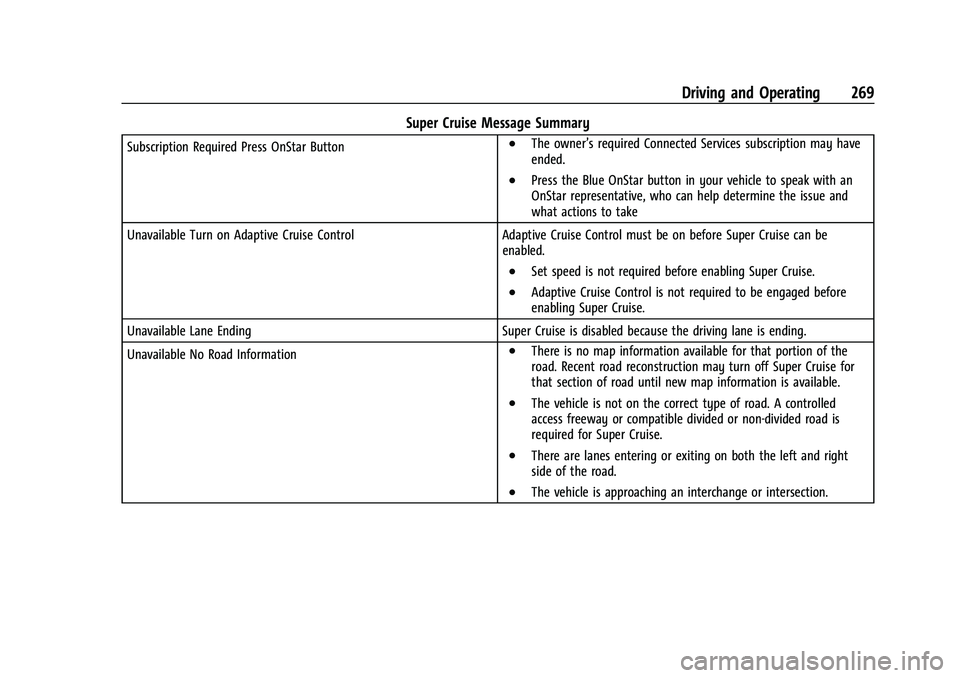
Super Cruise Message Summary
Subscription Required Press OnStar Button.The owner’s required Connected Services subscription may have
ended.
.Press the Blue OnStar button in your vehicle to speak with an
OnStar representative, who can help determine the issue and
what actions to take
Unavailable Turn on Adaptive Cruise Control Adaptive Cruise Control must be on before Super Cruise can be
enabled.
.Set speed is not required before enabling Super Cruise.
.Adaptive Cruise Control is not required to be engaged before
enabling Super Cruise.
Unavailable Lane Ending Super Cruise is disabled because the driving lane is ending.
Unavailable No Road Information
.There is no map information available for that portion of the
road. Recent road reconstruction may turn off Super Cruise for
that section of road until new map information is available.
.The vehicle is not on the correct type of road. A controlled
access freeway or compatible divided or non-divided road is
required for Super Cruise.
.There are lanes entering or exiting on both the left and right
side of the road.
.The vehicle is approaching an interchange or intersection.
Page 276 of 461
Cadillac Escalade Owner Manual (GMNA-Localizing-U.S./Canada/Mexico-
16417396) - 2023 - CRC - 5/11/22
274 Driving and Operating
.Front side and rear side panels
.Outside of the windshield in front of the
rearview mirror
.Side camera lens on the bottom of the
outside mirrors
.Rear side corner bumpers
.Rear Vision Camera above the license
plate
Radio Frequency
This vehicle may be equipped with driver
assistance systems that operate using radio
frequency. See Radio Frequency Statement
0 435.
Assistance Systems for Parking or
Backing
If equipped, the Rear Vision Camera (RVC),
Rear Park Assist (RPA), Front and Rear Park
Assist (FRPA), Surround Vision, Reverse
Automatic Braking (RAB) and Backing
Warning System, Rear Cross Traffic Alert
(RCTA), and Enhanced Automatic Parking
Assist (APA) may help the driver park or
avoid objects. Always check around the
vehicle when parking or backing.
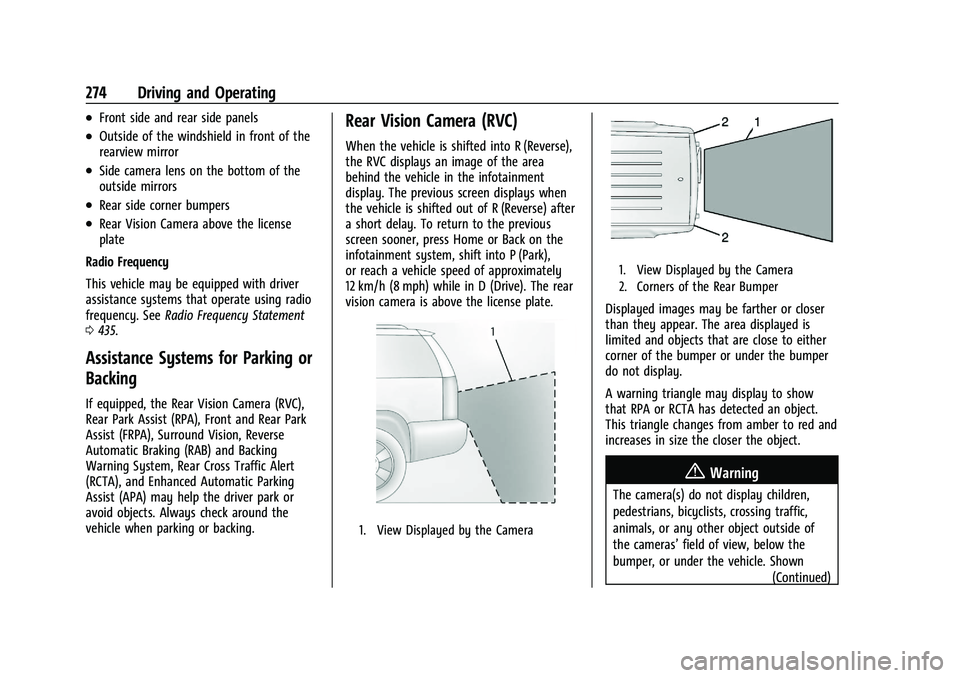
Rear Vision Camera (RVC)
When the vehicle is shifted into R (Reverse),
the RVC displays an image of the area
behind the vehicle in the infotainment
display. The previous screen displays when
the vehicle is shifted out of R (Reverse) after
a short delay. To return to the previous
screen sooner, press Home or Back on the
infotainment system, shift into P (Park),
or reach a vehicle speed of approximately
12 km/h (8 mph) while in D (Drive). The rear
vision camera is above the license plate.
1. View Displayed by the Camera
1. View Displayed by the Camera
2. Corners of the Rear Bumper
Displayed images may be farther or closer
than they appear. The area displayed is
limited and objects that are close to either
corner of the bumper or under the bumper
do not display.
A warning triangle may display to show
that RPA or RCTA has detected an object.
This triangle changes from amber to red and
increases in size the closer the object.
{Warning
The camera(s) do not display children,
pedestrians, bicyclists, crossing traffic,
animals, or any other object outside of
the cameras’ field of view, below the
bumper, or under the vehicle. Shown (Continued)
Page 278 of 461
Cadillac Escalade Owner Manual (GMNA-Localizing-U.S./Canada/Mexico-
16417396) - 2023 - CRC - 5/11/22
276 Driving and Operating
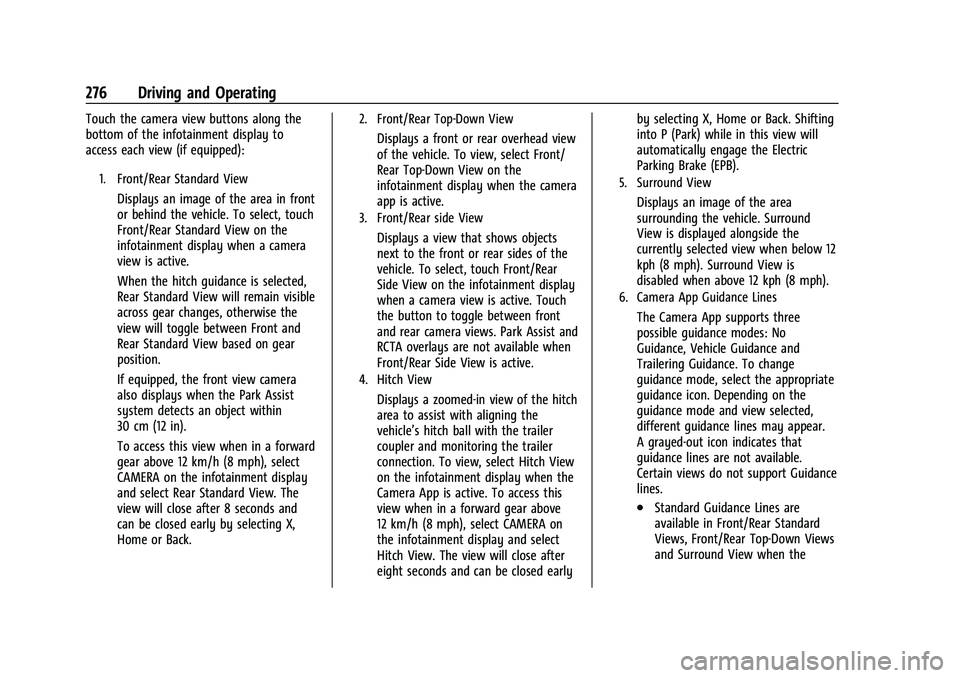
Touch the camera view buttons along the
bottom of the infotainment display to
access each view (if equipped):
1. Front/Rear Standard View
Displays an image of the area in front
or behind the vehicle. To select, touch
Front/Rear Standard View on the
infotainment display when a camera
view is active.
When the hitch guidance is selected,
Rear Standard View will remain visible
across gear changes, otherwise the
view will toggle between Front and
Rear Standard View based on gear
position.
If equipped, the front view camera
also displays when the Park Assist
system detects an object within
30 cm (12 in).
To access this view when in a forward
gear above 12 km/h (8 mph), select
CAMERA on the infotainment display
and select Rear Standard View. The
view will close after 8 seconds and
can be closed early by selecting X,
Home or Back.
2. Front/Rear Top-Down View
Displays a front or rear overhead view
of the vehicle. To view, select Front/
Rear Top-Down View on the
infotainment display when the camera
app is active.
3. Front/Rear side View
Displays a view that shows objects
next to the front or rear sides of the
vehicle. To select, touch Front/Rear
Side View on the infotainment display
when a camera view is active. Touch
the button to toggle between front
and rear camera views. Park Assist and
RCTA overlays are not available when
Front/Rear Side View is active.
4. Hitch View
Displays a zoomed-in view of the hitch
area to assist with aligning the
vehicle’s hitch ball with the trailer
coupler and monitoring the trailer
connection. To view, select Hitch View
on the infotainment display when the
Camera App is active. To access this
view when in a forward gear above
12 km/h (8 mph), select CAMERA on
the infotainment display and select
Hitch View. The view will close after
eight seconds and can be closed earlyby selecting X, Home or Back. Shifting
into P (Park) while in this view will
automatically engage the Electric
Parking Brake (EPB).
5. Surround View
Displays an image of the area
surrounding the vehicle. Surround
View is displayed alongside the
currently selected view when below 12
kph (8 mph). Surround View is
disabled when above 12 kph (8 mph).
6. Camera App Guidance Lines
The Camera App supports three
possible guidance modes: No
Guidance, Vehicle Guidance and
Trailering Guidance. To change
guidance mode, select the appropriate
guidance icon. Depending on the
guidance mode and view selected,
different guidance lines may appear.
A grayed-out icon indicates that
guidance lines are not available.
Certain views do not support Guidance
lines.
.Standard Guidance Lines are
available in Front/Rear Standard
Views, Front/Rear Top-Down Views
and Surround View when the
Page 280 of 461
Cadillac Escalade Owner Manual (GMNA-Localizing-U.S./Canada/Mexico-
16417396) - 2023 - CRC - 5/11/22
278 Driving and Operating
display and select Rear Side View
with Available Articulation
Functionality. The view can be
closed by selecting X, Home
or Back.
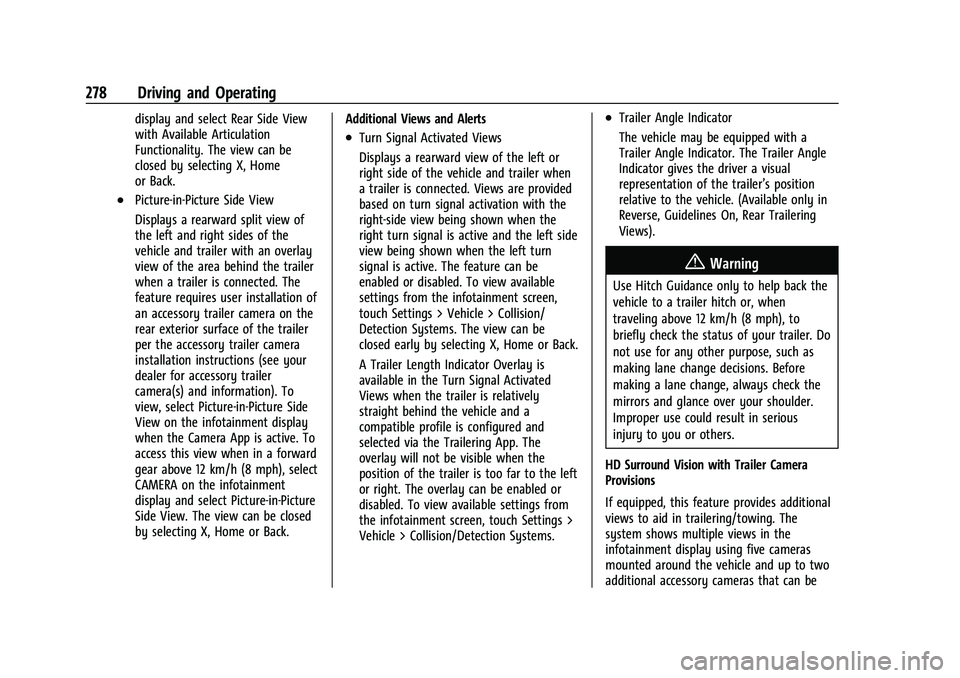
.Picture-in-Picture Side View
Displays a rearward split view of
the left and right sides of the
vehicle and trailer with an overlay
view of the area behind the trailer
when a trailer is connected. The
feature requires user installation of
an accessory trailer camera on the
rear exterior surface of the trailer
per the accessory trailer camera
installation instructions (see your
dealer for accessory trailer
camera(s) and information). To
view, select Picture-in-Picture Side
View on the infotainment display
when the Camera App is active. To
access this view when in a forward
gear above 12 km/h (8 mph), select
CAMERA on the infotainment
display and select Picture-in-Picture
Side View. The view can be closed
by selecting X, Home or Back.Additional Views and Alerts
.Turn Signal Activated Views
Displays a rearward view of the left or
right side of the vehicle and trailer when
a trailer is connected. Views are provided
based on turn signal activation with the
right-side view being shown when the
right turn signal is active and the left side
view being shown when the left turn
signal is active. The feature can be
enabled or disabled. To view available
settings from the infotainment screen,
touch Settings > Vehicle > Collision/
Detection Systems. The view can be
closed early by selecting X, Home or Back.
A Trailer Length Indicator Overlay is
available in the Turn Signal Activated
Views when the trailer is relatively
straight behind the vehicle and a
compatible profile is configured and
selected via the Trailering App. The
overlay will not be visible when the
position of the trailer is too far to the left
or right. The overlay can be enabled or
disabled. To view available settings from
the infotainment screen, touch Settings >
Vehicle > Collision/Detection Systems.
.Trailer Angle Indicator
The vehicle may be equipped with a
Trailer Angle Indicator. The Trailer Angle
Indicator gives the driver a visual
representation of the trailer’s position
relative to the vehicle. (Available only in
Reverse, Guidelines On, Rear Trailering
Views).
{Warning
Use Hitch Guidance only to help back the
vehicle to a trailer hitch or, when
traveling above 12 km/h (8 mph), to
briefly check the status of your trailer. Do
not use for any other purpose, such as
making lane change decisions. Before
making a lane change, always check the
mirrors and glance over your shoulder.
Improper use could result in serious
injury to you or others.
HD Surround Vision with Trailer Camera
Provisions
If equipped, this feature provides additional
views to aid in trailering/towing. The
system shows multiple views in the
infotainment display using five cameras
mounted around the vehicle and up to two
additional accessory cameras that can be
Page 283 of 461

Cadillac Escalade Owner Manual (GMNA-Localizing-U.S./Canada/Mexico-
16417396) - 2023 - CRC - 5/11/22
Driving and Operating 281
Warning (Continued)
available at speeds greater than 9 km/h
(6 mph). To prevent injury, death,
or vehicle damage, even with Park Assist,
always check the area around the vehicle
and check all mirrors before moving
forward or backing.
How the System Works
The vehicle may have a Park
Assist amphitheatre-like display on the
cluster with bars that represent the
estimated location of a detected object and
the vehicle’s distance from the object. As a
detected object becomes closer, more bars
light up and change color from yellow to
amber to red. Vehicles equipped with RPA
will show the amphitheater at the rear of
the vehicle, and if equipped, FRPA will show
the amphitheater at the front and rear.
The system warns the driver with beeps
against potentially hazardous obstacles in
the path of the vehicle. When an object in
the driving path is first detected in the rear,
one beep will be heard from the rear, or the
driver's seat will pulse two times if equipped
with Safety Alert Seat. When an object is
very close, five beeps will sound from the front or rear, depending on the object's
location, or the driver's seat will pulse five
times. Beeps for front are higher pitched
than the rear. The beeps may be muted by
pressing the on screen mute button.
Turning the System On and Off
The Park Assist System can be turned on or
off using the infotainment system. To view
available settings for this feature, touch the
Settings icon on the infotainment home
page. Select
“Vehicle”to display the list of
available options and select “Collision/
Detection Systems”.
Turning the Park Assist System on or off
also turns the Backing Warning and Reverse
Automatic Braking (RAB) on or off at the
same time. When the system is off, PARK ASSIST OFF is
shown on the display. This message
disappears after a short period of time.
If the vehicle has a trailer hitch attached,
select ON - ATTACHED using the
infotainment system menus to allow Park
Assist to function properly. Park Assist is
able to compensate for a trailer hitch up to
0.3 m (1 ft) in length and width. Park Assist
may not function properly with larger trailer
hitches and provide inaccurate information
of objects in the rear
Turn off Park Assist when towing a trailer to
prevent unwanted beeps and when a bike
rack is attached to ensure proper operation.
When the System Does Not Seem to Work
Properly
The following messages may be shown on
the display:
SERVICE PARK ASSIST
If this message displays, check the following
conditions:
.The sensors may not be clean. Keep the
vehicle's front and rear bumpers free of
mud, dirt, snow, ice, and slush. For
cleaning instructions, see
Exterior Care
0 406.