rear entertainment CADILLAC ESCALADE ESV 2007 2.G Owners Manual
[x] Cancel search | Manufacturer: CADILLAC, Model Year: 2007, Model line: ESCALADE ESV, Model: CADILLAC ESCALADE ESV 2007 2.GPages: 574, PDF Size: 2.89 MB
Page 190 of 574
Engine Coolant Temperature Gage............ 238
Tire Pressure Light.................................... 238
Malfunction Indicator Lamp........................ 239
Oil Pressure Light..................................... 242
Security Light............................................ 242
Fog Lamp Light......................................... 243
Lights On Reminder.................................. 243
Cruise Control Light.................................. 243
Highbeam On Light................................... 243
Tow/Haul Mode Light................................ 244
Fuel Gage................................................. 244
Driver Information Center (DIC).................. 245
DIC Operation and Displays...................... 245
DIC Warnings and Messages.................... 250
DIC Vehicle Customization........................ 259Audio System(s)......................................... 270
Setting the Time........................................ 272
Radio with CD and DVD........................... 273
XM Radio Messages................................. 302
Navigation/Radio System........................... 303
Rear Seat Entertainment System............... 303
Rear Seat Audio (RSA)............................. 314
Theft-Deterrent Feature............................. 316
Audio Steering Wheel Controls.................. 317
Radio Reception........................................ 318
Care of Your CDs and DVDs.................... 319
Care of the CD and DVD Player............... 319
Rear Side Window Antenna....................... 319
XM™ Satellite Radio Antenna System....... 320
Chime Level Adjustment............................ 320
Section 3 Instrument Panel
190
Page 273 of 574
Radio with CD and DVD
Playing the Radio
O
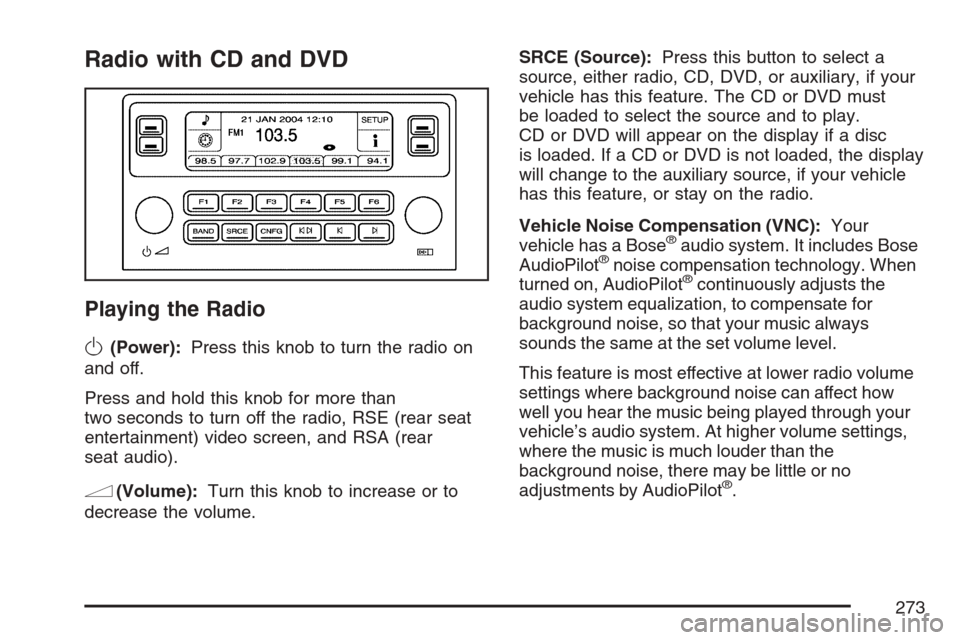
(Power):Press this knob to turn the radio on
and off.
Press and hold this knob for more than
two seconds to turn off the radio, RSE (rear seat
entertainment) video screen, and RSA (rear
seat audio).
n(Volume):Turn this knob to increase or to
decrease the volume.SRCE (Source):Press this button to select a
source, either radio, CD, DVD, or auxiliary, if your
vehicle has this feature. The CD or DVD must
be loaded to select the source and to play.
CD or DVD will appear on the display if a disc
is loaded. If a CD or DVD is not loaded, the display
will change to the auxiliary source, if your vehicle
has this feature, or stay on the radio.
Vehicle Noise Compensation (VNC):Your
vehicle has a Bose
®audio system. It includes Bose
AudioPilot®noise compensation technology. When
turned on, AudioPilot®continuously adjusts the
audio system equalization, to compensate for
background noise, so that your music always
sounds the same at the set volume level.
This feature is most effective at lower radio volume
settings where background noise can affect how
well you hear the music being played through your
vehicle’s audio system. At higher volume settings,
where the music is much louder than the
background noise, there may be little or no
adjustments by AudioPilot
®.
273
Page 294 of 574

Using the DVD Player
Insert a disc partway into the slot, label side up.
The player will pull it in. If the ignition and the radio
are on, the CD or DVD will begin playing. A
DVD may be loaded with the radio off, but it will
not start playing until the radio is on, and sourced
to DVD. The DVD player can be controlled by
the buttons on the radio, the rear seat audio
system, and the remote control, if your vehicle has
this feature. See theRear Seat Entertainment
System on page 303for more information. A DVD
icon will display whenever a disc is loaded. The
DVD player can also be run for passengers in
the rear seat with the radio off. The rear seat
passenger can power on the video screen and
use the remote control to navigate the disc.
SeeRear Seat Entertainment System on page 303
for more information.
Z(Eject):Press this button to eject the DVD or
CD. Eject may be activated with the ignition or
radio off. If the disc is not removed after a
short time, the disc will be pulled back into the
DVD player for storage.The DVD player is only compatible with DVDs of
the appropriate region code. The region code
is printed on the jacket of most DVDs.
DVD video, DVD audio, DVD-R/RW, and
DVD + R/RW are fully supported by this DVD
player. In addition, standard audio CDs, CD-R,
CD-RW, video CD, SACD, MP3, and WMA
formatted discs are fully supported. If a disc is
inserted that is not supported, an error message
will display and the disc will be ejected.
When a DVD is inserted, the DVD functions will
appear on the display above the pushbuttons,
in place of the preset stations. These functions
vary based on the type of disc that is inserted.
Loading the disc can take some time as the DVD
player reads the disc and determines the type.
DVD Messages
If the disc comes out, it could be for one of the
following reasons:
It is very hot. When the temperature returns to
normal, the disc should play.
You are driving on a very rough road.
When the road becomes smoother, the disc
should play.
294
Page 297 of 574
F3 (Reverse):Press and hold this pushbutton, if
the DVD player is playing, to enter fast reverse
mode. Holding the pushbutton will play in reverse
at four times the normal speed. After holding it
for more than four seconds it will play in reverse at
32 times the normal speed. Release the
pushbutton to return to normal play mode.
F4 (Forward):Press and hold this pushbutton, if
the DVD player is playing, to enter fast forward
mode. Holding the pushbutton will play at
four times the normal speed. After holding it for
more than four seconds it will play in reverse
at 32 times the normal speed. Release the
pushbutton to return to normal play mode.
F5 MODE:Press this pushbutton to select from
NORMAL, and RPT TRCK.
Normal:Sets the system for normal play of
the DVD.
RPT TRCK (Repeat Track):Repeats the
track over again. RPT TRCK will appear on the
display. Press the MODE pushbutton again
to turn off repeat play and advance to the
next mode.F6 DISP (Display):Press this pushbutton to
display the time of the track. Press this pushbutton
again to display DVD PLAY MODE.
©or¨(Seek):Press the left single arrow
button to go to the start of the current track. Press
it again to go to the previous track, or press the
right single arrow button to go to the next
track. Press and hold these buttons to change
tracks at a rate of one per second.
TUNE/SEL knob:Turn to the left one notch to go
to the start of the current track. Turn it again to
go to the previous track, or turn to the right
one notch to go to the next track.
If your vehicle has rear seat entertainment,
you can view the menu and playlist from your
DVD audio disc on the video screen. Turn on
the video screen with the power button on
the remote control to view and navigate the menu
and playlists. SeeRear Seat Entertainment
System on page 303for more information.
297
Page 299 of 574
If your vehicle has rear seat entertainment, you
can view the track details from your CD on
the video screen. Turn on the video screen with
the power button on the remote control to view and
navigate the tracks. SeeRear Seat Entertainment
System on page 303for more information.
Playing an MP3 Formatted Disc
See “Using an MP3 CD” earlier in this section for
additional information.
F3 (Reverse):Press and hold this pushbutton to
enter fast reverse mode. Holding the pushbutton
will play in reverse at four times the normal speed.
After holding it for more than four seconds it will
play in reverse at 32 times the normal speed.
Release the pushbutton to return to normal
play mode.
A quick press of this pushbutton will go to the
beginning of the previous folder.
F4 (Forward):Press and hold this pushbutton to
enter fast forward mode. Holding the pushbutton
will play at four times the normal speed. After
holding it for more than four seconds it will play
at 32 times the normal speed. Release the
pushbutton to return to normal play mode.A quick press of this pushbutton will advance to
the next folder.
F5 MODE:Press this pushbutton to select from
NORMAL, RPT TRCK, and RDM TRCK.
Normal:Sets the system for normal play of
the DVD.
RPT TRCK (Repeat Track):Repeats the
track over again. RPT TRCK will appear on the
display. Press the MODE pushbutton again
to turn off repeat play and advance to the
next mode.
RDM TRCK (Random Track):Plays the
tracks on the current DVD in random,
rather than sequential order. RDM TRCK will
appear on the display. Press the MODE
pushbutton again to turn off random play and
advance to the next mode.
F6 DISP (Display):Press this pushbutton to
display the time of the track. Press this pushbutton
again to display CD PLAY MODE.
299
Page 300 of 574
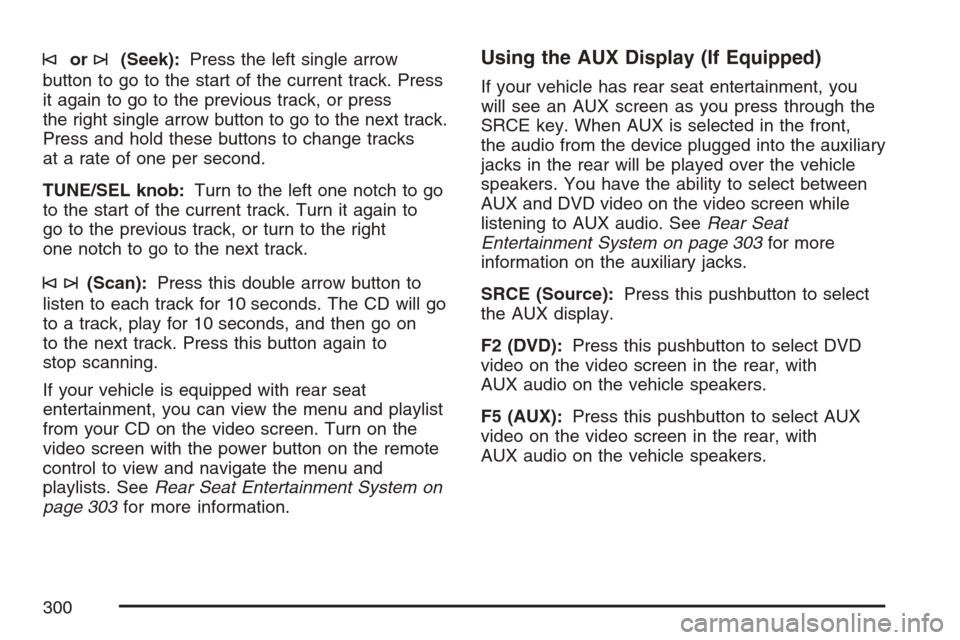
©or¨(Seek):Press the left single arrow
button to go to the start of the current track. Press
it again to go to the previous track, or press
the right single arrow button to go to the next track.
Press and hold these buttons to change tracks
at a rate of one per second.
TUNE/SEL knob:Turn to the left one notch to go
to the start of the current track. Turn it again to
go to the previous track, or turn to the right
one notch to go to the next track.
©¨(Scan):Press this double arrow button to
listen to each track for 10 seconds. The CD will go
to a track, play for 10 seconds, and then go on
to the next track. Press this button again to
stop scanning.
If your vehicle is equipped with rear seat
entertainment, you can view the menu and playlist
from your CD on the video screen. Turn on the
video screen with the power button on the remote
control to view and navigate the menu and
playlists. SeeRear Seat Entertainment System on
page 303for more information.
Using the AUX Display (If Equipped)
If your vehicle has rear seat entertainment, you
will see an AUX screen as you press through the
SRCE key. When AUX is selected in the front,
the audio from the device plugged into the auxiliary
jacks in the rear will be played over the vehicle
speakers. You have the ability to select between
AUX and DVD video on the video screen while
listening to AUX audio. SeeRear Seat
Entertainment System on page 303for more
information on the auxiliary jacks.
SRCE (Source):Press this pushbutton to select
the AUX display.
F2 (DVD):Press this pushbutton to select DVD
video on the video screen in the rear, with
AUX audio on the vehicle speakers.
F5 (AUX):Press this pushbutton to select AUX
video on the video screen in the rear, with
AUX audio on the vehicle speakers.
300
Page 303 of 574
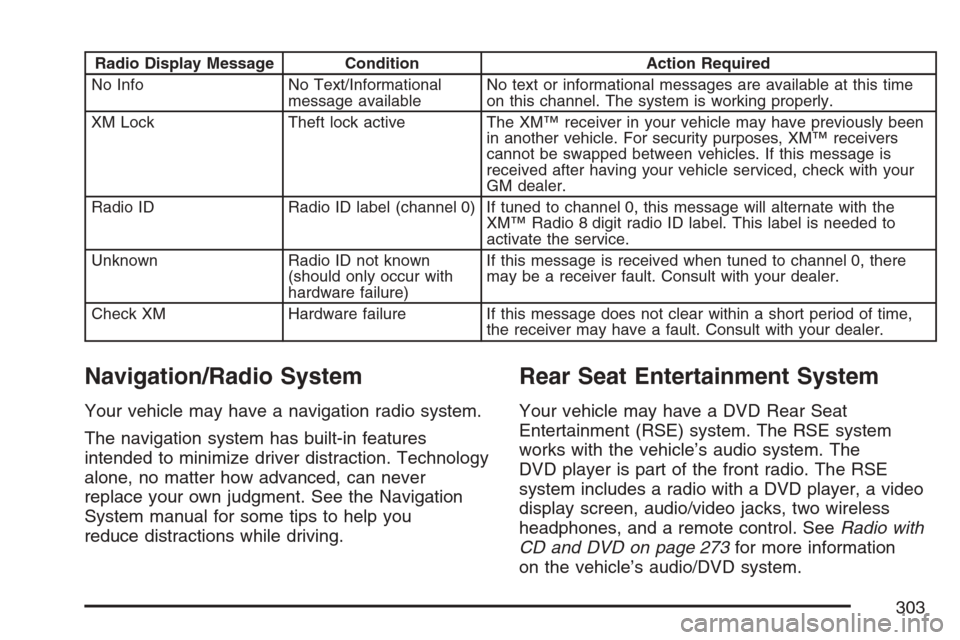
Radio Display Message Condition Action Required
No Info No Text/Informational
message availableNo text or informational messages are available at this time
on this channel. The system is working properly.
XM Lock Theft lock active The XM™ receiver in your vehicle may have previously been
in another vehicle. For security purposes, XM™ receivers
cannot be swapped between vehicles. If this message is
received after having your vehicle serviced, check with your
GM dealer.
Radio ID Radio ID label (channel 0) If tuned to channel 0, this message will alternate with the
XM™ Radio 8 digit radio ID label. This label is needed to
activate the service.
Unknown Radio ID not known
(should only occur with
hardware failure)If this message is received when tuned to channel 0, there
may be a receiver fault. Consult with your dealer.
Check XM Hardware failure If this message does not clear within a short period of time,
the receiver may have a fault. Consult with your dealer.
Navigation/Radio System
Your vehicle may have a navigation radio system.
The navigation system has built-in features
intended to minimize driver distraction. Technology
alone, no matter how advanced, can never
replace your own judgment. See the Navigation
System manual for some tips to help you
reduce distractions while driving.
Rear Seat Entertainment System
Your vehicle may have a DVD Rear Seat
Entertainment (RSE) system. The RSE system
works with the vehicle’s audio system. The
DVD player is part of the front radio. The RSE
system includes a radio with a DVD player, a video
display screen, audio/video jacks, two wireless
headphones, and a remote control. SeeRadio with
CD and DVD on page 273for more information
on the vehicle’s audio/DVD system.
303
Page 304 of 574

Driver Control of the Audio System
The driver has basic control of the whole audio
system. If the driver decides to globally turn
the audio system off, the driver can press and
hold the power knob for more than two seconds to
turn off the radio, RSE (rear seat entertainment),
and the RSA (rear seat audio). SeeRadio with CD
and DVD on page 273for more information.
If your vehicle has the navigation system, see the
Navigation System manual for more information.
Before You Drive
The RSE is designed for rear seat passengers
only. The driver cannot safely view the video
screen while driving and should not try to do so.
In severe or extreme weather conditions the RSE
system may or may not work until the temperature
is within the operating range. The operating range
for the RSE system is above−4°F (−20°C) or below
140°F (60°C). If the temperature of your vehicle is
outside of this range, heat or cool the vehicle until
the temperature is within the operating range of
the RSE system.
Headphones
The RSE includes two 2-channel wireless
headphones that are dedicated to this system.
These headphones are used to listen to media
such as CDs, DVDs, MP3s, DVDAs, radio, or any
auxiliary source connected to the auxiliary input
jack, if your vehicle has this feature or A/V
jacks. The wireless headphones have a power
On/Off button, channel selector switch (1 or 2), and
a volume control.
If your vehicle has a third row video screen
display, it will have two additional headphones.
304
Page 307 of 574
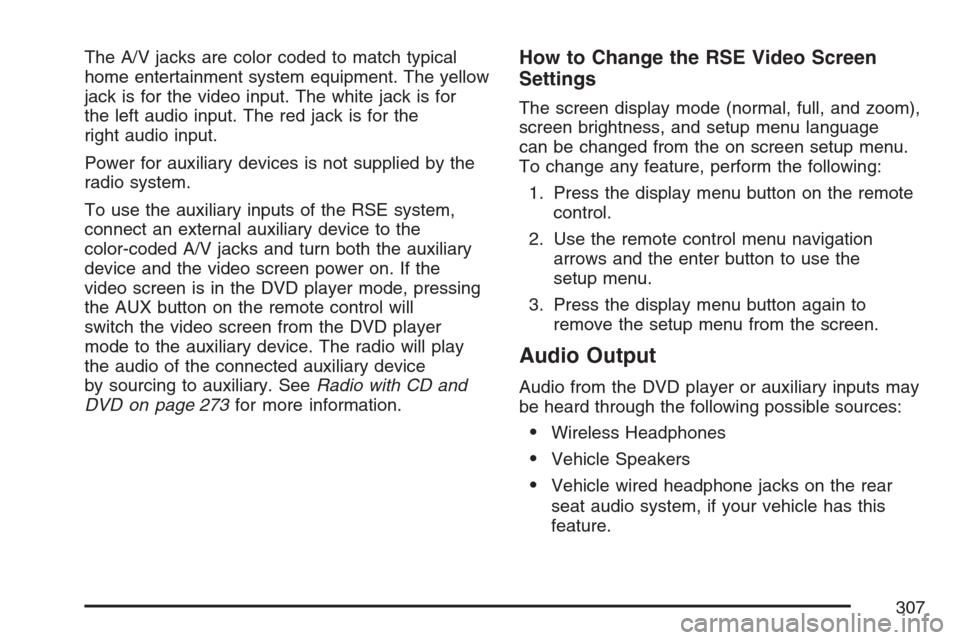
The A/V jacks are color coded to match typical
home entertainment system equipment. The yellow
jack is for the video input. The white jack is for
the left audio input. The red jack is for the
right audio input.
Power for auxiliary devices is not supplied by the
radio system.
To use the auxiliary inputs of the RSE system,
connect an external auxiliary device to the
color-coded A/V jacks and turn both the auxiliary
device and the video screen power on. If the
video screen is in the DVD player mode, pressing
the AUX button on the remote control will
switch the video screen from the DVD player
mode to the auxiliary device. The radio will play
the audio of the connected auxiliary device
by sourcing to auxiliary. SeeRadio with CD and
DVD on page 273for more information.How to Change the RSE Video Screen
Settings
The screen display mode (normal, full, and zoom),
screen brightness, and setup menu language
can be changed from the on screen setup menu.
To change any feature, perform the following:
1. Press the display menu button on the remote
control.
2. Use the remote control menu navigation
arrows and the enter button to use the
setup menu.
3. Press the display menu button again to
remove the setup menu from the screen.
Audio Output
Audio from the DVD player or auxiliary inputs may
be heard through the following possible sources:
Wireless Headphones
Vehicle Speakers
Vehicle wired headphone jacks on the rear
seat audio system, if your vehicle has this
feature.
307
Page 513 of 574
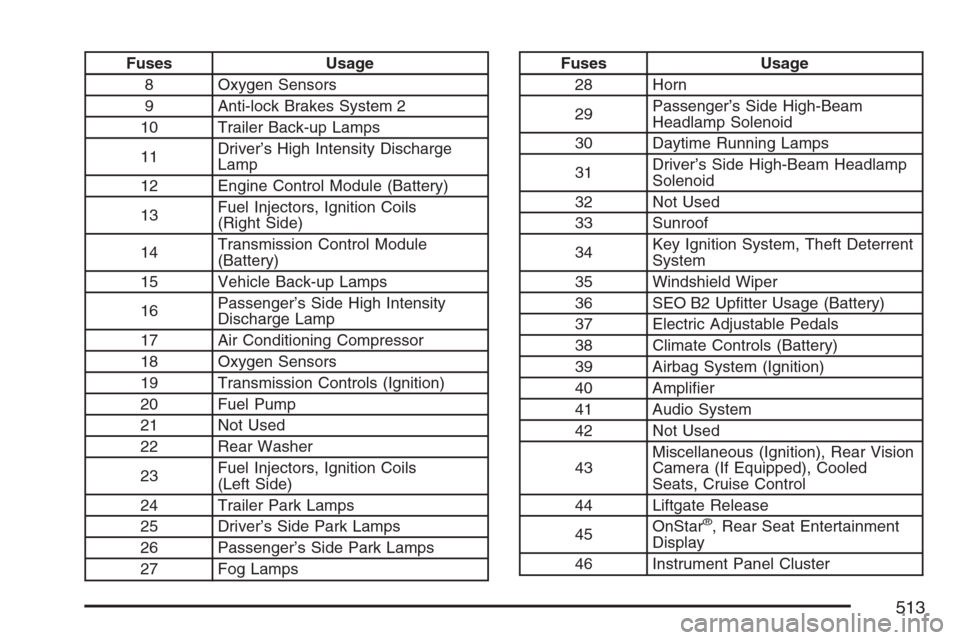
Fuses Usage
8 Oxygen Sensors
9 Anti-lock Brakes System 2
10 Trailer Back-up Lamps
11Driver’s High Intensity Discharge
Lamp
12 Engine Control Module (Battery)
13Fuel Injectors, Ignition Coils
(Right Side)
14Transmission Control Module
(Battery)
15 Vehicle Back-up Lamps
16Passenger’s Side High Intensity
Discharge Lamp
17 Air Conditioning Compressor
18 Oxygen Sensors
19 Transmission Controls (Ignition)
20 Fuel Pump
21 Not Used
22 Rear Washer
23Fuel Injectors, Ignition Coils
(Left Side)
24 Trailer Park Lamps
25 Driver’s Side Park Lamps
26 Passenger’s Side Park Lamps
27 Fog LampsFuses Usage
28 Horn
29Passenger’s Side High-Beam
Headlamp Solenoid
30 Daytime Running Lamps
31Driver’s Side High-Beam Headlamp
Solenoid
32 Not Used
33 Sunroof
34Key Ignition System, Theft Deterrent
System
35 Windshield Wiper
36 SEO B2 Uptter Usage (Battery)
37 Electric Adjustable Pedals
38 Climate Controls (Battery)
39 Airbag System (Ignition)
40 Amplier
41 Audio System
42 Not Used
43Miscellaneous (Ignition), Rear Vision
Camera (If Equipped), Cooled
Seats, Cruise Control
44 Liftgate Release
45OnStar
®, Rear Seat Entertainment
Display
46 Instrument Panel Cluster
513