buttons CADILLAC ESCALADE ESV 2009 Owner's Manual
[x] Cancel search | Manufacturer: CADILLAC, Model Year: 2009, Model line: ESCALADE ESV, Model: CADILLAC ESCALADE ESV 2009Pages: 602, PDF Size: 5.18 MB
Page 221 of 602

Relearn Remote Key This display allows you to match Remote Keyless
Entry (RKE) transmitters to your vehicle. To match
an RKE transmitter to your vehicle:
1. Press the vehicle information button until
PRESS
V TO RELEARN REMOTE KEY displays.
2. Press the set/reset button until REMOTE KEY
LEARNING ACTIVE is displayed.
3. Press and hold the lock and unlock buttons on
the rst transmitter at the same time for about
15 seconds.
On vehicles with memory recall seats, the rst
transmitter learned will match driver 1 and
the second will match driver 2.
A chime will sound indicating that the transmitter is
matched.
4. To match additional transmitters at this time, repeat
Step 3.
Each vehicle can have a maximum of eight
transmitters matched to it.
5. To exit the programming mode, you must cycle the
key to LOCK/OFF. Compass Zone Setting This display allows for setting the compass zone.
See DIC Compass on page 3-53 for more information.
Compass Recalibration This display allows for calibrating the compass.
See DIC Compass on page 3-53 for more information.
Blank Display This display shows no information.
DIC Compass Your vehicle may have a compass in the Driver
Information Center (DIC).
3-53
Page 224 of 602
DIC Warnings and Messages Messages are displayed on the DIC to notify the driver
that the status of the vehicle has changed and that
some action may be needed by the driver to correct
the condition. Multiple messages may appear one
after another.
Some messages may not require immediate action, but
you can press any of the DIC buttons on the instrument
panel to acknowledge that you received the messages
and to clear them from the display.
Some messages cannot be cleared from the DIC display
because they are more urgent. These messages require
action before they can be cleared. You should take any
messages that appear on the display seriously and
remember that clearing the messages will only make
the messages disappear, not correct the problem.
The following are the possible messages that can be
displayed and some information about them.
CHANGE ENGINE OIL SOON This message displays when the engine oil needs to
be changed. When you change the engine oil, be sure
to reset the CHANGE ENGINE OIL SOON message.
See Engine Oil Life System on page 6-18 for information
on how to reset the message. See Engine Oil on
page 6-15 and Scheduled Maintenance on page 7-4
for more information. CHECK TIRE PRESSURE On vehicles with the Tire Pressure Monitor
System (TPMS), this message displays when the
pressure in one or more of the vehicle’s tires needs to
be checked. This message also displays LEFT FRONT,
RIGHT FRONT, LEFT REAR, or RIGHT REAR to
indicate which tire needs to be checked. You can
receive more than one tire pressure message at a time.
To read the other messages that may have been sent
at the same time, press the set/reset button. If a tire
pressure message appears on the DIC, stop as soon
as you can. Have the tire pressures checked and set
to those shown on the Tire Loading Information label.
See Tires on page 6-56 , Loading the Vehicle on
page 5-33 , and Inflation - Tire Pressure on page 6-62 .
The DIC also shows the tire pressure values. See DIC
Operation and Displays on page 3-48 . If the tire pressure
is low, the low tire pressure warning light comes on.
See Tire Pressure Light on page 3-41 .
DRIVER DOOR OPEN This message displays and a chime sounds if the driver
door is not fully closed and the vehicle is shifted out
of P (Park). Stop and turn off the vehicle, check the door
for obstructions, and close the door again. Check to
see if the message still appears on the DIC.
3-56
Page 242 of 602

FACTORY SETTINGS This feature allows you to set all of the customization
features back to their factory default settings.
Press the customization button until FACTORY
SETTINGS appears on the DIC display. Press the
set/reset button once to access the settings for
this feature. Then press the customization button
to scroll through the following settings:
RESTORE ALL (default): The customization features
will be set to their factory default settings.
DO NOT RESTORE: The customization features will
not be set to their factory default settings.
To select a setting, press the set/reset button while the
desired setting is displayed on the DIC. EXIT FEATURE SETTINGS This feature allows you to exit the feature
settings menu.
Press the customization button until PRESS
V TO EXIT
FEATURE SETTINGS appears in the DIC display.
Press the set/reset button once to exit the menu.
If you do not exit, pressing the customization button
again will return you to the beginning of the feature
settings menu.
Exiting the Feature Settings Menu The feature settings menu will be exited when any of
the following occurs:
The vehicle is no longer in ON/RUN.
The trip/fuel or vehicle information DIC buttons are
pressed.
The end of the feature settings menu is reached
and exited.
A 40 second time period has elapsed with no
selection made.
3-74
Page 244 of 602
Voice Recognition The Bluetooth system uses voice recognition to interpret
voice commands to dial phone numbers and name tags.
Noise: Keep interior noise levels to a minimum.
The system may not recognize voice commands if
there is too much background noise.
When to Speak: A short tone sounds after the system
responds indicating when it is waiting for a voice
command. Wait until the tone and then speak.
How to Speak: Speak clearly in a calm and natural
voice.
Audio System When using the in-vehicle Bluetooth system, sound
comes through the vehicle’s front audio system speakers
and overrides the audio system. Use the audio system
volume knob, during a call, to change the volume level.
The adjusted volume level remains in memory for later
calls. To prevent missed calls, a minimum volume level
is used if the volume is turned down too low. Bluetooth Controls Use the buttons located on the steering wheel to
operate the in-vehicle Bluetooth system. See Audio
Steering Wheel Controls on page 3-115 for more
information.
b g (Push To Talk): Press to answer incoming calls,
to conrm system information, and to start speech
recognition.
c x (Phone On Hook): Press to end a call, reject a
call, or to cancel an operation.
Pairing A Bluetooth enabled cell phone must be paired to the
in-vehicle Bluetooth system rst and then connected to
the vehicle before it can be used. See the cell phone
manufacturers user guide for Bluetooth functions before
pairing the cell phone. If a Bluetooth phone is not
connected, calls will be made using OnStar ®
Hands-Free
Calling, if available. Refer to the OnStar owner’s guide for
more information.
3-76
Page 260 of 602
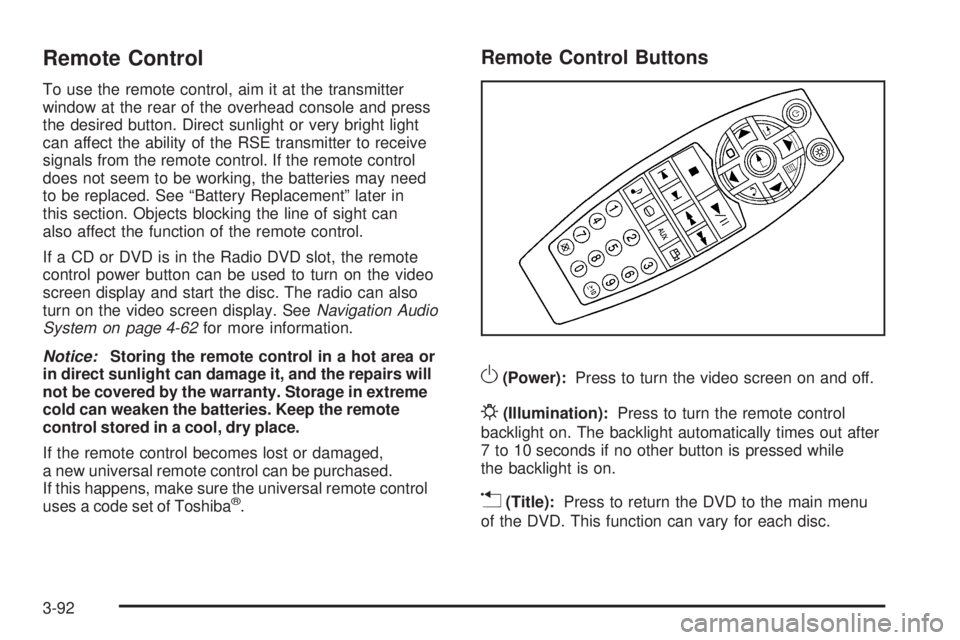
Remote Control To use the remote control, aim it at the transmitter
window at the rear of the overhead console and press
the desired button. Direct sunlight or very bright light
can affect the ability of the RSE transmitter to receive
signals from the remote control. If the remote control
does not seem to be working, the batteries may need
to be replaced. See “Battery Replacement” later in
this section. Objects blocking the line of sight can
also affect the function of the remote control.
If a CD or DVD is in the Radio DVD slot, the remote
control power button can be used to turn on the video
screen display and start the disc. The radio can also
turn on the video screen display. See Navigation Audio
System on page 4-62 for more information.
Notice: Storing the remote control in a hot area or
in direct sunlight can damage it, and the repairs will
not be covered by the warranty. Storage in extreme
cold can weaken the batteries. Keep the remote
control stored in a cool, dry place.
If the remote control becomes lost or damaged,
a new universal remote control can be purchased.
If this happens, make sure the universal remote control
uses a code set of Toshiba ®
. Remote Control Buttons
O (Power): Press to turn the video screen on and off.
P (Illumination): Press to turn the remote control
backlight on. The backlight automatically times out after
7 to 10 seconds if no other button is pressed while
the backlight is on.
v (Title): Press to return the DVD to the main menu
of the DVD. This function can vary for each disc.
3-92
Page 261 of 602

y (Main Menu): Press to access the DVD menu.
The DVD menu is different on every DVD. Use the
navigation arrows to move the cursor around the DVD
menu. After making a selection press the enter button.
This button only operates when using a DVD.
Q ,
R ,
q ,
r (Menu Navigation Arrows): Use the
arrow buttons to navigate through a menu.
r (Enter): Press to select the choice that is
highlighted in any menu.
z (Display Menu): Press to adjust the brightness,
screen display mode (normal, full, or zoom), and display
the language menu.
q (Return): Press to exit the current active menu
and return to the previous menu. This button operates
only when the display menu or a DVD menu is active.
c (Stop): Press to stop playing, fast reversing,
or fast forwarding a DVD. Press twice to return to
the beginning of the DVD. s (Play/Pause): Press to start playing a DVD.
Press while a DVD is playing to pause it. Press again
to continue playing the DVD.
When the DVD is playing, depending on the radio,
perform slow play by pressing the play/pause button
then pressing the fast forward button. The DVD continues
playing in a slow play mode. Depending on the radio,
perform reverse slow play by pressing the play/pause
button and then pressing the fast reverse button.
To cancel slow play mode, press the play/pause button.
t (Previous Track/Chapter): Press to return to the
start of the current track or chapter. Press again to go
to the previous track or chapter. This button might
not work when the DVD is playing the copyright
information or the previews.
u (Next Track/Chapter): Press to go to the beginning
of the next chapter or track. This button might not work
when the DVD is playing the copyright information or the
previews.
3-93
Page 266 of 602
Using the RSE System
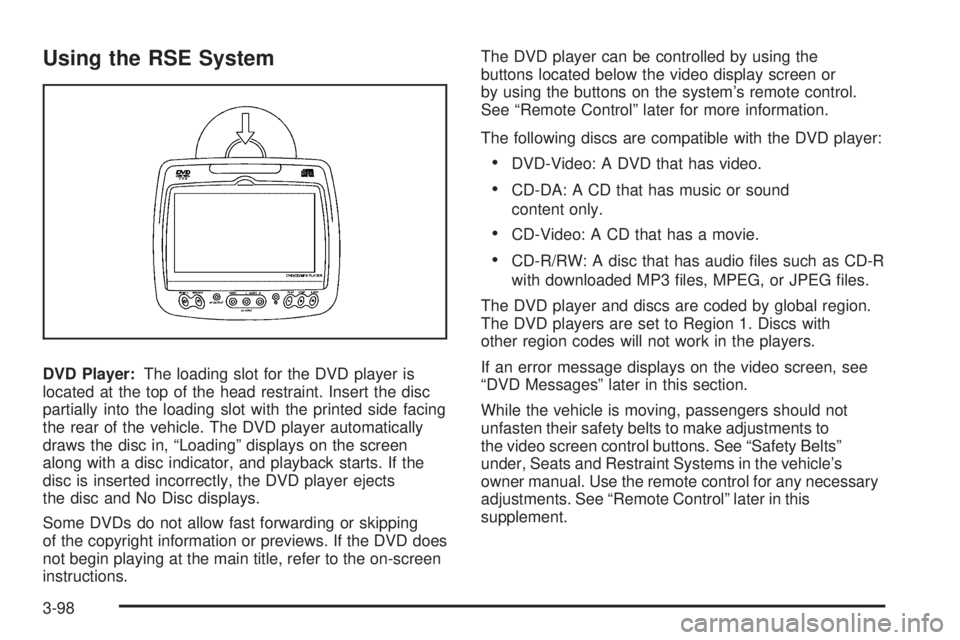
DVD Player: The loading slot for the DVD player is
located at the top of the head restraint. Insert the disc
partially into the loading slot with the printed side facing
the rear of the vehicle. The DVD player automatically
draws the disc in, “Loading” displays on the screen
along with a disc indicator, and playback starts. If the
disc is inserted incorrectly, the DVD player ejects
the disc and No Disc displays.
Some DVDs do not allow fast forwarding or skipping
of the copyright information or previews. If the DVD does
not begin playing at the main title, refer to the on-screen
instructions. The DVD player can be controlled by using the
buttons located below the video display screen or
by using the buttons on the system’s remote control.
See “Remote Control” later for more information.
The following discs are compatible with the DVD player:
DVD-Video: A DVD that has video.
CD-DA: A CD that has music or sound
content only.
CD-Video: A CD that has a movie.
CD-R/RW: A disc that has audio les such as CD-R
with downloaded MP3 les, MPEG, or JPEG les.
The DVD player and discs are coded by global region.
The DVD players are set to Region 1. Discs with
other region codes will not work in the players.
If an error message displays on the video screen, see
“DVD Messages” later in this section.
While the vehicle is moving, passengers should not
unfasten their safety belts to make adjustments to
the video screen control buttons. See “Safety Belts”
under, Seats and Restraint Systems in the vehicle’s
owner manual. Use the remote control for any necessary
adjustments. See “Remote Control” later in this
supplement.
3-98
Page 270 of 602
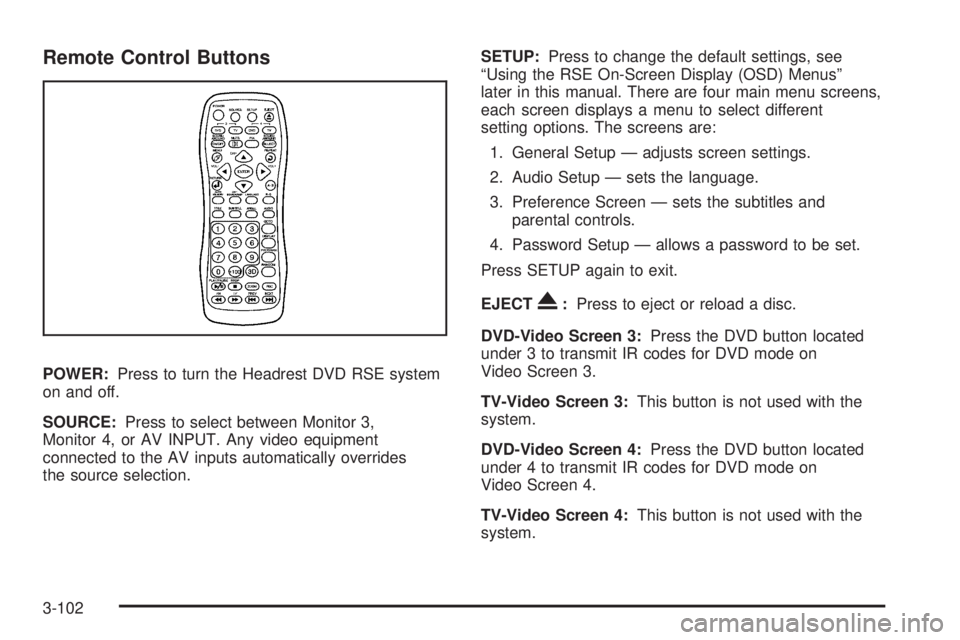
Remote Control Buttons
POWER: Press to turn the Headrest DVD RSE system
on and off.
SOURCE: Press to select between Monitor 3,
Monitor 4, or AV INPUT. Any video equipment
connected to the AV inputs automatically overrides
the source selection. SETUP: Press to change the default settings, see
“Using the RSE On-Screen Display (OSD) Menus”
later in this manual. There are four main menu screens,
each screen displays a menu to select different
setting options. The screens are:
1. General Setup — adjusts screen settings.
2. Audio Setup — sets the language.
3. Preference Screen — sets the subtitles and
parental controls.
4. Password Setup — allows a password to be set.
Press SETUP again to exit.
EJECT
X : Press to eject or reload a disc.
DVD-Video Screen 3: Press the DVD button located
under 3 to transmit IR codes for DVD mode on
Video Screen 3.
TV-Video Screen 3: This button is not used with the
system.
DVD-Video Screen 4: Press the DVD button located
under 4 to transmit IR codes for DVD mode on
Video Screen 4.
TV-Video Screen 4: This button is not used with the
system.
3-102
Page 277 of 602

To create a six digit password, use the numeric keypad
on the remote control. Press the ENTER button to
conrm. The default password is 136900.
To change the Parental Control Password:
1. Press the SETUP button on the remote control
2. Navigate to the Password sub-menu under
the Password Setup Page.
3. Press the right navigation arrow, then press
ENTER.
4. At the Old Password option, enter the old password
or the default password (136900).
5. At the New Password option, enter the new
password (six digits) using numeric buttons.
6. At the Conrm PWD option, conrm the new
password by entering the new password again.
7. Scroll to the OK button and press ENTER.
The message “Your password has been changed”
displays.
3-109
Page 282 of 602

P (Power): Press the
P button to turn RSA on
and off.
Volume: Turn this knob to increase or to decrease the
volume of the wired headphones. The left knob controls
the left headphones and the right knob controls the right
headphones.
SRCE (Source): Press this button to switch between
the radio (AM/FM), XM™ (if equipped), CD, and if
the vehicle has these features, DVD, and rear auxiliary. ©¨ (Seek): When listening to FM, AM, or XM
(if equipped), press either the left
© or right
¨ seek
arrow to go to the previous or to the next station or
channels and stay there. This function is inactive, with
some radios, if the front seat passengers are listening
to the radio.
Press and hold either the left
© or right
¨ seek arrow
until the display ashes, to tune to an individual station.
The display stops ashing after the buttons have not
been pushed for more than two seconds. This function is
inactive, with some radios, if the front seat passengers
are listening to the radio.
While listening to a disc, press the right
¨ seek arrow
to go to the next track or chapter on the disc. Press the
left
© seek arrow to go back to the start of the current
track or chapter (if more than ten seconds have played).
This function is inactive, with some radios, if the front
seat passengers are listening to the disc.
When a DVD video menu is being displayed, press either
the left
© or right
¨ seek arrow to perform a cursor up
or down on the menu. Hold the left
© or right
¨ seek
arrow to perform a cursor left or right on the menu.
3-114