buttons CADILLAC ESCALADE ESV 2009 Service Manual
[x] Cancel search | Manufacturer: CADILLAC, Model Year: 2009, Model line: ESCALADE ESV, Model: CADILLAC ESCALADE ESV 2009Pages: 602, PDF Size: 5.18 MB
Page 320 of 602
To use the coordinates destination entry method:
1. Press the DEST hard key.
2. Select the From Map screen button.
3. Select the Map Coordinates screen button.
4. Select Latitude and select either N (north) or
S (south) to enter the direction of the latitude
coordinate. Enter the numeric portion of the
latitude coordinate.
5. Select Longitude and select either E (east) or
W (west) next to enter the direction of the longitude
coordinate. Enter the numeric portion of the
longitude coordinate.
6. Once both coordinates are entered, select the Go
screen button. The map screen, with the destination
marked displays.
7. Select the route preference (Fastest, Shortest, or
Other). The system calculates and highlights the
route.
8. Select the Start Guidance screen button. The route
is now ready to be started.
See “Getting Started on Your Route” later in this
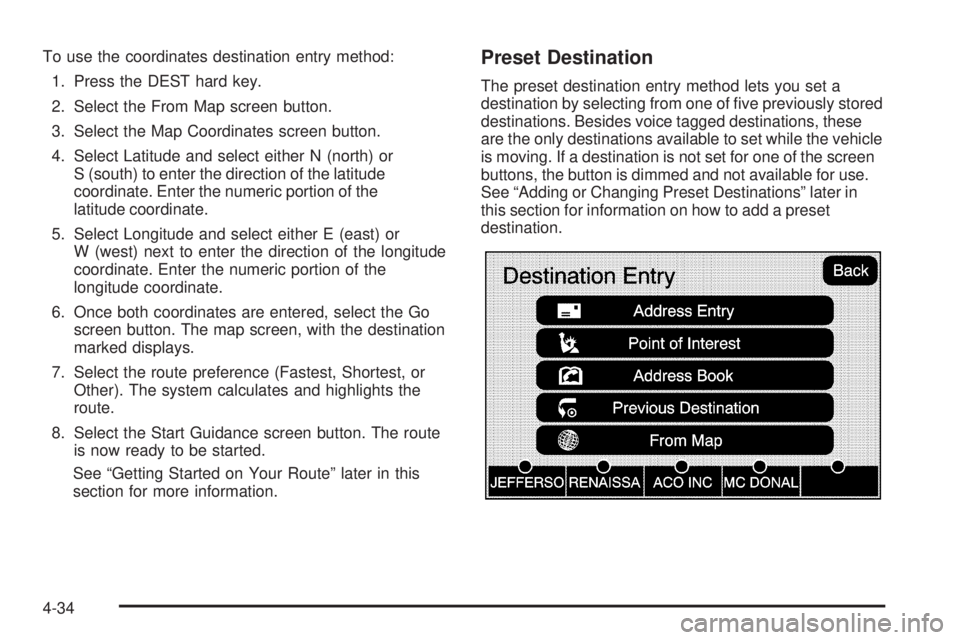
section for more information. Preset Destination The preset destination entry method lets you set a
destination by selecting from one of ve previously stored
destinations. Besides voice tagged destinations, these
are the only destinations available to set while the vehicle
is moving. If a destination is not set for one of the screen
buttons, the button is dimmed and not available for use.
See “Adding or Changing Preset Destinations” later in
this section for information on how to add a preset
destination.
4-34
Page 321 of 602
To use the preset destination entry method:
1. Press the DEST hard key.
2. Select the desired preset destination screen button.
The screen buttons are labeled with the name that
was selected for the destination when it was stored.
The map screen, with the destination marked
displays.
3. Select the route preference (Fastest, Shortest,
or Other). The system calculates and highlights
the route.
4. Select the Start Guidance screen button. The route
is now ready to be started.
See “Getting Started on Your Route” later in this
section for more information.
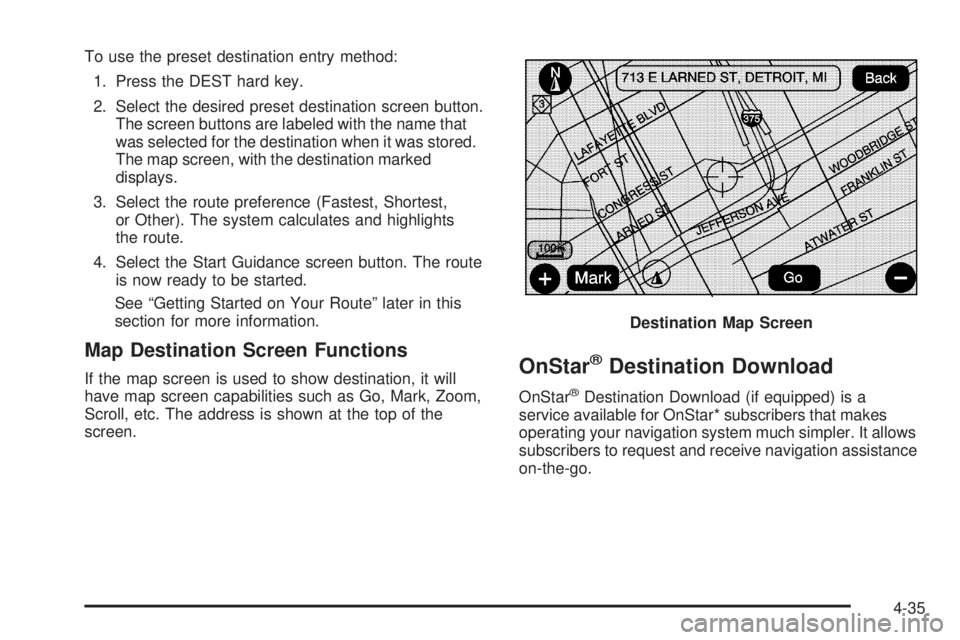
Map Destination Screen Functions If the map screen is used to show destination, it will
have map screen capabilities such as Go, Mark, Zoom,
Scroll, etc. The address is shown at the top of the
screen.
OnStar ®
Destination Download OnStar ®
Destination Download (if equipped) is a
service available for OnStar* subscribers that makes
operating your navigation system much simpler. It allows
subscribers to request and receive navigation assistance
on-the-go. Destination Map Screen
4-35
Page 322 of 602

Using OnStar ®
Destination DownloadPress the blue OnStar button and an Advisor can
locate a point-of-interest or an address and download
the necessary information or coordinates to your
navigation system. Once the destination is downloaded,
the navigation system will search for the address in the
mapping disc’s database. When the address is found, it
will be shown on your navigation system’s screen along
with the buttons described below. Select Go, the navigation system calculates
route(s). Select a route (i.e. Shortest Route),
and Start Guidance.
Select Map, the navigation system displays the
Destination Map Screen.
Select Call, the navigation system initiates a
call to your destination with your Bluetooth phone
(if available) or OnStar Hands-Free Calling
(if minutes are available).
Select Add to Address Book, the navigation system
copies the downloaded destination to the address
book and displays the new address book entry.
Select Back, the navigation system cancels your
OnStar Destination Download and returns to the
previous screen. The downloaded address will not
be added to the previous destinations.
OnStar Download Screen
4-36
Page 323 of 602

Route Guidance Not Active If an OnStar destination is downloaded while route
guidance is not active, the navigation system displays
an OnStar Destination Download Screen and operations
will continue as outlined in the Using OnStar Destination
Download section:
Route Guidance Active If OnStar downloads a destination while route
guidance is already active, the navigation system
adds the downloaded destination as the next waypoint in
the existing route. All features such as Call and Add to
Address Book will be available for the waypoint. Refer
to the section on Waypoints for more information.
Previous Destinations Previous OnStar Destination Downloads are
saved under Previous Destinations in the navigation
system where they can be accessed or saved to the
address book. Important Notes regarding OnStar Destination
Download:
If the navigation system is turned off when the
destination download is attempted, the navigation
system will automatically turn on and display the
OnStar Destination Download Screen. The radio
will remain on after the download occurs.
If OnStar downloads a destination and the address is
not found in the mapping disc’s database and routing
by coordinates is not available, the Go and Map
buttons gray out and routing will not be available.
Press the blue OnStar button for further assistance.
The Call button grays out when there is no phone
number available for your destination and while
connected to OnStar.
4-37
Page 328 of 602
Adding Destinations to the
Address Book There are two ways to add a destination to the
address book:
To add the current vehicle position to the
address book, press the Mark screen button
from the map screen. The system automatically
saves the current vehicle information in the address
book. When scrolling on the map the Mark screen
button automatically adds the current scrolled
position information in the address book.
Press the Add to Address Book screen button
when available on POI information screens,
Destination Entry screens, or POI screens.
The system automatically saves this information
in the address book.
See “Nav” under Configure Menu on page 4-43 for
information on editing address book entries. Adding or Changing Preset
Destinations This feature allows additions or changes one of ve
preset destinations. When a destination has been added
as a preset destination, it is available to select from
the Destination Entry screen. See “Preset Destination”
previously for information on how to select a preset
destination as a nal destination.
To store the current vehicle position as a preset
destination:
1. Select the Mark screen button from the map screen
to add the current vehicle position to the address
book. The Address Book screen appears.
2. Select the Name screen button. An alpha-keyboard
displays. Enter the name. Press the OK screen
button then the Back screen button to return to
the address book information screen.
3. Press and hold one of the buttons at the bottom of
the screen until the name appears in that preset
destination screen button. It is now available
to select from the Destination Entry screen.
4-42
Page 329 of 602
To store an address book entry as a preset destination:
1. Select the CONFIG hard key.
2. Select the Nav screen button or press the CONFIG
key until Nav is selected or touch the Nav screen
button.
3. Select the Edit/View screen button.
4. Select the address book entry to be stored as the
preset destination. Select the Name screen button
to add a name, if needed.
5. Press and hold one of the buttons at the bottom of
the screen until the name appears in that preset
destination screen button. It is now available
to select from the Destination Entry screen. Congure Menu
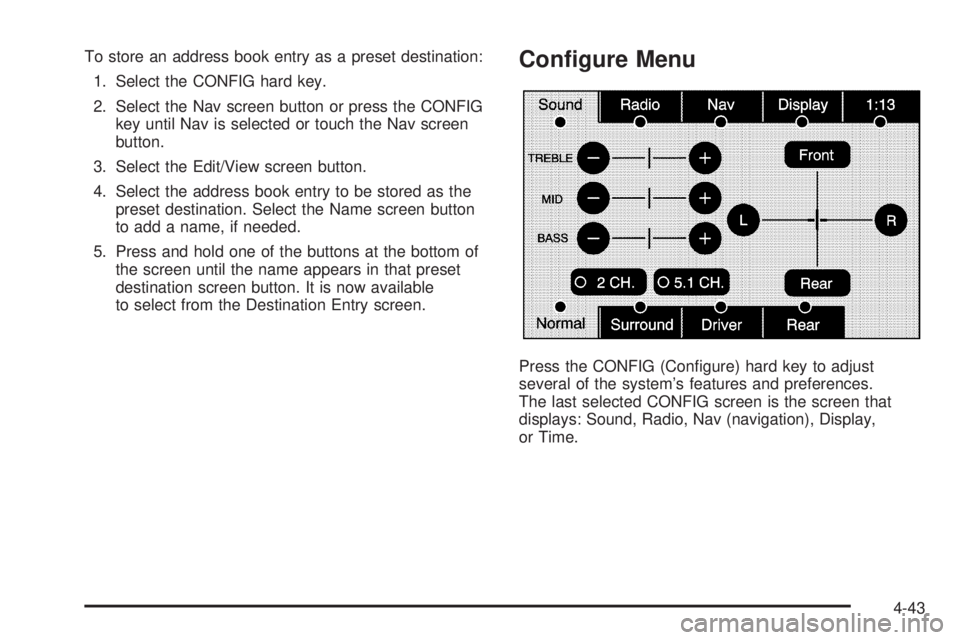
Press the CONFIG (Congure) hard key to adjust
several of the system’s features and preferences.
The last selected CONFIG screen is the screen that
displays: Sound, Radio, Nav (navigation), Display,
or Time.
4-43
Page 331 of 602

Voice Prompt Voice Prompt: Touch the Voice Prompt screen button
to change the volume of the voice prompts or to turn
voice guidance on and off.
Volume: Touch the + (plus) or − (minus) screen
buttons to increase or to decrease the volume of the
voice prompts. The system will respond with the
adjusted voice level.
Voice Guidance: Touch the On or Off screen buttons
to turn voice instructions on and off while traveling
on a planned route.
Route Preference Touch the Route Preference screen button to change
route options when the system calculates a route.
Allow Major Roads: This feature allows the system to
use major roads when calculating a planned route. Allow toll road: This feature allows the system to use
toll roads when calculating a planned route.
Allow ferry: This feature allows the system to use
ferries when calculating a planned route.
Allow time and seasonal restricted road: This
feature allows the system to use time restricted and
seasonal roads when calculating a planned route.
Edit Address Book — How to Add To add an address to the address book, see “Adding
Destinations to the Address Book” under Destination on
page 4-25 .
4-45
Page 339 of 602

Traffic Flow Status — This touch screen button is
used to enable or disable the green, yellow, red and
orange arrows shown beside the roads and used
to show the traffic ow or extent of a traffic event.
Black indicates a closed road segment
Red indicates signicantly impaired traffic ow with
average speed of less than 25 mph.
Yellow indicates slightly impaired traffic ow with
average speed between 25 and 45 mph. Green indicates normal traffic ow with average
speed above 45 mph.
Orange indicates construction.
Traffic ow data arrows display on the map when scaled
up to eight miles.
Closed Road, Traffic Delays, Incidents, and
Advisories — These four touch screen buttons
are used to select the traffic event ICONS that
appear on the map screens.
Alert for Approaching Traffic Events: When On,
if an approaching traffic event is within the alert range,
one of two traffic alert pop-up screens display:
With no route planned, while on expressways,
Approaching Traffic Event without Avoid screen
displays.
With route planned, Traffic Event on Route screen
displays.
If the Alert for Approaching Traffic Events is Off, the
alert pop-up screen does not display.
4-53
Page 342 of 602
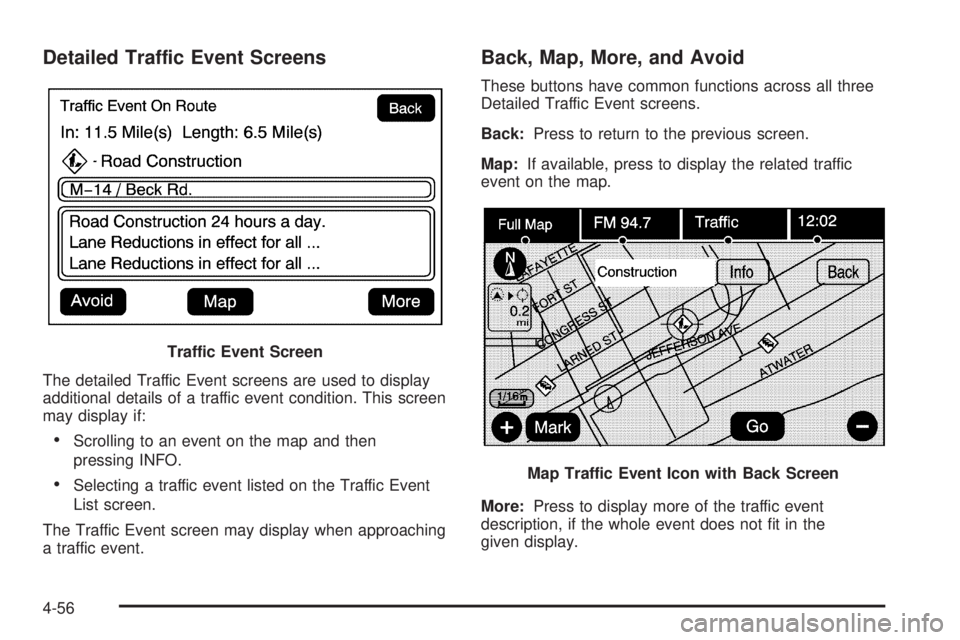
Detailed Traffic Event Screens
The detailed Traffic Event screens are used to display
additional details of a traffic event condition. This screen
may display if:
Scrolling to an event on the map and then
pressing INFO.
Selecting a traffic event listed on the Traffic Event
List screen.
The Traffic Event screen may display when approaching
a traffic event. Back, Map, More, and Avoid These buttons have common functions across all three
Detailed Traffic Event screens.
Back: Press to return to the previous screen.
Map: If available, press to display the related traffic
event on the map.
More: Press to display more of the traffic event
description, if the whole event does not t in the
given display.Traffic Event Screen
Map Traffic Event Icon with Back Screen
4-56
Page 344 of 602
![CADILLAC ESCALADE ESV 2009 Service Manual Brightness/Contrast/Mode
Touch this screen button to change the brightness,
contrast, and mode of the display.
] (Brightness): Touch the + (plus) or − (minus)
screen buttons to increase or decrease](/img/23/58684/w960_58684-343.png "CADILLAC ESCALADE ESV 2009 Service Manual Brightness/Contrast/Mode
Touch this screen button to change the brightness,
contrast, and mode of the display.
] (Brightness): Touch the + (plus) or − (minus)
screen buttons to increase or decrease")
Brightness/Contrast/Mode
Touch this screen button to change the brightness,
contrast, and mode of the display.
] (Brightness): Touch the + (plus) or − (minus)
screen buttons to increase or decrease the brightness
of the screen.
_ (Contrast): Touch the + (plus) or − (minus) screen
buttons to increase or decrease the contrast of the
screen. Auto (Automatic): Touch this screen button for the
system to automatically adjust the screen background
depending on exterior lighting conditions.
Night: Touch this screen button and the system makes
the map background darker.
Day: Touch this screen button and the system makes
the map background brighter.
Setting the Clock The navigation system time and the analog clock
operate independently. Changing the time through
the navigation system does not change the time on
the analog clock. See Analog Clock on page 3-26 to
change the analog clock time.
Press the CONFIG key to enter the congure menu
options, then press the CONFIG key repeatedly until
the time is selected or touch the time screen button.
Hours: Press the − (minus) or + (plus) signs to
decrease or increase the hours.
Minutes: Press the − (minus) or + (plus) signs to
decrease or increase the minutes.
12/24 Format: Select the 12 screen button for standard
time; select the 24 screen button for military time.
4-58