buttons CADILLAC ESCALADE ESV 2009 User Guide
[x] Cancel search | Manufacturer: CADILLAC, Model Year: 2009, Model line: ESCALADE ESV, Model: CADILLAC ESCALADE ESV 2009Pages: 602, PDF Size: 5.18 MB
Page 151 of 602

Adjusting the Brightness and Contrast of
the Screen To adjust the brightness and contrast of the screen, press
the CONFIG hard key while the rear vision camera image
is on the display. Any adjustments made will only affect
the rear vision camera screen.
] (Brightness): Touch the + (plus) or – (minus) screen
buttons to increase or decrease the brightness of the
screen.
_ (Contrast): Touch the + (plus) or – (minus) screen
buttons to increase or decrease the contrast of the
screen.
Symbols The navigation system may have a feature that lets the
driver view symbols on the navigation screen while using
the rear vision camera. The Ultrasonic Rear Park Assist
(URPA) system must not be disabled to use the caution
symbols. If URPA has been disabled and the symbols
have been turned on, the Rear Parking Assist Symbols
Unavailable error message may display. See Ultrasonic
Rear Parking Assist (URPA) on page 2-42 . The symbols appear when an object has been detected
by the URPA system. The symbol may cover the
object when viewing the navigation screen.
To turn the symbols on or off:
1. Make sure that URPA has not been disabled.
2. Shift into P (Park).
3. Press the CONFIG hard key to enter the congure
menu options, then press the CONFIG hard key
repeatedly until Display is selected or touch
the Display screen button.
4. Select the Rear Camera Options screen button.
The Rear Camera Options screen will display.
5. Touch the Symbols screen button. The screen
button will be highlighted when on.
Rear Vision Camera Error Messages Service Rear Vision Camera System: This message
can display when the system is not receiving
information it requires from other vehicle systems.
2-49
Page 157 of 602

Your Responsibility Increase the volume of the radio if the OnStar advisor
cannot be heard. If the light next to the OnStar buttons is
red, the system may not be functioning properly. Press
the OnStar button and request a vehicle diagnostic. If the
light appears clear (no light is appearing), your OnStar
subscription has expired and all services have been
deactivated. Press the OnStar button to conrm that the
OnStar equipment is active.
Universal Home Remote
System The Universal Home Remote System provides a way to
replace up to three hand-held Radio-Frequency (RF)
transmitters used to activate devices such as garage
door openers, security systems, and home lighting.
This device complies with Part 15 of the FCC Rules.
Operation is subject to the following two conditions:
1. This device may not cause harmful interference.
2. This device must accept any interference received,
including interference that may cause undesired
operation. This device complies with RSS-210 of Industry Canada.
Operation is subject to the following two conditions:
1. This device may not cause interference.
2. This device must accept any interference received,
including interference that may cause undesired
operation of the device.
Changes or modications to this system by other than
an authorized service facility could void authorization to
use this equipment.
Universal Home Remote System
Operation (With Three Round LED)
This vehicle may have the Universal Home Remote
System. If there are three round Light Emitting Diode
(LED) indicator lights above the Universal Home Remote
buttons, follow the instructions below.
2-55
Page 158 of 602
This system provides a way to replace up to three
remote control transmitters used to activate devices
such as garage door openers, security systems,
and home automation devices.
Do not use this system with any garage door opener that
does not have the stop and reverse feature. This includes
any garage door opener model manufactured before
April 1, 1982.
Read the instructions completely before attempting to
program the transmitter. Because of the steps involved,
it may be helpful to have another person assist with
programming the transmitter.
Be sure to keep the original remote control transmitter for
use in other vehicles, as well as, for future programming.
Only the original remote control transmitter is needed for
Fixed Code programming. The programmed buttons
should be erased when the vehicle is sold or the lease
ends. See “Erasing Universal Home Remote Buttons”
later in this section.
Park the vehicle outside of the garage when
programming a garage door. Be sure that people
and objects are clear of the garage door or gate that is
being programmed. Programming Universal Home
Remote — Rolling Code For questions or help programming the Universal
Home Remote System, call 1-866-572-2728 or go to
learcar2u.com.
Most garage door openers sold after 1996 are Rolling
Code units.
Programming a garage door opener involves
time-sensitive actions, so read the entire procedure
before starting. Otherwise, the device will time out and
the procedure will have to be repeated.
To program up to three devices:
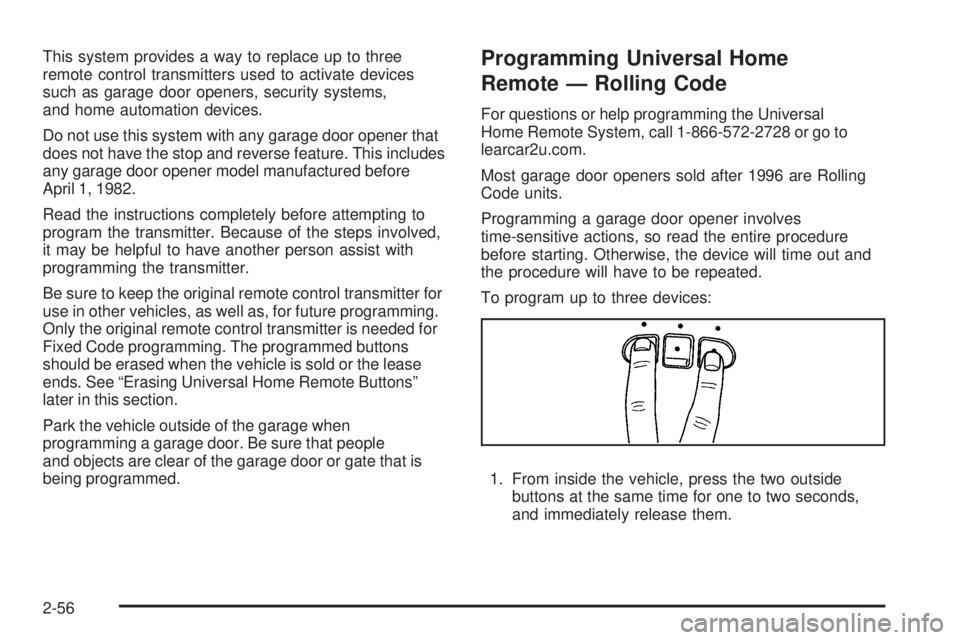
1. From inside the vehicle, press the two outside
buttons at the same time for one to two seconds,
and immediately release them.
2-56
Page 161 of 602
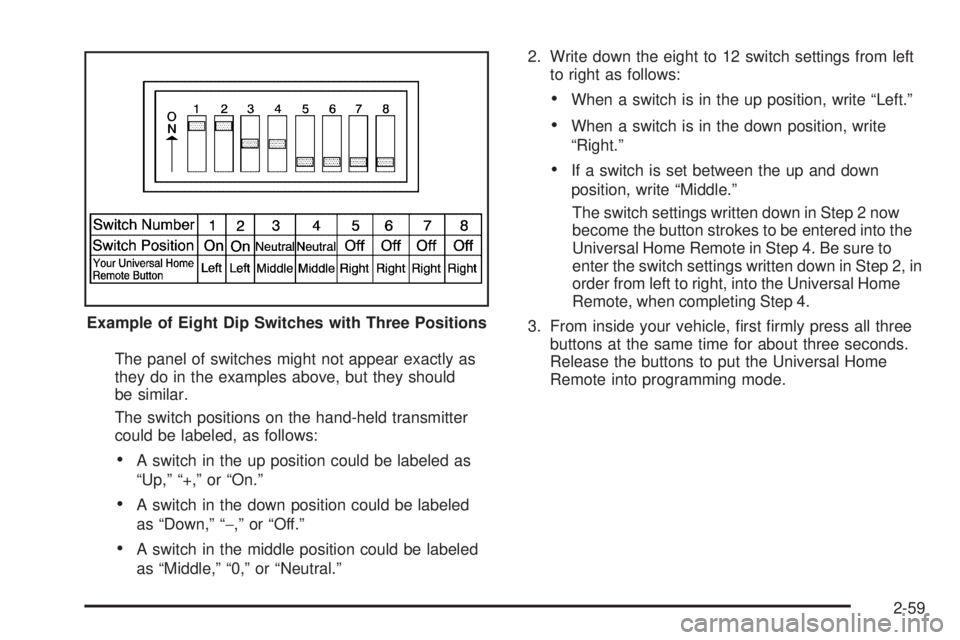
The panel of switches might not appear exactly as
they do in the examples above, but they should
be similar.
The switch positions on the hand-held transmitter
could be labeled, as follows:
A switch in the up position could be labeled as
“Up,” “+,” or “On.”
A switch in the down position could be labeled
as “Down,” “ − ,” or “Off.”
A switch in the middle position could be labeled
as “Middle,” “0,” or “Neutral.” 2. Write down the eight to 12 switch settings from left
to right as follows:
When a switch is in the up position, write “Left.”
When a switch is in the down position, write
“Right.”
If a switch is set between the up and down
position, write “Middle.”
The switch settings written down in Step 2 now
become the button strokes to be entered into the
Universal Home Remote in Step 4. Be sure to
enter the switch settings written down in Step 2, in
order from left to right, into the Universal Home
Remote, when completing Step 4.
3. From inside your vehicle, rst rmly press all three
buttons at the same time for about three seconds.
Release the buttons to put the Universal Home
Remote into programming mode.Example of Eight Dip Switches with Three Positions
2-59
Page 162 of 602
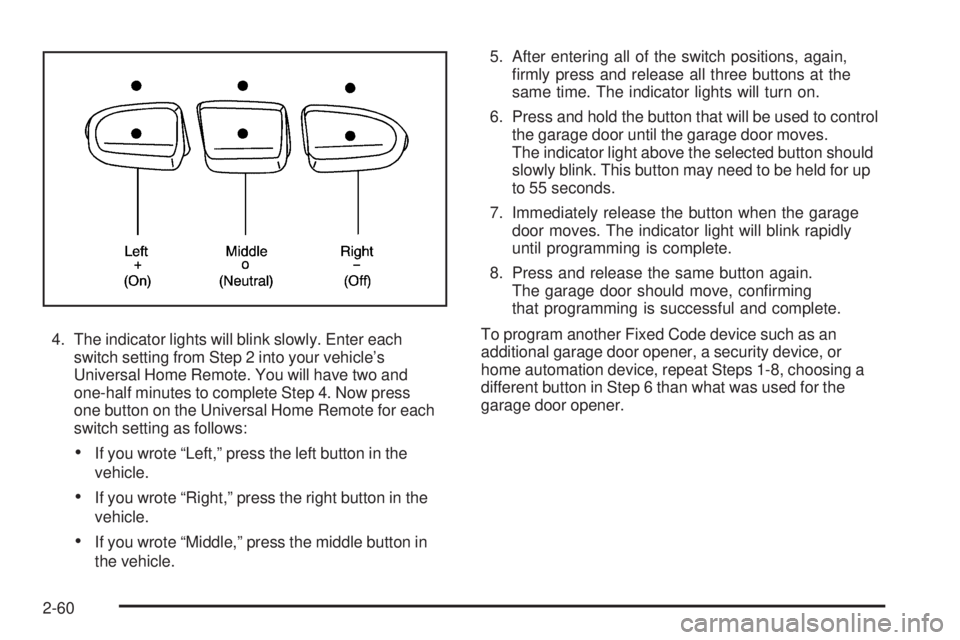
4. The indicator lights will blink slowly. Enter each
switch setting from Step 2 into your vehicle’s
Universal Home Remote. You will have two and
one-half minutes to complete Step 4. Now press
one button on the Universal Home Remote for each
switch setting as follows:
If you wrote “Left,” press the left button in the
vehicle.
If you wrote “Right,” press the right button in the
vehicle.
If you wrote “Middle,” press the middle button in
the vehicle. 5. After entering all of the switch positions, again,
rmly press and release all three buttons at the
same time. The indicator lights will turn on.
6. Press and hold the button that will be used to control
the garage door until the garage door moves.
The indicator light above the selected button should
slowly blink. This button may need to be held for up
to 55 seconds.
7. Immediately release the button when the garage
door moves. The indicator light will blink rapidly
until programming is complete.
8. Press and release the same button again.
The garage door should move, conrming
that programming is successful and complete.
To program another Fixed Code device such as an
additional garage door opener, a security device, or
home automation device, repeat Steps 1-8, choosing a
different button in Step 6 than what was used for the
garage door opener.
2-60
Page 163 of 602
Using Universal Home Remote Press and hold the appropriate button for at least
half of a second. The indicator light will come on
while the signal is being transmitted.
Reprogramming Universal Home
Remote Buttons Any of the three buttons can be reprogrammed by
repeating the instructions.
Erasing Universal Home Remote
Buttons The programmed buttons should be erased when the
vehicle is sold or the lease ends. To erase either Rolling Code or Fixed Code on the
Universal Home Remote device:
1. Press and hold the two outside buttons at the
same time for approximately 20 seconds, until
the indicator lights, located directly above the
buttons, begin to blink rapidly.
2. Once the indicator lights begin to blink, release both
buttons. The codes from all buttons will be erased.
For help or information on the Universal Home Remote
System, call the customer assistance phone number
under Customer Assistance Offices on page 8-6 .
2-61
Page 182 of 602
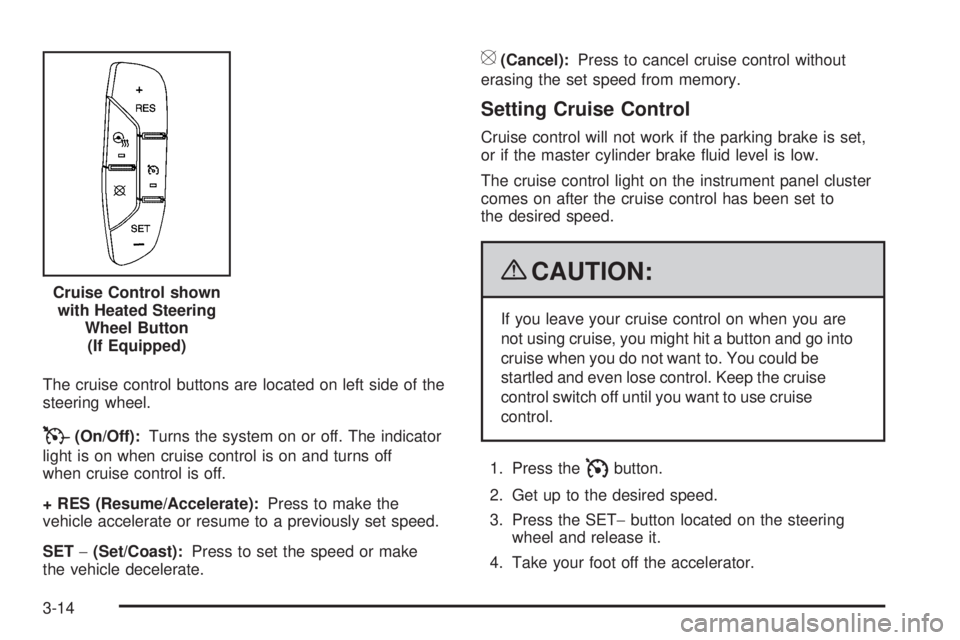
The cruise control buttons are located on left side of the
steering wheel.
T (On/Off): Turns the system on or off. The indicator
light is on when cruise control is on and turns off
when cruise control is off.
+ RES (Resume/Accelerate): Press to make the
vehicle accelerate or resume to a previously set speed.
SET − (Set/Coast): Press to set the speed or make
the vehicle decelerate. [ (Cancel): Press to cancel cruise control without
erasing the set speed from memory.
Setting Cruise Control Cruise control will not work if the parking brake is set,
or if the master cylinder brake uid level is low.
The cruise control light on the instrument panel cluster
comes on after the cruise control has been set to
the desired speed.
{ CAUTION: If you leave your cruise control on when you are
not using cruise, you might hit a button and go into
cruise when you do not want to. You could be
startled and even lose control. Keep the cruise
control switch off until you want to use cruise
control.
1. Press the
I button.
2. Get up to the desired speed.
3. Press the SET − button located on the steering
wheel and release it.
4. Take your foot off the accelerator.Cruise Control shown
with Heated Steering
Wheel Button
(If Equipped)
3-14
Page 196 of 602

Automatic Operation AUTO (Automatic): When automatic operation is
active the system will control the inside temperature,
the air delivery, and the fan speed.
Use the steps below to place the entire system in
automatic mode:
1. Press the AUTO button.
When AUTO is selected, the display will change to
show the current temperature(s) and AUTO come on
the display. The current delivery mode and fan speed
will also be displayed for approximately ve seconds.
When AUTO is selected, the air conditioning
operation and air inlet will be automatically
controlled. The air conditioning compressor will
run when the outside temperature is over about
40°F (4°C). The air inlet will normally be set
to outside air. If it is hot outside, the air inlet may
automatically switch to recirculate inside air to
help quickly cool down the vehicle. The light on
the button comes on in recirculation. 2. Set the driver’s and passenger’s temperature.
To nd your comfort setting, start with a 74°F (23°C)
temperature setting and allow about 20 minutes for
the system to regulate. Use the driver or passenger
temperature buttons to adjust the temperature setting
as necessary. If a temperature setting of 60°F (15°C)
is chosen, the system remains at the maximum
cooling setting. If a temperature setting of 90°F
(32°C) is chosen, the system remains at the
maximum heat setting. Choosing either maximum
setting will not cause the vehicle to heat or cool
any faster.
Be careful not to cover the sensor located on the top of
the instrument panel near the windshield. This sensor
regulates air temperature based on sun load and
also turns on the headlamps.
To avoid blowing cold air in cold weather, the system
will delay turning on the fan until warm air is available.
The length of delay depends on the engine coolant
temperature. Pressing the fan switch will override
this delay and change the fan to a selected speed.
3-28
Page 201 of 602

Automatic Operation, If Equipped. AUTO: Press the air delivery mode button until this
setting is selected to control the inside temperature, air
delivery, and fan speed. AUTO appears in the display
when automatic operation is active.
+/ − (Increase/Decrease Temperature): Press the + or
− buttons to increase or decrease the cabin temperature.
The rear control temperature display will show the
temperature setting increasing or decreasing.
The display only indicates climate control functions
when the system is in rear independent mode.
Manual Operation
DC (Fan Control): Press these buttons on the rear
seat audio control panel to increase or decrease the
airow. Pressing the fan up button when the system is off
will turn the system on. The air delivery mode will remain
under automatic control.
+/ − (Temperature Control): Press these buttons
to adjust the temperature of the air owing into the
passenger area. Press the + button for warmer air
and press the − button for cooler air.
N (Air Delivery Mode Control): Press the mode
button to change the direction of the airow in the
vehicle. Repeatedly press the button until the desired
mode appears on the display. Multiple presses will cycle
through the delivery selections. Warning Lights, Gages, and
Indicators Warning lights and gages can signal that something
is wrong before it becomes serious enough to cause
an expensive repair or replacement. Paying attention
to the warning lights and gages could prevent injury.
Warning lights come on when there may be or is
a problem with one of the vehicle’s functions. Some
warning lights come on briey when the engine is
started to indicate they are working.
Gages can indicate when there may be or is a problem
with one of the vehicle’s functions. Often gages and
warning lights work together to indicate a problem with
the vehicle.
When one of the warning lights comes on and stays on
while driving, or when one of the gages shows there may
be a problem, check the section that explains what to do.
Follow this manual’s advice. Waiting to do repairs can be
costly and even dangerous.
3-33
Page 216 of 602
DIC Operation and Displays The DIC has different displays which can be accessed
by pressing the DIC buttons located on the instrument
panel, next to the steering wheel.
The DIC displays trip, fuel, and vehicle system
information, and warning messages if a system problem
is detected. A digital speedometer also appears at the
bottom of the DIC display. The digital speedometer can
be enabled or disabled. See “DISPLAY DIGITAL SPEED”
under DIC Vehicle Customization on page 3-65 for more
information.
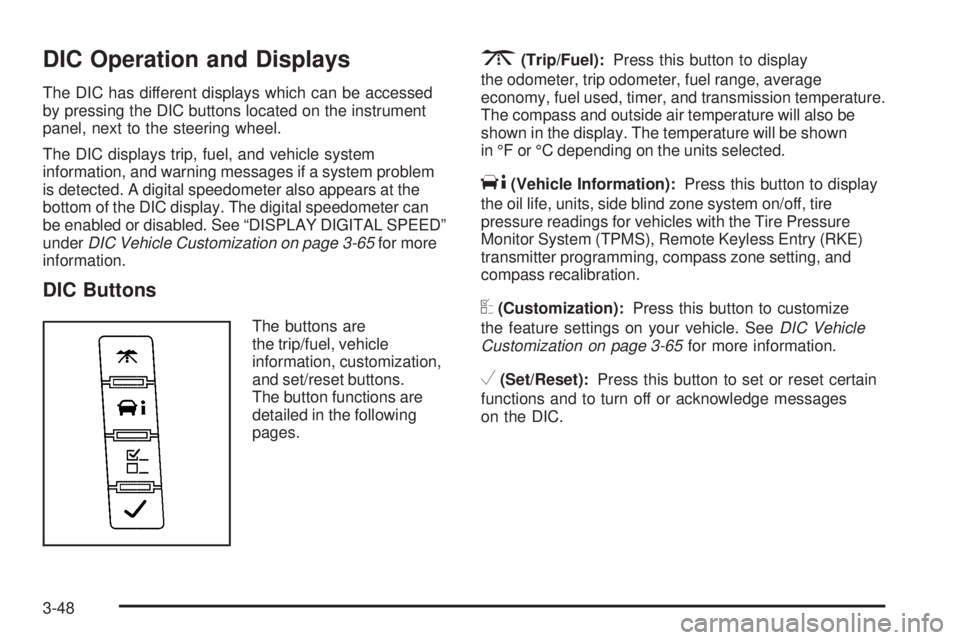
DIC Buttons The buttons are
the trip/fuel, vehicle
information, customization,
and set/reset buttons.
The button functions are
detailed in the following
pages. 3 (Trip/Fuel): Press this button to display
the odometer, trip odometer, fuel range, average
economy, fuel used, timer, and transmission temperature.
The compass and outside air temperature will also be
shown in the display. The temperature will be shown
in °F or °C depending on the units selected.
T (Vehicle Information): Press this button to display
the oil life, units, side blind zone system on/off, tire
pressure readings for vehicles with the Tire Pressure
Monitor System (TPMS), Remote Keyless Entry (RKE)
transmitter programming, compass zone setting, and
compass recalibration.
U (Customization): Press this button to customize
the feature settings on your vehicle. See DIC Vehicle
Customization on page 3-65 for more information.
V (Set/Reset): Press this button to set or reset certain
functions and to turn off or acknowledge messages
on the DIC.
3-48