wheel CADILLAC ESCALADE EXT 2005 2.G Owner's Manual
[x] Cancel search | Manufacturer: CADILLAC, Model Year: 2005, Model line: ESCALADE EXT, Model: CADILLAC ESCALADE EXT 2005 2.GPages: 460, PDF Size: 2.95 MB
Page 154 of 460
Dome Lamps
The dome lamps will come on when you open a door
or the midgate, if equipped, and will turn off when
all doors or midgate are closed.
You can also turn the dome lamps on by turning the
thumbwheel, located next to the exterior lamp control,
all the way up. In this position, the dome lamps will
remain on whether a door is opened or closed.
E(Dome Override):Press this button, located below
the exterior lamp control, to turn dome lamps off even
while a door is opened. To return the lamps to automatic
operation, press the button again and it will return to
the out position. In this position, the dome lamps
will come on when you open a door.
Entry/Exit Lighting
Your vehicle is equipped with an illuminated entry/exit
feature.
When a door is opened or the key is removed from the
ignition, the dome lamps will come on if the dome
override button is in the out position.
Reading Lamps
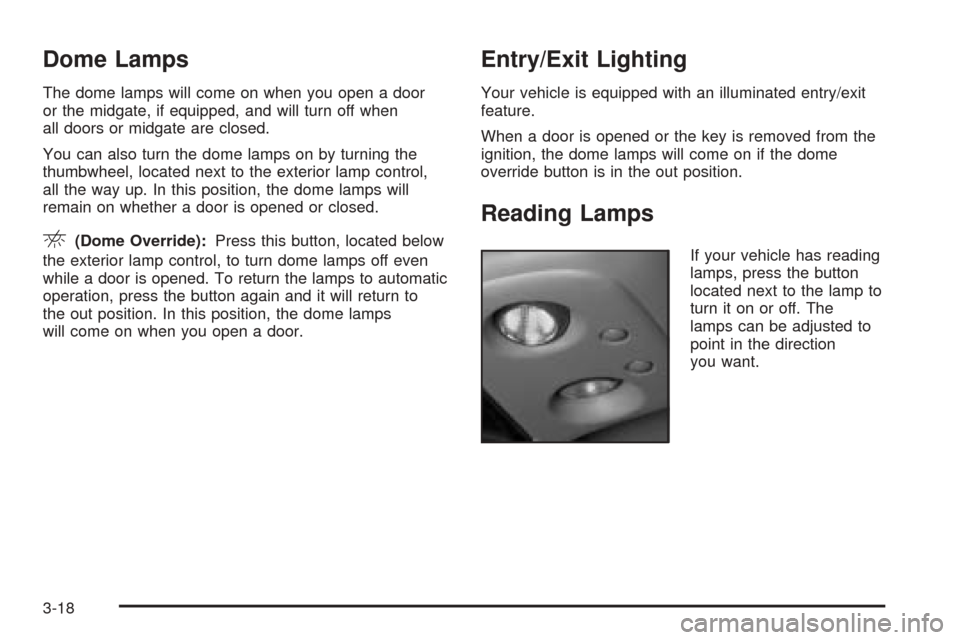
If your vehicle has reading
lamps, press the button
located next to the lamp to
turn it on or off. The
lamps can be adjusted to
point in the direction
you want.
3-18
Page 164 of 460

Defogging and Defrosting
You can use either defog or front defrost to clear fog or
frost from your windshield. Use the defog mode to
clear the windows of fog or moisture. Use the front
defrost button to defrost the front windshield.
-(Defog):Use this setting to clear the windows of
fog or moisture. Press the mode button to select
this setting. This setting will deliver air to the oor and
windshield outlets.
0(Defrost):Press this button to defrost the
windshield. The system will automatically control the fan
speed if you select defrost from AUTO mode. If the
outside temperature is 40°F (4°C) or warmer, your air
conditioning compressor will automatically run to
help dehumidify the air and dry the windshield.
Rear Window Defogger
If your vehicle has this feature, the lines you see on
the rear window warm the glass. The rear window
defogger uses a warming grid to remove fog from the
rear window.
<(Rear):Press this button to turn the rear window
defogger on or off. An indicator light in the button
will come on to let you know that the rear window
defogger is activated.
The rear window defogger will turn off about 10 minutes
after the button is pressed. If you need additional
warming time, press the button again.
If your vehicle is equipped with heated mirrors this
button will activate them.
Notice:Using a razor blade or sharp object to
clear the inside rear window may damage the rear
window defogger. Repairs would not be covered
by your warranty. Do not clear the inside of the rear
window with sharp objects.
Outlet Adjustment
Your vehicle has air outlets located in the center and on
the side of your instrument panel that allow you to adjust
the direction and amount of airow inside the vehicle.
Move the louvers up or down. Use the thumbwheel next
to or underneath the outlet to close the louvers. For the
most efficient airow and temperature control, keep the
outlet in the fully opened position.
3-28
Page 182 of 460
Driver Information Center (DIC)
The Driver Information Center (DIC) display is located
on the instrument panel cluster, below the speedometer.
The DIC buttons, if equipped, are located on the
steering wheel. The DIC can display information such
as the trip odometer, fuel economy, customization
features and warning/status messages.
If your vehicle is not equipped with the DIC steering
wheel buttons, you will not have all of the features listed.
You will scroll through the odometer, trip odometer
and engine hours by pressing the trip odometer reset
stem located on the instrument panel cluster. You
will also turn off, or acknowledge, DIC messages by
pressing the trip odometer reset stem. SeeSpeedometer
and Odometer on page 3-31for information on
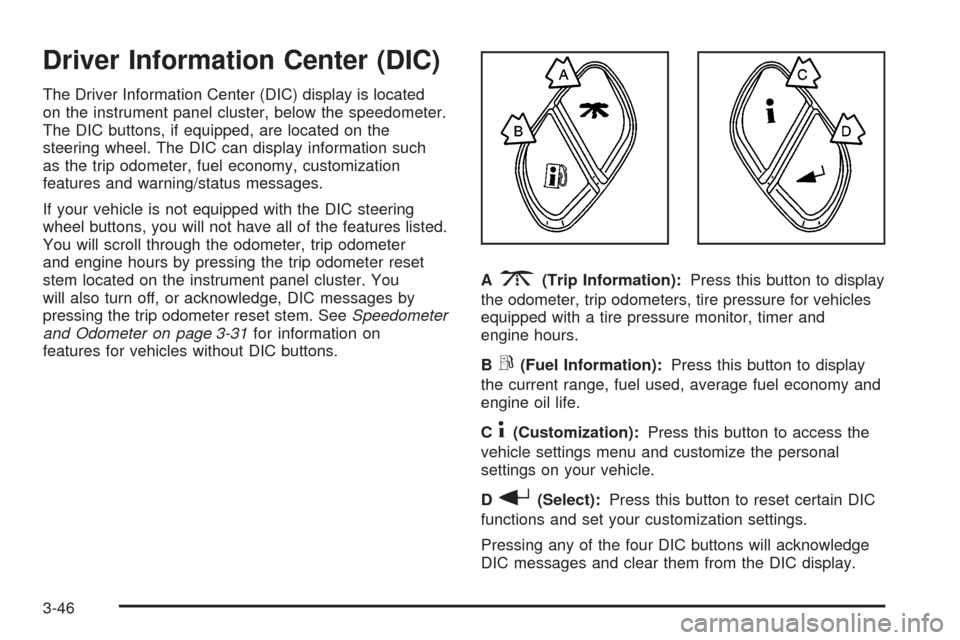
features for vehicles without DIC buttons.A
3(Trip Information):Press this button to display
the odometer, trip odometers, tire pressure for vehicles
equipped with a tire pressure monitor, timer and
engine hours.
B
r(Fuel Information):Press this button to display
the current range, fuel used, average fuel economy and
engine oil life.
C
4(Customization):Press this button to access the
vehicle settings menu and customize the personal
settings on your vehicle.
D
r(Select):Press this button to reset certain DIC
functions and set your customization settings.
Pressing any of the four DIC buttons will acknowledge
DIC messages and clear them from the DIC display.
3-46
Page 183 of 460

DIC Operation and Displays
The Driver Information Center (DIC) comes on when the
ignition is on. After a short delay, the DIC will display
the information that was last displayed before the engine
was turned off.
The DIC has different modes which can be accessed by
pressing the four DIC buttons located on the steering
wheel. These buttons are trip information, fuel
information, customization and select. The button
functions are detailed in the following pages.
Trip Information Button
3
(Trip Information):Press the trip information
button to scroll through the ODOMETER, TRIP A,
TRIP B, TIRE PRESSURES, TIMER and ENGINE
HOURS.
Odometer:Press the trip information button until
ODOMETER appears on the display. This mode shows
the total distance the vehicle has been driven in
either miles or kilometers. Pressing the reset stem
located on the instrument cluster with the vehicle off will
also display the odometer.
Trip A:Press the trip information button until TRIP A
appears on the display. This mode shows the current
distance traveled since the last reset for TRIP A in either
miles or kilometers.Trip B:Press the trip information button until TRIP B
appears on the display. This mode shows the current
distance traveled since the last reset for TRIP B in either
miles or kilometers.
To reset TRIP A or TRIP B information, press and hold
the select button for one second while in one of the
trip modes. This will reset the information for TRIP A
or TRIP B.
You can also reset TRIP A or TRIP B while they are
displayed by pressing the reset stem on the cluster. If you
press and hold the reset stem or the select button for four
seconds, the display will show the distance traveled since
the last ignition cycle for TRIP A or TRIP B.
Tire Pressures:The tire pressure mode is available
only on vehicles equipped with a tire pressure monitor.
Press the trip information button until TIRE
PRESSURES appears on the display. This mode shows
the tire pressure in pounds per square inch (psi) or
kilopascals (kPa). Press the select button to scroll
through the following information:
LF TIRE shows the tire pressure for the left front tire.
RF TIRE shows the tire pressure for the right
front tire.
LR TIRE shows the tire pressure for the left rear tire.
RR TIRE shows the tire pressure for the right
rear tire.
3-47
Page 186 of 460
DIC Warnings and Messages
Warning messages are displayed on the Driver
Information Center (DIC) to notify the driver that the
status of the vehicle has changed and that some action
may be needed by the driver to correct the condition.
If there is more than one message that needs to
be displayed they will appear one after another. Some
messages may not require immediate action, but
you should press any of the four DIC buttons on the
steering wheel, if equipped, to acknowledge that
you received the messages and clear them from the
display. If your vehicle is not equipped with DIC buttons
on the steering wheel, press the trip odometer reset
stem located on the instrument panel cluster to
acknowledge messages and clear them from the display.
Some messages cannot be cleared from the display
because they are more urgent. These messages require
action before they can be removed from the DIC
display. You should take any messages that appear on
the display seriously and remember that clearing the
messages will only make the messages disappear, not
correct the problem. The following are the possible
messages that can be displayed and some information
about them.
BATTERY NOT CHARGING
On some vehicles, if the battery is not charging during
operation, this message will appear on the DIC.
Driving with this problem could drain your battery. Have
the electrical system checked by your GM dealer as
soon as possible. Pressing any of the four DIC buttons,
if equipped, will clear the message from the DIC
display. If your vehicle is not equipped with the four DIC
buttons, pressing the trip odometer reset stem will
clear the message from the DIC display. SeeCharging
System Light on page 3-34andVoltmeter Gage on
page 3-35.
BUCKLE PASSENGER
If your vehicle is equipped with the passenger sensing
system, this message reminds you to buckle the
passenger’s seat belt. SeePassenger Sensing System
on page 1-54.
This message will display and a chime will sound when
the ignition is on, the driver’s seat belt is buckled, the
passenger’s seat belt is unbuckled with the passenger
airbag enabled and the vehicle is in motion. You should
have the passenger buckle their seat belt.
3-50
Page 192 of 460
SERVICE 4WD
If a problem occurs with the all-wheel-drive system, this
message will appear on the DIC. If this message
appears, stop as soon as possible and turn off the
vehicle. Restart the vehicle and check for the message
on the DIC display. If the message is still displayed
or appears again when you begin driving, the
four-wheel-drive system needs service. See your
GM dealer. Pressing any of the four DIC buttons, if
equipped, will clear the message from the DIC display.
If your vehicle is not equipped with the four DIC
buttons, pressing the trip odometer reset stem will clear
the message from the DIC display.
SERVICE AIR BAG
If there is a problem with the airbag system, this
message will be displayed on the DIC. Have your
GM dealer inspect the system for problems. SeeAirbag
Readiness Light on page 3-32andAirbag System on
page 1-46for more information. Pressing any of the
four DIC buttons, if equipped, will clear the message
from the DIC display. If your vehicle is not equipped with
the four DIC buttons, pressing the trip odometer reset
stem will clear the message from the DIC display.
SERVICE BRAKE SYSTEM
If a problem occurs with the brake system, this message
will appear on the DIC. If this message appears, stop
as soon as possible and turn off the vehicle. Restart the
vehicle and check for the message on the DIC display.
If the message is still displayed or appears again
when you begin driving, the brake system needs service.
See your GM dealer. Pressing any of the four DIC
buttons, if equipped, will clear the message from the
DIC display. If your vehicle is not equipped with the
four DIC buttons, pressing the trip odometer reset stem
will clear the message from the DIC display.
SERVICE CHARGING SYSTEM
On some vehicles, if there is a problem with the battery
charging system, this message will appear on the
DIC. Under certain conditions, the charging system light
may also turn on in the instrument panel cluster. See
Charging System Light on page 3-34. The battery
will not be charging at an optimal rate and the vehicle
will lose the ability to enter the fuel economy mode. The
vehicle is safe to drive, however you should have the
electrical system checked by your GM dealer. Pressing
any of the four DIC buttons, if equipped, will clear
the message from the DIC display. If your vehicle is not
equipped with the four DIC buttons, pressing the trip
odometer reset stem will clear the message from
the DIC display.
3-56
Page 194 of 460
STABILITY SYS DISABLED
The STABILITY SYS DISABLED message will turn on
when you press the StabiliTrak®button or when the
stability control has been automatically disabled. There
are four conditions that can cause this message to
appear.
One condition is overheating, which could occur if
StabiliTrak®activates continuously for an extended
period of time.
The message will also be displayed if the brake
system warning light is on. SeeBrake System
Warning Light on page 3-35.
The message could be displayed if the stability
system takes longer than usual to complete its
diagnostic checks due to driving conditions.
Also, if an engine or vehicle related problem has
been detected, and the vehicle needs service,
the message will appear.
The message will turn off as soon as the conditions that
caused the message to be displayed are no longer
present.
For more information on the StabiliTrak
®system, see
StabiliTrak®System on page 4-8.
TIGHTEN FUEL CAP
If the vehicle’s fuel cap is not tightened properly this
message may appear along with the check engine light
on the instrument panel. SeeMalfunction Indicator
Lamp on page 3-40. Reinstall the fuel cap, making sure
to fully install the cap. SeeFilling Your Tank on
page 5-8. The diagnostic system can determine if the
fuel cap has been left off or improperly installed. A loose
or missing fuel cap will allow fuel to evaporate into
the atmosphere. A few driving trips with the cap properly
installed should turn the light and message off.
TRACTION ACTIVE
When the traction control system has detected that
any of the vehicle’s wheels are slipping, the traction
control system will activate and this message will appear
on the DIC. For more information on traction control
and the StabiliTrak
®system, seeStabiliTrak®System
on page 4-8.
TRACTION SYS LIMITED
If the brake traction control system activates constantly
or if the brakes have heated up due to high-speed
braking, brake traction control will be disabled and the
TRACTION SYS LIMITED message will be displayed.
For more information on the StabiliTrak
®system and
traction control, seeStabiliTrak®System on page 4-8.
3-58
Page 232 of 460
Audio Steering Wheel Controls
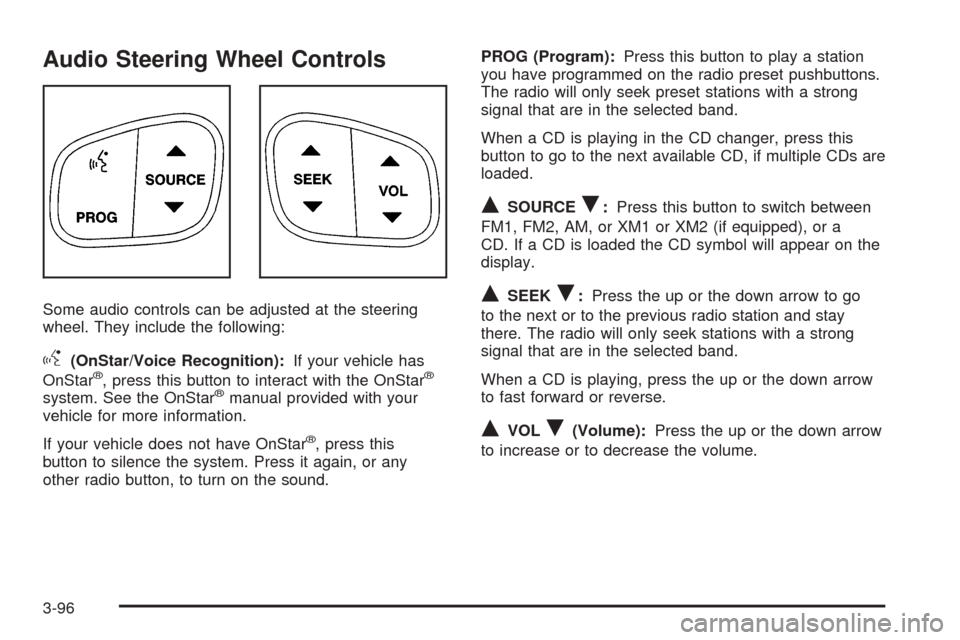
Some audio controls can be adjusted at the steering
wheel. They include the following:
g(OnStar/Voice Recognition):If your vehicle has
OnStar®, press this button to interact with the OnStar®
system. See the OnStar®manual provided with your
vehicle for more information.
If your vehicle does not have OnStar
®, press this
button to silence the system. Press it again, or any
other radio button, to turn on the sound.PROG (Program):Press this button to play a station
you have programmed on the radio preset pushbuttons.
The radio will only seek preset stations with a strong
signal that are in the selected band.
When a CD is playing in the CD changer, press this
button to go to the next available CD, if multiple CDs are
loaded.
QSOURCER:Press this button to switch between
FM1, FM2, AM, or XM1 or XM2 (if equipped), or a
CD. If a CD is loaded the CD symbol will appear on the
display.
QSEEKR:Press the up or the down arrow to go
to the next or to the previous radio station and stay
there. The radio will only seek stations with a strong
signal that are in the selected band.
When a CD is playing, press the up or the down arrow
to fast forward or reverse.
QVOLR(Volume):Press the up or the down arrow
to increase or to decrease the volume.
3-96
Page 237 of 460
Your Driving, the Road, and Your Vehicle..........4-2
Defensive Driving...........................................4-2
Drunken Driving.............................................4-2
Control of a Vehicle........................................4-5
Braking.........................................................4-5
Anti-Lock Brake System (ABS).........................4-6
Braking in Emergencies...................................4-8
Road Sensing Suspension...............................4-8
StabiliTrak
®System........................................4-8
Steering......................................................4-11
Off-Road Recovery.......................................4-13
Passing.......................................................4-14
Loss of Control.............................................4-15
Operating Your All-Wheel-Drive Vehicle
Off Paved Roads.......................................4-16
Driving at Night............................................4-29Driving in Rain and on Wet Roads..................4-30
City Driving..................................................4-33
Freeway Driving...........................................4-34
Before Leaving on a Long Trip.......................4-35
Highway Hypnosis........................................4-36
Hill and Mountain Roads................................4-36
Winter Driving..............................................4-38
If You Are Stuck: In Sand, Mud, Ice or Snow.......4-42
Rocking Your Vehicle to Get It Out.................4-42
Recovery Hooks...........................................4-43
Loading Your Vehicle....................................4-44
Towing..........................................................4-50
Towing Your Vehicle.....................................4-50
Recreational Vehicle Towing...........................4-50
Towing a Trailer...........................................4-51
Section 4 Driving Your Vehicle
4-1
Page 243 of 460
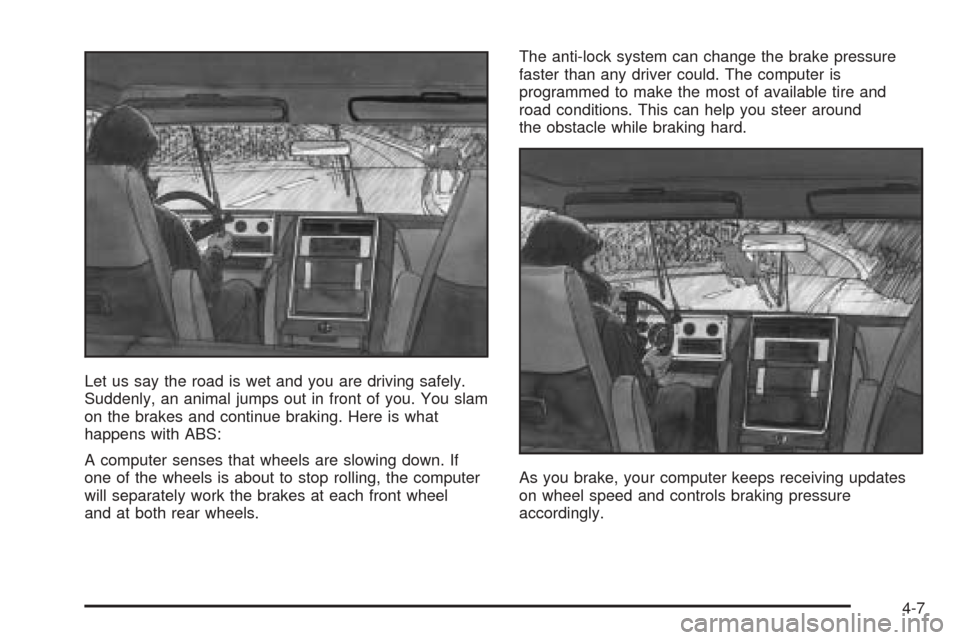
Let us say the road is wet and you are driving safely.
Suddenly, an animal jumps out in front of you. You slam
on the brakes and continue braking. Here is what
happens with ABS:
A computer senses that wheels are slowing down. If
one of the wheels is about to stop rolling, the computer
will separately work the brakes at each front wheel
and at both rear wheels.The anti-lock system can change the brake pressure
faster than any driver could. The computer is
programmed to make the most of available tire and
road conditions. This can help you steer around
the obstacle while braking hard.
As you brake, your computer keeps receiving updates
on wheel speed and controls braking pressure
accordingly.
4-7