buttons CADILLAC ESCALADE EXT 2011 3.G Owner's Guide
[x] Cancel search | Manufacturer: CADILLAC, Model Year: 2011, Model line: ESCALADE EXT, Model: CADILLAC ESCALADE EXT 2011 3.GPages: 508, PDF Size: 7.6 MB
Page 232 of 508
Black plate (42,1)Cadillac Escalade EXT Owner Manual - 2011
7-42 Infotainment System
PROG (Program):Press this
button to go to the next preset radio
station or channel set on the main
radio. This function is inactive,
with some radios, if the front seat
passengers are listening to the
radio.
When a CD or DVD audio disc is
playing, press this button to go to
the beginning of the CD or DVD
audio. This function is inactive,
with some radios, if the front seat
passengers are listening to the disc.
When a disc is playing in the CD or
DVD changer, press this button to
select the next disc, if multiple discs
are loaded. This function is inactive,
with some radios, if the front seat
passengers are listening to the disc.
When a DVD video menu is being
displayed, press the PROG button
to perform the enter menu function.Navigation
Using the Navigation
System
This section presents basic
information needed to operate the
navigation system.
Use the control buttons located on
the navigation system along with
the available touch-sensitive screen
buttons on the navigation screen to
operate the system. See Overview
on page 7‑3 for more information.
Once the vehicle is moving, various
functions are disabled to reduce
driver distractions.
Control Buttons
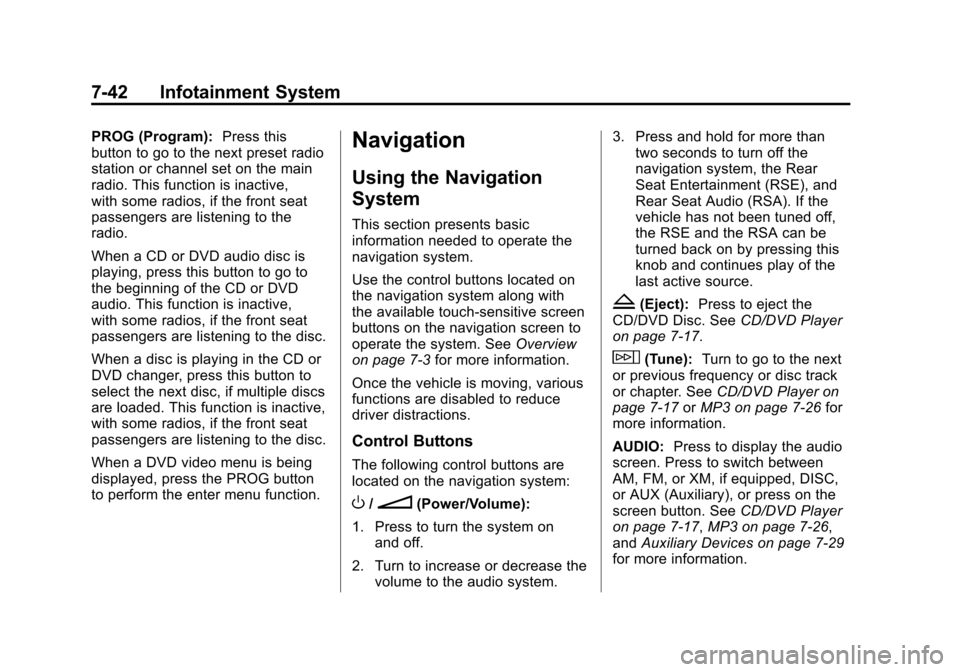
The following control buttons are
located on the navigation system:
O/n(Power/Volume):
1. Press to turn the system on and off.
2. Turn to increase or decrease the volume to the audio system. 3. Press and hold for more than
two seconds to turn off the
navigation system, the Rear
Seat Entertainment (RSE), and
Rear Seat Audio (RSA). If the
vehicle has not been tuned off,
the RSE and the RSA can be
turned back on by pressing this
knob and continues play of the
last active source.
Z(Eject): Press to eject the
CD/DVD Disc. See CD/DVD Player
on page 7‑17.
w(Tune): Turn to go to the next
or previous frequency or disc track
or chapter. See CD/DVD Player on
page 7‑17 orMP3 on page 7‑26 for
more information.
AUDIO: Press to display the audio
screen. Press to switch between
AM, FM, or XM, if equipped, DISC,
or AUX (Auxiliary), or press on the
screen button. See CD/DVD Player
on page 7‑17, MP3 on page 7‑26,
and Auxiliary Devices on page 7‑29
for more information.
Page 233 of 508

Black plate (43,1)Cadillac Escalade EXT Owner Manual - 2011
Infotainment System 7-43
FAV (Favorite):Press to access
the preset stations. See “Storing
Radio Station Presets” under,
Overview on page 7‑3.
5(Phone): See the OnStar
(if equipped) owner guide and
Bluetooth (if equipped) for more
information.
e(Sound): Press to access the
Sound menu to adjust the treble,
midrange, bass, fade, balance, and
Digital Signal Processing (DSP).
y z(Scan Up/Down): Press to
scan the tracks/chapters up or down
on a disc.
y © ¨ z(Seek) Key (Previous/
Next): Press the up or down arrows
to go to the next or previous station.
Press and hold either arrow for
more than two seconds. The radio
goes to a station, plays for a few
seconds, then goes to the next
station. NAV (Navigation):
Press to view
the vehicle's current position on the
map screen. Each press of this
button cycles through Full Map
and the tab that displays the
current audio source (AM, FM, XM
(if equipped), CD, etc.). Full Map
displays the screen in full map view.
Selecting the audio tab splits the
screen between the map screen
and the current audio source
screen menu.
RPT (Repeat): Press to repeat the
last voice guidance prompt.
DEST (Destination): Press to
access the Destination Entry
screen. From this screen, you can
select from several options to plan a
route by entering destination points.
CONFIG (Configure): Press to
adjust several of the system's
features and preferences.
Touch-Sensitive Screen
Buttons
Touch-sensitive screen buttons are
located on the screen. When a
screen button has been selected, a
beep sounds. Screen buttons are
highlighted when a feature is
available.
Alpha-Numeric Keyboard
Letters of the alphabet, symbols,
punctuation, and numbers, when
available, displays on the navigation
screen as an alpha or numeric
keyboard. The alpha keyboard
displays when the system requires
entry of a city or street name.
All characters are touch-sensitive
screen buttons. Press a character to
select it.
A-Y (Accent Alphabet): Select to
enter letters with accent symbols.
This button may toggle to A-Z.
A-Z (Alphabet): Select to enter
letters from the alphabet. This
button may toggle to A-Y.
Page 235 of 508

Black plate (45,1)Cadillac Escalade EXT Owner Manual - 2011
Infotainment System 7-45
Map Scales
+ /−(Zoom In/Zoom Out): Touch
the zoom in or out screen buttons or
the scale on the bar to change the
level of map detail. The scale
appears on the screen once the
zoom in or zoom out screen buttons
are selected. The system adjusts
the map accordingly. The scale of a
map can range from 1/32 mi (50 m)
to 256 mi (400 km). To change
English or metric, see Driver
Information Center (DIC) on
page 5‑23 for more information.
Scrolling the Map
Press anywhere on the map screen
and the scroll symbol appears. Use
this feature to scroll across the map. Move your finger in any direction
on the map screen and the map
continues to scroll in that direction
until you remove your finger from
the screen.
If scrolling while the vehicle is in
P (Park), the system scrolls initially
at a slower rate. It increases if you
continue pressing on the map
screen.
If scrolling while the vehicle is in
motion, there is one scroll speed
and a limited distance to scroll.
Keep pressing on the map screen to
scroll for a longer distance.
If you have used the scroll feature to
scroll the map and the vehicle icon
disappears off the screen, press the
NAV (Navigation) control button to
return to the current vehicle location
on the map.
The scroll feature on the map can
be used to set a destination. See
“From Map”
underDestination on
page 7‑51 for more information. While scrolling on the map, press
GO to calculate the route from the
current position to the
destination mark.
Navigation Symbols
The following symbols are the most
common symbols that appear on a
map screen.
The vehicle is shown as this
symbol. It indicates the current
position and the direction the
vehicle is traveling on the map.
Page 239 of 508

Black plate (49,1)Cadillac Escalade EXT Owner Manual - 2011
Infotainment System 7-49
POI Close to:
1. Once a category has beenselected, touch this button to
display the list of available POIs
for the selected POI category.
The list provides the POI icon,
the name, the direction, and the
distance to the POI from the
vehicle's current position.
2. Use the scroll arrows to move upand down the list.
3. Use the sorting screen buttons: Dist (distance), Icon, Name, and
on Route as needed. Go:
Select this screen button, next
to the desired POI, to make this POI
a destination or a stopover.
Select a POI name to receive
information about the POI. From
this screen you can select:
Address Book, Go, Map, or Call
(if Bluetooth
®or OnStar personal
calling is activated).
Address Book: Press to add this
POI to the address book. See “Nav”
under Configure Menu on page 7‑64
for information on editing address
book entries.
Go: Select to make this POI a
destination or a stopover.
Map: Select to display the map
showing the location of the POI. Call:
Select to dial the phone
number using your Bluetooth
®
phone (if “paired”with the vehicle)
or the OnStar HandsFree Calling
system (if equipped). For more
information about Bluetooth calling,
see Bluetooth on page 7‑83. For
more information about OnStar
HandsFree calling, see the OnStar
Owner Guide.
OK: Select to display the map
screen.
Show POI: Select to display or
remove the POI icons from the map
screen.
List all Categories: Select to list
all POIs sorted alphabetically.
Delete: To delete a specific POI
category, select the category.
Clear All: Select this screen button
to clear all selected POI categories.
Page 248 of 508

Black plate (58,1)Cadillac Escalade EXT Owner Manual - 2011
7-58 Infotainment System
Preset Destination
The preset destination entry method
lets you set a destination by
selecting from one of five previously
stored destinations. Besides voice
tagged destinations, these are the
only destinations available to set
while the vehicle is moving. If a
destination is not set for one of
the screen buttons, the button is
dimmed and not available for use.
See“Adding or Changing Preset
Destinations” in this section for
information on how to add a preset
destination.To use the preset destination entry
method:
1. Press the DEST control button.
2. Select the desired preset destination screen button. The
screen buttons are labeled with
the name that was selected for
the destination when it was
stored. The map screen, with the
destination marked displays.
3. Select the route preference (Fastest, Shortest, or Other).
The system calculates and
highlights the route.
4. Select Start Guidance. The route is now ready to be started.
See “Getting Started on Your
Route” in this section for more
information. Map Destination Screen Functions
If the map screen is used to show
destination, it will have map screen
capabilities such as GO, Mark,
Zoom, Scroll, etc. The address is
shown at the top of the screen.
Destination Map Screen
Page 249 of 508

Black plate (59,1)Cadillac Escalade EXT Owner Manual - 2011
Infotainment System 7-59
OnStar®Destination Download
(US and Canada)
OnStar Destination Download
(if equipped) is a service available
for OnStar subscribers that makes
operating your navigation system
much simpler. It allows subscribers
to request and receive navigation
assistance on-the-go.
Using OnStar®Destination
Download (US and Canada)
Press the blue OnStar button
and an Advisor can locate a
point-of-interest or an address and
download the necessary information
or coordinates to your navigation
system. Once the destination is
downloaded, the navigation system
will search for the address in the
mapping disc's database. When the
address is found, it will be shown on
your navigation system's screen
along with the buttons described
below.OnStar Download Screen
.Select GO, the navigation
system calculates route(s).
Select a route (i.e. Shortest
Route), and Start Guidance.
.Select Map, the navigation
system displays the Destination
Map Screen.
.Select Call, the navigation
system initiates a call to your
destination with your Bluetooth
phone (if available) or OnStar
Hands-Free Calling (if minutes
are available).
.Select Add to Address Book, the
navigation system copies the
downloaded destination to the
address book and displays the
new address book entry.
.Select Back, the navigation
system cancels your OnStar
Destination Download and
returns to the previous screen.
The downloaded address will
not be added to the previous
destinations
Page 250 of 508

Black plate (60,1)Cadillac Escalade EXT Owner Manual - 2011
7-60 Infotainment System
Route Guidance Not Active
If an OnStar destination is
downloaded while route guidance is
not active, the navigation system
displays an OnStar Destination
Download Screen and operations
will continue as outlined in the
Using OnStar Destination Download
section:
Route Guidance Active
If OnStar downloads a destination
while route guidance is already
active, the navigation system adds
the downloaded destination as the
next waypoint in the existing route.
All features such as Call and Add to
Address Book will be available for
the waypoint. Refer to the section
on Waypoints for more information.
Previous Destinations
Previous OnStar Destination
Downloads are saved under
Previous Destinations in the
navigation system where they
can be accessed or saved to the
address book.Important Notes regarding OnStar
Destination Download:
.If the navigation system is
turned off when the destination
download is attempted, the
navigation system will
automatically turn on and
display the OnStar Destination
Download Screen. The radio will
remain on after the download
occurs.
.If OnStar downloads a
destination and the address
is not found in the mapping
disc’s database and routing by
coordinates is not available, the
Go and Map buttons gray out
and routing will not be available.
Press the blue OnStar button for
further assistance.
.The Call button grays out when
there is no phone number
available for your destination
and while connected to OnStar.
Map Destination Screen Functions
If the map screen is used to show
destination, it will have map screen
capabilities such as GO, Mark,
Zoom, Scroll, etc. The address is
shown at the top of the screen.
Destination Map Screen
Page 254 of 508

Black plate (64,1)Cadillac Escalade EXT Owner Manual - 2011
7-64 Infotainment System
To store the current vehicle position
as a preset destination:
1. Select Mark from the mapscreen to add the current vehicle
position to the address book.
The Address Book screen
appears.
2. Select Name. An alpha-keyboard displays.
Enter the name. Press OK
then Back to return to the
address book information
screen.
3. Press and hold one of the buttons at the bottom of the
screen until the name appears
in that preset destination screen
button. It is now available to
select from the Destination Entry
screen. To store an address book entry as a
preset destination:
1. Select the CONFIG control
button.
2. Select the Nav screen button or press the CONFIG control button
until Nav is selected or press the
Nav screen button.
3. Select Edit/View.
4. Select the address book entry to be stored as the preset
destination. Select Name to add
a name, if needed.
5. Press and hold one of the buttons at the bottom of the
screen until the name appears in
that preset destination screen
button. It is now available to
select from the Destination Entry
screen.Configure Menu
Press the CONFIG (Configure)
control button to adjust several
of the system's features and
preferences. The last selected
CONFIG screen is the screen that
displays: Sound, Radio, Nav
(navigation), Display, or Time.
Page 262 of 508
Black plate (72,1)Cadillac Escalade EXT Owner Manual - 2011
7-72 Infotainment System
Options
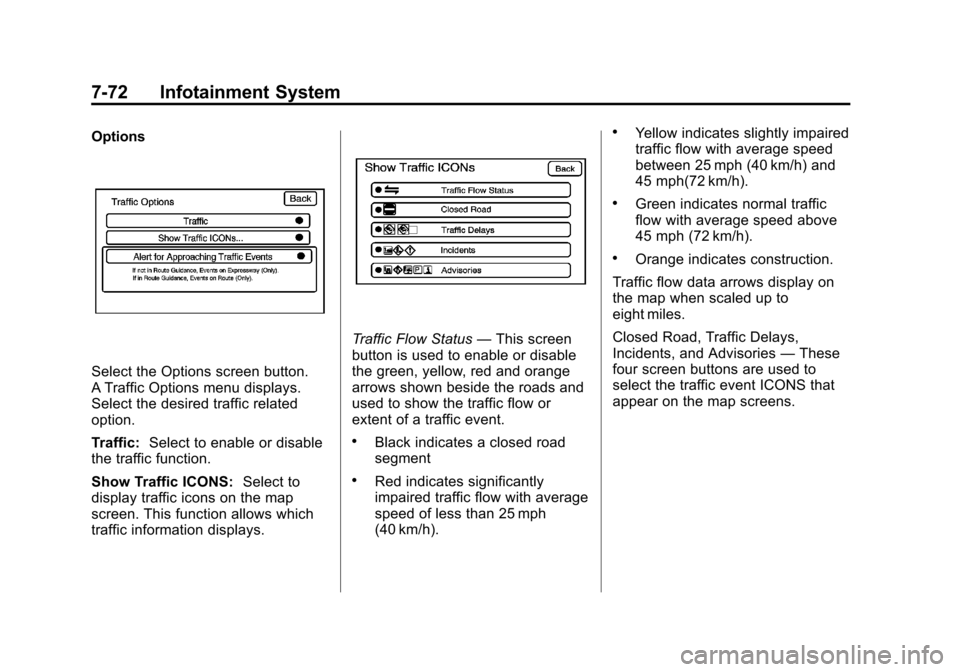
Select the Options screen button.
A Traffic Options menu displays.
Select the desired traffic related
option.
Traffic:Select to enable or disable
the traffic function.
Show Traffic ICONS: Select to
display traffic icons on the map
screen. This function allows which
traffic information displays.
Traffic Flow Status —This screen
button is used to enable or disable
the green, yellow, red and orange
arrows shown beside the roads and
used to show the traffic flow or
extent of a traffic event.
.Black indicates a closed road
segment
.Red indicates significantly
impaired traffic flow with average
speed of less than 25 mph
(40 km/h).
.Yellow indicates slightly impaired
traffic flow with average speed
between 25 mph (40 km/h) and
45 mph(72 km/h).
.Green indicates normal traffic
flow with average speed above
45 mph (72 km/h).
.Orange indicates construction.
Traffic flow data arrows display on
the map when scaled up to
eight miles.
Closed Road, Traffic Delays,
Incidents, and Advisories —These
four screen buttons are used to
select the traffic event ICONS that
appear on the map screens.
Page 265 of 508

Black plate (75,1)Cadillac Escalade EXT Owner Manual - 2011
Infotainment System 7-75
Back, Map, More, and Avoid
These buttons have common
functions across all three Detailed
Traffic Event screens.
Back:Press to return to the
previous screen.
Map: If available, press to display
the related traffic event on the map.
Map Traffic Event Icon with Back
Screen
More: Press to display more of the
traffic event description, if the whole
event does not fit in the given
display. Avoid:
This button is used to avoid
the location of an event on the
route. If selected, a new route is
calculated and the related traffic
event is avoided. After the new
route has been calculated, the
navigation system goes to the full
map screen and shows the new
route.
The Avoid button is only available if
the event is on the route ahead.
Traffic Voice Prompts
The traffic voice prompts are part
of the current navigation voice
prompts. If the navigation voice
prompts are turned off, all traffic
prompts are also turned off.
If the voice prompts are on,
whenever an Alert for Approaching
Traffic is displayed, the system
gives the related voice prompt.
The content of the voice prompt
depends on actual traffic event data.
The RPT (Repeat) control button is
for navigation traffic maneuvers
only. It is not used to repeat traffic prompts. During a traffic voice
prompt, if RPT is pressed, the
current prompt playback cancels.
Traffic prompts are disabled during
OnStar (if equipped) or Voice
Recognition activity.
Display
Press the CONFIG control button
to enter the configure menu
options, then press CONFIG again,
repeatedly until Display is selected
or press the Display screen button.