four CADILLAC LYRIC 2023 Owners Manual
[x] Cancel search | Manufacturer: CADILLAC, Model Year: 2023, Model line: LYRIC, Model: CADILLAC LYRIC 2023Pages: 424, PDF Size: 4.76 MB
Page 11 of 424

Cadillac Lyriq Owner Manual (GMNA-Localizing-U.S./Canada-15644413) -
2023 - CRC - 2/23/22
10 Keys, Doors, and Windows
list of available options and
select“Remote Lock, Unlock,
Start”.
If equipped with auto mirror
unfolding, double press and
hold
Kuntil the mirrors fully
open. To view available
settings for this feature, touch
the Settings icon on the
infotainment home page.
Select “Vehicle” to display the
list of available options and
select “Comfort and
Convenience”.
Pressing
Kwill disarm the
alarm system. See Vehicle
Alarm System 026.
b:Press twice to open or
close the liftgate. Press once
to stop the liftgate from
moving. The vehicle must be in
P (Park).
7: Press and release one time
to initiate vehicle locator. The
exterior lamps flash and the
horn chirps three times. Press and hold
7for at least
three seconds to sound the
panic alarm. The horn sounds
and the turn signals flash for
about 30 seconds or until
7is
pressed again or the vehicle is
started.
/: Press and releaseQand
then immediately press and
hold
/for at least
four seconds to start the
vehicle's heating or air
conditioning systems and rear
window defogger from outside
the vehicle using the remote
key. See Remote Start 015.
Keyless Access Operation
The Keyless Access system
allows the doors and liftgate
to be unlocked without
pressing the remote key
button. The remote key must
be within 1 m (3 ft) of the
liftgate or door being opened.
Doors can be programmed to
the lock after exiting the
vehicle through Passive locking or delayed locking. The
remote key can also be used
to lock the doors
Keyless Access can be
programmed to unlock all
doors on the first unlock
button press from the driver
door. To view available
settings for this feature, touch
the Settings icon on the
infotainment home page.
Select
“Vehicle” to display the
list of available options and
select “Remote Lock, Unlock,
Start”.
Keyless Unlocking from
the Driver Door
When the doors are locked
and the remote key is within
1 m (3 ft) of the driver door
handle, pressing the large end
of the unlock button on the
driver door handle will unlock
and unlatch the driver door.
Page 12 of 424

Cadillac Lyriq Owner Manual (GMNA-Localizing-U.S./Canada-15644413) -
2023 - CRC - 2/23/22
Keys, Doors, and Windows 11
Keyless Unlocking/
Locking from Passenger
Doors
When the doors are locked
and the remote key is within
1 m (3 ft) of the door unlocking
button, pressing the large end
of the unlatching button on
that door will unlatch the door
and unlock all doors.Disable/Enable Keyless
Unlocking of Exterior Door
Handles and Liftgate
If equipped, keyless unlocking
of the exterior door handles
and liftgate can be disabled
and enabled.
Disabling Keyless Unlocking:
With the vehicle off, press and
hold
QandKon the remote
key at the same time for
approximately three seconds.
The turn signal lamps will flash
four times quickly to indicate
access is disabled. Using any
exterior handle to unlock the
doors or open the liftgate will
cause the turn signal lamps to
flash four times quickly,
indicating access is disabled.
If disabled, disarm the alarm
system before starting the
vehicle.
Enabling Keyless Unlocking:
With the vehicle off, press and
hold
QandKon the remote
key at the same time for
approximately three seconds. The turn signal lamps will flash
twice quickly to indicate
access is enabled.
Passive Locking
The Keyless Access system
will lock the vehicle several
seconds after all doors are
closed, if the vehicle is off and
at least one remote key has
been removed from the
interior or none remain in the
interior.
If other electronic devices
interfere with the remote key
signal, the vehicle may not
detect the remote key inside
the vehicle.
If passive locking is enabled,
the doors may lock with the
remote key inside the vehicle.
Do not leave the remote key in
an unattended vehicle.
To view available settings for
this feature, touch the
Settings icon on the
infotainment home page.
Page 13 of 424

Cadillac Lyriq Owner Manual (GMNA-Localizing-U.S./Canada-15644413) -
2023 - CRC - 2/23/22
12 Keys, Doors, and Windows
Select“Vehicle” to display the
list of available options and
select “Power Door Locks”.
Temporary Disable of
Passive Locking
Temporarily disable passive
locking by pressing and
holding
Kon the interior door
switch with a door open for at
least four seconds, or until
three chimes are heard.
Passive locking will then
remain disabled until
Qon the
interior door is pressed,
or until the vehicle is started.
Remote Left In Vehicle Alert
When the vehicle is turned off
and a remote key is left in the
vehicle, the horn will chirp
three times after all doors are
closed.
To view available settings for
this feature, touch the
Settings icon on the
infotainment home page.
Select “Vehicle” to display the list of available options and
select
“Remote Lock, Unlock,
Start”.
Remote Removed From
Vehicle Alert
If the vehicle is on with a door
open, and then all doors are
closed, the vehicle will check
for remote keys inside. If a
remote key is not detected,
the Driver Information Center
(DIC) will display NO KEY
FOUND and the horn will chirp
three times.
This occurs only once each
time the vehicle is driven.
To view available settings for
this feature, touch the
Settings icon on the
infotainment home page.
Select “Vehicle” to display the
list of available options and
select “Remote Lock, Unlock,
Start”.
Keyless Liftgate Opening
Press the touch pad on the
underside of the liftgate glass
and lift up to open if the remote key is within 1 m (3 ft)
and the doors are locked.
If the doors are unlocked, the
remote key is not required to
open the liftgate. See Liftgate
0
21.
Key Access
To access a vehicle with a
weak remote key battery, see
Door Locks 017.
Programming Remote
Keys to the Vehicle
Only remote keys programmed
to the vehicle will work. If a
remote key is lost or stolen, a
replacement can be purchased
and programmed through your
dealer. The vehicle can be
reprogrammed so that lost or
stolen remote keys no longer
work. Any remaining remote
keys will need to be
reprogrammed. Each vehicle
can have up to eight remote
keys matched to it.
Page 29 of 424
Cadillac Lyriq Owner Manual (GMNA-Localizing-U.S./Canada-15644413) -
2023 - CRC - 2/23/22
28 Keys, Doors, and Windows
Do not leave the remote key
or device that disarms or
deactivates the
theft-deterrent system in the
vehicle.
Exterior Mirrors
Convex Mirrors
{Warning
A convex mirror can make
things, like other vehicles,
look farther away than they
really are. If you cut too
sharply into the adjacent
lane, you could hit a vehicle
that is driving next to you.
Check the inside mirror or
glance over your shoulder
before changing lanes.
The passenger side mirror is
convex shaped so more can be
seen from the driver’s seat.
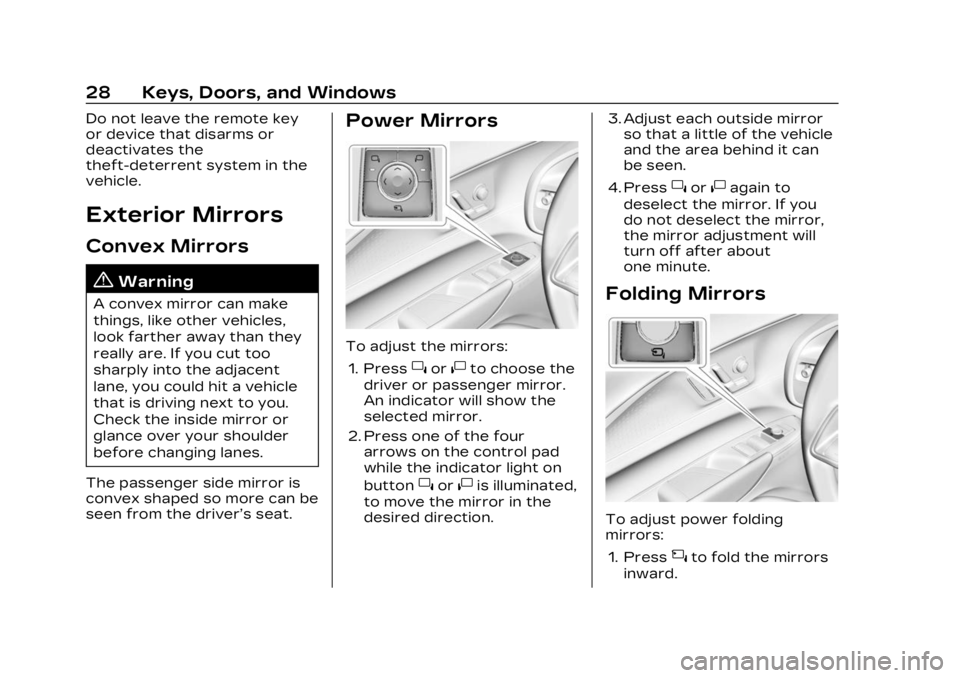
Power Mirrors
To adjust the mirrors: 1. Press
}or|to choose the
driver or passenger mirror.
An indicator will show the
selected mirror.
2. Press one of the four arrows on the control pad
while the indicator light on
button
}or|is illuminated,
to move the mirror in the
desired direction. 3. Adjust each outside mirror
so that a little of the vehicle
and the area behind it can
be seen.
4. Press
}or|again to
deselect the mirror. If you
do not deselect the mirror,
the mirror adjustment will
turn off after about
one minute.
Folding Mirrors
To adjust power folding
mirrors:
1. Press
{to fold the mirrors
inward.
Page 98 of 424
Cadillac Lyriq Owner Manual (GMNA-Localizing-U.S./Canada-15644413) -
2023 - CRC - 2/23/22
Storage 97
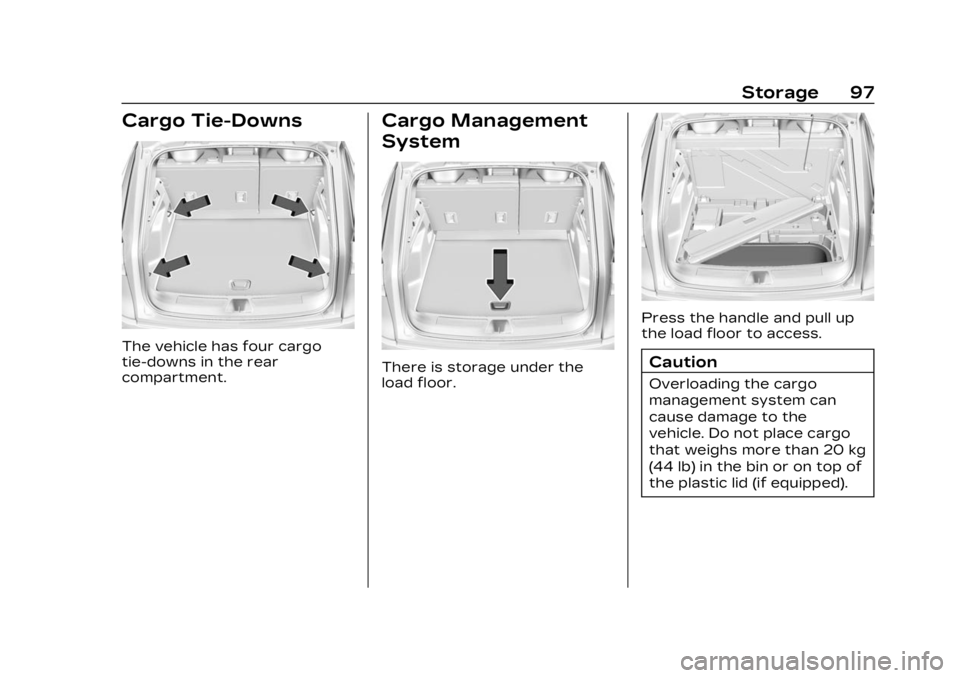
Cargo Tie-Downs
The vehicle has four cargo
tie-downs in the rear
compartment.
Cargo Management
System
There is storage under the
load floor.
Press the handle and pull up
the load floor to access.
Caution
Overloading the cargo
management system can
cause damage to the
vehicle. Do not place cargo
that weighs more than 20 kg
(44 lb) in the bin or on top of
the plastic lid (if equipped).
Page 110 of 424
Cadillac Lyriq Owner Manual (GMNA-Localizing-U.S./Canada-15644413) -
2023 - CRC - 2/23/22
Instruments and Controls 109
and Sport. To see how to
change the Driver Mode, see
“Mode Activation”under
Driver Mode Control 0223.
.Tour configuration displays
the speedometer in the
center of the display. The
battery gauge is located on
the right of the speedometer
and the power indicator
gauge is on the left of it.
There are two DIC areas on
the left and right of the
display.
.Sport configuration displays
the speedometer in the
center of the display. The
battery gauge is located
below the speedometer and
the power indicator gauge is
above it. There are two DIC
areas on the left and right of
the display.
There are four selectable
views:
Gauge : Displays information
zones to the left and right of
the speedometer. Energy :
Displays the energy
usage of the vehicle.
Map : Displays a
navigation map.
Clean : Displays no
information zones.
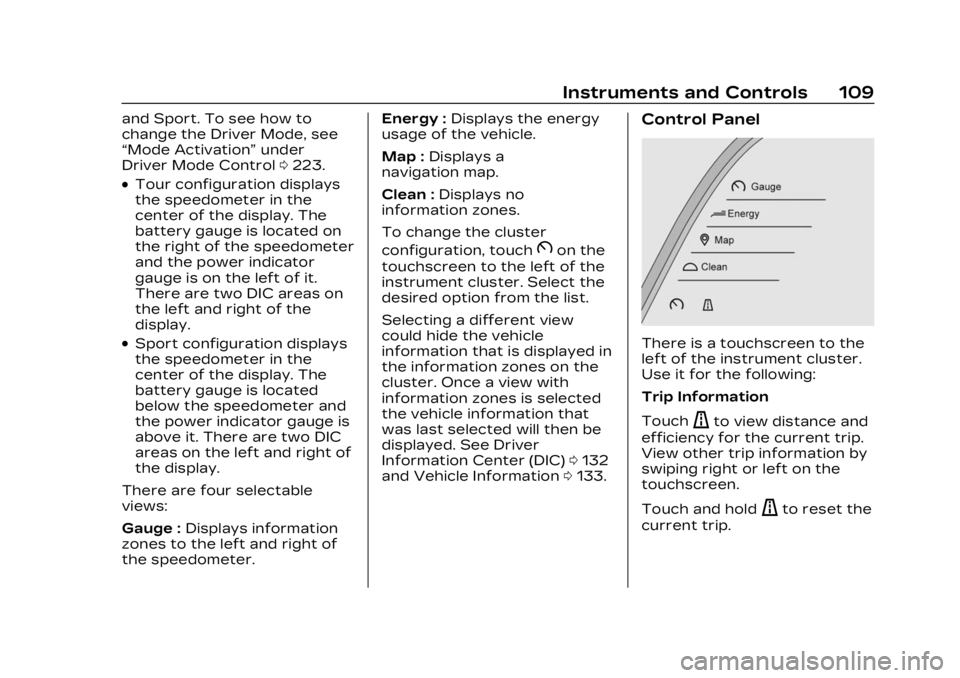
To change the cluster
configuration, touch
Bon the
touchscreen to the left of the
instrument cluster. Select the
desired option from the list.
Selecting a different view
could hide the vehicle
information that is displayed in
the information zones on the
cluster. Once a view with
information zones is selected
the vehicle information that
was last selected will then be
displayed. See Driver
Information Center (DIC) 0132
and Vehicle Information 0133.
Control Panel
There is a touchscreen to the
left of the instrument cluster.
Use it for the following:
Trip Information
Touch
ato view distance and
efficiency for the current trip.
View other trip information by
swiping right or left on the
touchscreen.
Touch and hold
ato reset the
current trip.
Page 125 of 424
Cadillac Lyriq Owner Manual (GMNA-Localizing-U.S./Canada-15644413) -
2023 - CRC - 2/23/22
124 Instruments and Controls
Charging App
The Charging app gives you
access to features that will
help you better understand
and control how the vehicle
manages energy. Along with
providing a central location to
determine and review your
charging preferences, the
Charging app offers live
information on how the vehicle
is using energy.
To launch the Charging app
from the infotainment home
screen, touch the Charging
icon. There are four selections
to choose from: Charging,
Charge Assist, Schedule, and
Settings. When you launch
Charging for the first time, the
Next Charge screen will
display.
Next Charge
To view the current charging
status in the infotainment
display, touch
C.On the Next Charge screen,
there is a range of information
associated with the next
Charging session, as well as
the ability to specify when you
would like to charge the
vehicle. The choices available
to charge are Charge Now or
Charge Later.
To create a charge schedule
See
“Creating a Charge
Schedule” under“Schedule”
below. The Charging screen
shows and allows you to
determine how the vehicle
charges the next time it is
plugged in.
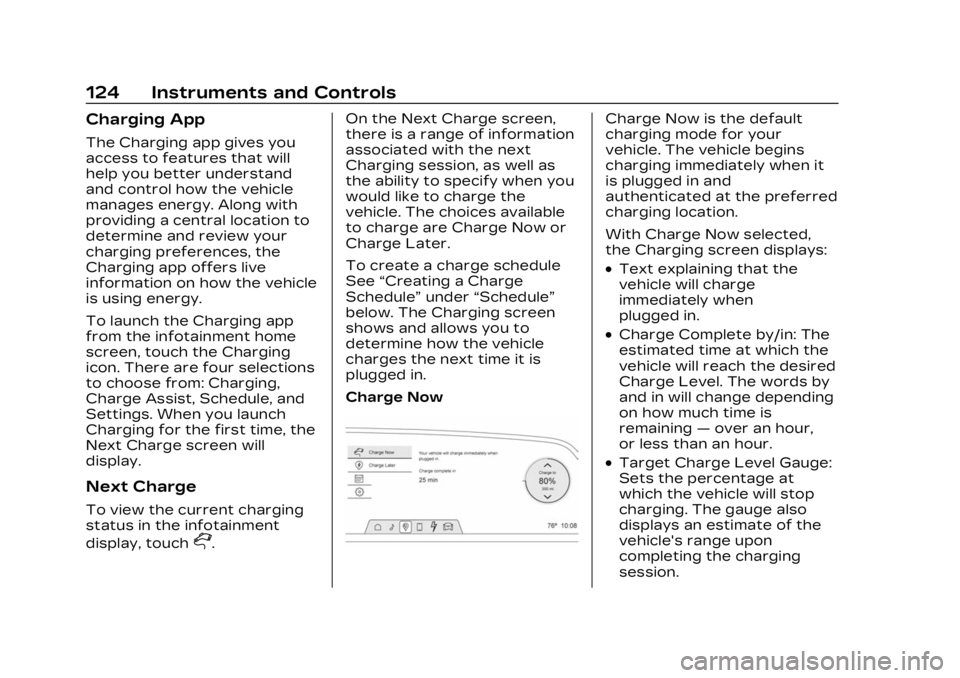
Charge Now
Charge Now is the default
charging mode for your
vehicle. The vehicle begins
charging immediately when it
is plugged in and
authenticated at the preferred
charging location.
With Charge Now selected,
the Charging screen displays:
.Text explaining that the
vehicle will charge
immediately when
plugged in.
.Charge Complete by/in: The
estimated time at which the
vehicle will reach the desired
Charge Level. The words by
and in will change depending
on how much time is
remaining —over an hour,
or less than an hour.
.Target Charge Level Gauge:
Sets the percentage at
which the vehicle will stop
charging. The gauge also
displays an estimate of the
vehicle's range upon
completing the charging
session.
Page 134 of 424
Cadillac Lyriq Owner Manual (GMNA-Localizing-U.S./Canada-15644413) -
2023 - CRC - 2/23/22
Instruments and Controls 133
reflects the approximate
average electrical energy
economy that the vehicle has
at that moment, and changes
as driving conditions change.
Left Zone
Time/Date :Displays current
date and time information.
Auto Lane Change : Displays
the status of a
driver-requested lane change
when Super Cruise is active.
See Super Cruise 0236.
Tire Pressure : Displays the
approximate pressures of all
four tires. Tire pressure is
displayed in either
kilopascal (kPa) or in pounds
per square inch (psi). If the
pressure is low, the value for
that tire is shown in amber.
See Tire Pressure Monitor
System 0343 and
Tire Pressure Monitor
Operation 0344.
Energy Usage : Displays
energy usage of the Driving,
Remote Start, Climate and Conditioning vehicle systems
as percentages of overall
vehicle energy use.
Energy Efficiency :
Displays a
graph showing the energy
efficiency that has been used
by the vehicle over the last
48 km (30 mi).
Right Zone
Audio Now Playing : Displays
the actively playing audio.
Navigation : Displays a variety
of navigation information.
Vehicle Information
The following are all possible
vehicle information features.
To access the vehicle
information menu touch
A
from the list of home page
icons displayed on the left side
of the infotainment display.
Vehicle information content is
shown on cards that are
grouped together in option
tabs that are displayed on the
infotainment display. Touching a card on the
infotainment display opens up
a dialog box for that card. To
select a desired option within
a dialog box, touch the option
and follow any message or
alerts that may display. Some
options may be unavailable
while driving.
Touch Show in Cluster to send
the desired card to the left
zone of the instrument cluster.
Touch Remove from Cluster to
remove the selected card from
the instrument cluster. See
Driver Information Center
(DIC)
0132.
Options
The following is the list of all
possible cards and their
locations. Some of the cards
may not be available for your
particular vehicle.
Summary : Displays an
interactive 3–D rendered
image of your vehicle that
shows performance and
health information.
Page 135 of 424
Cadillac Lyriq Owner Manual (GMNA-Localizing-U.S./Canada-15644413) -
2023 - CRC - 2/23/22
134 Instruments and Controls
Tires :Tire Pressure card
displays the approximate
pressures of all four tires. Tire
pressure is displayed in either
kilopascal (kPa) or in pounds
per square inch (psi). If the
pressure is low, the value for
that tire is shown in amber.
See Tire Pressure Monitor
System 0343 and
Tire Pressure Monitor
Operation 0344.
When selected, the following
options may be chosen in the
dialog: Relearn Tire Pressure,
Reset Leak Detection, Turn
Off/On Leak Detection, and
Show in Cluster. When
enabled, you will receive alerts
when a fast and/or slow tire
leak is detected. The Leak
Detection speeds shown are
either Tire Leak or Fast Leak.
When disabled, you will still
receive low tire pressure
alerts. However, you will stop
receiving additional alerts
when a tire is leaking air. Energy Info :
Energy Usage
card displays how energy is
being used for the current
drive since the last time the
vehicle was started.
Percentages of the Driving,
Remote Start, Climate and
Conditioning vehicle systems
as overall vehicle energy use
are shown. When selected,
distance driven, total energy,
energy usage bar diagram, and
selectable categories are
displayed. Select a category to
learn more about how your
vehicle uses energy from the
battery.
Energy Efficiency card
displays a graph showing the
energy efficiency that has
been used by the vehicle over
the last 48 km (30 mi). When
selected, regenerated range,
and instant efficiency is shown
along with average efficiency
in the dialog.Vehicle Messages
Messages displayed on the
Driver Information Center
(DIC) indicate the status of the
vehicle or some action that
may be needed to correct a
condition. Multiple messages
may appear one after another.
Vehicle status notifications
are also sent to the
infotainment display. Touching
Uon the bottom right corner
of the infotainment display
opens the notification drawer
where all the active vehicle
messages can be viewed.
Depending on the message,
you can schedule a service,
find the nearest dealer, or find
the nearest charging station.
When there are active
messages that can be viewed,
a red dot appears on top of
the notification icon on the
infotainment display.
The messages that do not
require immediate action can
be acknowledged and cleared
Page 179 of 424
Cadillac Lyriq Owner Manual (GMNA-Localizing-U.S./Canada-15644413) -
2023 - CRC - 2/23/22
178 Infotainment System
Keyboard & speech
Touch to change keyboard
and speech settings.
Units
Touch to change units
settings.
Reset Options
Touch to change reset
settings.
About
Touch to view the
infotainment system software
information.
Legal Information
Touch to view legal and
license information.
Updates
This menu allows adjustment
of the vehicle update settings.
Google
This menu allows adjustment
of the Google settings.
Teen Driver
If equipped, this allows
multiple keys to be registered
for beginner drivers to
encourage safe driving habits.
When the vehicle is started
with a Teen Driver key, it will
automatically activate certain
safety systems, allow setting
of some features, and limit the
use of others. The Report
Card will record vehicle data
about driving behavior that
can be viewed later. When the
vehicle is started with a Teen
Driver key, the Driver
Information Center (DIC)
displays a message that Teen
Driver is active.
To access:1. Touch Settings on the Home Page, then touch
Vehicle, and then Teen
Driver.
2. Create a Personal Identification Number (PIN)
by choosing a four-digit PIN. Re-enter the PIN to confirm.
To change the PIN, touch
Change PIN.
The PIN is required to:
.Set up/Add or remove keys.
.Change Teen Driver
settings.
.Change or clear the Teen
Driver PIN.
.Access or delete Report
Card data.
Set up/Add keys to activate
Teen Driver and assign
restrictions to the key:
Any vehicle key can be
registered, up to a maximum
of eight keys. Label the Teen
Driver key to tell it apart from
the other keys.
For a pushbutton start
system: 1. Start the vehicle.
2. The vehicle must be in P (Park).
3. From the Settings menu, touch Vehicle and then
Teen Driver.