radio CADILLAC LYRIC 2023 Owners Manual
[x] Cancel search | Manufacturer: CADILLAC, Model Year: 2023, Model line: LYRIC, Model: CADILLAC LYRIC 2023Pages: 424, PDF Size: 4.76 MB
Page 7 of 424

Cadillac Lyriq Owner Manual (GMNA-Localizing-U.S./Canada-15644413) -
2023 - CRC - 3/2/22
6 Introduction
1. Air Vents0189.
2. Turn Signal Lever. See Turn and Lane-Change Signals
0146.
Windshield Wiper/Washer
0 100.
3. Shift Lever. See Electric Drive Unit 0211.
4. Light Sensor. See Automatic Headlamp
System 0143.
5. Infotainment Display. See Introduction 0150.
Instrument Cluster 0108.
6. Instrument Panel Fuse Block 0331.
7. Glove Box 094.
8. Dual Automatic Climate Control System 0185.
9. Sliding Storage Tray. See Instrument Panel Storage
094 (If Equipped).
10. Lower Storage. See Instrument Panel Storage
094 (If Equipped).
11. Wireless Charging 0104.
12. Infotainment Controls. 13. Power Button
0206 (Out
of View).
14. Radio Controls. See Steering Wheel Controls
0152.
15. Horn 0100.
16. Steering Wheel Adjustment 099 (Out of View).
17. Adaptive Cruise Control (Advanced) 0225.
Super Cruise 0236.
Forward Collision Alert
(FCA) System 0270 (If
Equipped).
Heated Steering Wheel
0 99.
18. Hood Release. See Hood 0310.
19. Electric Parking Brake 0217.
Lane Keep Assist (LKA)
0 280 (If Equipped).
Automatic Vehicle Hold
(AVH) 0219.
Instrument Panel
Illumination Control 0146.
Page 9 of 424
Cadillac Lyriq Owner Manual (GMNA-Localizing-U.S./Canada-15644413) -
2023 - CRC - 2/23/22
8 Keys, Doors, and Windows
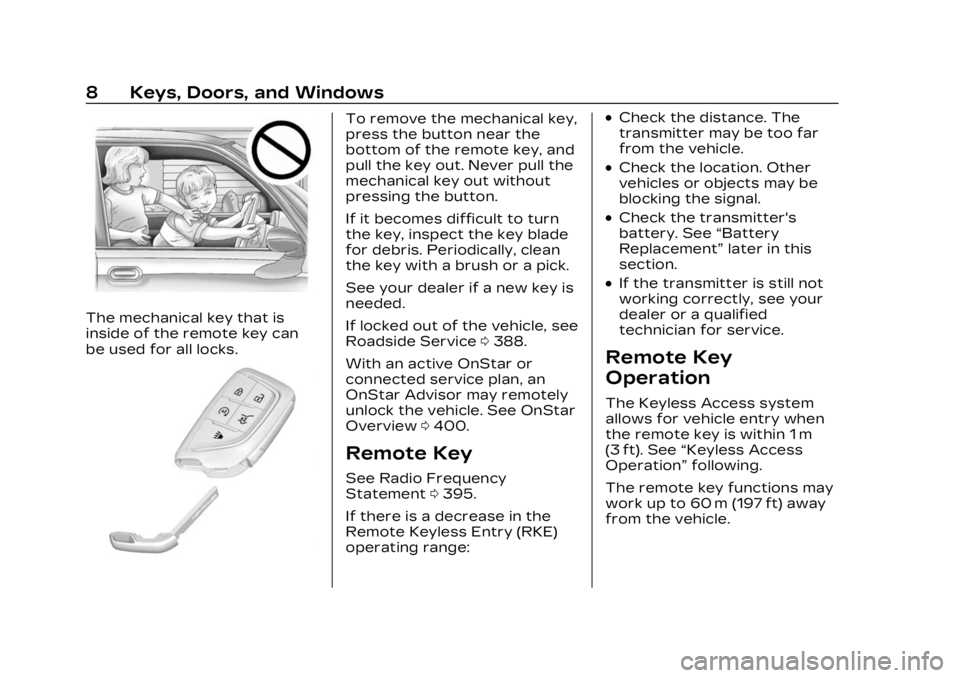
The mechanical key that is
inside of the remote key can
be used for all locks.
To remove the mechanical key,
press the button near the
bottom of the remote key, and
pull the key out. Never pull the
mechanical key out without
pressing the button.
If it becomes difficult to turn
the key, inspect the key blade
for debris. Periodically, clean
the key with a brush or a pick.
See your dealer if a new key is
needed.
If locked out of the vehicle, see
Roadside Service0388.
With an active OnStar or
connected service plan, an
OnStar Advisor may remotely
unlock the vehicle. See OnStar
Overview 0400.
Remote Key
See Radio Frequency
Statement 0395.
If there is a decrease in the
Remote Keyless Entry (RKE)
operating range:
.Check the distance. The
transmitter may be too far
from the vehicle.
.Check the location. Other
vehicles or objects may be
blocking the signal.
.Check the transmitter's
battery. See “Battery
Replacement” later in this
section.
.If the transmitter is still not
working correctly, see your
dealer or a qualified
technician for service.
Remote Key
Operation
The Keyless Access system
allows for vehicle entry when
the remote key is within 1 m
(3 ft). See “Keyless Access
Operation” following.
The remote key functions may
work up to 60 m (197 ft) away
from the vehicle.
Page 28 of 424
Cadillac Lyriq Owner Manual (GMNA-Localizing-U.S./Canada-15644413) -
2023 - CRC - 2/23/22
Keys, Doors, and Windows 27
How to Detect a Tamper
Condition
IfKis pressed on the remote
key and the horn chirps three
times, an alarm occurred
previously while the alarm
system was armed.
If the alarm has been
activated, a message will
appear on the Driver
Information Center (DIC).
Immobilizer
See Radio Frequency
Statement 0395.
Immobilizer Operation
This vehicle has a passive
theft-deterrent system.
The system does not have to
be manually armed or
disarmed.
The vehicle is automatically
immobilized when the vehicle
is turned off. The immobilization system is
disarmed when the vehicle is
turned and a valid remote key
is present in the vehicle.
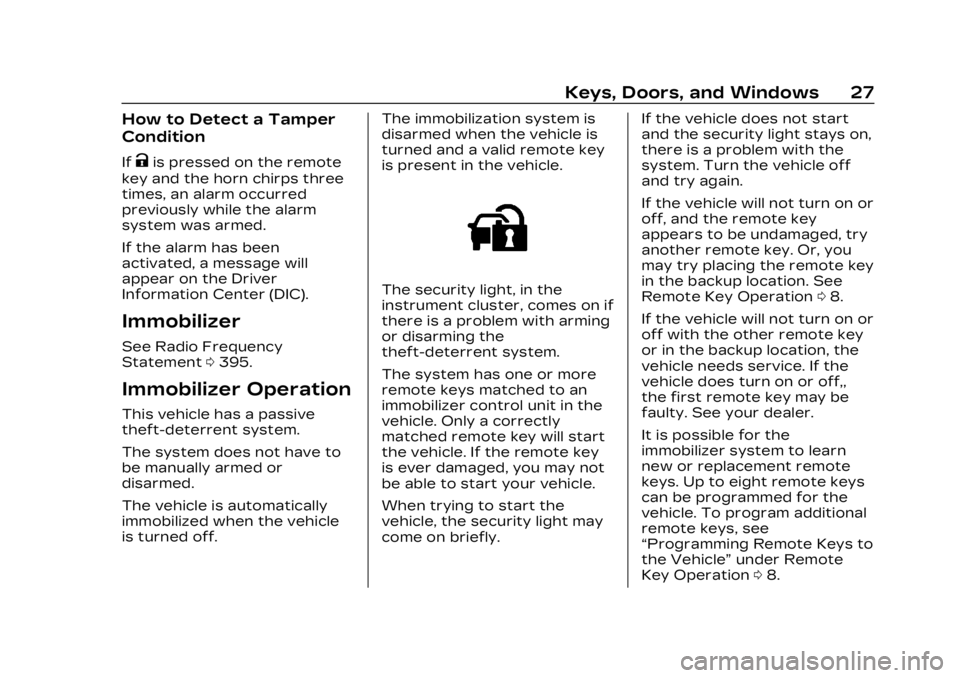
The security light, in the
instrument cluster, comes on if
there is a problem with arming
or disarming the
theft-deterrent system.
The system has one or more
remote keys matched to an
immobilizer control unit in the
vehicle. Only a correctly
matched remote key will start
the vehicle. If the remote key
is ever damaged, you may not
be able to start your vehicle.
When trying to start the
vehicle, the security light may
come on briefly.If the vehicle does not start
and the security light stays on,
there is a problem with the
system. Turn the vehicle off
and try again.
If the vehicle will not turn on or
off, and the remote key
appears to be undamaged, try
another remote key. Or, you
may try placing the remote key
in the backup location. See
Remote Key Operation
08.
If the vehicle will not turn on or
off with the other remote key
or in the backup location, the
vehicle needs service. If the
vehicle does turn on or off,,
the first remote key may be
faulty. See your dealer.
It is possible for the
immobilizer system to learn
new or replacement remote
keys. Up to eight remote keys
can be programmed for the
vehicle. To program additional
remote keys, see
“Programming Remote Keys to
the Vehicle” under Remote
Key Operation 08.
Page 105 of 424
Cadillac Lyriq Owner Manual (GMNA-Localizing-U.S./Canada-15644413) -
2023 - CRC - 2/23/22
104 Instruments and Controls
Power Outlet 110-Volt/
120-Volt Alternating
Current
If equipped with this power
outlet it can be used to plug in
electrical equipment that uses
a maximum limit of 150 watts.
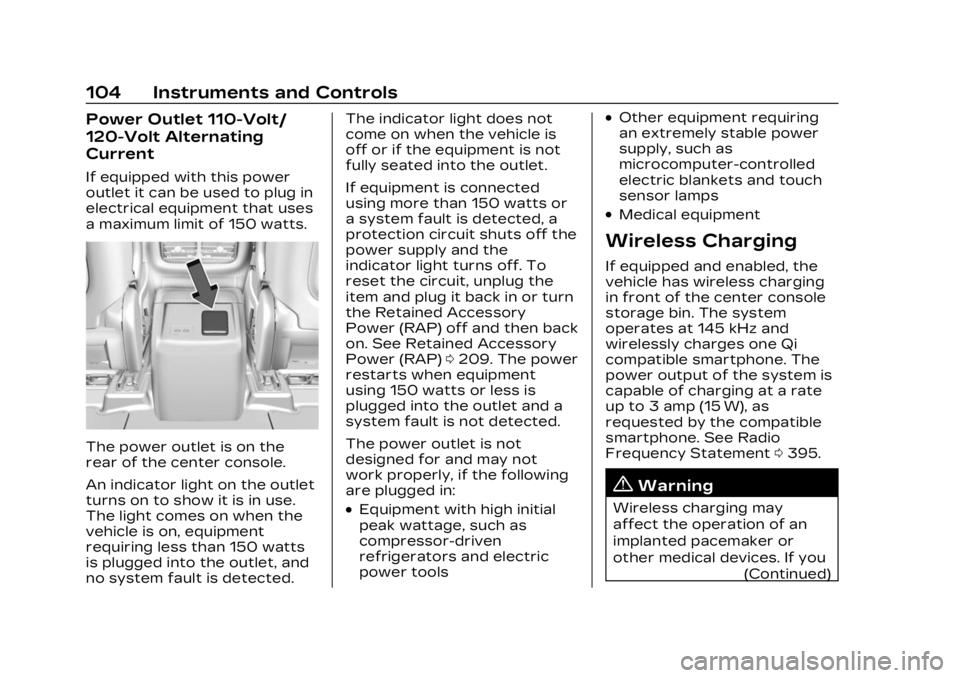
The power outlet is on the
rear of the center console.
An indicator light on the outlet
turns on to show it is in use.
The light comes on when the
vehicle is on, equipment
requiring less than 150 watts
is plugged into the outlet, and
no system fault is detected.The indicator light does not
come on when the vehicle is
off or if the equipment is not
fully seated into the outlet.
If equipment is connected
using more than 150 watts or
a system fault is detected, a
protection circuit shuts off the
power supply and the
indicator light turns off. To
reset the circuit, unplug the
item and plug it back in or turn
the Retained Accessory
Power (RAP) off and then back
on. See Retained Accessory
Power (RAP)
0209. The power
restarts when equipment
using 150 watts or less is
plugged into the outlet and a
system fault is not detected.
The power outlet is not
designed for and may not
work properly, if the following
are plugged in:
.Equipment with high initial
peak wattage, such as
compressor-driven
refrigerators and electric
power tools
.Other equipment requiring
an extremely stable power
supply, such as
microcomputer-controlled
electric blankets and touch
sensor lamps
.Medical equipment
Wireless Charging
If equipped and enabled, the
vehicle has wireless charging
in front of the center console
storage bin. The system
operates at 145 kHz and
wirelessly charges one Qi
compatible smartphone. The
power output of the system is
capable of charging at a rate
up to 3 amp (15 W), as
requested by the compatible
smartphone. See Radio
Frequency Statement 0395.
{Warning
Wireless charging may
affect the operation of an
implanted pacemaker or
other medical devices. If you
(Continued)
Page 115 of 424
Cadillac Lyriq Owner Manual (GMNA-Localizing-U.S./Canada-15644413) -
2023 - CRC - 2/23/22
114 Instruments and Controls
If, after several seconds, both
status indicator lights remain
on, or if there are no lights at
all, or if the airbag readiness
light is on, there may be a
problem with the lights or the
passenger sensing system.
See your dealer for service
right away.
{Warning
If the airbag readiness light
ever comes on and stays on,
it means that something may
be wrong with the airbag
system. To help avoid injury
to yourself or others, have
the vehicle serviced right
away. See Airbag Readiness
Light0112 for more
information, including
important safety
information.
Charging System
Light (12-Volt Battery)
The charging system light
comes on briefly when the
vehicle is started, as a check
to show the light is working.
If the light stays on, or comes
on while driving, there could
be a problem with the
electrical charging system.
Have it checked by your
dealer. Driving while this light
is on could drain the 12-volt
battery.
If a short distance must be
driven with the light on, be
sure to turn off all
accessories, such as the radio.
Find a safe place to stop the
vehicle.
Low State of Charge
Light
This light comes on when the
vehicle state of charge is low.
Proceed to a charging station
to charge the vehicle.
Charge Cord
Connected Light
This light comes on when a
charge cord is connected to
the vehicle.
Page 137 of 424
Cadillac Lyriq Owner Manual (GMNA-Localizing-U.S./Canada-15644413) -
2023 - CRC - 2/23/22
136 Instruments and Controls
battery temperature will
increase, and the vehicle will
return to normal operation.
If the high voltage battery
charge level is relatively low
the vehicle will not return to
normal operation until
charged.
Keep the vehicle plugged in,
even when fully charged, to
keep the high voltage battery
temperature ready for the
next drive. This is important
when outside temperatures
are extremely hot or cold.
Vehicle Speed
Messages
SPEED LIMITED TO XXX
KM/H (MPH)
This message shows that the
vehicle speed has been limited
to the speed displayed. The
limited speed is a protection
for various propulsion and
vehicle systems, such aslubrication, thermal, brakes,
suspension, Teen Driver if
equipped, or tires.
Universal Remote
System
See Radio Frequency
Statement
0395.
Universal Remote
System Programming
If equipped, the Universal
Garage Door (Universal
Remote) controls are located
on the infotainment screen.
This system can replace up to
eight remote control
transmitters used to activate
devices such as garage door
openers, security systems,
and home automation devices.
These instructions refer to a
garage door opener, but can
be used for other devices.
Do not use the Universal
Remote system with any
garage door opener that does not have the stop and reverse
feature. This includes any
garage door opener model
manufactured before April
1, 1982.
Keep the original hand-held
transmitter for use in other
vehicles as well as for future
programming. Erase the
programming when vehicle
ownership is terminated. See
“Erasing Universal Remotes.”
To program a garage door
opener, park outside directly in
line with and facing the garage
door opener receiver. Clear all
people and objects away from
the garage door.
Make sure the hand-held
transmitter has a new battery
for quick and accurate
transmission of the
radio-frequency signal.
Programming the
Universal Remote System
Programming involves
time-sensitive actions and may
time out, requiring the
Page 139 of 424
Cadillac Lyriq Owner Manual (GMNA-Localizing-U.S./Canada-15644413) -
2023 - CRC - 2/23/22
138 Instruments and Controls
Steps 8–9, or consult
HomeLink by website or
phone.
After your Universal Remote
has been successfully
programmed, you can change
the name of the remote on the
screen as desired.
Some garage door openers
require a modification of
Step 4. See “Radio Signals for
Some Gate Operators.”
For questions or programming
help, visit www.homelink.com/
gm for self-help videos or call
1–800–355–3515. For calls
placed outside the U.S.,
Canada, or Puerto Rico,
international rates will apply
and may differ based on
landline or mobile phone.
Erasing Universal
Remotes
To erase a programmed
Universal Remote, select the
remote on the infotainment
screen. Then select “Delete.”To erase ALL programmed
Universal Remotes, select any
remote on the infotainment
screen. Then select
“Delete All.”
Radio Signals for Some
Gate Operators
Some gate operators and
radio-frequency laws require
transmitter signals to time out
or quit after several seconds
of transmission. This may not
be long enough for the
Universal Remote system to
pick up the signal during
programming.
If programming did not work,
replace Step 4 under
“Programming the Universal
Remote System,”
with the
following:
Press and release the
hand-held transmitter button
every two seconds until the
signal has been found by the
Universal Remote System.
Proceed to Step 5 under “Programming the Universal
Remote System”
to complete
programming.
Universal Remote
System Operation
Using the Universal
Remote System
Press the desired Universal
Remote button on the
infotainment screen.
Reprogramming a Single
Universal Remote System
Button
To reprogram any of the
system buttons:
1. Select the universal remote to be reprogrammed.
2. Select “Delete”.
3. Select “Add Remote”. Follow
the instructions in Universal
Remote System
Programming 0136.
Page 151 of 424
Cadillac Lyriq Owner Manual (GMNA-Localizing-U.S./Canada-15644413) -
2023 - CRC - 2/23/22
150 Infotainment System
Infotainment
System
Introduction
Introduction . . . . . . . . . . . . . . . . . 150
Overview . . . . . . . . . . . . . . . . . . . . . . 151
Steering WheelControls . . . . . . . . . . . . . . . . . . . . . 152
Using the System . . . . . . . . . . 153
Software Updates . . . . . . . . . 155
Radio
AM-FM Radio . . . . . . . . . . . . . . . 156
Radio Data System (RDS) . . . . . . . . . . . . . . 157
Satellite Radio . . . . . . . . . . . . . . . 157
Radio Reception . . . . . . . . . . . . 159
Multi-Band Antenna . . . . . . . 160
Audio Players
Avoiding Untrusted Media Devices . . . . . . . . . . . . . 160
USB Port . . . . . . . . . . . . . . . . . . . . . 160
Bluetooth Audio . . . . . . . . . . . . . 161
Navigation
Using the Navigation System . . . . . . . . . . . . . . . . . . . . . . 162
Maps . . . . . . . . . . . . . . . . . . . . . . . . . . . 163
Navigation Symbols . . . . . . . 164 Destination . . . . . . . . . . . . . . . . . . . 164
Global Positioning
System (GPS) . . . . . . . . . . . . . . 165
Vehicle Positioning . . . . . . . . 165
Problems with Route Guidance . . . . . . . . . . . . . . . . . . . . 166
Voice Recognition
Voice Recognition . . . . . . . . . 166
Phone
Bluetooth (Overview) . . . . . 168
Bluetooth (Pairing andUsing a Phone) . . . . . . . . . . . . 170
Apple CarPlay and Android Auto . . . . . . . . . . . . . . 174
Settings
Settings . . . . . . . . . . . . . . . . . . . . . . . 176
Teen Driver . . . . . . . . . . . . . . . . . . 178
Trademarks and License
Agreements
Trademarks and LicenseAgreements . . . . . . . . . . . . . . . . 182
Introduction
Read the following pages to
become familiar with the
features.
{Warning
Taking your eyes off the
road for too long or too
often while using any
infotainment feature can
cause a crash. You or others
could be injured or killed. Do
not give extended attention
to infotainment tasks while
driving. Limit your glances at
the vehicle displays and
focus your attention on
driving. Use voice commands
whenever possible.
The infotainment system has
built-in features intended to
help avoid distraction by
disabling some features when
driving. These features may
gray out when they are
unavailable. Many infotainment
Page 152 of 424
Cadillac Lyriq Owner Manual (GMNA-Localizing-U.S./Canada-15644413) -
2023 - CRC - 2/23/22
Infotainment System 151
features are also available
through the instrument cluster
and steering wheel controls.
Before driving:
.Become familiar with the
operation, center stack
controls, steering wheel
controls, and infotainment
display.
.Set up the audio by
presetting favorite stations,
setting the tone, and
adjusting the speakers.
.Set up phone numbers in
advance so they can be
called easily by pressing a
single control or by using a
single voice command.
See Distracted Driving 0195.
Overview
Infotainment System
The infotainment system is
controlled by using the
infotainment display,
multifunction controller (MCF) on the center console,
steering wheel controls, and
voice recognition, if available.
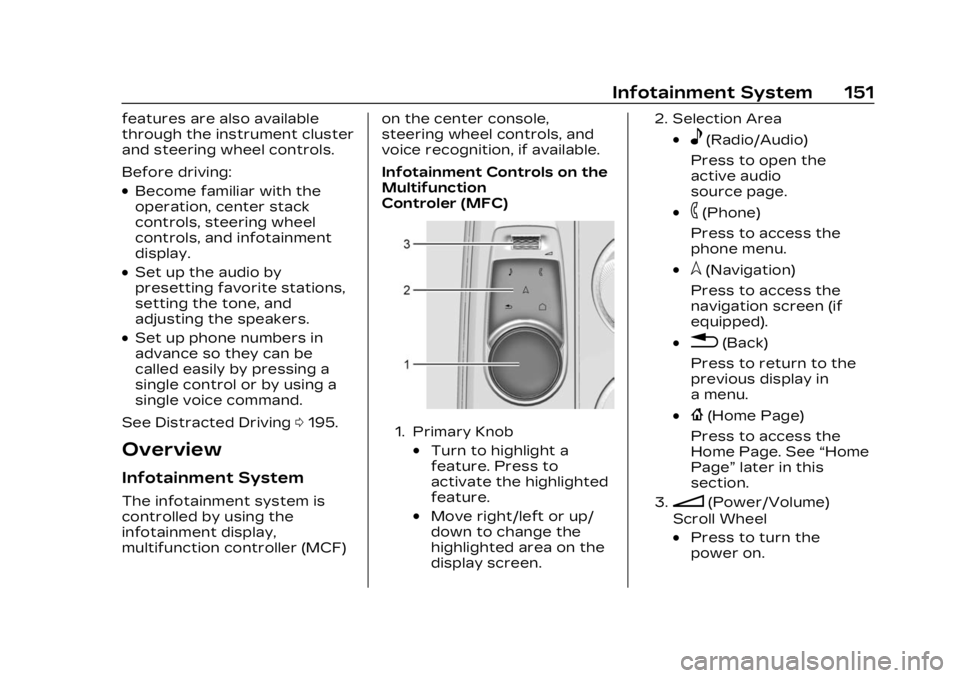
Infotainment Controls on the
Multifunction
Controler (MFC)
1. Primary Knob
.Turn to highlight a
feature. Press to
activate the highlighted
feature.
.Move right/left or up/
down to change the
highlighted area on the
display screen.
2. Selection Area
.e(Radio/Audio)
Press to open the
active audio
source page.
.6(Phone)
Press to access the
phone menu.
.l(Navigation)
Press to access the
navigation screen (if
equipped).
.0(Back)
Press to return to the
previous display in
a menu.
.{(Home Page)
Press to access the
Home Page. See “Home
Page” later in this
section.
3.n(Power/Volume)
Scroll Wheel
.Press to turn the
power on.
Page 154 of 424
Cadillac Lyriq Owner Manual (GMNA-Localizing-U.S./Canada-15644413) -
2023 - CRC - 2/23/22
Infotainment System 153
CorB:Press to go to the
next or previous favorite when
listening to the radio. Press to
go to the next or previous
track when listening to a
media source.
c: Press to reject an
incoming phone call, end an
active phone call, end a voice
recognition session, or mute
the audio when there is no
phone call.
g: Press initiate voice
assistant.
Using the System
Audio
Touch the Audio icon on the
infotainment display or
eon
the Multifunction Controler
(MFC) to display the active
audio source page. Examples
of available sources may
include AM, FM, SXM (if
equipped), USB, and
Bluetooth.
Phone
Touch the Phone icon on the
infotainment display or
6on
the MFC to display the Phone
menu. See Bluetooth
(Overview) 0168 or
Bluetooth (Pairing and Using a
Phone) 0170.
Maps
Touch the Maps icon to
display the Google Maps
screen. See Using the
Navigation System 0162.
Google Assistant
Touch the Google Assistant
icon to open the Google
Assistant app. See Voice
Recognition 0166.
Google Play
Touch to download some of
your favorite apps in your
vehicle. Downloading apps on
Google Play require you to
sign into a Google Account
with an active service plan
with data. Some third-party apps require a separate
account and, in some cases, a
paid subscription for in-vehicle
access.
Apple CarPlay
Touch the Apple CarPlay icon
to activate Apple CarPlay (if
equipped) after a supported
device is connected. See
Apple CarPlay and Android
Auto
0174.
Android Auto
Touch the Android Auto icon
to activate Android Auto (if
equipped) after a supported
device is connected. See
Apple CarPlay and Android
Auto 0174.
Settings
Touch the Settings icon to
display the Settings menu. See
Settings 0176.
Virtual Controls
Touch the Virtual Controls
icon to display the Virtual
Controls menu.