change time CADILLAC SRX 2004 1.G User Guide
[x] Cancel search | Manufacturer: CADILLAC, Model Year: 2004, Model line: SRX, Model: CADILLAC SRX 2004 1.GPages: 468, PDF Size: 2.92 MB
Page 177 of 468
Vehicle Information Menu Item
Descriptions
The following paragraphs contain a more detailed
description of each menu item:
Clock/Outside Air Temp (Navigation System):If you
select this item, the clock and outside temperature
will be displayed at the top of the screen. The outside
temperature will be displayed in either degrees
Fahrenheit or degrees Celsius depending upon whether
the system is set for English or metric units. If you
wish to change the units, see “Main Audio Menu” in the
SRX Entertainment and Navigation System owner’s
manual.
OUTSIDE TEMP (Base Audio System):If you select
this item, the current outside temperature is displayed
at the top of the screen. It will be in either degrees
Fahrenheit or degrees Celsius depending upon whether
the system is set for English or metric units. If you
wish to change the units, seeDIC Main Menu on
page 3-60.MI TRIP A and B/Trip Odometer A and B:For
information on the trip odometers, see “Trip Odometers”
underSpeedometer and Odometer on page 3-37.
MPG AVG/Average Fuel Economy:If you select this
item, the approximate average miles per gallon (mpg)
or Liters per 100 kilometers (L/100km) is displayed.
This number is calculated based on the number of
mpg (L/100km) recorded since the last time this menu
item was reset.
To reset the MPG AVG using the Base audio system,
press the CLR button located to the right of the screen.
The display will return to zero.
To reset the Average Fuel Economy using the Navigation
system, press and hold the vehicle information button in
the upper right corner of the screen for three seconds to
bring up the Vehicle Information menu. Use the up and
down arrows on the screen to select Average Fuel
Economy and then touch the RESET button. Touch the
RETURN button on the screen to go back to the
previous page.
3-55
Page 185 of 468

9(English/Metric Units):Use this menu item to
adjust the measurement units.
You can choose between ENGLISH UNITS and
METRIC UNITS. To switch between the two, press the
TUNE/SEL knob. Once your choice is displayed,
turn the knob to set your choice and continue scrolling
through the main menu.
The measurement units that you choose will be reected
on all the vehicle system displays, not just the DIC
information. For example, the climate control panel will
display degrees Celsius if you choose METRIC UNITS.
TCS (Traction Control System):You can enable or
disable the traction control system using this menu item.
Press the TUNE/SEL knob to switch between on and off.
You can also turn the traction control system off using the
traction control button located near the shift lever.
When you disable the traction control system, the
Traction Suspended message will appear on the DIC and
the traction control system warning light on the instrument
panel cluster will come on. SeeDIC Warnings and
Messages on page 3-64andTraction Control System
(TCS) Warning Light on page 3-42for more information.8(Clock):Use this menu item to set the time on the
vehicle’s clock.
SeeSetting the Time on page 3-93for more information.
8/4(Clock/Information Display):Use this menu
item to toggle between the clock display and the XM™
Information (Song, Artist, Title), if available.
SeeAudio System(s) on page 3-93for more information.
SETUP:When you select this menu item, the following
submenu is available:
Personalization
Language
Congure Display Keys
To change the language displayed on the radio,
select LANGUAGE by pressing the TUNE/SEL knob.
Turn the TUNE/SEL knob to scroll through the available
languages and press the knob to make your selection.
If you accidentally select a language that you did
not want, ENGLISH is always at the top of the
language list.
For more information on the other items in the SETUP
menu, seeDIC Vehicle Personalization on page 3-73.
3-63
Page 202 of 468

Twilight Delay
This feature allows you to set the amount of time you
want the exterior lamps to remain on after you exit
the vehicle.
Programmable Modes
Mode 1:0:00 seconds
Mode 2:0:15 seconds
Mode 3:0:30 seconds
Mode 4:1:00 minute
Mode 5:1:30 minutes
Mode 6:2:00 minutes
Mode 7:2:30 minutes
Mode 8:3:00 minutes
Before your vehicle was shipped from the factory, it was
programmed to Mode 1. The mode to which the vehicle
was programmed may have been changed since the
vehicle left the factory. To determine the mode to which
the vehicle is programmed or to program the vehicle to a
different mode, use one of the following procedures:
To change the mode using the Base audio system,
do the following:
1. Enter the personalization portion of the SETUP
menu following the instructions listed previously.2. Scroll to TWILIGHT DELAY using the TUNE/SEL
knob to highlight it.
3. Press the TUNE/SEL knob to scroll through the
available delay settings. When the delay time
you want is highlighted, press the TUNE/SEL knob
once to select it.
When the mode is turned on, an X will appear in
the box to the left.
If you choose Mode 1, the exterior lamps will not
illuminate when you exit the vehicle. Only one mode
can be selected at a time.
To change the mode using the Navigation system,
do the following:
1. Enter the Personalization menu by following the
instructions listed previously.
2. Scroll to TWILIGHT DELAY and press the ADJUST
button next to it.
3. A new screen will appear with the available delay
settings. Use the buttons on the screen to adjust
the selected delay.
4. When you are done entering the delay press the
RETURN button on the screen.
The mode you selected is now set. You can either exit
the programming mode by following the instructions
later in this section or program the next feature available
on your vehicle.
3-80
Page 217 of 468
XM™ Satellite Radio Service
(48 Contiguous US States)
XM™ is a continental U.S. based satellite radio service
that offers 100 coast to coast channels including
music, news, sports, talk, and children’s programming.
XM™ provides digital quality audio and text information,
including song title and artist name. A service fee is
required in order to receive the XM™ service. For more
information, contact XM™ at www.xmradio.com or
call 1-800-852-XMXM (9696).
Playing the Radio
PWR (Power):Press this knob to turn the system on
and off.
VOL (Volume):Turn this knob to increase or to
decrease the volume.AVC (Automatic Volume Compensation):Available
only with the premium Bose
®audio system, AVC
monitors the noise in the vehicle and will adjust the
volume level so that it always sounds the same to you.
AVC works best when listening at low volume levels.
At loud listening levels there will be little or no effect.
To turn AVC on and off, perform the following steps:
1. Press the TUNE/SEL knob to enter the main menu.
2. Turn the TUNE/SEL knob until AUTO VOLUME
COMP. appears on the display.
3. Press the TUNE/SEL knob to turn AVC on or off.
An X will appear in the box when AVC is selected on.
4. Press the CLR button to exit the display. To return
to the original display, repeatedly press the CLR
button or wait for the display to time out.
SOURCE:Press this button to select a source, either
radio or CD. The CD must be loaded to select the
source and to play. CD will appear on the display if a
CD is loaded. If a CD is not loaded the display will
not change from the radio source.
3-95
Page 228 of 468

F4 RPT (Repeat):Press this pushbutton to hear a
track over again. REPEAT will appear on the display.
Press RPT again to turn off repeat play. REPEAT
will disappear from the display.
F6 DISP (Display):Press this pushbutton to display the
time of the track. Press this pushbutton again to
remove the time of the track from the display.
QSEEKR:Press the up or the down arrow to seek
to the next or to the previous track on the CD.
QSCAN:Press this button to listen to each track for
10 seconds. The CD will go to a track, play for
10 seconds, then go on to the next track. Press this
button again to stop scanning.
X(Eject):Press this button to stop a CD when it is
playing or to eject a CD when it is not playing. Eject may
be activated with the ignition and the radio off.
Using the Six-CD CD Changer
The CD player can play the smaller 8cm single CDs
with an adapter ring. Full-size CDs and the smaller CDs
are loaded in the same manner.
If playing a CD-R the sound quality may be reduced
due to CD-R quality, the method of recording, the quality
of the music that has been recorded, and the way the
CD-R has been handled. You may experience an
increase in skipping, difficulty in nding tracks and/or
difficulty in loading and ejecting. If these problems occur
try a known good CD.
Do not add paper labels to CDs, they could get caught
in the CD player.
Do not play 3 inch CDs without a standard adapter CD.
If an error appears on the display, see “CD Messages”
later in this section.
When a CD is inserted the CD functions will appear on
the display above the pushbuttons, in place of the
preset stations (if programmed).
3-106
Page 232 of 468
9. Press the TUNE/SEL knob when you have found
the feature to be stored. The display will update,
by showing the symbol of the feature that you
selected next to the congurable key.
10. Repeat the previous steps for each congurable key.
Once a feature is programmed to a key, the feature will
not appear on the display when programming the
remaining congurable keys. The congurable keys can
be changed at any time.
Navigation/Radio System
Your vehicle may have an AM-FM navigation radio
system that includes Digital Signal Processing (DSP),
a Radio Data System (RDS) with Program Type
(PTY) selections that will seek out the kind of music
you want to listen to. The radio can also communicate
with the navigation system to broadcast announcements
on traffic, weather, and emergency alert
communications. For information on how to use this
system, see the “Navigation System” manual.
Rear Seat Entertainment System
Your vehicle may have the DVD Rear Seat
Entertainment (RSE) system. The RSE system includes
a DVD player, a video display screen, two sets of
wireless headphones, and a remote control.
RSE is available in a base and an uplevel version.
The uplevel version is provided with the navigation radio
(if equipped). The uplevel RSE system offers the rear
seat passengers to have shared control of FM1,
FM2, AM, weather, CDC, and XM™ Satellite Radio
Service (if equipped).
Before You Drive
The RSE system is for rear seat passengers only.
The driver cannot safely view the video screen while
driving and should not try to do so.
3-110
Page 233 of 468
Headphones
The RSE system includes two sets of wireless
headphones.
Each set of headphones has an ON/OFF control.
An indicator light will illuminate on the headphones when
they are on. If the light does not illuminate, the batteries
may need to be replaced. See “Battery Replacement”
later in this section for more information. To turn
the headphones OFF activate the ON/OFF control.
Each set of headphones has a volume knob. To adjust
the volume, adjust this knob.
The transmitters are located below the video display
screen. The headphones will shut off to save battery
power if they lose the signal from the system after about
four minutes. The signal may be lost if the system is
turned off or if the headphones are out of range of the
signal transmitters.
Notice:Do not store the headphones in heat or
direct sunlight. This could damage the headphones
and repairs would not be covered by your warranty.
Keep the headphones stored in a cool, dry place.
Battery Replacement
To change the batteries, do the following:
1. Loosen the screw on the battery compartment door
located on the left side of the headphone earpiece.
2. Replace the two AAA batteries in the compartment.
Make sure that they are installed correctly, using
the diagram on the inside of the battery
compartment.
3. Tighten the screws to close the compartment door.
If the headphones are to be stored for a long period
of time, remove the batteries and keep them in a cool,
dry place.
3-111
Page 242 of 468
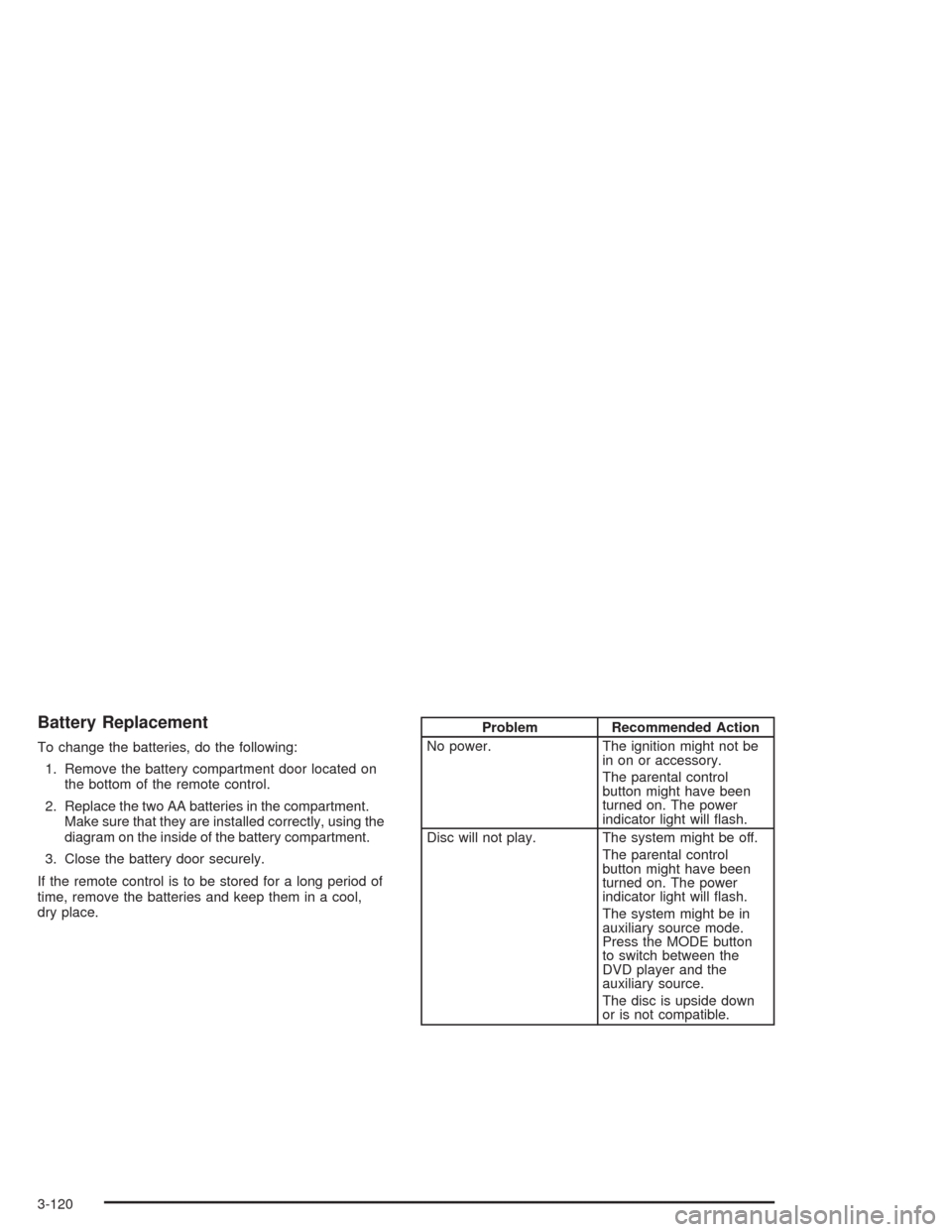
Battery Replacement
To change the batteries, do the following:
1. Remove the battery compartment door located on
the bottom of the remote control.
2. Replace the two AA batteries in the compartment.
Make sure that they are installed correctly, using the
diagram on the inside of the battery compartment.
3. Close the battery door securely.
If the remote control is to be stored for a long period of
time, remove the batteries and keep them in a cool,
dry place.
Problem Recommended Action
No power. The ignition might not be
in on or accessory.
The parental control
button might have been
turned on. The power
indicator light will ash.
Disc will not play. The system might be off.
The parental control
button might have been
turned on. The power
indicator light will ash.
The system might be in
auxiliary source mode.
Press the MODE button
to switch between the
DVD player and the
auxiliary source.
The disc is upside down
or is not compatible.
3-120
Page 244 of 468
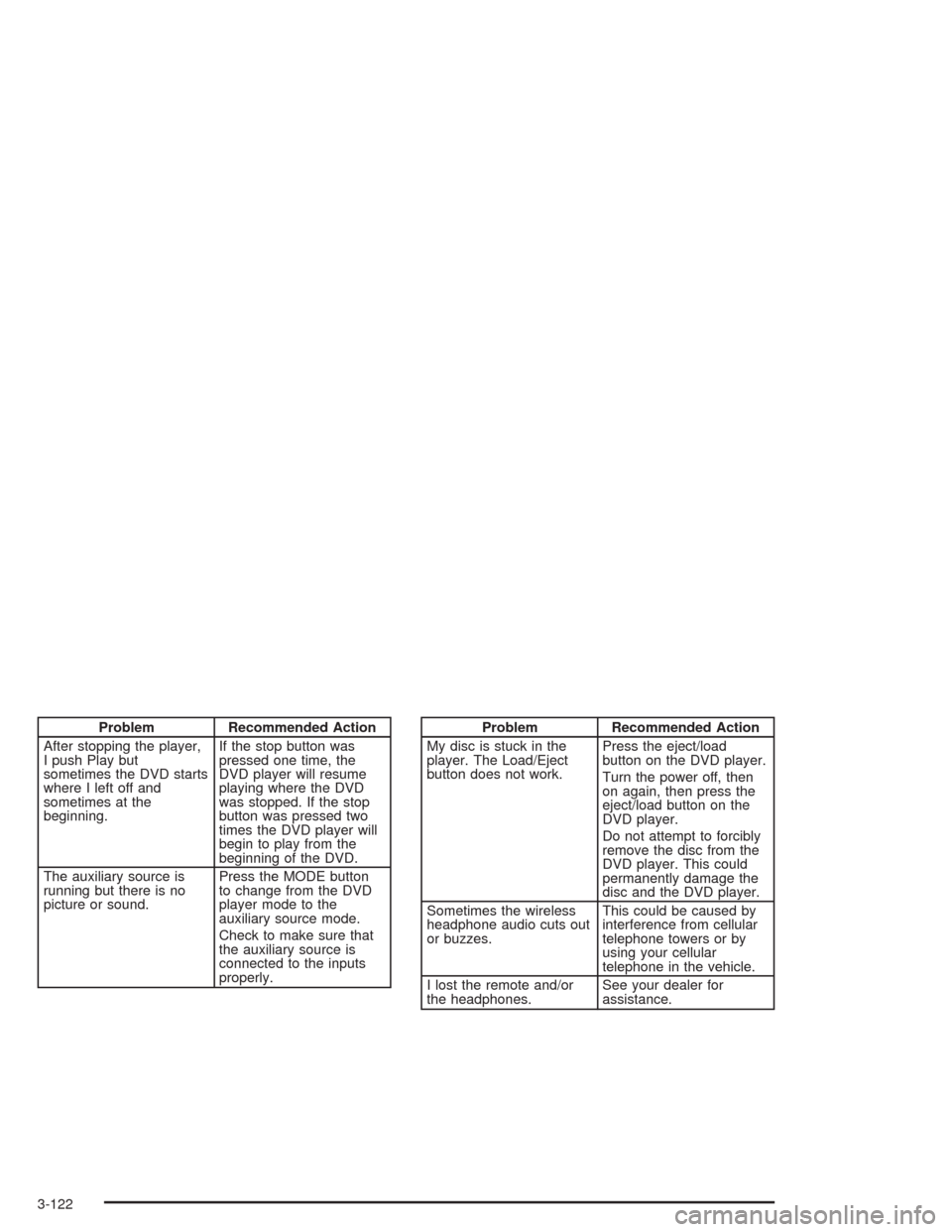
Problem Recommended Action
After stopping the player,
I push Play but
sometimes the DVD starts
where I left off and
sometimes at the
beginning.If the stop button was
pressed one time, the
DVD player will resume
playing where the DVD
was stopped. If the stop
button was pressed two
times the DVD player will
begin to play from the
beginning of the DVD.
The auxiliary source is
running but there is no
picture or sound.Press the MODE button
to change from the DVD
player mode to the
auxiliary source mode.
Check to make sure that
the auxiliary source is
connected to the inputs
properly.Problem Recommended Action
My disc is stuck in the
player. The Load/Eject
button does not work.Press the eject/load
button on the DVD player.
Turn the power off, then
on again, then press the
eject/load button on the
DVD player.
Do not attempt to forcibly
remove the disc from the
DVD player. This could
permanently damage the
disc and the DVD player.
Sometimes the wireless
headphone audio cuts out
or buzzes.This could be caused by
interference from cellular
telephone towers or by
using your cellular
telephone in the vehicle.
I lost the remote and/or
the headphones.See your dealer for
assistance.
3-122
Page 259 of 468
Remember: Anti-lock does not change the time you
need to get your foot up to the brake pedal or always
decrease stopping distance. If you get too close to
the vehicle in front of you, you will not have time to apply
your brakes if that vehicle suddenly slows or stops.
Always leave enough room up ahead to stop, even
though you have anti-lock brakes.
Using Anti-Lock
Do not pump the brakes. Just hold the brake pedal
down rmly and let anti-lock work for you. You may feel
the brakes vibrate, or you may notice some noise,
but this is normal.
Braking in Emergencies
With anti-lock, you can steer and brake at the same
time. In many emergencies, steering can help you more
than even the very best braking.
Traction Control System (TCS)
Your vehicle has a traction control system that limits
wheel spin. This is especially useful in slippery
road conditions. On a rear-wheel-drive vehicle, the
system operates if it senses that one or both of the
rear wheels are spinning or beginning to lose traction.
On an All-Wheel-Drive (AWD) vehicle the system
will operate if it senses that any of the wheels are
spinning or beginning to lose traction. When this
happens, the system brakes the spinning wheel(s)
and/or reduces engine power to limit wheel spin.
You may feel or hear the system working, but this is
normal.
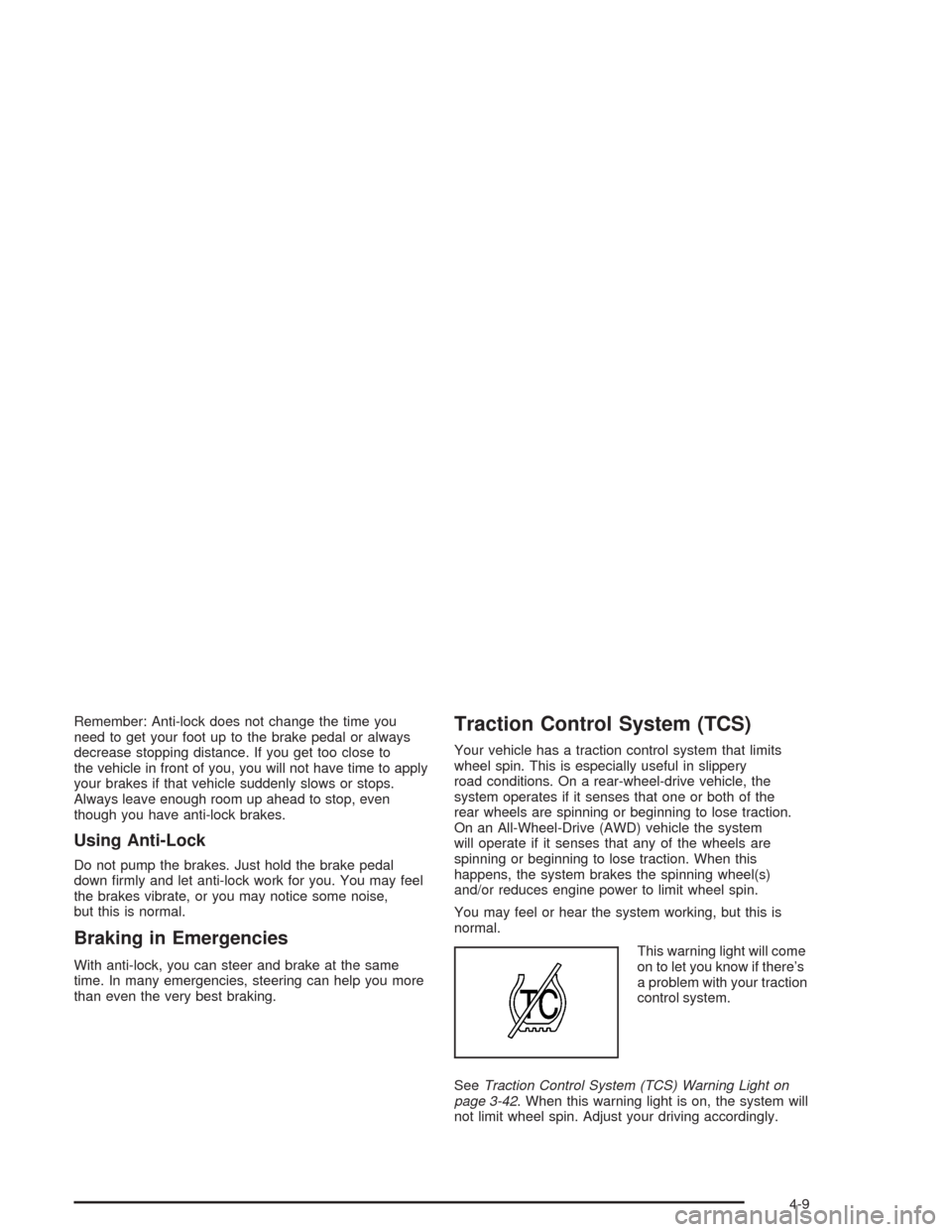
This warning light will come
on to let you know if there’s
a problem with your traction
control system.
SeeTraction Control System (TCS) Warning Light on
page 3-42. When this warning light is on, the system will
not limit wheel spin. Adjust your driving accordingly.
4-9