audio CADILLAC SRX 2005 1.G Owner's Manual
[x] Cancel search | Manufacturer: CADILLAC, Model Year: 2005, Model line: SRX, Model: CADILLAC SRX 2005 1.GPages: 442, PDF Size: 2.52 MB
Page 211 of 442

XM™ Radio Messages
Radio Display
MessageCondition Action Required
XL (Explicit Language
Channels)XL on the radio display,
after the channel name,
indicates content with
explicit language.These channels, or any others, can be blocked at a
customer’s request, by calling 1-800-852-XMXM (9696).
XM Updating Updating
encryption codeThe encryption code in the receiver is being updated, and
no action is required. This process should take no longer
than 30 seconds.
No XM Signal Loss of signal The system is functioning correctly, but the vehicle is in a
location that is blocking the XM signal. When the vehicle is
moved into an open area, the signal should return.
Loading XM Acquiring channel audio
(after 4 second delay)The audio system is acquiring and processing audio and
text data. No action is needed. This message should
disappear shortly.
Channel Off Air Channel not in service This channel is not currently in service. Tune in to another
channel.
Channel Unavail Channel no longer
availableThis previously assigned channel is no longer assigned.
Tune to another station. If this station was one of the
presets, choose another station for that preset button.
No Artist Info Artist Name/Feature not
availableNo artist information is available at this time on this channel.
The system is working properly.
No Title Info Song/Program Title not
availableNo song title information is available at this time on this
channel. The system is working properly.
3-91
Page 213 of 442
Using the Single CD Player
Insert a CD partway into the slot, label side up. The
player will pull it in. If the ignition and the radio are on the
CD will begin playing. A CD may be loaded with the radio
off but it will not start playing until the radio is on.
If the ignition or radio is turned off with a CD in the
player, it will stay in the player. When the ignition
or radio is turned on, the CD will start to play where it
stopped, if it was the last selected audio source.
When the CD is inserted, CD will appear on the display.
As each new track starts to play, the track number
will appear on the display.
The CD player can play the smaller 3 inch (8 cm) single
CDs with an adapter ring. Full-size CDs and the
smaller CDs are loaded in the same manner.
If playing a CD-R the sound quality may be reduced
due to CD-R quality, the method of recording, the quality
of the music that has been recorded, and the way the
CD-R has been handled. There may be an increase
in skipping, difficulty in nding tracks, and/or difficulty in
loading and ejecting. If these problems occur try a
known good CD.Do not add paper labels to CDs, they could get caught
in the CD player.
If an error appears on the display, see “CD Messages”
later in this section.
When a CD is inserted the CD functions will appear on
the display above the pushbuttons, in place of the
preset stations (if programmed).
F1 PREV (Previous):Press this pushbutton to go to
the previous track. Press and hold this pushbutton
to reverse quickly within a track. Release the pushbutton
to play the passage. The elapsed time of the track will
appear on the display.
F2 NEXT:Press this pushbutton to go to the next track.
Press and hold this pushbutton to advance quickly
within a track. Release the pushbutton to play the
passage. The elapsed time of the track will appear on
the display.
F3 RDM (Random):Press this pushbutton to listen to
the tracks in random, rather than sequential, order.
RANDOM will appear on the display. Press RDM again
to turn off random play. RANDOM will disappear
from the display.
3-93
Page 219 of 442
Each set of headphones has a volume knob. To adjust
the volume, adjust this knob.
The transmitters are located below the video display
screen. The headphones will shut off to save battery
power if they lose the signal from the system after about
four minutes. The signal may be lost if the system is
turned off or if the headphones are out of range of the
signal transmitters.
Notice:Do not store the headphones in heat or
direct sunlight. This could damage the headphones
and repairs would not be covered by your warranty.
Keep the headphones stored in a cool, dry place.
Battery Replacement
To change the batteries, do the following:
1. Loosen the screw on the battery compartment door
located on the left side of the headphone earpiece.
2. Replace the two AAA batteries in the compartment.
Make sure that they are installed correctly, using
the diagram on the inside of the battery
compartment.
3. Tighten the screws to close the compartment door.
If the headphones are to be stored for a long period
of time, remove the batteries and keep them in a cool,
dry place.
Stereo RCA Jacks
The RCA jacks are located on the front of the DVD player
faceplate. These jacks allow audio and video signals to
be connected from an auxiliary device such as a
camcorder or a video game unit to the RSE system. The
L jack is for left audio input, the R jack is for right audio
input, and the V jack is used for video input. The system
requires standard RCA cables, not included, to connect
the auxiliary device to the RCA jacks. Refer to the
manufacturer’s instructions for proper usage.
To use the auxiliary audio and video inputs, connect an
external auxiliary device such as a camcorder to the RCA
jacks and turn on both the auxiliary device power and the
power on the front of the RSE player. To have use of
these jacks, select AUX using the MODE button on the
DVD player faceplate or the remote control.
3-99
Page 221 of 442
Audio Output
Audio from the DVD player or auxiliary inputs may be
heard through the following possible sources:
Wireless Headphones
Vehicle Speakers
Wired Headphones (not included)
The RSE system will always transmit the audio signal
by infrared to the wireless headphones, if there is audio
available. See “Headphones” previously for more
information.
The RSE system is capable of outputting audio to the
vehicle speakers by using the radio. The RSE
system may be selected as an audio source on the
radio if the RSE system power is on. Once the
RSE system is selected as an audio source on the
radio, adjust the speaker volume on the radio, if
necessary. If the RSE system power is not on, the RSE
system will not be an available source on the radio.
Refer to the radio information for the radio that
your vehicle has for more information.
Video Screen
The video screen is located in the oor console. Lift up
the screen by the top or the sides into the full open
position. Adjust the screen’s position as desired. When
the video screen is not in use, close the screen.
The DVD player and display will continue to operate
when the screen is in the up or the down position. The
video screen contains the transmitters for the wireless
headphones and the remote control. If the screen is in the
closed position, the signals will not be available for the
operation of the headphones and the remote control.
Notice:Directly touching the video screen may
damage it. Do not touch the screen. See “Cleaning
the Video Screen” later in this section for more
information.
3-101
Page 222 of 442
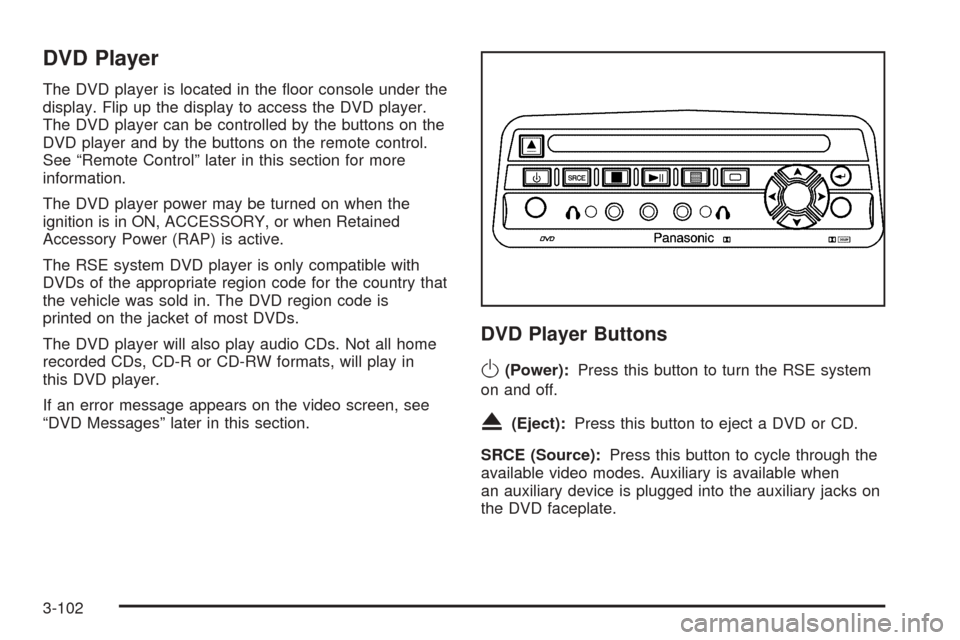
DVD Player
The DVD player is located in the oor console under the
display. Flip up the display to access the DVD player.
The DVD player can be controlled by the buttons on the
DVD player and by the buttons on the remote control.
See “Remote Control” later in this section for more
information.
The DVD player power may be turned on when the
ignition is in ON, ACCESSORY, or when Retained
Accessory Power (RAP) is active.
The RSE system DVD player is only compatible with
DVDs of the appropriate region code for the country that
the vehicle was sold in. The DVD region code is
printed on the jacket of most DVDs.
The DVD player will also play audio CDs. Not all home
recorded CDs, CD-R or CD-RW formats, will play in
this DVD player.
If an error message appears on the video screen, see
“DVD Messages” later in this section.
DVD Player Buttons
O(Power):Press this button to turn the RSE system
on and off.
X(Eject):Press this button to eject a DVD or CD.
SRCE (Source):Press this button to cycle through the
available video modes. Auxiliary is available when
an auxiliary device is plugged into the auxiliary jacks on
the DVD faceplate.
3-102
Page 223 of 442

If your vehicle is equipped with the navigation system,
each press of the SRCE button will cycle the rear video
between DVD, AUX, TV, and front DVD.
Pressing the enter button when this menu appears on the
display will switch the RSE setting between all speaker
and rear video. All speaker will not be available if the front
passenger has turned on the parental control.
All Speaker:The radio and the RSE unit will share
control of what is heard through the vehicle
speakers. All audio and video sources are available
for selection with the SRCE button when in all
speaker.
Rear Video:The RSE unit will only control what is
seen on the rear display and what is heard through
the headphones.
c(Stop):Press this button to stop playing a DVD.
Press this button twice to return to the beginning
of the DVD.
s(Play/Pause):Press this button to turn the DVD
player on, to start play of a DVD or CD, and to
switch between play and pause of a DVD or CD.
y(Menu):Press this button to access the DVD menu.
This button only operates with a DVD.
If your vehicle is equipped with the TV option, the menu
button will display a TV specic menu.
z(Display Menu):Press this button to modify the
video screen display characteristics.
n,q,p,o(Menu Navigation):Use the arrow
keys to navigate through a menu.
r(Enter):Press this button to select items
within a menu.
If your vehicle is equipped with the navigation system,
after pressing the SRCE button, the enter button
can select all speaker or rear video. See the SRCE
button previously for more information.
Audio/Video Jack:See “Stereo RCA Jacks” earlier in
this section for more information.
X(Headphone Jack):These jacks allow you to listen
to the RSE through wired headphones (not included).
9(Headphone Volume):Turn the left knob to
increase the volume of the headphone connected to the
left headphone jack. Turn the right knob to increase
the volume of the headphone connected to the
right headphone jack.
3-103
Page 225 of 442

Region Code Error:This message will be
displayed if the region code of the DVD is not
compatible with the DVD player. The disc will be
automatically ejected from the DVD player.
No Disc:This message will be displayed if the
PLAY button is pressed and no disc is in the player.
Parental Control Button:This button is located on the
navigation system screen. Press this button while a
DVD or CD is playing to freeze the video and mute the
audio. The video screen will display Parental Control
ON and the power indicator light on the DVD player will
ash. It will also disable all other button operations
from the remote control and the DVD player, with the
exception of the eject button. The driver will then be able
to gain the attention of the rear seat passengers.
Press this button again to restore normal operation of
the DVD player.
This button may also be used to turn the DVD player
power on and automatically resume play if the vehicle is
in an enabled power mode.
Remote Control
To use the remote control, aim it at the transmitter
window above the video screen and press the desired
button. Direct sunlight or very bright light may affect
the ability of the RSE system to receive signals from the
remote control. If the remote control does not seem to
be working, the batteries may need to be replaced. See
“Battery Replacement” later in this section.
Objects blocking the line of sight may also affect the
function of the remote control.
Notice:Storing the remote control in a hot area or
in direct sunlight may damage it, and the repairs
would not be covered by your warranty. Keep
the remote control stored in a cool, dry place.
3-105
Page 227 of 442
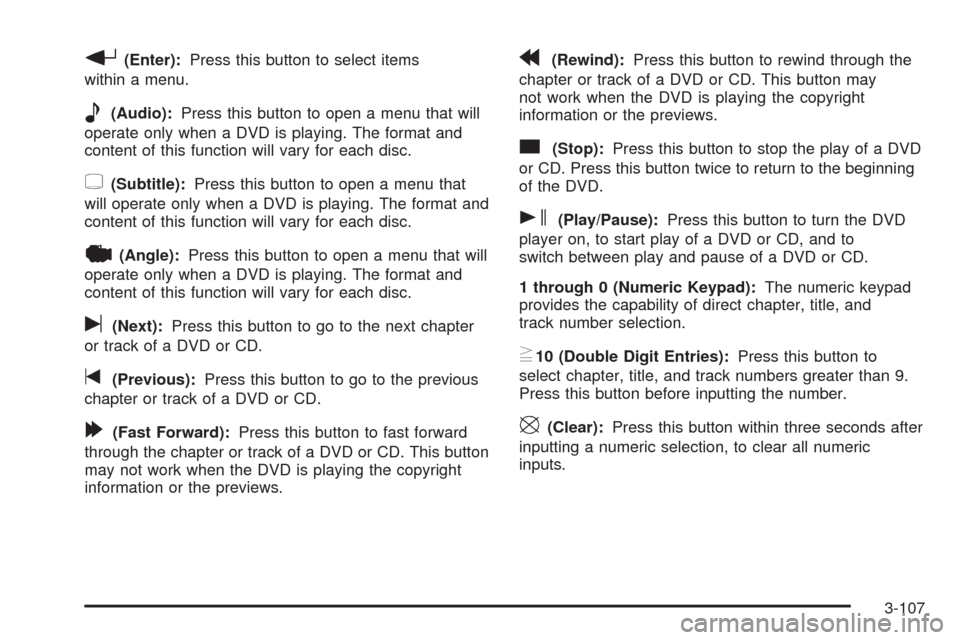
r(Enter):Press this button to select items
within a menu.
e(Audio):Press this button to open a menu that will
operate only when a DVD is playing. The format and
content of this function will vary for each disc.
{(Subtitle):Press this button to open a menu that
will operate only when a DVD is playing. The format and
content of this function will vary for each disc.
|(Angle):Press this button to open a menu that will
operate only when a DVD is playing. The format and
content of this function will vary for each disc.
u(Next):Press this button to go to the next chapter
or track of a DVD or CD.
t(Previous):Press this button to go to the previous
chapter or track of a DVD or CD.
[(Fast Forward):Press this button to fast forward
through the chapter or track of a DVD or CD. This button
may not work when the DVD is playing the copyright
information or the previews.
r(Rewind):Press this button to rewind through the
chapter or track of a DVD or CD. This button may
not work when the DVD is playing the copyright
information or the previews.
c(Stop):Press this button to stop the play of a DVD
or CD. Press this button twice to return to the beginning
of the DVD.
s(Play/Pause):Press this button to turn the DVD
player on, to start play of a DVD or CD, and to
switch between play and pause of a DVD or CD.
1 through 0 (Numeric Keypad):The numeric keypad
provides the capability of direct chapter, title, and
track number selection.
}10 (Double Digit Entries):Press this button to
select chapter, title, and track numbers greater than 9.
Press this button before inputting the number.
\(Clear):Press this button within three seconds after
inputting a numeric selection, to clear all numeric
inputs.
3-107
Page 229 of 442

Problem Recommended Action
The disc was ejected, but
it was pulled back into the
DVD player.The disc is being stored in
the DVD player. Press the
eject button again to eject
the disc.
In auxiliary mode, the
picture moves or scrolls.Check the signal coming
from the auxiliary device
and make sure that the
connection and the signal
is good.
Change the Video Format
to PAL or NTSC. See
“Stereo RCA Jacks”
previously for how to
change the video format.
The language in the audio
or on the screen
is wrong.Press the MENU button
on the DVD player or on
the remote control and
change the audio or
language selection on the
DVD menu.Problem Recommended Action
The remote control does
not work.Point the remote control
directly at the infrared
window below the video
screen while using.
Check that the batteries
are not dead or put in
wrong.
The parental control
button might have been
turned on. The power
indicator light will ash.
After stopping the player, I
push Play but sometimes
the DVD starts where I
left off and sometimes at
the beginning.If the stop button was
pressed one time, the
DVD player will resume
playing where the DVD
was stopped. If the stop
button was pressed two
times the DVD player will
begin to play from the
beginning of the DVD.
3-109
Page 230 of 442
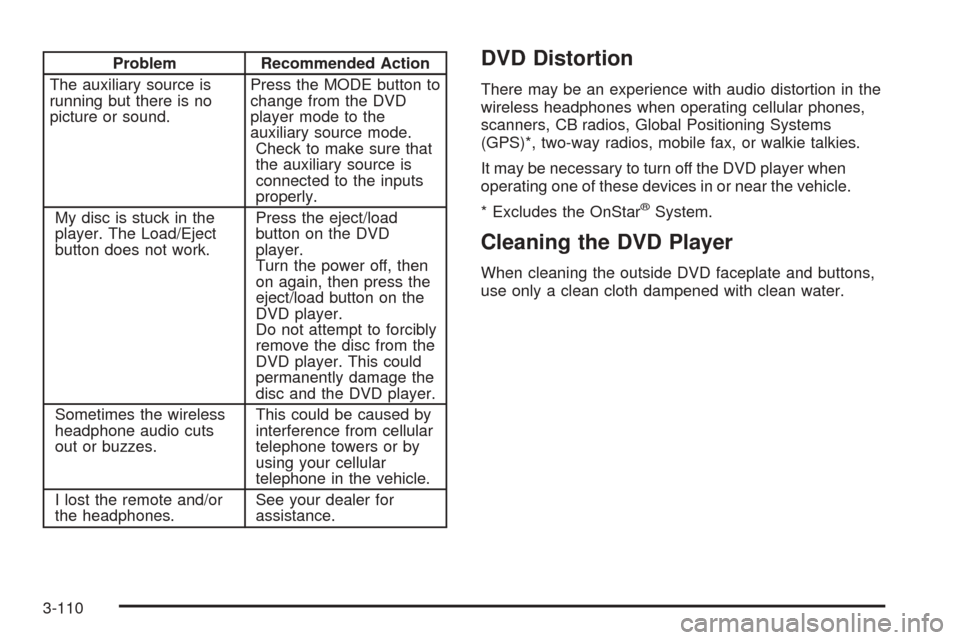
Problem Recommended Action
The auxiliary source is
running but there is no
picture or sound.Press the MODE button to
change from the DVD
player mode to the
auxiliary source mode.
Check to make sure that
the auxiliary source is
connected to the inputs
properly.
My disc is stuck in the
player. The Load/Eject
button does not work.Press the eject/load
button on the DVD
player.
Turn the power off, then
on again, then press the
eject/load button on the
DVD player.
Do not attempt to forcibly
remove the disc from the
DVD player. This could
permanently damage the
disc and the DVD player.
Sometimes the wireless
headphone audio cuts
out or buzzes.This could be caused by
interference from cellular
telephone towers or by
using your cellular
telephone in the vehicle.
I lost the remote and/or
the headphones.See your dealer for
assistance.DVD Distortion
There may be an experience with audio distortion in the
wireless headphones when operating cellular phones,
scanners, CB radios, Global Positioning Systems
(GPS)*, two-way radios, mobile fax, or walkie talkies.
It may be necessary to turn off the DVD player when
operating one of these devices in or near the vehicle.
* Excludes the OnStar
®System.
Cleaning the DVD Player
When cleaning the outside DVD faceplate and buttons,
use only a clean cloth dampened with clean water.
3-110