light CADILLAC SRX 2005 1.G Manual PDF
[x] Cancel search | Manufacturer: CADILLAC, Model Year: 2005, Model line: SRX, Model: CADILLAC SRX 2005 1.GPages: 442, PDF Size: 2.52 MB
Page 225 of 442

Region Code Error:This message will be
displayed if the region code of the DVD is not
compatible with the DVD player. The disc will be
automatically ejected from the DVD player.
No Disc:This message will be displayed if the
PLAY button is pressed and no disc is in the player.
Parental Control Button:This button is located on the
navigation system screen. Press this button while a
DVD or CD is playing to freeze the video and mute the
audio. The video screen will display Parental Control
ON and the power indicator light on the DVD player will
ash. It will also disable all other button operations
from the remote control and the DVD player, with the
exception of the eject button. The driver will then be able
to gain the attention of the rear seat passengers.
Press this button again to restore normal operation of
the DVD player.
This button may also be used to turn the DVD player
power on and automatically resume play if the vehicle is
in an enabled power mode.
Remote Control
To use the remote control, aim it at the transmitter
window above the video screen and press the desired
button. Direct sunlight or very bright light may affect
the ability of the RSE system to receive signals from the
remote control. If the remote control does not seem to
be working, the batteries may need to be replaced. See
“Battery Replacement” later in this section.
Objects blocking the line of sight may also affect the
function of the remote control.
Notice:Storing the remote control in a hot area or
in direct sunlight may damage it, and the repairs
would not be covered by your warranty. Keep
the remote control stored in a cool, dry place.
3-105
Page 226 of 442

Remote Control Buttons
O(Power):Press this button to turn the DVD player
on and off.
P(Illumination):Press this button to turn the remote
control backlight on for eight seconds.
v(Title):Press this button to access the multiple
titles (if available) of a DVD.
y(Menu):Press this button to access the DVD
main menu.
z(Display):Press this button to switch the video
screen display features: color, contrast, brightness, tint,
and display mode (normal, full, and zoom). Normal
means the horizontal image is not stretched and the
borders at the left and right of the picture are blank. Full
means the horizontal image is stretched across the
display and all of the vertical lines are displayed.
No borders are present. Wide means the horizontal
image is stretched up and down the display and the
image tends to be stretched at the borders instead of at
the middle. Borders are not displayed. Press the left or
right navigation keys to select the display mode.
q(Return):Press this button to exit the current
active menu and return to the previous menu. This
button will operate only when a DVD is playing and
a menu is active.
n(Up):Press this button to move up the menu
list of a DVD.
q(Down):Press this button to move down the menu
list of a DVD.
p(Left):Press this button to move to the left of the
menu list of a DVD.
o(Right):Press this button to move to the right of the
menu list of a DVD.
3-106
Page 228 of 442
Battery Replacement
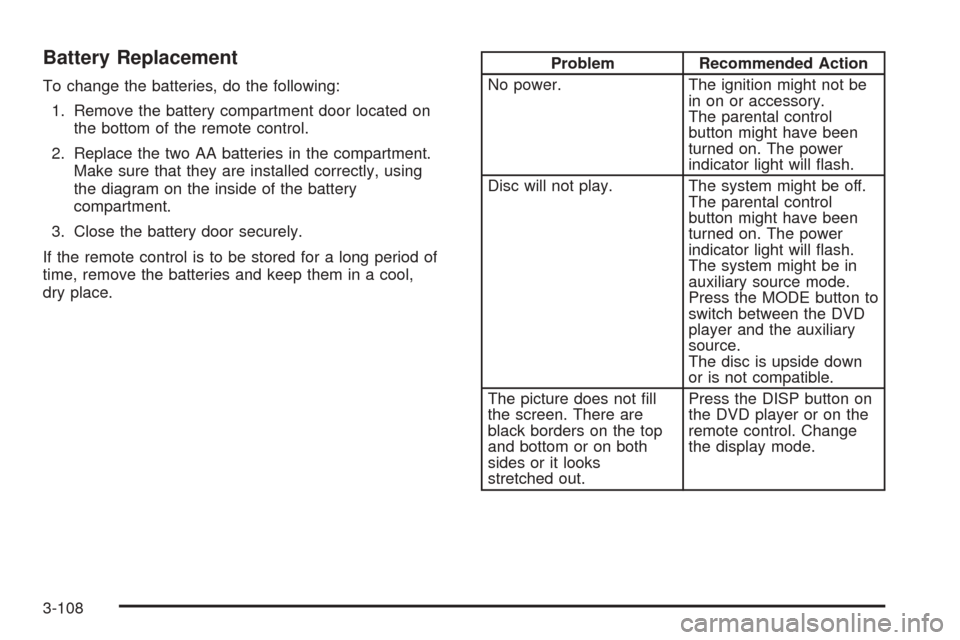
To change the batteries, do the following:
1. Remove the battery compartment door located on
the bottom of the remote control.
2. Replace the two AA batteries in the compartment.
Make sure that they are installed correctly, using
the diagram on the inside of the battery
compartment.
3. Close the battery door securely.
If the remote control is to be stored for a long period of
time, remove the batteries and keep them in a cool,
dry place.
Problem Recommended Action
No power. The ignition might not be
in on or accessory.
The parental control
button might have been
turned on. The power
indicator light will ash.
Disc will not play. The system might be off.
The parental control
button might have been
turned on. The power
indicator light will ash.
The system might be in
auxiliary source mode.
Press the MODE button to
switch between the DVD
player and the auxiliary
source.
The disc is upside down
or is not compatible.
The picture does not ll
the screen. There are
black borders on the top
and bottom or on both
sides or it looks
stretched out.Press the DISP button on
the DVD player or on the
remote control. Change
the display mode.
3-108
Page 229 of 442

Problem Recommended Action
The disc was ejected, but
it was pulled back into the
DVD player.The disc is being stored in
the DVD player. Press the
eject button again to eject
the disc.
In auxiliary mode, the
picture moves or scrolls.Check the signal coming
from the auxiliary device
and make sure that the
connection and the signal
is good.
Change the Video Format
to PAL or NTSC. See
“Stereo RCA Jacks”
previously for how to
change the video format.
The language in the audio
or on the screen
is wrong.Press the MENU button
on the DVD player or on
the remote control and
change the audio or
language selection on the
DVD menu.Problem Recommended Action
The remote control does
not work.Point the remote control
directly at the infrared
window below the video
screen while using.
Check that the batteries
are not dead or put in
wrong.
The parental control
button might have been
turned on. The power
indicator light will ash.
After stopping the player, I
push Play but sometimes
the DVD starts where I
left off and sometimes at
the beginning.If the stop button was
pressed one time, the
DVD player will resume
playing where the DVD
was stopped. If the stop
button was pressed two
times the DVD player will
begin to play from the
beginning of the DVD.
3-109
Page 233 of 442

Radio Reception
AM
The range for most AM stations is greater than for FM,
especially at night. The longer range can cause
station frequencies to interfere with each other. Static
can occur on AM stations caused by things like
storms and power lines. Try reducing the treble to
reduce this noise.
FM Stereo
FM stereo will give the best sound, but FM signals will
reach only about 10 to 40 miles (16 to 65 km). Tall
buildings or hills can interfere with FM signals, causing
the sound to fade in and out.
XM™ Satellite Radio Service
XM™ Satellite Radio Service gives digital radio
reception from coast to coast. Just as with FM, tall
buildings or hills can interfere with satellite radio signals,
causing the sound to fade in and out. The radio may
display NO XM SIGNAL to indicate interference.
Cellular Phone Usage
Cellular phone usage may cause interference with your
vehicle’s radio. This interference may occur when
making or receiving phone calls, charging the phone’s
battery, or simply having the phone on. This interference
is an increased level of static while listening to the
radio. If static is received while listening to the radio,
unplug the cellular phone and turn it off.
Care of Your CDs and DVDs
Handle discs carefully. Store them in their original cases
or other protective cases and away from direct sunlight
and dust. If the surface of a disc is soiled, dampen
a clean, soft cloth in a mild, neutral detergent solution
and clean it, wiping from the center to the edge.
Be sure never to touch the side without writing when
handling discs. Pick up discs by grasping the outer
edges or the edge of the hole and the outer edge.
Care of the CD and DVD Player
The use of CD lens cleaners for CDs is not advised,
due to the risk of contaminating the lens of the CD optics
with lubricants internal to the CD mechanism.
3-113
Page 241 of 442
Anti-Lock Brake System (ABS)
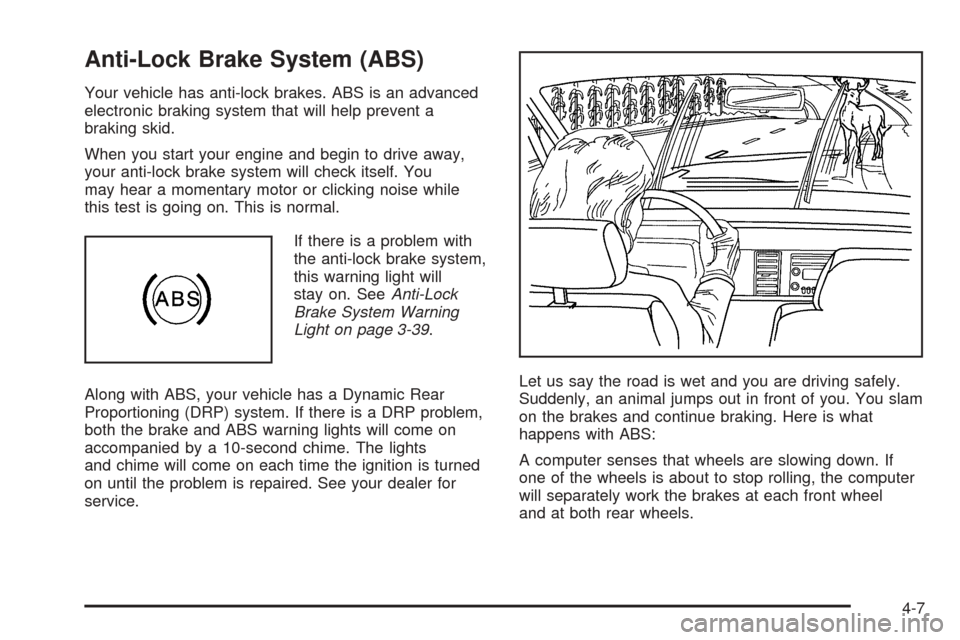
Your vehicle has anti-lock brakes. ABS is an advanced
electronic braking system that will help prevent a
braking skid.
When you start your engine and begin to drive away,
your anti-lock brake system will check itself. You
may hear a momentary motor or clicking noise while
this test is going on. This is normal.
If there is a problem with
the anti-lock brake system,
this warning light will
stay on. SeeAnti-Lock
Brake System Warning
Light on page 3-39.
Along with ABS, your vehicle has a Dynamic Rear
Proportioning (DRP) system. If there is a DRP problem,
both the brake and ABS warning lights will come on
accompanied by a 10-second chime. The lights
and chime will come on each time the ignition is turned
on until the problem is repaired. See your dealer for
service.Let us say the road is wet and you are driving safely.
Suddenly, an animal jumps out in front of you. You slam
on the brakes and continue braking. Here is what
happens with ABS:
A computer senses that wheels are slowing down. If
one of the wheels is about to stop rolling, the computer
will separately work the brakes at each front wheel
and at both rear wheels.
4-7
Page 243 of 442

Traction Control System (TCS)
Your vehicle has a traction control system that limits
wheel spin. This is especially useful in slippery
road conditions. On a rear-wheel-drive vehicle, the
system operates if it senses that one or both of the rear
wheels are spinning or beginning to lose traction. On
an All-Wheel-Drive (AWD) vehicle the system will
operate if it senses that any of the wheels are spinning
or beginning to lose traction. When this happens,
the system brakes the spinning wheel(s) and/or reduces
engine power to limit wheel spin.
You may feel or hear the system working, but this is
normal.
This warning light will
come on to let you know if
there’s a problem with
your traction control
system.SeeTraction Control System (TCS) Warning Light on
page 3-40. When this warning light is on, the system will
not limit wheel spin. Adjust your driving accordingly.
The traction control system automatically comes
on whenever you start your vehicle. To limit wheel spin,
especially in slippery road conditions, you should
always leave the system on. But you can turn the
traction control system off if you ever need to.
Notice:Do not repeatedly brake or accelerate
heavily when the TCS is off. You could damage your
vehicle’s driveline.
When the TCS is switched off on AWD vehicles, you
may still feel the system working. This is normal
and necessary with the AWD hardware on your vehicle.
4-9
Page 244 of 442

You should turn the system off if your vehicle ever gets
stuck in sand, mud or snow and rocking the vehicle
is required. SeeRocking Your Vehicle to Get It Out on
page 4-44andIf Your Vehicle is Stuck in Sand,
Mud, Ice or Snow on page 4-43for more information.
See alsoWinter Driving on page 4-39for information on
using TCS when driving in snowy or icy conditions.
To turn the system off,
press the TC (traction
control) button located
near the shift lever.
If you press the TC button once, the traction control
system will turn off and the traction control system
warning light will come on. Press the TC button again to
turn the system back on. If you press and hold the
TC button for ve seconds, the StabiliTrak
®system and
the traction control system will turn off. Press the
TC button again to turn StabiliTrak
®back on. For more
information, seeStabiliTrak®System on page 4-11.
Magnetic Ride Control
Your vehicle may have Magnetic Ride Control that
automatically adjusts the ride of your vehicle. Automatic
ride control is achieved through a computer used to
control and monitor the suspension system. The
controller receives input from various sensors to
determine the proper system response. If the controller
detects a problem within the system, the DIC will
display a Service Suspension System message. See
DIC Warnings and Messages on page 3-57for
more information. See your dealer for service.
Limited-Slip Rear Axle
Your vehicle may have this feature. A limited-slip rear
axle can give you additional traction on snow, mud, ice,
sand or gravel. It works like a standard axle most of
the time, but when one of the rear wheels has no
traction and the other does, this feature will allow the
wheel with traction to move the vehicle.
4-10
Page 248 of 442
Off-Road Recovery
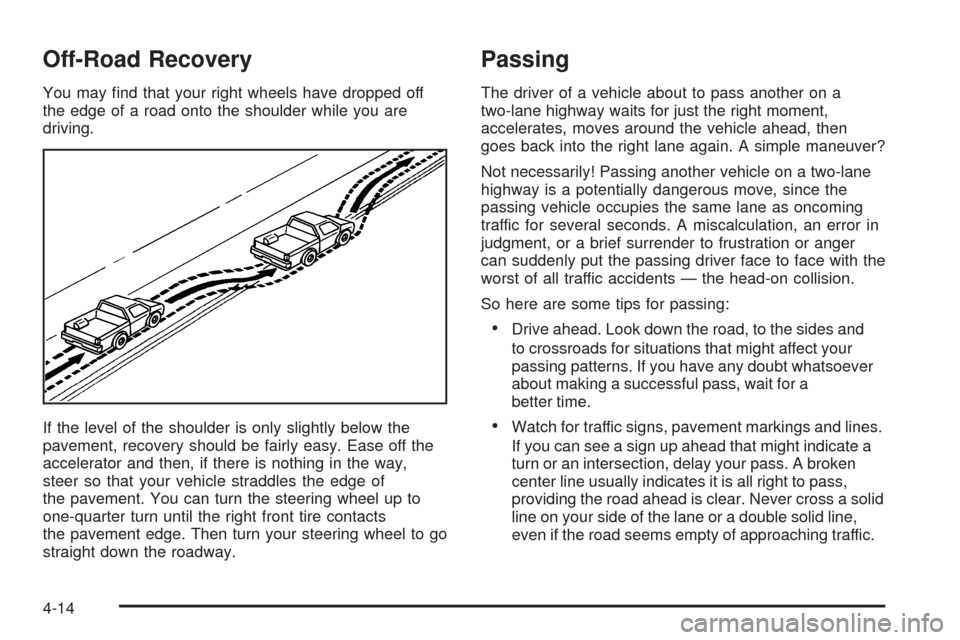
You may nd that your right wheels have dropped off
the edge of a road onto the shoulder while you are
driving.
If the level of the shoulder is only slightly below the
pavement, recovery should be fairly easy. Ease off the
accelerator and then, if there is nothing in the way,
steer so that your vehicle straddles the edge of
the pavement. You can turn the steering wheel up to
one-quarter turn until the right front tire contacts
the pavement edge. Then turn your steering wheel to go
straight down the roadway.
Passing
The driver of a vehicle about to pass another on a
two-lane highway waits for just the right moment,
accelerates, moves around the vehicle ahead, then
goes back into the right lane again. A simple maneuver?
Not necessarily! Passing another vehicle on a two-lane
highway is a potentially dangerous move, since the
passing vehicle occupies the same lane as oncoming
traffic for several seconds. A miscalculation, an error in
judgment, or a brief surrender to frustration or anger
can suddenly put the passing driver face to face with the
worst of all traffic accidents — the head-on collision.
So here are some tips for passing:
Drive ahead. Look down the road, to the sides and
to crossroads for situations that might affect your
passing patterns. If you have any doubt whatsoever
about making a successful pass, wait for a
better time.
Watch for traffic signs, pavement markings and lines.
If you can see a sign up ahead that might indicate a
turn or an intersection, delay your pass. A broken
center line usually indicates it is all right to pass,
providing the road ahead is clear. Never cross a solid
line on your side of the lane or a double solid line,
even if the road seems empty of approaching traffic.
4-14
Page 255 of 442

When you drive over obstacles or rough terrain, keep a
rm grip on the steering wheel. Ruts, troughs or
other surface features can jerk the wheel out of your
hands if you are not prepared.
When you drive over bumps, rocks, or other obstacles,
your wheels can leave the ground. If this happens,
even with one or two wheels, you cannot control the
vehicle as well or at all.
Because you will be on an unpaved surface, it is
especially important to avoid sudden acceleration,
sudden turns or sudden braking.
In a way, off-road driving requires a different kind of
alertness from driving on paved roads and highways.
There are no road signs, posted speed limits or
signal lights. You have to use your own good judgment
about what is safe and what is not.
Drinking and driving can be very dangerous on any
road. And this is certainly true for off-road driving. At the
very time you need special alertness and driving
skills, your reexes, perceptions and judgment can be
affected by even a small amount of alcohol. You
could have a serious — or even fatal — accident if you
drink and drive or ride with a driver who has been
drinking. SeeDrunken Driving on page 4-3.Driving on Off-Road Hills
Off-road driving often takes you up, down or across a
hill. Driving safely on hills requires good judgment
and understanding of what your vehicle can and cannot
do. There are some hills that simply cannot be driven,
no matter how well built the vehicle.
{CAUTION:
Many hills are simply too steep for any vehicle.
If you drive up them, you will stall. If you drive
down them, you cannot control your speed. If
you drive across them, you will roll over. You
could be seriously injured or killed. If you have
any doubt about the steepness, do not drive
the hill.
4-21