audio CADILLAC SRX 2006 1.G User Guide
[x] Cancel search | Manufacturer: CADILLAC, Model Year: 2006, Model line: SRX, Model: CADILLAC SRX 2006 1.GPages: 456, PDF Size: 2.55 MB
Page 183 of 456
DIC Main Menu
Accessing the DIC Main Menu
To access the main menu of the DIC, do the following:
1. Press the PWR knob to turn the radio on.
2. Press the TUNE/SEL knob once.
3. Turn the TUNE/SEL knob clockwise or
counterclockwise to scroll through the menu items.
The DIC main menu consists of the following
menu items:
eBASS - MID - TREBLE
eEQ
DSP (Bose®Audio System)
DVD
AVC (Bose®Audio System)
H/A
AUTOSTORE PRESETS
CAT
TA
MSG RECALL RDS MESSAGE
AF
ASEEK LOCAL/DISTANT
9(English/Metric Units)
TCS
8(Clock)
8/4(Clock/Information Display)
SETUP
3-55
Page 184 of 456
DIC Main Menu Item Descriptions
e
BASS - MID (Midrange) - TREBLE:This menu
item allows you to adjust the levels for the bass,
midrange, treble, balance, and fade features of the
audio system. For more information, see “Setting the
Tone (Bass/Treble)” and “Adjusting the Speakers
(Balance/Fade)” underRadio with CD on page 3-83.
eEQ (Equalizer):This menu item allows you
to choose among ve preset equalizations for the audio
system. See “Audio Equalizer” underRadio with CD
on page 3-83for more information.
DSP (Digital Signal Processing):If your vehicle has a
Bose
®Audio System, this menu item allows you to
select the DSP type that you want on the audio system.
You may choose Normal, Talk, Spacious, Rear Seat
or Driver Seat. Press the TUNE/SEL knob to scroll
through these choices. Once the desired choice
is displayed, turn the knob to set your DSP choice and
continue scrolling through the main menu.
See “Using DSP” underRadio with CD on page 3-83for
more information.DVD (Digital Versatile Disc):This menu item allows
you to turn the DVD on and off. Press the TUNE/SEL
knob once to turn DVD on and off. When DVD is on, an
X will be in the box next to DVD on the menu. The X
disappears when DVD is off.
SeeRear Seat Entertainment System on page 3-100for
more information.
AVC (Automatic Volume Compensation):If your
vehicle has a Bose
®Audio System, this menu
item allows you to turn the AVC feature on and off.
Press the TUNE/SEL knob once to turn AVC on and off.
When AVC is on, an X will be in the box next to AVC
on the menu. The X disappears when AVC is off.
See “AVC (Automatic Volume Compensation)” under
Radio with CD on page 3-83for more information.
H/A (Home/Away Preset Stations):This menu item
allows you to switch back and forth between your home
and away preset radio stations. Press the TUNE/SEL
knob to switch between home and away.
See “Setting Preset Stations” underRadio with CD on
page 3-83for more information.
3-56
Page 185 of 456
AUTOSTORE PRESETS:This menu item allows you to
automatically store radio stations with the strongest
signals as presets. See “Setting Preset Stations” under
Radio with CD on page 3-83for more information.
CAT (Category):This menu item allows you to select
radio stations based on preset categories. To turn
the CAT feature on, press the TUNE/SEL knob once.
When CAT is on, an X will be in the box next to CAT on
the menu. The X disappears when CAT is off.
See “Activating Category (CAT) Stations (RDS and
XM™)” underRadio with CD on page 3-83for more
information.
TA (Traffic Announcement):This menu item allows
you to turn the TA feature on and off. To turn the
TA feature on, press the TUNE/SEL knob once. When
TA is on, an X will be in the box next to TA on the
menu. The X disappears when TA is off.
See “RDS Messages” underRadio with CD on
page 3-83for more information.
MSG (Message) RECALL RDS (Radio Data System)
MESSAGE:This menu item allows you to view an
RDS radio station message broadcast by a radio station.
To view the message, press the TUNE/SEL knob
once. The message will appear on the screen.See “RDS Messages” underRadio with CD on
page 3-83for more information.
AF (Alternate Frequency):This menu item allows you
to turn the AF feature on and off. To turn on AF,
press the TUNE/SEL knob once. When AF is on, an X
will be in the box next to AF on the menu. The X
disappears when AF is off.
See “Activating Category (CAT) Stations (RDS and
XM™)” underRadio with CD on page 3-83for more
information.
ASEEK LOCAL/DISTANT:This feature instructs the
audio system to seek only local radio stations with
the strongest signal or to seek all radio stations with a
strong signal in a large area. Use LOCAL when you are
in urban areas where there are several strong radio
station signals and you want to limit the number
of stations to those with the strongest signals only. Use
DISTANT when you are in rural areas where there
are fewer radio station signals available.
To switch between LOCAL and DISTANT, press the
TUNE/SEL knob. Once your choice is displayed, turn the
knob to set your choice and continue scrolling through
the main menu.
3-57
Page 197 of 456
To program a name, use the following procedure:
1. Enter the Personalization menu following the
instructions listed previously.
2. Select the PERSONALIZATION NAME menu item
by pressing the TUNE/SEL knob once.
You will see a cursor on the screen.
3. Turn the TUNE/SEL knob until you reach the rst
letter you want. The letter will be highlighted. There
is a complete alphabet with both upper and lower
case letters and the numbers zero through
nine. Also included are spaces and other non-letter
characters such as the ampersand (&).
4. Press the TUNE/SEL knob once to select the letter.
The letter will then appear on the display.
If you make a mistake, press the CLR button. This
will exit the menu. You can then go back into
the menu and edit the name. You can also press
the TUNE/SEL knob repeatedly to cycle through all
the characters until you reach the character you
wish to change.
5. Repeat Steps 3 and 4 until the name you want is
complete. You can program up to 16 characters.
The name you selected is now set. You can either exit
the programming mode by following the instructions
later in this section or program the next feature available
on your vehicle.Congure Display Keys
This feature allows you to customize the functions of the
four soft keys located to the left and right of the audio
display. See “Congurable Radio Display Keys”
underRadio with CD on page 3-83for programming
information.
Remote Recall Memory
If your vehicle has the optional memory package, you
will have this feature. When this feature is turned on, you
can recall any previously programmed seat, adjustable
pedals, and mirror controls when the unlock button
on the remote keyless entry transmitter is pressed.
Programmable Modes
Mode 1:ON
Mode 2:OFF
Before your vehicle was shipped from the factory, it was
programmed to Mode 2. The mode to which the
vehicle was programmed may have been changed since
it left the factory.
3-69
Page 208 of 456
To program the vehicle to a different mode, use the
following procedure:
1. Enter the personalization portion of the SETUP
menu following the instructions listed previously.
2. Turn the TUNE/SEL knob until MIRROR TO CURB
IN REV is highlighted.
3. Press the TUNE/SEL knob to switch back and forth
between on and off.
When the mode is turned on, a check mark will
appear next to the feature name.
The mode you selected is now set. You can either exit
the programming mode by following the instructions
later in this section or program the next feature available
on your vehicle.
Enhanced Chime Volume
This feature allows you to adjust the volume level of the
vehicle’s warning chimes. The chime volume cannot
be turned off, only adjusted.
Programmable Modes
Mode 1:NORMAL
Mode 2:LOUDBefore your vehicle was shipped from the factory, it
was programmed to Mode 1. The mode to which
the vehicle was programmed may have been changed
since it left the factory.
To program the vehicle to a different mode, use the
following procedure:
1. Enter the personalization portion of the SETUP
menu following the instructions listed previously.
2. Turn the TUNE/SEL knob until ENHANCED CHIME
VOLUME is highlighted.
3. Press the TUNE/SEL knob to switch back and forth
between the normal and loud settings.
The mode you selected is now set. You can either exit
the programming mode by following the instructions
later in this section or program the next feature available
on your vehicle.Exiting the Personalization Menu
To exit the personalization portion of the SETUP menu,
press the CLR button once you have nished making
your selections. You will return to the main audio screen.
If a 15 second time period has elapsed with no
selection made, the SETUP menu will be exited
automatically.
3-80
Page 209 of 456
Audio System(s)
Determine which radio your vehicle has and then read
the pages following to familiarize yourself with its
features.
Driving without distraction is a necessity for a safer
driving experience. SeeDefensive Driving on page 4-2.
By taking a few moments to read this manual and
get familiar with your vehicle’s audio system, you can
use it with less effort, as well as take advantage of
its features. While your vehicle is parked, set up your
audio system by presetting your favorite radio stations,
setting the tone, and adjusting the speakers. Then,
when driving conditions permit, you can tune to
your favorite stations using the presets and steering
wheel controls if the vehicle has them.{CAUTION:
This system provides you with a far greater
access to audio stations and song listings.
Giving extended attention to entertainment
tasks while driving can cause a crash and you
or others can be injured or killed. Always keep
your eyes on the road and your mind on the
drive — avoid engaging in extended searching
while driving.
Keeping your mind on the drive is important for safe
driving. For more information, seeDefensive Driving on
page 4-2.
Here are some ways in which you can help avoid
distraction while driving.
While your vehicle is parked:
Familiarize yourself with all of its controls.
Familiarize yourself with its operation.
3-81
Page 210 of 456
Set up your audio system by presetting your
favorite radio stations, setting the tone, and
adjusting the speakers. Then, when driving
conditions permit, you can tune to your favorite
radio stations using the presets and steering wheel
controls if the vehicle has them.
Notice:Before adding any sound equipment to
your vehicle, such as an audio system, CD player,
CB radio, mobile telephone, or two-way radio, make
sure that it can be added by checking with your
dealer. Also, check federal rules covering mobile
radio and telephone units. If sound equipment can
be added, it is very important to do it properly.
Added sound equipment may interfere with
the operation of your vehicle’s engine, radio, or
other systems, and even damage them. Your
vehicle’s systems may interfere with the operation
of sound equipment that has been added.
Notice:The chime signals related to safety belts,
parking brake, and other functions of your vehicle
operate through the radio/entertainment system.
If that equipment is replaced or additional equipment
is added to your vehicle, the chimes may not
work. Make sure that replacement or additional
equipment is compatible with your vehicle before
installing it. SeeAccessories and Modifications
on page 5-3.Your vehicle has a feature called Retained Accessory
Power (RAP). With RAP, the audio system can be
played even after the ignition is turned off. SeeRetained
Accessory Power (RAP) on page 2-24for more
information.
Setting the Time
1. Press the TUNE/SEL knob to enter the main menu.
2. Turn the TUNE/SEL knob until SET CLOCK
appears on the display.
3. Press the TUNE/SEL knob to select SET CLOCK.
4. Turn the TUNE/SEL knob to adjust the time.
5. Press the TUNE/SEL knob to update the time.
VEHICLE TIME UPDATED will appear on the
display.
If the CLOCK/RADIO DISP is congured into one of the
congurable keys, pressing the key will switch the
display between the radio station frequency and the
time. See “Congurable Radio Display Keys” under
Radio with CD on page 3-83for more information on
conguring the keys.
3-82
Page 211 of 456
Radio with CD
Radio Data System (RDS)
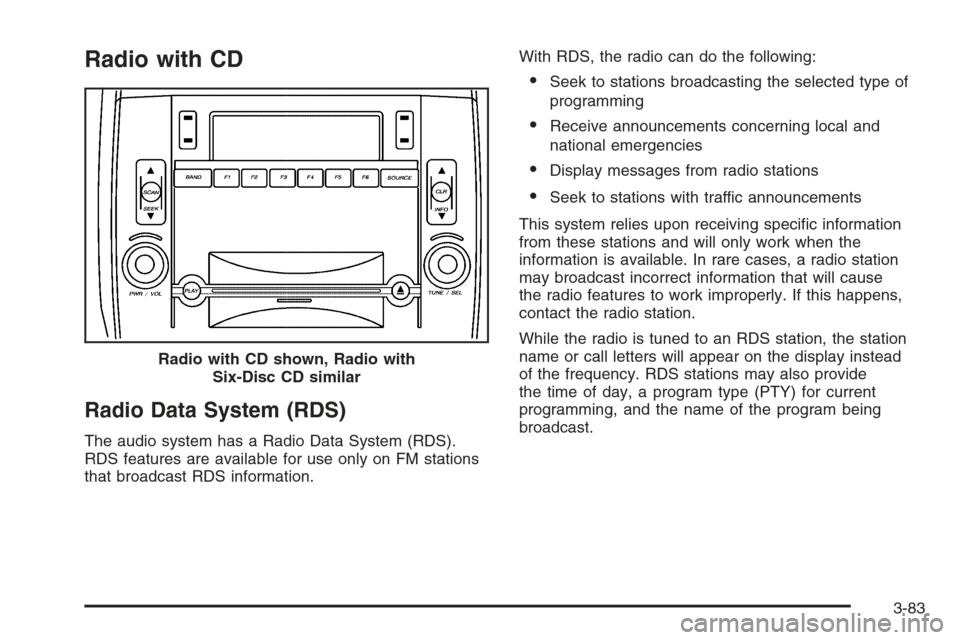
The audio system has a Radio Data System (RDS).
RDS features are available for use only on FM stations
that broadcast RDS information.With RDS, the radio can do the following:
Seek to stations broadcasting the selected type of
programming
Receive announcements concerning local and
national emergencies
Display messages from radio stations
Seek to stations with traffic announcements
This system relies upon receiving specic information
from these stations and will only work when the
information is available. In rare cases, a radio station
may broadcast incorrect information that will cause
the radio features to work improperly. If this happens,
contact the radio station.
While the radio is tuned to an RDS station, the station
name or call letters will appear on the display instead
of the frequency. RDS stations may also provide
the time of day, a program type (PTY) for current
programming, and the name of the program being
broadcast. Radio with CD shown, Radio with
Six-Disc CD similar
3-83
Page 212 of 456
XM™ Satellite Radio Service
XM™ is a satellite radio service that is based in the
48 contiguous United States and in Canada (if
available). XM™ offers over 100 coast to coast channels
including music, news, sports, talk, and children’s
programming. XM™ provides digital quality audio and
text information, including song title and artist name.
A service fee is required in order to receive the XM™
service. For more information, contact XM™ at
www.xmradio.com or call 1-800-852-XMXM (9696).
CLOCK/INFO DISP (Clock/Information
Display):Press the CLOCK/INFO DISP button to
switch between the clock display, the XM™ screen, and
the XM™ information display.Press this button while in XM™ mode to retrieve
three different categories of information related to the
current song or channel: Artist, Song Title, and
Category. To view this information, perform the
following:
1. Press the TUNE/SEL knob to enter the main menu.
2. Turn the TUNE/SEL knob until CLOCK/INFO
DISP appears on the display.
3. Press the TUNE/SEL knob to select CLOCK/INFO
DISP. The display will change to show the additional
XM™ information.
4. To return to the original display, press the CLR
button or wait for the display to time out.
If the CLOCK/INFO DISP is congured into one of the
congurable keys, pressing the key will switch the
display between the radio station frequency and the
time. See “Congurable Radio Display Keys” later in this
section for more information.
3-84
Page 213 of 456
Playing the Radio
PWR (Power):Press this knob to turn the system on
and off.
VOL (Volume):Turn this knob to increase or to
decrease the volume.
AVC (Automatic Volume Compensation):Available
only with the premium Bose
®audio system. AVC,
which utilizes Bose AudioPilot®noise compensation
technology, continuously adjusts the audio system
equalization, to compensate for background noise, so
that your music always sounds the same at the set
volume level. This feature is most effective at lower radio
volume settings where background noise can affect
how well you hear the music being played through your
vehicle’s audio system. At higher volume settings,
where the music is much louder than the background
noise, there may be little or no adjustments by AVC. To
turn AVC on and off, perform the following steps:
1. Press the TUNE/SEL knob to enter the main menu.
2. Turn the TUNE/SEL knob until AUTO VOLUME
COMP. appears on the display.
3. Press the TUNE/SEL knob to turn AVC on or off.
An X will appear in the box when AVC is selected on.
4. Press the CLR button to exit the display. To return
to the original display, repeatedly press the CLR
button or wait for the display to time out.SOURCE:Press this button to select a source, either
radio or CD. The CD must be loaded to select the
source and to play. CD will appear on the display if a
CD is loaded. If a CD is not loaded the display will
not change from the radio source.
Finding a Station
BAND:Press this button to select FM1, FM2, AM, or
XM1 or XM2 (if equipped).
QSEEKR:Press the up or the down arrow to go to
the next or to the previous station and stay there.
SEEK will appear on the display. The sound will mute
while seeking.
The radio will only seek stations with a strong signal
that are in the selected band.
QSCANR:Press the SCAN button to enter scan
mode. SCAN will appear on the display. Press the
up arrow to scan to the next station. The radio will go to
a station, play for 5 seconds, then go on to the next
station. Press this button again to stop scanning.
3-85