phone CADILLAC SRX 2006 1.G User Guide
[x] Cancel search | Manufacturer: CADILLAC, Model Year: 2006, Model line: SRX, Model: CADILLAC SRX 2006 1.GPages: 456, PDF Size: 2.55 MB
Page 231 of 456
The RSE system is capable of outputting audio to the
vehicle speakers by using the radio. The RSE
system may be selected as an audio source on the
radio if the RSE system power is on. Once the
RSE system is selected as an audio source on the
radio, adjust the speaker volume on the radio, if
necessary. If the RSE system power is not on, the RSE
system will not be an available source on the radio.
Refer to the radio information for the radio that
your vehicle has for more information.
Video Screen
The video screen is located in the oor console. Lift up
the screen by the top or the sides into the full open
position. Adjust the screen’s position as desired. When
the video screen is not in use, close the screen.
The DVD player and display will continue to operate
when the screen is in the up or the down position. The
video screen contains the transmitters for the wireless
headphones and the remote control. If the screen
is in the closed position, the signals will not be available
for the operation of the headphones and the remote
control.
Notice:Avoid directly touching the video screen,
as damage may occur. See “Cleaning the Video
Screen” later in this section for more information.
DVD Player
The DVD player is located in the oor console under the
display. Flip up the display to access the DVD player.
The DVD player can be controlled by the buttons on the
DVD player and by the buttons on the remote control.
See “Remote Control” later in this section for more
information.
The DVD player power may be turned on when the
ignition is in ON, ACCESSORY, or when Retained
Accessory Power (RAP) is active.
The RSE system DVD player is only compatible with
DVDs of the appropriate region code for the country
that the vehicle was sold in. The DVD region code
is printed on the jacket of most DVDs.
The DVD player will also play audio CDs. Not all home
recorded CDs, CD-R or CD-RW formats, will play in
this DVD player.
If an error message appears on the video screen, see
“DVD Messages” later in this section.
3-103
Page 232 of 456
DVD Player Buttons
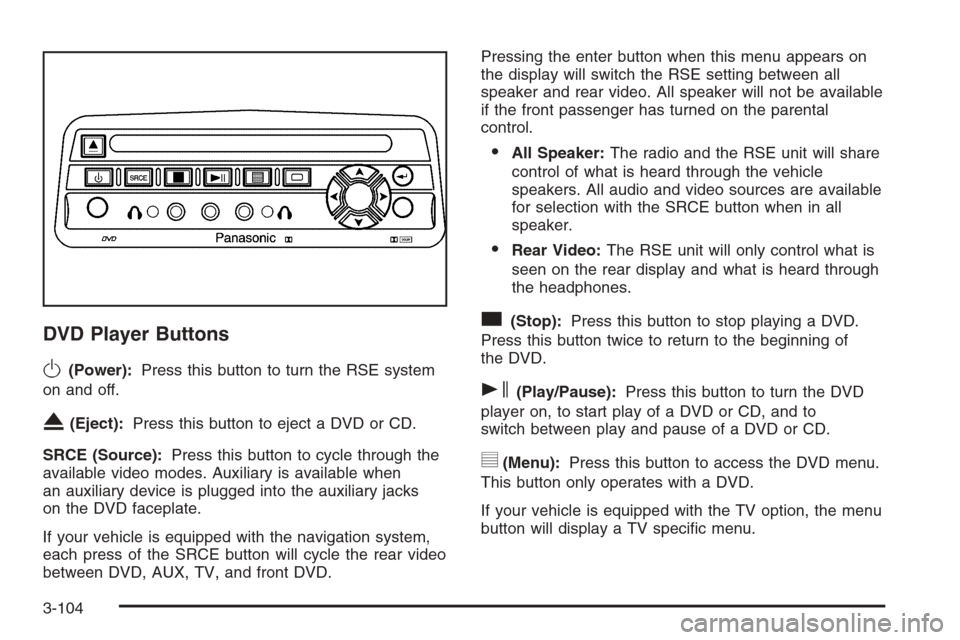
O(Power):Press this button to turn the RSE system
on and off.
X(Eject):Press this button to eject a DVD or CD.
SRCE (Source):Press this button to cycle through the
available video modes. Auxiliary is available when
an auxiliary device is plugged into the auxiliary jacks
on the DVD faceplate.
If your vehicle is equipped with the navigation system,
each press of the SRCE button will cycle the rear video
between DVD, AUX, TV, and front DVD.Pressing the enter button when this menu appears on
the display will switch the RSE setting between all
speaker and rear video. All speaker will not be available
if the front passenger has turned on the parental
control.
All Speaker:The radio and the RSE unit will share
control of what is heard through the vehicle
speakers. All audio and video sources are available
for selection with the SRCE button when in all
speaker.
Rear Video:The RSE unit will only control what is
seen on the rear display and what is heard through
the headphones.
c(Stop):Press this button to stop playing a DVD.
Press this button twice to return to the beginning of
the DVD.
s(Play/Pause):Press this button to turn the DVD
player on, to start play of a DVD or CD, and to
switch between play and pause of a DVD or CD.
y(Menu):Press this button to access the DVD menu.
This button only operates with a DVD.
If your vehicle is equipped with the TV option, the menu
button will display a TV specic menu.
3-104
Page 233 of 456
z(Display Menu):Press this button to modify the
video screen display characteristics.
n,q,p,o(Menu Navigation):Use the arrow
keys to navigate through a menu.
r(Enter):Press this button to select items within
a menu.
If your vehicle is equipped with the navigation system,
after pressing the SRCE button, the enter button
can select all speaker or rear video. See the SRCE
button previously for more information.
Audio/Video Jack:See “Stereo RCA Jacks” earlier in
this section for more information.
X(Headphone Jack):These jacks allow you to listen
to the RSE through wired headphones (not included).
9(Headphone Volume):Turn the left knob to
increase the volume of the headphone connected to the
left headphone jack. Turn the right knob to increase
the volume of the headphone connected to the
right headphone jack.
Playing a Disc
To play a disc, gently insert the disc with the label side
up into the loading slot. The DVD player will continue
loading the disc and the player will automatically start if
the vehicle is in ON, ACCESSORY, or when RAP
is active.
If a disc is already in the player, press the play/pause
button on the DVD player faceplate or on the remote
control.
Some DVDs will not allow fast forwarding or skipping of
the copyright information or the previews. Some
DVDs will begin playing after the previews have nished.
If the DVD does not begin to play the main title, refer
to the on-screen instructions.
Stopping and Resume Playback
To stop playing a disc, press and release the stop
button on the DVD player faceplate or the remote
control.
To resume playback, press the play/pause button on
the DVD player faceplate or the remote control.
The movie should resume play from where it was last
stopped if the disc has not been ejected and the
stop button has not been pressed twice. If the disc has
been ejected or if the stop button has been pressed
twice, the disc will resume play at the beginning.
3-105
Page 240 of 456
Tips and Troubleshooting Chart (cont’d)
Problem Recommended Action
The auxiliary source is
running but there is no
picture or sound.Press the MODE button
to change from the
DVD player mode to the
auxiliary source mode.
Check to make sure that
the auxiliary source is
connected to the inputs
properly.
My disc is stuck in the
player. The Load/Eject
button does not work.Press the eject/load
button on the DVD player.
Turn the power off, then
on again, then press the
eject/load button on the
DVD player.
Do not attempt to forcibly
remove the disc from the
DVD player. This could
permanently damage the
disc and the DVD player.
Tips and Troubleshooting Chart (cont’d)
Problem Recommended Action
Sometimes the wireless
headphone audio cuts
out or buzzes.This could be caused by
interference from cellular
telephone towers or by
using your cellular
telephone in the vehicle.
I lost the remote and/or
the headphones.See your dealer for
assistance.
DVD Distortion
There may be an experience with audio distortion in the
wireless headphones when operating cellular phones,
scanners, CB radios, Global Positioning Systems
(GPS)*, two-way radios, mobile fax, or walkie talkies.
It may be necessary to turn off the DVD player
when operating one of these devices in or near the
vehicle.
* Excludes the OnStar
®System.
3-112
Page 242 of 456
g(Voice Recognition):If your vehicle has the
navigation system, press this button to initiate voice
recognition. See “Voice Recognition” in the Navigation
System manual for more information.
1-6 (Preset Stations):Press this button to play stations
that are programmed on the radio preset pushbuttons.
The radio will only seek preset stations with a strong
signal that are in the selected band.
When a CD is playing, press this button to go to the
next track.
When a CD is playing in the six-disc CD changer, press
this button to go to the next available CD, if multiple
CDs are loaded.
+
u— (Volume):Press this button to increase or to
decrease the volume.
+
tu— (Seek):Press either arrow to go to the
next or the previous radio station and stay there.
The radio will only seek stations with a strong signal
that are in the selected band.
When a CD is playing, press the minus sign to go to the
start of the current track, if more than 10 seconds
have played. Press the plus sign to go to the next track.
If either the minus or the plus button are pressed
more than once, the player will continue moving
backward or forward through the CD.Press and hold the SEEK plus or minus button, until
you hear a beep. The CD will fast forward or fast reverse
through the CD. Press either button again to play the
passage.
If you have the navigation system, some of the audio
steering wheel controls work when a DVD is playing in
the navigation radio. See the Navigation System
manual for more information.
Radio Reception
You may experience frequency interference and static
during normal radio reception if items such as cellphone
chargers, vehicle convenience accessories, and
external electronic devices are plugged into the
accessory power outlet. If there is interference or static,
unplug the item from the accessory power outlet.
AM
The range for most AM stations is greater than for FM,
especially at night. The longer range can cause
station frequencies to interfere with each other. For
better radio reception, most AM radio stations will boost
the power levels during the day, and then reduce
these levels during the night. Static can also occur when
things like storms and power lines interfere with radio
reception. When this happens, try reducing the treble on
your radio.
3-114
Page 243 of 456
FM Stereo
FM stereo will give the best sound, but FM signals will
reach only about 10 to 40 miles (16 to 65 km). Tall
buildings or hills can interfere with FM signals, causing
the sound to fade in and out.
XM™ Satellite Radio Service
XM™ Satellite Radio Service gives digital radio
reception from coast-to-coast in the 48 contiguous
United States, and in Canada (if available). Just as with
FM, tall buildings or hills can interfere with satellite
radio signals, causing the sound to fade in and out. In
addition, traveling or standing under heavy foliage,
bridges, garages, or tunnels may cause loss of
XM signal for a period of time. The radio may display
NO XM SIGNAL to indicate interference.
Cellular Phone Usage
Cellular phone usage may cause interference with your
vehicle’s radio. This interference may occur when
making or receiving phone calls, charging the phone’s
battery, or simply having the phone on. This interference
is an increased level of static while listening to the
radio. If static is received while listening to the radio,
unplug the cellular phone and turn it off.
Care of Your CDs and DVDs
Handle CDs carefully. Store them in their original cases
or other protective cases and away from direct
sunlight and dust. The CD player scans the bottom
surface of the disc. If the surface of a CD is damaged,
such as cracked, broken, or scratched, the CD will
not play properly or not at all. If the surface of a CD is
soiled, take a soft, lint free cloth or dampen a clean, soft
cloth in a mild, neutral detergent solution mixed with
water, and clean it. Make sure the wiping process starts
from the center to the edge.
Do not touch the bottom side of a CD while handling it;
this could damage the surface. Pick up CDs by
grasping the outer edges or the edge of the hole and
the outer edge.
Care of the CD and DVD Player
The use of CD lens cleaners for CDs is not advised,
due to the risk of contaminating the lens of the CD optics
with lubricants internal to the CD mechanism.
3-115
Page 244 of 456
Diversity Antenna System
The AM-FM antenna is integrated with the rear quarter
glass windows, located in the rear of the vehicle on
the driver and passenger sides. Make sure that
the inside surface of the rear windows are not scratched
and that the grid lines on the glass are not damaged.
If the inside surface is damaged, it could interfere
with radio reception.
Notice:Do not apply aftermarket glass tinting with
metallic lm. The metallic lm in some tinting
materials will interfere with or distort the incoming
radio reception. Any damage caused to your
antenna due to metallic tinting materials will not be
covered by your warranty.
Notice:Do not try to clear frost or other material
from the inside of the rear quarter window with
a razor blade or anything else that is sharp. This
may affect your radio’s ability to pick up stations
clearly. The repairs wouldn’t be covered by
your warranty.
If static is heard on the radio, when the rear window
defogger is turned on, it could mean that a defogger grid
line has been damaged. If this is true, the grid line
must be repaired.If adding an aftermarket cellular telephone to your
vehicle, and the antenna needs to be attached to the
glass, make sure that the grid lines for the AM-FM
antennas are not damaged. Make sure the cellular
telephone antenna does not touch a grid line.
XM™ Satellite Radio Antenna
System
The XM™ Satellite Radio antenna is located on the roof
of your vehicle. Keep this antenna clear of snow and
ice build up for clear radio reception.
If your vehicle has a sunroof, the performance of the
XM™ system may be affected if the sunroof is open.
Loading items onto the roof of your vehicle can interfere
with the performance of the XM™ system. Make sure
the XM™ Satellite Radio antenna is not obstructed.
3-116
Page 277 of 456
Hydroplaning
Hydroplaning is dangerous. So much water can build
up under your tires that they can actually ride on
the water. This can happen if the road is wet enough
and you are going fast enough. When your vehicle
is hydroplaning, it has little or no contact with the road.
Hydroplaning does not happen often. But it can if
your tires do not have much tread or if the pressure in
one or more is low. It can happen if a lot of water is
standing on the road. If you can see reections
from trees, telephone poles, or other vehicles, and
raindrops dimple the water’s surface, there could be
hydroplaning.
Hydroplaning usually happens at higher speeds. There
just is not a hard and fast rule about hydroplaning.
The best advice is to slow down when it is raining.
Driving Through Deep Standing Water
Notice:If you drive too quickly through deep
puddles or standing water, water can come in
through your engine’s air intake and badly damage
your engine. Never drive through water that is
slightly lower than the underbody of your vehicle.
If you cannot avoid deep puddles or standing water,
drive through them very slowly.
Driving Through Flowing Water
{CAUTION:
Flowing or rushing water creates strong forces.
If you try to drive through owing water, as you
might at a low water crossing, your vehicle can
be carried away. As little as six inches of
owing water can carry away a smaller vehicle.
If this happens, you and other vehicle
occupants could drown. Do not ignore police
warning signs, and otherwise be very cautious
about trying to drive through owing water.
Some Other Rainy Weather Tips
Turn on your low-beam headlamps — not just your
parking lamps — to help make you more visible to
others.
Besides slowing down, allow some extra following
distance. And be especially careful when you pass
another vehicle. Allow yourself more clear room
ahead, and be prepared to have your view restricted
by road spray.
Have good tires with proper tread depth. SeeTires
on page 5-52.
4-33
Page 427 of 456
Customer Assistance and Information...............7-2
Customer Satisfaction Procedure......................7-2
Online Owner Center......................................7-4
Customer Assistance for Text
Telephone (TTY) Users................................7-4
Customer Assistance Offices............................7-4
GM Mobility Reimbursement Program................7-6
Roadside Service...........................................7-6
Courtesy Transportation...................................7-8
Vehicle Data Collection and Event
Data Recorders.........................................7-10
Collision Damage Repair................................7-11Reporting Safety Defects................................7-14
Reporting Safety Defects to the
United States Government..........................7-14
Reporting Safety Defects to the
Canadian Government................................7-14
Reporting Safety Defects to
General Motors.........................................7-15
Service Publications Ordering
Information...............................................7-15
Section 7 Customer Assistance and Information
7-1
Page 429 of 456
STEP THREE:Both General Motors and your dealer
are committed to making sure you are completely
satised with your new vehicle. However, if you continue
to remain unsatised after following the procedure
outlined in Steps One and Two, you should le with the
BBB Auto Line Program to enforce any additional
rights you may have. Canadian owners refer to your
Warranty and Owner Assistance Information booklet for
information on the Canadian Motor Vehicle Arbitration
Plan (CAMVAP).
The BBB Auto Line Program is an out of court program
administered by the Council of Better Business Bureaus
to settle automotive disputes regarding vehicle repairs or
the interpretation of the New Vehicle Limited Warranty.
Although you may be required to resort to this informal
dispute resolution program prior to ling a court action,
use of the program is free of charge and your case will
generally be heard within 40 days. If you do not agree
with the decision given in your case, you may reject it and
proceed with any other venue for relief available to you.You may contact the BBB Auto Line Program using the
toll-free telephone number or write them at the following
address:
BBB Auto Line Program
Council of Better Business Bureaus, Inc.
4200 Wilson Boulevard
Suite 800
Arlington, VA 22203-1838
Telephone: 1-800-955-5100
This program is available in all 50 states and the
District of Columbia. Eligibility is limited by vehicle age,
mileage and other factors. General Motors reserves
the right to change eligibility limitations and/or
discontinue its participation in this program.
7-3