warning CADILLAC SRX 2006 1.G Owner's Manual
[x] Cancel search | Manufacturer: CADILLAC, Model Year: 2006, Model line: SRX, Model: CADILLAC SRX 2006 1.GPages: 456, PDF Size: 2.55 MB
Page 177 of 456
If the fuel supply gets low, the Fuel Level Low message
will appear on the DIC and a single chime will sound.
SeeDIC Warnings and Messages on page 3-59
for more information.
Here are a few concerns some owners have had about
the fuel gage. All of these situations are normal and
do not indicate that anything is wrong with the fuel gage:
At the gas station the gas pump shuts off before
the gage reads full.
The gage may change when you turn, stop quickly
or accelerate quickly.
It takes a little more or less fuel to ll the tank than
the gage indicated. For example, the gage may
have indicated that the tank was half full, but
it actually took a little more or less than half the
tank’s capacity to ll the tank.
Driver Information Center (DIC)
The DIC gives you the status of many of your vehicle’s
systems. It is also used to display driver personalization
features and warning/status messages. All messages
will appear on the audio system display.
If your vehicle has the Base audio system, use the
information contained in this manual for instructions on
operating the DIC for your vehicle.
If your vehicle has the Navigation system, see the
Navigation system manual for instructions on operating
the DIC for your vehicle.
3-49
Page 178 of 456
System Controls
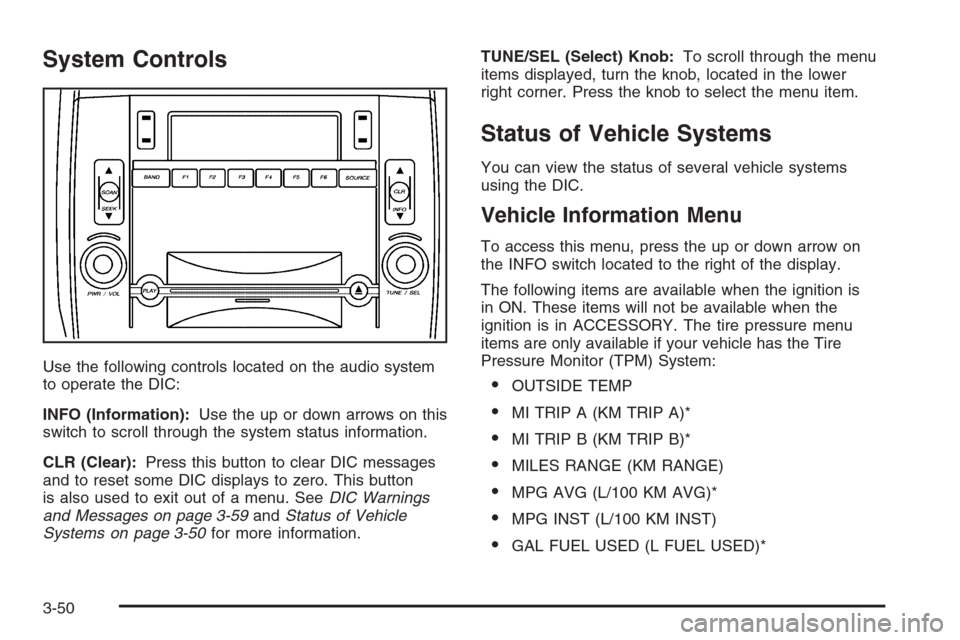
Use the following controls located on the audio system
to operate the DIC:
INFO (Information):Use the up or down arrows on this
switch to scroll through the system status information.
CLR (Clear):Press this button to clear DIC messages
and to reset some DIC displays to zero. This button
is also used to exit out of a menu. SeeDIC Warnings
and Messages on page 3-59andStatus of Vehicle
Systems on page 3-50for more information.TUNE/SEL (Select) Knob:To scroll through the menu
items displayed, turn the knob, located in the lower
right corner. Press the knob to select the menu item.
Status of Vehicle Systems
You can view the status of several vehicle systems
using the DIC.
Vehicle Information Menu
To access this menu, press the up or down arrow on
the INFO switch located to the right of the display.
The following items are available when the ignition is
in ON. These items will not be available when the
ignition is in ACCESSORY. The tire pressure menu
items are only available if your vehicle has the Tire
Pressure Monitor (TPM) System:
OUTSIDE TEMP
MI TRIP A (KM TRIP A)*
MI TRIP B (KM TRIP B)*
MILES RANGE (KM RANGE)
MPG AVG (L/100 KM AVG)*
MPG INST (L/100 KM INST)
GAL FUEL USED (L FUEL USED)*
3-50
Page 180 of 456
If your vehicle is low on fuel, the Fuel Level Low
message will be displayed. See “Fuel Level Low” under
DIC Warnings and Messages on page 3-59for more
information.
MPG AVG (L/100 KM AVG):If you select this item, the
approximate average miles per gallon (mpg) or liters
per 100 kilometers (L/100 km) is displayed. This number
is calculated based on the number of mpg (L/100 km)
recorded since the last time this menu item was reset.
To reset the MPG AVG (L/100 KM AVG), press the CLR
button located to the right of the screen. The display
will return to zero.
MPG INST (L/100 KM INST):If you select this item,
the current fuel economy is displayed. This number
reects only the fuel economy that the vehicle has right
now and will change frequently as driving conditions
change. Unlike average fuel economy, this menu item
cannot be reset.GAL FUEL USED (L FUEL USED):If you select this
item, the number of gallons or liters of fuel used
since the last reset of this menu item is displayed.
To reset GAL FUEL USED (L FUEL USED), press the
CLR button located to the right of the screen. The
display will return to zero.
AVG MPH (AVG KM/H):If you select this item, the
average speed of the vehicle is displayed in miles per
hour (mph) or kilometers per hour (km/h). This average
is calculated based on the various vehicle speeds
recorded since the last reset of this menu item.
To reset AVG MPH (AVG KM/H), press the CLR button
located to the right of the screen. The display will
return to zero.
3-52
Page 181 of 456
TIMER:If you select this item, a timing feature is
displayed. The timer functions like a stopwatch in that
you can record the time it takes to travel from one point
to another.
To turn on the timer, press the CLR button located to
the right of the screen once. The display will read
00:00:00 TIMER ON and begin counting.
To turn off the timer, press the CLR button again. When
the timer is off, the display will show the timer value
and TIMER OFF. The timing feature will stop.
To reset the timer, turn off the timer and then press and
hold the CLR button. The display will return to zero.
BATTERY VOLTS:If you select this item, the current
battery voltage is displayed. If the voltage is in the
normal range, the display will have OK after it.
For example, the display may read 13.2 BATTERY
VOLTS OK.
If there is a problem with the battery charging system,
there are four possible DIC messages that may be
displayed. SeeDIC Warnings and Messages on
page 3-59for more information.ENGINE OIL LIFE:If you select this item, the
percentage of remaining oil life is displayed. If you see
99% ENGINE OIL LIFE on the display, that means
that 99% of the current oil life remains.
When the oil life is depleted, the Change Engine Oil
message will appear on the display. See your GM dealer
for service. In addition to the engine oil life system
monitoring the oil life, additional maintenance is
recommended in the Maintenance Schedule in this
manual. SeeScheduled Maintenance on page 6-4and
Engine Oil on page 5-16for more information.
When you reset the Change Engine Oil message by
clearing it from the display, you still must reset the
engine oil life system separately. For more information
on resetting the engine oil life system, see “How to
Reset the Engine Oil Life System and the Oil Life
Indicator” underEngine Oil Life System on page 5-19.If
you clear the Change Engine Oil message from the
display, it will not re-appear.
3-53
Page 186 of 456
9(English/Metric Units):Use this menu item to
adjust the measurement units.
You can choose between ENGLISH UNITS and
METRIC UNITS. To switch between the two, press the
TUNE/SEL knob. Once your choice is displayed,
turn the knob to set your choice and continue scrolling
through the main menu.
The measurement units that you choose will be
reected on all the vehicle system displays, not just
the DIC information. For example, the climate control
panel will display degrees Celsius if you choose
METRIC UNITS.
TCS (Traction Control System):You can enable
or disable the traction control system using this menu
item. Press the TUNE/SEL knob to switch between
on and off.
You can also turn the traction control system off using
the traction control button located near the shift lever.
When you disable the traction control system, the
traction control system warning light on the instrument
panel cluster will come on. SeeTraction Control System
(TCS) Warning Light on page 3-41for more information.8(Clock):Use this menu item to set the time on the
vehicle’s clock.
SeeSetting the Time on page 3-82for more information.
8/4(Clock/Information Display):Use this menu
item to toggle between the clock display and the XM™
Information (Song, Artist, Title), if available.
SeeSetting the Time on page 3-82and “XM™ Satellite
Radio Service” underRadio with CD on page 3-83
for more information.
SETUP:When you select this menu item, the following
submenu is available:
LANGUAGE
PERSONALIZATION
CONFIGURE DISPLAY KEYS
To change the language displayed on the radio, select
LANGUAGE by pressing the TUNE/SEL knob. Turn
the TUNE/SEL knob to scroll through the available
languages and press the knob to make your selection. If
you accidentally select a language that you did not
want, ENGLISH is always at the top of the language list.
For more information on the other items in the SETUP
menu, seeDIC Vehicle Personalization on page 3-67.
3-58
Page 187 of 456

DIC Warnings and Messages
These messages will appear if there is a problem
detected in one of your vehicle’s systems.
You must acknowledge a message to clear it from the
screen for further use. To clear a message, press
the CLR button.
Be sure to take any message that appears on the
screen seriously and remember that clearing the
message will only make the message disappear, not the
problem.
Battery Saver Active
This message appears when the system detects that
the battery voltage is dropping beyond a reasonable
level. The battery saver system will start reducing certain
features of the vehicle which you may not be able to
notice. At the point that the features are disabled,
this message is displayed. It means that the vehicle is
trying to save the charge in the battery.Turn off all unnecessary accessories to allow the battery
to recharge.
The normal battery voltage range is 11.5 to 15.5 volts.
You can monitor battery voltage on the DIC by pressing
the INFO button until BATTERY VOLTS appears.
Battery Voltage High
This message indicates that the electrical charging
system is overcharging the battery. When the system
detects that the battery voltage is above approximately
16 volts, this message will be displayed.
To reduce the charging overload, use the vehicle’s
accessories. Turn on the exterior lamps and radio, set the
climate control on AUTO and the fan speed on the
highest setting, and turn the rear window defogger on.
The normal battery voltage range is 11.5 to 15.5 volts
when the engine is running. You can monitor battery
voltage on the DIC by pressing the INFO button
until BATTERY VOLTS appears.
3-59
Page 189 of 456
Check Brake Fluid
This message will display if the ignition is in ON to
inform the driver that the brake uid level is low. Have
the brake system serviced by your GM dealer as
soon as possible. SeeBrake System Warning Light on
page 3-39andBrakes on page 5-37for more
information.
Check Coolant Level
Notice:If your engine catches re because you
keep driving with no coolant, your vehicle can
be badly damaged. The costly repairs would not be
covered by your warranty. SeeOverheated Engine
Protection Operating Mode on page 5-29for
information on driving to a safe place in an
emergency.
This message will appear when there is a low level of
engine coolant. Have the cooling system serviced
by your GM dealer as soon as possible. SeeEngine
Coolant on page 5-24for more information.
Check Gas Cap
When this message appears on the display, the gas cap
has not been fully tightened. You should recheck the
gas cap to ensure that it is on and tightened properly.
See “If the Light Is On Steady” underMalfunction
Indicator Lamp on page 3-43for more information.
Check Tire Pressure
This message indicates that one or more of the vehicle’s
tires are low. SeeStatus of Vehicle Systems on
page 3-50for information on checking your vehicle’s tire
pressures. Also, seeTire Pressure Monitor System
on page 5-61andInation - Tire Pressure on page 5-59
for more information.
Check Washer Fluid
When this message appears on the display, it means
that your vehicle is low on windshield washer uid. You
should rell the windshield washer uid reservoir as
soon as possible. SeeWindshield Washer Fluid
on page 5-36for more information.
Driver Door Ajar
When this message appears on the display, it means
that the driver’s door was not closed completely.
You should make sure that the driver’s door is closed
completely.
3-61
Page 190 of 456
Engine Coolant Hot – AC
(Air Conditioning) Off
This message displays when the engine coolant
becomes hotter than the normal operating temperature.
To avoid added strain on a hot engine, the air
conditioning compressor is automatically turned off.
When the coolant temperature returns to normal, the air
conditioning compressor will turn back on. You can
continue to drive your vehicle.
If this message continues to appear, have the system
repaired by your GM dealer as soon as possible to avoid
compressor damage.
Engine Coolant Hot – Idle Engine
Notice:If you drive your vehicle while the engine is
overheating, severe engine damage may occur. If
an overheat warning appears on the instrument
panel cluster and/or DIC, stop the vehicle as soon
as possible. Do not increase the engine speed above
normal idling speed. SeeEngine Overheating on
page 5-27for more information.
This message will appear when the engine coolant
temperature is too hot. Stop and allow the vehicle to idle
until it cools down.
Engine Overheated – Stop Engine
Notice:If you drive your vehicle while the engine is
overheating, severe engine damage may occur. If
an overheat warning appears on the instrument
panel cluster and/or DIC, stop the vehicle as soon
as possible. Do not increase the engine speed above
normal idling speed. SeeEngine Overheating on
page 5-27for more information.
This message will appear when the engine has
overheated. Stop the vehicle and turn the engine off
immediately to avoid severe engine damage. See
Engine Overheating on page 5-27. A chime will also
sound when this message is displayed.
Engine Power Reduced
This message informs you that the vehicle is reducing
engine power because the transmission is being
placed in gear under conditions that may cause damage
to the vehicle’s engine or transmission. Reduced
engine power can affect the vehicle’s ability to
accelerate. If this message is on, but there is no
reduction in performance, proceed to your destination.
The performance may be reduced the next time the
vehicle is driven. The vehicle may be driven at a
reduced speed while this message is on, but
acceleration and speed may be reduced. Anytime this
message stays on, the vehicle should be taken to
your GM dealer for service as soon as possible.
3-62
Page 191 of 456
Fuel Level Low
When this message appears on the display, it means
that your vehicle is low on fuel. You should rell the fuel
tank as soon as possible. A single chime will sound
when this message is displayed.
Headlamps Suggested
This message will appear when the amount of available
light outside the vehicle is low and the exterior lamp
control is off. This message informs the driver that
turning on the exterior lamps is recommended even
though the daytime running lamps (DRL) are still
illuminated and it has become dark enough outside to
require the headlamps and/or other exterior lamps.
This message will also appear when the windshield
wipers have been on for more than six seconds and the
exterior lamp control is off or in the parking lamp
position.
Ice Possible
This message appears when the outside temperature is
cold enough to create icy road conditions.
Left Rear Door Ajar
When this message appears on the display, it means
that the driver’s side rear door was not closed
completely. You should make sure that the door is
closed completely.
Lift Gate Ajar
When this message appears on the display, it means
that the liftgate was not closed completely. You
should make sure that the liftgate is closed completely.
Oil Pressure Low – Stop Engine
Notice:If you drive your vehicle while the engine
oil pressure is low, severe engine damage may
occur. If a low oil pressure warning appears on the
instrument panel cluster and/or DIC, stop the
vehicle as soon as possible. Do not drive the vehicle
until the cause of the low oil pressure is corrected.
SeeEngine Oil on page 5-16for more information.
A multiple chime will sound when this message is
displayed.
3-63
Page 208 of 456
To program the vehicle to a different mode, use the
following procedure:
1. Enter the personalization portion of the SETUP
menu following the instructions listed previously.
2. Turn the TUNE/SEL knob until MIRROR TO CURB
IN REV is highlighted.
3. Press the TUNE/SEL knob to switch back and forth
between on and off.
When the mode is turned on, a check mark will
appear next to the feature name.
The mode you selected is now set. You can either exit
the programming mode by following the instructions
later in this section or program the next feature available
on your vehicle.
Enhanced Chime Volume
This feature allows you to adjust the volume level of the
vehicle’s warning chimes. The chime volume cannot
be turned off, only adjusted.
Programmable Modes
Mode 1:NORMAL
Mode 2:LOUDBefore your vehicle was shipped from the factory, it
was programmed to Mode 1. The mode to which
the vehicle was programmed may have been changed
since it left the factory.
To program the vehicle to a different mode, use the
following procedure:
1. Enter the personalization portion of the SETUP
menu following the instructions listed previously.
2. Turn the TUNE/SEL knob until ENHANCED CHIME
VOLUME is highlighted.
3. Press the TUNE/SEL knob to switch back and forth
between the normal and loud settings.
The mode you selected is now set. You can either exit
the programming mode by following the instructions
later in this section or program the next feature available
on your vehicle.Exiting the Personalization Menu
To exit the personalization portion of the SETUP menu,
press the CLR button once you have nished making
your selections. You will return to the main audio screen.
If a 15 second time period has elapsed with no
selection made, the SETUP menu will be exited
automatically.
3-80