radio CADILLAC SRX 2011 2.G Service Manual
[x] Cancel search | Manufacturer: CADILLAC, Model Year: 2011, Model line: SRX, Model: CADILLAC SRX 2011 2.GPages: 498, PDF Size: 7.62 MB
Page 243 of 498
Black plate (39,1)Cadillac SRX Owner Manual - 2011
Infotainment System 7-39
Global Off
Depending on the infotainment
system, the RSE system may
have a Global Off feature.
The Global Off feature disables
all RSE system features. Press
and hold the radio power button for
more than three seconds for Global
Off to disable the RSE features.
A padlock icon may display on
the infotainment screen when the
Global Off feature is on. On some
infotainment systems, the Global
Off feature can be turned off by
performing one of the following:
.Press and hold the radio
power button for more than
three seconds.
.Insert or eject any disc.
.Insert a DVD video disc.
.Press the Remote Control power
button.
.Press the MEM/DVD/AUX button
or the
kbutton when a DVD
video disc is in the player.
.Press the SRC button on the
steering wheel when a DVD
video disc is in the player.
.Cycle the ignition.
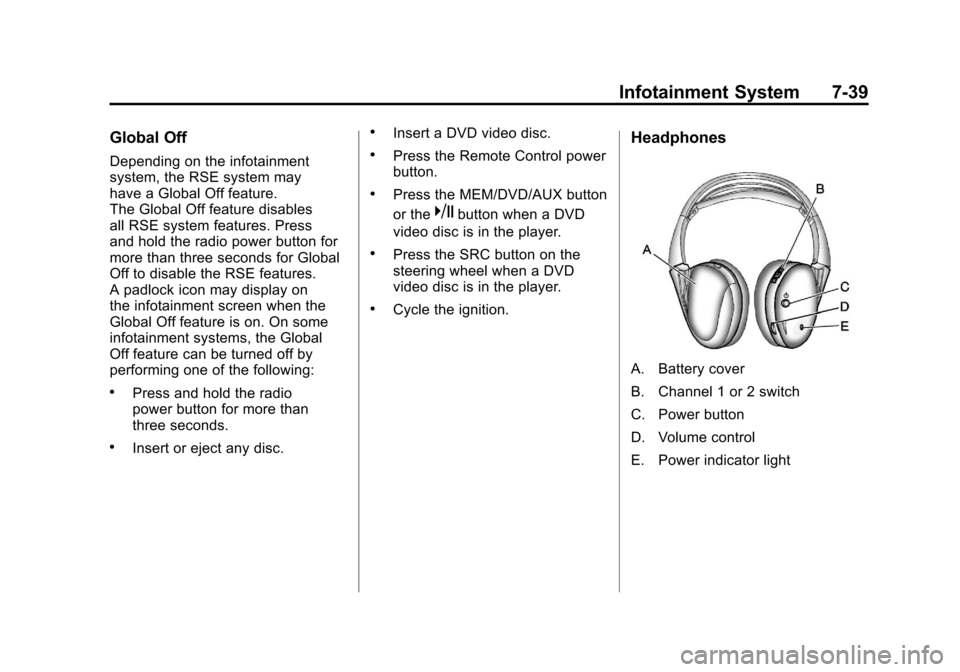
Headphones
A. Battery cover
B. Channel 1 or 2 switch
C. Power button
D. Volume control
E. Power indicator light
Page 245 of 498
Black plate (41,1)Cadillac SRX Owner Manual - 2011
Infotainment System 7-41
Battery Replacement
To change the batteries:
1. Loosen the screw to the batterydoor located on the left side of
the headphones.
2. Slide the battery door open.
3. Replace the two AAA batteries.
4. Replace the battery door and tighten the screw.
Remove the batteries if the
headphones are not going to be
used for a long period of time.Audio/Video (A/V) Jacks
The A/V jacks may be located
on the rear of the floor console.
They allow audio or video cables
to be connected from an auxiliary
device such as a camcorder or a
video game system.
The A/V jacks are color coded:
.Yellow for video input.
.White for left audio input.
.Red for right audio input.
Power for auxiliary devices is not
supplied by the radio system.
To use the auxiliary inputs of the
RSE system:
1. Connect the auxiliary device cables to the A/V jacks.
2. Power on both the auxiliary device and the RSE video
screen. Changing the Source on the Video
Display Screens
The image from the auxiliary device
can be switched between the video
display screens.
To change the display:
1. Press the AUX button on the
remote control to change the
source of both video screens
from the DVD player to the
auxiliary device.
2. Press the AUX button a second time to change the left video
screen source to the DVD player
and the right video screen to the
auxiliary device.
Page 246 of 498
Black plate (42,1)Cadillac SRX Owner Manual - 2011
7-42 Infotainment System
3. Press the AUX button a thirdtime to change the left video
screen source to the auxiliary
device and the right video
screen to the DVD player.
4. Press the AUX button a fourth time to change the source of
both video screens to the DVD
player.
Changing the RSE Video Screen
Settings
The screen display mode,
brightness, and language can
be changed from the setup menu
using the remote control. To change
a setting:
1. Press
z.
2. Use
n,q,p,o, andr
select the settings.
3. Press
zagain to exit the
setup menu.
Audio Output
Audio from the DVD player or
auxiliary inputs can be heard
through the following:
.Wireless Headphones
.Vehicle Speakers
.Vehicle wired headphone jacks
on the rear seat audio system,
if the vehicle has this feature.
The RSE system transmits the
audio signal to the wireless
headphones if an audio signal is
available. See “Headphones” earlier
in this section for more information.
Audio can be heard from the wired
headphone jacks on the RSA
system by selecting the desired
source from the RSA system, if the
vehicle has this feature.
The front seat passengers are able
to listen to playback from the A/V
jacks through the vehicle speakers
by selecting Rear A/V as the source
on the radio.
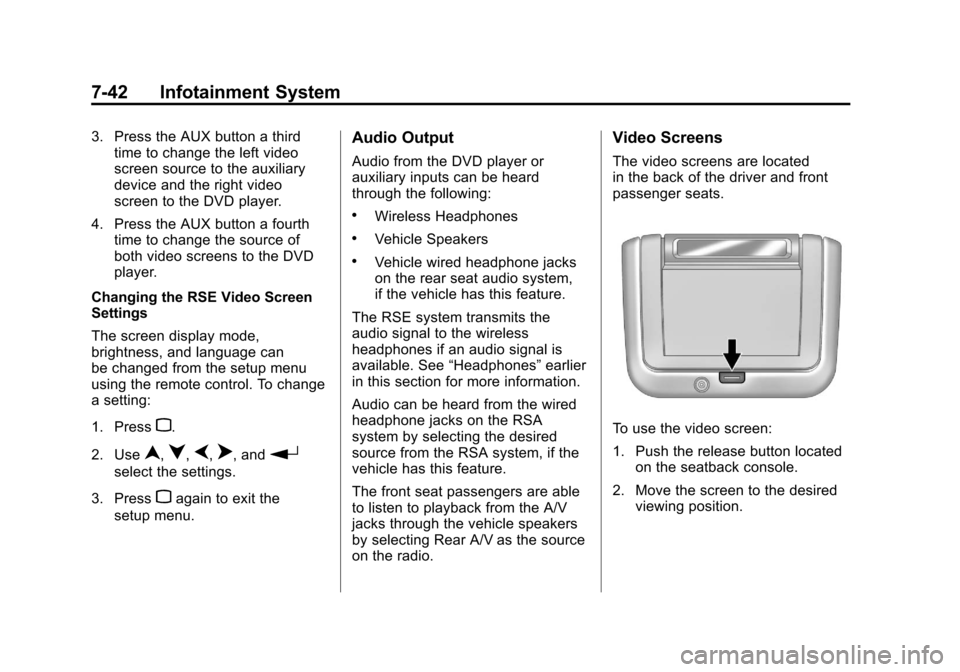
Video Screens
The video screens are located
in the back of the driver and front
passenger seats.
To use the video screen:
1. Push the release button located on the seatback console.
2. Move the screen to the desired viewing position.
Page 248 of 498
Black plate (44,1)Cadillac SRX Owner Manual - 2011
7-44 Infotainment System
See“Battery Replacement” later in
this section. Objects blocking the
line of sight could also affect the
function of the remote control.
If a CD, DVD, or MP3 disc is in the
Radio DVD slot, the remote control
Obutton can be used to turn on
the video screen display and start
the disc. The infotainment system
can also turn on the video screen
display. See CD/DVD Player on
page 7‑22 or the separate
navigation system manual for
more information.
Notice: Storing the remote
control in a hot area or in direct
sunlight can damage it, and the
repairs will not be covered by the
warranty. Storage in extreme cold
can weaken the batteries. Keep
the remote control stored in a
cool, dry place. Remote Control Buttons
O(Power):
Press to turn the video
screens on and off.
P(Illumination): Press to turn
the remote control backlight on.
The backlight times out after
several seconds if no other
button is pressed.
v(Title): Press to return to
the main menu of the DVD. This
function could vary for each disc.
y(Main Menu): Press to access
the DVD menu. The DVD menu is
different on every DVD. Use the
navigation arrows to move the
cursor. After making a selection
press the enter button. This button
only operates when using a DVD.
n,q,p,o(Menu Navigation
Arrows): Use the arrow buttons to
navigate through a menu.
r(Enter): Press to select the
highlighted choice in any menu.
z(Display Menu): Press to
adjust the brightness and screen
display mode, and display the
language menu.
q(Return): Press to exit the
current active menu and return to
the previous menu. This button
operates only when the display
menu or a DVD menu is active.
c(Stop): Press to stop playing,
rewinding, or fast forwarding a
DVD. Press twice to return to the
beginning of the DVD.
Page 253 of 498
Black plate (49,1)Cadillac SRX Owner Manual - 2011
Infotainment System 7-49
DVD Display Error Messages
The DVD display error message
depends on which radio the vehicle
has. The video screen may display
one of the following:
Disc Load/Eject Error or
Mechanical Error:There are
disc load or eject problems.
Disc Format Error or Unknown
Format: The disc is inserted with
the disc label wrong side up, or the
disc is damaged.
Disc Region Error or Disc Error:
The disc is not from a correct
region.
No Disc Inserted: No disc is
present when the
YEJECT or
MEM/DVD/AUX button is pressed
on the radio.
DVD Distortion
Video distortion can occur when
operating cellular phones, scanners,
CB radios, Global Position Systems
(GPS)*, two-way radios, mobile fax,
or walkie talkies. It might be necessary to turn off the
DVD player when operating one of
these devices in or near the vehicle.
*Excludes the OnStar
®System.
Cleaning the RSE Seatback
Console
Use only a clean cloth dampened
with clean water to clean the RSE
seatback console surface.
Cleaning the Video Screens
Use only a clean cloth dampened
with clean water. Use care when
touching or cleaning the screens
as damage could result.
Rear Seat Audio (RSA)
System
Vehicles with this feature allow
the rear seat passengers to listen
to and control any of the music
sources: radio, CDs, DVDs, or other
auxiliary sources. RSA can only
control music sources that the front
seat passengers are not listening to,
except on radios where dual control
is allowed.
RSA can function when the front
radio is off.
Xdisplays on the
infotainment system when RSA
is on.
Audio can be heard through
wired headphones (not included)
plugged into the jacks on the RSA.
If the vehicle has a Rear Seat
Entertainment system with wireless
headphones, audio can also be
heard on Channel 2 of the wireless
headphones.
To listen to a portable audio
device through the RSA, attach
the portable audio device to either
the front or rear auxiliary input,
if available. Turn the device on,
then choose the front auxiliary input
with the RSA SRCE button.
Page 254 of 498
Black plate (50,1)Cadillac SRX Owner Manual - 2011
7-50 Infotainment System
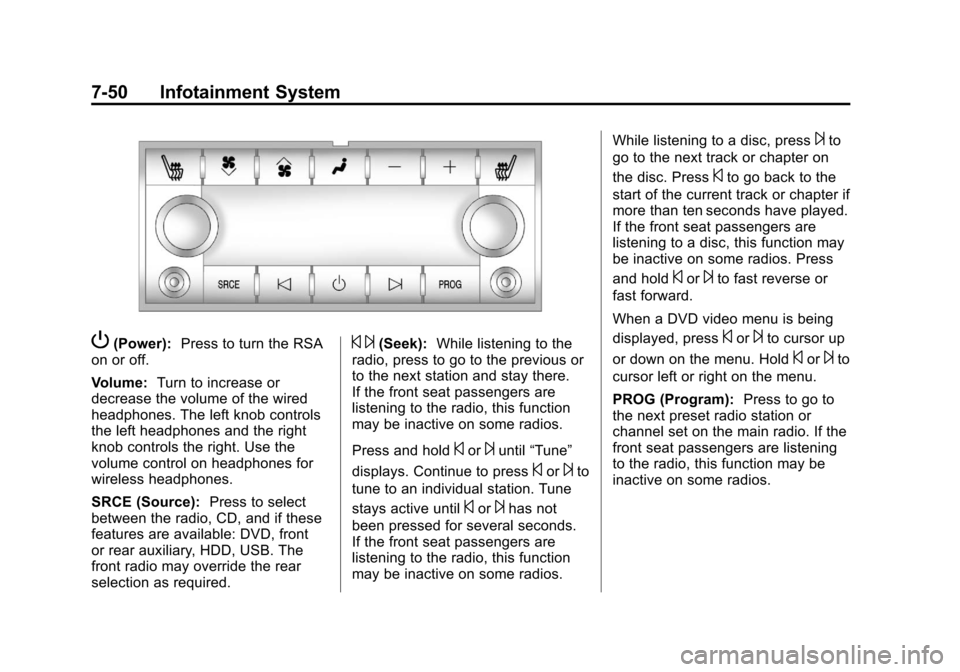
P(Power):Press to turn the RSA
on or off.
Volume: Turn to increase or
decrease the volume of the wired
headphones. The left knob controls
the left headphones and the right
knob controls the right. Use the
volume control on headphones for
wireless headphones.
SRCE (Source): Press to select
between the radio, CD, and if these
features are available: DVD, front
or rear auxiliary, HDD, USB. The
front radio may override the rear
selection as required.© ¨(Seek): While listening to the
radio, press to go to the previous or
to the next station and stay there.
If the front seat passengers are
listening to the radio, this function
may be inactive on some radios.
Press and hold
©or¨until “Tune”
displays. Continue to press
©or¨to
tune to an individual station. Tune
stays active until
©or¨has not
been pressed for several seconds.
If the front seat passengers are
listening to the radio, this function
may be inactive on some radios. While listening to a disc, press
¨to
go to the next track or chapter on
the disc. Press
©to go back to the
start of the current track or chapter if
more than ten seconds have played.
If the front seat passengers are
listening to a disc, this function may
be inactive on some radios. Press
and hold
©or¨to fast reverse or
fast forward.
When a DVD video menu is being
displayed, press
©or¨to cursor up
or down on the menu. Hold
©or¨to
cursor left or right on the menu.
PROG (Program): Press to go to
the next preset radio station or
channel set on the main radio. If the
front seat passengers are listening
to the radio, this function may be
inactive on some radios.
Page 255 of 498
Black plate (51,1)Cadillac SRX Owner Manual - 2011
Infotainment System 7-51
When a CD or DVD audio disc is
playing, press PROG to go to the
beginning of the disc or display disc
info. If the front seat passengers are
listening to a disc, this function may
be inactive on some radios.
When a disc is playing in the CD
or DVD changer, press and hold
PROG to select the next disc,
if multiple discs are loaded. If the
front seat passengers are listening
to a disc, this function may be
inactive on some radios.
The PROG button may be used to
access the menu of an MP3. Once
in the menu, use
©or¨to make
selections.
When a DVD video menu is
displayed, press PROG, or press
and hold PROG to perform the
menu function, ENTER.
Phone
Bluetooth (Overview)
Vehicles with a Bluetooth system
can use a Bluetooth capable cell
phone with a Hands Free Profile
to make and receive phone calls.
The infotainment system and voice
recognition are used to control
the system. The system can be
used while in ON/RUN or ACC/
ACCESSORY. The range of the
Bluetooth system can be up to
9.1 m (30 ft). Not all phones support
all functions and not all phones
work with the Bluetooth system.
See www.gm.com/bluetooth for
more information about compatible
phones.
Bluetooth Controls
Use the buttons located on the
infotainment system and the
steering wheel to operate the
Bluetooth system.
Steering Wheel Controls
b/g(Push To Talk): Press to
answer incoming calls, confirm
system information, and start voice
recognition.
$/c(End Call / Mute): Press to
end a call, reject a call, or to cancel
an operation.
Infotainment System Controls
For information about how to
navigate the menu system using the
infotainment controls, see Operation
on page 7‑7.
PHONE: Press to enter the Phone
main menu.
Page 256 of 498
Black plate (52,1)Cadillac SRX Owner Manual - 2011
7-52 Infotainment System
Voice Recognition
The voice recognition system uses
commands to control the system
and dial phone numbers.
Noise:The system may not
recognize voice commands if there
is too much background noise.
When to Speak: A tone sounds to
indicate that the system is ready for
a voice command. Wait for the tone
and then speak.
How to Speak: Speak clearly in a
calm and natural voice.
Audio System
When using the Bluetooth system,
sound comes through the vehicle's
front audio system speakers
and overrides the audio system. Use the VOL/
Oknob during a
call to change the volume level.
The adjusted volume level
remains in memory for later
calls. The system maintains a
minimum volume level.
Other Information
The Bluetooth®word mark and
logos are owned by the Bluetooth®
SIG, Inc. and any use of such marks
by General Motors is under license.
Other trademarks and trade names
are those of their respective owners.
See Radio Frequency
Statement on page 13‑20 for
Federal Communications
Commission and Industry
Canada Standards information.
Bluetooth (Infotainment
Controls)
For information about how to
navigate the menu system using the
infotainment controls, see Operation
on page 7‑7.
Pairing
A Bluetooth‐enabled cell phone
must be paired to the Bluetooth
system first and then connected to
the vehicle before it can be used.
See the cell phone manufacturer
user guide for Bluetooth functions
before pairing the cell phone. If a
Bluetooth phone is not connected,
calls will be made using OnStar
®
Hands‐Free Calling, if available.
Refer to the OnStar Owner's Guide
for more information.
A Bluetooth phone with MP3
capability can not be connected to
the vehicle as a phone and an MP3
player at the same time.
Page 258 of 498
Black plate (54,1)Cadillac SRX Owner Manual - 2011
7-54 Infotainment System
Linking to a Different Phone
To link to a different phone, the new
phone must be in the vehicle and
available to be connected to the
Bluetooth system before the
process is started.
1. Press the CONFIG button.
2. Select Phone Settings.
3. Select Bluetooth.
4. Select Device List.
5. Select the new phone to linkto and follow the on screen
prompts.
If delete is selected, the
highlighted phone will be
deleted.Making a Call Using
Phone Book
For cell phones that support the
phone book feature, the Bluetooth
system can use the contacts stored
on your cell phone to make calls.
See your cell phone's owner's guide
or contact your wireless provider to
find out if this feature is supported
by your phone.
When a cell phone supports the
phone book feature, the Phone
Book and Call Lists menus are
automatically available.
The Phone Book menu allows you
to access the phone book stored in
the cell phone to make a call.
The Call Lists menu allows you to
access the phone numbers from the
Incoming Calls, Outgoing Calls, and
Missed Calls menus on your cell
phone to make a call. Radio with CD
To make a call using the Phone
Book menu:
1. Press the PHONE button twice.
2. Select Phone Book.
3. You can search through the list
by selecting the letter group the
phone book entry begins with,
or press the SELECT button
to scroll through the entire
list of names/numbers in the
phone book.
4. Select the name or number you want to call.
To make a call using the Call
Lists menu:
1. Press the PHONE button twice.
2. Select Call Lists.
3. Select the Incoming Calls, Outgoing Calls, or Missed
Calls list.
4. Select the name or number you want to call.
Page 259 of 498
Black plate (55,1)Cadillac SRX Owner Manual - 2011
Infotainment System 7-55
Radio with CD/DVD and MEM
1. Press the PHONE button.
2. Select Phone Book.
3. You can search through the listby selecting the letter group the
phone book entry begins with,
or press the SELECT button
to scroll through the entire list
of names/numbers in the
phone book.
4. Select the name or number you want to call.
To make a call using the Call
Lists menu:
1. Press the PHONE button.
2. Select Call Lists.
3. Select the Incoming Calls, Outgoing Calls, or Missed
Calls list.
4. Select the name or number you want to call.Making a Call
Radio with CD
1. Press the PHONE button twice.
2. Enter the character sequence.See “Entering a Character
Sequence” inOperation on
page 7‑7 for more information.
3. Select Call to start dialing the number.
Radio with CD/DVD and MEM
1. Press the PHONE button.
2. Select Enter number.
3. Enter the character sequence. See “Entering a Character
Sequence” inOperation on
page 7‑7 for more information.
4. Select Call to start dialing the number.
Accepting or Declining a Call
When an incoming call is received,
the infotainment system mutes and
a ring tone is heard in the vehicle. Accepting a Call
Turn the MENU/SELECT knob to
“Answer”
and press the MENU/
SELECT knob to accept the call.
Declining a Call
Turn the MENU/SELECT knob to
“Decline” and press the MENU/
SELECT knob to decline the call.
Call Waiting
Call waiting must be supported on
the Bluetooth phone and enabled by
the wireless service carrier to work.
Accepting a Call
Turn the MENU/SELECT knob to
“Answer” and press the MENU/
SELECT knob to accept the call.
Declining a Call
Turn the MENU/SELECT knob to
“Decline” and press the MENU/
SELECT knob to decline the call.