ignition CADILLAC STS 2006 1.G Workshop Manual
[x] Cancel search | Manufacturer: CADILLAC, Model Year: 2006, Model line: STS, Model: CADILLAC STS 2006 1.GPages: 480, PDF Size: 2.74 MB
Page 241 of 480
Notice:The chime signals related to safety belts,
parking brake, and other functions of your vehicle
operate through the radio/entertainment system. If
that equipment is replaced or additional equipment is
added to your vehicle, the chimes may not work.
Make sure that replacement or additional equipment
is compatible with your vehicle before installing it.
SeeAccessories and Modifications on page 5-3.
Your vehicle has a feature called Retained Accessory
Power (RAP). With RAP, the audio system can be
played even after the ignition is turned off. SeeRetained
Accessory Power (RAP) on page 2-25for more
information.
Setting the Time
1. Press the tune/select knob (the right knob) to enter
the main menu.
2. Turn the tune/select knob until SET CLOCK
appears on the display.
3. Press the tune/select knob to select SET CLOCK.
4. Turn the tune/select knob to adjust the time.
5. Press the tune/select knob to update the time.
VEHICLE TIME UPDATED will appear on the
display.If the CLOCK/RADIO DISP is congured into one of the
congurable keys, pressing the key will switch the display
back to the clock set function. The time and date will
always appear on the radio display. See “Congurable
Radio Display Keys” underRadio with CD on page 3-96
for more information on conguring the keys.
Setting the Date
1. Press the tune/select knob (the right knob) to enter
the main menu.
2. Turn the tune/select knob until SET DATE appears
on the display.
3. Press the tune/select knob to select SET DATE.
4. Turn the tune/select knob to adjust the date.
5. Press the tune/select knob to update the time.
VEHICLE DATE UPDATED will appear on the
display.
If the DATE is congured into one of the congurable
keys, pressing the key will switch the display back to the
date set function. The time and date will always
appear on the radio display. See “Congurable Radio
Display Keys” underRadio with CD on page 3-96
for more information on conguring the keys.
3-95
Page 251 of 480
Using the Single CD Player
Insert a CD partway into the slot, label side up. The
player will pull it in. If the ignition and the radio are on, the
CD will begin playing. A CD may be loaded with the radio
off, but it will not start playing until the radio is on.
If the ignition or radio is turned off with a CD in the
player, it will stay in the player. When the ignition
or radio is turned on, the CD will start to play where it
stopped, if it was the last selected audio source.
When the CD is inserted, CD will appear on the display.
As each new track starts to play, the track number
will appear on the display.
The CD player can play the smaller 3 inch (8 cm) single
CDs with an adapter ring. Full-size CDs and the
smaller CDs are loaded in the same manner.
If playing a CD-R, the sound quality may be reduced due
to CD-R quality, the method of recording, the quality of
the music that has been recorded, and the way the CD-R
has been handled. There may be an increase in skipping,
difficulty in nding tracks, and/or difficulty in loading and
ejecting. If these problems occur, check the bottom
surface of the CD. If the surface of the CD is damaged,
such as cracked, broken, or scratched, the CD will not
play properly. If the surface of the CD is soiled, seeCare
of Your CDs on page 3-121for more information.
If there is no apparent damage, try a known good CD.Do not add any label to a CD, it could get caught in the
CD player. If a CD is recorded on a personal computer
and a description label is needed, try labeling the top of
the recorded CD with a marking pen instead.
Notice:If you add any label to a CD, insert more
than one CD into the slot at a time, or attempt to play
scratched or damaged CDs, you could damage the
CD player. When using the CD player, use only CDs
in good condition without any label, load one CD at a
time, and keep the CD player and the loading slot free
of foreign materials, liquids, and debris.
If an error appears on the display, see “CD Messages”
later in this section.
When a CD is inserted, the CD functions will appear on
the display above the pushbuttons, in place of the
preset stations (if programmed).
F1
{(Reverse):Press this pushbutton to go to the
previous track. Press and hold this pushbutton to
reverse quickly within a track. Release the pushbutton
to play the passage. The elapsed time of the track
will appear on the display.
F2
|(Forward):Press this pushbutton to go to the
next track. Press and hold this pushbutton to advance
quickly within a track. Release the pushbutton to
play the passage. The elapsed time of the track will
appear on the display.
3-105
Page 252 of 480
F3 RDM (Random):Press this pushbutton to listen to
the tracks in random, rather than sequential, order.
RANDOM will appear on the display. Press RDM again
to turn off random play. RANDOM will disappear
from the display.
F4 RPT (Repeat):Press this pushbutton to hear a track
over again. REPEAT will appear on the display. Press
RPT again to turn off repeat play. REPEAT will
disappear from the display.
F6 DISP (Display):Press this pushbutton to display the
time of the track. Press this pushbutton again to
remove the time of the track from the display.
©¨(Seek):Press the left single arrow button to go
to the previous or press the right single arrow button
to go to the next track on the CD.
©¨(Scan):Press the double arrow button to listen to
each track for 10 seconds. The CD will go to a track,
play for 10 seconds, then go on to the next track. Press
this button again to stop scanning.
SRCE (Source):Press this button to select a source,
either radio or CD. The CD must be loaded to select the
source and to play. CD will appear on the display if a
CD is loaded. If a CD is not loaded, the display will not
change from the radio source.
Z(Eject):Press this button to stop a CD when it is
playing or to eject a CD when it is not playing. Eject may
be activated with the ignition and the radio off.
Using the Six-Disc CD Changer
The CD player can play the smaller 3 inch (8 cm) single
CDs with an adapter ring. Full-size CDs and the
smaller CDs are loaded in the same manner.
If playing a CD-R, the sound quality may be reduced
due to CD-R quality, the method of recording, the quality
of the music that has been recorded, and the way the
CD-R has been handled. There may be an increase
in skipping, difficulty in nding tracks, and/or difficulty in
loading and ejecting. If these problems occur, check
the bottom surface of the CD. If the surface of the CD is
damaged, such as cracked, broken, or scratched, the
CD will not play properly. If the surface of the CD
is soiled, seeCare of Your CDs on page 3-121for more
information.
If there is no apparent damage, try a known good CD.
Do not add any label to a CD, it could get caught in the
CD player. If a CD is recorded on a personal computer
and a description label is needed, try labeling the top of
the recorded CD with a marking pen instead.
Notice:If you add any label to a CD, insert more
than one CD into the slot at a time, or attempt
to play scratched or damaged CDs, you could
damage the CD player. When using the CD player,
use only CDs in good condition without any
label, load one CD at a time, and keep the CD player
and the loading slot free of foreign materials,
liquids, and debris.
3-106
Page 253 of 480

If an error appears on the display, see “CD Messages”
later in this section.
When a CD is inserted, the CD functions will appear on
the display above the pushbuttons, in place of the
preset stations (if programmed).
M(Load):Press this button to load CDs into the CD
player. This CD player will hold up to six CDs.
To insert one CD, do the following:
1. The ignition and the radio can be on or off.
2. Press and release the load button. Please Wait will
appear on the display.
3. Load the CD, when INSERT appears on the
display, insert a CD partway into the slot, label side
up. The player will pull the CD in.
When a CD is inserted, CD will appear on the display,
the number of the CD and the track number will
appear on the display if the radio is on.
If the radio is on, the CD will begin to play automatically.
To insert multiple CDs, do the following:
1. The ignition and the radio can be on or off.
2. Press and hold the load button for two seconds.
Please Wait will appear on the display and you
will hear a beep.3. Load the CD, when INSERT appears on the
display, insert a CD partway into the slot, label side
up. The player will pull the CD in.
Do not load a CD until INSERT appears on the
display. The CD player will take up to six CDs. Do
not try to load more than six. If you want to load
less than six CDs, load the desired amount. The CD
player will time out when it does not receive any
more CDs and the last CD loaded will begin to play.
If the radio is on, the last CD loaded will begin to play
automatically.
F1 DISC
n(Down):Press this pushbutton to go to the
previous CD.
F2 DISC
m(Up):Press this pushbutton to go to the
next CD.
F3 CD REV
{(Reverse):Press this pushbutton to go
to the previous track. Press and hold this pushbutton
to reverse quickly within the track. Release this
pushbutton to play the passage. The elapsed time of
the track will appear on the display.
F4 CD FWD
|(Forward):Press this pushbutton to go
to the next track. Press and hold this pushbutton to
advance quickly within the track. Release this
pushbutton to play the passage. The elapsed time of
the track will appear on the display.
3-107
Page 254 of 480
F5 MODE:Press this pushbutton to select from
NORMAL, RPT TRCK (Repeat Track), RPT DISC
(Repeat CD), RDM TRCK (Random Track), and RDM
ALL (Random All CDs).
NORMAL:Sets the system for normal play of the
CD(s). NORMAL will not appear on the display
when in this mode.
RPT TRCK (Repeat Track):Repeats the track over
again. RPT TRCK will appear on the display. Press
the MODE pushbutton again to turn off repeat
play. RPT TRCK will disappear from the display.
RPT DISC (Repeat CD):Repeats the CD over
again. RPT DISC will appear on the display.
Press the MODE pushbutton again to turn off repeat
play. RPT DISC will disappear from the display.
RDM TRCK (Random Track):Plays the tracks on
the current CD in random, rather than sequential,
order. RDM TRCK will appear on the display. Press
the MODE pushbutton again to turn off random
play. RDM TRCK will disappear from the display.
RDM ALL (Random All CDs):Plays all of the CDs
loaded in random, rather than sequential, order.
RDM ALL will appear on the display. Press
the MODE pushbutton again to turn off random
play. RDM ALL will disappear from the display.F6 DISP (Display):Press this pushbutton to display the
time of the track. Press this pushbutton again to
display CD PLAY MODE.
©¨(Seek):Press the left single arrow button to go
to the previous or press the right single arrow button
to go to the next track on the CD.
©¨(Scan):Press this double arrow button to listen
to each track for 10 seconds. The CD will go to a
track, play for 10 seconds, then go on to the next track.
Press this button again to stop scanning.
SRCE (Source):Press this button to select a source,
either radio or CD. The CD must be loaded to select the
source and to play. CD will appear on the display if a
CD is loaded. If a CD is not loaded, the display will not
change from the radio source.
Z(Eject):Press this button to eject the CD that is
currently playing, or press and hold this button to eject
all of the CDs loaded. You will hear a beep. Eject
may be activated with the ignition or radio off.
3-108
Page 257 of 480

Preprogrammed Playlists
You can access preprogrammed playlists which were
created by WinAmp™, MusicMatch™, or Real
Jukebox™ software, however, you will not have editing
capability. These playlists will be treated as special
folders containing compressed audio song les.
Playing an MP3
Insert a CD partway into the slot, label side up. The
player will pull it in, and LOADING CD will appear on the
display. The CD should begin playing and the CD
symbol will appear on the display. If the ignition and the
radio are on, the CD will begin playing. A CD may be
loaded with the radio off, but it will not start playing until
the radio is on.
If the ignition or radio is turned off with a CD in the
player it will stay in the player. When the ignition or radio
is turned on, the CD will start to play where it stopped,
if it was the last selected audio source.
As each new track starts to play, the track number will
appear on the display.
The CD player can play the smaller 3 inch (8 cm) single
CDs with an adapter ring. Full-size CDs and the
smaller CDs are loaded in the same manner.If playing a CD-R, the sound quality may be reduced
due to CD-R quality, the method of recording, the quality
of the music that has been recorded, and the way the
CD-R has been handled. There may be an increase
in skipping, difficulty in nding tracks, and/or difficulty in
loading and ejecting. If these problems occur, check
the bottom surface of the CD. If the surface of the CD is
damaged, such as cracked, broken, or scratched, the
CD will not play properly. If the surface of the CD
is soiled, seeCare of Your CDs on page 3-121for more
information.
If there is no apparent damage, try a known good CD.
Do not add any label to a CD, it could get caught in the
CD player. If a CD is recorded on a personal computer
and a description label is needed, try labeling the top of
the recorded CD with a marking pen instead.
Notice:If you add any label to a CD, insert more
than one CD into the slot at a time, or attempt
to play scratched or damaged CDs, you could
damage the CD player. When using the CD player,
use only CDs in good condition without any
label, load one CD at a time, and keep the CD player
and the loading slot free of foreign materials,
liquids, and debris.
If an error appears on the display, see “CD Messages”
later in this section.
3-111
Page 259 of 480
©¨(Seek):Press the left arrow to go to the start of
the previous track. Press the right arrow to go to the
start of the next track. Pressing either arrow for
more than two seconds will search the previous or next
tracks at two tracks per second. Release the button
to stop searching and to play the track.
©¨(Scan):Press the double arrow button to scan
the tracks in each folder. The radio will go to the
next track, play for 10 seconds, then go on to the next
track. Press this button again to stop scanning.
w(Tune):Turning the tune knob will fast track
reverse or advance through the tracks in all folders or
playlists. The track number and le name will appear on
the display for each track. Turning this knob while in
random will fast track reverse or advance the tracks in
sequential order.
4(Information):Press this button, while an MP3 CD is
loaded, to view the Title, Artist, Album, or Folder
names. To view this information, perform the following:
1. Press the tune/select knob to enter the
main menu.
2. Turn the tune/select knob until INFO appears on
the display.3. Press the tune/select knob to select INFO. The
display will change to show the additional MP3
information.
4. Press one of the following pushbuttons to view that
specic information.
F1 TTLE (Title):To display the title name.
F2 ATST (Artist):To display the artist name.
F3 ALBM (Album):To display the album name.
F4 FLDR (Folder):To display the folder name.
5. Press the BACK (F6) button to exit the display. To
return to the original display, repeatedly press the
BACK (F6) button or wait for the display to time out.
SRCE (Source):Press this button to select a source,
either radio or CD. The CD must be loaded to select
the source and to play. CD will appear on the display if
a CD is loaded. If a CD is not loaded, the display
will not change from the radio source.
Z(Eject):Press this button to stop a CD when it is
playing or to eject a CD when it is not playing. Eject may
be activated with the ignition and the radio off.
3-113
Page 294 of 480
If you drive regularly in steep country, or if you are
planning to visit there, here are some tips that can make
your trips safer and more enjoyable.
Keep your vehicle in good shape. Check all uid
levels and also the brakes, tires, cooling system,
and transmission. These parts can work hard
on mountain roads.
{CAUTION:
If you do not shift down, your brakes could get
so hot that they would not work well. You
would then have poor braking or even none
going down a hill. You could crash. Shift down
to let your engine assist your brakes on a
steep downhill slope.
{CAUTION:
Coasting downhill in NEUTRAL (N) or with the
ignition off is dangerous. Your brakes will have
to do all the work of slowing down. They could
get so hot that they would not work well.
CAUTION: (Continued)
CAUTION: (Continued)
You would then have poor braking or even
none going down a hill. You could crash.
Always have your engine running and your
vehicle in gear when you go downhill.
Know how to go down hills. The most important
thing to know is this: let your engine do some of
the slowing down. Shift to a lower gear when you go
down a steep or long hill.
Know how to go uphill. You may want to shift down
to a lower gear. The lower gears help cool your
engine and transmission, and you can climb the
hill better.
Stay in your own lane when driving on two-lane
roads in hills or mountains. Do not swing wide
or cut across the center of the road. Drive at speeds
that let you stay in your own lane.
As you go over the top of a hill, be alert. There
could be something in your lane, like a stalled car
or an accident.
You may see highway signs on mountains that warn
of special problems. Examples are long grades,
passing or no-passing zones, a falling rocks area,
or winding roads. Be alert to these and take
appropriate action.
4-26
Page 355 of 480
Brakes
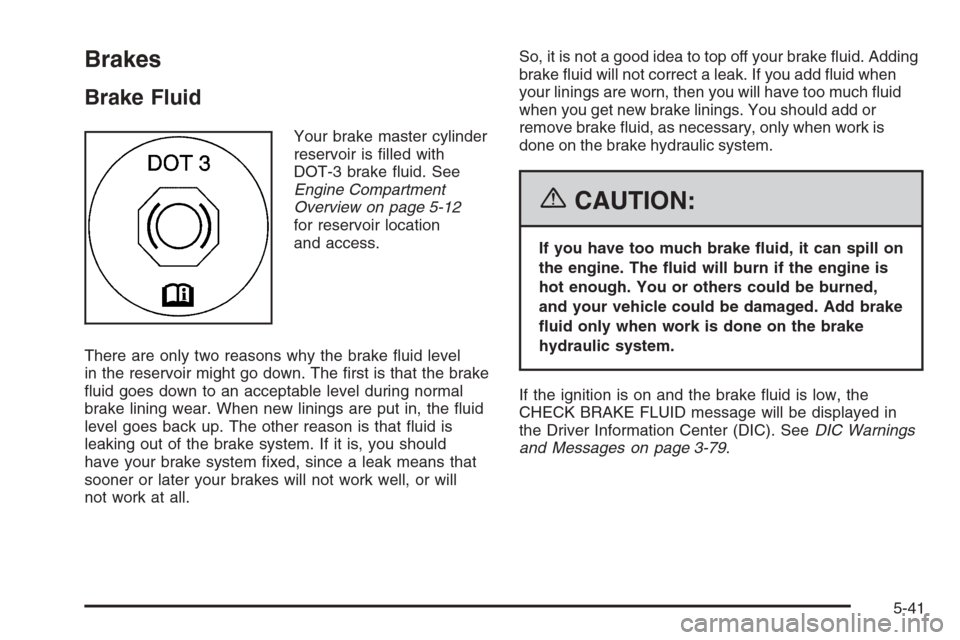
Brake Fluid
Your brake master cylinder
reservoir is lled with
DOT-3 brake uid. See
Engine Compartment
Overview on page 5-12
for reservoir location
and access.
There are only two reasons why the brake uid level
in the reservoir might go down. The rst is that the brake
uid goes down to an acceptable level during normal
brake lining wear. When new linings are put in, the uid
level goes back up. The other reason is that uid is
leaking out of the brake system. If it is, you should
have your brake system xed, since a leak means that
sooner or later your brakes will not work well, or will
not work at all.So, it is not a good idea to top off your brake uid. Adding
brake uid will not correct a leak. If you add uid when
your linings are worn, then you will have too much uid
when you get new brake linings. You should add or
remove brake uid, as necessary, only when work is
done on the brake hydraulic system.
{CAUTION:
If you have too much brake uid, it can spill on
the engine. The uid will burn if the engine is
hot enough. You or others could be burned,
and your vehicle could be damaged. Add brake
uid only when work is done on the brake
hydraulic system.
If the ignition is on and the brake uid is low, the
CHECK BRAKE FLUID message will be displayed in
the Driver Information Center (DIC). SeeDIC Warnings
and Messages on page 3-79.
5-41
Page 360 of 480
Notice:If you leave your radio or other accessories
on during the jump starting procedure, they could
be damaged. The repairs would not be covered
by your warranty. Always turn off your radio and
other accessories when jump starting your vehicle.
3. Turn off the ignition on both vehicles. Unplug
unnecessary accessories plugged into the cigarette
lighter or the accessory power outlets. Turn off
the radio and all lamps that are not needed. This
will avoid sparks and help save both batteries.
And it could save the radio!
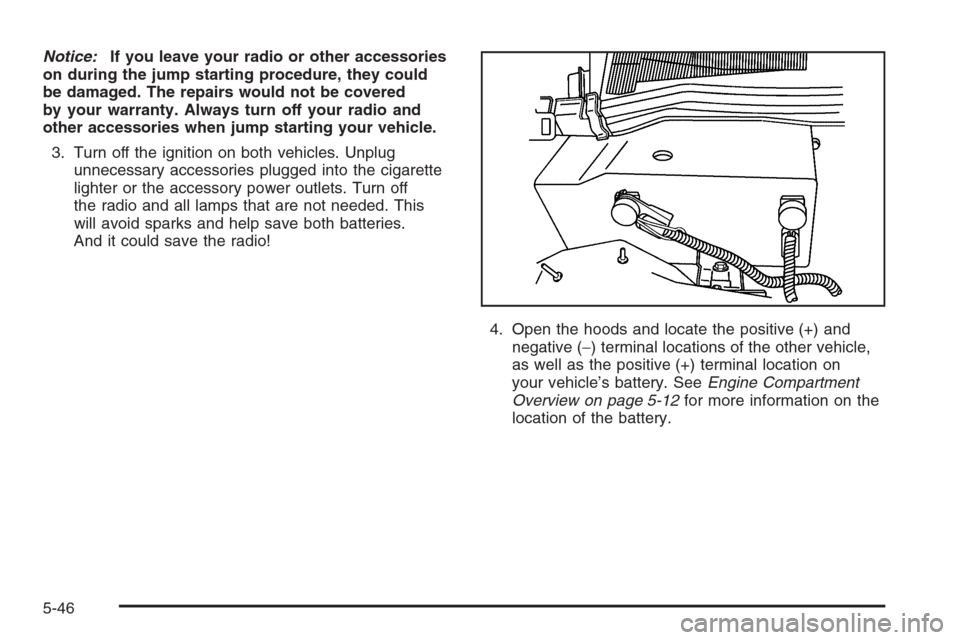
4. Open the hoods and locate the positive (+) and
negative (−) terminal locations of the other vehicle,
as well as the positive (+) terminal location on
your vehicle’s battery. SeeEngine Compartment
Overview on page 5-12for more information on the
location of the battery.
5-46