radio CADILLAC STS 2011 1.G Owner's Manual
[x] Cancel search | Manufacturer: CADILLAC, Model Year: 2011, Model line: STS, Model: CADILLAC STS 2011 1.GPages: 528, PDF Size: 4.96 MB
Page 167 of 528
Black plate (61,1)Cadillac STS Owner Manual - 2011
3. Press the tune/select knob to turn on the DRIVERGREETING feature.
You will see a cursor on the screen.
4. Turn the tune/select knob until you reach the first letter you want; the letter will be highlighted. There
is a complete alphabet with both upper and lower
case letters and the numbers zero through nine.
Also included are spaces and other non-letter
characters such as the ampersand (&).
5. Press the tune/select knob once to select the letter. The letter will then appear on the display and the
cursor will advance to the next letter.
If you make a mistake, press the F5 button, located
on the radio, repeatedly to cycle back through all of
the characters until you reach the character you
wish to change. Then turn the tune/select knob
until the letter you want is highlighted and press
the tune/select knob to select the new letter.
6. Repeat Steps 4 and 5 until the name or greeting you want is complete. You can program up to
16 characters. The name or greeting you programmed is now set. You
can either exit the programming mode by following the
instructions later in this section or program the next
feature available on your vehicle by pressing the
F6 (BACK) button, located on the radio, to return to the
PERSONAL SETTINGS MENU. You will now see a
check mark next to the driver greeting menu item, which
means that the driver greeting feature is on and a
customized driver greeting is being used.
To turn off the customized driver greeting, and go back
to displaying either Driver 1 or Driver 2:
1. Enter the PERSONAL SETTINGS MENU by following the instructions listed previously under
“Entering the Personal Settings Menu.”
2. Turn the tune/select knob until DRIVER GREETING is highlighted.
3. Press the tune/select knob to turn on the DRIVER GREETING feature. The check mark will be
cleared and the customized driver greeting is off.
To change a customized driver greeting after exiting the
screen to spell the name, turn the driver greeting
feature off, and then back on.
3-61
Page 169 of 528

Black plate (63,1)Cadillac STS Owner Manual - 2011
CLIMATE CONTROL:The climate control system will
engage when the vehicle is started using the remote
start feature. It will be at the same climate control
setting that was last used by the driver using that
keyless entry transmitter.
REAR WINDOW DEFOG: If this feature is active, the
rear defogger will engage when the vehicle is started
using the remote start feature.
SEAT TEMP (Temperature) CONTROL: If your vehicle
has this feature and this feature is active, the seats will
be heated or cooled when the vehicle is started using
the remote start feature.
The mode you selected is now set. You can either exit
the programming mode by following the instructions
later in this section or program the next feature
available on your vehicle by pressing the F6 (BACK)
button, located on the radio, to return to the
PERSONAL SETTINGS MENU.
REMOTE RECALL MEMORY
If your vehicle has the optional memory package, you
will have this feature. When this feature is turned on,
you can recall any previously programmed seat position
and mirror position when the unlock button on the
keyless access transmitter is pressed. Programmable Modes
Mode 1:
ON
Mode 2: OFF (default)
The exception to the default is the recall seat to driver
position which is on.
To program the vehicle to a different mode: 1. Enter the PERSONAL SETTINGS MENU by following the instructions listed previously under
“Entering the Personal Settings Menu.”
2. Turn the tune/select knob until REMOTE RECALL MEMORY is highlighted.
3. Press the tune/select knob to switch back and forth between on and off.
When the mode is turned on, a check mark will
appear next to the feature name.
If this feature is selected, START BUTTON RECALL
cannot be selected.
The mode you selected is now set. You can either exit
the programming mode by following the instructions
later in this section or program the next feature
available on your vehicle.
3-63
Page 181 of 528
Black plate (75,1)Cadillac STS Owner Manual - 2011
The mode you selected is now set. You can either exit
the programming mode by following the instructions
later in this section or program the next feature
available on your vehicle by pressing the F6 (BACK)
button, located on the radio, to return to the
PERSONAL SETTINGS MENU.
Exiting the Personal Settings Menu
Once you have finished making your selections on the
base audio system, you will automatically return to the
main audio screen after 15 seconds. You can also press
the F6 (BACK) button, located on the radio, to return to
the main audio screen.
Memory Seat, Mirrors and Steering
Wheel
If the vehicle has the memory feature, you can program
and recall memory settings for the following features for
up to two drivers:
.The driver seat position
.The outside rearview mirrors position
.The power tilt wheel and telescopic steering
column position
The following settings and presets are set automatically:
.The language, radio and XM™ presets, tone,
volume, playback mode (AM/FM or CD), last
displayed stations, and compact disc position
.The last climate control setting
.The Head-Up Display (HUD) position, if your
vehicle has this feature
.Other personalization settings, for example, remote
start settings
See Vehicle Personalization on page 3‑59.
3-75
Page 182 of 528
Black plate (76,1)Cadillac STS Owner Manual - 2011
For vehicles with the base audio system, memory
features are programmed and recalled through the radio
from the DRIVER SELECTION and the DRIVER EXIT
SETTINGS submenus. See“Entering the Driver
Selection Submenu” and“Entering the Driver Exit
Settings Submenu” later in this section for more
information on recalling and programming the memory
settings using the base audio system.
For vehicles with the Navigation system, memory
features are programmed and recalled through the
navigation display. See “Personalization”in the Index of
the Navigation System manual for more information on
programming and recalling the memory settings using
the Navigation system.
For vehicles with the Navigation system, you can also
recall the memory features by using voice recognition,
if your vehicle has this feature. See “Voice Recognition”
in the Index of the Navigation System manual for more
information.Entering the Driver Selection Submenu
To enter the memory programming mode for your driver
settings:
1. The ignition must be either on, in ACCESSORY, or in RAP and the transmission in P (Park) or the
vehicle speed less than 6 mph (9 km/h).
2. Press any button on the appropriate keyless access transmitter to identify yourself as Driver 1 or
Driver 2.
3. Turn on the radio by pressing the power/ volume knob.
4. Press the CNFG radio button to enter the main menu of the radio.
5. Turn the tune/select knob and scroll to SETUP.
6. Press the tune/select knob to enter the SETUP menu.
7. Turn the tune/select knob and scroll to DRIVER SELECTION.
8. Press the tune/select knob to enter the DRIVER SELECTION submenu. The following items will
appear:
.DRIVER 1
.DRIVER 2
.RECALL DRIVER SETTINGS
.STORE DRIVER SETTINGS
3-76
Page 184 of 528
Black plate (78,1)Cadillac STS Owner Manual - 2011
STORE DRIVER SETTINGS
To store driver settings:1. Adjust your settings for the driver seat, the outside rearview mirrors, and the steering column to a
comfortable driving position.
2. Enter the memory programming mode for your driver settings by following the instructions listed
previously under “Entering the Driver Selection
Submenu.”
3. From the DRIVER SELECTION submenu, turn the tune/select knob to scroll to STORE DRIVER
SETTINGS and press in the knob. Two beeps will
sound to confirm that your driver settings are
saved.
4. Set the HUD position, if your vehicle has this feature, the climate control temperature, fan speed
and mode settings, the radio presets, tone,
volume, playback mode (AM/FM, XM™, or CD),
and compact disc position.
Your memory settings are now programmed.
Any changes that are made to the HUD, audio
system, and climate controls while driving will be
automatically stored when the ignition is turned off.
5. Repeat the procedure for a second driver by programming the other driver number.
Entering the Driver Exit Settings
Submenu
To enter the memory programming mode for your exit
settings:
1. The ignition must be either on, in ACCESSORY, or in RAP and the transmission in P (Park) or the
vehicle speed less than 6 mph (9 km/h).
2. Press any button on the appropriate keyless access transmitter to identify yourself as Driver 1 or
Driver 2.
3. Turn on the radio by pressing the power/ volume knob.
4. Press the CNFG radio button to enter the main menu of the radio.
5. Turn the tune/select knob and scroll to SETUP.
6. Press the tune/select knob to enter the SETUP menu.
7. Turn the tune/select knob and scroll to DRIVER EXIT SETTINGS.
8. Press the tune/select knob to enter the DRIVER EXIT SETTINGS submenu. The following items will
appear:
.RECALL EXIT SETTINGS
.STORE EXIT SETTINGS
3-78
Page 188 of 528
Black plate (2,1)Cadillac STS Owner Manual - 2011
Section 4 Instrument Panel
Engine Coolant Temperature Gauge . . . . . . . . . . . 4-61
Tire Pressure Light . . . . . . . . . . . . . . . . . . . . . . . . . . . . 4-62
Malfunction Indicator Lamp . . . . . . . . . . . . . . . . . . . . 4-62
Oil Pressure Light . . . . . . . . . . . . . . . . . . . . . . . . . . . . . 4-66
Security Light . . . . . . . . . . . . . . . . . . . . . . . . . . . . . . . . . . 4-67
Front Fog Lamp Light . . . . . . . . . . . . . . . . . . . . . . . . . . 4-67
Lights On Reminder . . . . . . . . . . . . . . . . . . . . . . . . . . . 4-67
Cruise Control Light . . . . . . . . . . . . . . . . . . . . . . . . . . . 4-67
Highbeam On Light . . . . . . . . . . . . . . . . . . . . . . . . . . . . 4-68
Fuel Gauge . . . . . . . . . . . . . . . . . . . . . . . . . . . . . . . . . . . . 4-68
Driver Information Center (DIC) . . . . . . . . . . . . . . . . . .4-69
DIC Operation and Displays . . . . . . . . . . . . . . . . . . . 4-70
DIC Warnings and Messages . . . . . . . . . . . . . . . . . . 4-76
Other Messages . . . . . . . . . . . . . . . . . . . . . . . . . . . . . . . 4-93 Audio System(s)
. . . . . . . . . . . . . . . . . . . . . . . . . . . . . . . . . . 4-94
Setting the Clock . . . . . . . . . . . . . . . . . . . . . . . . . . . . . . 4-95
Radio(s) . . . . . . . . . . . . . . . . . . . . . . . . . . . . . . . . . . . . . . . 4-95
Using an MP3 . . . . . . . . . . . . . . . . . . . . . . . . . . . . . . . . 4-108
XM Radio Messages . . . . . . . . . . . . . . . . . . . . . . . . . 4-112
Navigation/Radio System . . . . . . . . . . . . . . . . . . . . . 4-113
Bluetooth
®. . . . . . . . . . . . . . . . . . . . . . . . . . . . . . . . . . . . 4-113
Radio Personalization . . . . . . . . . . . . . . . . . . . . . . . . 4-120
Theft-Deterrent Feature . . . . . . . . . . . . . . . . . . . . . . 4-123
Audio Steering Wheel Controls . . . . . . . . . . . . . . . 4-124
Radio Reception . . . . . . . . . . . . . . . . . . . . . . . . . . . . . . 4-125
Backglass Antenna . . . . . . . . . . . . . . . . . . . . . . . . . . . 4-126
XM™ Satellite Radio Antenna System . . . . . . . . 4-126
4-2
Page 192 of 528
Black plate (6,1)Cadillac STS Owner Manual - 2011
Forward Collision Alert (FCA)
System
For vehicles with this feature, read the following section
before using it.
This vehicle has systems that operate on a radio
frequency that comply with Part 15 of the Federal
Communications Commission (FCC) rules and with
Industry Canada Standards RSS‐210/220/310.
Operation is subject to the following two conditions:1. The device may not cause interference.
2. The device must accept any interference received, including interference that may cause undesired
operation of the device.
Changes or modifications to this system by other than
an authorized service facility could void authorization to
use this equipment. The Forward Collision Alert (FCA) system provides an
audible and visual warning if you approach a vehicle
too rapidly. FCA also provides a visual warning with
no audible warning if you are following another vehicle
much too closely. FCA uses the Adaptive Cruise Control
radar to detect a vehicle directly ahead, in your path,
within a distance of 100 m (328 ft) and operates at
speeds above 32 km/h (20 mph).
{WARNING:
FCA is only a warning system and does not apply
the brakes. When you are approaching a vehicle
or object too rapidly or when you are following a
vehicle too closely that is ahead of you, FCA may
not provide you with enough time to avoid a
collision. FCA is not designed to warn the driver of
pedestrians or animals. Your complete attention is
always required while driving and you should be
ready to take action and apply the brakes. For
more information, see
Defensive Driving
on
page 5‑2
.
4-6
Page 201 of 528

Black plate (15,1)Cadillac STS Owner Manual - 2011
When going downhill, you might have to brake to keep
the vehicle speed down. When the brakes are applied
the cruise control is disengaged.
Ending Cruise Control
There are three ways to end cruise control.
.To disengage cruise control; step lightly on the
brake pedal.
.Press the[button on the steering wheel.
.To turn off cruise control, move the cruise control
switch to
9.
Erasing Speed Memory
The cruise control set speed is erased from memory by
moving the cruise control switch to
9or if the ignition
is turned off.
Adaptive Cruise Control
If the vehicle has adaptive cruise control, read the
Radio Frequency Statementon page 8‑20before using
this feature.
Changes or modifications to this system by other than
an authorized service facility could void authorization to
use this equipment.
Adaptive Cruise Control is an enhancement to
traditional cruise control and is not a safety system.
It allows you to keep cruise control engaged in
moderate traffic conditions without having to constantly
be reset. Adaptive Cruise Control uses radar to
detect a vehicle directly ahead in your path, within a
distance of 100 m (328 ft), and operates at speeds
above 48 km/h (30 mph). When it is engaged by
the driver, the system can apply limited braking or
acceleration of the vehicle, automatically, to maintain
a selected following distance to the vehicle ahead.
4-15
Page 224 of 528
Black plate (38,1)Cadillac STS Owner Manual - 2011
Head-Up Display (HUD)
{WARNING:
If the HUD image is too bright, or too high in your
field of view, it may take you more time to see
things you need to see when it is dark outside. Be
sure to keep the HUD image dim and placed low
in your field of view.
For vehicles with the Head-Up Display (HUD), some of
the driver information that appears on the instrument
panel cluster is projected onto an image on the
windshield.
The information can be displayed in English or metric
units. To change from English to metric units, see DIC
Operation and Displays on page 4‑70.
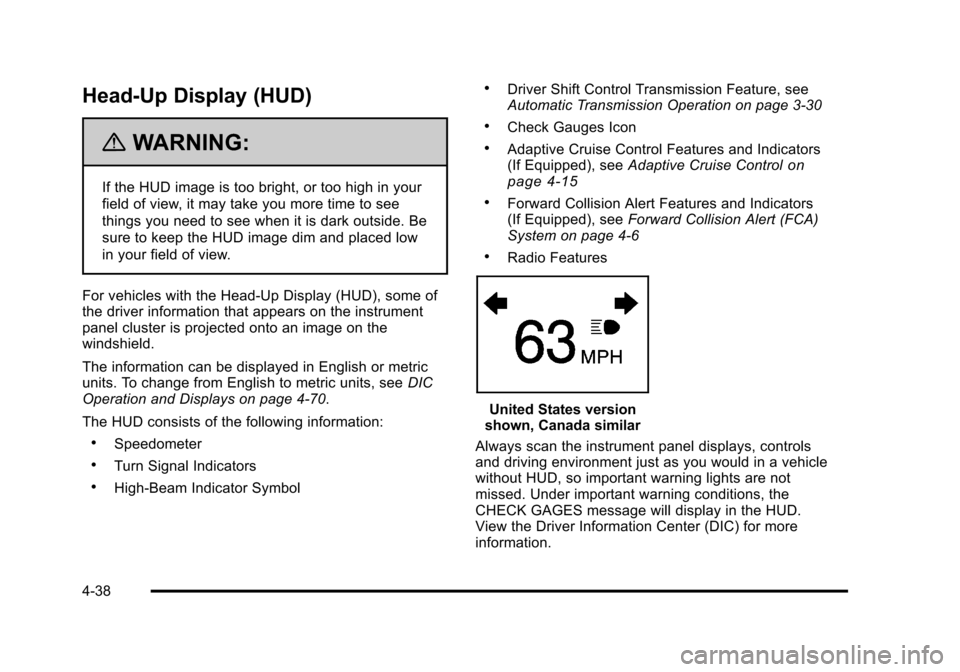
The HUD consists of the following information:
.Speedometer
.Turn Signal Indicators
.High-Beam Indicator Symbol
.Driver Shift Control Transmission Feature, see
Automatic Transmission Operation on page 3‑30
.Check Gauges Icon
.Adaptive Cruise Control Features and Indicators
(If Equipped), see Adaptive Cruise Controlon
page 4‑15
.Forward Collision Alert Features and Indicators
(If Equipped), see Forward Collision Alert (FCA)
System on page 4‑6
.Radio Features
United States version
shown, Canada similar
Always scan the instrument panel displays, controls
and driving environment just as you would in a vehicle
without HUD, so important warning lights are not
missed. Under important warning conditions, the
CHECK GAGES message will display in the HUD.
View the Driver Information Center (DIC) for more
information.
4-38
Page 243 of 528
Black plate (57,1)Cadillac STS Owner Manual - 2011
If, after several seconds, both status indicator lights
remain on, or if there are no lights at all, there may
be a problem with the lights or the passenger sensing
system. See your dealer for service.
{WARNING:
If the airbag readiness light in the instrument
panel cluster ever comes on and stays on, it
means that something may be wrong with the
airbag system. If this ever happens, have the
vehicle serviced promptly, because an adult-size
person sitting in the right front passenger's seat
may not have the protection of the airbag(s). See
Airbag Readiness Light
on page 4‑54for more
on this, including important safety information.
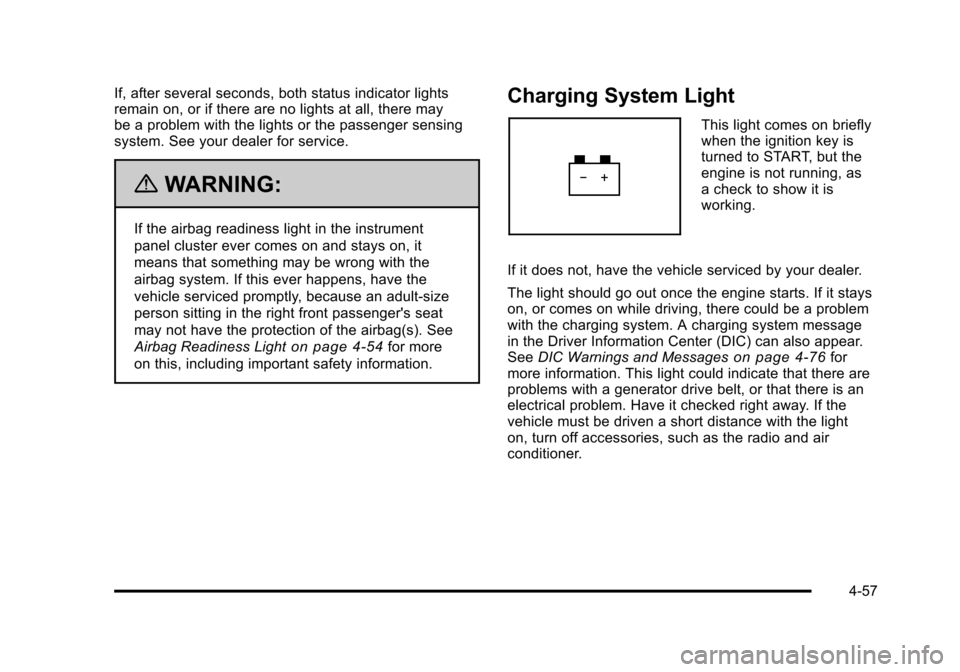
Charging System Light
This light comes on briefly
when the ignition key is
turned to START, but the
engine is not running, as
a check to show it is
working.
If it does not, have the vehicle serviced by your dealer.
The light should go out once the engine starts. If it stays
on, or comes on while driving, there could be a problem
with the charging system. A charging system message
in the Driver Information Center (DIC) can also appear.
See DIC Warnings and Messages
on page 4‑76for
more information. This light could indicate that there are
problems with a generator drive belt, or that there is an
electrical problem. Have it checked right away. If the
vehicle must be driven a short distance with the light
on, turn off accessories, such as the radio and air
conditioner.
4-57