audio CADILLAC XLR 2009 1.G Owner's Manual
[x] Cancel search | Manufacturer: CADILLAC, Model Year: 2009, Model line: XLR, Model: CADILLAC XLR 2009 1.GPages: 462, PDF Size: 3.72 MB
Page 224 of 462
Features and Controls
Using the Navigation System
This section presents basic information needed to
operate the navigation system.
Use the keys located on each side of the navigation
screen, as well as the available touch-sensitive screen
buttons, to operate the system. SeeNavigation System
Overview on page 4-2for more information on location.
Once the vehicle is moving, various functions become
disabled to reduce driver distraction.
Hard Keys
The following hard keys are located to the left of the
navigation screen:
BAND:Press to access the band screen and
switch between AM, FM1, FM2, XM1, XM2, and WX
(if equipped). See “Finding a Station” underNavigation
Audio System on page 4-52.CD:Press to play a CD. The CD screen displays.
SeeSix-Disc CD Changer on page 4-65orCD/DVD
Player on page 4-68.
DVD:Press to play a DVD. The DVD screen displays.
SeeCD/DVD Player on page 4-68.
yTUNE/SEEKz:Press the up or down arrows to go
to the next or previous radio station and stay there.
See “Finding a Station” underNavigation Audio System
on page 4-52.
e/z(Audio/Adjust):Press to view the main audio
menu. See “Main Audio Menu” underNavigation
Audio System on page 4-52.
PWR-VOL (Power/Volume Knob):Press the knob to
turn the audio and navigation systems on and off.
Turn the knob to increase or decrease the volume to
the audio system.
4-10
Page 225 of 462
The following hard keys are located to the right of the
navigation screen:
RPT:Press to repeat the current voice guidance
navigation prompt.
MAP:Press to view the map screen showing current
vehicle position.
The map screen can also display the following
information:
North or Heading Up symbol. SeeSymbols on
page 4-43.
Map scale. SeeMaps on page 4-38.
Distance to destination.
GPS symbol if GPS signal is not being received.
SeeGlobal Positioning System (GPS) on
page 4-49.
Selected options for reaching your current
destination.
Driver Information.
Radio band and presets.ROUTE:Press to display the PLAN ROUTE menu.
SeePlan Route on page 4-18.
MENU:Press to display the SETUP MENU. SeeSetup
Menu on page 4-12.
TILT
X:Press to open the navigation system faceplate
for loading or removing the map DVD, a video DVD, or an
audio CD. This key can only be used while the vehicle is
in P (Park).
Alpha-Numeric Keypad
Letters of the alphabet, symbols, punctuation, and
numbers, when available, display on the navigation
screen as an alpha or numeric keypad. The alpha
keypad displays when the system needs a city or street
name, entered. A Char at the bottom of the alpha
keypad to access the numeric keypad can be touched
when entering a house address, punctuation mark,
or other character. Touch A - Z to return to the
alpha keypad.
All characters are touch-sensitive screen buttons.
Touch a character to select it.
4-11
Page 232 of 462
Voice Guidance Volume Settings
This feature allows you to set the voice prompt volume
level or to turn voice prompts on or off.
Set the voice prompt volume level by touching the
numbered buttons to increase or decrease the volume
level. You may also choose to turn the voice prompts off.
Then touch Return to save the setting and to return to
the SETUP MENU.
If a voice prompt is active while the audio system is on,
the audio system volume decreases and the voice
prompts are heard through the driver side front speaker.
Voice prompts are not heard while using voice
recognition.
Plan Route
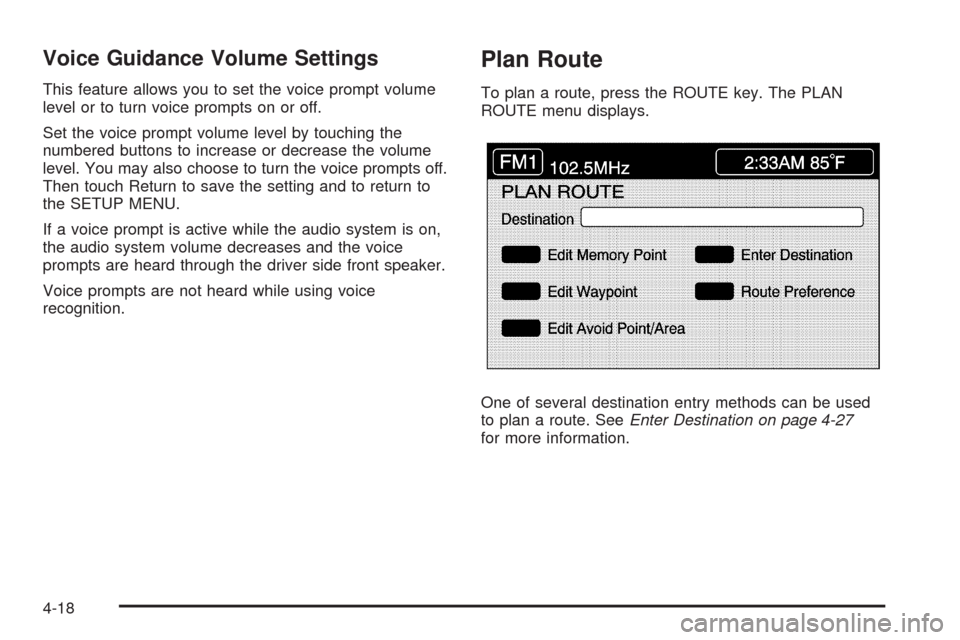
To plan a route, press the ROUTE key. The PLAN
ROUTE menu displays.
One of several destination entry methods can be used
to plan a route. SeeEnter Destination on page 4-27
for more information.
4-18
Page 253 of 462
Installing the DVD Map Disc
Your dealer/retailer may have installed the map DVD.
If the map DVD was not installed, do the following
to load it:
1. Turn the ignition on.
2. With the vehicle in P (Park), press and hold the
TILT key until a beep is heard. The system’s
faceplate opens.
3. If already loaded, the map DVD or a CD ejects from
the slot.
4. Load the map DVD into the slot by inserting it
partway. The system pulls it in.
5. Press and release the TILT key to close the
faceplate.Notice:Shifting out of P (Park) with the system’s
faceplate open will cause the faceplate to close
automatically. This could cause damage to a
CD, DVD or the system if it is partially loaded.
Before shifting out of P (Park), make sure that the
DVD or CD is loaded properly. The vehicle must
be shifted back into P (Park) to close the faceplate.
Once the map DVD is inserted correctly, you will
have the following two choices:
LANGUAGE
I AGREE
The language can be changed at this time. See
“Language” underNavigation Audio System on
page 4-52for more information on choosing a language.
Once a language has been selected, touch I AGREE
to plan a route. The map appears showing the current
vehicle position.
4-39
Page 262 of 462

Traveling Across Regions
If driving across several states, the selected region
might have to be changed to represent the destination.
There are two ways to plan a destination when
traveling across regions.
The following method is suggested and provides the
most route guidance and map display functions:
1. Change the selected search area region as you get
closer to the destination. See “Setting the Search
Area” underMaps on page 4-38.
2. Enter the destination and route settings. SeeEnter
Destination on page 4-27for more information.
If not using the rst method, keep the currently
selected search area region and enter the destination.
This method allows a destination selection from the
easy planning route method or from the All Points of
Interest (POI) categories with the “All Search Areas”
comment for US Only. For example, Tourist is a category
that features this comment. SeeEnter Destination on
page 4-27for more information.If traveling in or to Canada and the regional border is
crossed, the only map scale views available are 4 mi,
8 mi, 31 mi, and 128 mi (8 km, 16 km, 64 km and
256 km). Change the selected search area region when
you get closer to the destination. See “Setting the Search
Area” underMaps on page 4-38for more information.
Keyless Access System
When the engine is started, Driver 1 or Driver 2 displays
on the screen. A message will not appear on the
screen if the driver is unknown. The number on the back
of the transmitter corresponds to driver 1 or driver 2.
The navigation system can store memory points for
drivers 1 and 2 individually. SeeKeyless Access System
Operation on page 2-5for more information.
OnStar®System
When using the OnStar®system, the audio system
mutes and the navigation voice prompts become
disabled during the call. The volume of the OnStar call
can be adjusted by using the steering wheel volume
controls. SeeOnStar
®System on page 2-42for
more information.
4-48
Page 266 of 462

Ordering Map DVDs
The map DVD in the vehicle is the most up-to-date
information available when the vehicle was produced.
The map DVD is updated periodically, provided that the
map information has changed.
If there are any questions about the operation of the
navigation system or the update process, contact
the GM Nav Disc Center toll-free phone number,
1-877-NAV-DISC (1-877-628-3472) or go to the center’s
website, www.gmnavdisc.com.
If you need any updates or a replacement disc, because
the current disc is lost, damaged, or needs to be updated,
call the GM Nav Disc Center or order a new disc online.
To order a disc, have your Vehicle Identication Number
(VIN) available. This helps the center make sure you
receive the correct and most up-to-date DVD map disc for
your vehicle. SeeVehicle Identification Number (VIN) on
page 6-81for more information.
After receiving the updated disc, replace the old disc in
the navigation system. See “Installing the DVD Map Disc”
and “Ejecting the DVD Map Disc” underMaps on
page 4-38. Dispose of the old disc to avoid confusion
about which disc is the most current.
Database Coverage Explanations
Coverage area depends upon the map detail available.
Some areas have greater map detail than others. The
navigation system works only as well as the information
provided on the map disc. SeeOrdering Map DVDs on
page 4-52on how to obtain updated map information.
Navigation Audio System
Notice:Before adding any sound equipment to the
vehicle, such as an audio system, CD player, CB
radio, mobile telephone, or two-way radio, make
sure that it can be added by checking with your
dealer/retailer. Also, check federal rules covering
mobile radio and telephone units. If sound equipment
can be added, it is very important to do it properly.
Added sound equipment can interfere with the
operation of the vehicle’s engine, radio, or other
systems, and even damage them. The vehicle’s
systems can interfere with the operation of sound
equipment that has been added.
The vehicle has a feature called Retained Accessory
Power (RAP). With RAP, the audio system can be played
even after the ignition is turned off. SeeRetained
Accessory Power (RAP) on page 2-25for more
information.
The audio system is operated using navigation system
menus. The audio menus are explained in this section.
4-52
Page 267 of 462
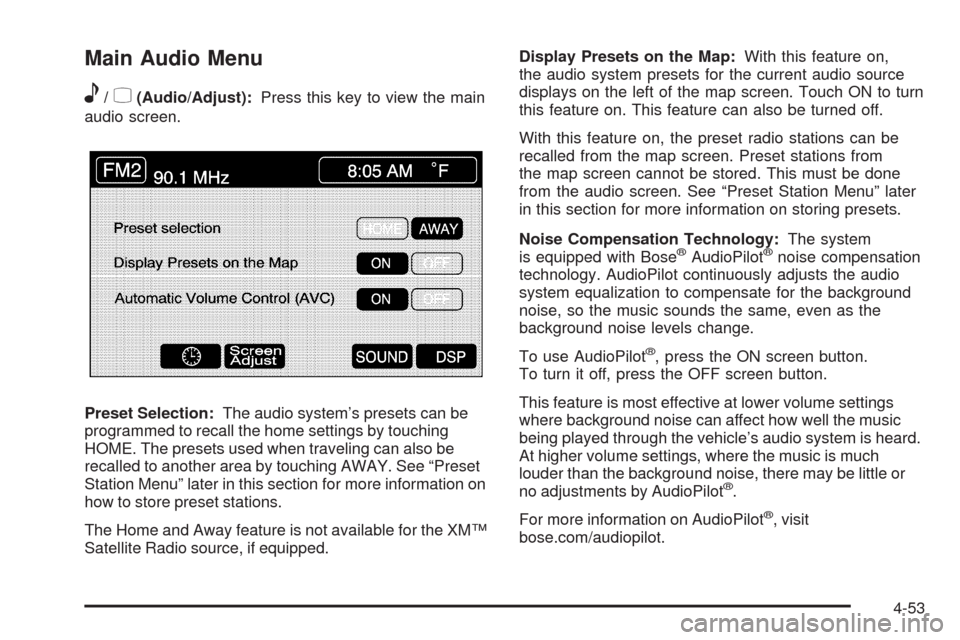
Main Audio Menu
e
/z(Audio/Adjust):Press this key to view the main
audio screen.
Preset Selection:The audio system’s presets can be
programmed to recall the home settings by touching
HOME. The presets used when traveling can also be
recalled to another area by touching AWAY. See “Preset
Station Menu” later in this section for more information on
how to store preset stations.
The Home and Away feature is not available for the XM™
Satellite Radio source, if equipped.Display Presets on the Map:With this feature on,
the audio system presets for the current audio source
displays on the left of the map screen. Touch ON to turn
this feature on. This feature can also be turned off.
With this feature on, the preset radio stations can be
recalled from the map screen. Preset stations from
the map screen cannot be stored. This must be done
from the audio screen. See “Preset Station Menu” later
in this section for more information on storing presets.
Noise Compensation Technology:The system
is equipped with Bose
®AudioPilot®noise compensation
technology. AudioPilot continuously adjusts the audio
system equalization to compensate for the background
noise, so the music sounds the same, even as the
background noise levels change.
To use AudioPilot
®, press the ON screen button.
To turn it off, press the OFF screen button.
This feature is most effective at lower volume settings
where background noise can affect how well the music
being played through the vehicle’s audio system is heard.
At higher volume settings, where the music is much
louder than the background noise, there may be little or
no adjustments by AudioPilot
®.
For more information on AudioPilot
®, visit
bose.com/audiopilot.
4-53
Page 270 of 462
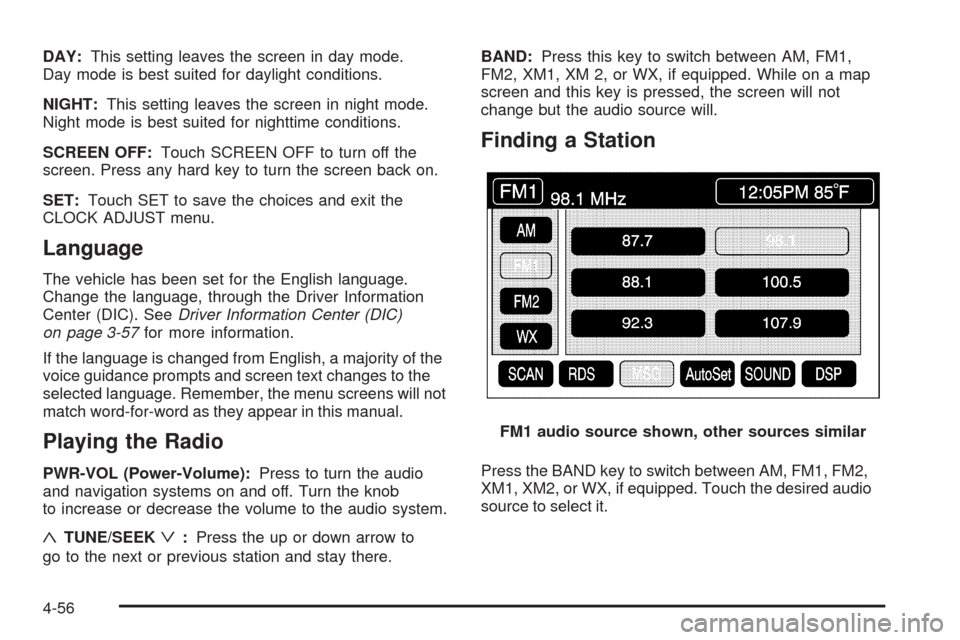
DAY:This setting leaves the screen in day mode.
Day mode is best suited for daylight conditions.
NIGHT:This setting leaves the screen in night mode.
Night mode is best suited for nighttime conditions.
SCREEN OFF:Touch SCREEN OFF to turn off the
screen. Press any hard key to turn the screen back on.
SET:Touch SET to save the choices and exit the
CLOCK ADJUST menu.
Language
The vehicle has been set for the English language.
Change the language, through the Driver Information
Center (DIC). SeeDriver Information Center (DIC)
on page 3-57for more information.
If the language is changed from English, a majority of the
voice guidance prompts and screen text changes to the
selected language. Remember, the menu screens will not
match word-for-word as they appear in this manual.
Playing the Radio
PWR-VOL (Power-Volume):Press to turn the audio
and navigation systems on and off. Turn the knob
to increase or decrease the volume to the audio system.
«TUNE/SEEKª:Press the up or down arrow to
go to the next or previous station and stay there.BAND:Press this key to switch between AM, FM1,
FM2, XM1, XM 2, or WX, if equipped. While on a map
screen and this key is pressed, the screen will not
change but the audio source will.
Finding a Station
Press the BAND key to switch between AM, FM1, FM2,
XM1, XM2, or WX, if equipped. Touch the desired audio
source to select it.FM1 audio source shown, other sources similar
4-56
Page 271 of 462
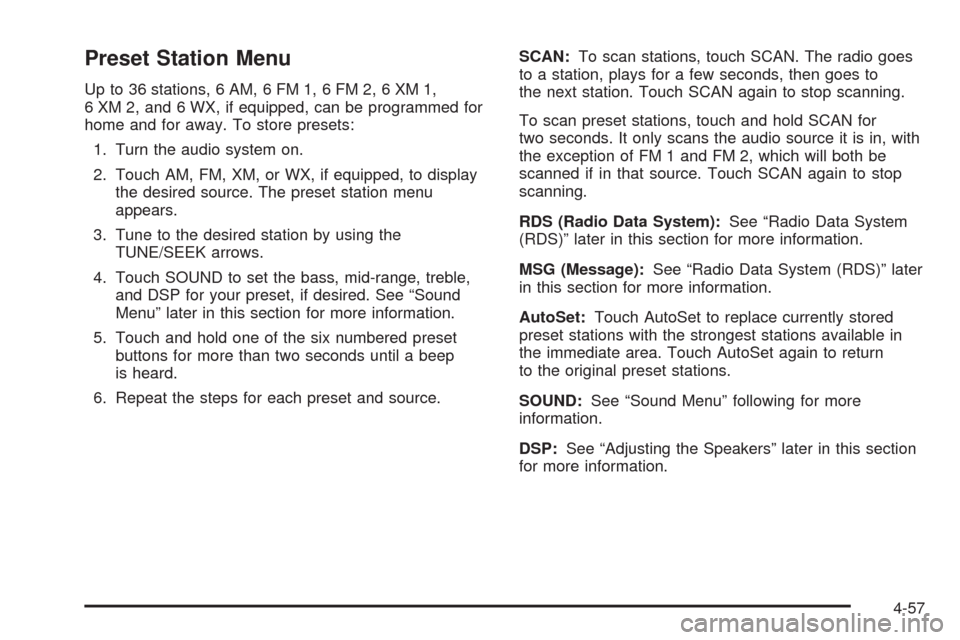
Preset Station Menu
Up to 36 stations, 6 AM, 6 FM 1, 6 FM 2, 6 XM 1,
6 XM 2, and 6 WX, if equipped, can be programmed for
home and for away. To store presets:
1. Turn the audio system on.
2. Touch AM, FM, XM, or WX, if equipped, to display
the desired source. The preset station menu
appears.
3. Tune to the desired station by using the
TUNE/SEEK arrows.
4. Touch SOUND to set the bass, mid-range, treble,
and DSP for your preset, if desired. See “Sound
Menu” later in this section for more information.
5. Touch and hold one of the six numbered preset
buttons for more than two seconds until a beep
is heard.
6. Repeat the steps for each preset and source.SCAN:To scan stations, touch SCAN. The radio goes
to a station, plays for a few seconds, then goes to
the next station. Touch SCAN again to stop scanning.
To scan preset stations, touch and hold SCAN for
two seconds. It only scans the audio source it is in, with
the exception of FM 1 and FM 2, which will both be
scanned if in that source. Touch SCAN again to stop
scanning.
RDS (Radio Data System):See “Radio Data System
(RDS)” later in this section for more information.
MSG (Message):See “Radio Data System (RDS)” later
in this section for more information.
AutoSet:Touch AutoSet to replace currently stored
preset stations with the strongest stations available in
the immediate area. Touch AutoSet again to return
to the original preset stations.
SOUND:See “Sound Menu” following for more
information.
DSP:See “Adjusting the Speakers” later in this section
for more information.
4-57
Page 272 of 462
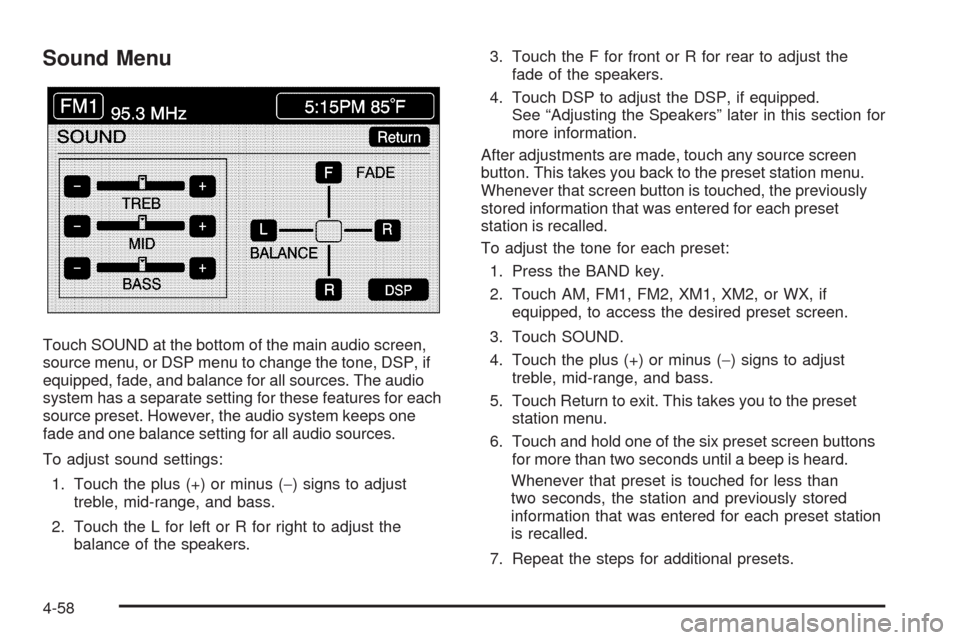
Sound Menu
Touch SOUND at the bottom of the main audio screen,
source menu, or DSP menu to change the tone, DSP, if
equipped, fade, and balance for all sources. The audio
system has a separate setting for these features for each
source preset. However, the audio system keeps one
fade and one balance setting for all audio sources.
To adjust sound settings:
1. Touch the plus (+) or minus (−) signs to adjust
treble, mid-range, and bass.
2. Touch the L for left or R for right to adjust the
balance of the speakers.3. Touch the F for front or R for rear to adjust the
fade of the speakers.
4. Touch DSP to adjust the DSP, if equipped.
See “Adjusting the Speakers” later in this section for
more information.
After adjustments are made, touch any source screen
button. This takes you back to the preset station menu.
Whenever that screen button is touched, the previously
stored information that was entered for each preset
station is recalled.
To adjust the tone for each preset:
1. Press the BAND key.
2. Touch AM, FM1, FM2, XM1, XM2, or WX, if
equipped, to access the desired preset screen.
3. Touch SOUND.
4. Touch the plus (+) or minus (−) signs to adjust
treble, mid-range, and bass.
5. Touch Return to exit. This takes you to the preset
station menu.
6. Touch and hold one of the six preset screen buttons
for more than two seconds until a beep is heard.
Whenever that preset is touched for less than
two seconds, the station and previously stored
information that was entered for each preset station
is recalled.
7. Repeat the steps for additional presets.
4-58