audio CADILLAC XLR 2009 1.G User Guide
[x] Cancel search | Manufacturer: CADILLAC, Model Year: 2009, Model line: XLR, Model: CADILLAC XLR 2009 1.GPages: 462, PDF Size: 3.72 MB
Page 200 of 462
Bluetooth Controls
Use the buttons located on the steering wheel to operate
the in-vehicle Bluetooth system. SeeAudio Steering
Wheel Controls on page 3-88for more information.
bg(Push To Talk):Press to answer incoming calls,
to conrm system information, and to start speech
recognition.
cª(Phone On Hook):Press to end a call, reject a
call, or to cancel an operation.
Pairing
A Bluetooth enabled cell phone must be paired to the
in-vehicle Bluetooth system rst and then connected to
the vehicle before it can be used. See the cell phone
manufacturers user guide for Bluetooth functions before
pairing the cell phone. If a Bluetooth phone is not
connected, calls will be made using OnStar
®Hands-Free
Calling, if available. Refer to the OnStar owner’s guide
for more information.Pairing Information:
Up to ve cell phones can be paired to the in-vehicle
Bluetooth system.
The pairing process is disabled when the vehicle
is moving.
The in-vehicle Bluetooth system automatically links
with the rst available paired cell phone in the
order the phone was paired.
Only one paired cell phone can be connected to the
in-vehicle Bluetooth system at a time.
Pairing should only need to be completed once,
unless changes to the pairing information have
been made or the phone is deleted.
To link to a different paired phone, see Linking to a
Different Phone later in this section.
3-78
Page 206 of 462

Using the Call Command
1. Press and holdbgfor two seconds. The system
responds with “Ready” followed by a tone.
2. Say “Call”. The system responds with “Call using
by a tone.
3. Say the name tag of the person to call.
If the system clearly recognizes the name tag it
responds with “OK, calling,
dials the number.
If the system is unsure it recognizes the right
name tag, it conrms the name tag followed
by a tone. If the name tag is correct, say “Yes”.
The system responds with “OK, calling,
tag is not correct, say “No”. The system will
ask for the name tag to be re-entered.
Once connected, the person called will be heard
through the audio speakers.
Using the Re-dial Command
1. Press and holdbgfor two seconds. The system
responds with “Ready” followed by a tone.
2. After the tone, say “Re-dial”. The system responds
with “Re-dial using
number called from the connected Bluetooth phone.
Once connected, the person called will be heard through
the audio speakers.
Receiving a Call
When an incoming call is received, the audio system
mutes and a ring tone is heard in the vehicle.
Pressbgand begin speaking to answer the call.
Presscªto ignore a call.
Call Waiting
Call waiting must be supported on the Bluetooth phone
and enabled by the wireless service carrier to work.
Pressbgto answer an incoming call when another
call is active. The original call is placed on hold.
Pressbgagain to return to the original call.
3-84
Page 208 of 462
Transferring a Call
Audio can be transferred between the in-vehicle
Bluetooth system and the cell phone.
To Transfer Audio to the Cell Phone
During a call with the audio in the vehicle:
1. Press
bg. The system responds with “Ready”
followed by a tone.
2. Say “Transfer Call.” The system responds with
“Transferring call” and the audio will switch from
the vehicle to the cell phone.
To Transfer Audio to the In-Vehicle
Bluetooth System
The cellular phone must be paired and connected with
the Bluetooth system before a call can be transferred.
The connection process can take up to two minutes after
the key is turned to the ON/RUN or ACC/ACCESSORY
position.
During a call with the audio on the cell phone,
press
bgfor more than two seconds. The audio
switches from the cell phone to the vehicle.
Voice Pass-Thru
Voice Pass-Thru allows access to the voice recognition
commands on the cell phone. See the cell phone
manufacturers user guide to see if the cell phone
supports this feature. This feature can be used to
verbally access contacts stored in the cell phone.
1. Press and hold
bgfor two seconds. The system
responds with “Ready” followed by a tone.
2. Say “Bluetooth”. The system responds with
“Bluetooth ready” followed by a tone.
3. Say “Voice”. The system responds with “OK,
accessing
The cell phone’s normal prompt messages will
go through its cycle according to the phone’s
operating instructions.
3-86
Page 210 of 462

Other Information
The Bluetooth®word mark and logos are owned by the
Bluetooth®SIG, Inc. and any use of such marks by
General Motors is under license. Other trademarks and
trade names are those of their respective owners.
This device complies with Part 15 of the FCC Rules.
Operation is subject to the following two conditions:
1. This device may not cause harmful interference.
2. This device must accept any interference received,
including interference that may cause undesired
operation.
This device complies with RSS-210 of Industry Canada.
Operation is subject to the following two conditions:
1. This device may not cause interference.
2. This device must accept any interference received,
including interference that may cause undesired
operation of the device.
Changes or modications to this system by other than
an authorized service facility could void authorization to
use this equipment.
Theft-Deterrent Feature
THEFTLOCK®is designed to discourage theft of the
vehicle’s radio by learning a portion of the Vehicle
Identication Number (VIN). The radio does not operate
if it is stolen or moved to a different vehicle.
Audio Steering Wheel Controls
The vehicle has audio steering wheel controls. These
controls may differ depending on the vehicle’s options.
On the left side, the vehicle may have:
SEEK, SRCE, Heated Steering Wheel and Cruise
Control Cancel.
SRCE, Heated Steering Wheel, Adaptive Cruise
Control Gap, and Cruise Control Cancel.
Audio Controls With
Heated Steering Wheel
and Cruise Control
Cancel
Audio Controls With
Heated Steering Wheel
and Adaptive Cruise
and GAP
3-88
Page 211 of 462
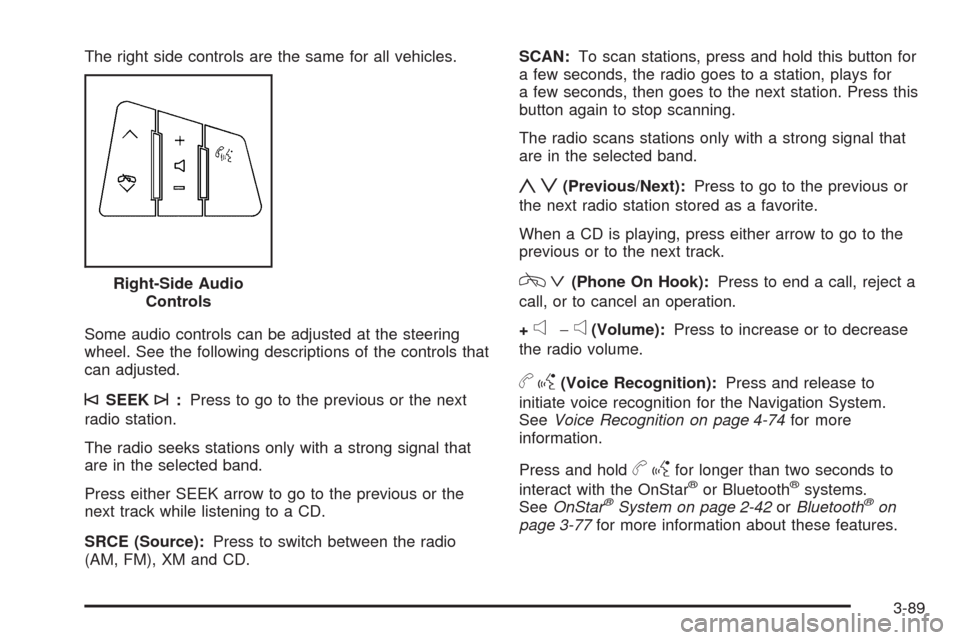
The right side controls are the same for all vehicles.
Some audio controls can be adjusted at the steering
wheel. See the following descriptions of the controls that
can adjusted.
©SEEK¨:Press to go to the previous or the next
radio station.
The radio seeks stations only with a strong signal that
are in the selected band.
Press either SEEK arrow to go to the previous or the
next track while listening to a CD.
SRCE (Source):Press to switch between the radio
(AM, FM), XM and CD.SCAN:To scan stations, press and hold this button for
a few seconds, the radio goes to a station, plays for
a few seconds, then goes to the next station. Press this
button again to stop scanning.
The radio scans stations only with a strong signal that
are in the selected band.
yz(Previous/Next):Press to go to the previous or
the next radio station stored as a favorite.
When a CD is playing, press either arrow to go to the
previous or to the next track.
cª(Phone On Hook):Press to end a call, reject a
call, or to cancel an operation.
+
e−e(Volume):Press to increase or to decrease
the radio volume.
bg(Voice Recognition):Press and release to
initiate voice recognition for the Navigation System.
SeeVoice Recognition on page 4-74for more
information.
Press and hold
bgfor longer than two seconds to
interact with the OnStar®or Bluetooth®systems.
SeeOnStar®System on page 2-42orBluetooth®on
page 3-77for more information about these features. Right-Side Audio
Controls
3-89
Page 215 of 462
Overview.........................................................4-2
Navigation System Overview............................4-2
Getting Started...............................................4-4
Features and Controls....................................4-10
Using the Navigation System..........................4-10
Setup Menu.................................................4-12
Plan Route..................................................4-18
Edit Memory Point........................................4-19
Edit Waypoint...............................................4-23
Edit Avoid Point/Area....................................4-25
Enter Destination..........................................4-27
Route Preference..........................................4-36
Maps ..........................................................4-38
Symbols......................................................4-43Keyless Access System.................................4-48
OnStar®System...........................................4-48
Global Positioning System (GPS)....................4-49
Vehicle Positioning........................................4-50
Problems with Route Guidance.......................4-51
If the System Needs Service..........................4-51
Ordering Map DVDs......................................4-52
Database Coverage Explanations....................4-52
Navigation Audio System................................4-52
Six-Disc CD Changer....................................4-65
CD/DVD Player............................................4-68
Radio Personalization with Home and
Away Feature...........................................4-73
Voice Recognition..........................................4-74
Section 4 Navigation System
4-1
Page 217 of 462
A. BAND Key. See “Finding a Station” underNavigation
Audio System on page 4-52.
B. CD Key. SeeNavigation Audio System on page 4-52
orCD/DVD Player on page 4-68.
C. DVD Key. See “Playing a DVD” underCD/DVD
Player on page 4-68.
D. TUNE/SEEK Key. See “Playing the Radio” under
Navigation Audio System on page 4-52.
E. Audio/Adjust Key. See “Main Audio Menu” under
Navigation Audio System on page 4-52.
F. Power-Volume Knob. See “Hard Keys” underUsing
the Navigation System on page 4-10.G. Navigation System Screen
H. RPT (Repeat) Key. See “Hard Keys” underUsing
the Navigation System on page 4-10.
I. MAP Key. See “Hard Keys” underUsing the
Navigation System on page 4-10.
J. ROUTE Key. See “Hard Keys” underUsing the
Navigation System on page 4-10.
K. MENU Key. See “Hard Keys” underUsing the
Navigation System on page 4-10.
L. TILT Key. See “Hard Keys” underUsing the
Navigation System on page 4-10.
4-3
Page 218 of 462
Getting Started
Read this manual thoroughly to become familiar with
how the navigation system operates.
The navigation system includes navigation and audio
functions.
Keeping your eyes on the road and your mind on the
drive is important for safe driving. The navigation
system has built-in features intended to help you do this.
Some features may be disabled while driving. Note, these
functions are grayed-out. A grayed-out function indicates
it is not available when the vehicle is moving.
All functions are available when the vehicle is parked.
Do the following before driving:
Become familiar with the navigation system
operation, hard keys on the faceplate, and
touch-sensitive screen buttons of the navigation
system.
Set up the audio by presetting favorite stations,
setting the tone, and adjusting the speakers.
Set up the navigation features before beginning
driving, such as entering an address or a preset
destination.
Set up the phone numbers in advance so they can be
called easily with the press of a single button or a
single voice command (for navigation systems
equipped with phone capability).
{CAUTION:
Taking your eyes off the road too long or too often
while using the navigation system could cause a
crash resulting in injury or death to you or others.
Focus your attention on driving.
{CAUTION:
Avoid looking too long or too often at the moving
map on the navigation screen. This could cause a
crash and you or others can be injured or killed.
Use the turn-by-turn voice guidance directions
whenever possible.
4-4
Page 219 of 462
Use the navigation system to:
Plan a route.
Select a destination using various methods and
choices.
Follow turn-by-turn route and map guidance with
voice prompts, only if permitted by traffic laws,
controls, and conditions.
Always be alert, obey traffic and roadway laws, and
instructions, regardless of the guidance from the
navigation system. Because the navigation system uses
street map information that does not include all traffic
restrictions or the latest road changes, it may suggest
using a road that is now closed for construction or a turn
that is prohibited by signs at the intersection. Because
the system uses limited information, you must always
evaluate whether following the system’s directions
is safe and legal for the current conditions.
When the navigation system is turned on, a screen may
appear with the information below, and you must
read and acknowledge the information it contains.
After you acknowledge the start up information you will
be able to access the NAV (navigation) and DEST
(destination) functions. Once accessed, you can enter
or delete information in the navigation system or access
other functions. See instructions later in this section.
Deleting Personal Information
This navigation system can record and store
destinations. At times, such as when you are disposing
of the vehicle, you may want to delete these
destinations. Refer to the following sections to delete
the destination information that has been stored.
See “Deleting Single Memory Points”, “Deleting All
Memory Points”, “Preset Dests.” (Destinations), “Home”
and “Previous Dest.” (Destination) underEdit Memory
Point on page 4-19for deleting stored destinations.
Storing Radio Station Presets
To set preset radio stations:
1. Press the PWR/VOL knob to turn the system on.
2. Press the audio source screen button (AM, FM1,
FM2, etc.) and select the desired band (AM, FM1,
FM2, XM1, or XM2 (if equipped), or WX (weather)
(if equipped)).
3. Use the TUNE/SEEK arrows to tune to the desired
station.
4. Press and hold one of the six preset screen buttons,
at the bottom of the screen, until a beep is heard
or see the station displayed on the selected preset
button.
5. Repeat the steps for each preset.
See “Preset Station Menu” underNavigation Audio
System on page 4-52for more information.
4-5
Page 220 of 462
Setting the Clock
To set the time:
1. Press the PWR/VOL knob to turn the system on.
2. Press the
e/z(Audio/Adjust) hard key.
3. Press the
8clock symbol screen button.
4. Select the 12H or 24H screen button to display the
time in standard or military time.
5. Press and hold the HOUR and MIN. (minute) arrow
buttons to increase or to decrease the time.
6. Select the appropriate time zone screen button.
7. Select the Daylight Saving Time screen button,
if necessary.
The radio uses the GPS satellite to set the time.
The vehicle needs to be in an open area to receive the
signal. See “Clock Adjust Menu” underNavigation
Audio System on page 4-52for more information.
Setting the Search Area, Entering an
Address and Point of Interest, Storing a
Home Destination, and Using The
Home or Previous Destinations
Before entering an Address, Point of Interest, Home, or
Preset Destination, select the appropriate region that
contains the nal destination. The vehicle must be
stopped to perform this operation.
Setting the Search Area
To set the search area:
1. If the radio is already on with a map disc inserted,
skip to Step 5.
2. Press the PWR/VOL knob to turn the system on.
3. Insert the DVD map disc. See “Regional Maps”
underMaps on page 4-38for more information.
4. A notice may appear. Touch the I AGREE screen
button to proceed.
5. Press the ROUTE hard key.
6. Press the Enter Destination screen button.
7. Press the Change screen button.
8. Select the appropriate region numbered screen
button that contains your nal destination.
The system returns to the Destination menu. SeeEnter
Destination on page 4-27for more information.
4-6