ignition CADILLAC XLR 2009 1.G Service Manual
[x] Cancel search | Manufacturer: CADILLAC, Model Year: 2009, Model line: XLR, Model: CADILLAC XLR 2009 1.GPages: 462, PDF Size: 3.72 MB
Page 253 of 462
Installing the DVD Map Disc
Your dealer/retailer may have installed the map DVD.
If the map DVD was not installed, do the following
to load it:
1. Turn the ignition on.
2. With the vehicle in P (Park), press and hold the
TILT key until a beep is heard. The system’s
faceplate opens.
3. If already loaded, the map DVD or a CD ejects from
the slot.
4. Load the map DVD into the slot by inserting it
partway. The system pulls it in.
5. Press and release the TILT key to close the
faceplate.Notice:Shifting out of P (Park) with the system’s
faceplate open will cause the faceplate to close
automatically. This could cause damage to a
CD, DVD or the system if it is partially loaded.
Before shifting out of P (Park), make sure that the
DVD or CD is loaded properly. The vehicle must
be shifted back into P (Park) to close the faceplate.
Once the map DVD is inserted correctly, you will
have the following two choices:
LANGUAGE
I AGREE
The language can be changed at this time. See
“Language” underNavigation Audio System on
page 4-52for more information on choosing a language.
Once a language has been selected, touch I AGREE
to plan a route. The map appears showing the current
vehicle position.
4-39
Page 254 of 462
DVD Map Disc Messages
If an error appears on the display and/or the map disc
comes out, it could be for one of the following reasons:
If the map disc was installed into the CD slot.
See “Installing the DVD Map Disc” previously.
It is very hot, when the temperature returns to
normal, the map disc should play.
You are driving on a very rough road. When the road
becomes smoother, the map disc should play.
The map disc is dirty, scratched, wet, or
upside down.
If any error occurs repeatedly or if an error cannot be
corrected, contact your dealer/retailer.
Ejecting the DVD Map Disc
When the DVD map disc is not loaded, the navigation
portion of the system cannot be used.
1. Turn the ignition on.
2. With the vehicle in P (Park), press and hold the
TILT key until a beep is heard. The system’s
faceplate opens.
3. The map DVD ejects from the slot. Pull the
disc out.
4. Press and release the TILT key to close the
faceplate.Notice:Shifting out of P (Park) with the system’s
faceplate open will cause the faceplate to close
automatically. This could cause damage to a
CD, DVD or the system if it is partially loaded. Before
shifting out of P (Park), make sure that the DVD or
CD is loaded properly. The vehicle must be
shifted back into P (Park) to close the faceplate.
Handling the DVD Map Disc
When handling the DVD map disc, be careful of the
following:
Handle the disc very carefully to avoid
contamination or aws. Signals may not read out
properly if the disc gets contaminated or awed.
If the disc gets soiled, use a soft cloth to gently wipe
it out from the center of the disc to the outside.
Do not use photographic record cleaner, solvents,
or other cleaners.
Do not use the disc to rest on while writing or
drawing using any writing utensil or attach a seal to
any of the sides or the disc.
Do not keep the disc in direct sunlight, high
temperatures, or humidity.
After using the disc, place it back into the
original case.
4-40
Page 266 of 462

Ordering Map DVDs
The map DVD in the vehicle is the most up-to-date
information available when the vehicle was produced.
The map DVD is updated periodically, provided that the
map information has changed.
If there are any questions about the operation of the
navigation system or the update process, contact
the GM Nav Disc Center toll-free phone number,
1-877-NAV-DISC (1-877-628-3472) or go to the center’s
website, www.gmnavdisc.com.
If you need any updates or a replacement disc, because
the current disc is lost, damaged, or needs to be updated,
call the GM Nav Disc Center or order a new disc online.
To order a disc, have your Vehicle Identication Number
(VIN) available. This helps the center make sure you
receive the correct and most up-to-date DVD map disc for
your vehicle. SeeVehicle Identification Number (VIN) on
page 6-81for more information.
After receiving the updated disc, replace the old disc in
the navigation system. See “Installing the DVD Map Disc”
and “Ejecting the DVD Map Disc” underMaps on
page 4-38. Dispose of the old disc to avoid confusion
about which disc is the most current.
Database Coverage Explanations
Coverage area depends upon the map detail available.
Some areas have greater map detail than others. The
navigation system works only as well as the information
provided on the map disc. SeeOrdering Map DVDs on
page 4-52on how to obtain updated map information.
Navigation Audio System
Notice:Before adding any sound equipment to the
vehicle, such as an audio system, CD player, CB
radio, mobile telephone, or two-way radio, make
sure that it can be added by checking with your
dealer/retailer. Also, check federal rules covering
mobile radio and telephone units. If sound equipment
can be added, it is very important to do it properly.
Added sound equipment can interfere with the
operation of the vehicle’s engine, radio, or other
systems, and even damage them. The vehicle’s
systems can interfere with the operation of sound
equipment that has been added.
The vehicle has a feature called Retained Accessory
Power (RAP). With RAP, the audio system can be played
even after the ignition is turned off. SeeRetained
Accessory Power (RAP) on page 2-25for more
information.
The audio system is operated using navigation system
menus. The audio menus are explained in this section.
4-52
Page 288 of 462
Voice Recognition
The navigation system’s voice recognition allows for
hands-free operation of navigation and audio system
features. Voice recognition can be used when the
ignition is on or when Retained Accessory Power (RAP)
is active.
This feature only works if the map DVD is inserted and
I AGREE has been selected. If voice recognition is used
without the map DVD inserted, the system displays
“Please insert the navigation map DVD to use the voice
recognition feature.” See “Installing the DVD Map Disc”
underMaps on page 4-38.
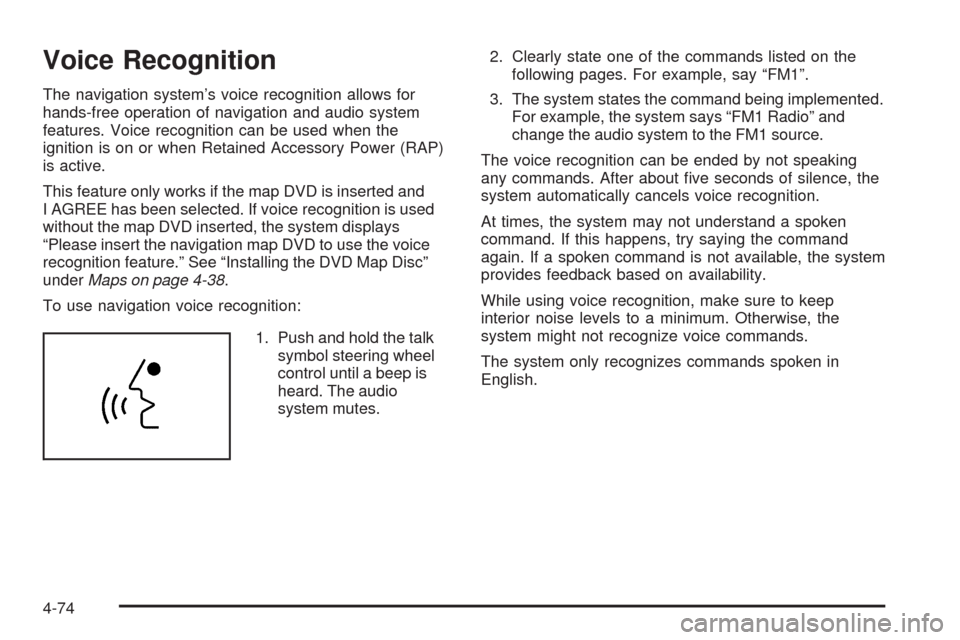
To use navigation voice recognition:
1. Push and hold the talk
symbol steering wheel
control until a beep is
heard. The audio
system mutes.2. Clearly state one of the commands listed on the
following pages. For example, say “FM1”.
3. The system states the command being implemented.
For example, the system says “FM1 Radio” and
change the audio system to the FM1 source.
The voice recognition can be ended by not speaking
any commands. After about ve seconds of silence, the
system automatically cancels voice recognition.
At times, the system may not understand a spoken
command. If this happens, try saying the command
again. If a spoken command is not available, the system
provides feedback based on availability.
While using voice recognition, make sure to keep
interior noise levels to a minimum. Otherwise, the
system might not recognize voice commands.
The system only recognizes commands spoken in
English.
4-74
Page 311 of 462
Hill and Mountain Roads
Driving on steep hills or through mountains is different
than driving on at or rolling terrain. Tips for driving
in these conditions include:
Keep the vehicle serviced and in good shape.
Check all uid levels and brakes, tires, cooling
system, and transmission.
Going down steep or long hills, shift to a
lower gear.
{CAUTION:
If you do not shift down, the brakes could get so
hot that they would not work well. You would then
have poor braking or even none going down a hill.
You could crash. Shift down to let the engine
assist the brakes on a steep downhill slope.
{CAUTION:
Coasting downhill in N (Neutral) or with the ignition
off is dangerous. The brakes will have to do all the
work of slowing down and they could get so hot
that they would not work well. You would then
have poor braking or even none going down a hill.
You could crash. Always have the engine running
and the vehicle in gear when going downhill.
Stay in your own lane. Do not swing wide or cut
across the center of the road. Drive at speeds
that let you stay in your own lane.
Top of hills: Be alert — something could be in your
lane (stalled car, accident).
Pay attention to special road signs (falling rocks
area, winding roads, long grades, passing or
no-passing zones) and take appropriate action.
5-17
Page 350 of 462
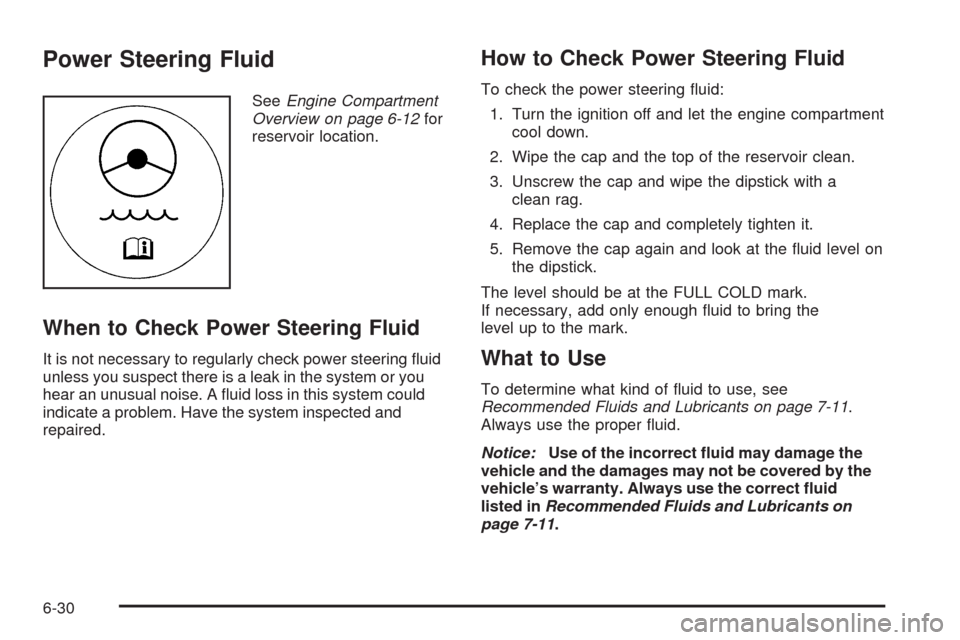
Power Steering Fluid
SeeEngine Compartment
Overview on page 6-12for
reservoir location.
When to Check Power Steering Fluid
It is not necessary to regularly check power steering uid
unless you suspect there is a leak in the system or you
hear an unusual noise. A uid loss in this system could
indicate a problem. Have the system inspected and
repaired.
How to Check Power Steering Fluid
To check the power steering uid:
1. Turn the ignition off and let the engine compartment
cool down.
2. Wipe the cap and the top of the reservoir clean.
3. Unscrew the cap and wipe the dipstick with a
clean rag.
4. Replace the cap and completely tighten it.
5. Remove the cap again and look at the uid level on
the dipstick.
The level should be at the FULL COLD mark.
If necessary, add only enough uid to bring the
level up to the mark.
What to Use
To determine what kind of uid to use, see
Recommended Fluids and Lubricants on page 7-11.
Always use the proper uid.
Notice:Use of the incorrect uid may damage the
vehicle and the damages may not be covered by the
vehicle’s warranty. Always use the correct uid
listed inRecommended Fluids and Lubricants on
page 7-11.
6-30
Page 357 of 462
Notice:If you try to start your vehicle by pushing
or pulling it, you could damage your vehicle. Do not
push or pull your vehicle to start it; instead, use
the jump starting procedure in this manual to start
your vehicle when the battery has run down.
1. Check the other vehicle. It must have a 12-volt
battery with a negative ground system.
Notice:If the other vehicle’s system is not a 12-volt
system with a negative ground, both vehicles can
be damaged. Only use vehicles with 12-volt systems
with negative grounds to jump start your vehicle.
2. Get the vehicles close enough so the jumper cables
can reach, but be sure the vehicles are not touching
each other. If they are, it could cause a ground
connection you do not want. You would not be able
to start your vehicle, and the bad grounding
could damage the electrical systems.
To avoid the possibility of the vehicles rolling, set
the parking brake rmly on both vehicles involved in
the jump start procedure. Put an automatic
transmission in P (Park) or a manual transmission
in NEUTRAL before setting the parking brake.Notice:If you leave the radio or other accessories
on during the jump starting procedure, they could be
damaged. The repairs would not be covered by the
warranty. Always turn off the radio and other
accessories when jump starting the vehicle.
3. Turn off the ignition on both vehicles. Unplug
unnecessary accessories plugged into the cigarette
lighter or the accessory power outlet. Turn off
the radio and all lamps that are not needed. This
will avoid sparks and help save both batteries. And
it could save the radio!
4. Open the hoods and locate the batteries. Find the
positive (+) and negative (−) terminal locations on
each vehicle. SeeEngine Compartment Overview
on page 6-12for more information on location.
{CAUTION:
An electric fan can start up even when the engine
is not running and can injure you. Keep hands,
clothing and tools away from any underhood
electric fan.
6-37
Page 378 of 462
At the same time a message to check the pressure in a
specic tire appears on the Driver Information Center
(DIC) display. The low tire pressure warning light
and the DIC warning message appear at each ignition
cycle until the tires are inated to the correct ination
pressure. Using the DIC, tire pressure levels can
be viewed by the driver. For additional information and
details about the DIC operation and displays see
DIC Operation and Displays on page 3-57andDIC
Warnings and Messages on page 3-60.
The low tire pressure warning light may come on in cool
weather when the vehicle is rst started, and then
turn off as you start to drive. This could be an early
indicator that the air pressure in the tire(s) are getting
low and need to be inated to the proper pressure.A Tire and Loading Information label, attached to your
vehicle, shows the size of your vehicle’s original
equipment tires and the correct ination pressure for
your vehicle’s tires when they are cold. SeeLoading the
Vehicle on page 5-21, for an example of the Tire and
Loading Information label and its location on your
vehicle. Also seeInflation - Tire Pressure on page 6-54
for additional information.
Your vehicle’s TPMS can warn you about a low tire
pressure condition but it does not replace normal
tire maintenance. SeeTire Inspection and Rotation on
page 6-60,When It Is Time for New Tires on page 6-61,
andTires on page 6-46.
Notice:Liquid tire sealants could damage the Tire
Pressure Monitor System (TPMS) sensors. Sensor
damage caused by using a tire sealant is not covered
by your warranty. Do not use liquid tire sealants.
6-58
Page 379 of 462

TPMS Malfunction Light and Message
The TPMS will not function properly if one or more of the
TPMS sensors are missing or inoperable. When the
system detects a malfunction, the low tire warning light
ashes for about one minute and then stays on for the
remainder of the ignition cycle. A DIC warning message
is also displayed. The low tire warning light and DIC
warning message come on at each ignition cycle until the
problem is corrected. Some of the conditions that can
cause the malfunction light and DIC message to come
on are:
The TPMS sensor matching process was not done
or not completed successfully. The DIC message
should go off after successfully completing the
sensor matching process.
One or more TPMS sensors are missing or
damaged. Under these conditions the TPMS
malfunction light (low tire warning light) comes on,
and at the same time the DIC message is displayed.
The DIC message and TPMS malfunction light
should go off once the TPMS sensors are installed
and the sensor matching process is performed
successfully.
Replacement tires or wheels do not match your
vehicle’s original equipment tires or wheels. Tires
and wheels other than those recommended for your
vehicle could prevent the TPMS from functioning
properly. SeeBuying New Tires on page 6-62.
Operating electronic devices or being near facilities
using radio wave frequencies similar to the TPMS
could cause the TPMS sensors to malfunction.
If the TPMS is not functioning it cannot detect or
signal a low tire condition. See your dealer/retailer
for service if the TPMS malfunction light and DIC
message comes on and stays on.
TPMS Sensor Matching Process
Each TPMS sensor has a unique identication code.
Any time you replace one or more of the TPMS sensors
or rotate your vehicle’s tires, the identication codes
will need to be matched to the new tire/wheel position.
The sensors are matched to the tire/wheel positions
in the following order: driver side front tire, passenger
side front tire, passenger side rear tire, and driver
side rear tire using a TPMS diagnostic tool. See your
dealer/retailer for service.
6-59
Page 405 of 462
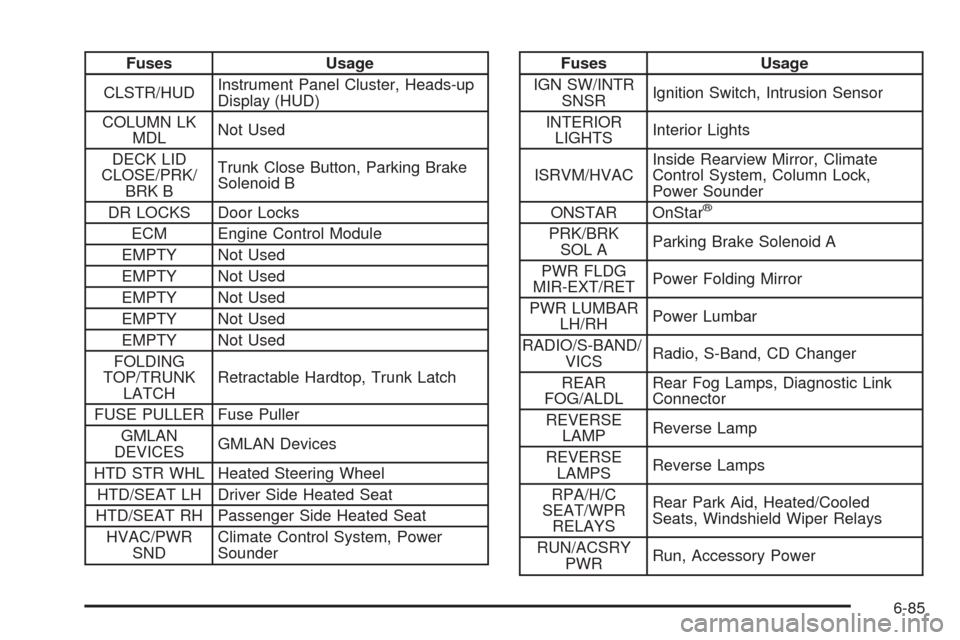
Fuses Usage
CLSTR/HUDInstrument Panel Cluster, Heads-up
Display (HUD)
COLUMN LK
MDLNot Used
DECK LID
CLOSE/PRK/
BRK BTrunk Close Button, Parking Brake
Solenoid B
DR LOCKS Door Locks
ECM Engine Control Module
EMPTY Not Used
EMPTY Not Used
EMPTY Not Used
EMPTY Not Used
EMPTY Not Used
FOLDING
TOP/TRUNK
LATCHRetractable Hardtop, Trunk Latch
FUSE PULLER Fuse Puller
GMLAN
DEVICESGMLAN Devices
HTD STR WHL Heated Steering Wheel
HTD/SEAT LH Driver Side Heated Seat
HTD/SEAT RH Passenger Side Heated Seat
HVAC/PWR
SNDClimate Control System, Power
SounderFuses Usage
IGN SW/INTR
SNSRIgnition Switch, Intrusion Sensor
INTERIOR
LIGHTSInterior Lights
ISRVM/HVACInside Rearview Mirror, Climate
Control System, Column Lock,
Power Sounder
ONSTAR OnStar
®
PRK/BRK
SOL AParking Brake Solenoid A
PWR FLDG
MIR-EXT/RETPower Folding Mirror
PWR LUMBAR
LH/RHPower Lumbar
RADIO/S-BAND/
VICSRadio, S-Band, CD Changer
REAR
FOG/ALDLRear Fog Lamps, Diagnostic Link
Connector
REVERSE
LAMPReverse Lamp
REVERSE
LAMPSReverse Lamps
RPA/H/C
SEAT/WPR
RELAYSRear Park Aid, Heated/Cooled
Seats, Windshield Wiper Relays
RUN/ACSRY
PWRRun, Accessory Power
6-85