key CADILLAC XLR 2009 1.G Service Manual
[x] Cancel search | Manufacturer: CADILLAC, Model Year: 2009, Model line: XLR, Model: CADILLAC XLR 2009 1.GPages: 462, PDF Size: 3.72 MB
Page 218 of 462
Getting Started
Read this manual thoroughly to become familiar with
how the navigation system operates.
The navigation system includes navigation and audio
functions.
Keeping your eyes on the road and your mind on the
drive is important for safe driving. The navigation
system has built-in features intended to help you do this.
Some features may be disabled while driving. Note, these
functions are grayed-out. A grayed-out function indicates
it is not available when the vehicle is moving.
All functions are available when the vehicle is parked.
Do the following before driving:
Become familiar with the navigation system
operation, hard keys on the faceplate, and
touch-sensitive screen buttons of the navigation
system.
Set up the audio by presetting favorite stations,
setting the tone, and adjusting the speakers.
Set up the navigation features before beginning
driving, such as entering an address or a preset
destination.
Set up the phone numbers in advance so they can be
called easily with the press of a single button or a
single voice command (for navigation systems
equipped with phone capability).
{CAUTION:
Taking your eyes off the road too long or too often
while using the navigation system could cause a
crash resulting in injury or death to you or others.
Focus your attention on driving.
{CAUTION:
Avoid looking too long or too often at the moving
map on the navigation screen. This could cause a
crash and you or others can be injured or killed.
Use the turn-by-turn voice guidance directions
whenever possible.
4-4
Page 220 of 462
Setting the Clock
To set the time:
1. Press the PWR/VOL knob to turn the system on.
2. Press the
e/z(Audio/Adjust) hard key.
3. Press the
8clock symbol screen button.
4. Select the 12H or 24H screen button to display the
time in standard or military time.
5. Press and hold the HOUR and MIN. (minute) arrow
buttons to increase or to decrease the time.
6. Select the appropriate time zone screen button.
7. Select the Daylight Saving Time screen button,
if necessary.
The radio uses the GPS satellite to set the time.
The vehicle needs to be in an open area to receive the
signal. See “Clock Adjust Menu” underNavigation
Audio System on page 4-52for more information.
Setting the Search Area, Entering an
Address and Point of Interest, Storing a
Home Destination, and Using The
Home or Previous Destinations
Before entering an Address, Point of Interest, Home, or
Preset Destination, select the appropriate region that
contains the nal destination. The vehicle must be
stopped to perform this operation.
Setting the Search Area
To set the search area:
1. If the radio is already on with a map disc inserted,
skip to Step 5.
2. Press the PWR/VOL knob to turn the system on.
3. Insert the DVD map disc. See “Regional Maps”
underMaps on page 4-38for more information.
4. A notice may appear. Touch the I AGREE screen
button to proceed.
5. Press the ROUTE hard key.
6. Press the Enter Destination screen button.
7. Press the Change screen button.
8. Select the appropriate region numbered screen
button that contains your nal destination.
The system returns to the Destination menu. SeeEnter
Destination on page 4-27for more information.
4-6
Page 221 of 462
Entering an Address
To set a destination by entering a street address:
1. If the radio is already on with a map disc inserted,
skip to Step 5.
2. Press the PWR/VOL knob to turn the system on.
3. Insert the DVD map disc. See “Regional Maps”
underMaps on page 4-38for more information.
4. A notice may appear. Touch the I AGREE screen
button to proceed.
5. Press the ROUTE hard key.
6. Press the Enter Destination screen button.
Verify the selected Search Area is correct.
7. Press the Address screen button.
8. Press the Street screen button, then enter the
street name using the alpha keypad on the
screen.
Do not enter directional information or street type,
and use the space screen button between street or
city names. For example, the street name N. Royal
Oak Rd. should be entered as royal oak.
Use the backspace (
V) screen button if an
incorrect character has been entered.9. Select the desired street name with the correct
designation (Dr., Ln., St., etc.) from the list.
10. If there is more than one city, the system displays
the list of cities that have that street name. Select a
city from the list or select the City screen button
to input the city name.
11. Enter the house number using the numeric keypad
on the screen and touch the Enter screen button.
The system lists the house number range available
for the street.
12. Press the Enter screen button to plan the route.
See “Address” underEnter Destination on page 4-27for
more information.
4-7
Page 222 of 462
Entering a Point of Interest (POI)
To set a destination by entering a Point of Interest (POI):
1. If the radio is already on with a map disc inserted,
skip to Step 5.
2. Press the power/volume knob to turn the system on.
3. Insert the DVD map disc. See “Regional Maps”
underMaps on page 4-38for more information.
4. A notice may appear. Touch the I AGREE screen
button to proceed.
5. Press the ROUTE hard key.
6. Press the Enter Destination screen button.
Verify the selected Search Area is correct.
7. Press the All Points of Interest screen button.
8. Enter the specic title of the POI in the Name space
(i.e. Washington Monument) using the alpha
keypad on the screen.
9. Select the POI from the list.
10. Press the Enter screen button to plan the route.
Using the Category or City selections aid the
system in nding your POI by limiting the search
options.
See “All Points of Interest” underEnter Destination on
page 4-27for more information.
Storing a Home Destination
1. If the radio is already on with a map disc inserted,
skip to Step 5.
2. Press the power/volume knob to turn the system on.
3. Insert the DVD map disc. See “Regional Maps”
underMaps on page 4-38for more information.
4. A notice may appear. Touch the I AGREE screen
button to proceed.
5. Press the ROUTE hard key.
6. Press the Edit Memory Point screen button.
7. Press the Home screen button.
8. Press the Register screen button.
Select a method for entering a destination.
SeeEnter Destination on page 4-27for more
information.
9. Press the Enter screen button to store the Home
destination.
The
LHome icon will be highlighted on the
DESTINATION screen. See “Using The Home or
Previous Destinations” next to use the home
or previous destinations as a route.
4-8
Page 223 of 462
Using The Home or Previous
Destinations
These destinations are available for selection while
driving.
1. If the radio is already on with a map disc inserted,
skip to Step 5.
2. Press the power/volume knob to turn the system on.
3. Insert the DVD map disc. See “Regional Maps”
underMaps on page 4-38for more information.
4. A notice may appear. Touch the I AGREE screen
button to proceed.
5. Press the ROUTE hard key.
6. Press the Enter Destination screen button.
Verify the selected Search Area is correct.
7. Select the
L(Home symbol) or the Previous
Destination screen button.
If the Previous Destination screen button is selected,
a list of the last 10 previous destinations appear.
Select the screen button next to the desired
destination.
8. Press the Enter screen button to plan the route.
See “Home” and “Previous Destination” underEnter
Destination on page 4-27for more information.
Canceling The Current Route
Guidance is canceled once the nal destination has
been reached. To cancel the current route prior to arrival
at the nal destination:
1. Press the ROUTE hard key.
2. Press the Route Preference screen button.
3. Press the Cancel Route screen button.
4. Press the Yes screen button to conrm cancellation.
Guidance Volume
To adjust the volume of voice guidance prompts, do the
following:
1. Press the MENU hard key.
2. Press the ON screen button to turn voice volume on.
3. Select the desired volume or select the OFF screen
button. The system will play back the new volume
level.
See “Voice Guidance Volume Settings” underSetup
Menu on page 4-12for more information.
4-9
Page 224 of 462
Features and Controls
Using the Navigation System
This section presents basic information needed to
operate the navigation system.
Use the keys located on each side of the navigation
screen, as well as the available touch-sensitive screen
buttons, to operate the system. SeeNavigation System
Overview on page 4-2for more information on location.
Once the vehicle is moving, various functions become
disabled to reduce driver distraction.
Hard Keys
The following hard keys are located to the left of the
navigation screen:
BAND:Press to access the band screen and
switch between AM, FM1, FM2, XM1, XM2, and WX
(if equipped). See “Finding a Station” underNavigation
Audio System on page 4-52.CD:Press to play a CD. The CD screen displays.
SeeSix-Disc CD Changer on page 4-65orCD/DVD
Player on page 4-68.
DVD:Press to play a DVD. The DVD screen displays.
SeeCD/DVD Player on page 4-68.
yTUNE/SEEKz:Press the up or down arrows to go
to the next or previous radio station and stay there.
See “Finding a Station” underNavigation Audio System
on page 4-52.
e/z(Audio/Adjust):Press to view the main audio
menu. See “Main Audio Menu” underNavigation
Audio System on page 4-52.
PWR-VOL (Power/Volume Knob):Press the knob to
turn the audio and navigation systems on and off.
Turn the knob to increase or decrease the volume to
the audio system.
4-10
Page 225 of 462
The following hard keys are located to the right of the
navigation screen:
RPT:Press to repeat the current voice guidance
navigation prompt.
MAP:Press to view the map screen showing current
vehicle position.
The map screen can also display the following
information:
North or Heading Up symbol. SeeSymbols on
page 4-43.
Map scale. SeeMaps on page 4-38.
Distance to destination.
GPS symbol if GPS signal is not being received.
SeeGlobal Positioning System (GPS) on
page 4-49.
Selected options for reaching your current
destination.
Driver Information.
Radio band and presets.ROUTE:Press to display the PLAN ROUTE menu.
SeePlan Route on page 4-18.
MENU:Press to display the SETUP MENU. SeeSetup
Menu on page 4-12.
TILT
X:Press to open the navigation system faceplate
for loading or removing the map DVD, a video DVD, or an
audio CD. This key can only be used while the vehicle is
in P (Park).
Alpha-Numeric Keypad
Letters of the alphabet, symbols, punctuation, and
numbers, when available, display on the navigation
screen as an alpha or numeric keypad. The alpha
keypad displays when the system needs a city or street
name, entered. A Char at the bottom of the alpha
keypad to access the numeric keypad can be touched
when entering a house address, punctuation mark,
or other character. Touch A - Z to return to the
alpha keypad.
All characters are touch-sensitive screen buttons.
Touch a character to select it.
4-11
Page 226 of 462
Select the space symbol to enter a space between
characters or the words of a name.
V:Select the backspace symbol if an incorrect
character has been selected.
To make the name selections easier, the system only
allows a selection of a character which can follow
the last one entered. For example, if Z is entered,
T could not be entered after it. The system highlights
the available characters and darken the unavailable
characters.
If unsuccessful when entering a name, it may need to
be entered differently. It is also possible that the
map DVD database may not contain that information or
the correct search area has not been selected. See
Database Coverage Explanations on page 4-52for more
information.
Touch Sensitive Buttons
Touch-sensitive buttons are located on the screen.
After successfully selecting a screen button, a beep is
heard. These buttons highlight when a feature is
available and are dim when not unavailable. There are
some toggle screen buttons that are light blue when
active and dark blue when inactive.
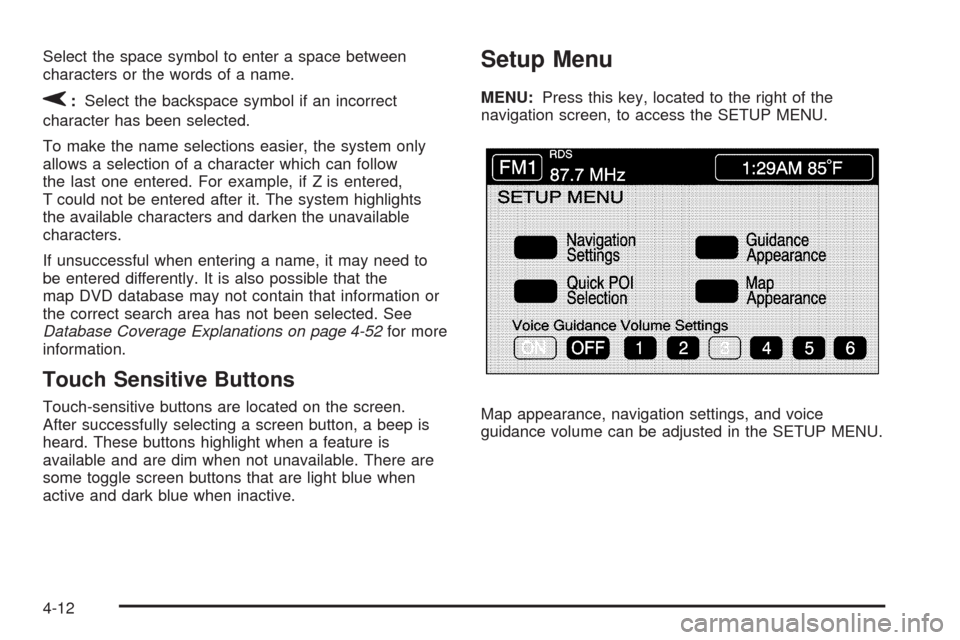
Setup Menu
MENU:Press this key, located to the right of the
navigation screen, to access the SETUP MENU.
Map appearance, navigation settings, and voice
guidance volume can be adjusted in the SETUP MENU.
4-12
Page 229 of 462
Setting the Quick POI Menu
To set the Quick POI list displayed on the map screen:
1. Select the category to replace.
2. Select a Quick POI category from the Quick POI
selection menu list. The system returns to the
Quick POI selection screen when a POI is selected.
3. Touch Return to save the setting and return to the
previous menu.
Displaying Quick POI Icons
To display POI icons of a category on the map screen:
1. Touch the map screen once.
2. Touch the POI button. The Quick POI Selection list
displays.
3. Select a category type or touch List Categories or
All Local POIs to display the icons of the selected
category on the map screen.
Removing Quick POI Icons
To remove POI icons from the map screen:
1. Touch the map screen once.
2. Touch the POI OFF screen button. The current POI
icons are removed from the map screen.
Setting a Destination Using Quick POI
This feature allows you to choose a POI as the
destination. To set a destination using a POI:
1. Touch the POI icon on the map screen to be set
as a destination.
The selected icon is surrounded by a blinking box,
and the name of the icon displays. You may
also touch INFO to view the POI name, address,
city, and phone number, if available.
2. Touch the ENT DEST screen button.
If a nal destination has already been entered,
the POI can be added as a waypoint. SeeEdit
Waypoint on page 4-23for more information.
3. Touch Enter to start planning the route.
4. To start route guidance, touch Start or begin driving
the vehicle. Route guidance automatically begins
after a short distance.
To cancel the route that has just been set:
1. Press the ROUTE hard key.
2. Touch the Route Preference screen button.
3. Touch the Cancel Route screen button.
4. Select YES to cancel or NO to continue.
4-15
Page 232 of 462
Voice Guidance Volume Settings
This feature allows you to set the voice prompt volume
level or to turn voice prompts on or off.
Set the voice prompt volume level by touching the
numbered buttons to increase or decrease the volume
level. You may also choose to turn the voice prompts off.
Then touch Return to save the setting and to return to
the SETUP MENU.
If a voice prompt is active while the audio system is on,
the audio system volume decreases and the voice
prompts are heard through the driver side front speaker.
Voice prompts are not heard while using voice
recognition.
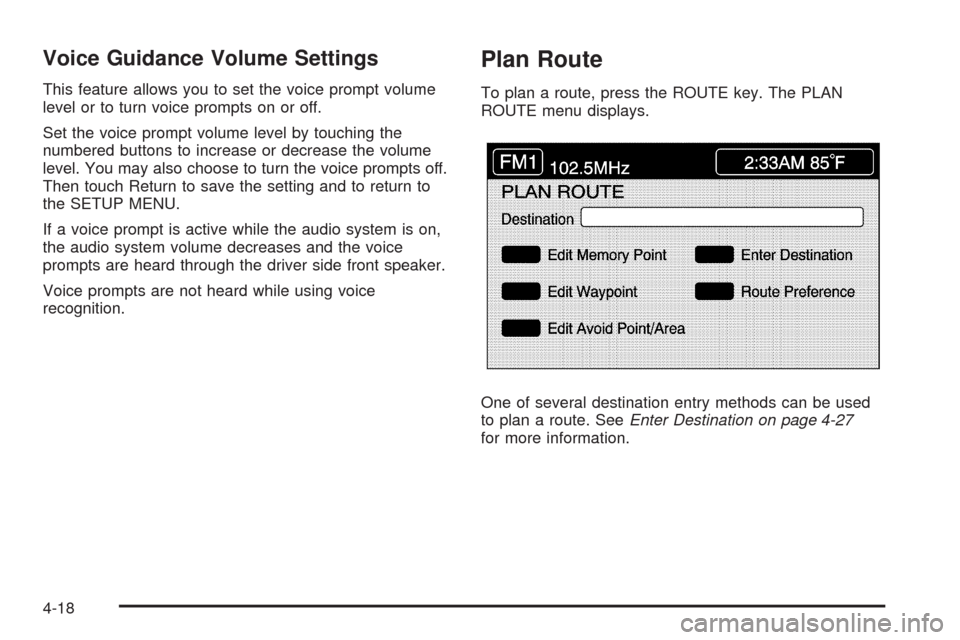
Plan Route
To plan a route, press the ROUTE key. The PLAN
ROUTE menu displays.
One of several destination entry methods can be used
to plan a route. SeeEnter Destination on page 4-27
for more information.
4-18