buttons CHEVROLET ASTRO 2003 Owners Manual
[x] Cancel search | Manufacturer: CHEVROLET, Model Year: 2003, Model line: ASTRO, Model: CHEVROLET ASTRO 2003Pages: 386, PDF Size: 17.31 MB
Page 114 of 386
Programming the HomeLink
Transmitter
Do not use the HomeLink@ Transmitter with any garage
door opener that does not have the “stop and reverse”
feature. This includes any garage door opener model
manufactured before April
1, 1982.
Keep the original transmitter for use in other vehicles as
well as for future HomeLink@ programming. It is also
recommended that upon the sale of the vehicle, the
programmed HomeLink@ buttons should be erased for
security purposes. Refer to “Erasing HomeLink@ Buttons”
or, for assistance, contact HomeLinkO on the internet at:
www.home1ink.com or by calling 1-800-355-351 5.
Be sure that people and objects are clear of the
garage door or gate operator you are programming.
When programming a garage door, it is advised to park
outside of the garage.
It is recommended that a new battery be installed in
your hand-held transmitter for quicker and more
accurate transmission of the radio frequency. Your
vehicle’s engine should be turned
off while
programming the transmitter. Follow these steps
to
program up to three channels:
1. Press and hold down the two outside buttons,
releasing only when the indicator light begins
to
flash, after 20 seconds. Do not hold down the
buttons for longer than
30 seconds and do not
repeat this step
to program a second and/or third
transmitter to the remaining two HomeLink@ buttons.
2. Position the end of your hand-held transmitter about
1 to 3 inches (3 to 8 cm) away from the HomeLink@
buttons while keeping the indicator light in view.
3. Simultaneously press and hold both the desired
button on HomeLink@ and the hand-held transmitter
button.
Do not release the buttons until Step 4
has been completed.
Some entry gates and garage door openers may
require you to substitute Step 3 with the procedure
noted in “Gate Operator and Canadian
Programming’’ later in this section.
4. The indicator light will flash slowly at first and then
rapidly after HomeLink@ successfully receives the
frequency signal from the hand-held transmitter.
Release both buttons.
2-35
Page 115 of 386
5. Press and hold the newly-trained HomeLink@ button
and observe the indicator light.
If the indicator light stays on constantly,
programming is complete and your device should
activate when the HomeLink@ button
is pressed
and released.
To program the remaining two HomeLink@ buttons,
begin with Step
2 under “Programming HomeLink@.”
Do not repeat Step 1 as this will erase all of the
programmed channels.
If the indicator light blinks rapidly for two seconds
and then turns to a constant light, continue with
Steps
6 through 8 following to complete the
programming of a rolling-code equipped device
(most commonly, a garage door opener).
6. At the garage door opener receiver (motor-head
unit) in the garage, locate the “Learn” or “Smart”
button. This can usually be found where the hanging
antenna wire is attached to the motor-head unit.
7. Firmly press and release the “Learn” or “Smart”
button. The name and color
of the button may
vary by manufacturer.
You will have 30 seconds to start Step 8. 8.
Return to the
vehicle. Firmly press and hold the
programmed HomeLink@ button for two seconds,
then release. Repeat the press/hold/release
sequence a second time, and depending
on the
brand of the garage door opener (or other rolling
code device), repeat this sequence a third time
to complete the programming.
HomeLink@ should now activate your rolling code
equipped device.
To program the remaining two HomeLink@ buttons,
begin with Step
2 of “Programming HomeLink@.”
Do not repeat Step 1.
Gate Operator and Canadian
Programming
Canadian radio-frequency laws require transmitter
signals to “time out” or quit after several seconds
of transmission. This may not be long enough for
HomeLink@ to pick up the signal during programming.
Similarly, some
U.S. gate operators are manufactured
to “time out” in the same manner.
If you live in Canada, or you are having difficulty
programming a gate operator by using the
“Programming HomeLink@’ procedures (regardless
of
where you live), replace Step 3 under “Programming
HomeLink@’ with the following:
2-36
Page 116 of 386
Continue to press and hold the HomeLink@ button while
you press and release every two seconds (cycle) your
hand-held transmitter until the frequency signal has been
successfully accepted by HomeLink@. The indicator
light will flash slowly at first and then rapidly. Proceed
with Step
4 under “Programming HomeLink@“ to
complete.
Using HomeLink@
Press and hold the appropriate HomeLink@ button for
at least half of a second. The indicator light will come on
while the signal is being transmitted.
Erasing HomeLinP Buttons
To erase programming from the three buttons do the
following:
1. Press and hold down the two outside buttons until
the indicator light begins to flash, after
20 seconds.
2. Release both buttons. Do not hold for longer than
30 seconds.
HomeLink@ is now in the train (learning) mode and can
be programmed at any time beginning with Step
2
under “Programming HomeLink@.”
Individual buttons can not be erased, but they can be
reprogrammed. See “Reprogramming a Single
HomeLink@ Button” next.
Reprogramming a Single HomeLink*
Button
To program a device to HomeLink@ using a HomeLink@
button previously trained, follow these steps:
1. Press and hold the desired HomeLink@ button.
Do not release the button.
2. The indicator light will begin to flash after
20 seconds. While still holding the HomeLink@
button, proceed with Step
2 under “Programming
HomeLink@.”
Resetting Defaults
To reset HomeLink@ to default settings do the following:
1. Hold down the two outside buttons for about
20 seconds until the indicator light begins to flash.
2. Continue to hold both buttons until the HomeLink@
indicator light turns
off.
3. Release both buttons.
For questions or comments, contact HorneLink@
at 1-800-355-3515, or on the internet at
www.homelink.com.
2-37
Page 121 of 386
Driver Information System
\I
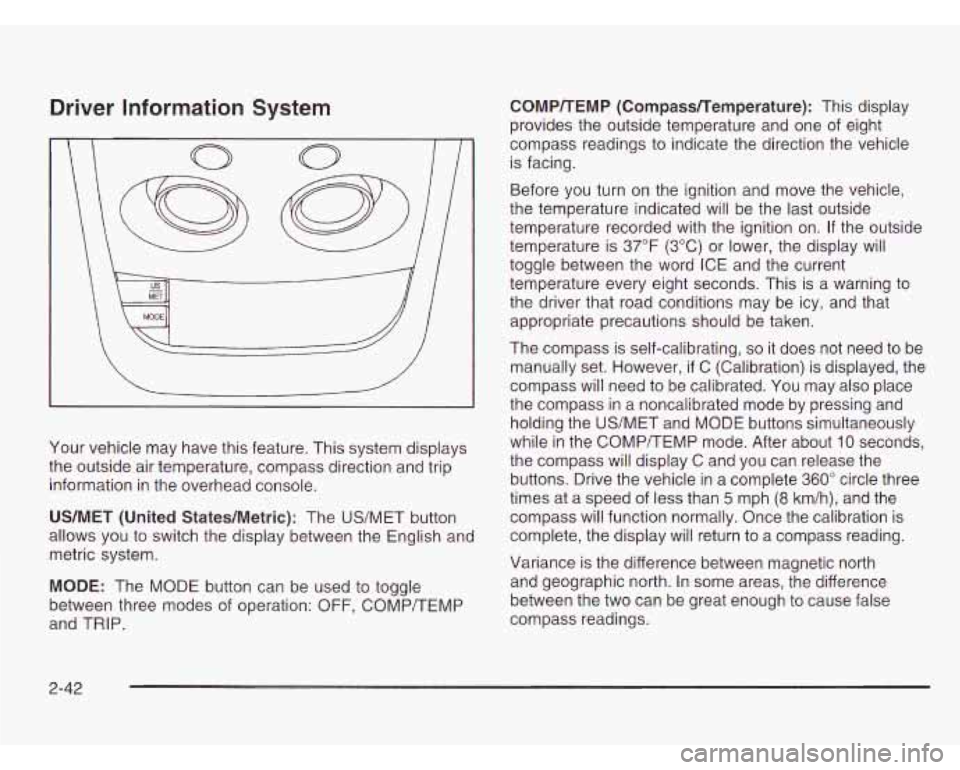
Your vehicle may have this feature. This system displays
the outside air temperature, compass direction and trip
information in the overhead console.
US/MET (United StatedMetric): The US/MET button
allows you
to switch the display between the English and
metric system.
MODE: The MODE button can be used to toggle
between three modes of operation:
OFF, COMP/TEMP
and TRIP.
COMPTTEMP (CompassTTemperature): This display
provides the outside temperature and one of eight
compass readings to indicate the direction the vehicle
is facing.
Before you turn on the ignition and move the vehicle,
the temperature indicated will be the last outside
temperature recorded with the ignition on.
If the outside
temperature
is 37°F (3°C) or lower, the display will
toggle between the word ICE and the current
temperature every eight seconds. This is a warning
to
the driver that road conditions may be icy, and that
appropriate precautions should be taken.
The compass is self-calibrating,
so it does not need to be
manually set. However,
if C (Calibration) is displayed, the
compass will need
to be calibrated. You may also place
the compass in a noncalibrated mode by pressing and
holding the US/MET and MODE buttons simultaneously
while in the COMPREMP mode. After about
10 seconds.
the compass will display
C and you can release the
buttons. Drive the vehicle in a complete 360" circle three
times at a speed of less than 5 mph
(8 km/h), and the
compass will function normally. Once the calibration
is
complete, the display will return to a compass reading.
Variance is the difference between magnetic north
and geographic north. In some areas, the difference
between the two can be great enough
to cause false
compass readings.
2-42
Page 122 of 386
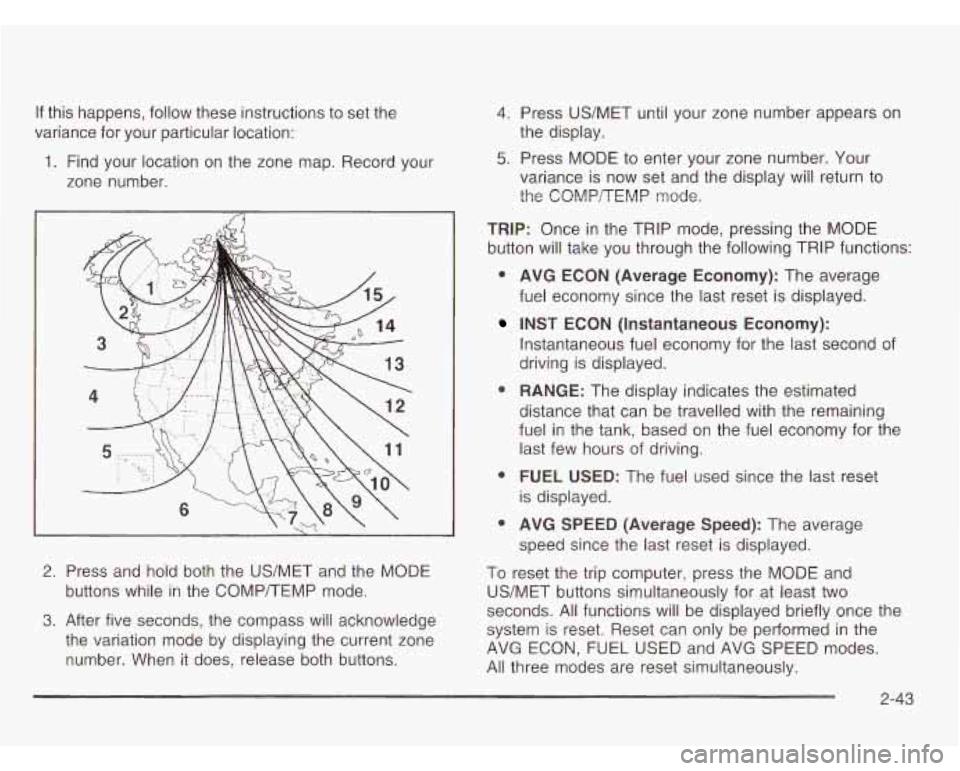
If this happens, follow these instructions to set the
variance for your particular location:
1. Find your location on the zone map. Record your
zone number.
1
2. Press and hold both the US/MET and the MODE
buttons while in the COMP/TEMP mode.
3. After five seconds, the compass will acknowledge
the variation mode by displaying the current zone
number. When it does, release both buttons.
4. Press US/MET until your zone number appears on
5. Press MODE to enter your zone number. Your
the
display.
variance is now set and the display will return to
the COMPREMP mode.
TRIP: Once in the TRIP mode, pressing the MODE
button will take you through the following TRIP functions:
0 AVG ECON (Average Economy): The average
fuel economy since the last reset is displayed.
INST ECON (Instantaneous Economy):
Instantaneous fuel economy for the last second of
driving is displayed.
distance that can be travelled with the remaining
fuel in the tank, based on the fuel economy for the
last few hours of driving.
is displayed.
speed since the last reset is displayed.
To reset the trip computer, press the MODE and
US/MET buttons simultaneously for at least two
seconds. All functions will be displayed briefly once the
system is reset. Reset can only be performed in the
AVG ECON, FUEL USED and AVG SPEED modes.
All three modes are reset simultaneously.
0 RANGE: The display indicates the estimated
0 FUEL USED: The fuel used since the last reset
0 AVG SPEED (Average Speed): The average
2-43
Page 126 of 386
Section 3 Instrument Panel
Instrument Panel Overview ............................... 3.2
Hazard Warning Flashers
................................ 3-4
Other Warning Devices
................................... 3-5
Horn
............................................................. 3-5
Tilt Wheel
..................................................... 3-5
Turn SignaVMultifunction Lever
......................... 3.6
Exterior Lamps
.......................................... 3.12
Interior Lamps
................................ ....... 3.15
Accessory Power Outlets
............................... 3.16
Ashtrays and Cigarette Lighter
........................ 3.17
Climate Controls ............................................ 3.18
Climate Control System
................................. 3.18
Rear Heating System
................................... -3-1 9
Rear Air Conditioning System ......................... 3.20
Rear Climate Control System
......................... 3.21
Warning Lights, Gages and Indicators ............. 3.23
Instrument Panel Cluster
................................ 3.24
Speedometer and Odometer
........................... 3.25
Safety Belt Reminder Light
............................. 3.26
Air Bag Readiness Light
................................ 3-26
Charging System Light
.................................. 3.27
Voltmeter Gage
........................................... -3-28
Brake System Warning Light
.......................... 3.28 Anti-Lock
Brake System Warning Light
............. 3.29
Engine Coolant Temperature Gage
= = =. ~ = = ~ ~ ~ = i. 3-39
Malfunction Indicator Lamp
............................. 3.30
Oil Pressure Gage
........................................ 3.34
Security Light
.............................................. -3-35
Service All-Wheel Drive Light
......................... 3.35
Tow/Haul Mode Light
......... ................... 3.36
Fuel Gage
................................................... 3.36
Low Fuel Warning Light
................................. 3.37
Audio System@) ............................................. 3.38
Setting the Time for Radios with
the Set Button
.......................................... 3-38
Setting the Time for Radios with
HR and MN Buttons .................................. 3-38
AM-FM Radio
............................................... 3.39
Radio with CD
.............................................. 3-41
Theft-Deterrent Feature
........... ................ 3.47
Understanding Radio Reception
................... 3.50
Care of Your CDs
......................................... 3-50
Care of Your CD Player
................................ 3-50
Fixed Mast Antenna
...................................... 3.50
Check Gages Warning
Light
........................... 3-36
Rear Seat Audio (RSA)
. . .... ............ 3.46
3-
1
Page 163 of 386
Audio System(s)
Notice; Before you add any sound equipment to
your vehicle
- like a tape player, CB radio, mobile
telephone or two-way radio
- be sure you can add
what you want. If you can, it’s very important to do
it
properly. Added sound equipment may interfere
with the operation of your vehicle’s engine, Delphi Electronics radio or other systems, and even damage
them. Your vehicle’s systems may interfere with the
operation
of sound equipment that has been added
improperly.
So, before adding sound equipment, check with
your dealer and be sure to check federal rules
covering mobile radio and telephone units.
Your audio system has been designed to operate easily
and to give years of listening pleasure. You will get the
most enjoyment out of it
if you acquaint yourself with it
first. Find out what your audio system can do and how to
operate all of its controls to be sure you’re getting the
most out of the advanced engineering that went into it.
Your vehicle may have a feature called Retained
Accessory Power (RAP). With RAP, you can play
your audio system even after the ignition is turned
off.
See “Retained Accessory Power (RAP)” under
Ignition Positions on page 2- 79.
Setting the Time for Radios with
the Set Button
Press SET. Within five seconds, press and hold the
right SEEK arrow until the correct minute appears on the
display. Press and hold the left SEEK arrow until the
correct hour appears on the display.
Setting the Time for Radios with
HR and MN Buttons
Press and hold HR until the correct hour appears on the
display. Press and hold
MN until the correct minute
appears on the display.
To display the time with the
ignition
off, press RECALL or HR/MN and the time will
be displayed for a few seconds. There is an initial
two-second delay before the clock goes into the
time-set mode.
3-38
Page 164 of 386
AM-FM Radio
Playing the Radio
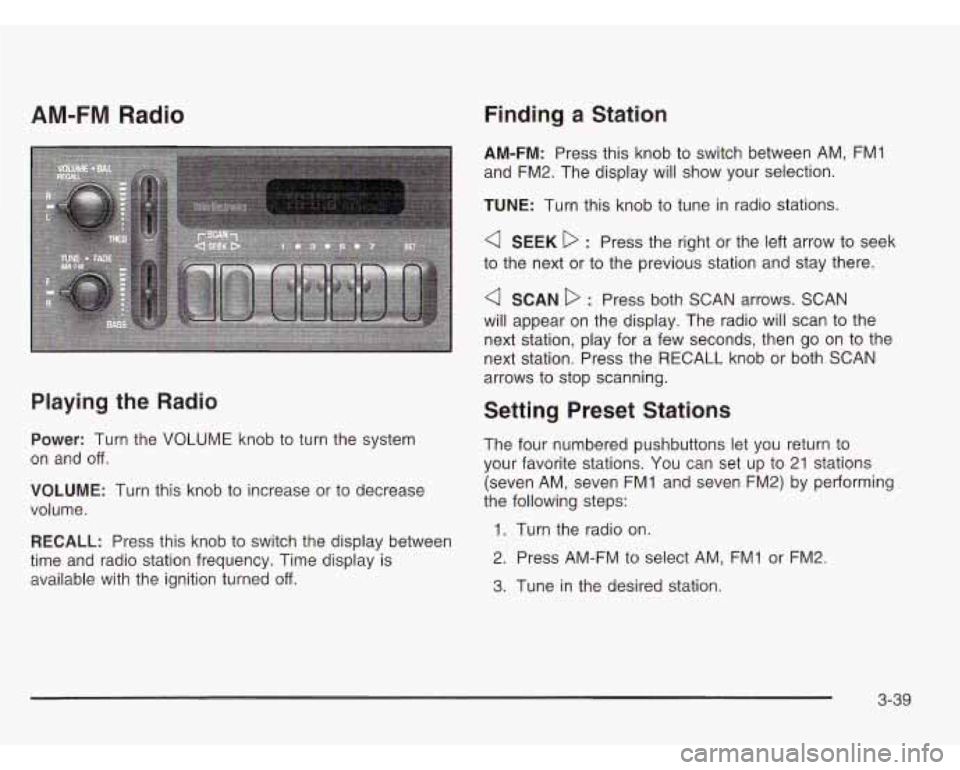
Power: Turn the VOLUME knob to turn the system
on and off.
VOLUME: Turn this knob to increase or to decrease
volume.
RECALL: Press this knob to switch the display between
time and radio station frequency. Time display is
available with the ignition turned
off.
Finding a Station
AM-FM: Press this knob to switch between AM, FMI
and FM2. The display will show your selection.
TUNE: Turn this knob to tune in radio stations.
a SEEK D : Press the right or the left arrow to seek
to the next or to the previous station and stay there.
a SCAN D : Press both SCAN arrows. SCAN
will appear on the display. The radio will scan to the
next station, play for a few seconds, then go on to the
next station. Press the RECALL knob or both SCAN
arrows to stop scanning.
Setting Preset Stations
The four numbered pushbuttons let you return to
your favorite stations. You can set up to 21 stations
(seven AM, seven FMI and seven FM2) by performing
the following steps:
1. Turn the radio on.
2. Press AM-FM to select AM, FMI or FM2.
3. Tune in the desired station.
3-39
Page 165 of 386
4. Press SET. SET will appear on the display.
5. Press one of the four pushbuttons within five
seconds. Whenever you press that numbered
pushbutton, the station you set will return.
6. Repeat the steps for each pushbutton.
In addition to the four stations already set, up to three
more stations may be preset on each band by pressing
two adjoining pushbuttons at the same time and by
performing the following steps:
1. Tune in the desired station.
2. Press SET. SET will appear on the display.
3. Press two adjoining pushbuttons at the same time,
within five seconds. Whenever you press the same
two pushbuttons, the station you set will return.
Setting the Tone (BassTTreble)
BASS: Slide this lever up or down to increase or to
decrease bass.
TREB (Treble): Slide this lever up or down to increase
or
to decrease treble. If a station is weak or noisy,
you may want to decrease the treble.
Adjusting the Speakers (Balance/Fade)
BAL (Balance): Turn the control ring behind the
upper knob to move the sound toward the left or the
right speakers.
FADE: Turn the control ring behind the lower knob to
move the sound toward the front or the rear speakers.
4. Repeat the steps for each pushbutton.
3-40
Page 167 of 386
4 SEEK D : Press the right or the left arrow to seek
to the next station or to the previous station and
stay there.
To scan stations, press and hold either SEEK arrow
for two seconds until SCAN appears on the display.
The radio will scan to a station, play for a few seconds,
then go on to the next station. Press either SEEK
arrow again to stop scanning.
The radio will seek and scan only to stations that are in
the selected band and only to those with a strong signal.
PSCAN (Preset Scan): Press this button to listen to
each of your favorite stations stored on the pushbuttons
for a few seconds. PSCAN will appear on the display.
Press this button again or one of the pushbuttons to stop
scanning presets.
The radio will scan only to the preset stations that are in
the selected band and only to those with a strong signal.
Setting Preset Stations
The six numbered pushbuttons let you return to your
favorite stations. You can set up to
18 stations (six AM,
six FM1 and six FM2) by performing the following steps:
1. Turn the radio on.
2. Press AM FM to select AM, FM1 or FM2.
3. Tune in the desired station.
4. Press AUTO TONE to select the setting you prefer.
5. Press and hold one of the six pushbuttons.
The sound will mute. When it returns, release the
pushbutton. Whenever you press that numbered
pushbutton, the station you set will return and the
tone you selected will be automatically selected
for that pushbutton.
6. Repeat the steps for each pushbutton.
3-42