lock CHEVROLET AVEO 2008 1.G Workshop Manual
[x] Cancel search | Manufacturer: CHEVROLET, Model Year: 2008, Model line: AVEO, Model: CHEVROLET AVEO 2008 1.GPages: 384, PDF Size: 6.67 MB
Page 157 of 384
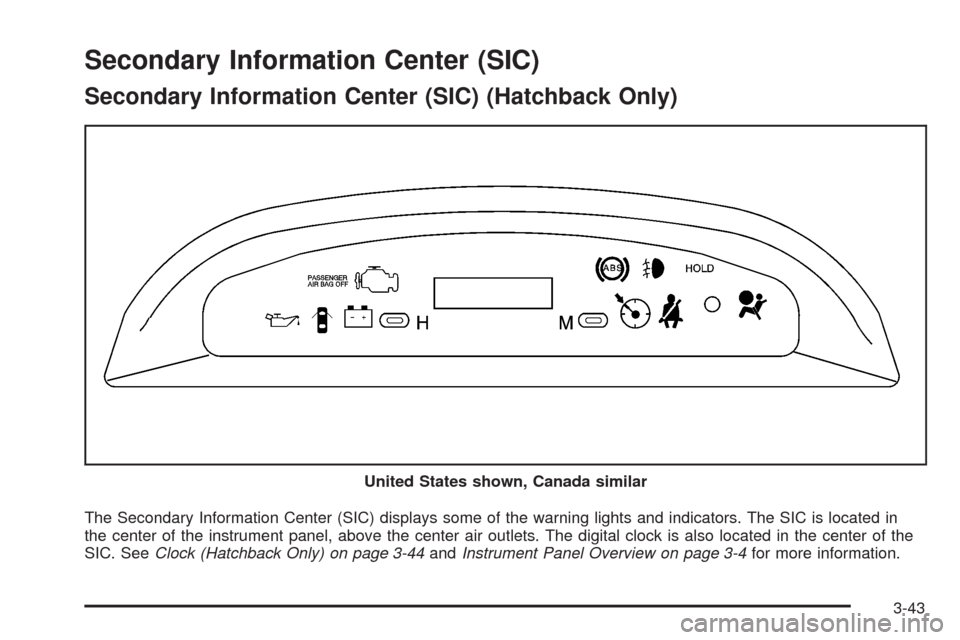
Secondary Information Center (SIC)
Secondary Information Center (SIC) (Hatchback Only)
The Secondary Information Center (SIC) displays some of the warning lights and indicators. The SIC is located in
the center of the instrument panel, above the center air outlets. The digital clock is also located in the center of the
SIC. SeeClock (Hatchback Only) on page 3-44andInstrument Panel Overview on page 3-4for more information. United States shown, Canada similar
3-43
Page 158 of 384
Clock (Hatchback Only)
Your vehicle has a digital clock. The clock is located
in the secondary instrument cluster on the center of the
instrument panel, above the center air outlets. When
the ignition is turned to ACC/ACCESSORY or ON/RUN,
the time is displayed in the digital clock. There are
two adjusting buttons for the digital clock:
H (Hour):To go forward one hour, press the H button
once. To go forward more than one hour, press and
hold the button until the correct hour is reached.
M (Minute):To go forward one minute, press the
M button once. To go forward more than one minute,
press and hold the button until the correct minute
is reached.
After disconnecting the battery or replacing the fuse,
reset the clock.
Safety Belt Reminders
Safety Belt Reminder Light
The safety belt light will
come on and stay on until
the driver’s safety belt
is buckled.
This light will come on briefly when you turn on the
ignition as a check to show you it is working.
3-44
Page 162 of 384
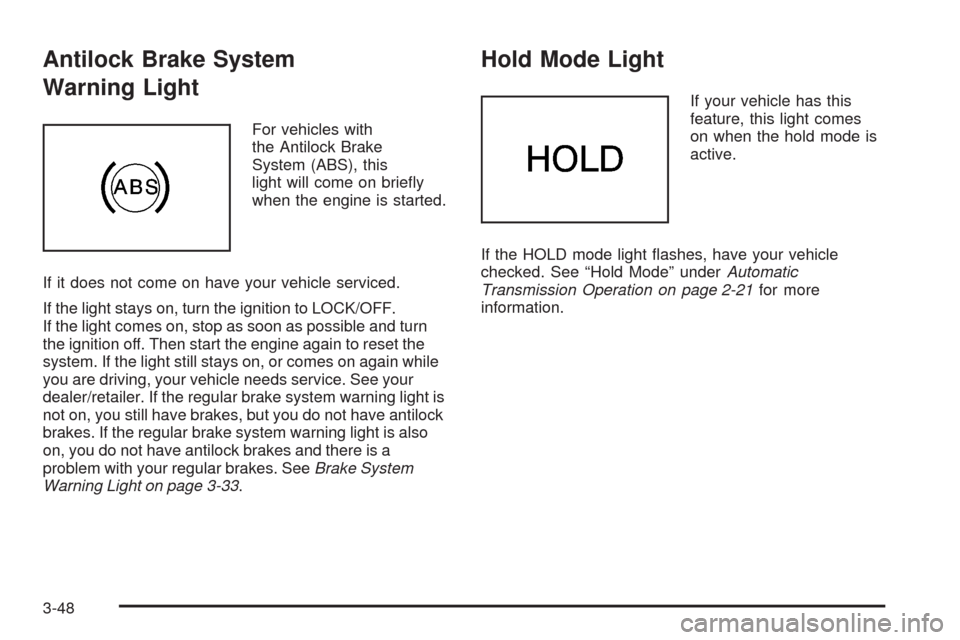
Antilock Brake System
Warning Light
For vehicles with
the Antilock Brake
System (ABS), this
light will come on briefly
when the engine is started.
If it does not come on have your vehicle serviced.
If the light stays on, turn the ignition to LOCK/OFF.
If the light comes on, stop as soon as possible and turn
the ignition off. Then start the engine again to reset the
system. If the light still stays on, or comes on again while
you are driving, your vehicle needs service. See your
dealer/retailer. If the regular brake system warning light is
not on, you still have brakes, but you do not have antilock
brakes. If the regular brake system warning light is also
on, you do not have antilock brakes and there is a
problem with your regular brakes. SeeBrake System
Warning Light on page 3-33.
Hold Mode Light
If your vehicle has this
feature, this light comes
on when the hold mode is
active.
If the HOLD mode light flashes, have your vehicle
checked. See “Hold Mode” underAutomatic
Transmission Operation on page 2-21for more
information.
3-48
Page 170 of 384
Setting the Tone (Bass/Treble)
f
(Bass/Treble):Press this button until BAS appears
on the display. Then turn the volume knob to increase
or to decrease the bass. The display will show the bass
level.
Press this button until TRE appears on the display.
Then turn the volume knob to increase or to decrease
the treble. The display will show the treble level.
If a station is weak or noisy, decrease the treble.
Adjusting the Speakers (Balance/Fade)
f
(Balance/Fade):To adjust the balance between
the right and the left speakers, press this button
until BAL appears on the display. Then turn the volume
knob to increase or to decrease the balance between
the right and the left speakers. The display will show
the balance level.
To adjust the fade between the front and the rear
speakers, press this button until FAD appears on the
display. Then turn the volume knob to increase or
to decrease the fade between the front and the rear
speakers. The display will show the fade level.
AM-FM Radio (Double Display,
Base Level)
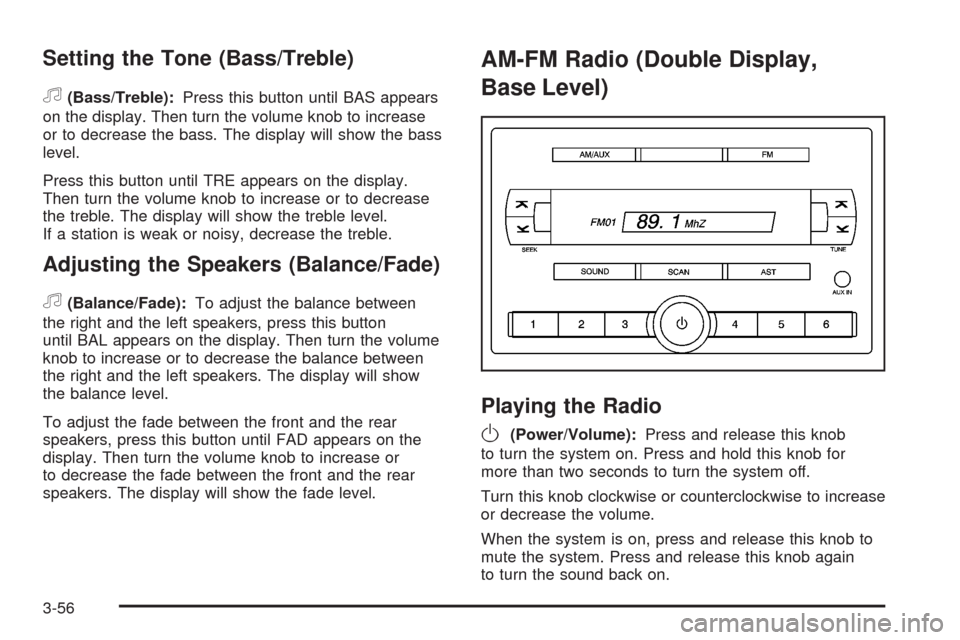
Playing the Radio
O
(Power/Volume):Press and release this knob
to turn the system on. Press and hold this knob for
more than two seconds to turn the system off.
Turn this knob clockwise or counterclockwise to increase
or decrease the volume.
When the system is on, press and release this knob to
mute the system. Press and release this knob again
to turn the sound back on.
3-56
Page 173 of 384
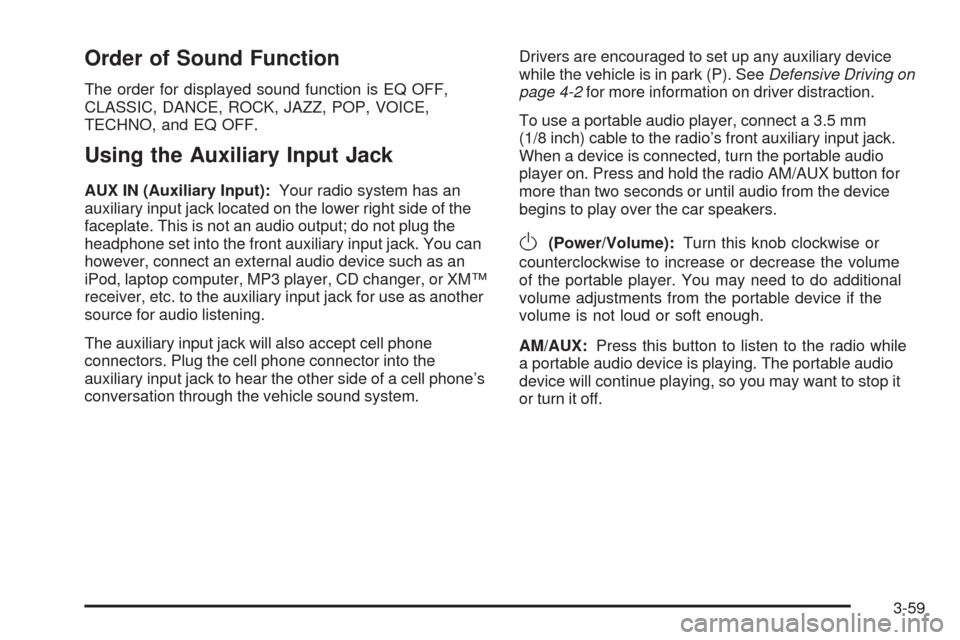
Order of Sound Function
The order for displayed sound function is EQ OFF,
CLASSIC, DANCE, ROCK, JAZZ, POP, VOICE,
TECHNO, and EQ OFF.
Using the Auxiliary Input Jack
AUX IN (Auxiliary Input):Your radio system has an
auxiliary input jack located on the lower right side of the
faceplate. This is not an audio output; do not plug the
headphone set into the front auxiliary input jack. You can
however, connect an external audio device such as an
iPod, laptop computer, MP3 player, CD changer, or XM™
receiver, etc. to the auxiliary input jack for use as another
source for audio listening.
The auxiliary input jack will also accept cell phone
connectors. Plug the cell phone connector into the
auxiliary input jack to hear the other side of a cell phone’s
conversation through the vehicle sound system.Drivers are encouraged to set up any auxiliary device
while the vehicle is in park (P). SeeDefensive Driving on
page 4-2for more information on driver distraction.
To use a portable audio player, connect a 3.5 mm
(1/8 inch) cable to the radio’s front auxiliary input jack.
When a device is connected, turn the portable audio
player on. Press and hold the radio AM/AUX button for
more than two seconds or until audio from the device
begins to play over the car speakers.
O(Power/Volume):Turn this knob clockwise or
counterclockwise to increase or decrease the volume
of the portable player. You may need to do additional
volume adjustments from the portable device if the
volume is not loud or soft enough.
AM/AUX:Press this button to listen to the radio while
a portable audio device is playing. The portable audio
device will continue playing, so you may want to stop it
or turn it off.
3-59
Page 174 of 384
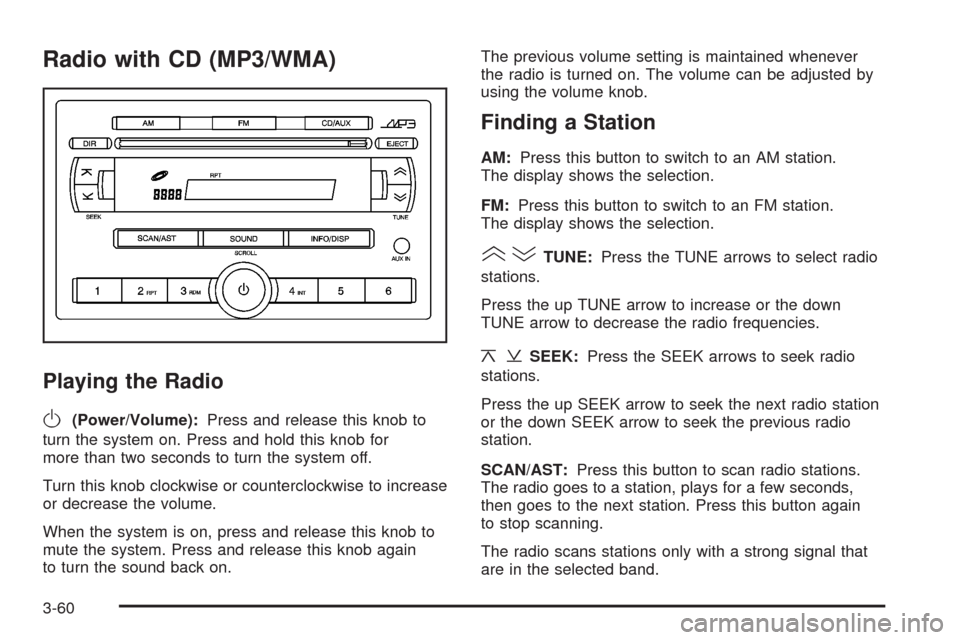
Radio with CD (MP3/WMA)
Playing the Radio
O
(Power/Volume):Press and release this knob to
turn the system on. Press and hold this knob for
more than two seconds to turn the system off.
Turn this knob clockwise or counterclockwise to increase
or decrease the volume.
When the system is on, press and release this knob to
mute the system. Press and release this knob again
to turn the sound back on.The previous volume setting is maintained whenever
the radio is turned on. The volume can be adjusted by
using the volume knob.
Finding a Station
AM:Press this button to switch to an AM station.
The display shows the selection.
FM:Press this button to switch to an FM station.
The display shows the selection.
()TUNE:Press the TUNE arrows to select radio
stations.
Press the up TUNE arrow to increase or the down
TUNE arrow to decrease the radio frequencies.
¦¥SEEK:Press the SEEK arrows to seek radio
stations.
Press the up SEEK arrow to seek the next radio station
or the down SEEK arrow to seek the previous radio
station.
SCAN/AST:Press this button to scan radio stations.
The radio goes to a station, plays for a few seconds,
then goes to the next station. Press this button again
to stop scanning.
The radio scans stations only with a strong signal that
are in the selected band.
3-60
Page 179 of 384
Using the Auxiliary Input Jack
The radio system has an auxiliary input jack located on
the lower right side of the faceplate. This is not an audio
output. Do not plug the headphone set into the front
auxiliary input jack. An external audio device such as
an iPod, laptop computer, MP3 player, CD changer,
or cassette tape player, etc. can be connected to the
auxiliary input jack for use as another source for audio
listening.
The auxiliary input jack also accepts cell phone
connectors. Plug the cell phone connector into the
auxiliary input jack to hear a person speaking on a cell
phone during conversation through the vehicle sound
system.
Drivers are encouraged to set up any auxiliary device
while the vehicle is in PARK (P). SeeDefensive Driving
on page 4-2for more information on driver distraction.To use a portable audio player, connect a 3.5 mm
(1/8 inch) cable to the radio’s front auxiliary input jack.
While a device is connected, turn the portable audio
player on and press the radio CD/AUX button to
hear audio from the device over the vehicle speakers.
CD/AUX (CD/Auxiliary):Press this button once to
play a CD while a portable audio device is playing.
Press this button a second time for the system to begin
playing audio from the connected portable audio player.
Once in this mode, Auxinput appears on the display. If the
auxiliary jack does not detect the presence of an output
jack, the auxiliary mode does not display.
O(Power/Volume):Turn theOknob clockwise or
counterclockwise to increase or decrease the volume
of the portable player. Additional adjustments on a
portable device might be needed to get the desired
volume.
3-65
Page 180 of 384
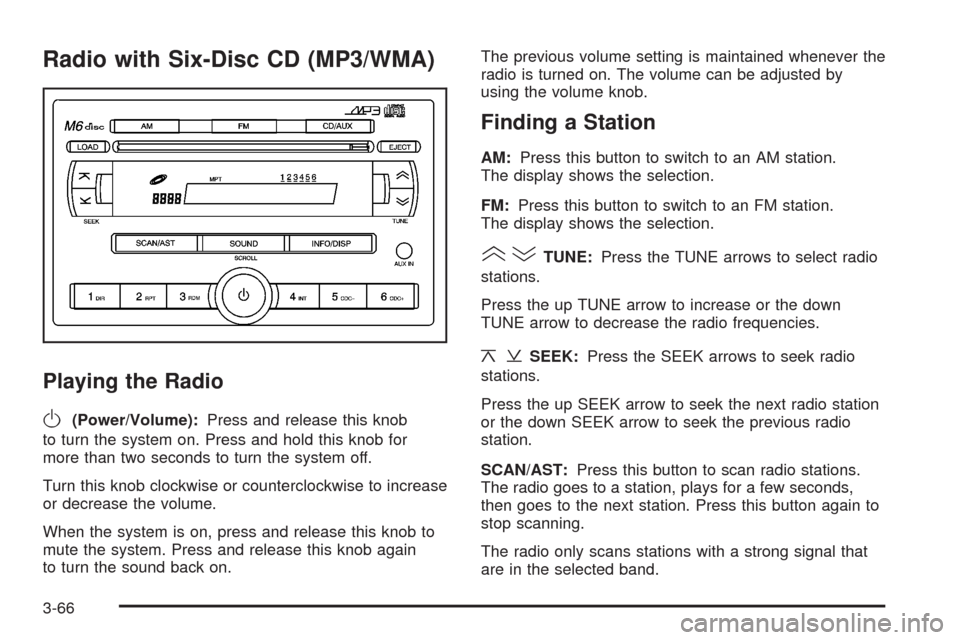
Radio with Six-Disc CD (MP3/WMA)
Playing the Radio
O
(Power/Volume):Press and release this knob
to turn the system on. Press and hold this knob for
more than two seconds to turn the system off.
Turn this knob clockwise or counterclockwise to increase
or decrease the volume.
When the system is on, press and release this knob to
mute the system. Press and release this knob again
to turn the sound back on.The previous volume setting is maintained whenever the
radio is turned on. The volume can be adjusted by
using the volume knob.
Finding a Station
AM:Press this button to switch to an AM station.
The display shows the selection.
FM:Press this button to switch to an FM station.
The display shows the selection.
()TUNE:Press the TUNE arrows to select radio
stations.
Press the up TUNE arrow to increase or the down
TUNE arrow to decrease the radio frequencies.
¦¥SEEK:Press the SEEK arrows to seek radio
stations.
Press the up SEEK arrow to seek the next radio station
or the down SEEK arrow to seek the previous radio
station.
SCAN/AST:Press this button to scan radio stations.
The radio goes to a station, plays for a few seconds,
then goes to the next station. Press this button again to
stop scanning.
The radio only scans stations with a strong signal that
are in the selected band.
3-66
Page 185 of 384
If any error occurs repeatedly or if an error cannot be
corrected, contact your dealer/retailer. If the radio
displays an error message, write it down and provide it
to your dealer/retailer when reporting the problem.
Using the Auxiliary Input Jack
AUX IN (Auxiliary Input):The radio system has an
auxiliary input jack located on the lower right side of
the faceplate. This is not an audio output. Do not plug
the headphone set into the front auxiliary input jack.
An external audio device such as an iPod, laptop
computer, MP3 player, CD changer, or XM™ receiver,
etc. can be connected to the auxiliary input jack for
use as another source for audio listening.
The auxiliary input jack also accepts cell phone
connectors. Plug the cell phone connector into the
auxiliary input jack to hear a person speck on a
cell phone during a conversation through the vehicle
sound system.Drivers are encouraged to set up any auxiliary device
while the vehicle is in PARK (P). SeeDefensive Driving
on page 4-2for more information on driver distraction.
To use a portable audio player, connect a 3.5 mm
(1/8 inch) cable to the radio’s front auxiliary input jack.
While a device is connected, turn the portable audio
player on and press the radio CD/AUX button to
hear audio from the device over the vehicle speakers.
O(Power/Volume):Turn this knob clockwise or
counterclockwise to increase or decrease the volume of
the portable player. Additional adjustments on a portable
device might be needed to get the desired volume.
CD/AUX (CD/Auxiliary):Press this button once to play
a CD while a portable audio device is playing. Press
this button a second time for the system to begin playing
audio from the connected portable audio player. Once
in this mode, Auxinput displays. If the auxiliary jack does
not detect the presence of an output jack, the auxiliary
mode does not display.
3-71
Page 195 of 384
Your Driving, the Road, and Your Vehicle..........4-2
Defensive Driving...........................................4-2
Drunk Driving.................................................4-2
Control of a Vehicle........................................4-3
Braking.........................................................4-3
Antilock Brake System (ABS)...........................4-4
Braking in Emergencies...................................4-5
Steering........................................................4-6
Off-Road Recovery.........................................4-8
Passing........................................................4-8
Loss of Control..............................................4-8
Driving at Night............................................4-10
Driving in Rain and on Wet Roads..................4-10Before Leaving on a Long Trip.......................4-12
Highway Hypnosis........................................4-12
Hill and Mountain Roads................................4-12
Winter Driving..............................................4-13
If Your Vehicle is Stuck in Sand, Mud,
Ice, or Snow.............................................4-17
Rocking Your Vehicle to Get It Out.................4-17
Loading Your Vehicle....................................4-18
Towing..........................................................4-27
Towing Your Vehicle.....................................4-27
Recreational Vehicle Towing...........................4-27
Towing a Trailer...........................................4-28
Section 4 Driving Your Vehicle
4-1