change time CHEVROLET BLAZER 2003 2.G User Guide
[x] Cancel search | Manufacturer: CHEVROLET, Model Year: 2003, Model line: BLAZER, Model: CHEVROLET BLAZER 2003 2.GPages: 420, PDF Size: 2.94 MB
Page 175 of 420

6 RDM (Random):Press this pushbutton to hear the
tracks in random, rather than sequential, order. RDM ON
will appear on the display. RDM T and the track
number will appear on the display when each track
starts to play. Press this pushbutton again to turn
off random play. RDM OFF will appear on the display.
qSEEKr:Press the left arrow to go to the start
of the current or to the previous track. Press the
right arrow to go to the start of the next track. If either
arrow is held or pressed more than once, the player will
continue moving backward or forward through the CD.
DISP (Display):Press this knob to see how long
the current track has been playing. ET and the elapsed
time will appear on the display. To change the default
on the display (track or elapsed time), push the
knob until you see the display you want, then hold the
knob for two seconds. The radio will produce one
beep and selected display will now be the default.
AM FM:Press this button to listen to the radio when a
CD is playing. The disc will stop but remain in the player.
CD AUX (Auxiliary):Press this button to play a CD
when listening to the radio.
ZEJT (Eject):Press this button to eject a CD. Eject
may be activated with either the ignition or radio off.
CDs may be loaded with the radio and ignition off if this
button is pressed ®rst.
Compact Disc Messages
If the disc comes out, it could be for one of the following
reasons:
·You're driving on a very rough road. When the road
becomes smoother, the disc should play.
·It's very hot. When the temperature returns to
normal, the disc should play.
·The disc is dirty, scratched, wet or upside down.
·The air is very humid. If so, wait about an hour and
try again.
·There may have been a problem while burning
the CD.
·The label may be caught in the CD player.
If the CD is not playing correctly, for any other reason,
try a known good CD.
If any error occurs repeatedly or if an error can't be
corrected, contact your dealer.
3-47
Page 176 of 420
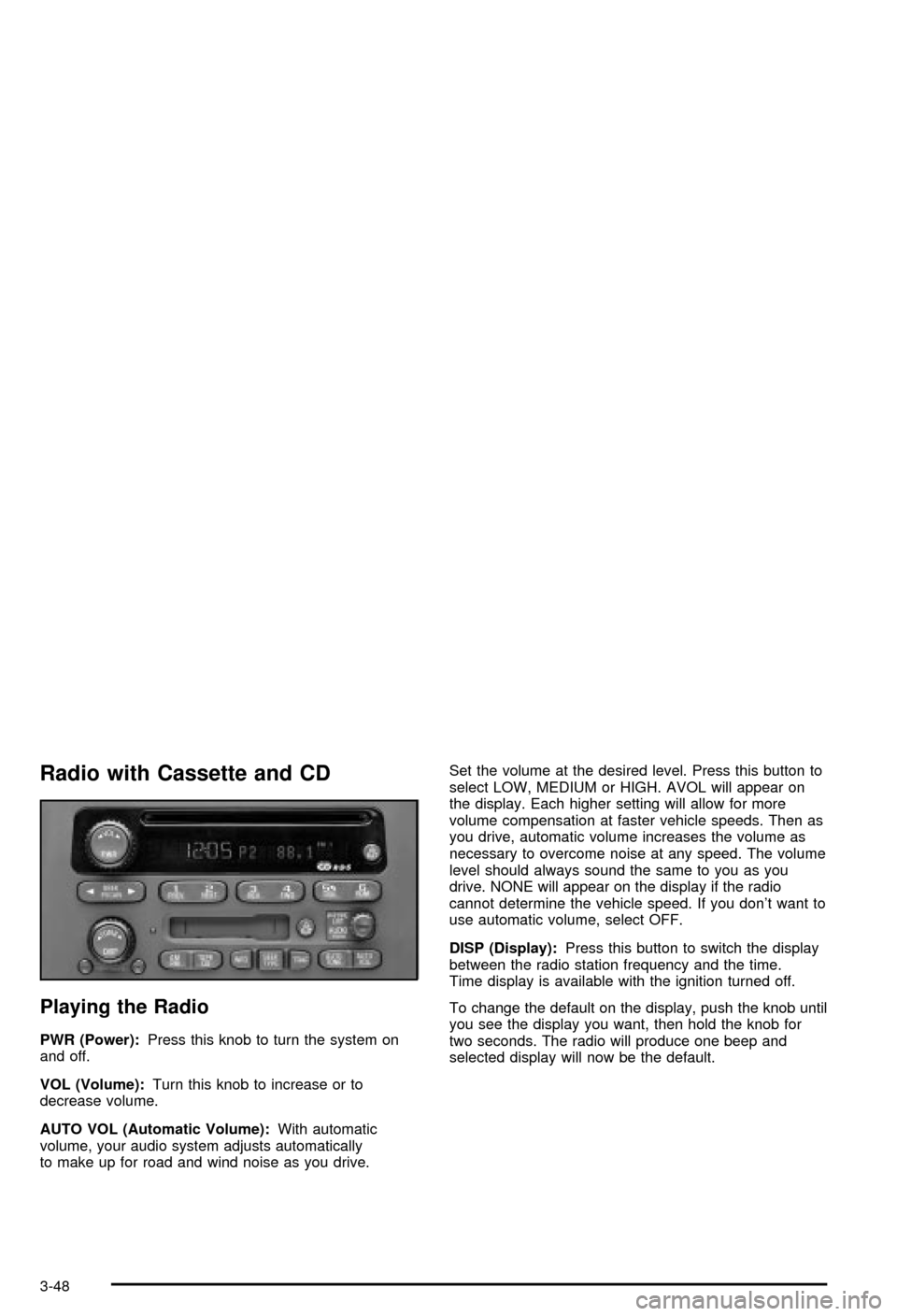
Radio with Cassette and CD
Playing the Radio
PWR (Power):Press this knob to turn the system on
and off.
VOL (Volume):Turn this knob to increase or to
decrease volume.
AUTO VOL (Automatic Volume):With automatic
volume, your audio system adjusts automatically
to make up for road and wind noise as you drive.Set the volume at the desired level. Press this button to
select LOW, MEDIUM or HIGH. AVOL will appear on
the display. Each higher setting will allow for more
volume compensation at faster vehicle speeds. Then as
you drive, automatic volume increases the volume as
necessary to overcome noise at any speed. The volume
level should always sound the same to you as you
drive. NONE will appear on the display if the radio
cannot determine the vehicle speed. If you don't want to
use automatic volume, select OFF.
DISP (Display):Press this button to switch the display
between the radio station frequency and the time.
Time display is available with the ignition turned off.
To change the default on the display, push the knob until
you see the display you want, then hold the knob for
two seconds. The radio will produce one beep and
selected display will now be the default.
3-48
Page 179 of 420

Using RDS
Your audio system is equipped with a Radio Data
System (RDS). RDS features are available for use only
on FM stations that broadcast RDS information.
Using this system, the radio can do the following:
·Seek to stations broadcasting the selected type of
programming,
·receive announcements concerning local and
national emergencies,
·display messages from radio stations, and
·seek to stations with traffic announcements.
This system relies upon receiving speci®c information
from these stations and will only work when the
information is available. In rare cases, a radio station
may broadcast incorrect information that will cause
the radio features to work improperly. If this happens,
contact the radio station.
While you are tuned to an RDS station, the station
name or the call letters will appear on the display,
instead of the frequency. RDS stations may also provide
the time of day, a program type (PTY) for current
programming and the name of the program being
broadcast.DISP (Display):Press this knob to change what
appears on the display while using RDS. The display
options are station name, RDS station frequency,
PTY and the name of the program (if available).
To change the default on the display, push the knob
until you see the display you want, then hold the knob
for two seconds. The radio will produce one beep
and selected display will now be the default.
Finding a PTY Station
To select and ®nd a desired PTY perform the following:
1. Press the P-TYPE LIST knob. TYPE and a PTY
will appear on the display.
2. Select a category by turning the P-TYPE
LIST knob.
3. Once the desired category is displayed, press the
SEEK TYPE button to take you to the category's
®rst station.
4. If you want to go to another station within that
category and the category is displayed, press
the SEEK TYPE button once. If the category is not
displayed, press the SEEK TYPE button twice
to display the category and then to go to another
station.
3-51
Page 184 of 420

Do not play 3 inch discs without a standard
adapter disc.
If an error appears on the display, see ªCompact Disc
Messagesº later in this section.
1 PREV (Previous):Press this pushbutton to go to the
previous track if the current track has been playing
for less than eight seconds. If pressed when the current
track has been playing for more than eight seconds,
it will go to the beginning of the current track. TRACK
and the track number will appear on the display. If
you hold this pushbutton or press it more than once, the
player will continue moving back through the disc.
2 NEXT:Press this pushbutton to go to the next track.
TRACK and the track number will appear on the
display. If you hold this pushbutton or press it more than
once, the player will continue moving forward through
the disc.
3 REV (Reverse):Press and hold this pushbutton to
reverse quickly within a track. Press and hold this
pushbutton for less than two seconds to reverse at six
times the normal playing speed. Press and hold it
for more than two seconds to reverse at 17 times the
normal playing speed. Release it to play the passage.
The display will show ET and the elapsed time.4 FWD (Forward):Press and hold this pushbutton to
advance quickly within a track. Press and hold this
pushbutton for less than two seconds to advance at six
times the normal playing speed. Press and hold it for
more than two seconds to advance at 17 times the
normal playing speed. Release it to play the passage.
The display will show ET and the elapsed time.
6 RDM (Random):Press this pushbutton to hear the
tracks in random, rather than sequential, order. RDM ON
will appear on the display. RDM T and the track
number will appear on the display when each track
starts to play. Press this pushbutton again to turn
off random play. RDM OFF will appear on the display.
qSEEKr:Press the left arrow to go to the start
of the current or to the previous track. Press the right
arrow to go to the start of the next track. If either
arrow is held or pressed more then once, the player will
continue moving backward or forward through the CD.
DISP (Display):Press this knob to see how long
the current track has been playing. ET and the elapsed
time will appear on the display. To change the default
on the display (track or elapsed time), push the
knob until you see the display you want, then hold the
knob for two seconds. The radio will produce one
beep and selected display will now be the default.
3-56
Page 186 of 420
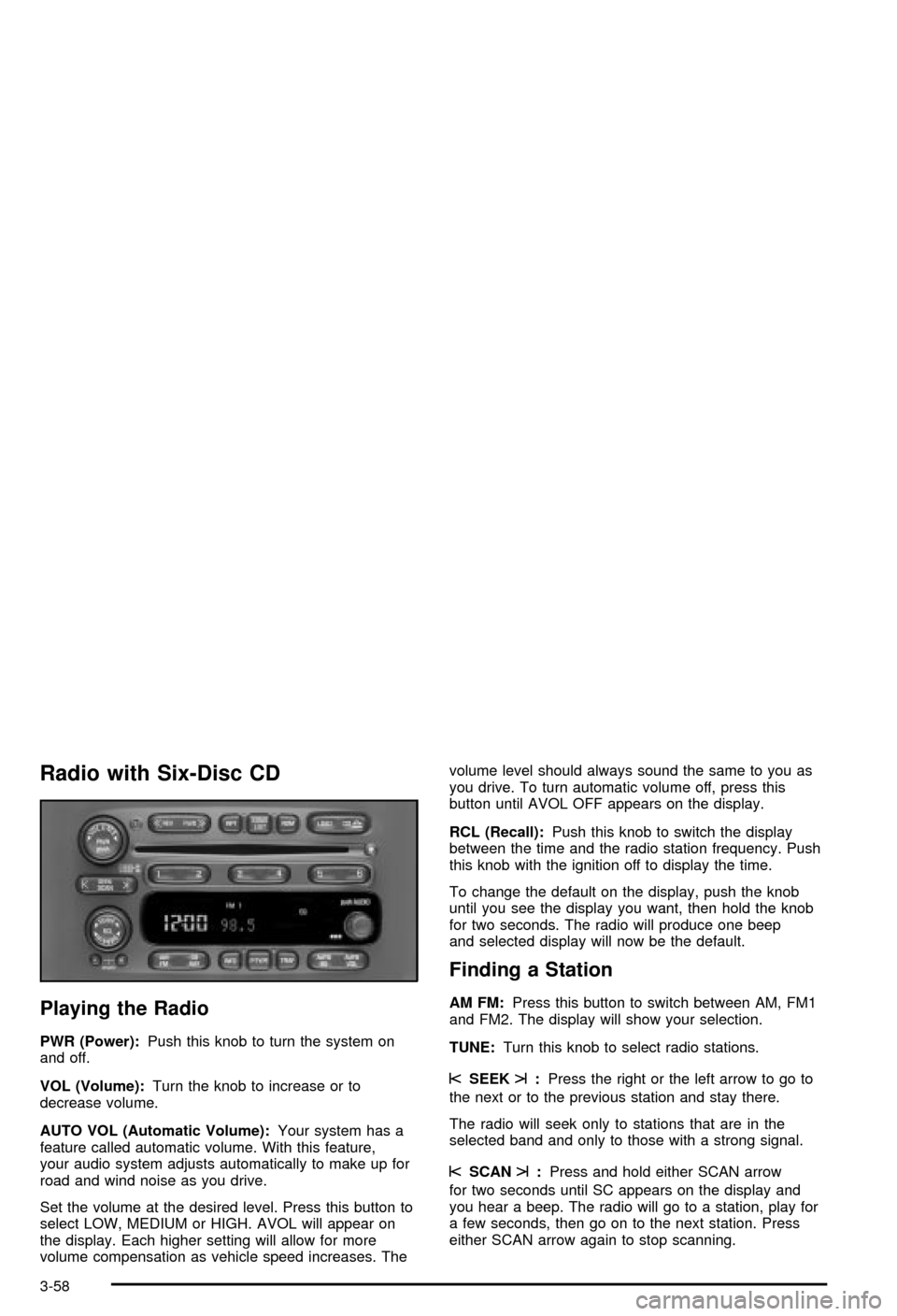
Radio with Six-Disc CD
Playing the Radio
PWR (Power):Push this knob to turn the system on
and off.
VOL (Volume):Turn the knob to increase or to
decrease volume.
AUTO VOL (Automatic Volume):Your system has a
feature called automatic volume. With this feature,
your audio system adjusts automatically to make up for
road and wind noise as you drive.
Set the volume at the desired level. Press this button to
select LOW, MEDIUM or HIGH. AVOL will appear on
the display. Each higher setting will allow for more
volume compensation as vehicle speed increases. Thevolume level should always sound the same to you as
you drive. To turn automatic volume off, press this
button until AVOL OFF appears on the display.
RCL (Recall):Push this knob to switch the display
between the time and the radio station frequency. Push
this knob with the ignition off to display the time.
To change the default on the display, push the knob
until you see the display you want, then hold the knob
for two seconds. The radio will produce one beep
and selected display will now be the default.
Finding a Station
AM FM:Press this button to switch between AM, FM1
and FM2. The display will show your selection.
TUNE:Turn this knob to select radio stations.
sSEEKt:Press the right or the left arrow to go to
the next or to the previous station and stay there.
The radio will seek only to stations that are in the
selected band and only to those with a strong signal.
sSCANt:Press and hold either SCAN arrow
for two seconds until SC appears on the display and
you hear a beep. The radio will go to a station, play for
a few seconds, then go on to the next station. Press
either SCAN arrow again to stop scanning.
3-58
Page 194 of 420

sSCANt:To scan one disc, press and hold either
SCAN arrow for more than two seconds until SCAN
appears on the display and you hear a beep. Use this
feature to listen to 10 seconds of each track of the
currently selected disc. SCAN will appear on the display.
Press either SCAN arrow again, to stop scanning.
To scan all loaded discs, press and hold either SCAN
arrow for more than four seconds until DISC SCAN
appears on the display and you hear a beep. Use this
feature to listen to 10 seconds of the ®rst tracks of each
disc loaded. Press either SCAN arrow again, to stop
scanning.
RCL (Recall):Push this knob to see how long the
current track has been playing. To change the default
on the display (track and elapsed time), push the
knob until you see the display you want, then hold the
knob until the display ¯ashes. The selected display
will now be the default.
AM FM:Press this button to play the radio when a
disc(s) is in the player.Using Song List Mode
The integrated six-disc CD changer has a feature called
song list. This feature is capable of saving 20 track
selections.
To save tracks into the song list feature, perform the
following steps:
1. Turn the disc player on and load it with at least one
disc. See ªLOAD CDº listed previously in this
section for more information.
2. Check to see that the disc changer is not in song
list mode. S-LIST should not appear in the display.
If S-LIST is present, press the SONG LIST
button to turn it off.
3. Select the desired disc by pressing the numbered
pushbutton and then use the SEEK SCAN right
arrow button to locate the track that you want
to save. The track will begin to play.
4. Press and hold the SONG LIST button for two or
more seconds to save the track into memory.
When SONG LIST is pressed a beep will be heard
immediately. After two seconds of pressing
SONG LIST continuously, two beeps will sound to
con®rm that the track has been saved.
5. Repeat Steps 3 and 4 for saving other selections.
If you attempt to save more than 20 selections,
S-LIST FULL will appear on the display.
3-66
Page 208 of 420

Remember: Anti-lock doesn't change the time you need
to get your foot up to the brake pedal or always
decrease stopping distance. If you get too close to the
vehicle in front of you, you won't have time to apply
your brakes if that vehicle suddenly slows or stops.
Always leave enough room up ahead to stop, even
though you have anti-lock brakes.
Using Anti-Lock
Don't pump the brakes. Just hold the brake pedal down
®rmly and let anti-lock work for you. You may feel
the brakes vibrate, or you may notice some noise, but
this is normal.
Braking in Emergencies
With anti-lock, you can steer and brake at the same
time. In many emergencies, steering can help you more
than even the very best braking.
Locking Rear Axle
If your vehicle has this feature, your locking rear axle
can give you additional traction on snow, mud, ice, sand
or gravel. It works like a standard axle most of the
time, but when one of the rear wheels has no traction
and the other does, this feature will allow the wheel with
traction to move the vehicle.
Steering
Power Steering
If you lose power steering assist because the engine
stops or the system is not functioning, you can steer but
it will take much more effort.
4-10
Page 209 of 420

Steering Tips
Driving on Curves
It's important to take curves at a reasonable speed.
A lot of the ªdriver lost controlº accidents mentioned on
the news happen on curves. Here's why:
Experienced driver or beginner, each of us is subject to
the same laws of physics when driving on curves.
The traction of the tires against the road surface makes
it possible for the vehicle to change its path when
you turn the front wheels. If there's no traction, inertia
will keep the vehicle going in the same direction. If
you've ever tried to steer a vehicle on wet ice, you'll
understand this.
The traction you can get in a curve depends on the
condition of your tires and the road surface, the angle at
which the curve is banked, and your speed. While
you're in a curve, speed is the one factor you can
control.
Suppose you're steering through a sharp curve.
Then you suddenly accelerate. Both control
systems Ð steering and acceleration Ð have to do their
work where the tires meet the road. Adding the sudden
acceleration can demand too much of those places. You
can lose control.
What should you do if this ever happens? Ease up on
the accelerator pedal, steer the vehicle the way you
want it to go, and slow down.Speed limit signs near curves warn that you should
adjust your speed. Of course, the posted speeds
are based on good weather and road conditions. Under
less favorable conditions you'll want to go slower.
If you need to reduce your speed as you approach a
curve, do it before you enter the curve, while your front
wheels are straight ahead.
Try to adjust your speed so you can ªdriveº through the
curve. Maintain a reasonable, steady speed. Wait to
accelerate until you are out of the curve, and then
accelerate gently into the straightaway.
Steering in Emergencies
There are times when steering can be more effective
than braking. For example, you come over a hill and ®nd
a truck stopped in your lane, or a car suddenly pulls
out from nowhere, or a child darts out from between
parked cars and stops right in front of you. You
can avoid these problems by braking Ð if you can stop
in time. But sometimes you can't; there isn't room.
That's the time for evasive action Ð steering around the
problem.
Your vehicle can perform very well in emergencies like
these. First apply your brakes.
See
Braking on page 4-8. It is better to remove as much
speed as you can from a possible collision. Then
steer around the problem, to the left or right depending
on the space available.
4-11
Page 212 of 420

·If other vehicles are lined up to pass a slow vehicle,
wait your turn. But take care that someone isn't
trying to pass you as you pull out to pass the slow
vehicle. Remember to glance over your shoulder
and check the blind spot.
·Check your mirrors, glance over your shoulder, and
start your left lane change signal before moving out
of the right lane to pass. When you are far
enough ahead of the passed vehicle to see its front
in your inside mirror, activate your right lane
change signal and move back into the right lane.
(Remember that your right outside mirror is convex.
The vehicle you just passed may seem to be
farther away from you than it really is.)
·Try not to pass more than one vehicle at a time on
two-lane roads. Reconsider before passing the
next vehicle.
·Don't overtake a slowly moving vehicle too rapidly.
Even though the brake lamps are not ¯ashing, it
may be slowing down or starting to turn.
·If you're being passed, make it easy for the
following driver to get ahead of you. Perhaps you
can ease a little to the right.
Loss of Control
Let's review what driving experts say about what
happens when the three control systems (brakes,
steering and acceleration) don't have enough friction
where the tires meet the road to do what the driver
has asked.
In any emergency, don't give up. Keep trying to steer
and constantly seek an escape route or area of
less danger.
Skidding
In a skid, a driver can lose control of the vehicle.
Defensive drivers avoid most skids by taking reasonable
care suited to existing conditions, and by not
ªoverdrivingº those conditions. But skids are always
possible.
The three types of skids correspond to your vehicle's
three control systems. In the braking skid, your wheels
aren't rolling. In the steering or cornering skid, too
much speed or steering in a curve causes tires to slip
and lose cornering force. And in the acceleration
skid, too much throttle causes the driving wheels
to spin.
A cornering skid is best handled by easing your foot off
the accelerator pedal.
4-14
Page 216 of 420

Controlling your vehicle is the key to successful off-road
driving. One of the best ways to control your vehicle
is to control your speed. Here are some things to keep
in mind. At higher speeds:
·you approach things faster and you have less time
to scan the terrain for obstacles.
·you have less time to react.
·you have more vehicle bounce when you drive over
obstacles.
·you'll need more distance for braking, especially
since you're on an unpaved surface.
{CAUTION:
When you're driving off-road, bouncing and
quick changes in direction can easily throw
you out of position. This could cause you to
lose control and crash. So, whether you're
driving on or off the road, you and your
passengers should wear safety belts.
Scanning the Terrain
Off-road driving can take you over many different kinds
of terrain. You need to be familiar with the terrain
and its many different features. Here are some things to
consider.
Surface Conditions:Off-roading can take you over
hard-packed dirt, gravel, rocks, grass, sand, mud, snow
or ice. Each of these surfaces affects the steering,
acceleration and braking of your vehicle in different
ways. Depending upon the kind of surface you are on,
you may experience slipping, sliding, wheel spinning,
delayed acceleration, poor traction and longer braking
distances.
Surface Obstacles:Unseen or hidden obstacles can
be hazardous. A rock, log, hole, rut or bump can startle
you if you're not prepared for them. Often these
obstacles are hidden by grass, bushes, snow or even
the rise and fall of the terrain itself. Here are some
things to consider:
·Is the path ahead clear?
·Will the surface texture change abruptly up ahead?
·Does the travel take you uphill or downhill?
(There's more discussion of these subjects later.)
·Will you have to stop suddenly or change direction
quickly?
4-18