mirror CHEVROLET BLAZER 2020 User Guide
[x] Cancel search | Manufacturer: CHEVROLET, Model Year: 2020, Model line: BLAZER, Model: CHEVROLET BLAZER 2020Pages: 390, PDF Size: 6.5 MB
Page 140 of 390
Chevrolet Blazer Owner Manual (GMNA-Localizing-U.S./Canada/Mexico-
13557845) - 2020 - CRC - 3/24/20
Instruments and Controls 139
Chime Volume
This determines the chime volume
level.
Touch the controls on the
infotainment display to adjust the
volume.
Hands Free Liftgate/Trunk Control
The liftgate may be operated with a
kicking motion under the left side of
the rear bumper. SeeLiftgate021.
Touch Off, On-Open and Close,
or On-Open Only.
Reverse Tilt Mirror
When on, the driver and/or
passenger mirrors will tilt downward
when the vehicle is shifted to
R (Reverse) to improve visibility of
the ground near the rear wheels.
They will return to their previous
driving position when the vehicle is
shifted out of R (Reverse) or the
engine is turned off. See Reverse
Tilt Mirrors 031.
Touch Off, On - Driver and
Passenger, On - Driver, or On -
Passenger. Auto Wipe in Reverse Gear
When on and the front wiper is on,
the rear wiper will automatically
activate when the vehicle is shifted
to R (Reverse).
Touch Off or On.
Lighting
Touch and the following may
display:
.
Vehicle Locator Lights
. Exit Lighting
Vehicle Locator Lights
This feature will flash the exterior
lamps and allows some of the
exterior lamps and most of the
interior lamps to turn on briefly when
Kon the Remote Keyless Entry
(RKE) transmitter is pressed to
locate the vehicle.
Touch Off or On.
Exit Lighting
This allows the selection of how
long the exterior lamps stay on
when leaving the vehicle when it is
dark outside. Touch Off, 30 Seconds, 60 Seconds,
or 120 Seconds.
Power Door Locks
Touch and the following may
display:
.
Open Door Anti Lockout
. Auto Door Unlock
. Delayed Door Lock
Open Door Anti Lock Out
When on, this feature will keep the
driver door from locking when the
door is open. If Off is selected, the
Delayed Door Lock menu will be
available.
Touch Off or On.
Auto Door Unlock
This allows selection of which of the
doors will automatically unlock when
the vehicle is shifted into P (Park).
Touch Off, All Doors, or Driver Door.
Page 159 of 390
Chevrolet Blazer Owner Manual (GMNA-Localizing-U.S./Canada/Mexico-
13557845) - 2020 - CRC - 3/24/20
158 Climate Controls
cool the air inside the vehicle or to
dry the air needed to defog the
windshield faster.
@:Press to turn on recirculation.
An indicator light comes on. Air is
recirculated to quickly cool the
inside of the vehicle or to reduce the
entry of outside air and odors.
If selected during cool or cold
weather, the windshield and
windows may fog. Turn off
recirculation to help clear the
windshield and windows.
Auto Defog : The climate control
system may have a sensor to
automatically detect high humidity
inside the vehicle. When high
humidity is detected, the climate
control system may adjust to
outside air supply and turn on the
air conditioner. The fan speed may
slightly increase to help prevent
fogging. If the climate control
system does not detect possible
window fogging, it returns to normal
operation. To turn Auto Defog off or on, see
“Climate and Air Quality”
under
Vehicle Personalization 0137.Rear Window Defogger
=:Press to turn the rear window
defogger on or off. An indicator light
on the button comes on to show that
the rear window defogger is on. The
rear window defogger only works
when the ignition is on. The
defogger turns off when the ignition
is off or in ACC/ACCESSORY.
The rear window defogger can be
set to automatic operation. See
“Climate and Air Quality” under
Vehicle Personalization 0137.
When Auto Rear Defog is selected,
the rear window defogger turns on
automatically when the interior
temperature is cold and the outside
temperature is about 7 °C (44 °F)
and below. The auto rear defogger
turns off automatically.
If the vehicle is equipped with
heated outside mirrors, they turn on
when the rear window defogger button is on and help to clear fog or
frost from the surface of the mirror.
See
Heated Mirrors 031.Caution
Do not try to clear frost or other
material from the inside of the
front windshield and rear window
with a razor blade or anything
else that is sharp. This may
damage the rear window
defogger grid and affect the
radio's ability to pick up stations
clearly. The repairs would not be
covered by the vehicle warranty.
LorM:If equipped, pressLorMto heat the driver or passenger seat.
See Heated and Ventilated Front
Seats 047.
{orC:If equipped, press{orCto ventilate the driver or passenger
seat. See Heated and Ventilated
Front Seats 047.
Page 167 of 390

Chevrolet Blazer Owner Manual (GMNA-Localizing-U.S./Canada/Mexico-
13557845) - 2020 - CRC - 3/24/20
166 Driving and Operating
Defensive drivers avoid most skids
by taking reasonable care suited to
existing conditions, and by not
overdriving those conditions. But
skids are always possible.
If the vehicle starts to slide, follow
these suggestions:
.Ease your foot off the
accelerator pedal and steer the
way you want the vehicle to go.
The vehicle may straighten out.
Be ready for a second skid if it
occurs.
. Slow down and adjust your
driving according to weather
conditions. Stopping distance
can be longer and vehicle
control can be affected when
traction is reduced by water,
snow, ice, gravel, or other
material on the road. Learn to
recognize warning clues —such
as enough water, ice, or packed
snow on the road to make a
mirrored surface —and slow
down when you have any doubt.
. Try to avoid sudden steering,
acceleration, or braking,
including reducing vehicle speed by shifting to a lower gear. Any
sudden changes could cause
the tires to slide.
Remember: Antilock brakes help
avoid only the braking skid.
Off-Road Driving
All-Wheel Drive (AWD) vehicles can
be used for off-road driving.
Vehicles without AWD and vehicles
not equipped with All Terrain (AT) or
On-Off Road (OOR) tires must not
be driven off-road except on a level,
solid surface. To contact the tire
manufacturer for more information
about the original equipment tires,
see the warranty manual.
Controlling the vehicle is the key to
successful off-road driving. One of
the best ways to control the vehicle
is to control the speed.
{Warning
When driving off-road, bouncing
and quick changes in direction
can easily throw you out of (Continued)
Warning (Continued)
position. This could cause you to
lose control and crash. You and
your passengers should always
wear seat belts.
Before Driving Off-Road
.Have all necessary maintenance
and service work completed.
. Fuel the vehicle, fill fluid levels,
and check inflation pressure in
all tires, including the spare,
if equipped.
. Read all the information about
AWD vehicles in this manual.
. Make sure all underbody
shields, if equipped, are properly
attached.
. Know the local laws that apply to
off-road driving.
To gain more ground clearance if
needed, it may be necessary to
remove the front fascia lower air
dam. However, driving without the
air dam reduces fuel economy.
Page 173 of 390
Chevrolet Blazer Owner Manual (GMNA-Localizing-U.S./Canada/Mexico-
13557845) - 2020 - CRC - 3/24/20
172 Driving and Operating
{Warning
Coasting downhill in N (Neutral)
or with the ignition off is
dangerous. This can cause
overheating of the brakes and
loss of steering assist. Always
have the engine running and the
vehicle in gear.
. Drive at speeds that keep the
vehicle in its own lane. Do not
swing wide or cross the
center line.
. Be alert on top of hills;
something could be in your lane
(e.g., stalled car, crash).
. Pay attention to special road
signs (e.g., falling rocks area,
winding roads, long grades,
passing or no-passing zones)
and take appropriate action.
Winter Driving
Driving on Snow or Ice
Snow or ice between the tires and
the road creates less traction or
grip, so drive carefully. Wet ice can
occur at about 0 °C (32 °F) when
freezing rain begins to fall. Avoid
driving on wet ice or in freezing rain
until roads can be treated.
For Slippery Road Driving:
.Accelerate gently. Accelerating
too quickly causes the wheels to
spin and makes the surface
under the tires slick.
. Turn on Traction Control. See
Traction Control/Electronic
Stability Control 0194.
. The Antilock Brake System
(ABS) improves vehicle stability
during hard stops, but the
brakes should be applied sooner
than when on dry pavement.
See Antilock Brake System
(ABS) 0191.
. Allow greater following distance
and watch for slippery spots. Icy
patches can occur on otherwise clear roads in shaded areas.
The surface of a curve or an
overpass can remain icy when
the surrounding roads are clear.
Avoid sudden steering
maneuvers and braking while
on ice.
. Turn off cruise control.
. Select All-Wheel Drive (AWD)
Mode for vehicles equipped with
AWD. Select Snow/Ice Mode for
FWD only vehicles. See Driver
Mode Control 0196 and
All-Wheel Drive 0191.
Blizzard Conditions
Stop the vehicle in a safe place and
signal for help. Stay with the vehicle
unless there is help nearby.
If possible, use Roadside
Assistance. See Roadside
Assistance Program 0359. To get
help and keep everyone in the
vehicle safe:
. Turn on the hazard warning
flashers.
. Tie a red cloth to an outside
mirror.
Page 209 of 390
Chevrolet Blazer Owner Manual (GMNA-Localizing-U.S./Canada/Mexico-
13557845) - 2020 - CRC - 3/24/20
208 Driving and Operating
ACC may occasionally provide an
alert and/or braking that is
considered unnecessary. It could
respond to vehicles in different
lanes, signs, guardrails, and other
stationary objects when entering or
exiting a curve. This is normal
operation. The vehicle does not
need service.
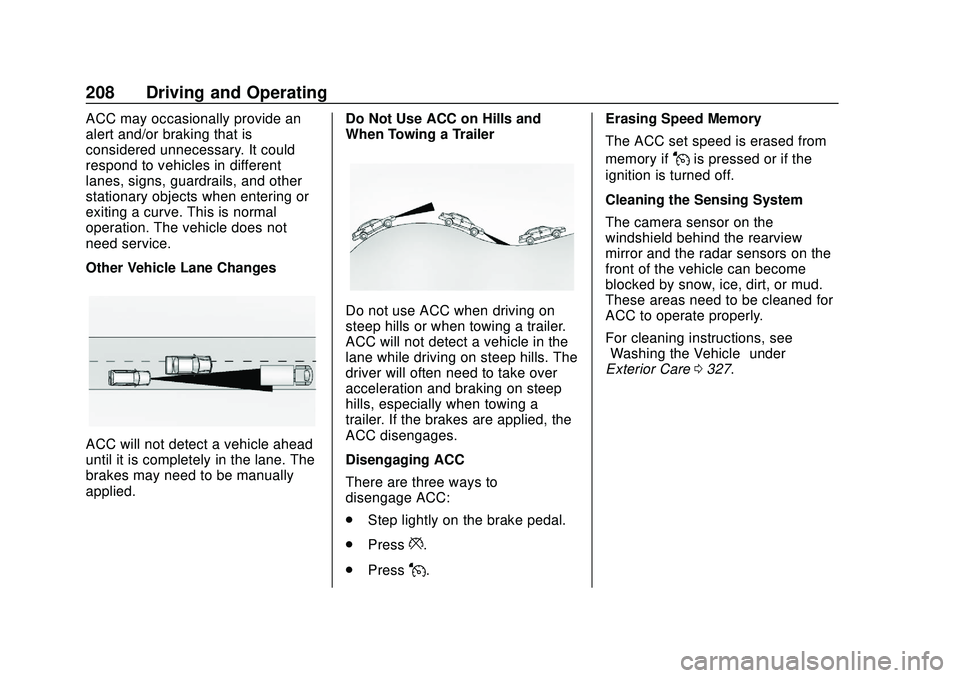
Other Vehicle Lane Changes
ACC will not detect a vehicle ahead
until it is completely in the lane. The
brakes may need to be manually
applied.Do Not Use ACC on Hills and
When Towing a Trailer
Do not use ACC when driving on
steep hills or when towing a trailer.
ACC will not detect a vehicle in the
lane while driving on steep hills. The
driver will often need to take over
acceleration and braking on steep
hills, especially when towing a
trailer. If the brakes are applied, the
ACC disengages.
Disengaging ACC
There are three ways to
disengage ACC:
.
Step lightly on the brake pedal.
. Press
*.
. Press
J. Erasing Speed Memory
The ACC set speed is erased from
memory if
Jis pressed or if the
ignition is turned off.
Cleaning the Sensing System
The camera sensor on the
windshield behind the rearview
mirror and the radar sensors on the
front of the vehicle can become
blocked by snow, ice, dirt, or mud.
These areas need to be cleaned for
ACC to operate properly.
For cleaning instructions, see
“Washing the Vehicle” under
Exterior Care 0327.
Page 211 of 390
Chevrolet Blazer Owner Manual (GMNA-Localizing-U.S./Canada/Mexico-
13557845) - 2020 - CRC - 3/24/20
210 Driving and Operating
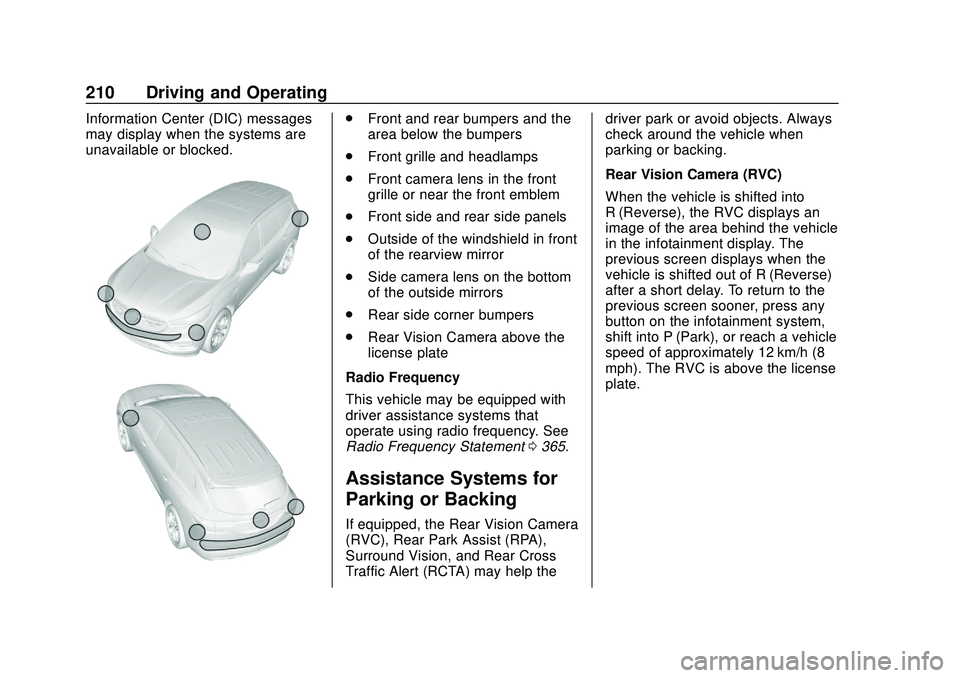
Information Center (DIC) messages
may display when the systems are
unavailable or blocked..Front and rear bumpers and the
area below the bumpers
. Front grille and headlamps
. Front camera lens in the front
grille or near the front emblem
. Front side and rear side panels
. Outside of the windshield in front
of the rearview mirror
. Side camera lens on the bottom
of the outside mirrors
. Rear side corner bumpers
. Rear Vision Camera above the
license plate
Radio Frequency
This vehicle may be equipped with
driver assistance systems that
operate using radio frequency. See
Radio Frequency Statement 0365.
Assistance Systems for
Parking or Backing
If equipped, the Rear Vision Camera
(RVC), Rear Park Assist (RPA),
Surround Vision, and Rear Cross
Traffic Alert (RCTA) may help the driver park or avoid objects. Always
check around the vehicle when
parking or backing.
Rear Vision Camera (RVC)
When the vehicle is shifted into
R (Reverse), the RVC displays an
image of the area behind the vehicle
in the infotainment display. The
previous screen displays when the
vehicle is shifted out of R (Reverse)
after a short delay. To return to the
previous screen sooner, press any
button on the infotainment system,
shift into P (Park), or reach a vehicle
speed of approximately 12 km/h (8
mph). The RVC is above the license
plate.
Page 212 of 390
Chevrolet Blazer Owner Manual (GMNA-Localizing-U.S./Canada/Mexico-
13557845) - 2020 - CRC - 3/24/20
Driving and Operating 211
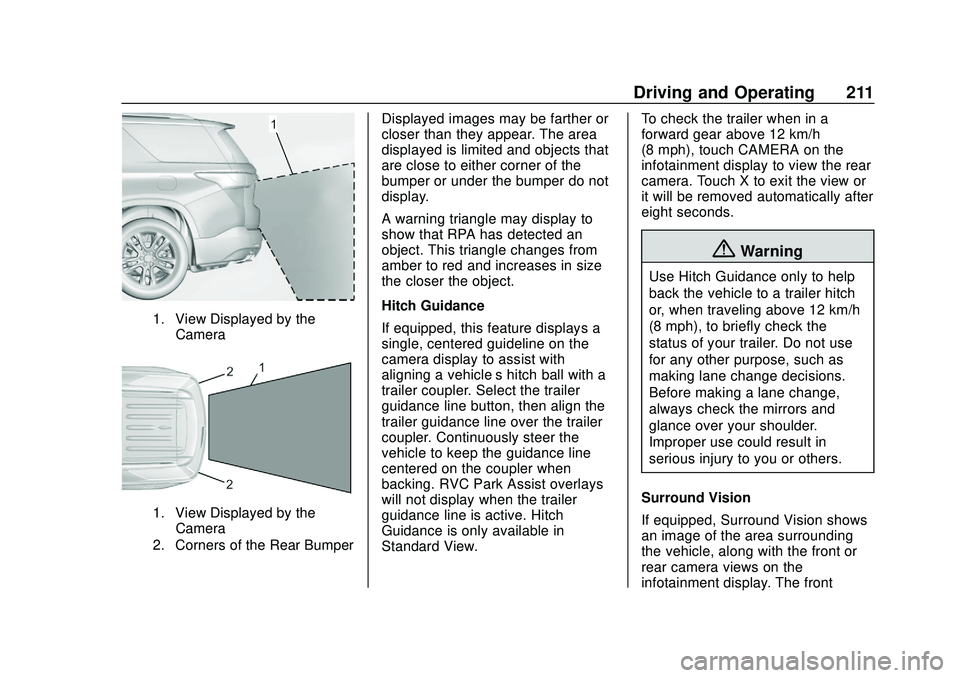
1. View Displayed by theCamera
1. View Displayed by theCamera
2. Corners of the Rear Bumper
Displayed images may be farther or
closer than they appear. The area
displayed is limited and objects that
are close to either corner of the
bumper or under the bumper do not
display.
A warning triangle may display to
show that RPA has detected an
object. This triangle changes from
amber to red and increases in size
the closer the object.
Hitch Guidance
If equipped, this feature displays a
single, centered guideline on the
camera display to assist with
aligning a vehicle’ s hitch ball with a
trailer coupler. Select the trailer
guidance line button, then align the
trailer guidance line over the trailer
coupler. Continuously steer the
vehicle to keep the guidance line
centered on the coupler when
backing. RVC Park Assist overlays
will not display when the trailer
guidance line is active. Hitch
Guidance is only available in
Standard View. To check the trailer when in a
forward gear above 12 km/h
(8 mph), touch CAMERA on the
infotainment display to view the rear
camera. Touch X to exit the view or
it will be removed automatically after
eight seconds.
{Warning
Use Hitch Guidance only to help
back the vehicle to a trailer hitch
or, when traveling above 12 km/h
(8 mph), to briefly check the
status of your trailer. Do not use
for any other purpose, such as
making lane change decisions.
Before making a lane change,
always check the mirrors and
glance over your shoulder.
Improper use could result in
serious injury to you or others.
Surround Vision
If equipped, Surround Vision shows
an image of the area surrounding
the vehicle, along with the front or
rear camera views on the
infotainment display. The front
Page 213 of 390
Chevrolet Blazer Owner Manual (GMNA-Localizing-U.S./Canada/Mexico-
13557845) - 2020 - CRC - 3/24/20
212 Driving and Operating
camera is in the grille or near the
front emblem, the side cameras are
on the bottom of the outside mirrors,
and the rear camera is above the
license plate.
The Surround Vision system can be
accessed by selecting CAMERA in
the infotainment display or when the
vehicle is shifted into R (Reverse).
To return to the previous screen
sooner, press any button on the
infotainment system, shift into
P (Park), or reach a vehicle speed
of approximately 12 km/h (8 mph).
{Warning
The Surround Vision cameras
have blind spots and will not
display all objects near the
corners of the vehicle. Folding
outside mirrors that are out of
position may not display surround
view correctly. Always check
around the vehicle when parking
or backing.
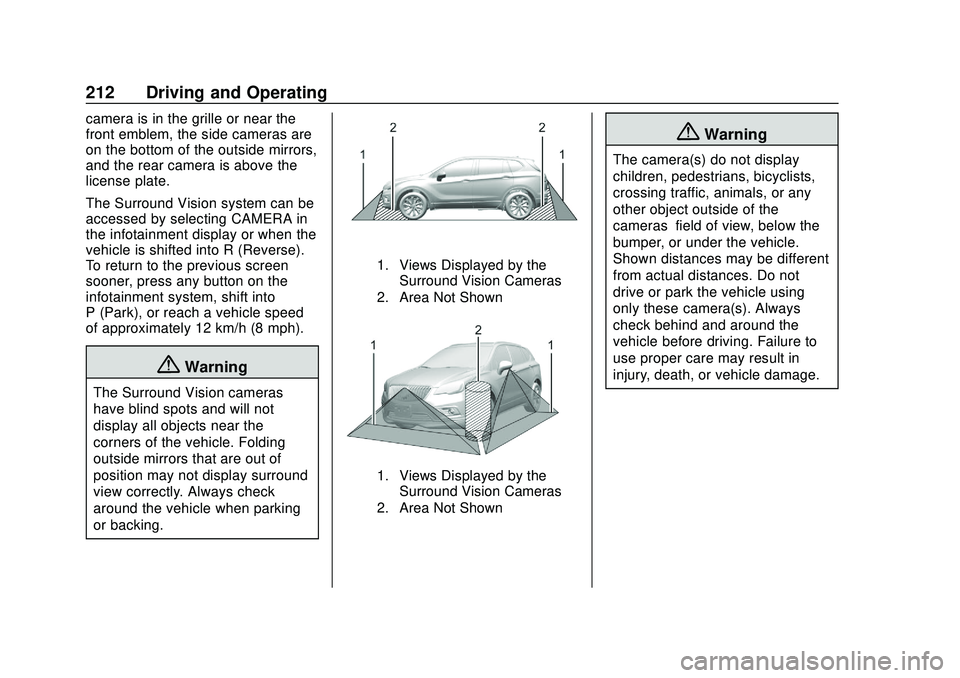
1. Views Displayed by theSurround Vision Cameras
2. Area Not Shown
1. Views Displayed by the Surround Vision Cameras
2. Area Not Shown
{Warning
The camera(s) do not display
children, pedestrians, bicyclists,
crossing traffic, animals, or any
other object outside of the
cameras’ field of view, below the
bumper, or under the vehicle.
Shown distances may be different
from actual distances. Do not
drive or park the vehicle using
only these camera(s). Always
check behind and around the
vehicle before driving. Failure to
use proper care may result in
injury, death, or vehicle damage.
Page 215 of 390
Chevrolet Blazer Owner Manual (GMNA-Localizing-U.S./Canada/Mexico-
13557845) - 2020 - CRC - 3/24/20
214 Driving and Operating
shifting from R (Reverse) to a
forward gear or when the vehicle is
moving forward slower than 12 km/h
(8 mph). This view can only be
enabled in Front/Rear Standard
View by touching the Top Down
View button when a camera view is
active.
Park Assist
With RPA, as the vehicle backs up
at speeds of less than 8 km/h
(5 mph), the sensors on the rear
bumper may detect objects up to
2.5m (8 ft) behind the vehicle within
a zone 25 cm (10 in) high off the
ground and below bumper level.
These detection distances may be
shorter during warmer or humid
weather.
Blocked sensors will not detect
objects and can also cause false
detections. Keep the sensors clean
of mud, dirt, snow, ice, and slush;
and clean sensors after a car wash
in freezing temperatures.
{Warning
The Park Assist system does not
detect children, pedestrians,
bicyclists, animals, or objects
below the bumper or that are too
close or too far from the vehicle.
It is not available at speeds
greater than 8 km/h (5 mph). To
prevent injury, death, or vehicle
damage, even with Park Assist,
always check the area around the
vehicle and check all mirrors
before backing.
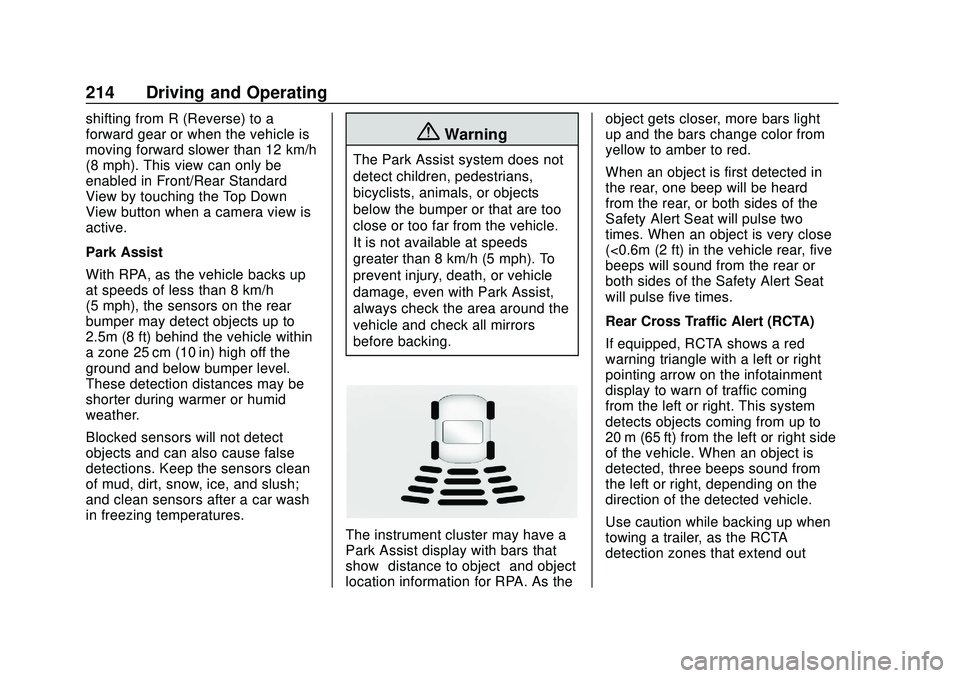
The instrument cluster may have a
Park Assist display with bars that
show“distance to object” and object
location information for RPA. As the object gets closer, more bars light
up and the bars change color from
yellow to amber to red.
When an object is first detected in
the rear, one beep will be heard
from the rear, or both sides of the
Safety Alert Seat will pulse two
times. When an object is very close
(<0.6m (2 ft) in the vehicle rear, five
beeps will sound from the rear or
both sides of the Safety Alert Seat
will pulse five times.
Rear Cross Traffic Alert (RCTA)
If equipped, RCTA shows a red
warning triangle with a left or right
pointing arrow on the infotainment
display to warn of traffic coming
from the left or right. This system
detects objects coming from up to
20 m (65 ft) from the left or right side
of the vehicle. When an object is
detected, three beeps sound from
the left or right, depending on the
direction of the detected vehicle.
Use caution while backing up when
towing a trailer, as the RCTA
detection zones that extend out
Page 218 of 390
Chevrolet Blazer Owner Manual (GMNA-Localizing-U.S./Canada/Mexico-
13557845) - 2020 - CRC - 3/24/20
Driving and Operating 217
Selecting the Alert Timing
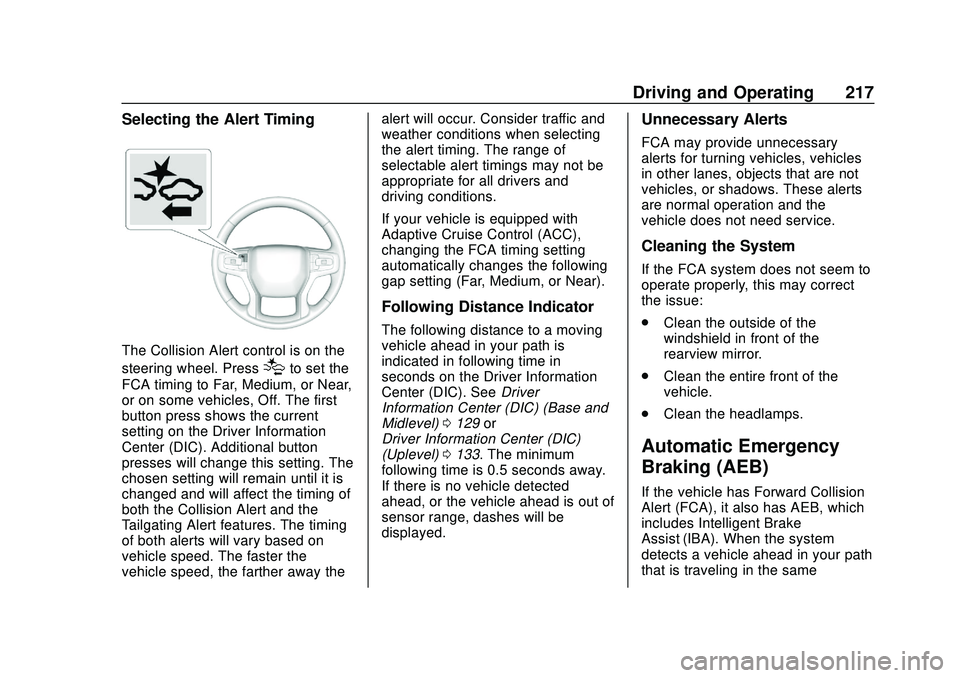
The Collision Alert control is on the
steering wheel. Press
[to set the
FCA timing to Far, Medium, or Near,
or on some vehicles, Off. The first
button press shows the current
setting on the Driver Information
Center (DIC). Additional button
presses will change this setting. The
chosen setting will remain until it is
changed and will affect the timing of
both the Collision Alert and the
Tailgating Alert features. The timing
of both alerts will vary based on
vehicle speed. The faster the
vehicle speed, the farther away the alert will occur. Consider traffic and
weather conditions when selecting
the alert timing. The range of
selectable alert timings may not be
appropriate for all drivers and
driving conditions.
If your vehicle is equipped with
Adaptive Cruise Control (ACC),
changing the FCA timing setting
automatically changes the following
gap setting (Far, Medium, or Near).
Following Distance Indicator
The following distance to a moving
vehicle ahead in your path is
indicated in following time in
seconds on the Driver Information
Center (DIC). See
Driver
Information Center (DIC) (Base and
Midlevel) 0129 or
Driver Information Center (DIC)
(Uplevel) 0133. The minimum
following time is 0.5 seconds away.
If there is no vehicle detected
ahead, or the vehicle ahead is out of
sensor range, dashes will be
displayed.
Unnecessary Alerts
FCA may provide unnecessary
alerts for turning vehicles, vehicles
in other lanes, objects that are not
vehicles, or shadows. These alerts
are normal operation and the
vehicle does not need service.
Cleaning the System
If the FCA system does not seem to
operate properly, this may correct
the issue:
. Clean the outside of the
windshield in front of the
rearview mirror.
. Clean the entire front of the
vehicle.
. Clean the headlamps.
Automatic Emergency
Braking (AEB)
If the vehicle has Forward Collision
Alert (FCA), it also has AEB, which
includes Intelligent Brake
Assist (IBA). When the system
detects a vehicle ahead in your path
that is traveling in the same