light CHEVROLET BOLT EV 2017 Owner's Manual
[x] Cancel search | Manufacturer: CHEVROLET, Model Year: 2017, Model line: BOLT EV, Model: CHEVROLET BOLT EV 2017Pages: 16, PDF Size: 2.5 MB
Page 2 of 16
2
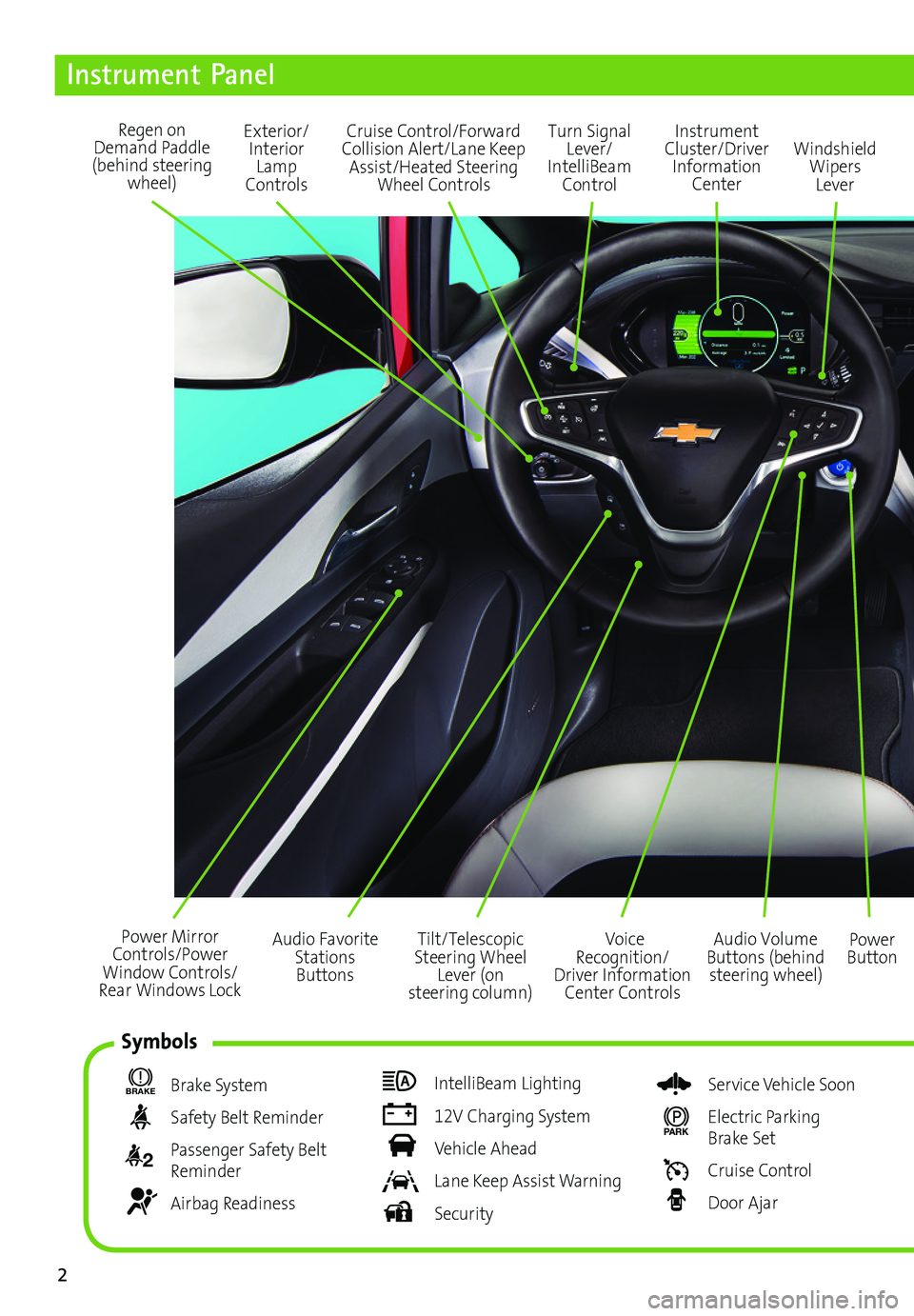
Power Mirror Controls/Power Window Controls/Rear Windows Lock
Exterior/Interior Lamp Controls
Turn Signal Lever/ IntelliBeam Control
Regen on Demand Paddle (behind steering wheel)
Audio Volume Buttons (behind steering wheel)
Voice Recognition/Driver Information Center Controls
Power Button
Cruise Control/Forward Collision Alert/Lane Keep Assist/Heated Steering Wheel Controls
Instrument Panel
BRAKE Brake System
Safety Belt Reminder
2 Passenger Safety Belt Reminder
Airbag Readiness
IntelliBeam Lighting
12V Charging System
Vehicle Ahead
Lane Keep Assist Warning
Security
Service Vehicle Soon
PARK Electric Parking Brake Set
Cruise Control
Door Ajar
Instrument Cluster/Driver Information Center
Windshield Wipers Lever
Tilt/Telescopic Steering Wheel Lever (on steering column)
Audio Favorite Stations Buttons
Symbols
Page 3 of 16
3
Refer to your Owner Manual to learn about the information being relayed by the lights, gauges and indicators of the instrument cluster.
See In Brief in your Owner Manual.
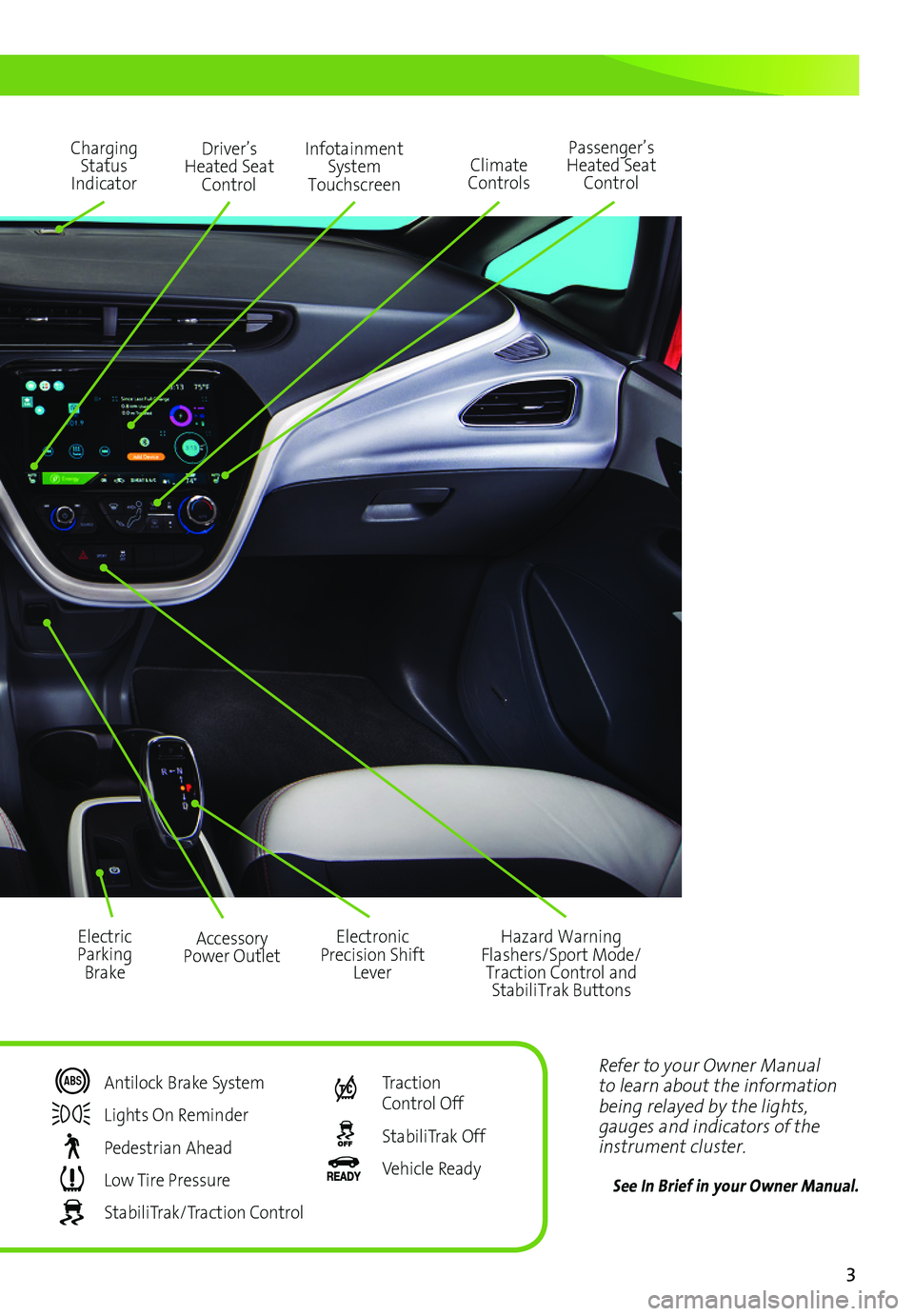
Driver’s Heated Seat Control
Infotainment System Touchscreen
Passenger’s Heated Seat ControlClimate Controls
Hazard Warning Flashers/Sport Mode/Traction Control and StabiliTrak Buttons
Accessory Power Outlet
Charging Status Indicator
Electric Parking Brake
Electronic Precision Shift Lever
Antilock Brake System
Lights On Reminder
Pedestrian Ahead
Low Tire Pressure
StabiliTrak/Traction Control
Traction Control Off
StabiliTrak Off
Vehicle Ready
Page 7 of 16
7
Instrument Cluster
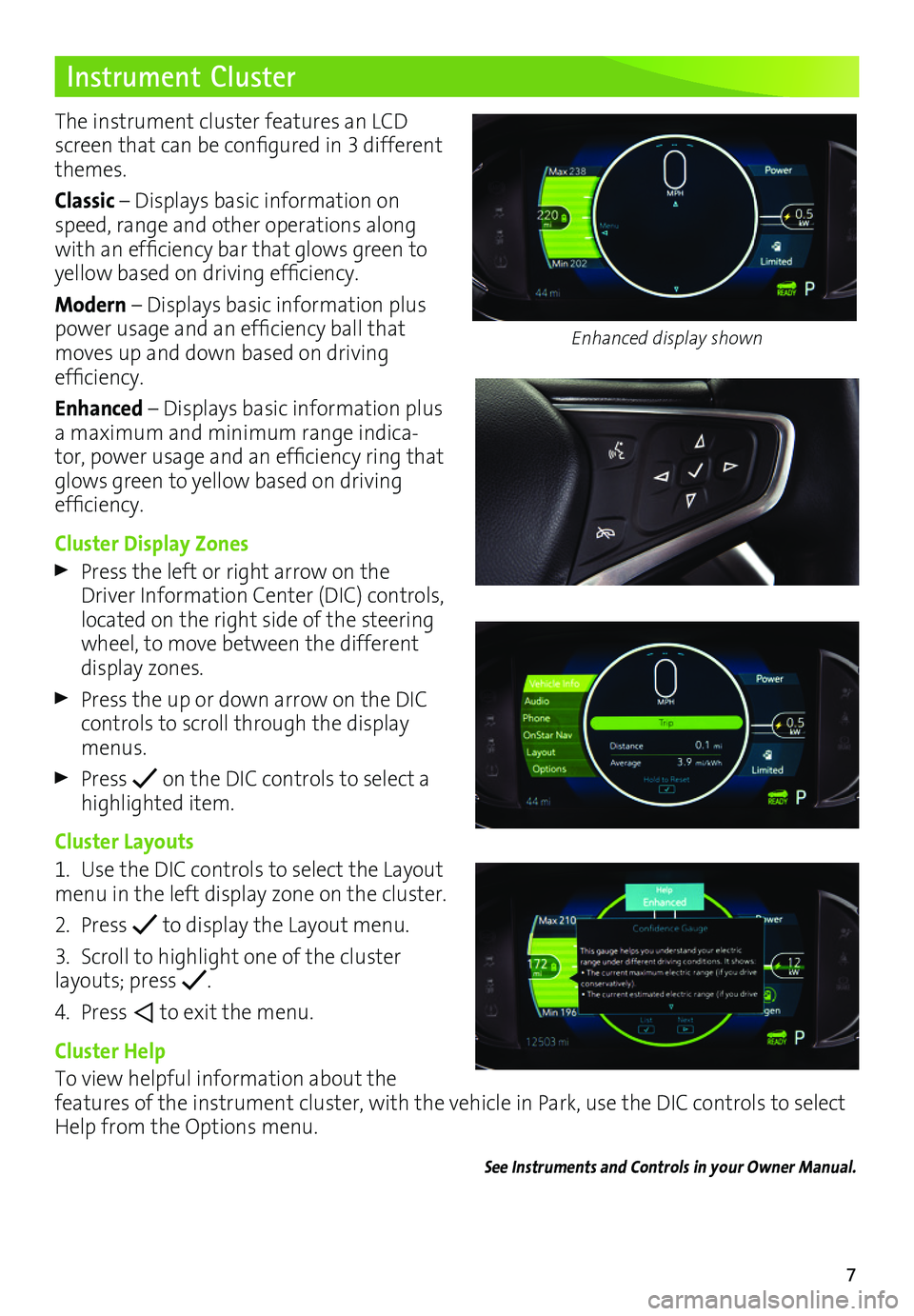
The instrument cluster features an LCD screen that can be configured in 3 different themes.
Classic – Displays basic information on speed, range and other operations along with an efficiency bar that glows green to
yellow based on driving efficiency.
Modern – Displays basic information plus power usage and an efficiency ball that moves up and down based on driving
efficiency.
Enhanced – Displays basic information plus a maximum and minimum range indica-tor, power usage and an efficiency ring that glows green to yellow based on driving efficiency.
Cluster Display Zones
Press the left or right arrow on the Driver Information Center (DIC) controls, located on the right side of the steering wheel, to move between the different display zones.
Press the up or down arrow on the DIC controls to scroll through the display menus.
Press on the DIC controls to select a highlighted item.
Cluster Layouts
1. Use the DIC controls to select the Layout menu in the left display zone on the cluster.
2. Press to display the Layout menu.
3. Scroll to highlight one of the cluster layouts; press .
4. Press to exit the menu.
Cluster Help
To view helpful information about the
features of the instrument cluster, with the vehicle in Park, use the DIC controls to select Help from the Options menu.
See Instruments and Controls in your Owner Manual.
Enhanced display shown
Page 12 of 16
12
Charging
Battery
The Bolt EV is powered by a lithium-ion high voltage battery pack, which holds its charge efficiently and has no memory effect (so it doesn’t have to be run down completely before recharging). Keep the vehicle plugged in, even when fully charged, to keep the battery temperature ready for the next drive.
Charging Time
Charging rates and times vary depending on outside temperature and remaining charge.
When using a 120-volt electrical outlet, it will charge at a rate of 4 EV miles per hour with the 12-amp setting (approximately 50 hours total to charge the vehicle).
When using a 240-volt charging station, it will charge at a rate of 12 EV miles per hour at a 16-amp level (approximately 19 hours total), and at a rate of 25 EV miles per hour at a 32-amp level (approximately 9½ hours total to charge the vehicle).
Using a public DC Fast Charging station with the available Fast Charge port, it will charge to achieve 90 EV miles in 30 minutes at an 80kW power level from a depleted battery.
Programmable Charging
There are 3 programmable charging modes: Immediately upon plug-in; delayed based on Departure time; and delayed based on Electric Rate and Departure Time.
Touch the Energy icon on the touchscreen and then touch the Charging icon to view the current Charge Mode and Charge Limit.
Touch the Charge Limit toggle button to select a different charge level.
Touch the desired Charge Mode box to select a different charge mode.
Charging Status
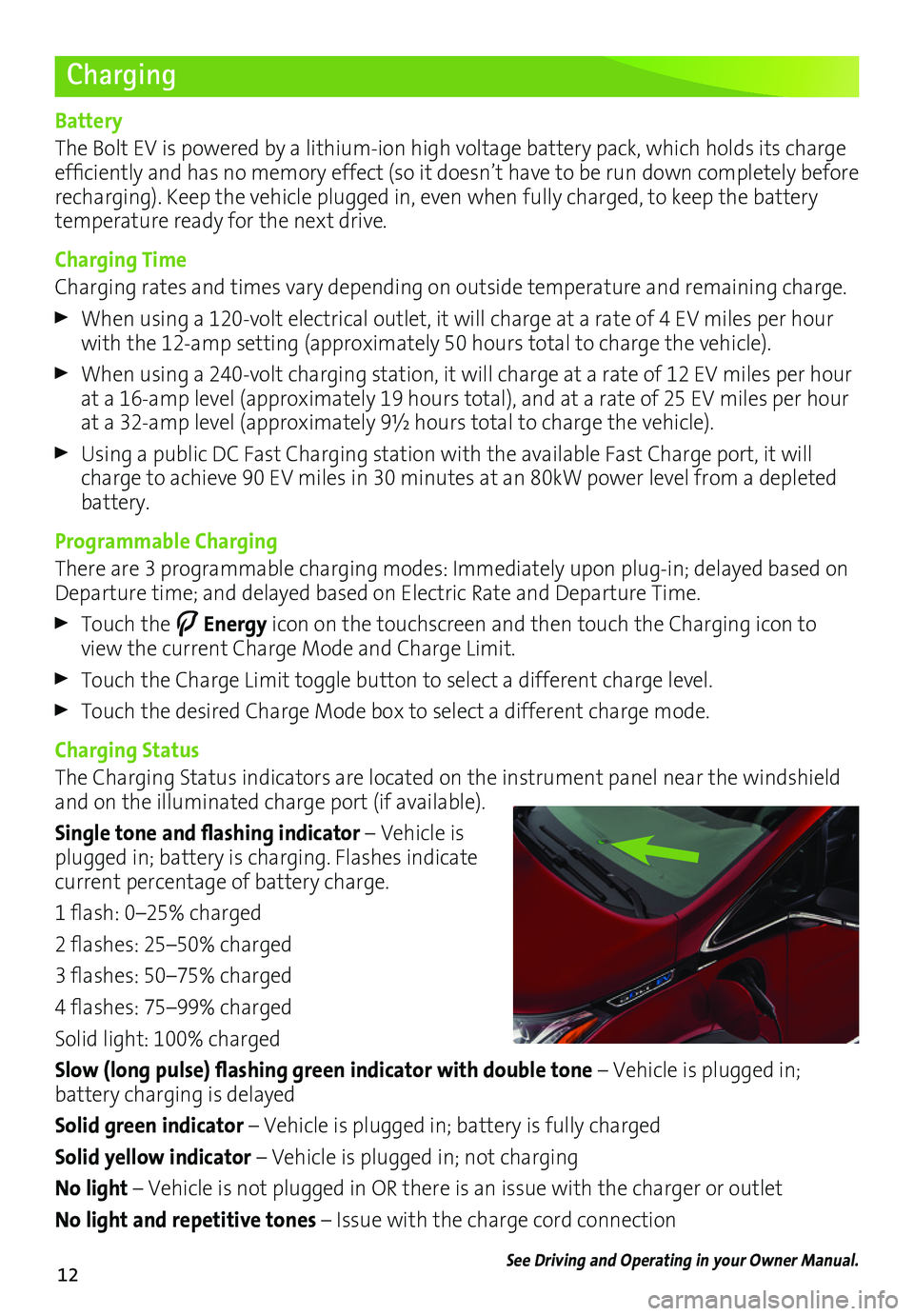
The Charging Status indicators are located on the instrument panel near the windshield and on the illuminated charge port (if available).
Single tone and flashing indicator – Vehicle is plugged in; battery is charging. Flashes indicate current percentage of battery charge.
1 flash: 0–25% charged
2 flashes: 25–50% charged
3 flashes: 50–75% charged
4 flashes: 75–99% charged
Solid light: 100% charged
Slow (long pulse) flashing green indicator with double tone – Vehicle is plugged in;
battery charging is delayed
Solid green indicator – Vehicle is plugged in; battery is fully charged
Solid yellow indicator – Vehicle is plugged in; not charging
No light – Vehicle is not plugged in OR there is an issue with the charger or outlet
No light and repetitive tones – Issue with the charge cord connection
See Driving and Operating in your Owner Manual.
Page 16 of 16
16
Roadside Assistance
myChevrolet Mobile App
Chevrolet Owner Center
1-888-811-1926 TTY Users: 1-888-889-2438
As the owner of a new Chevrolet, you are automatically enrolled in the Chevrolet Roadside Assistance program for 5 years/60,000 miles, whichever occurs first, at no expense to you. Chevrolet’s Roadside Assistance toll-free number is staffed by a team of trained advisors who are available 24 hours a day, 365 days a year, to contact a service provider for light
services (jump-starts, flat tire and lock-outs) or make arrangements to tow your vehicle to the nearest Bolt EV Authorized Chevrolet dealer.
Roadside Assistance and OnStar®
If you require roadside service and have a current OnStar subscription, press the OnStar
button and the vehicle will send your current GPS location to an OnStar Advisor who will speak to you, assess your problem, contact Roadside Assistance and relay your exact
location so you will get the help you need.
!84089171=A!
Certain restrictions, precautions and safety procedures apply to your ve\
hicle. Please read your Owner Manual for complete instructions. All information contained herein is based on \
the latest information available at the time of printing and is subject to change without notice. Copyright 2016 General Motors. All rights reserved.
We recommend always using ACDelco or genuine GM service parts.
The myChevrolet mobile app connects owners with a compatible mobile device to a variety of vehicle information and services, such as a searchable owner manual, OnStar Vehicle Diagnostic information and Roadside Assistance.
The myChevrolet mobile app also enables users to search for charging sta\
tions, send remote commands, check the current battery charge level and initiate charging of your Bolt EV.
Download the mobile apps from your compatible mobile device’s app store.
To learn more about OnStar services, press the blue OnStar button, visit onstar.com, call 1-888-4-ONSTAR (1-888-466-7827), or refer to your owner manual.
84089171 A
Get to know your vehicle inside and out with the Chevrolet Owner Center. Check out
personalized information, including an online owner manual and helpful how-to videos, track your service history and warranty status, review your current OnStar Vehicle Diagnostics report (active OnStar account required) and more. Create an account today at my.chevrolet.com.