on star CHEVROLET BOLT EV 2020 Workshop Manual
[x] Cancel search | Manufacturer: CHEVROLET, Model Year: 2020, Model line: BOLT EV, Model: CHEVROLET BOLT EV 2020Pages: 347, PDF Size: 5.7 MB
Page 133 of 347
Chevrolet BOLT EV Owner Manual (GMNA-Localizing-U.S./Canada/Mexico-
13556250) - 2020 - CRC - 2/11/20
132 Lighting
The hazard warning flasher button
is on the center stack.
|:Press to make the front and
rear turn signal lamps flash on and
off. This warns others that you are
having trouble. Press the button
again to turn the flashers off.
When the hazard warning flashers
are on, the turn signals will
not work.
Turn and Lane-Change
Signals
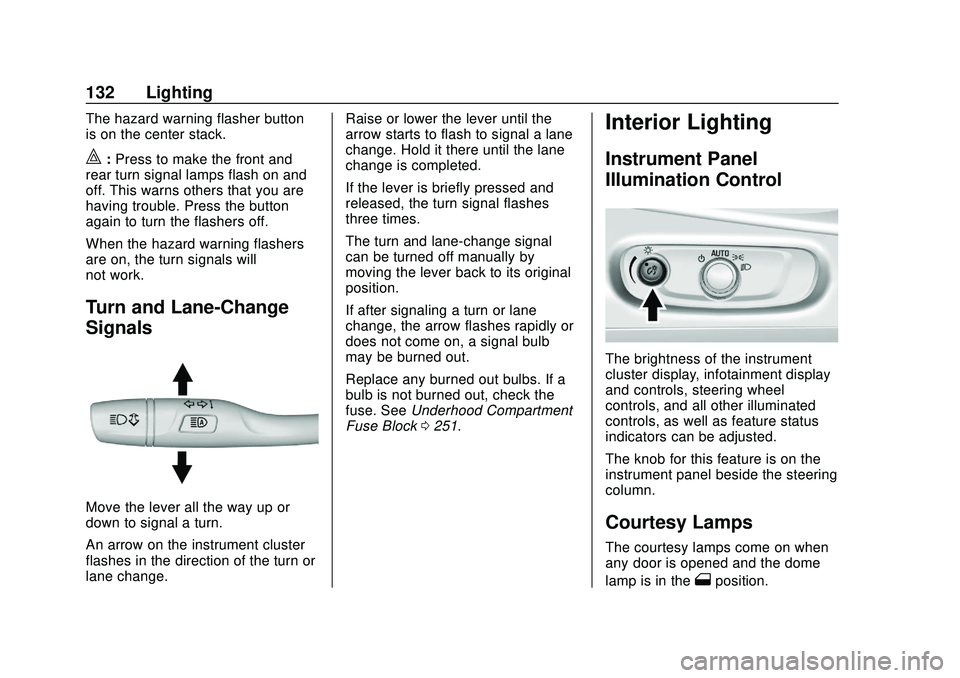
Move the lever all the way up or
down to signal a turn.
An arrow on the instrument cluster
flashes in the direction of the turn or
lane change. Raise or lower the lever until the
arrow starts to flash to signal a lane
change. Hold it there until the lane
change is completed.
If the lever is briefly pressed and
released, the turn signal flashes
three times.
The turn and lane-change signal
can be turned off manually by
moving the lever back to its original
position.
If after signaling a turn or lane
change, the arrow flashes rapidly or
does not come on, a signal bulb
may be burned out.
Replace any burned out bulbs. If a
bulb is not burned out, check the
fuse. See
Underhood Compartment
Fuse Block 0251.
Interior Lighting
Instrument Panel
Illumination Control
The brightness of the instrument
cluster display, infotainment display
and controls, steering wheel
controls, and all other illuminated
controls, as well as feature status
indicators can be adjusted.
The knob for this feature is on the
instrument panel beside the steering
column.
Courtesy Lamps
The courtesy lamps come on when
any door is opened and the dome
lamp is in the
1position.
Page 135 of 347
Chevrolet BOLT EV Owner Manual (GMNA-Localizing-U.S./Canada/Mexico-
13556250) - 2020 - CRC - 2/11/20
134 Lighting
Lighting Features
Entry Lighting
Some exterior lamps and the interior
lamps turn on briefly at night when
the Remote Keyless Entry (RKE)
transmitter
Kis pressed. See
Remote Keyless Entry (RKE)
System Operation 08. The lights
turn off immediately when the
vehicle is started or automatically
after a brief period.
This feature can be turned on or off.
See “Vehicle Locator Lights” under
Vehicle Personalization 0121.
Exit Lighting
Some exterior lamps come on at
night when the vehicle is turned off
and the driver door is opened.
Some interior lamps also come on
when the vehicle is turned off. The
exterior lamps and interior lamps
remain on after the door is closed
for a brief period and then turn off.
This feature can be turned on or off.
See Vehicle Personalization 0121.
Battery Power Protection
The battery saver feature is
designed to protect the vehicle's
12-volt battery.
If some interior lamps and/or the
headlamps are left on and the
vehicle is turned off, the battery
rundown protection system
automatically turns the lamp off after
some time.
Exterior Lighting Battery
Saver
The exterior lamps turn off about
10 minutes after the ignition is
turned off, if the parking lamps or
headlamps have been manually left
on. This protects against draining
the battery. To restart the 10-minute
timer, turn the exterior lamp control
to the off position and then back to
the parking lamp or headlamp
position.
To keep the lamps on for more than
10 minutes, the ignition must be on.
Page 136 of 347
Chevrolet BOLT EV Owner Manual (GMNA-Localizing-U.S./Canada/Mexico-
13556250) - 2020 - CRC - 2/11/20
Infotainment System 135
Infotainment
System
Introduction
Introduction . . . . . . . . . . . . . . . . . . . 135
Theft-Deterrent Feature . . . . . . 136
Overview . . . . . . . . . . . . . . . . . . . . . 136
Operation . . . . . . . . . . . . . . . . . . . . . 137
Software Updates . . . . . . . . . . . . 139
Radio
AM-FM Radio . . . . . . . . . . . . . . . . 140
Satellite Radio . . . . . . . . . . . . . . . . 141
Multi-Band Antenna . . . . . . . . . . 143
Audio Players
USB Port . . . . . . . . . . . . . . . . . . . . . 143
Auxiliary Devices . . . . . . . . . . . . . 149
Bluetooth Audio . . . . . . . . . . . . . . 150
OnStar System
OnStar System . . . . . . . . . . . . . . . 152
Phone
Bluetooth . . . . . . . . . . . . . . . . . . . . . 153
Apple CarPlay andAndroid Auto . . . . . . . . . . . . . . . . 154
Hands-Free Phone . . . . . . . . . . . 155
Settings
Settings . . . . . . . . . . . . . . . . . . . . . . 157
Teen Driver . . . . . . . . . . . . . . . . . . . 158
Trademarks and License
Agreements
Trademarks and License Agreements . . . . . . . . . . . . . . . . . 161
Introduction
Read the following pages to
become familiar with the features.
{Warning
Taking your eyes off the road for
too long or too often while using
any infotainment feature can
cause a crash. You or others
could be injured or killed. Do not
give extended attention to
infotainment tasks while driving.
Limit your glances at the vehicle
displays and focus your attention
on driving. Use voice commands
whenever possible.
The infotainment system has built-in
features intended to help avoid
distraction by disabling some
functions when driving. These
functions may gray out when they
are unavailable. Many infotainment
features are also available through
the instrument cluster and steering
wheel controls.
Page 138 of 347
Chevrolet BOLT EV Owner Manual (GMNA-Localizing-U.S./Canada/Mexico-
13556250) - 2020 - CRC - 2/11/20
Infotainment System 137
5.gord:
. Radio: Press to seek the
previous or next strongest
station or channel.
. USB/Music/Pictures: Press
to go to the previous or next
content. Press and hold to
fast rewind or fast forward.
Operation
Turning On/Off Automatically
When the vehicle is on, the
infotainment system turns on
automatically.
When the vehicle is off and the
driver door of the vehicle is opened,
the infotainment system turns off
automatically.
If
Ois pressed and held when the
vehicle is off, the infotainment
system will turn on. The system will
turn off automatically after
approximately 10 minutes.
Full Screen Clock
. Touch the time display on the
screen to display a full screen of
the clock.
. Touch
0to return to the
previous screen.
Volume Control
Turn the volume knob to adjust the
volume. The current volume is
indicated.
. If equipped, use the volume
switches on the back of the
steering wheel to adjust the
volume. See Steering Wheel
Controls 085.
. Turning on the infotainment
system power will set the
volume level to its previous
selection if it is lower than the
maximum starting volume level.
. If the volume level is louder than
the maximum starting volume
level when the infotainment
system is turned on, the
infotainment system is adjusted
automatically to the maximum
starting volume level.
Edit Home Page Layout
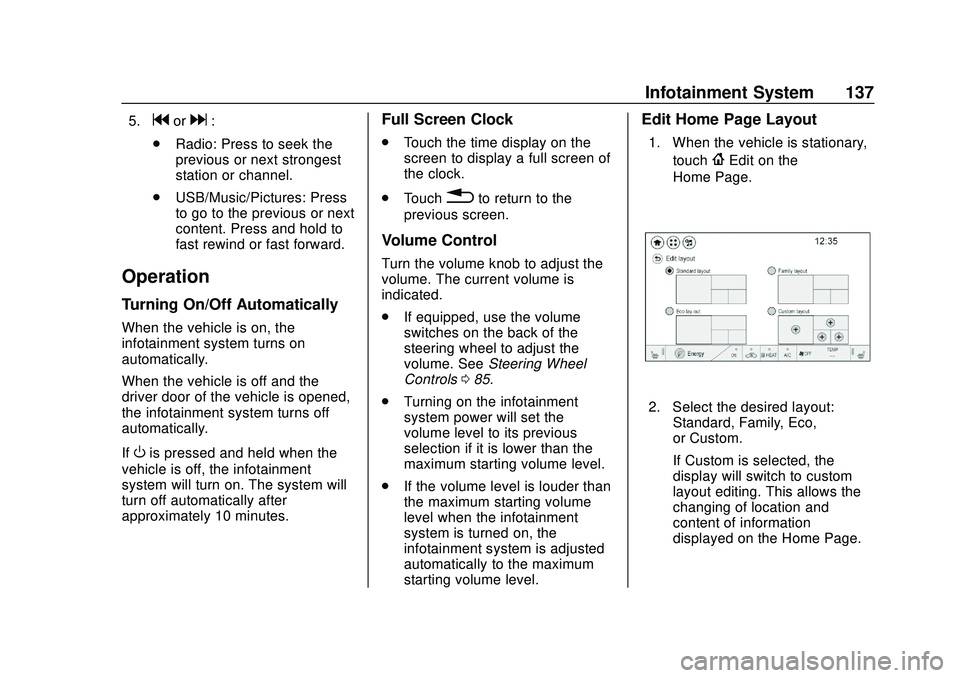
1. When the vehicle is stationary,
touch
{Edit on the
Home Page.
2. Select the desired layout: Standard, Family, Eco,
or Custom.
If Custom is selected, the
display will switch to custom
layout editing. This allows the
changing of location and
content of information
displayed on the Home Page.
Page 139 of 347
Chevrolet BOLT EV Owner Manual (GMNA-Localizing-U.S./Canada/Mexico-
13556250) - 2020 - CRC - 2/11/20
138 Infotainment System
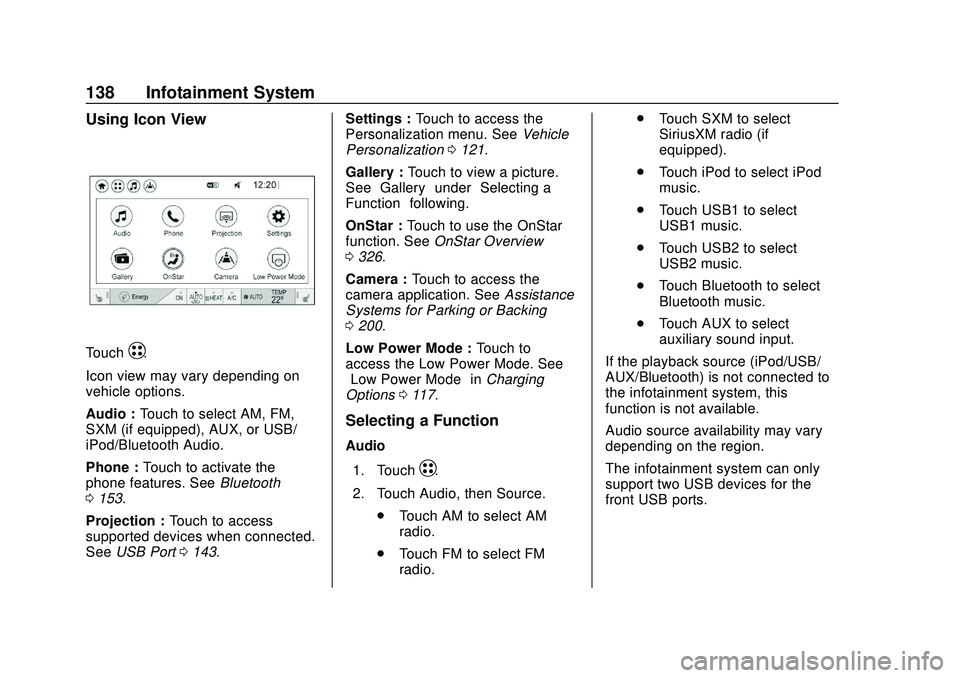
Using Icon View
TouchT.
Icon view may vary depending on
vehicle options.
Audio : Touch to select AM, FM,
SXM (if equipped), AUX, or USB/
iPod/Bluetooth Audio.
Phone : Touch to activate the
phone features. See Bluetooth
0 153.
Projection : Touch to access
supported devices when connected.
See USB Port 0143. Settings :
Touch to access the
Personalization menu. See Vehicle
Personalization 0121.
Gallery : Touch to view a picture.
See “Gallery” under“Selecting a
Function” following.
OnStar : Touch to use the OnStar
function. See OnStar Overview
0 326.
Camera : Touch to access the
camera application. See Assistance
Systems for Parking or Backing
0 200.
Low Power Mode : Touch to
access the Low Power Mode. See
“Low Power Mode” inCharging
Options 0117.
Selecting a Function
Audio
1. Touch
T.
2. Touch Audio, then Source. .Touch AM to select AM
radio.
. Touch FM to select FM
radio. .
Touch SXM to select
SiriusXM radio (if
equipped).
. Touch iPod to select iPod
music.
. Touch USB1 to select
USB1 music.
. Touch USB2 to select
USB2 music.
. Touch Bluetooth to select
Bluetooth music.
. Touch AUX to select
auxiliary sound input.
If the playback source (iPod/USB/
AUX/Bluetooth) is not connected to
the infotainment system, this
function is not available.
Audio source availability may vary
depending on the region.
The infotainment system can only
support two USB devices for the
front USB ports.
Page 140 of 347
Chevrolet BOLT EV Owner Manual (GMNA-Localizing-U.S./Canada/Mexico-
13556250) - 2020 - CRC - 2/11/20
Infotainment System 139
Phone
To operate Bluetooth Hands-Free
function, connect the Bluetooth
phone to the infotainment system.1. Touch
T.
2. Touch Phone, then touch
5on
the infotainment display,
or press
gon the steering
wheel controls.
Settings
1. Touch
T.
2. Touch Settings, then select an item from the menu and adjust
the settings by selecting from
the available options. See
Settings 0157.
Gallery
1. Touch
T.
2. Touch Gallery, then touch
'
menu to view picture files
contained in the USB storage
device.
Software Updates
Over-the-Air Software Updates
If equipped, the infotainment system
can download and install select
software updates over a wireless
connection. The system will prompt
for certain updates to be
downloaded and installed. There is
also an option to check for updates
manually.
To manually check for updates,
touch Settings on the Home Page,
followed by Software Information,
and then System Update. Follow the
on-screen prompts. Steps for
downloading and installing updates
may vary by vehicle.
Downloading Over-the-Air vehicle
software updates requires Internet
connectivity, which can be accessed
through the vehicle’ s built-in OnStar
4G LTE connection, if equipped and
active. If required, data plans are
provided by a third party. Optionally,
a secure Wi-Fi hotspot such as a
compatible mobile device hotspot, home hotspot, or public hotspot can
be used. Applicable data rates may
apply.
To connect the infotainment system
to a secured mobile device hotspot,
home hotspot, or public hotspot,
touch Settings on the Home Page,
followed by Wi-Fi, and then Manage
Wi-Fi Networks. Select the
appropriate Wi-Fi network, and
follow the on-screen prompts.
Download speeds may vary.
On most compatible mobile devices,
activation of the Wi-Fi hotspot is in
the Settings menu under Mobile
Network Sharing, Personal Hotspot,
Mobile Hotspot, or similar.
Availability of Over-the-Air vehicle
software updates varies by vehicle
and country. For more information
on this feature, see
www.my.chevrolet.com/learn.
Page 153 of 347
Chevrolet BOLT EV Owner Manual (GMNA-Localizing-U.S./Canada/Mexico-
13556250) - 2020 - CRC - 2/11/20
152 Infotainment System
.If the mobile phone or Bluetooth
device is not in the idle screen
mode, it may not automatically
play despite being carried out
from the Bluetooth music
play mode.
. The infotainment system
transmits the order to play from
the mobile phone in the
Bluetooth music play mode.
If this is done in a different
mode, then the device transmits
the order to stop. Depending on
the mobile phone’s options, this
order to play/stop may take time
to activate.
. If Bluetooth music playback is
not functioning, then check to
see if the mobile phone is in the
idle screen mode.
. Sometimes, sounds may be cut
off during Bluetooth music
playback.OnStar System
OnStar with 4G LTE
If equipped with OnStar 4G LTE, up
to seven devices, such as
smartphones, tablets, and laptops,
can be connected to high-speed
Internet through the vehicle’s built-in
Wi-Fi hotspot. Call 1-888-4-ONSTAR
(1-888-466-7827) to connect to an
OnStar Advisor for assistance. See
www.onstar.com for a detailed
instruction guide, vehicle availability,
details, and system limitations.
Services and apps vary by make,
model, year, carrier, availability, and
conditions. 4G LTE service is
available in select markets. 4G LTE
performance is based on industry
averages and vehicle systems
design. Some services require a
data plan.
Page 158 of 347
Chevrolet BOLT EV Owner Manual (GMNA-Localizing-U.S./Canada/Mexico-
13556250) - 2020 - CRC - 2/11/20
Infotainment System 157
Voice Mail
The default voice mail number is the
phone number of the currently
connected mobile phone. The voice
mail number can be changed in
Bluetooth settings.
To dial a voice mail number:1. Touch
T.
2. Touch Phone, then Voice Mail.
Settings
Operation of the Settings Menu
The infotainment system can be
customized to make it easier to use.
1. Touch
T.
2. Touch Settings.
3. Touch the desired menu to select the item or to display the
item’s detailed menu.
4. Touch
0to return to the
previous menu.
Settings menus and functions may
vary depending on vehicle options.
Radio Settings
1. TouchT.
2. Touch Settings, then touch Radio Settings.
.Auto Volume: Volume will
be automatically controlled.
See “Auto Volume” under
“AM-FM Radio” previously
in this section. .
Maximum Start-Up Volume:
Set the Maximum Start-Up
Volume from 13 to 37.
. Audio Cues: Set the Audio
Cues feature to On or Off.
. Audio Cues Volume: Set
the Audio Cues Volume
from 10 to 63.
. Audio Volume Setting: Set
all Audio Volume features.
Audio Cues Volume is only available
when Audio Cues is set to On.
Devices
1. TouchT.
2. Touch Settings, then touch Devices.
3. Select the desired device and connect/disconnect or delete.
To add a new Bluetooth device,
touch Add Device.
Bluetooth Phone
1. TouchT.
Page 159 of 347
Chevrolet BOLT EV Owner Manual (GMNA-Localizing-U.S./Canada/Mexico-
13556250) - 2020 - CRC - 2/11/20
158 Infotainment System
2. Touch Settings, then BluetoothPhone and touch
Yto scroll to
the desired mobile phone. This
is only available when the
device is connected.
. My Number: Displays the
current connected phone
number.
. Privacy: Set whether or not
incoming call alerts are
shown on the infotainment
display.
. Sort Contacts: Set to First
name, surname or
Surname, first name.
. Resync Device Contacts:
Resync the contacts list for
the current connected
mobile phone.
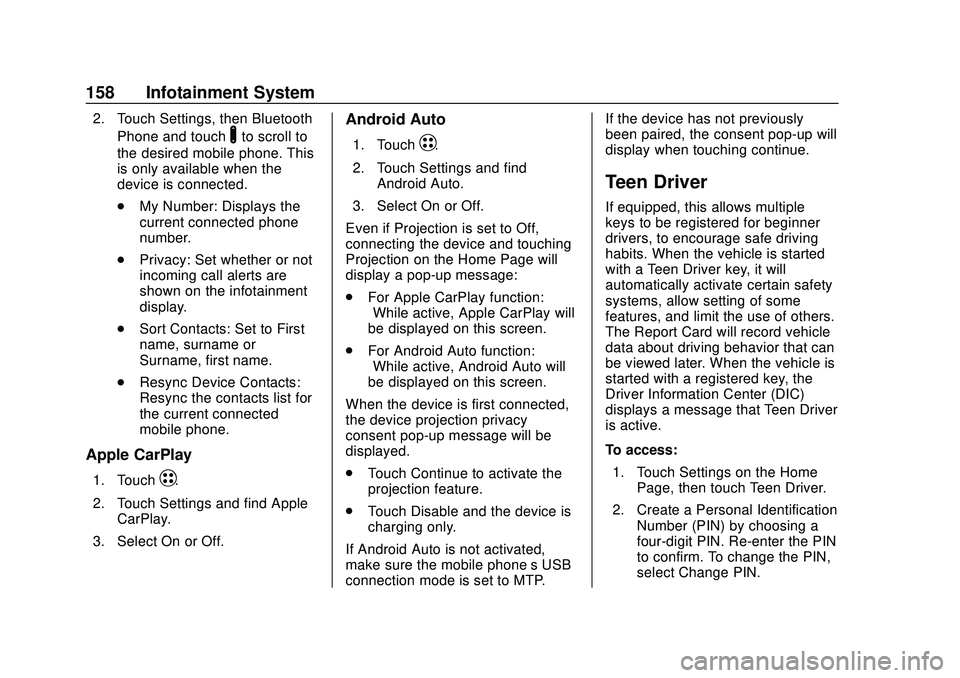
Apple CarPlay
1. TouchT.
2. Touch Settings and find Apple CarPlay.
3. Select On or Off.
Android Auto
1. TouchT.
2. Touch Settings and find Android Auto.
3. Select On or Off.
Even if Projection is set to Off,
connecting the device and touching
Projection on the Home Page will
display a pop-up message:
. For Apple CarPlay function:
“While active, Apple CarPlay will
be displayed on this screen.”
. For Android Auto function:
“While active, Android Auto will
be displayed on this screen.”
When the device is first connected,
the device projection privacy
consent pop-up message will be
displayed.
. Touch Continue to activate the
projection feature.
. Touch Disable and the device is
charging only.
If Android Auto is not activated,
make sure the mobile phone’s USB
connection mode is set to MTP. If the device has not previously
been paired, the consent pop-up will
display when touching continue.
Teen Driver
If equipped, this allows multiple
keys to be registered for beginner
drivers, to encourage safe driving
habits. When the vehicle is started
with a Teen Driver key, it will
automatically activate certain safety
systems, allow setting of some
features, and limit the use of others.
The Report Card will record vehicle
data about driving behavior that can
be viewed later. When the vehicle is
started with a registered key, the
Driver Information Center (DIC)
displays a message that Teen Driver
is active.
To access:
1. Touch Settings on the Home Page, then touch Teen Driver.
2. Create a Personal Identification Number (PIN) by choosing a
four-digit PIN. Re-enter the PIN
to confirm. To change the PIN,
select Change PIN.
Page 160 of 347
Chevrolet BOLT EV Owner Manual (GMNA-Localizing-U.S./Canada/Mexico-
13556250) - 2020 - CRC - 2/11/20
Infotainment System 159
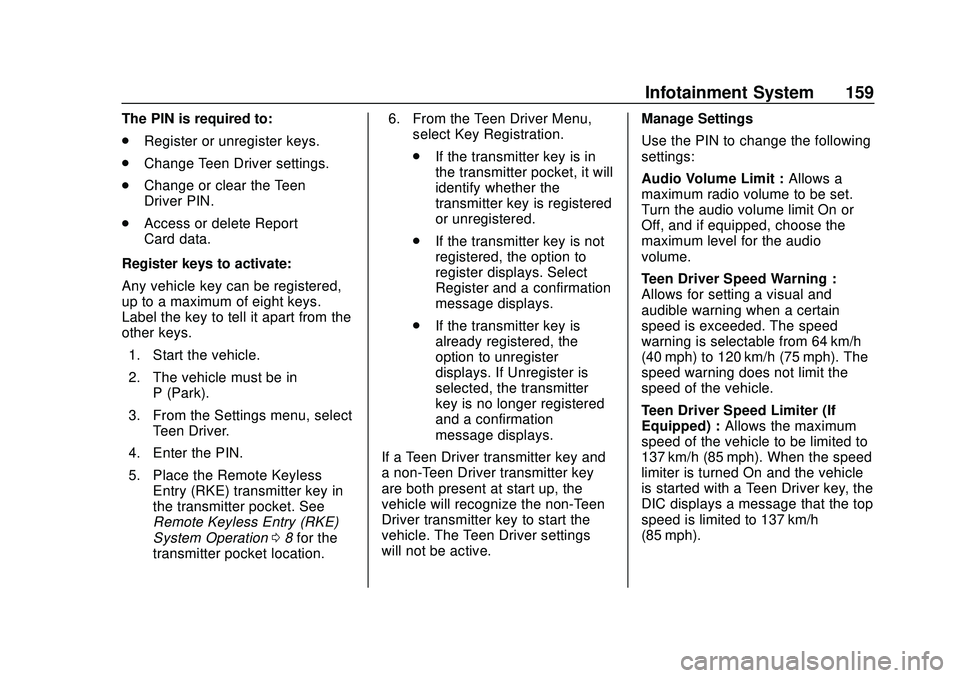
The PIN is required to:
.Register or unregister keys.
. Change Teen Driver settings.
. Change or clear the Teen
Driver PIN.
. Access or delete Report
Card data.
Register keys to activate:
Any vehicle key can be registered,
up to a maximum of eight keys.
Label the key to tell it apart from the
other keys. 1. Start the vehicle.
2. The vehicle must be in P (Park).
3. From the Settings menu, select Teen Driver.
4. Enter the PIN.
5. Place the Remote Keyless Entry (RKE) transmitter key in
the transmitter pocket. See
Remote Keyless Entry (RKE)
System Operation 08for the
transmitter pocket location. 6. From the Teen Driver Menu,
select Key Registration.
.If the transmitter key is in
the transmitter pocket, it will
identify whether the
transmitter key is registered
or unregistered.
. If the transmitter key is not
registered, the option to
register displays. Select
Register and a confirmation
message displays.
. If the transmitter key is
already registered, the
option to unregister
displays. If Unregister is
selected, the transmitter
key is no longer registered
and a confirmation
message displays.
If a Teen Driver transmitter key and
a non-Teen Driver transmitter key
are both present at start up, the
vehicle will recognize the non-Teen
Driver transmitter key to start the
vehicle. The Teen Driver settings
will not be active. Manage Settings
Use the PIN to change the following
settings:
Audio Volume Limit :
Allows a
maximum radio volume to be set.
Turn the audio volume limit On or
Off, and if equipped, choose the
maximum level for the audio
volume.
Teen Driver Speed Warning :
Allows for setting a visual and
audible warning when a certain
speed is exceeded. The speed
warning is selectable from 64 km/h
(40 mph) to 120 km/h (75 mph). The
speed warning does not limit the
speed of the vehicle.
Teen Driver Speed Limiter (If
Equipped) : Allows the maximum
speed of the vehicle to be limited to
137 km/h (85 mph). When the speed
limiter is turned On and the vehicle
is started with a Teen Driver key, the
DIC displays a message that the top
speed is limited to 137 km/h
(85 mph).