charging CHEVROLET BOLT EV 2021 User Guide
[x] Cancel search | Manufacturer: CHEVROLET, Model Year: 2021, Model line: BOLT EV, Model: CHEVROLET BOLT EV 2021Pages: 293, PDF Size: 9.21 MB
Page 95 of 293
Chevrolet Bolt EV Owner Manual (GMNA-Localizing-U.S./Canada-
14637856) - 2021 - CRC - 10/2/20
94 Instruments and Controls
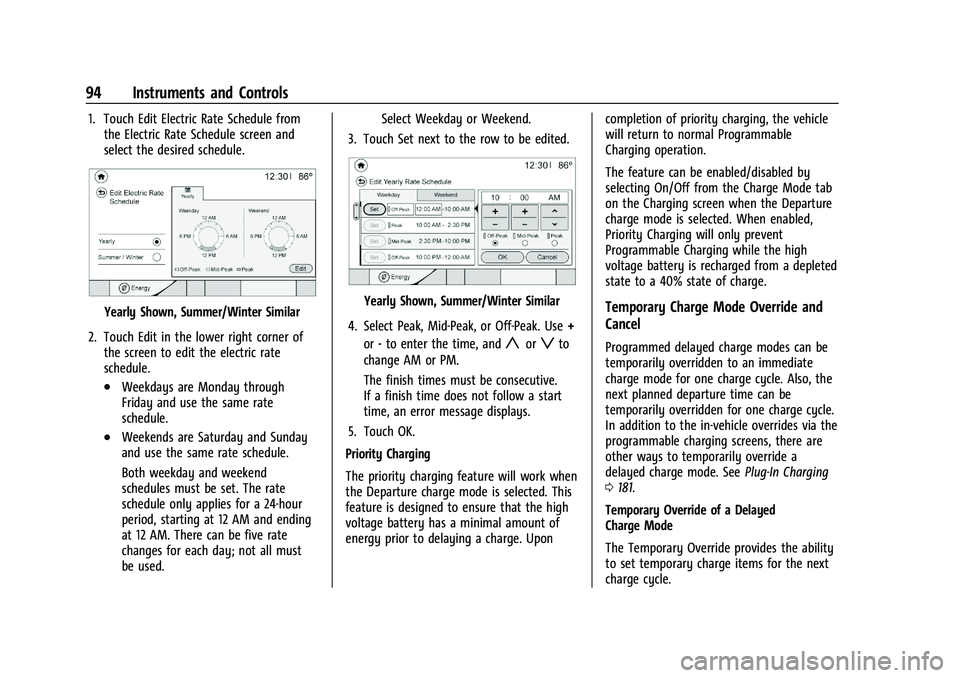
1. Touch Edit Electric Rate Schedule fromthe Electric Rate Schedule screen and
select the desired schedule.
Yearly Shown, Summer/Winter Similar
2. Touch Edit in the lower right corner of the screen to edit the electric rate
schedule.
.Weekdays are Monday through
Friday and use the same rate
schedule.
.Weekends are Saturday and Sunday
and use the same rate schedule.
Both weekday and weekend
schedules must be set. The rate
schedule only applies for a 24-hour
period, starting at 12 AM and ending
at 12 AM. There can be five rate
changes for each day; not all must
be used. Select Weekday or Weekend.
3. Touch Set next to the row to be edited.
Yearly Shown, Summer/Winter Similar
4. Select Peak, Mid-Peak, or Off-Peak. Use +
or -to enter the time, and
yorzto
change AM or PM.
The finish times must be consecutive.
If a finish time does not follow a start
time, an error message displays.
5. Touch OK.
Priority Charging
The priority charging feature will work when
the Departure charge mode is selected. This
feature is designed to ensure that the high
voltage battery has a minimal amount of
energy prior to delaying a charge. Upon completion of priority charging, the vehicle
will return to normal Programmable
Charging operation.
The feature can be enabled/disabled by
selecting On/Off from the Charge Mode tab
on the Charging screen when the Departure
charge mode is selected. When enabled,
Priority Charging will only prevent
Programmable Charging while the high
voltage battery is recharged from a depleted
state to a 40% state of charge.
Temporary Charge Mode Override and
Cancel
Programmed delayed charge modes can be
temporarily overridden to an immediate
charge mode for one charge cycle. Also, the
next planned departure time can be
temporarily overridden for one charge cycle.
In addition to the in-vehicle overrides via the
programmable charging screens, there are
other ways to temporarily override a
delayed charge mode. See
Plug-In Charging
0 181.
Temporary Override of a Delayed
Charge Mode
The Temporary Override provides the ability
to set temporary charge items for the next
charge cycle.
Page 96 of 293
Chevrolet Bolt EV Owner Manual (GMNA-Localizing-U.S./Canada-
14637856) - 2021 - CRC - 10/2/20
Instruments and Controls 95
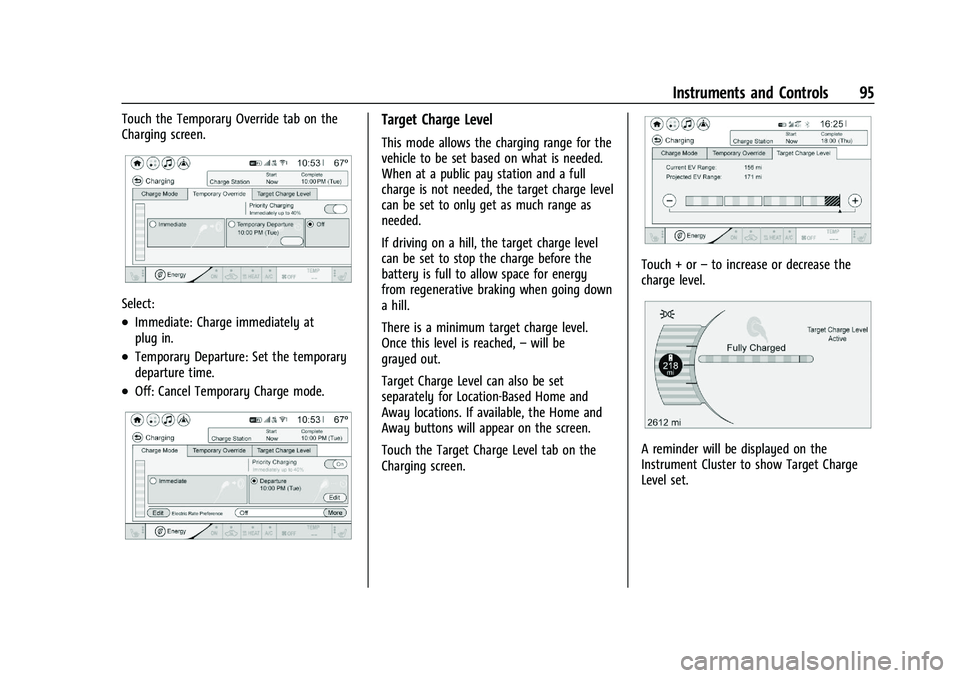
Touch the Temporary Override tab on the
Charging screen.
Select:
.Immediate: Charge immediately at
plug in.
.Temporary Departure: Set the temporary
departure time.
.Off: Cancel Temporary Charge mode.
Target Charge Level
This mode allows the charging range for the
vehicle to be set based on what is needed.
When at a public pay station and a full
charge is not needed, the target charge level
can be set to only get as much range as
needed.
If driving on a hill, the target charge level
can be set to stop the charge before the
battery is full to allow space for energy
from regenerative braking when going down
a hill.
There is a minimum target charge level.
Once this level is reached,–will be
grayed out.
Target Charge Level can also be set
separately for Location-Based Home and
Away locations. If available, the Home and
Away buttons will appear on the screen.
Touch the Target Charge Level tab on the
Charging screen.
Touch + or –to increase or decrease the
charge level.
A reminder will be displayed on the
Instrument Cluster to show Target Charge
Level set.
Page 97 of 293
Chevrolet Bolt EV Owner Manual (GMNA-Localizing-U.S./Canada-
14637856) - 2021 - CRC - 10/2/20
96 Instruments and Controls
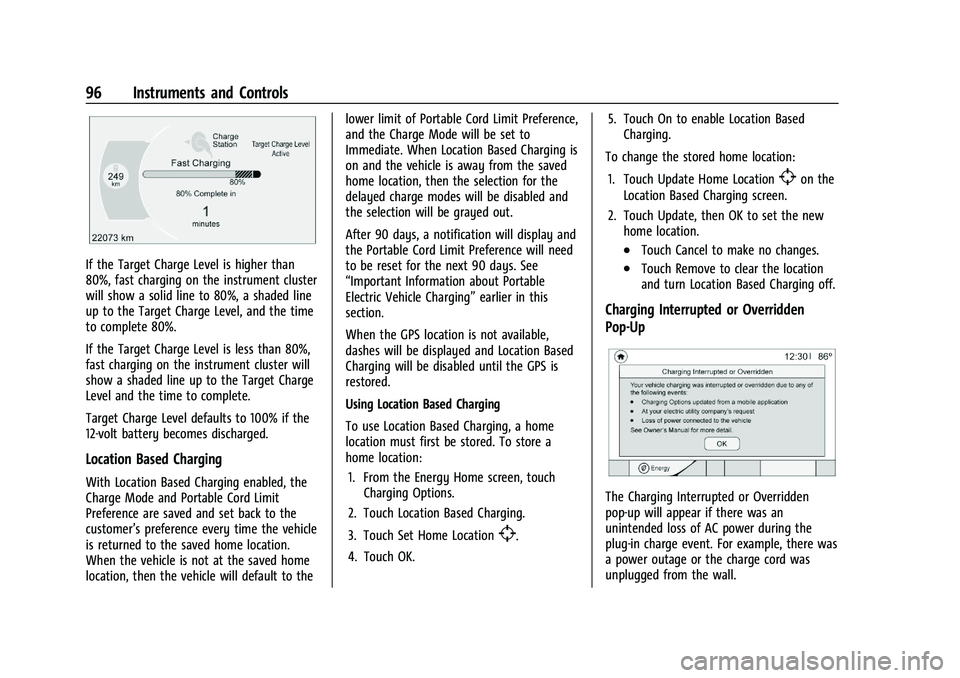
If the Target Charge Level is higher than
80%, fast charging on the instrument cluster
will show a solid line to 80%, a shaded line
up to the Target Charge Level, and the time
to complete 80%.
If the Target Charge Level is less than 80%,
fast charging on the instrument cluster will
show a shaded line up to the Target Charge
Level and the time to complete.
Target Charge Level defaults to 100% if the
12-volt battery becomes discharged.
Location Based Charging
With Location Based Charging enabled, the
Charge Mode and Portable Cord Limit
Preference are saved and set back to the
customer’s preference every time the vehicle
is returned to the saved home location.
When the vehicle is not at the saved home
location, then the vehicle will default to thelower limit of Portable Cord Limit Preference,
and the Charge Mode will be set to
Immediate. When Location Based Charging is
on and the vehicle is away from the saved
home location, then the selection for the
delayed charge modes will be disabled and
the selection will be grayed out.
After 90 days, a notification will display and
the Portable Cord Limit Preference will need
to be reset for the next 90 days. See
“Important Information about Portable
Electric Vehicle Charging”
earlier in this
section.
When the GPS location is not available,
dashes will be displayed and Location Based
Charging will be disabled until the GPS is
restored.
Using Location Based Charging
To use Location Based Charging, a home
location must first be stored. To store a
home location:
1. From the Energy Home screen, touch Charging Options.
2. Touch Location Based Charging.
3. Touch Set Home Location
[.
4. Touch OK. 5. Touch On to enable Location Based
Charging.
To change the stored home location:
1. Touch Update Home Location
[on the
Location Based Charging screen.
2. Touch Update, then OK to set the new home location.
.Touch Cancel to make no changes.
.Touch Remove to clear the location
and turn Location Based Charging off.
Charging Interrupted or Overridden
Pop-Up
The Charging Interrupted or Overridden
pop-up will appear if there was an
unintended loss of AC power during the
plug-in charge event. For example, there was
a power outage or the charge cord was
unplugged from the wall.
Page 98 of 293
Chevrolet Bolt EV Owner Manual (GMNA-Localizing-U.S./Canada-
14637856) - 2021 - CRC - 10/2/20
Instruments and Controls 97
SeeUtility Interruption of Charging 0194.
Programmable Charging Disabled
When the Programmable Charging system is
disabled, the Unable to Charge screen will
display.
If the Programmable Charging system is
consistently disabled, see your dealer.
Energy Information
To view Energy Detail, Range Impacts, and
Efficiency History, touch Energy on the
infotainment display, and then touch
Information. Touch
horkto go to the next
screen.
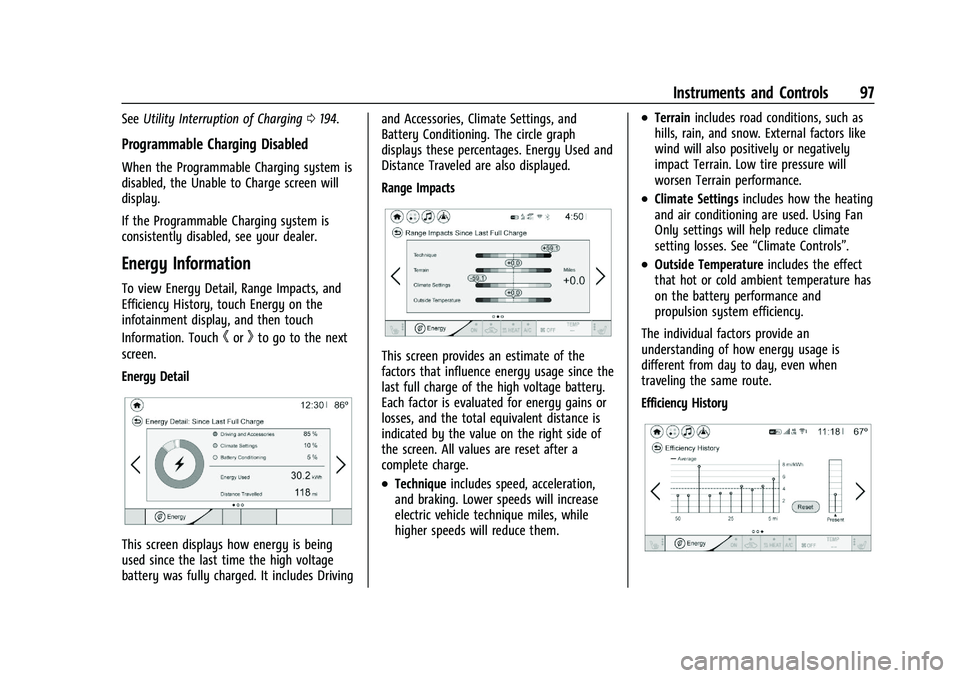
Energy Detail
This screen displays how energy is being
used since the last time the high voltage
battery was fully charged. It includes Driving and Accessories, Climate Settings, and
Battery Conditioning. The circle graph
displays these percentages. Energy Used and
Distance Traveled are also displayed.
Range Impacts
This screen provides an estimate of the
factors that influence energy usage since the
last full charge of the high voltage battery.
Each factor is evaluated for energy gains or
losses, and the total equivalent distance is
indicated by the value on the right side of
the screen. All values are reset after a
complete charge.
.Technique
includes speed, acceleration,
and braking. Lower speeds will increase
electric vehicle technique miles, while
higher speeds will reduce them.
.Terrain includes road conditions, such as
hills, rain, and snow. External factors like
wind will also positively or negatively
impact Terrain. Low tire pressure will
worsen Terrain performance.
.Climate Settings includes how the heating
and air conditioning are used. Using Fan
Only settings will help reduce climate
setting losses. See “Climate Controls”.
.Outside Temperature includes the effect
that hot or cold ambient temperature has
on the battery performance and
propulsion system efficiency.
The individual factors provide an
understanding of how energy usage is
different from day to day, even when
traveling the same route.
Efficiency History
Page 99 of 293
Chevrolet Bolt EV Owner Manual (GMNA-Localizing-U.S./Canada-
14637856) - 2021 - CRC - 10/2/20
98 Instruments and Controls
This screen displays a graph showing the
energy efficiency that has been used over
the last 50 km (50 mi). The Present point
provides the average energy efficiency for
the current 5 km (5 mi).
Touch Reset to clear the history data.
Charging Options
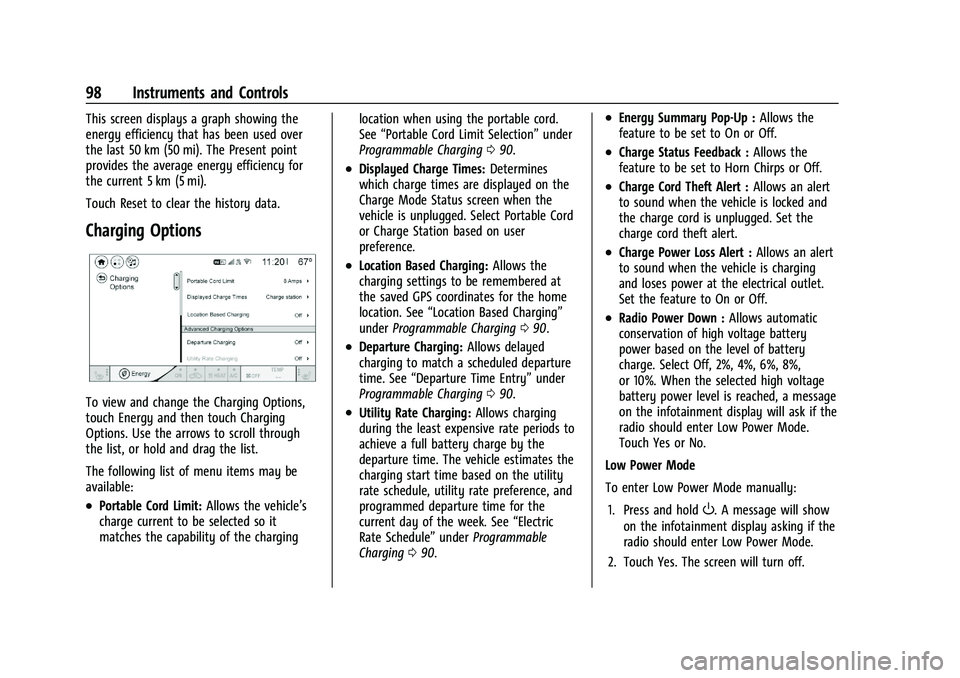
To view and change the Charging Options,
touch Energy and then touch Charging
Options. Use the arrows to scroll through
the list, or hold and drag the list.
The following list of menu items may be
available:
.Portable Cord Limit:Allows the vehicle’s
charge current to be selected so it
matches the capability of the charging location when using the portable cord.
See
“Portable Cord Limit Selection” under
Programmable Charging 090.
.Displayed Charge Times: Determines
which charge times are displayed on the
Charge Mode Status screen when the
vehicle is unplugged. Select Portable Cord
or Charge Station based on user
preference.
.Location Based Charging: Allows the
charging settings to be remembered at
the saved GPS coordinates for the home
location. See “Location Based Charging”
under Programmable Charging 090.
.Departure Charging: Allows delayed
charging to match a scheduled departure
time. See “Departure Time Entry” under
Programmable Charging 090.
.Utility Rate Charging: Allows charging
during the least expensive rate periods to
achieve a full battery charge by the
departure time. The vehicle estimates the
charging start time based on the utility
rate schedule, utility rate preference, and
programmed departure time for the
current day of the week. See “Electric
Rate Schedule” underProgrammable
Charging 090.
.Energy Summary Pop-Up : Allows the
feature to be set to On or Off.
.Charge Status Feedback : Allows the
feature to be set to Horn Chirps or Off.
.Charge Cord Theft Alert : Allows an alert
to sound when the vehicle is locked and
the charge cord is unplugged. Set the
charge cord theft alert.
.Charge Power Loss Alert : Allows an alert
to sound when the vehicle is charging
and loses power at the electrical outlet.
Set the feature to On or Off.
.Radio Power Down : Allows automatic
conservation of high voltage battery
power based on the level of battery
charge. Select Off, 2%, 4%, 6%, 8%,
or 10%. When the selected high voltage
battery power level is reached, a message
on the infotainment display will ask if the
radio should enter Low Power Mode.
Touch Yes or No.
Low Power Mode
To enter Low Power Mode manually:
1. Press and hold
O. A message will show
on the infotainment display asking if the
radio should enter Low Power Mode.
2. Touch Yes. The screen will turn off.
Page 117 of 293
Chevrolet Bolt EV Owner Manual (GMNA-Localizing-U.S./Canada-
14637856) - 2021 - CRC - 10/2/20
116 Infotainment System
Gallery :Touch to view a picture. See
“Gallery” under“Selecting a Function”
following.
OnStar : Touch to use the OnStar function.
See OnStar Overview 0274.
Camera : Touch to access the camera
application. See Assistance Systems for
Parking or Backing 0171.
Low Power Mode : Touch to access the Low
Power Mode. See “Low Power Mode” under
Charging Options 098.
Selecting a Function
Audio
1. Touch
T.
2. Touch Audio, then Source.
.Touch AM to select AM radio.
.Touch FM to select FM radio.
.Touch SXM to select SiriusXM radio
(if equipped).
.Touch iPod to select iPod music.
.Touch USB1 to select USB1 music.
.Touch USB2 to select USB2 music.
.Touch Bluetooth to select Bluetooth
music.
.Touch AUX to select auxiliary sound
input. If the playback source (iPod/USB/AUX/
Bluetooth) is not connected to the
infotainment system, this function is not
available.
Audio source availability may vary
depending on the region.
The infotainment system can only support
two USB devices for the front USB ports.
Phone
To operate Bluetooth Hands-Free function,
connect the Bluetooth phone to the
infotainment system.
1. Touch
T.
2. Touch Phone, then touch
5on the
infotainment display, or press
gon the
steering wheel controls.
Settings
1. Touch
T.
2. Touch Settings, then select an item from the menu and adjust the settings by
selecting from the available options. See
Settings 0131.
Gallery
1. Touch
T. 2. Touch Gallery, then touch
'menu to
view picture files contained in the USB
storage device.
Software Updates
Over-the-Air Software Updates
If equipped, the infotainment system can
download and install select software updates
over a wireless connection. The system will
prompt for certain updates to be
downloaded and installed. There is also an
option to check for updates manually.
To manually check for updates, touch
Settings on the Home Page, followed by
Software Information, and then System
Update. Follow the on-screen prompts. Steps
for downloading and installing updates may
vary by vehicle.
Downloading Over-the-Air vehicle software
updates requires Internet connectivity, which
can be accessed through the vehicle’s
built-in OnStar 4G LTE connection,
if equipped and active. If required, data
plans are provided by a third party.
Optionally, a secure Wi-Fi hotspot such as a
compatible mobile device hotspot, home
hotspot, or public hotspot can be used.
Applicable data rates may apply.
Page 121 of 293
Chevrolet Bolt EV Owner Manual (GMNA-Localizing-U.S./Canada-
14637856) - 2021 - CRC - 10/2/20
120 Infotainment System
interfere with each other. Static can also
occur when things like storms and power
lines interfere with radio reception. When
this happens, try reducing the treble on the
radio.
SiriusXM Satellite Radio Service
If equipped, SiriusXM Satellite Radio Service
provides digital radio reception. Tall
buildings or hills can interfere with satellite
radio signals, causing the sound to fade in
and out. In addition, traveling or standing
under heavy foliage, bridges, garages,
or tunnels may cause loss of the SiriusXM
signal for a period of time. Some cellular
services may interfere with SXM reception
causing loss of signal.
Mobile Device Usage
Mobile device usage, such as making or
receiving calls, charging, or just having the
mobile device on may cause static
interference in the radio. Unplug the mobile
device or turn it off if this happens.
Multi-Band Antenna
The roof antenna may be used for radio,
navigation, and OnStar, depending on the
equipped options. Keep clear of obstructionsfor clear reception. If the vehicle has a
sunroof, and it is open, reception can also
be affected.
Audio Players
USB Port
The USB ports are in the center console and
are for data and charging. If equipped, there
are two USB charge ports in the rear of the
center console. The infotainment system can
play the music files contained in the USB
storage device or a device that supports
MTP or iPod/iPhone devices.
Caution
To avoid vehicle damage, unplug all
accessories and disconnect all accessory
cables from the vehicle when not in use.
Accessory cables left plugged into the
vehicle, unconnected to a device, could be
damaged or cause an electrical short if
the unconnected end comes in contact
with liquids or another power source such
as the accessory power outlet.
Before Using the Audio System
Supported Audio File Formats
.MP3 (MPEG-1 Layer 3, MPEG-2 Layer 3)
Constant Bit Rate (CBR) between 8 and
320 kbps
Variable Bit Rate (VBR)
Sampling frequencies of 8, 11.025, 12, 16,
22.05, 24, 32, 44.1, and 48 kHz
.Windows Media Audio
Windows Media Audio 10
CBR between 32 and 768 kbps
VBR (Standard), Professional, Lossless,
or higher according to Microsoft
specifications
Sampling frequencies of 8, 12, 16, 22, 32,
44.1, and 48 kHz
.AAC (MPEG-4 AAC, Low Complexity
Profile) and AAC+
CBR between 8 and 320 kbps
.OGG Vorbis
.Waveform (WAV
–PCM Windows format)
.Audio Interchange File Format (AIFF)
.3GPP (Generally used for mobile devices)
.Audio Books (MP3, AAC, AA)
Page 133 of 293
Chevrolet Bolt EV Owner Manual (GMNA-Localizing-U.S./Canada-
14637856) - 2021 - CRC - 10/2/20
132 Infotainment System
Android Auto
1. TouchT.
2. Touch Settings and find Android Auto.
3. Select On or Off.
Even if Projection is set to Off, connecting
the device and touching Projection on the
Home Page will display a pop-up message:
.For Apple CarPlay function: “While active,
Apple CarPlay will be displayed on this
screen.”
.For Android Auto function: “While active,
Android Auto will be displayed on this
screen.”
When the device is first connected, the
device projection privacy consent pop-up
message will be displayed.
.Touch Continue to activate the projection
feature.
.Touch Disable and the device is
charging only.
If Android Auto is not activated, make sure
the mobile phone’s USB connection mode is
set to MTP.
If the device has not previously been paired,
the consent pop-up will display when
touching continue.
Teen Driver
If equipped, this allows multiple keys to be
registered for beginner drivers, to encourage
safe driving habits. When the vehicle is
started with a Teen Driver key, it will
automatically activate certain safety
systems, allow setting of some features, and
limit the use of others. The Report Card will
record vehicle data about driving behavior
that can be viewed later. When the vehicle
is started with a registered key, the Driver
Information Center (DIC) displays a message
that Teen Driver is active.
To access: 1. Touch Settings on the Home Page, then touch Teen Driver.
2. Create a Personal Identification Number (PIN) by choosing a four-digit PIN.
Re-enter the PIN to confirm. To change
the PIN, select Change PIN.
The PIN is required to:
.Register or unregister keys.
.Change Teen Driver settings.
.Change or clear the Teen Driver PIN.
.Access or delete Report Card data. Register keys to activate:
Any vehicle key can be registered, up to a
maximum of eight keys. Label the key to
tell it apart from the other keys.
1. Start the vehicle.
2. The vehicle must be in P (Park).
3. From the Settings menu, select Teen Driver.
4. Enter the PIN.
5. Place the Remote Keyless Entry (RKE) transmitter key in the transmitter
pocket. See Remote Keyless Entry (RKE)
System Operation 07for the transmitter
pocket location.
6. From the Teen Driver Menu, select Key Registration.
.If the transmitter key is in the
transmitter pocket, it will identify
whether the transmitter key is
registered or unregistered.
.If the transmitter key is not
registered, the option to register
displays. Select Register and a
confirmation message displays.
.If the transmitter key is already
registered, the option to unregister
displays. If Unregister is selected, the
Page 147 of 293
Chevrolet Bolt EV Owner Manual (GMNA-Localizing-U.S./Canada-
14637856) - 2021 - CRC - 10/2/20
146 Driving and Operating
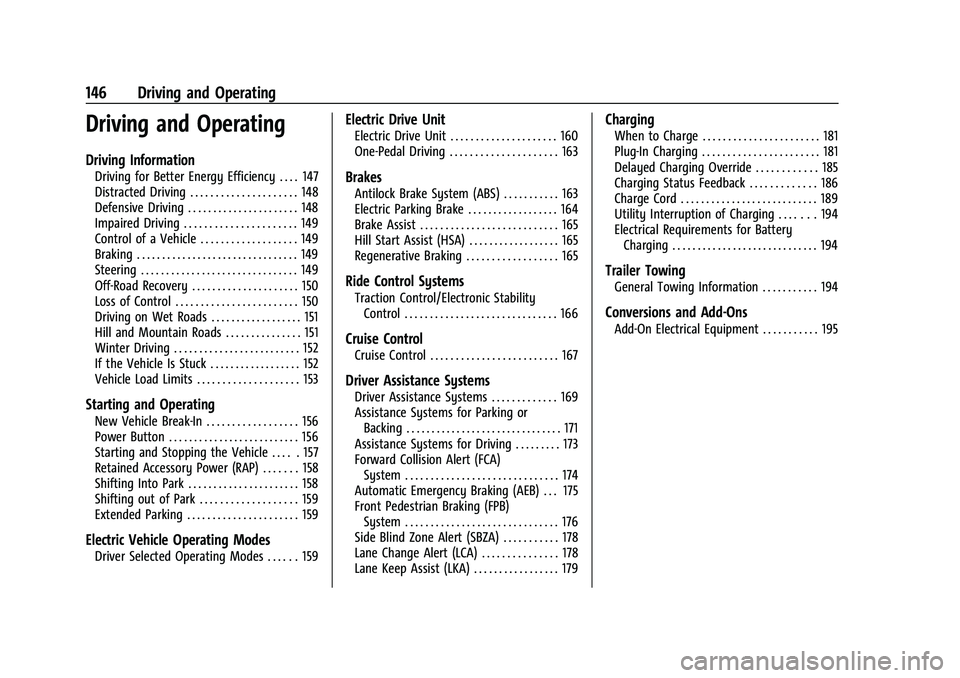
Driving and Operating
Driving Information
Driving for Better Energy Efficiency . . . . 147
Distracted Driving . . . . . . . . . . . . . . . . . . . . . 148
Defensive Driving . . . . . . . . . . . . . . . . . . . . . . 148
Impaired Driving . . . . . . . . . . . . . . . . . . . . . . 149
Control of a Vehicle . . . . . . . . . . . . . . . . . . . 149
Braking . . . . . . . . . . . . . . . . . . . . . . . . . . . . . . . . 149
Steering . . . . . . . . . . . . . . . . . . . . . . . . . . . . . . . 149
Off-Road Recovery . . . . . . . . . . . . . . . . . . . . . 150
Loss of Control . . . . . . . . . . . . . . . . . . . . . . . . 150
Driving on Wet Roads . . . . . . . . . . . . . . . . . . 151
Hill and Mountain Roads . . . . . . . . . . . . . . . 151
Winter Driving . . . . . . . . . . . . . . . . . . . . . . . . . 152
If the Vehicle Is Stuck . . . . . . . . . . . . . . . . . . 152
Vehicle Load Limits . . . . . . . . . . . . . . . . . . . . 153
Starting and Operating
New Vehicle Break-In . . . . . . . . . . . . . . . . . . 156
Power Button . . . . . . . . . . . . . . . . . . . . . . . . . . 156
Starting and Stopping the Vehicle . . . . . 157
Retained Accessory Power (RAP) . . . . . . . 158
Shifting Into Park . . . . . . . . . . . . . . . . . . . . . . 158
Shifting out of Park . . . . . . . . . . . . . . . . . . . 159
Extended Parking . . . . . . . . . . . . . . . . . . . . . . 159
Electric Vehicle Operating Modes
Driver Selected Operating Modes . . . . . . 159
Electric Drive Unit
Electric Drive Unit . . . . . . . . . . . . . . . . . . . . . 160
One-Pedal Driving . . . . . . . . . . . . . . . . . . . . . 163
Brakes
Antilock Brake System (ABS) . . . . . . . . . . . 163
Electric Parking Brake . . . . . . . . . . . . . . . . . . 164
Brake Assist . . . . . . . . . . . . . . . . . . . . . . . . . . . 165
Hill Start Assist (HSA) . . . . . . . . . . . . . . . . . . 165
Regenerative Braking . . . . . . . . . . . . . . . . . . 165
Ride Control Systems
Traction Control/Electronic StabilityControl . . . . . . . . . . . . . . . . . . . . . . . . . . . . . . 166
Cruise Control
Cruise Control . . . . . . . . . . . . . . . . . . . . . . . . . 167
Driver Assistance Systems
Driver Assistance Systems . . . . . . . . . . . . . 169
Assistance Systems for Parking orBacking . . . . . . . . . . . . . . . . . . . . . . . . . . . . . . . 171
Assistance Systems for Driving . . . . . . . . . 173
Forward Collision Alert (FCA) System . . . . . . . . . . . . . . . . . . . . . . . . . . . . . . 174
Automatic Emergency Braking (AEB) . . . 175
Front Pedestrian Braking (FPB) System . . . . . . . . . . . . . . . . . . . . . . . . . . . . . . 176
Side Blind Zone Alert (SBZA) . . . . . . . . . . . 178
Lane Change Alert (LCA) . . . . . . . . . . . . . . . 178
Lane Keep Assist (LKA) . . . . . . . . . . . . . . . . . 179
Charging
When to Charge . . . . . . . . . . . . . . . . . . . . . . . 181
Plug-In Charging . . . . . . . . . . . . . . . . . . . . . . . 181
Delayed Charging Override . . . . . . . . . . . . 185
Charging Status Feedback . . . . . . . . . . . . . 186
Charge Cord . . . . . . . . . . . . . . . . . . . . . . . . . . . 189
Utility Interruption of Charging . . . . . . . 194
Electrical Requirements for Battery Charging . . . . . . . . . . . . . . . . . . . . . . . . . . . . . 194
Trailer Towing
General Towing Information . . . . . . . . . . . 194
Conversions and Add-Ons
Add-On Electrical Equipment . . . . . . . . . . . 195
Page 148 of 293
Chevrolet Bolt EV Owner Manual (GMNA-Localizing-U.S./Canada-
14637856) - 2021 - CRC - 10/2/20
Driving and Operating 147
Driving Information
Driving for Better Energy
Efficiency
Use the following tips to help maximize
energy efficiency and range.
In colder temperatures, while these
efficiency tips will help, the electric vehicle
driving range will be lower due to higher
energy usage including energy spent
heating the cabin.
The Range Impacts screen estimates the
influence of the main factors impacting
vehicle range. After charging is complete,
this information is reset. See“Range
Impacts” under. See Energy Information
0 97.
Acceleration/Braking/Coasting
Avoid rapid accelerations and decelerations.
Electric range is maximized at 89 km/h
(55 mph) and less.
Use cruise control when appropriate.
Plan ahead for decelerations and coast
whenever possible. Do not rush to traffic
signals, and do not shift to N (Neutral) to
coast. The vehicle recovers more energy while
coasting and braking in L (Low) than in D
(Drive) mode.
Using the steering wheel paddle during
deceleration recovers more energy. See
Regenerative Braking
0165.
Terrain and Vehicle Speed
Higher speeds and grade changes use more
energy and can significantly reduce electric
range.
Climate Setting
Using the heat and air conditioning systems
decreases the energy available for electric
driving.
Optimal energy efficiency is achieved when
the heat, air conditioning, and fan are
turned off.
Use the heated seat feature instead of
climate control system. Heating the seat
uses less energy than heating the vehicle
interior.
Use remote start to heat or cool the interior
when the vehicle is plugged in to maximize
the electric range by utilizing electricity
from the electrical outlet. In hot weather, avoid parking in direct
sunlight or use sunshades inside the vehicle.
Keep the inside of the windows clean to
reduce fogging, and turn off the front
defroster and rear defogger when they are
not needed.
Avoid driving with the windows open at
highway speeds.
Use the Enhanced Battery Gauge on the
Instrument Cluster to view the effect of
climate control settings on your estimated
range. See
Battery Gauge (High Voltage)
0 82.
Outside Temperature
On colder days, it is best to plug in the
vehicle overnight, and then remote start the
vehicle.
Allow the vehicle to warm up for
20 minutes before driving.
If possible, use a level 2 (240 volt) high
power charge station for best results. This
allows the interior of the vehicle and high
voltage battery to warm to optimal
temperature.