wheel CHEVROLET CAMARO 2018 Owner's Guide
[x] Cancel search | Manufacturer: CHEVROLET, Model Year: 2018, Model line: CAMARO, Model: CHEVROLET CAMARO 2018Pages: 393, PDF Size: 5.77 MB
Page 174 of 393
Chevrolet Camaro Owner Manual (GMNA-Localizing-U.S./Canada/Mexico-
11348325) - 2018 - CRC - 10/23/17
Infotainment System 173
Performance Data
Recorder (PDR)
If equipped, the PDR icon displays
on the Home Page.
Important Information
Use of the PDR may be prohibited
or legally restricted in certain
countries and situations. Ensure
compliance with applicable laws and
regulations, including, but not
limited to: privacy laws, laws related
to camera surveillance and
recordings, road traffic and security
laws, and laws on the protection of
publicity and personality rights.
.Do not use the PDR if it causes
distraction.
. Do not rely on camera footage to
steer the vehicle.
. Comply with any notice and
consent requirements before
capturing and/or recording the
voices or images of other
persons or before collecting
other personal data. .
Notify other drivers of your
vehicle of the above rules and
require them to comply.
. General Motors does not accept
any responsibility or liability in
connection with use that is not
permitted.
. Law enforcement authorities
may have the right to seize
video recordings and use them
as evidence of criminal/driving
offenses against you or third
parties.
The PDR records video, audio, and
vehicle data. This data is stored on
a removable SD card. The SD card
reader is below the instrument panel
to the left of the steering wheel and
just above the hood release.
The recorded data is not stored
anywhere else and is only
accessible from the SD card.
To begin, insert a FAT32 formatted
SD card, Class 10 required, 8, 16,
or 32 GB recommended, into the SD
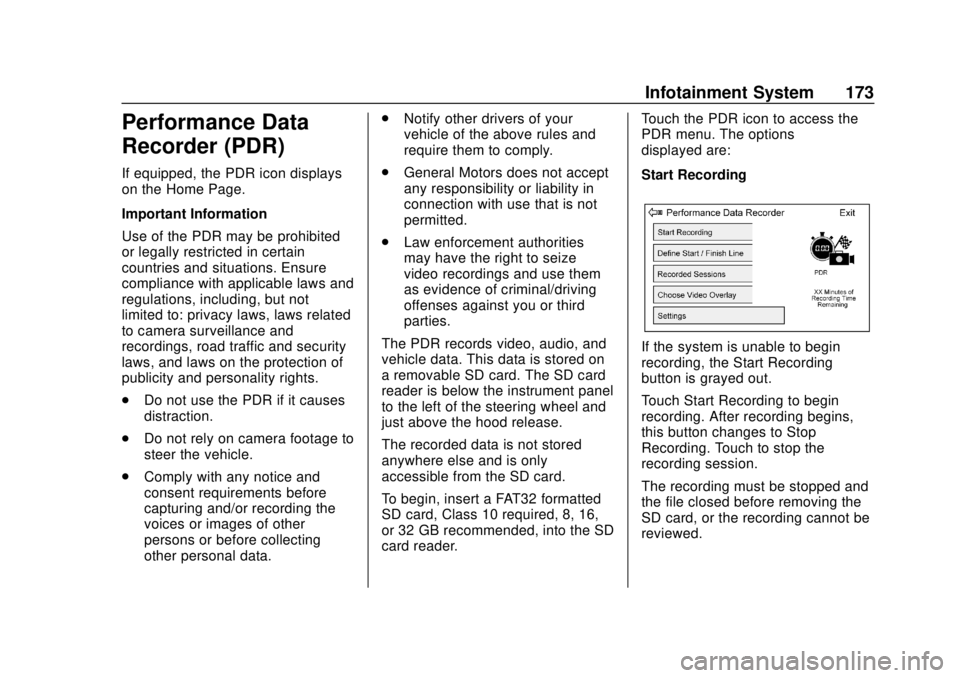
card reader. Touch the PDR icon to access the
PDR menu. The options
displayed are:
Start Recording
If the system is unable to begin
recording, the Start Recording
button is grayed out.
Touch Start Recording to begin
recording. After recording begins,
this button changes to Stop
Recording. Touch to stop the
recording session.
The recording must be stopped and
the file closed before removing the
SD card, or the recording cannot be
reviewed.
Page 180 of 393
Chevrolet Camaro Owner Manual (GMNA-Localizing-U.S./Canada/Mexico-
11348325) - 2018 - CRC - 10/23/17
Infotainment System 179
support all functions and not all
phones work with the Bluetooth
system. In the U.S. and Canada,
see www.gm.com/bluetooth for more
information about compatible
phones.
The Bluetooth system range can be
up to 9.1 m (30 ft).
There may be restrictions on using
Bluetooth wireless technology in
some locations.
Due to the variety of Bluetooth
devices and their firmware versions,
the device may respond differently
when performing over Bluetooth.
On a current phone call, an image
of the current contact from the
phone's contact list may be
displayed. Not all phones are
compatible with this feature.
Refer to the cell phone
manufacturer’s user guide for
questions about the phone's
Bluetooth functionality.Bluetooth Controls
If equipped with Bluetooth capability,
use the infotainment controls on the
center stack and the steering wheel
to operate the system.
Steering Wheel Controls
See Steering Wheel Controls 0106.
Bluetooth (Infotainment
Controls)
To use infotainment controls to
access the menu system, see
Overview 0159.
Pairing
A Bluetooth-enabled cell phone
must be paired to the Bluetooth
system and then connected to the
vehicle before it can be used. See
your cell phone manufacturer's user
guide for Bluetooth functions before
pairing the cell phone. If a Bluetooth
phone is not connected, calls will be
made using OnStar Hands-Free
Calling, if available. See OnStar
Overview 0369. Pairing Information
.
A Bluetooth phone with MP3
capability cannot be paired to
the vehicle as a phone and an
MP3 player at the same time.
. Up to 10 cell phones can be
paired to the Bluetooth system.
. The pairing process is disabled
when the vehicle is moving.
. Pairing only needs to be
completed once, unless the
pairing information on the cell
phone changes or the cell phone
is deleted from the system.
. Only one paired cell phone can
be connected to the Bluetooth
system at a time.
. If multiple paired cell phones are
within range of the system, the
system connects to the first
available paired cell phone in the
order that they were first paired.
When the Bluetooth device and
infotainment system are
successfully paired, the phone book
is downloaded automatically. This is
dependent on the type of phone
Page 181 of 393
Chevrolet Camaro Owner Manual (GMNA-Localizing-U.S./Canada/Mexico-
11348325) - 2018 - CRC - 10/23/17
180 Infotainment System
paired. If the automatic download
does not occur, proceed with the
phone book download on the
phone.
Pairing a Phone–SSP and No
Paired Device
When there is no paired device on
the infotainment system and Simple
Secure Pairing (SSP) is supported:
1. Press
{.
2. Touch Phone, press
5on the
center stack, or press
b/gon
the steering wheel without
OnStar.
3. Touch Search Device.
4. Touch the desired device to pair on the searched list
screen.
5. Touch Yes on the pop-up screen of the Bluetooth device
and infotainment system.
6. When the Bluetooth device and infotainment system are
successfully paired, the phone
screen is displayed on the
infotainment system. Pairing a Phone
–SSP and Paired
Device
When a paired device is on the
infotainment system and SSP is
supported:
1. Press
{.
2. Touch Settings.
3. Touch Bluetooth, then Device Management.
4. Touch the desired device to pair. When the Bluetooth
device and infotainment system
are successfully paired,
Z/5
is displayed on the pair device
screen. If no desired device is
available go to Step 5.
5. Touch Search Device to search for the desired device.
6. Touch the desired device to pair on the searched list
screen.
7. Touch Yes on the pop-up screen of the Bluetooth device
and infotainment system. .
The connected phone is
highlighted by
5.
.
Z/5indicates the hands-free
and phone music functions are
enabled.
.
5indicates only the hands-free
function is enabled.
.
Zindicates only Bluetooth
music is enabled.
Pairing a Phone –No SSP and No
Paired Device
When there is no paired device on
the infotainment system and SSP is
not supported:
1. Press
{.
2. Touch Phone, press
5on the
center stack, or press
b/gon
the steering wheel without
OnStar.
3. Touch Search Device.
4. Touch the desired device to pair on the searched list
screen.
Page 185 of 393
Chevrolet Camaro Owner Manual (GMNA-Localizing-U.S./Canada/Mexico-
11348325) - 2018 - CRC - 10/23/17
184 Infotainment System
.Select Disable to remove
Apple CarPlay and Android
Auto capability from the
vehicle Settings menu.
Other functions may
still work.
PROJECTION on the Home Page
will change to Android Auto or Apple
CarPlay depending on the phone.
Android Auto and/or Apple CarPlay
may automatically launch upon USB
connection. If not, touch the
ANDROID AUTO and/or APPLE
CARPLAY icon on the Home Page
to launch.
Press
{on the center stack to
return to the Home Page.
For further information on how to set
up Android Auto and Apple CarPlay
in the vehicle, see my.chevrolet.com
or see Customer Assistance Offices
0 357.
Android Auto is provided by Google
and is subject to Google’s terms
and privacy policy. Apple CarPlay is
provided by Apple and is subject to
Apple’ s terms and privacy policy.
Data plan rates apply. For Android Auto support see https://
support.google.com/androidauto.
For Apple CarPlay support see
www.apple.com/ios/carplay/. Apple
or Google may change or suspend
availability at any time. Android
Auto, Android, Google, Google Play,
and other marks are trademarks of
Google Inc.; Apple CarPlay is a
trademark of Apple Inc.
Hands-Free Phone
General Information
Vehicles with a Hands-Free Phone
system can use a Bluetooth-capable
cell phone with a hands-free profile
to make and receive phone calls.
The infotainment system and voice
control are used to operate the
system. Not all phones support all
functions and not all phones work
with the Hands-Free Phone system.
Hands-Free Phone Controls
Use the buttons on the infotainment
system and the steering wheel to
operate the Hands-Free Phone
system.
Steering Wheel Controls
Steering wheel controls can be
used to:
.
Answer incoming calls.
. Confirm system information.
. End a call.
. Decline a call.
. Cancel an operation.
. Make outgoing calls using the
call list.
g:Press to answer incoming calls.
i:Press to end a call, decline a
call, or cancel an operation.
Making a Call by Entering a Phone
Number
. Press
{, then touch PHONE on
the screen.
. Press
gon the steering wheel.
If a wrong number is entered, touch
}to delete the number one digit at
a time, or touch and hold
}to
delete all digits of the number.
Page 186 of 393
Chevrolet Camaro Owner Manual (GMNA-Localizing-U.S./Canada/Mexico-
11348325) - 2018 - CRC - 10/23/17
Infotainment System 185
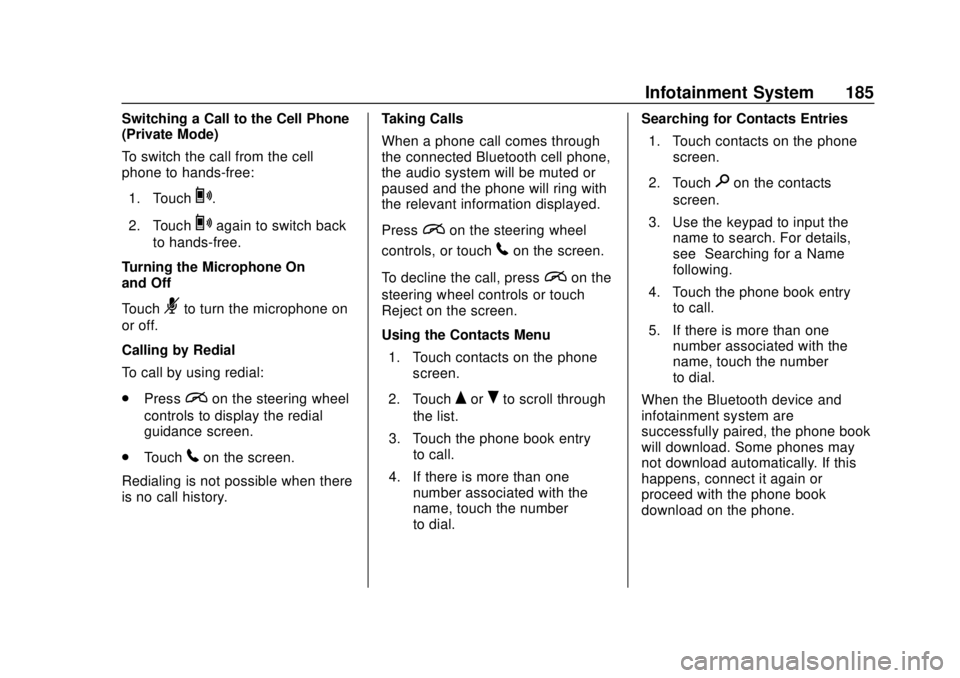
Switching a Call to the Cell Phone
(Private Mode)
To switch the call from the cell
phone to hands-free:1. Touch
0.
2. Touch
0again to switch back
to hands-free.
Turning the Microphone On
and Off
Touch
3to turn the microphone on
or off.
Calling by Redial
To call by using redial:
. Press
ion the steering wheel
controls to display the redial
guidance screen.
. Touch
5on the screen.
Redialing is not possible when there
is no call history. Taking Calls
When a phone call comes through
the connected Bluetooth cell phone,
the audio system will be muted or
paused and the phone will ring with
the relevant information displayed.
Press
ion the steering wheel
controls, or touch
5on the screen.
To decline the call, press
ion the
steering wheel controls or touch
Reject on the screen.
Using the Contacts Menu
1. Touch contacts on the phone screen.
2. Touch
QorRto scroll through
the list.
3. Touch the phone book entry to call.
4. If there is more than one number associated with the
name, touch the number
to dial. Searching for Contacts Entries
1. Touch contacts on the phone screen.
2. Touch
9on the contacts
screen.
3. Use the keypad to input the name to search. For details,
see “Searching for a Name”
following.
4. Touch the phone book entry to call.
5. If there is more than one number associated with the
name, touch the number
to dial.
When the Bluetooth device and
infotainment system are
successfully paired, the phone book
will download. Some phones may
not download automatically. If this
happens, connect it again or
proceed with the phone book
download on the phone.
Page 198 of 393
Chevrolet Camaro Owner Manual (GMNA-Localizing-U.S./Canada/Mexico-
11348325) - 2018 - CRC - 10/23/17
Driving and Operating 197
Driving Information
Distracted Driving
Distraction comes in many forms
and can take your focus from the
task of driving. Exercise good
judgment and do not let other
activities divert your attention away
from the road. Many local
governments have enacted laws
regarding driver distraction. Become
familiar with the local laws in
your area.
To avoid distracted driving, keep
your eyes on the road, keep your
hands on the steering wheel, and
focus your attention on driving.
.Do not use a phone in
demanding driving situations.
Use a hands-free method to
place or receive necessary
phone calls.
. Watch the road. Do not read,
take notes, or look up
information on phones or other
electronic devices. .
Designate a front seat
passenger to handle potential
distractions.
. Become familiar with vehicle
features before driving, such as
programming favorite radio
stations and adjusting climate
control and seat settings.
Program all trip information into
any navigation device prior to
driving.
. Wait until the vehicle is parked
to retrieve items that have fallen
to the floor.
. Stop or park the vehicle to tend
to children.
. Keep pets in an appropriate
carrier or restraint.
. Avoid stressful conversations
while driving, whether with a
passenger or on a cell phone.
{Warning
Taking your eyes off the road too
long or too often could cause a
crash resulting in injury or death.
Focus your attention on driving.
Refer to the infotainment section for
more information on using that
system and the navigation system,
if equipped, including pairing and
using a cell phone.
Defensive Driving
Defensive driving means “always
expect the unexpected.” The first
step in driving defensively is to wear
the seat belt. See Seat Belts066.
. Assume that other road users
(pedestrians, bicyclists, and
other drivers) are going to be
careless and make mistakes.
Anticipate what they might do
and be ready.
. Allow enough following distance
between you and the driver in
front of you.
Page 199 of 393
Chevrolet Camaro Owner Manual (GMNA-Localizing-U.S./Canada/Mexico-
11348325) - 2018 - CRC - 10/23/17
198 Driving and Operating
.Focus on the task of driving.
Drunk Driving
Death and injury associated with
drinking and driving is a global
tragedy.
{Warning
Drinking and then driving is very
dangerous. Your reflexes,
perceptions, attentiveness, and
judgment can be affected by even
a small amount of alcohol. You
can have a serious —or even
fatal —collision if you drive after
drinking.
Do not drink and drive or ride with
a driver who has been drinking.
Ride home in a cab; or if you are
with a group, designate a driver
who will not drink.
Control of a Vehicle
Braking, steering, and accelerating
are important factors in helping to
control a vehicle while driving.
Braking
Braking action involves perception
time and reaction time. Deciding to
push the brake pedal is perception
time. Actually doing it is
reaction time.
Average driver reaction time is
about three-quarters of a second. In
that time, a vehicle moving at
100 km/h (60 mph) travels 20 m
(66 ft), which could be a lot of
distance in an emergency.
Helpful braking tips to keep in mind
include:
. Keep enough distance between
you and the vehicle in front
of you.
. Avoid needless heavy braking.
. Keep pace with traffic.
If the engine ever stops while the
vehicle is being driven, brake
normally but do not pump the
brakes. Doing so could make the
pedal harder to push down. If the
engine stops, there will be some
power brake assist but it will be
used when the brake is applied. Once the power assist is used up, it
can take longer to stop and the
brake pedal will be harder to push.
Steering
Electric Power Steering
The vehicle has electric power
steering. It does not have power
steering fluid. Regular maintenance
is not required.
If power steering assist is lost due
to a system malfunction, the vehicle
can be steered, but may require
increased effort.
If the steering assist is used for an
extended period of time while the
vehicle is not moving, power assist
may be reduced.
If the steering wheel is turned until it
reaches the end of its travel and is
held against that position for an
extended period of time, power
steering assist may be reduced.
Normal use of the power steering
assist should return when the
system cools down.
Page 200 of 393
Chevrolet Camaro Owner Manual (GMNA-Localizing-U.S./Canada/Mexico-
11348325) - 2018 - CRC - 10/23/17
Driving and Operating 199
See your dealer if there is a
problem.
Curve Tips
.Take curves at a reasonable
speed.
. Reduce speed before entering a
curve.
. Maintain a reasonable steady
speed through the curve.
. Wait until the vehicle is out of
the curve before accelerating
gently into the straightaway.
Steering in Emergencies
.There are some situations when
steering around a problem may
be more effective than braking.
. Holding both sides of the
steering wheel allows you to turn
180 degrees without removing
a hand.
. The Antilock Brake System
(ABS) allows steering while
braking.
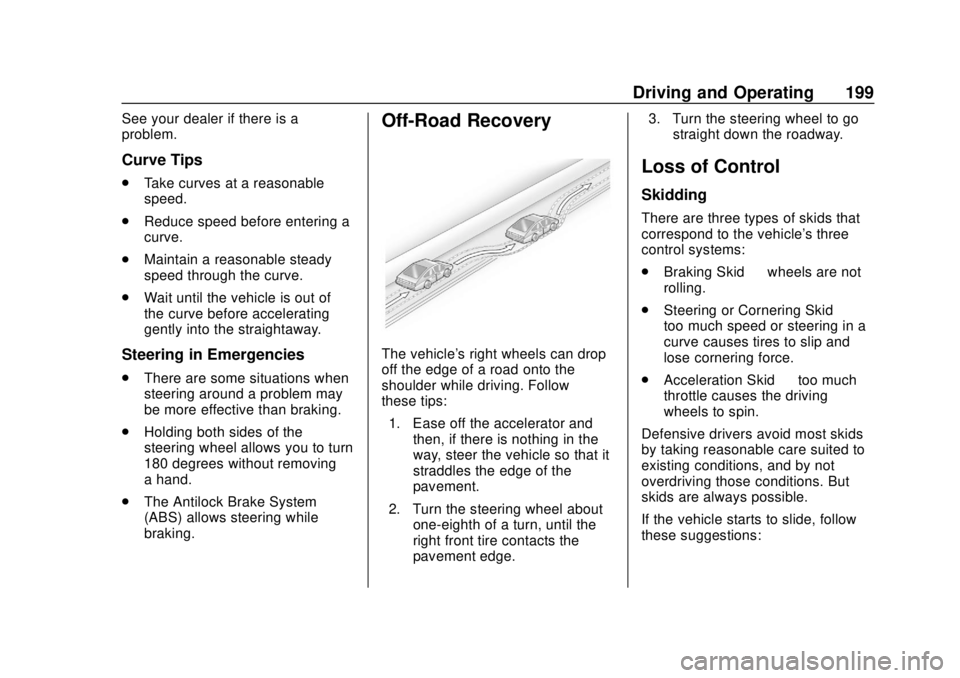
Off-Road Recovery
The vehicle's right wheels can drop
off the edge of a road onto the
shoulder while driving. Follow
these tips:
1. Ease off the accelerator and then, if there is nothing in the
way, steer the vehicle so that it
straddles the edge of the
pavement.
2. Turn the steering wheel about one-eighth of a turn, until the
right front tire contacts the
pavement edge. 3. Turn the steering wheel to go
straight down the roadway.
Loss of Control
Skidding
There are three types of skids that
correspond to the vehicle's three
control systems:
.Braking Skid —wheels are not
rolling.
. Steering or Cornering Skid —
too much speed or steering in a
curve causes tires to slip and
lose cornering force.
. Acceleration Skid —too much
throttle causes the driving
wheels to spin.
Defensive drivers avoid most skids
by taking reasonable care suited to
existing conditions, and by not
overdriving those conditions. But
skids are always possible.
If the vehicle starts to slide, follow
these suggestions:
Page 204 of 393
Chevrolet Camaro Owner Manual (GMNA-Localizing-U.S./Canada/Mexico-
11348325) - 2018 - CRC - 10/23/17
Driving and Operating 203
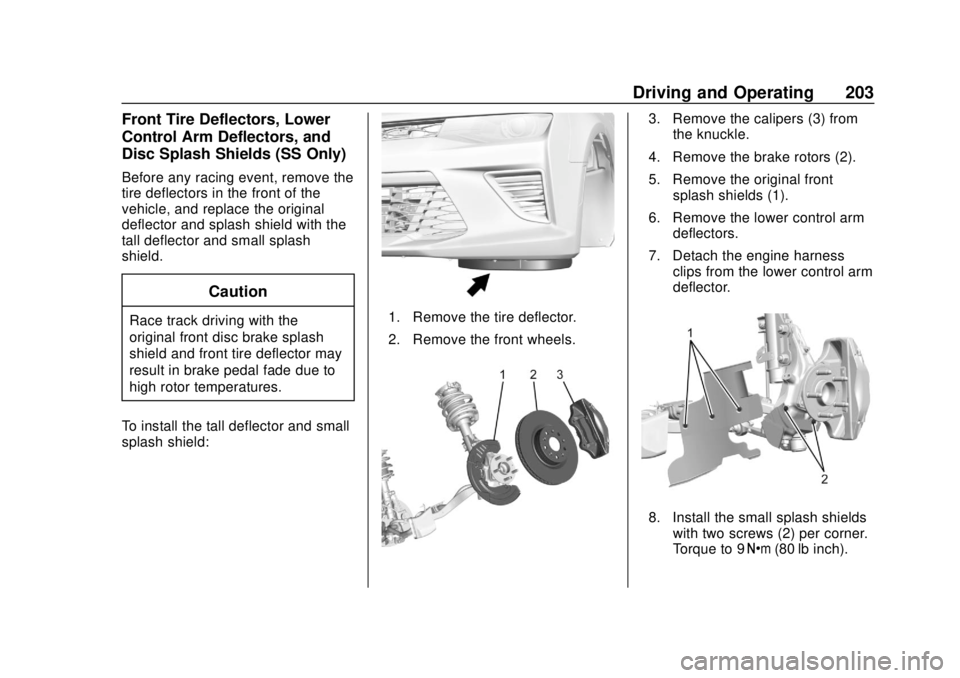
Front Tire Deflectors, Lower
Control Arm Deflectors, and
Disc Splash Shields (SS Only)
Before any racing event, remove the
tire deflectors in the front of the
vehicle, and replace the original
deflector and splash shield with the
tall deflector and small splash
shield.
Caution
Race track driving with the
original front disc brake splash
shield and front tire deflector may
result in brake pedal fade due to
high rotor temperatures.
To install the tall deflector and small
splash shield:1. Remove the tire deflector.
2. Remove the front wheels.
3. Remove the calipers (3) from the knuckle.
4. Remove the brake rotors (2).
5. Remove the original front splash shields (1).
6. Remove the lower control arm deflectors.
7. Detach the engine harness clips from the lower control arm
deflector.
8. Install the small splash shieldswith two screws (2) per corner.
Torque to 9 Y(80 lb inch).
Page 205 of 393
Chevrolet Camaro Owner Manual (GMNA-Localizing-U.S./Canada/Mexico-
11348325) - 2018 - CRC - 10/23/17
204 Driving and Operating
Caution
Failure to reattach the engine
harness clips correctly could
cause possible interference with
the wheel speed sensor and
vehicle damage.
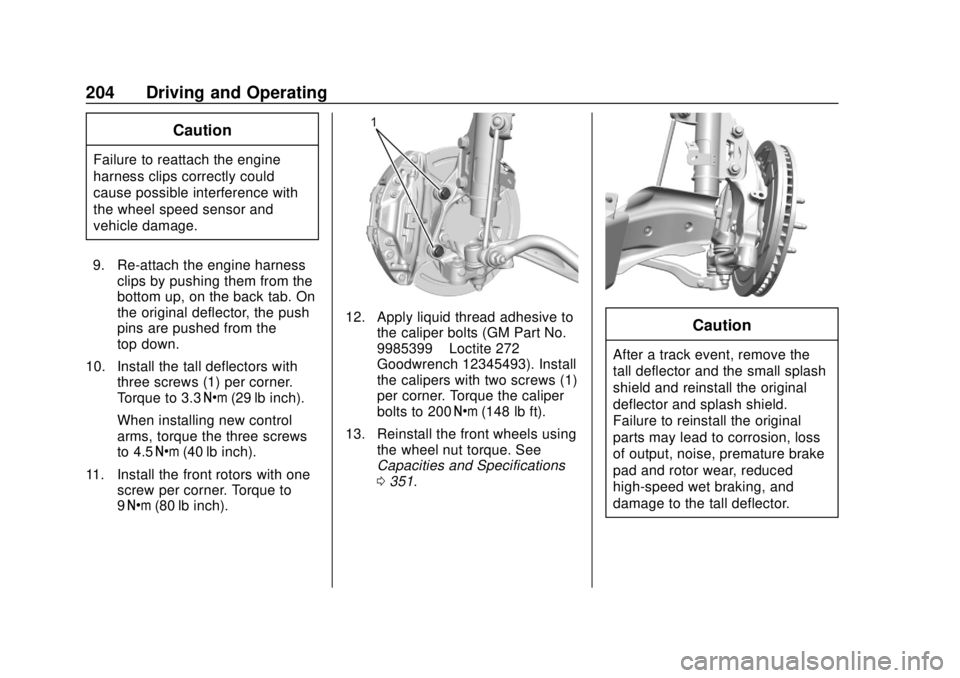
9. Re-attach the engine harness clips by pushing them from the
bottom up, on the back tab. On
the original deflector, the push
pins are pushed from the
top down.
10. Install the tall deflectors with three screws (1) per corner.
Torque to 3.3 Y(29 lb inch).
When installing new control
arms, torque the three screws
to 4.5 Y(40 lb inch).
11. Install the front rotors with one screw per corner. Torque to
9Y (80 lb inch).
12. Apply liquid thread adhesive to
the caliper bolts (GM Part No.
9985399 –Loctite 272 –
Goodwrench 12345493). Install
the calipers with two screws (1)
per corner. Torque the caliper
bolts to 200 Y(148 lb ft).
13. Reinstall the front wheels using the wheel nut torque. See
Capacities and Specifications
0351.Caution
After a track event, remove the
tall deflector and the small splash
shield and reinstall the original
deflector and splash shield.
Failure to reinstall the original
parts may lead to corrosion, loss
of output, noise, premature brake
pad and rotor wear, reduced
high-speed wet braking, and
damage to the tall deflector.