ECO mode CHEVROLET CAMARO 2023 User Guide
[x] Cancel search | Manufacturer: CHEVROLET, Model Year: 2023, Model line: CAMARO, Model: CHEVROLET CAMARO 2023Pages: 345, PDF Size: 16.19 MB
Page 68 of 345
Chevrolet Camaro Owner Manual (GMNA-Localizing-U.S./Canada/Mexico-
16408685) - 2023 - CRC - 3/28/22
Seats and Restraints 67
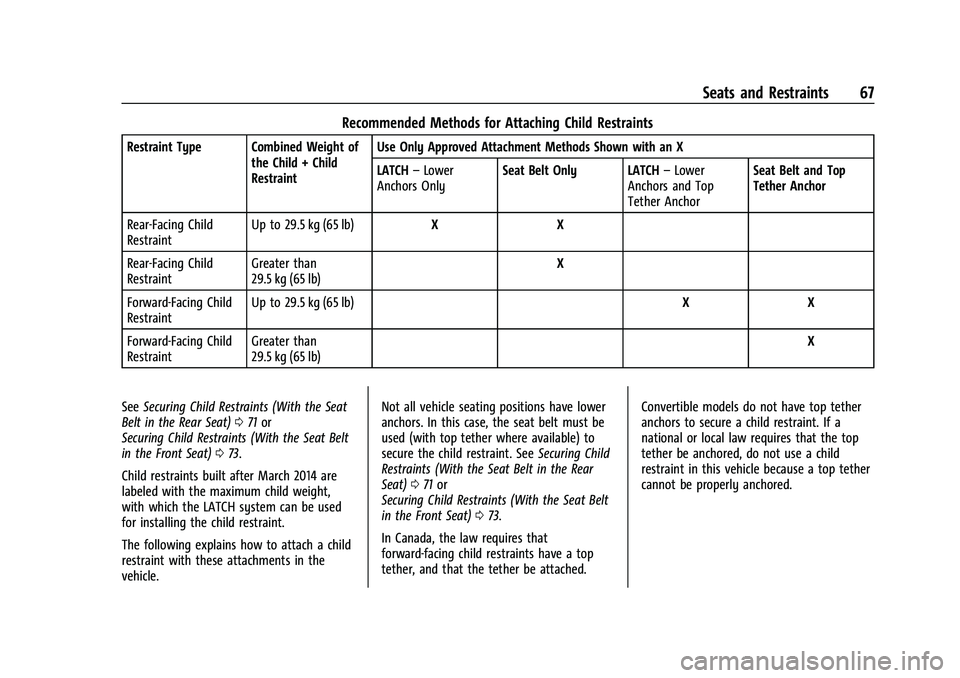
Recommended Methods for Attaching Child Restraints
Restraint Type Combined Weight ofthe Child + Child
Restraint Use Only Approved Attachment Methods Shown with an X
LATCH
–Lower
Anchors Only Seat Belt Only LATCH
–Lower
Anchors and Top
Tether Anchor Seat Belt and Top
Tether Anchor
Rear-Facing Child
Restraint Up to 29.5 kg (65 lb)
X X
Rear-Facing Child
Restraint Greater than
29.5 kg (65 lb) X
Forward-Facing Child
Restraint Up to 29.5 kg (65 lb)
X X
Forward-Facing Child
Restraint Greater than
29.5 kg (65 lb) X
See Securing Child Restraints (With the Seat
Belt in the Rear Seat) 071 or
Securing Child Restraints (With the Seat Belt
in the Front Seat) 073.
Child restraints built after March 2014 are
labeled with the maximum child weight,
with which the LATCH system can be used
for installing the child restraint.
The following explains how to attach a child
restraint with these attachments in the
vehicle. Not all vehicle seating positions have lower
anchors. In this case, the seat belt must be
used (with top tether where available) to
secure the child restraint. See
Securing Child
Restraints (With the Seat Belt in the Rear
Seat) 071 or
Securing Child Restraints (With the Seat Belt
in the Front Seat) 073.
In Canada, the law requires that
forward-facing child restraints have a top
tether, and that the tether be attached. Convertible models do not have top tether
anchors to secure a child restraint. If a
national or local law requires that the top
tether be anchored, do not use a child
restraint in this vehicle because a top tether
cannot be properly anchored.
Page 82 of 345
Chevrolet Camaro Owner Manual (GMNA-Localizing-U.S./Canada/Mexico-
16408685) - 2023 - CRC - 3/28/22
Instruments and Controls 81
Caution
Hanging heavy equipment from the
power outlet can cause damage not
covered by the vehicle warranty. The
power outlets are designed for accessory
power plugs only, such as cell phone
charge cords.
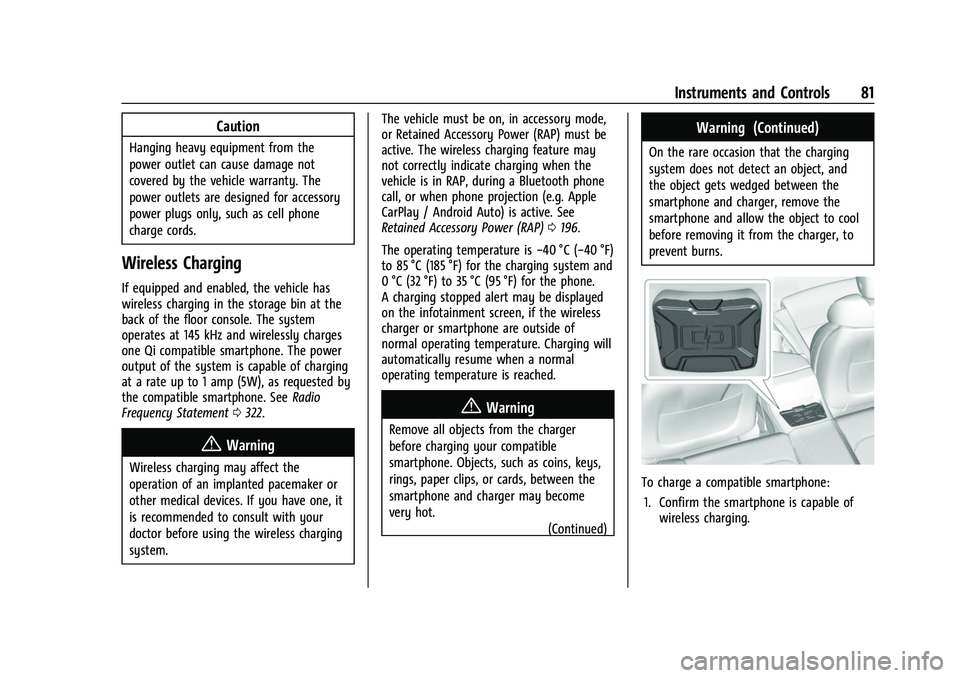
Wireless Charging
If equipped and enabled, the vehicle has
wireless charging in the storage bin at the
back of the floor console. The system
operates at 145 kHz and wirelessly charges
one Qi compatible smartphone. The power
output of the system is capable of charging
at a rate up to 1 amp (5W), as requested by
the compatible smartphone. SeeRadio
Frequency Statement 0322.
{Warning
Wireless charging may affect the
operation of an implanted pacemaker or
other medical devices. If you have one, it
is recommended to consult with your
doctor before using the wireless charging
system. The vehicle must be on, in accessory mode,
or Retained Accessory Power (RAP) must be
active. The wireless charging feature may
not correctly indicate charging when the
vehicle is in RAP, during a Bluetooth phone
call, or when phone projection (e.g. Apple
CarPlay / Android Auto) is active. See
Retained Accessory Power (RAP)
0196.
The operating temperature is −40 °C (−40 °F)
to 85 °C (185 °F) for the charging system and
0 °C (32 °F) to 35 °C (95 °F) for the phone.
A charging stopped alert may be displayed
on the infotainment screen, if the wireless
charger or smartphone are outside of
normal operating temperature. Charging will
automatically resume when a normal
operating temperature is reached.
{Warning
Remove all objects from the charger
before charging your compatible
smartphone. Objects, such as coins, keys,
rings, paper clips, or cards, between the
smartphone and charger may become
very hot.
(Continued)
Warning (Continued)
On the rare occasion that the charging
system does not detect an object, and
the object gets wedged between the
smartphone and charger, remove the
smartphone and allow the object to cool
before removing it from the charger, to
prevent burns.
To charge a compatible smartphone:
1. Confirm the smartphone is capable of wireless charging.
Page 88 of 345
Chevrolet Camaro Owner Manual (GMNA-Localizing-U.S./Canada/Mexico-
16408685) - 2023 - CRC - 3/28/22
Instruments and Controls 87
.Warm—Tires are ready for aggressive
driving.
.Overheated —Tire temperature may be
higher than optimal.
Audio
If equipped, while the audio app is open,
use
worxto change the radio station or
seek to the next or previous track,
depending on the current audio source.
Press
pto enter the Audio menu. In the
Audio menu browse for music, select from
the favorites, or change the audio source.
Phone
If equipped, press
pto enter the Phone
menu. In the Phone menu, if there is no
active phone call, view recent calls, or scroll
through contacts. If there is an active call,
mute or unmute the phone or switch to
handset or hands-free operation.
Navigation
If equipped, press
pto enter the
Navigation menu. If there is no active route,
a compass will be displayed. If there is an
active route, press SEL to cancel route
guidance or turn the voice prompts on/off. Options
Press SEL to enter the Options menu. Use
worxto scroll through items in
the menu.
Units : Press
pwhile Units is displayed to
enter the Units menu. Choose US or Metric
units by pressing SEL while the desired item
is highlighted.
Speed Warning : The Speed Warning display
allows the driver to set a speed that they
do not want to exceed. To set the Speed
Warning, press
pwhen Speed Warning is
displayed. Enable the speed warning and
then use
worxto adjust the value. Press
SEL to set the speed. Once the speed is set,
this feature can be turned off by pressing
SEL while viewing this page. If the selected
speed limit is exceeded, a pop-up warning is
displayed with a chime.
Display Theme (Uplevel) : Press SEL while
Display Theme is highlighted to change the
configuration of the uplevel cluster. See
“Reconfigurable Instrument Cluster” earlier
in this section. Launch Control :
If equipped, the Launch
Control display allows the driver to adjust
the parameters of the Launch Control
System. See Track Events and Competitive
Driving 0177.
Head-Up Display (HUD) Rotation :
If equipped, this feature allows for adjusting
the angle of the HUD image. Press SEL on
the steering wheel controls while Head-Up
Display Rotation is highlighted to enter
Adjust Mode. Press
worxto highlight
OK, then press SEL to save the setting.
Cancel can also be selected to cancel the
setting. The vehicle must be on P (Park).
Info Pages : Press
pwhile Info Pages is
highlighted to select the items to be
displayed in the DIC info displays. See Driver
Information Center (DIC) 099.
Software Info : Displays open source
software information.
Speedometer
The speedometer shows the vehicle speed in
either kilometers per hour (km/h) or miles
per hour (mph).
Page 90 of 345
Chevrolet Camaro Owner Manual (GMNA-Localizing-U.S./Canada/Mexico-
16408685) - 2023 - CRC - 3/28/22
Instruments and Controls 89
but it actually will take a little more,
or less than half the tank's capacity to fill
the tank.
.Moves a little while turning a corner,
speeding up, or braking.
.Take a few seconds to stabilize after the
ignition is turned on and goes back to
empty when the ignition is turned off.
These are normal conditions, none of which
indicate a problem with the fuel gauge.
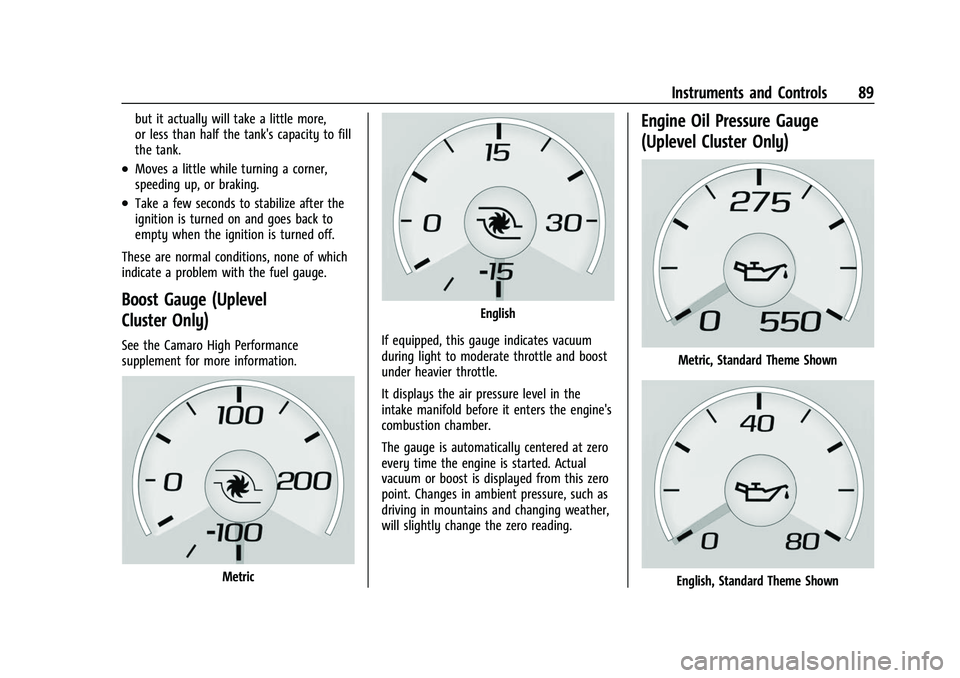
Boost Gauge (Uplevel
Cluster Only)
See the Camaro High Performance
supplement for more information.
Metric
English
If equipped, this gauge indicates vacuum
during light to moderate throttle and boost
under heavier throttle.
It displays the air pressure level in the
intake manifold before it enters the engine's
combustion chamber.
The gauge is automatically centered at zero
every time the engine is started. Actual
vacuum or boost is displayed from this zero
point. Changes in ambient pressure, such as
driving in mountains and changing weather,
will slightly change the zero reading.
Engine Oil Pressure Gauge
(Uplevel Cluster Only)
Metric, Standard Theme Shown
English, Standard Theme Shown
Page 94 of 345
Chevrolet Camaro Owner Manual (GMNA-Localizing-U.S./Canada/Mexico-
16408685) - 2023 - CRC - 3/28/22
Instruments and Controls 93
seconds as a system check. Then, after
several seconds, the status indicator will
light either ON or OFF, or either the on or
off symbol, to let you know the status of
the front outboard passenger frontal airbag
and knee airbag.
If the word ON or the on symbol is lit on
the passenger airbag status indicator, it
means that the front outboard passenger
frontal airbag and knee airbag are allowed
to inflate.
If the word OFF or the off symbol is lit on
the passenger airbag status indicator, it
means that the passenger sensing system
has turned off the front outboard passenger
frontal airbag and knee airbag.
If, after several seconds, both status
indicator lights remain on, or if there are no
lights at all, there may be a problem with
the lights or the passenger sensing system.
See your dealer for service.
{Warning
If the airbag readiness light ever comes
on and stays on, it means that
something may be wrong with the airbag
system. To help avoid injury to yourself(Continued)
Warning (Continued)
or others, have the vehicle serviced right
away. SeeAirbag Readiness Light 092
for more information, including important
safety information.
Charging System Light
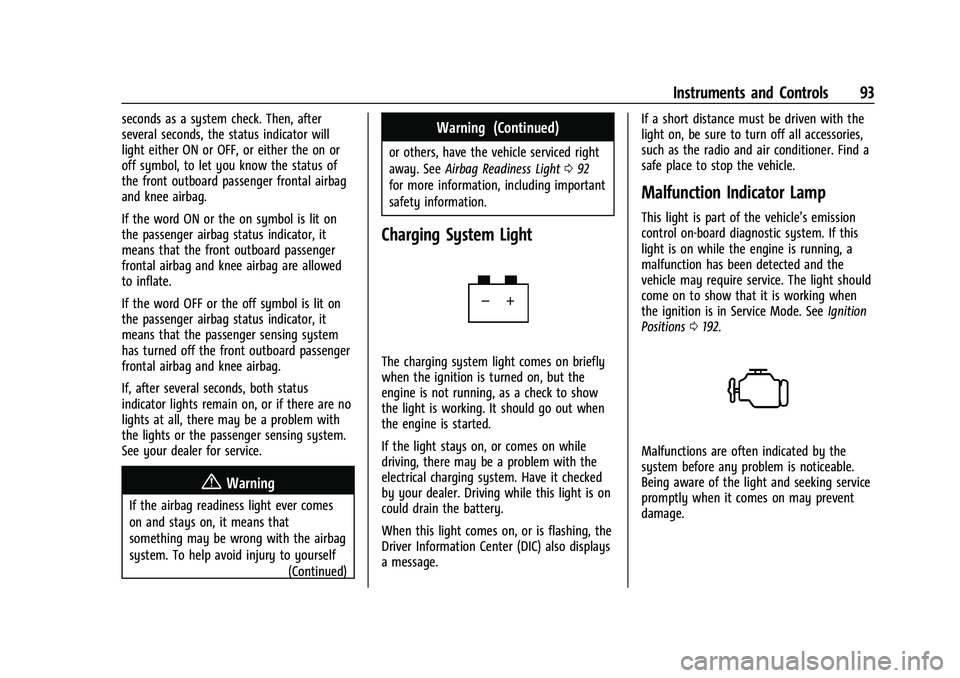
The charging system light comes on briefly
when the ignition is turned on, but the
engine is not running, as a check to show
the light is working. It should go out when
the engine is started.
If the light stays on, or comes on while
driving, there may be a problem with the
electrical charging system. Have it checked
by your dealer. Driving while this light is on
could drain the battery.
When this light comes on, or is flashing, the
Driver Information Center (DIC) also displays
a message. If a short distance must be driven with the
light on, be sure to turn off all accessories,
such as the radio and air conditioner. Find a
safe place to stop the vehicle.
Malfunction Indicator Lamp
This light is part of the vehicle’s emission
control on-board diagnostic system. If this
light is on while the engine is running, a
malfunction has been detected and the
vehicle may require service. The light should
come on to show that it is working when
the ignition is in Service Mode. See
Ignition
Positions 0192.
Malfunctions are often indicated by the
system before any problem is noticeable.
Being aware of the light and seeking service
promptly when it comes on may prevent
damage.
Page 122 of 345
Chevrolet Camaro Owner Manual (GMNA-Localizing-U.S./Canada/Mexico-
16408685) - 2023 - CRC - 3/28/22
Infotainment System 121
If the HD Radio signal loses reception while
listening to stations HD2 to HD8, the radio
mutes until the signal can be recovered or
until the station is changed.
HD Radio can be disabled if driving in a
weak signal area. Touch HD Radio On/Off to
toggle HD Radio reception on and off.
Radio Data System (RDS)
If equipped, RDS features are available for
use only on FM stations that broadcast RDS
information. When supported, the
radio may:
.Group stations by Category (i.e., Program
Type) such as Rock, Jazz, Classical, etc.
.Display text from radio stations that
include station name and messages.
This system relies on receiving specific
information from these stations and only
works when the information is available.
It is possible that a radio station could
broadcast incorrect information that causes
the radio features to work improperly. If this
happens, contact the radio station. When information is broadcast from a RDS
station, the station name or call letters
display on the audio screen. Radio text
supporting the currently playing broadcast
may also appear.
Satellite Radio
SiriusXM Radio Service
If equipped, vehicles with a valid SiriusXM
radio subscription can receive SiriusXM
programming.
SiriusXM radio has a wide variety of
programming and commercial-free music,
coast to coast, in digital-quality sound. In
the U.S., see www.siriusxm.com or call
1-888-601-6296. In Canada, see
www.siriusxm.ca or call 1-877-438-9677.
When SiriusXM is active, the channel name,
number, song title, and artist appear on the
display.
SiriusXM with 360L
SiriusXM with 360L interface has enhanced
in-vehicle listening experience for
subscribers. The experience now offers more
categories and system learned
recommendations toward discovering more
personalized content.To use the full SiriusXM 360L program,
including streaming content and listening
recommendations, OnStar Connected Access
is required. Connected vehicle services vary
by model and require a complete working
electrical system, cell reception, and GPS
signal. An active connected plan is required.
Reference the SiriusXM user guide for use
and subscription information.
Radio Reception
Unplug electronic devices from the accessory
power outlets if there is interference or
static in the radio.
FM
FM signals only reach about 16 to 65 km (10
to 40 mi). Although the radio has a built-in
electronic circuit that automatically works to
reduce interference, some static can occur,
especially around tall buildings or hills,
causing the sound to fade in and out.
AM
The range for most AM stations is greater
than for FM, especially at night. The longer
range can cause station frequencies to
interfere with each other. Static can also
occur when things like storms and power
Page 128 of 345
Chevrolet Camaro Owner Manual (GMNA-Localizing-U.S./Canada/Mexico-
16408685) - 2023 - CRC - 3/28/22
Infotainment System 127
.3D Heading Up, 2D Heading Up, 2D North
.Show on Map
.Traffic Events (available with Connected
Navigation)
.Settings
.Edit Destination (if a route has been set)
.Avoid on Route (if a route has been set)
Touch Settings to view Map and Navigation
Settings. The following may display:
.Destination Card Preferences
.Map Preferences
.Route Preferences
.Navigation Voice Control
.Traffic Preferences
.Alert Preferences
.Fuel Grade Preferences
.Manage History
.Predictive Navigation: See “Predictive
Navigation (If Equipped)” previously in
this section.
.About
To exit a list, touch
zin the top right
corner to return to the main map view.
Make sure to set up preferences before
setting a destination and starting active
guidance. Map Preferences
Touch to choose between basic map feature
configurations:
Map Colors
.Auto
–Touch to automatically change
modes based on lighting conditions.
.Day (Light)
.Night (Dark)
3D Landmark (Default is On) : Touch On or
Off. When turned on, the system will
display all 3D Landmarks on the map
depending on the zoom level.
3D Building (Default is Off) : Touch On or
Off. When turned on, the system will
display all of the possible 3D building shapes
on the map depending on the zoom level.
Show Terrain in 3D (Default is Off) :
If equipped, touch On or Off. When turned
on, the system will display terrain
information on the map in 3D view.
Auto-Zoom (Default is On) : Touch On or
Off. When turned on, the system will
automatically adjust the zoom level when
the vehicle is approaching a turn. After the
turn is completed, the system automatically
brings the zoom back to the originally set
level. If the vehicle is approaching a turn with the next turn occurring shortly after,
the Auto-Zoom will remain on until both
turns are completed.
Route Preferences
Touch to access the Route Preferences. The
choices are:
.Preferred Route
–Choose from two
different route options: Fastest or
Eco-Friendly.
‐ Fastest would be the route with the
shortest drive time.
‐ Eco-Friendly would be the most
fuel-efficient route.
.Avoid on Current Route –Choose any of
the road features to avoid while on route:
‐ Highways
‐ Unpaved Roads
‐ Ferries
‐ Carpool Lanes
‐ Toll Roads
‐ Tunnels
‐ Country Borders
Navigation Voice Control
Touch to access the voice control setting
display.
Page 138 of 345
Chevrolet Camaro Owner Manual (GMNA-Localizing-U.S./Canada/Mexico-
16408685) - 2023 - CRC - 3/28/22
Infotainment System 137
detail can become available for areas that
previously had limited detail. SeeMap Data
Updates 0136.
Voice Recognition
If equipped, voice recognition allows for
hands-free operation within the navigation,
audio, phone, and weather applications. This
feature can be started by pressing
gon the
steering wheel or touching
gon the
infotainment display.
However, not all features within these areas
are supported by voice commands.
Generally, only complex tasks that require
multiple manual interactions to complete
are supported by voice commands.
For example, tasks that take more than one
or two touches, such as a song or artist to
play from a media device, would be
supported by voice commands. Other tasks,
like adjusting the volume or seeking up or
down, are audio features that are easily
performed by touching one or two options,
and are not supported by voice commands.
In general there are flexible ways to speak
commands for completing the tasks. If your language supports it, try stating a
one-shot command, such as
“Directions to
address
while stating the address during the
command. Another example of a one-shot
Destination Entry command is, “Directions to
Place of Interest at
commands do not work, try saying, “Take
me to Place of Interest” or“Find address”
and the system will walk you through by
asking additional questions.
Hybrid Speech Recognition
If equipped, this feature helps distinguish
words by using Internet-based information
along with the system’s voice recognition
database. This allows you to speak more
naturally when using voice recognition.
Using Voice Recognition
Voice recognition becomes available once
the system has been initialized. This begins
when the ignition is turned on. Initialization
may take a few moments.
1. Press
gon the steering wheel controls
to activate voice recognition.
2. The audio system mutes and the system plays a prompt. 3. Clearly speak one of the commands
described in this section.
A voice recognition system prompt can
be interrupted while it is playing by
pressing
gagain.
Once voice recognition is started, both the
infotainment display and instrument cluster
show the selections and visual dialog
content. These displays can be turned on or
off in the Tutorial Mode under Settings
0 152.
There are three voice prompt modes
supported:
.Informative verbal prompts: This type of
prompt will provide more information
regarding the supported actions.
.Short prompts: This type of prompt will
provide simple instructions about what
can be stated.
.Auto informative prompts: This type of
prompt plays during the first few speech
sessions, then automatically switches to
the short prompt after some experience
has been gained through using the
system.
If a command is not spoken, the voice
recognition system says a help prompt.
Page 146 of 345
Chevrolet Camaro Owner Manual (GMNA-Localizing-U.S./Canada/Mexico-
16408685) - 2023 - CRC - 3/28/22
Infotainment System 145
.Event Odometer: This displays the
distance driven since the recording began.
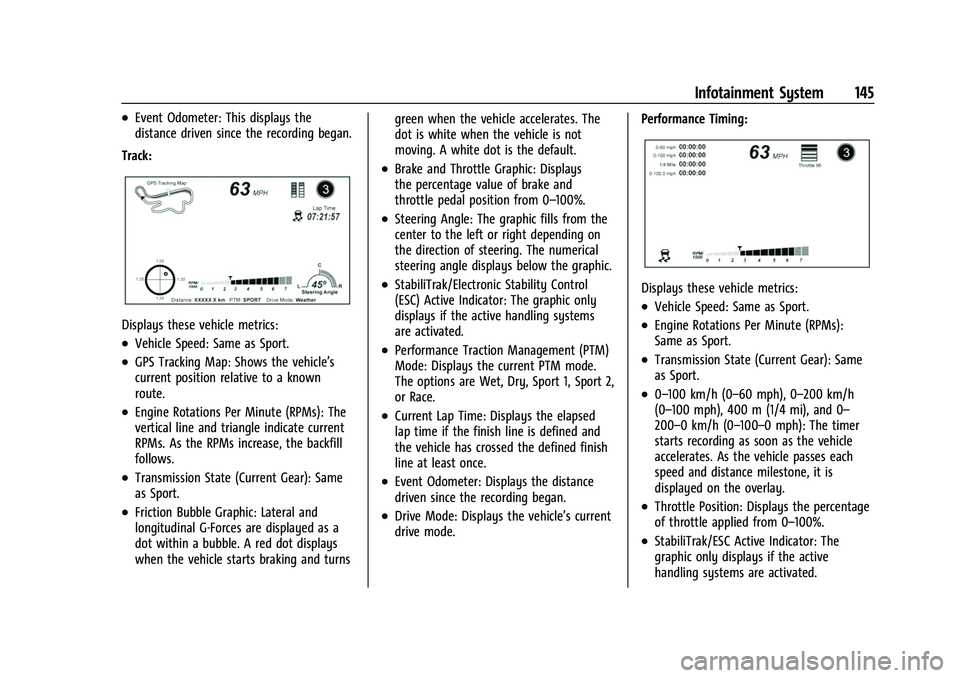
Track:
Displays these vehicle metrics:
.Vehicle Speed: Same as Sport.
.GPS Tracking Map: Shows the vehicle’s
current position relative to a known
route.
.Engine Rotations Per Minute (RPMs): The
vertical line and triangle indicate current
RPMs. As the RPMs increase, the backfill
follows.
.Transmission State (Current Gear): Same
as Sport.
.Friction Bubble Graphic: Lateral and
longitudinal G-Forces are displayed as a
dot within a bubble. A red dot displays
when the vehicle starts braking and turns green when the vehicle accelerates. The
dot is white when the vehicle is not
moving. A white dot is the default.
.Brake and Throttle Graphic: Displays
the percentage value of brake and
throttle pedal position from 0–100%.
.Steering Angle: The graphic fills from the
center to the left or right depending on
the direction of steering. The numerical
steering angle displays below the graphic.
.StabiliTrak/Electronic Stability Control
(ESC) Active Indicator: The graphic only
displays if the active handling systems
are activated.
.Performance Traction Management (PTM)
Mode: Displays the current PTM mode.
The options are Wet, Dry, Sport 1, Sport 2,
or Race.
.Current Lap Time: Displays the elapsed
lap time if the finish line is defined and
the vehicle has crossed the defined finish
line at least once.
.Event Odometer: Displays the distance
driven since the recording began.
.Drive Mode: Displays the vehicle’s current
drive mode.
Performance Timing:
Displays these vehicle metrics:
.Vehicle Speed: Same as Sport.
.Engine Rotations Per Minute (RPMs):
Same as Sport.
.Transmission State (Current Gear): Same
as Sport.
.0–100 km/h (0–60 mph), 0–200 km/h
(0–100 mph), 400 m (1/4 mi), and 0–
200–0 km/h (0–100–0 mph): The timer
starts recording as soon as the vehicle
accelerates. As the vehicle passes each
speed and distance milestone, it is
displayed on the overlay.
.Throttle Position: Displays the percentage
of throttle applied from 0–100%.
.StabiliTrak/ESC Active Indicator: The
graphic only displays if the active
handling systems are activated.
Page 147 of 345
Chevrolet Camaro Owner Manual (GMNA-Localizing-U.S./Canada/Mexico-
16408685) - 2023 - CRC - 3/28/22
146 Infotainment System
Naming Convention
The recorded video file name is stored as
the recorded date and the length of the
recording.
If the recorded session was recorded while
the system was in Valet Mode, the file
name will display the mode, date, and
length of time.
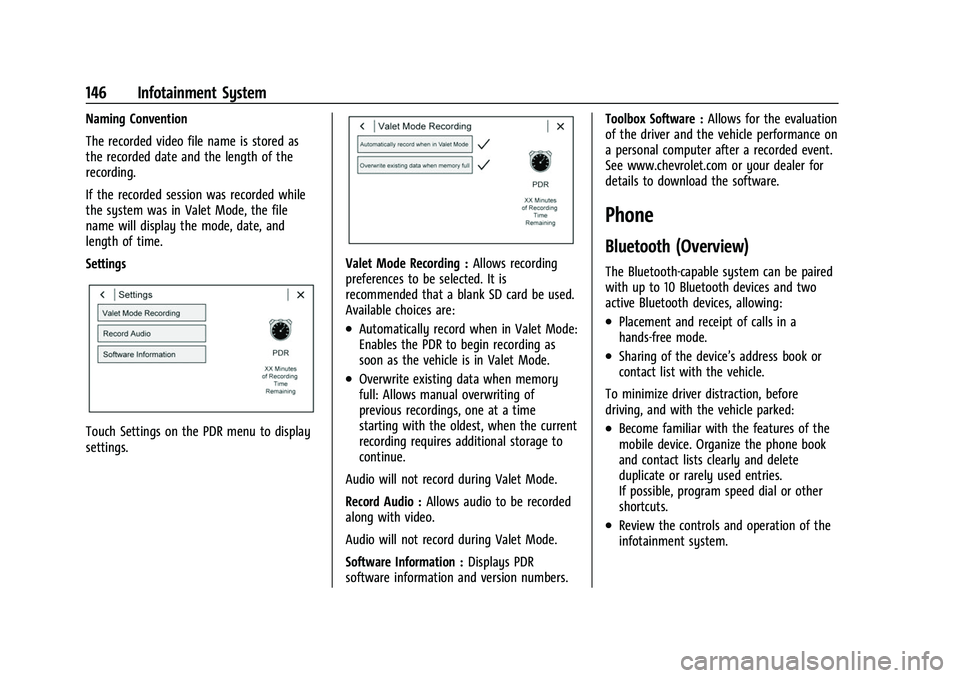
Settings
Touch Settings on the PDR menu to display
settings.
Valet Mode Recording :Allows recording
preferences to be selected. It is
recommended that a blank SD card be used.
Available choices are:
.Automatically record when in Valet Mode:
Enables the PDR to begin recording as
soon as the vehicle is in Valet Mode.
.Overwrite existing data when memory
full: Allows manual overwriting of
previous recordings, one at a time
starting with the oldest, when the current
recording requires additional storage to
continue.
Audio will not record during Valet Mode.
Record Audio : Allows audio to be recorded
along with video.
Audio will not record during Valet Mode.
Software Information : Displays PDR
software information and version numbers. Toolbox Software :
Allows for the evaluation
of the driver and the vehicle performance on
a personal computer after a recorded event.
See www.chevrolet.com or your dealer for
details to download the software.
Phone
Bluetooth (Overview)
The Bluetooth-capable system can be paired
with up to 10 Bluetooth devices and two
active Bluetooth devices, allowing:
.Placement and receipt of calls in a
hands-free mode.
.Sharing of the device’s address book or
contact list with the vehicle.
To minimize driver distraction, before
driving, and with the vehicle parked:
.Become familiar with the features of the
mobile device. Organize the phone book
and contact lists clearly and delete
duplicate or rarely used entries.
If possible, program speed dial or other
shortcuts.
.Review the controls and operation of the
infotainment system.