wheel CHEVROLET CAMARO SS 2010 User Guide
[x] Cancel search | Manufacturer: CHEVROLET, Model Year: 2010, Model line: CAMARO SS, Model: CHEVROLET CAMARO SS 2010Pages: 372, PDF Size: 1.91 MB
Page 85 of 372
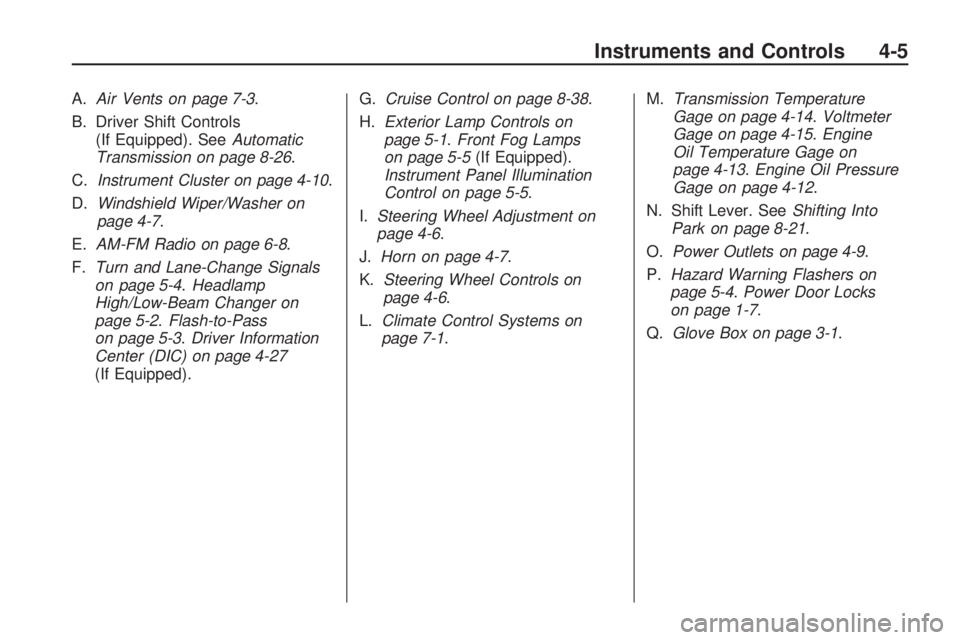
A.Air Vents on page 7-3.
B. Driver Shift Controls
(If Equipped). SeeAutomatic
Transmission on page 8-26.
C.Instrument Cluster on page 4-10.
D.Windshield Wiper/Washer on
page 4-7.
E.AM-FM Radio on page 6-8.
F.Turn and Lane-Change Signals
on page 5-4.Headlamp
High/Low-Beam Changer on
page 5-2.Flash-to-Pass
on page 5-3.Driver Information
Center (DIC) on page 4-27
(If Equipped).G.Cruise Control on page 8-38.
H.Exterior Lamp Controls on
page 5-1.Front Fog Lamps
on page 5-5(If Equipped).
Instrument Panel Illumination
Control on page 5-5.
I.Steering Wheel Adjustment on
page 4-6.
J.Horn on page 4-7.
K.Steering Wheel Controls on
page 4-6.
L.Climate Control Systems on
page 7-1.M.Transmission Temperature
Gage on page 4-14.Voltmeter
Gage on page 4-15.Engine
Oil Temperature Gage on
page 4-13.Engine Oil Pressure
Gage on page 4-12.
N. Shift Lever. SeeShifting Into
Park on page 8-21.
O.Power Outlets on page 4-9.
P.Hazard Warning Flashers on
page 5-4.Power Door Locks
on page 1-7.
Q.Glove Box on page 3-1.
Instruments and Controls 4-5
Page 86 of 372
Controls
Steering Wheel
Adjustment
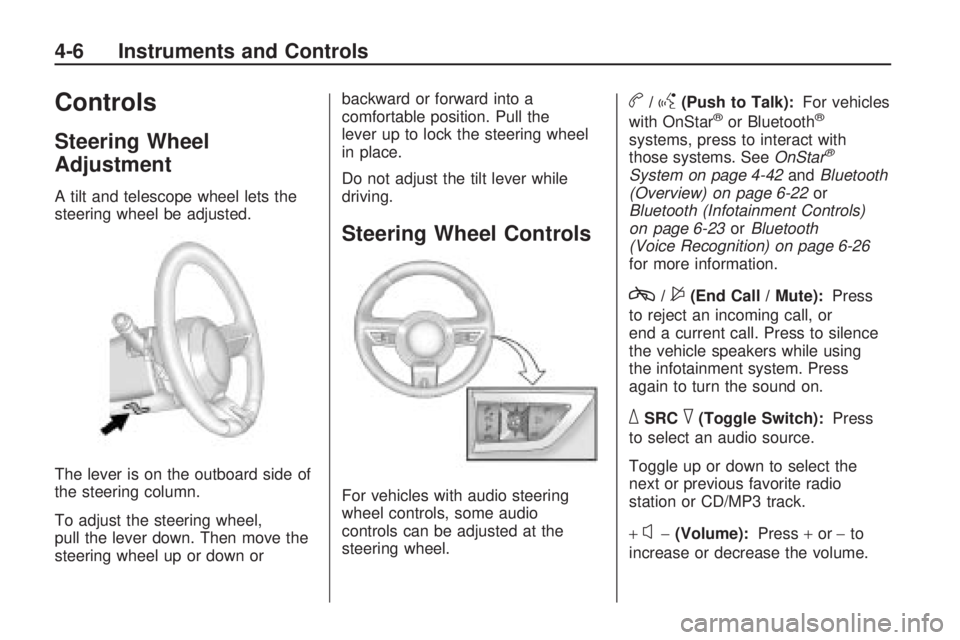
A tilt and telescope wheel lets the
steering wheel be adjusted.
The lever is on the outboard side of
the steering column.
To adjust the steering wheel,
pull the lever down. Then move the
steering wheel up or down orbackward or forward into a
comfortable position. Pull the
lever up to lock the steering wheel
in place.
Do not adjust the tilt lever while
driving.
Steering Wheel Controls
For vehicles with audio steering
wheel controls, some audio
controls can be adjusted at the
steering wheel.
b/g(Push to Talk):For vehicles
with OnStar®or Bluetooth®
systems, press to interact with
those systems. SeeOnStar®
System on page 4-42andBluetooth
(Overview) on page 6-22or
Bluetooth (Infotainment Controls)
on page 6-23orBluetooth
(Voice Recognition) on page 6-26
for more information.
c/$(End Call / Mute):Press
to reject an incoming call, or
end a current call. Press to silence
the vehicle speakers while using
the infotainment system. Press
again to turn the sound on.
_SRC^(Toggle Switch):Press
to select an audio source.
Toggle up or down to select the
next or previous favorite radio
station or CD/MP3 track.
+
x−(Volume):Press+or−to
increase or decrease the volume.
4-6 Instruments and Controls
Page 87 of 372

Horn
Press near or on the horn symbols
on the steering wheel pad to sound
the horn.
Windshield Wiper/Washer
The windshield wiper/washer lever
is located on the inboard side of
the steering column.
Push up or pull down on the lever
to place it in one of the following
positions.
8(Mist):For a single wiping cycle.
The lever returns to its starting
position when released. For more
cycles, hold the lever down before
releasing it.
9(Off):Turns the wipers off.
6(Intermittent):Move the lever to
choose a delayed wiping cycle.
For vehicles with the variable
intermittent feature, the time
between wipes can be adjusted.
Turn the
&band for a longer
or shorter delay interval.
x(Low):Slow wipes.
[(High):Fast wipes.
Windshield Washer:Pull the lever
toward you to spray washer fluid
on the windshield. The spray
continues until the lever is released.
The wipers will run a few times.
SeeWasher Fluid on page 9-26for
information on filling the windshield
washer fluid reservoir.
{WARNING
In freezing weather, do not use
your washer until the windshield is
warmed. Otherwise the washer
fluid can form ice on the
windshield, blocking your vision.
Clear ice and snow from the wiper
blades before using them. If the
wiper blades are frozen to the
windshield, gently loosen or thaw
them. If they become damaged,
install new blades or blade inserts.
SeeWiper Blade Replacement
on page 9-33.
Heavy snow or ice can overload the
wiper motor. A circuit breaker will
stop the motor until it cools down.
Instruments and Controls 4-7
Page 104 of 372
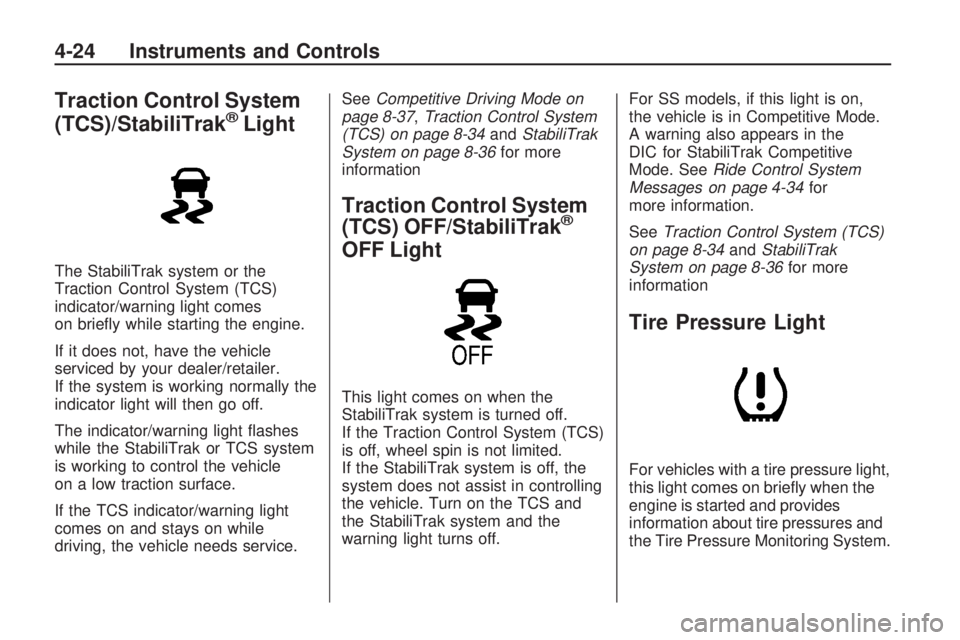
Traction Control System
(TCS)/StabiliTrak®Light
The StabiliTrak system or the
Traction Control System (TCS)
indicator/warning light comes
on briefly while starting the engine.
If it does not, have the vehicle
serviced by your dealer/retailer.
If the system is working normally the
indicator light will then go off.
The indicator/warning light flashes
while the StabiliTrak or TCS system
is working to control the vehicle
on a low traction surface.
If the TCS indicator/warning light
comes on and stays on while
driving, the vehicle needs service.SeeCompetitive Driving Mode on
page 8-37,Traction Control System
(TCS) on page 8-34andStabiliTrak
System on page 8-36for more
information
Traction Control System
(TCS) OFF/StabiliTrak®
OFF Light
This light comes on when the
StabiliTrak system is turned off.
If the Traction Control System (TCS)
is off, wheel spin is not limited.
If the StabiliTrak system is off, the
system does not assist in controlling
the vehicle. Turn on the TCS and
the StabiliTrak system and the
warning light turns off.For SS models, if this light is on,
the vehicle is in Competitive Mode.
A warning also appears in the
DIC for StabiliTrak Competitive
Mode. SeeRide Control System
Messages on page 4-34for
more information.
SeeTraction Control System (TCS)
on page 8-34andStabiliTrak
System on page 8-36for more
information
Tire Pressure Light
For vehicles with a tire pressure light,
this light comes on briefly when the
engine is started and provides
information about tire pressures and
the Tire Pressure Monitoring System.
4-24 Instruments and Controls
Page 107 of 372
Information Displays
Driver Information
Center (DIC)
The vehicle may have a Driver
Information Center (DIC). The DIC
displays information about your
vehicle. It also displays warning
messages if a system problem is
detected. SeeVehicle Messages on
page 4-37for more information.
All messages appear in the
DIC display located in the center
of the instrument panel cluster.
The vehicle may also have features
that can be customized through the
controls on the radio. SeeVehicle
Personalization on page 4-38
for more information.
DIC Operation and Displays
The DIC has different displays
which can be accessed by using
the DIC buttons located on the
turn signal lever located on the
left side of the steering wheel.
The DIC displays trip, fuel, vehicle
system information, and warning
messages if a system problem
is detected.
The bottom of the DIC display shows
what position the shift lever is in
(Automatic Transmission Only),
the odometer, and the direction the
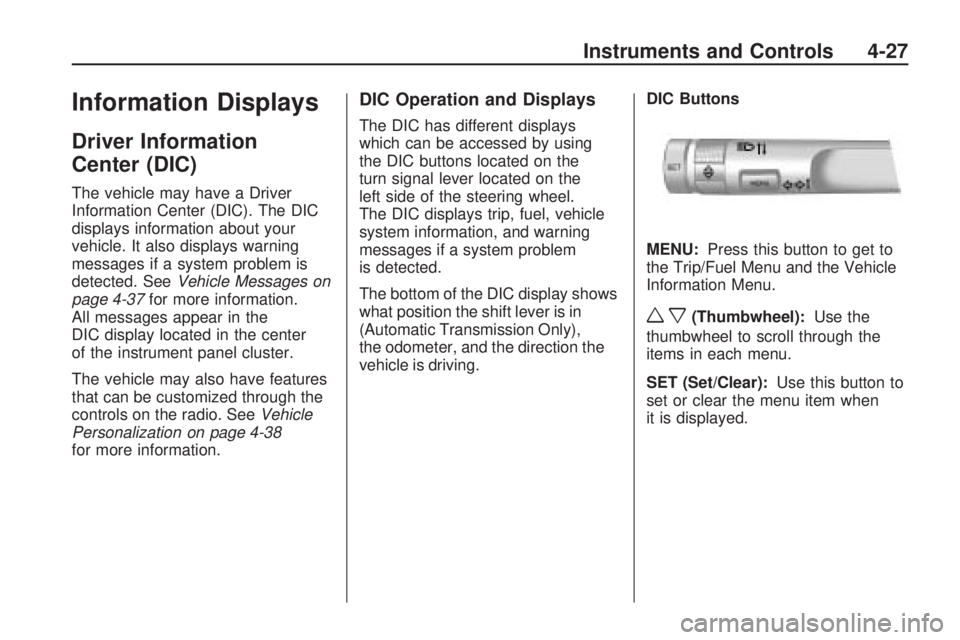
vehicle is driving.DIC Buttons
MENU:Press this button to get to
the Trip/Fuel Menu and the Vehicle
Information Menu.
wx(Thumbwheel):Use the
thumbwheel to scroll through the
items in each menu.
SET (Set/Clear):Use this button to
set or clear the menu item when
it is displayed.
Instruments and Controls 4-27
Page 108 of 372
Trip/Fuel Menu Items
Press the MENU button on the
turn signal lever until Trip/Fuel
Information Menu is displayed.
Use the thumbwheel to scroll
through the following menu items:
•Digital Speedometer
•Trip 1
•Trip 2
•Fuel Range
•Average Fuel Economy
•Average Vehicle Speed
•OnStar Turn by Turn
•Blank
Digital Speedometer
The speedometer shows how fast
the vehicle is moving in either miles
per hour (mph) or kilometers per
hour (km/h). The speedometer
cannot be reset.Trip 1 and Trip 2
The Trip display shows the current
distance traveled, in either miles (mi)
or kilometers (km), since the last
reset for the trip odometer. The trip
odometer can be reset to zero by
pressing the trip reset stem or the
SET button while the trip odometer
display is showing.
Fuel Range
The Fuel Range display shows the
approximate distance the vehicle
can be driven without refueling.
The fuel range estimate is based on
an average of the vehicle’s fuel
economy over recent driving history
and the amount of fuel remaining
in the fuel tank. Fuel range cannot
be reset.Average Fuel Economy
The Average Fuel Economy display
shows the approximate average
miles per gallon (mpg) or liters
per 100 kilometers (L/100 km).
This number is calculated based on
the number of mpg (L/100 km)
recorded since the last time this
menu item was reset. The fuel
economy can be reset by pressing
the SET button while the Average
Fuel Economy display is showing.
Average Vehicle Speed
The Average Vehicle Speed display
shows the average speed of the
vehicle in miles per hour (mph)
or kilometers per hour (km/h).
This average is calculated based on
the various vehicle speeds recorded
since the last reset of this value.
The average speed can be reset by
pressing the SET button while the
Average Vehicle Speed display is
showing.
4-28 Instruments and Controls
Page 109 of 372
OnStar Turn by Turn
This display is used for the OnStar
Turn by Turn guidance. SeeOnStar
®
System on page 4-42for more
information.
Blank Display
This display shows no information.
Vehicle Information
Menu Items
Press the MENU button on the
turn signal lever until Vehicle
Information Menu is displayed.
Use the thumbwheel to scroll
through the following menu items:
•Unit
•Tire Pressure
•Remaining Oil Life
•Coolant Temp
•Battery Voltage
•Speed WarningUnit
Move the thumbwheel up or down to
switch between US or Metric when
the Unit display is active. Press SET
to confirm the setting. This will
change the displays on the cluster
and DIC to either English (US) or
metric measurements.
Tire Pressure
The display will show a vehicle with
the approximate pressures of all
four tires. Tire pressure is displayed
in either pounds per square
inch (psi) or in kilopascal (kPa).
SeeTire Pressure Monitor System
on page 9-56andTire Pressure
Monitor Operation on page 9-57
for more information.
Remaining Oil Life
This display shows an estimate
of the oil’s remaining useful life.
If Remaining Oil Life 99% is
displayed, that means 99% of
the current oil life remains.When the remaining oil life is low,
the CHANGE ENGINE OIL SOON
message will appear on the
display. SeeEngine Oil Messages
on page 4-32. The oil should
changed as soon as possible.
SeeEngine Oil on page 9-10.
In addition to the engine oil life
system monitoring the oil life,
additional maintenance is
recommended in the Maintenance
Schedule in this manual.
SeeScheduled Maintenance on
page 10-2for more information.
Remember, the Oil Life display
must be reset after each oil change.
It will not reset itself. Also, be
careful not to reset the Oil Life
display accidentally at any time
other than when the oil has
just been changed. It cannot be
reset accurately until the next
oil change. To reset the engine oil
life system press the SET button
while the Oil Life display is active.
SeeEngine Oil Life System on
page 9-13.
Instruments and Controls 4-29
Page 115 of 372
Service Traction Control
This message displays when there
is a problem with the Traction
Control System (TCS). When this
message is displayed, the system
will not limit wheel spin. Adjust your
driving accordingly. See your
dealer/retailer for service.
Service StabiliTrak
This message displays if there is
a problem with the StabiliTrak®
system. If this message appears,
try to reset the system. Stop; turn off
the engine and remove the key
from the ignition; open and close the
driver door and wait for at least
one minute. During this time you
should notice the lights on the
cluster turn off. After a minute has
passed start the engine again.
If this message still comes on,
it means there is a problem.
See your dealer/retailer for service.
The vehicle is safe to drive,
however, you do not have the
benefit of StabiliTrak, so reduce
your speed and drive accordingly.
Airbag System Messages
Service Airbag
This message is displayed if there is
a problem with the airbag system.
Take the vehicle to your dealer/
retailer for service.
Safety Belt Messages
Buckle Seatbelt
This message displays as a
reminder when the safety belt is
not buckled.
Anti-Theft Alarm System
Messages
Theft Attempted
This message displays if the vehicle
detects a tamper condition.
Service Vehicle
Messages
Service AC System
This message is displayed if there is
a problem with the air conditioning
system. Take the vehicle to your
dealer/retailer for service.
Service Power Steering
This message is displayed if there is
a problem with the power steering
system. Take the vehicle to
your dealer/retailer for service.
Service Vehicle Soon
This message is displayed if
there is a problem with the vehicle.
Take the vehicle to your dealer/
retailer for service.
Instruments and Controls 4-35
Page 124 of 372
OnStar Virtual Advisor
OnStar Virtual Advisor is a feature
of OnStar Hands-Free Calling
that uses minutes to access
location-based weather, local traffic
reports, and stock quotes. Press
the phone button and give a
few simple voice commands to
browse through the various topics.
See the OnStar Owner’s Guide
for more information. This feature is
only available in the continental U.S.
OnStar Steering Wheel
Controls
This vehicle may have a Talk/Mute
button that can be used to interact
with OnStar Hands-Free Calling.
SeeSteering Wheel Controls on
page 4-6for more information.
On some vehicles, the mute button
can be used to dial numbers into
voice mail systems, or to dial phone
extensions. See the OnStar Owner’s
Guide for more information.
How OnStar Service Works
The OnStar system can record
and transmit vehicle information.
This information is automatically
sent to an OnStar Call Center when
the OnStar button is pressed, the
emergency button is pressed,
or if the airbags or AACN system
deploy. This information usually
includes the vehicle’s GPS location
and, in the event of a crash,
additional information regarding
the crash that the vehicle was
involved in (e.g. the direction from
which the vehicle was hit). When the
Virtual Advisor feature of OnStar
Hands-Free Calling is used,
the vehicle also sends OnStar the
vehicle’s GPS location so they
can provide services where
it is located.
OnStar service cannot work unless
the vehicle is in a place where
OnStar has an agreement with a
wireless service provider for servicein that area. OnStar service also
cannot work unless the vehicle is in
a place where the wireless service
provider OnStar has hired for that
area has coverage, network capacity
and reception when the service is
needed, and technology that is
compatible with the OnStar service.
Not all services are available
everywhere, particularly in remote
or enclosed areas, or at all times.
Location information about the
vehicle is only available if the GPS
satellite signals are unobstructed
and available.
The vehicle must have a working
electrical system, including adequate
battery power, for the OnStar
equipment to operate. There are
other problems OnStar cannot
control that may prevent OnStar
from providing OnStar service at
any particular time or place.
4-44 Instruments and Controls
Page 131 of 372
Lighting
Exterior LightingExterior Lamp Controls...........5-1
Headlamp High/Low-Beam
Changer.............................5-2
Flash-to-Pass........................5-3
Daytime Running
Lamps (DRL)......................5-3
Automatic Headlamp
System..............................5-3
Hazard Warning Flashers.......5-4
Turn and Lane-Change
Signals...............................5-4
Front Fog Lamps..................5-5
Interior LightingInstrument Panel
Illumination Control..............5-5
Dome Lamps........................5-6
Lighting FeaturesEntry Lighting.......................5-6
Theater Dimming...................5-6
Battery Load Management......5-6
Battery Power Protection........5-7
Exterior Lighting
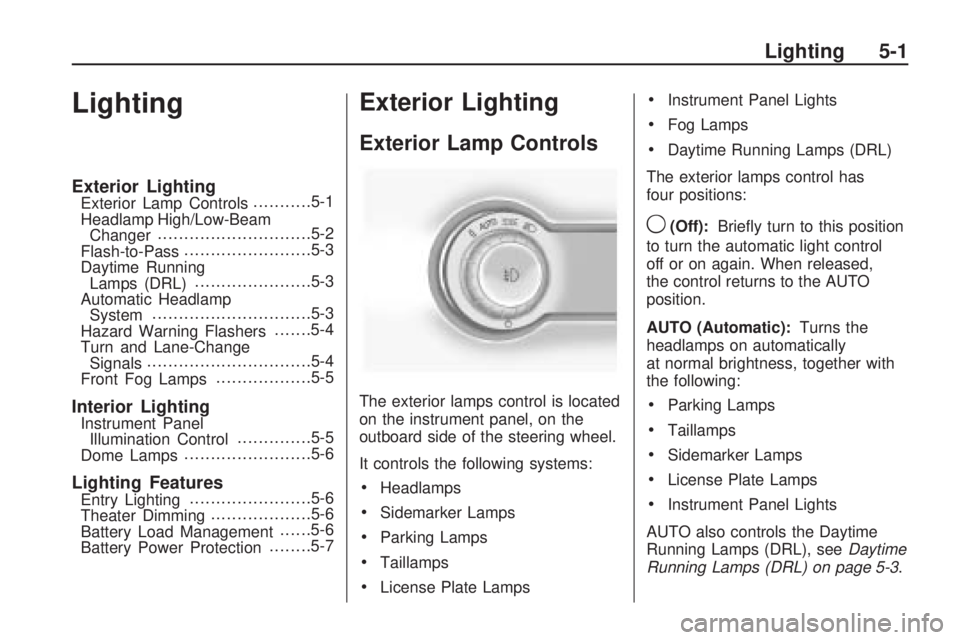
Exterior Lamp Controls
The exterior lamps control is located
on the instrument panel, on the
outboard side of the steering wheel.
It controls the following systems:
•Headlamps
•Sidemarker Lamps
•Parking Lamps
•Taillamps
•License Plate Lamps
•Instrument Panel Lights
•Fog Lamps
•Daytime Running Lamps (DRL)
The exterior lamps control has
four positions:
9(Off):Briefly turn to this position
to turn the automatic light control
off or on again. When released,
the control returns to the AUTO
position.
AUTO (Automatic):Turns the
headlamps on automatically
at normal brightness, together with
the following:
•Parking Lamps
•Taillamps
•Sidemarker Lamps
•License Plate Lamps
•Instrument Panel Lights
AUTO also controls the Daytime
Running Lamps (DRL), seeDaytime
Running Lamps (DRL) on page 5-3.
Lighting 5-1