infotainment CHEVROLET CAMARO SS 2018 User Guide
[x] Cancel search | Manufacturer: CHEVROLET, Model Year: 2018, Model line: CAMARO SS, Model: CHEVROLET CAMARO SS 2018Pages: 386, PDF Size: 5.57 MB
Page 106 of 386
Chevrolet Camaro Owner Manual (GMNA-Localizing-U.S./Canada/Mexico-
11348325) - 2018 - crc - 4/11/17
Instruments and Controls 105
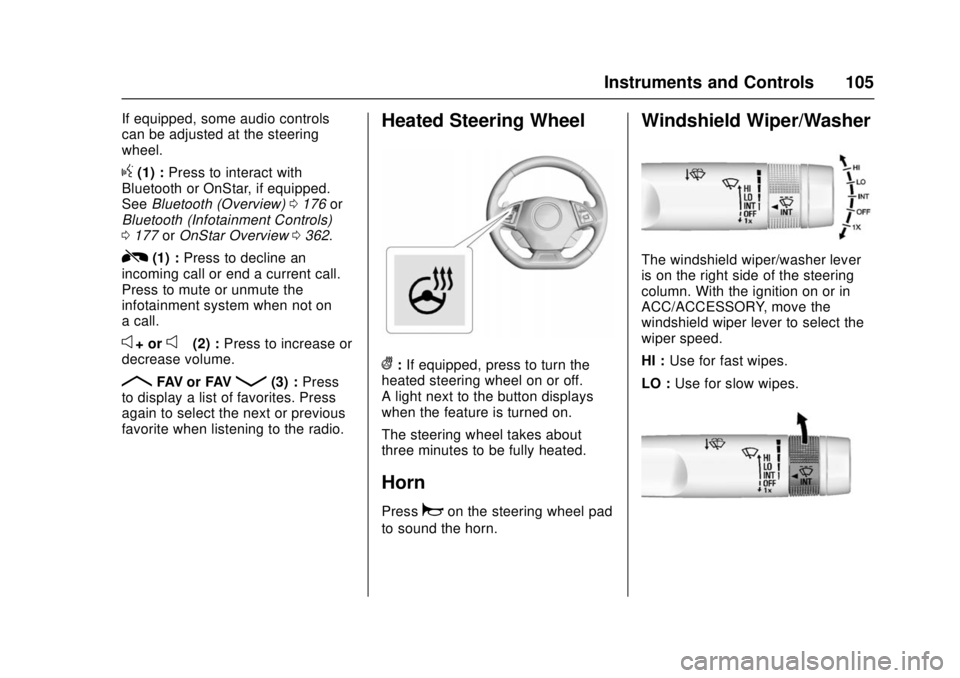
If equipped, some audio controls
can be adjusted at the steering
wheel.
g(1) :Press to interact with
Bluetooth or OnStar, if equipped.
See Bluetooth (Overview) 0176 or
Bluetooth (Infotainment Controls)
0 177 orOnStar Overview 0362.
R(1) : Press to decline an
incoming call or end a current call.
Press to mute or unmute the
infotainment system when not on
a call.
e+ ore− (2) : Press to increase or
decrease volume.
RFAV or FAVQ(3) : Press
to display a list of favorites. Press
again to select the next or previous
favorite when listening to the radio.
Heated Steering Wheel
(: If equipped, press to turn the
heated steering wheel on or off.
A light next to the button displays
when the feature is turned on.
The steering wheel takes about
three minutes to be fully heated.
Horn
Pressaon the steering wheel pad
to sound the horn.
Windshield Wiper/Washer
The windshield wiper/washer lever
is on the right side of the steering
column. With the ignition on or in
ACC/ACCESSORY, move the
windshield wiper lever to select the
wiper speed.
HI : Use for fast wipes.
LO : Use for slow wipes.
Page 108 of 386
Chevrolet Camaro Owner Manual (GMNA-Localizing-U.S./Canada/Mexico-
11348325) - 2018 - crc - 4/11/17
Instruments and Controls 107
will automatically determine when
the GPS signal is restored and
provide a heading again.
Clock
Base Radio
The infotainment system controls
are used to access the time and
date settings through the menu
system. SeeOperation0158 on
how to use the menu system.
Setting the Time and Date
When Auto Set is enabled the time
cannot be manually set.
1. Press
{, then touch
SETTINGS.
2. Touch Time and Date, then Set Time or Set Date.
3. Touch + or −to adjust the
value.
4. Touch
RorQto adjust AM or
PM for 12 hour format.
5. Touch
0.
Using Auto Set
1. Press{, then touch
SETTINGS.
2. Touch Time and Date, then Auto Set.
3. Select from the available selections.
4. Touch
0.
Setting the 12/24 Hour Format
1. Press{, then touch
SETTINGS.
2. Touch Time and Date, then select 12h or 24h format.
3. Touch
0.
Setting the Month and Day
Format
1. Press{, then touch
SETTINGS.
2. Touch Time and Date, then Set Date Format. 3. Select DD/MM/YYYY (day/
month/year), MM/DD/YYYY
(month/day/year), or YYYY/
MM/DD (year/month/day)
format.
4. Touch
0.
Uplevel Radio Using Center
Stack Controls
The infotainment system controls
are used to access the time and
date settings through the menu
system. See “Using the System”
under “Introduction” in the
infotainment manual.
To set the time or date:
1. Press
{, then select
SETTINGS.
2. Select Time and Date, then the desired function.
3. Turn the MENU knob to increase or decrease the value.
4. Press the MENU knob to go to the next value. After the last
value is selected, the system
will update and return to the
Page 109 of 386
Chevrolet Camaro Owner Manual (GMNA-Localizing-U.S./Canada/Mexico-
11348325) - 2018 - crc - 4/11/17
108 Instruments and Controls
Settings menu. PressoBACK
to go to the last menu and
save the changes.
Auto Set requires an OnStar
subscription.
If auto timing is set, the time
displayed on the clock may not
update immediately when driving
into a new time zone.
To set the clock display: 1. Select SETTINGS from the Home Page, then select Time
and Date.
2. Select Clock Display.
3. Turn the MENU knob to Off or On.
4. Press the MENU knob to select.
Press
oBACK to go to the last
menu and save the changes.
Uplevel Radio Using
Infotainment Display Controls
To set the time:
1. Touch SETTINGS from the Home Page, then touch Time
and Date.
2. Touch Set Time and touch
«
orªto increase or decrease
hours, minutes, and AM or PM.
Touch 12–24 Hr for 12 or
24 hour clock.
3. Touch
}to go back to the
previous menu.
Auto Set requires an OnStar
subscription.
If auto timing is set, the time
displayed on the clock may not
update immediately when driving
into a new time zone.
To set the date:
1. Touch SETTINGS from the Home Page, then touch Time
and Date. 2. Touch Set Date and touch
«
orªto increase or decrease
month, day, or year.
3. Touch
}to go back to the
previous menu.
To set the clock display:
1. Touch SETTINGS and touch Time and Date.
2. Touch Clock Display and touch OFF or ON to turn the clock
display off or on.
3. Touch
}to go back to the
previous menu.
The clock settings can also be
accessed by touching the time
display, then touching Set.
Power Outlets
The vehicle has an accessory
power outlet on the center floor
console in front of the cupholders.
It can be used to plug in electrical
equipment, such as a cell phone or
an MP3 player.
Page 111 of 386
Chevrolet Camaro Owner Manual (GMNA-Localizing-U.S./Canada/Mexico-
11348325) - 2018 - crc - 4/11/17
110 Instruments and Controls
The operating temperature is−20 °C
(−4 °F) to 60 °C (140 °F) for the
charging system and 0 °C (32 °F) to
35 °C (95 °F) for the phone.
{Warning
Remove all objects from the
charging pad before charging
your mobile device. Objects, such
as coins, keys, rings, paper clips,
or cards, between the phone and
charging pad will become very
hot. On the rare occasion that the
charging system does not detect
an object, and the object gets
wedged between the phone and
charger, remove the phone and
allow the object to cool before
removing it from the charging
pad, to prevent burns.
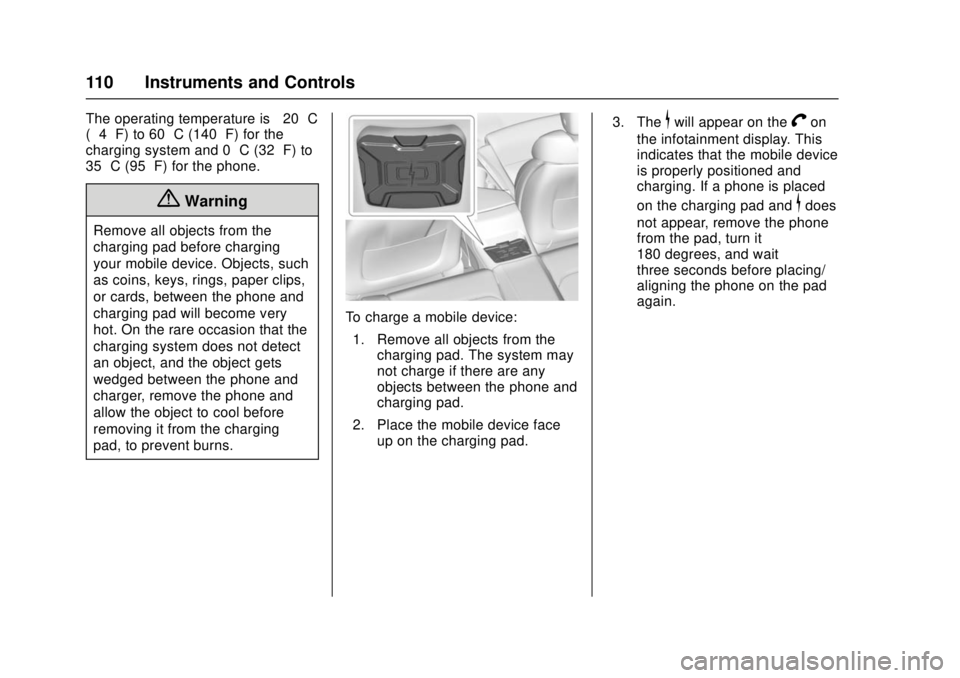
To charge a mobile device:
1. Remove all objects from the charging pad. The system may
not charge if there are any
objects between the phone and
charging pad.
2. Place the mobile device face up on the charging pad. 3. The
$will appear on theVon
the infotainment display. This
indicates that the mobile device
is properly positioned and
charging. If a phone is placed
on the charging pad and
$does
not appear, remove the phone
from the pad, turn it
180 degrees, and wait
three seconds before placing/
aligning the phone on the pad
again.
Page 139 of 386
Chevrolet Camaro Owner Manual (GMNA-Localizing-U.S./Canada/Mexico-
11348325) - 2018 - crc - 4/11/17
138 Instruments and Controls
3. PressSBACK on the center
stack or touch
0to return to
the previous menu or exit.
Turn the ignition on to access the
Settings menu, then select
SETTINGS from the Home page on
the infotainment display.
Personalization Menus
The following list of menu items may
be available:
. Time and Date
. Driving Mode
. Language
. Valet Mode
. Teen Driver
. Radio
. Vehicle
. Bluetooth
. Apple CarPlay
. Android Auto
. USB Auto Launch
. Voice
. Display .
Rear Camera
. Return to Factory Settings
. Software Information
. Wi-Fi
Detailed information for each menu
follows.
Time and Date
Manually set the time and date. See
Clock 0107.
Driving Mode
Select and the following may
display:
.
Engine Sound Management
. Steering
. Suspension
Engine Sound Management
Select Engine Sound Management,
then choose from the available
options. See Driver Mode Control
0 230. Steering
Select Steering, then choose from
the available options. See
Driver
Mode Control 0230.
Suspension
Select Suspension, then choose
from the available options. See
Driver Mode Control 0230.
Language
Select Language, then select from
the available language(s).
The selected language will display
on the system, and voice
recognition will reflect the selected
language.
Valet Mode
This will lock the infotainment
system and steering wheel controls.
It may also limit access to vehicle
storage locations, if equipped.
To enable valet mode:
1. Enter a four-digit code on the keypad.
2. Touch Enter to go to the confirmation screen.
Page 140 of 386
Chevrolet Camaro Owner Manual (GMNA-Localizing-U.S./Canada/Mexico-
11348325) - 2018 - crc - 4/11/17
Instruments and Controls 139
3. Re-enter the four-digit code.
Touch LOCK or UNLOCK to lock or
unlock the system. Touch Back to
go back to the previous menu.
Teen Driver
See “Teen Driver” under“Settings”
in the infotainment manual.
Radio
Select and the following may
display:
. Manage Favorites
. Number of Favorites Shown
. Audible Touch Feedback
. Text Scroll
. Tone Settings
. Auto Volume
. Maximum Startup Volume
. Audio Cue Volume
Manage Favorites
This allows favorites to be edited.
See “Storing a Station as a
Favorite” inAM-FM Radio 0160 or “Manage Favorites”
in“Settings”
under “Radio” in the infotainment
manual.
Number of Favorites Shown
Touch to set the number of favorites
to display.
Select the desired number or select
Auto and the infotainment system
will automatically adjust the number
of favorites shown.
Audible Touch Feedback
This allows Audible Touch
Feedback to be turned on or off.
Select Off or On.
Text Scroll
Select to see text scroll on the
screen.
Select Off or On.
Tone Settings
Select to adjust the radio tone. See
Operation 0158 or“Tone Settings”
under “AM-FM Radio” in the
infotainment manual. Auto Volume
This feature adjusts the volume
based on vehicle speed and
ambient noise.
Select Off, Low, Medium-Low,
Medium, Medium-High, or High.
Maximum Startup Volume
This feature sets the maximum
startup volume. If the vehicle is
started and the volume is greater
than this level, the volume is
adjusted to this level. To set the
maximum startup volume, turn the
MENU knob or touch + or
−to
increase or decrease.
Audio Cue Volume
This feature sets the volume of
audio files played at system startup
and shutdown.
Select On, then touch + or −to
increase or decrease the volume.
Vehicle
Select and the following may
display:
. Climate and Air Quality
Page 144 of 386
Chevrolet Camaro Owner Manual (GMNA-Localizing-U.S./Canada/Mexico-
11348325) - 2018 - crc - 4/11/17
Instruments and Controls 143
.Discoverable
. Device Management
. Ringtones
. Voice Mail Numbers
. Text Message Alerts
Pair New Device
Select to pair a new device. See
“Pairing” in“Infotainment Controls”
under Bluetooth (Overview) 0176 or
Bluetooth (Infotainment Controls)
0 177 or“Pairing” in“Infotainment
Controls” under“Bluetooth” in the
infotainment manual.
Discoverable
This allows the system to find a
device.
Select Off or On.
Device Management
Select to connect to a different
phone source, disconnect a phone,
or delete a phone. Ringtones
Select to change the ring tone for
the specific phone. The phone does
not need to be connected to change
the ring tones.
Voice Mail Numbers
This feature displays the voice mail
number for all connected phones.
To change the voice mail number,
select EDIT. Type a new number,
then select SAVE.
Text Message Alerts
This allows the feature to be turned
on or off.
Select Off or On.
Apple CarPlay
Select and the following may
display:
.
Apple CarPlay
. Manage Apple CarPlay Devices
Apple CarPlay
This feature allows Apple devices to
be connected to the infotainment
system through a USB port. Select Off or On.
Manage Apple CarPlay Devices
Select to manage Apple devices.
Apple CarPlay must be on for this
feature to be accessed.
Android Auto
Select and the following may
display:
.
Android Auto
. Manage Android Auto Devices
Android Auto
This feature allows Android devices
to be connected to the infotainment
system through a USB port.
Select Off or On.
Manage Android Auto Devices
Select to manage Android devices.
Android Auto must be on for this
feature to be accessed.
USB Auto Launch
This allows Android and Apple
CarPlay devices to automatically
connect when plugged into the
USB port.
Page 145 of 386
Chevrolet Camaro Owner Manual (GMNA-Localizing-U.S./Canada/Mexico-
11348325) - 2018 - crc - 4/11/17
144 Instruments and Controls
Select Off or On.
Voice
Select and the following may
display:
.Confidence Threshold
. Prompt Length
. Audio Feedback Speed
. Display “What Can I Say?” Tips
Confidence Threshold
This feature allows the adjustment
of the sensitivity of the speech
recognition system.
Select Confirm More or
Confirm Less.
Prompt Length
This feature adjusts the voice
prompt length.
Select Short or Long.
Audio Feedback Speed
This feature adjusts the audio
feedback speed.
Select Slow, Medium, or Fast. Display
“What Can I Say?” Tips
This feature gives tips on what to
say when using voice recognition.
Select Off or On.
Display
Select and the following may
display:
. Calibrate Touchscreen
. Turn Display Off
Calibrate Touchscreen
Select to calibrate the touchscreen,
then follow the prompts.
Turn Display Off
Select to turn the display off. Touch
anywhere on the infotainment
display or press any infotainment
control on the center stack to turn
the display on.
Rear Camera
Select and the following may
display:
. Guidance Lines
. Rear Park Assist Symbols Guidance Lines
Select Off or On. See
Assistance
Systems for Parking or Backing
0 239.
Rear Park Assist Symbols
Select Off or On. See Assistance
Systems for Parking or Backing
0 239.
Return to Factory Settings
Select and the following may
display:
.
Restore Vehicle Settings
. Clear All Private Data
. Restore Radio Settings
Restore Vehicle Settings
This allows selection of restoring
vehicle settings.
Select Restore or Cancel.
Clear All Private Data
This allows selection to clear all
private information from the vehicle.
Select Delete or Cancel.
Page 146 of 386
Chevrolet Camaro Owner Manual (GMNA-Localizing-U.S./Canada/Mexico-
11348325) - 2018 - crc - 4/11/17
Instruments and Controls 145
Restore Radio Settings
This allows selection to restore
radio settings.
Select Restore or Cancel.
Software Information
Select to view the infotainment
system current software information.
Wi-Fi
Select and the following may
display:
.Wi-Fi
. Manage Wi-Fi Networks
Wi-Fi
This feature allows Wi-Fi networks
to be turned off or on.
Select Off or On.
Manage Wi-Fi Networks
Select to manage Wi-Fi networks.
Wi-Fi must be on for this feature to
be accessed.
Universal Remote
System
See Radio Frequency Statement
0 358.
Universal Remote System
Programming
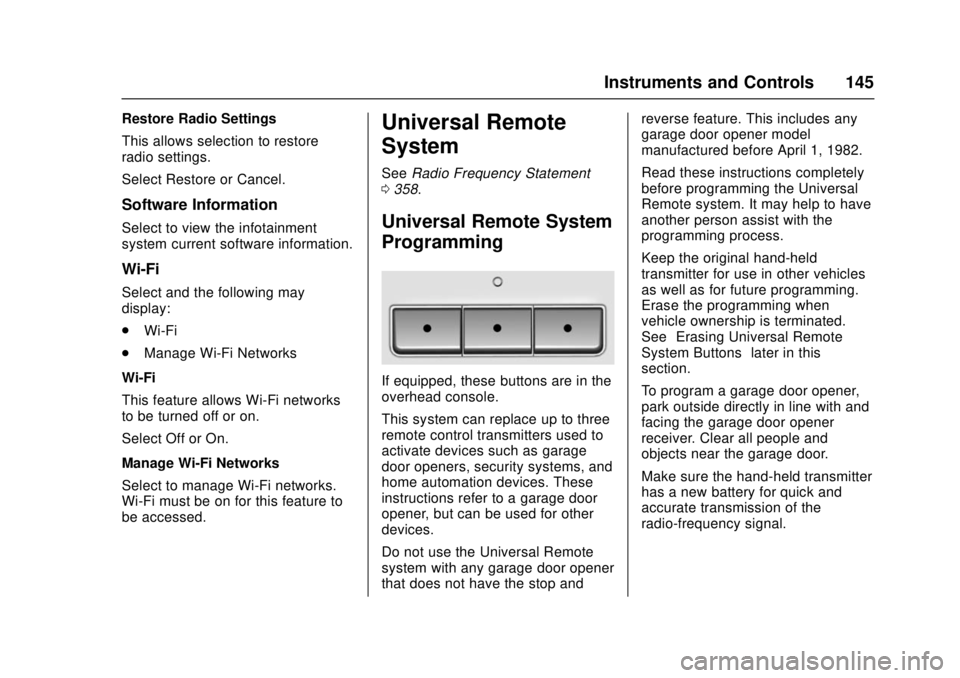
If equipped, these buttons are in the
overhead console.
This system can replace up to three
remote control transmitters used to
activate devices such as garage
door openers, security systems, and
home automation devices. These
instructions refer to a garage door
opener, but can be used for other
devices.
Do not use the Universal Remote
system with any garage door opener
that does not have the stop and reverse feature. This includes any
garage door opener model
manufactured before April 1, 1982.
Read these instructions completely
before programming the Universal
Remote system. It may help to have
another person assist with the
programming process.
Keep the original hand-held
transmitter for use in other vehicles
as well as for future programming.
Erase the programming when
vehicle ownership is terminated.
See
“Erasing Universal Remote
System Buttons” later in this
section.
To program a garage door opener,
park outside directly in line with and
facing the garage door opener
receiver. Clear all people and
objects near the garage door.
Make sure the hand-held transmitter
has a new battery for quick and
accurate transmission of the
radio-frequency signal.
Page 153 of 386
Chevrolet Camaro Owner Manual (GMNA-Localizing-U.S./Canada/Mexico-
11348325) - 2018 - crc - 4/11/17
152 Lighting
Move the lever all the way up or
down to signal a turn.
An arrow on the instrument cluster
flashes in the direction of the turn or
lane change.
Raise or lower the lever until the
arrow starts to flash to signal a lane
change. Hold it there until the lane
change is completed. If the lever is
briefly pressed and released, the
turn signal flashes three times.
The turn and lane-change signal
can be turned off manually by
moving the lever back to its original
position.
If after signaling a turn or lane
change, the arrow flashes rapidly or
does not come on, a signal bulb
may be burned out.
Replace any burned out bulbs. If a
bulb is not burned out, check the
fuse. SeeFuses and Circuit
Breakers 0279.Interior Lighting
Instrument Panel
Illumination Control
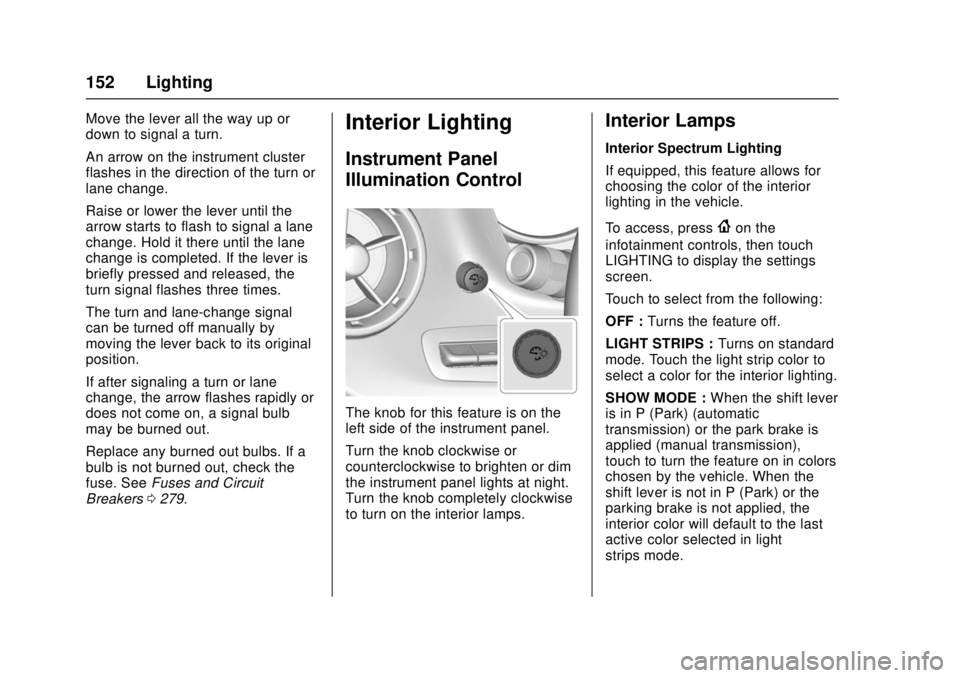
The knob for this feature is on the
left side of the instrument panel.
Turn the knob clockwise or
counterclockwise to brighten or dim
the instrument panel lights at night.
Turn the knob completely clockwise
to turn on the interior lamps.
Interior Lamps
Interior Spectrum Lighting
If equipped, this feature allows for
choosing the color of the interior
lighting in the vehicle.
To access, press
{on the
infotainment controls, then touch
LIGHTING to display the settings
screen.
Touch to select from the following:
OFF : Turns the feature off.
LIGHT STRIPS : Turns on standard
mode. Touch the light strip color to
select a color for the interior lighting.
SHOW MODE : When the shift lever
is in P (Park) (automatic
transmission) or the park brake is
applied (manual transmission),
touch to turn the feature on in colors
chosen by the vehicle. When the
shift lever is not in P (Park) or the
parking brake is not applied, the
interior color will default to the last
active color selected in light
strips mode.