infotainment CHEVROLET CAMARO SS 2018 Owner's Manual
[x] Cancel search | Manufacturer: CHEVROLET, Model Year: 2018, Model line: CAMARO SS, Model: CHEVROLET CAMARO SS 2018Pages: 386, PDF Size: 5.57 MB
Page 156 of 386
Chevrolet Camaro Owner Manual (GMNA-Localizing-U.S./Canada/Mexico-
11348325) - 2018 - crc - 4/11/17
Infotainment System 155
Infotainment
System
Introduction
Infotainment . . . . . . . . . . . . . . . . . . 155
Theft-Deterrent Feature . . . . . . 156
Overview . . . . . . . . . . . . . . . . . . . . . 157
Home Page . . . . . . . . . . . . . . . . . . 158
Operation . . . . . . . . . . . . . . . . . . . . . 158
Software Updates . . . . . . . . . . . . 159
Radio
AM-FM Radio . . . . . . . . . . . . . . . . 160
Satellite Radio . . . . . . . . . . . . . . . . 161
Radio Reception . . . . . . . . . . . . . . 162
Antenna (Convertible Only) . . . 163
Backglass Antenna(Coupe Only) . . . . . . . . . . . . . . . 163
Multi-Band Antenna . . . . . . . . . . 164
Audio Players
Avoiding Untrusted Media Devices . . . . . . . . . . . . . . . . . . . . . 164
USB Port . . . . . . . . . . . . . . . . . . . . . 164
Auxiliary Devices . . . . . . . . . . . . . 170
Performance Data
Recorder (PDR)
Performance Data Recorder (PDR) . . . . . . . . . . . . . 171
Phone
Bluetooth (Overview) . . . . . . . . . 176
Bluetooth (InfotainmentControls) . . . . . . . . . . . . . . . . . . . . 177
Apple CarPlay and Android Auto . . . . . . . . . . . . . . . . 181
Hands-Free Phone . . . . . . . . . . . 182
Trademarks and License
Agreements
Trademarks and License Agreements . . . . . . . . . . . . . . . . . 184
Introduction
Infotainment
Base radio information is included in
this manual. See the infotainment
manual for information on other
available infotainment systems.
Read the following pages to
become familiar with the features.
{Warning
Taking your eyes off the road for
too long or too often while using
any infotainment feature can
cause a crash. You or others
could be injured or killed. Do not
give extended attention to
infotainment tasks while driving.
Limit your glances at the vehicle
displays and focus your attention
on driving. Use voice commands
whenever possible.
Page 157 of 386
Chevrolet Camaro Owner Manual (GMNA-Localizing-U.S./Canada/Mexico-
11348325) - 2018 - crc - 4/11/17
156 Infotainment System
The infotainment system has built-in
features intended to help avoid
distraction by disabling some
functions when driving. These
functions may gray out when they
are unavailable. Many infotainment
features are also available through
the instrument cluster and steering
wheel controls.
Before driving:
.Become familiar with the
operation, center stack controls,
and infotainment display
controls.
. Set up the audio by presetting
favorite stations, setting the
tone, and adjusting the
speakers.
. Set up phone numbers in
advance so they can be called
easily by pressing a single
control or by using a single voice
command if equipped with
Bluetooth phone capability.
See Defensive Driving 0195.
To play the infotainment system with
the ignition off, see Retained
Accessory Power (RAP) 0215.Theft-Deterrent Feature
The infotainment system has an
electronic security system installed
to prevent theft.
The infotainment system only works
in the vehicle in which it was first
installed, and cannot be used in
another vehicle.
Page 158 of 386
Chevrolet Camaro Owner Manual (GMNA-Localizing-U.S./Canada/Mexico-
11348325) - 2018 - crc - 4/11/17
Infotainment System 157
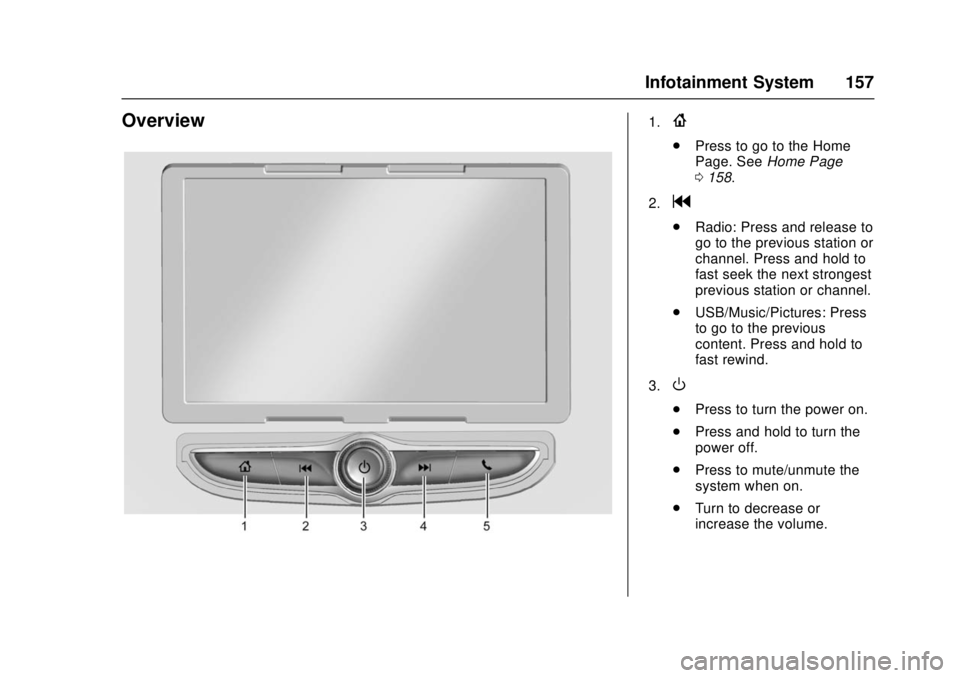
Overview1.{
.Press to go to the Home
Page. See Home Page
0 158.
2.
g
. Radio: Press and release to
go to the previous station or
channel. Press and hold to
fast seek the next strongest
previous station or channel.
. USB/Music/Pictures: Press
to go to the previous
content. Press and hold to
fast rewind.
3.
O
. Press to turn the power on.
. Press and hold to turn the
power off.
. Press to mute/unmute the
system when on.
. Turn to decrease or
increase the volume.
Page 159 of 386
Chevrolet Camaro Owner Manual (GMNA-Localizing-U.S./Canada/Mexico-
11348325) - 2018 - crc - 4/11/17
158 Infotainment System
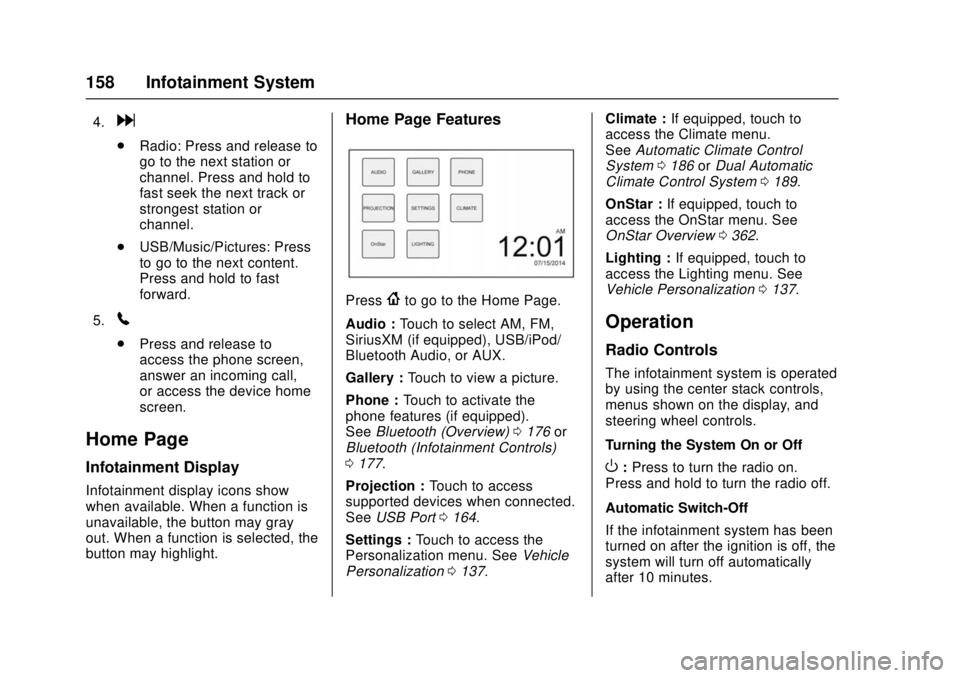
4.d
.Radio: Press and release to
go to the next station or
channel. Press and hold to
fast seek the next track or
strongest station or
channel.
. USB/Music/Pictures: Press
to go to the next content.
Press and hold to fast
forward.
5.
5
. Press and release to
access the phone screen,
answer an incoming call,
or access the device home
screen.
Home Page
Infotainment Display
Infotainment display icons show
when available. When a function is
unavailable, the button may gray
out. When a function is selected, the
button may highlight.
Home Page Features
Press{to go to the Home Page.
Audio : Touch to select AM, FM,
SiriusXM (if equipped), USB/iPod/
Bluetooth Audio, or AUX.
Gallery : Touch to view a picture.
Phone : Touch to activate the
phone features (if equipped).
See Bluetooth (Overview) 0176 or
Bluetooth (Infotainment Controls)
0 177.
Projection : Touch to access
supported devices when connected.
See USB Port 0164.
Settings : Touch to access the
Personalization menu. See Vehicle
Personalization 0137. Climate :
If equipped, touch to
access the Climate menu.
See Automatic Climate Control
System 0186 orDual Automatic
Climate Control System 0189.
OnStar : If equipped, touch to
access the OnStar menu. See
OnStar Overview 0362.
Lighting : If equipped, touch to
access the Lighting menu. See
Vehicle Personalization 0137.
Operation
Radio Controls
The infotainment system is operated
by using the center stack controls,
menus shown on the display, and
steering wheel controls.
Turning the System On or Off
O:Press to turn the radio on.
Press and hold to turn the radio off.
Automatic Switch-Off
If the infotainment system has been
turned on after the ignition is off, the
system will turn off automatically
after 10 minutes.
Page 160 of 386
Chevrolet Camaro Owner Manual (GMNA-Localizing-U.S./Canada/Mexico-
11348325) - 2018 - crc - 4/11/17
Infotainment System 159
Volume Control
O:Turn to increase or decrease.
Press when the system is on to
mute and unmute the system.
System Settings
Auto Volume
This feature automatically adjusts
the radio volume to compensate for
road and wind noise.
The level of volume compensation
can be selected, or the feature can
be turned off.
Auto Volume Settings
1. Touch SETTINGS on the Home Page.
2. Select Radio.
3. Select Auto Volume and choose between selections.
4. Touch
3on the infotainment
display to go back to the
source screen. Tone Settings
The tone settings can be set for
each radio band and each audio
player source.
Custom Tone Settings
1. Touch SETTINGS on the Home Page.
2. Select Radio.
3. Select Tone Settings. .Bass, Midrange, or Treble:
Touch −or +.
. Fader or Balance: Adjust
the front/rear or left/right
speakers by dragging the
dot in the vehicle image on
the display.
4. Touch
3on the infotainment
display to go back to the
source screen.
Software Updates
Over-the-Air Software Updates
If equipped, the infotainment system
can download and install select
software updates over a wireless connection. The system will prompt
for certain updates to be
downloaded and installed. There is
also an option to check for updates
manually.
To manually check for updates,
touch SETTINGS on the Home
Page, followed by Software
Information, and then System
Update. Follow the on-screen
prompts. Steps for downloading and
installing updates may vary by
vehicle.
Downloading Over-the-Air vehicle
software updates requires Internet
connectivity, which can be accessed
through the vehicle’
s built-in OnStar
4G LTE connection, if equipped and
active. If required, data plans are
provided by a third party. Optionally,
a secure Wi-Fi hotspot such as a
compatible mobile device hotspot,
home hotspot or public hotspot can
be used. Applicable data rates may
apply.
Page 161 of 386
Chevrolet Camaro Owner Manual (GMNA-Localizing-U.S./Canada/Mexico-
11348325) - 2018 - crc - 4/11/17
160 Infotainment System
To connect the infotainment system
to a secured mobile device hotspot,
home hotspot, or a public hotspot,
touch SETTINGS on the Home
Page, followed by Wi-Fi, and then
Manage Wi-Fi Networks. Select the
appropriate Wi-Fi network, and
follow the on-screen prompts.
Download speeds may vary.
On most compatible mobile devices,
activation of the Wi-Fi hotspot is in
the Settings menu under Mobile
Network Sharing, Personal Hotspot,
Mobile Hotspot or similar.
Availability of Over-the-Air vehicle
software updates varies by vehicle
and country. For more information
on this feature, see
my.chevrolet.com/learn.Radio
AM-FM Radio
Playing the Radio
Audio Source Menu
{:Press to go to the Home Page.
O:Press to turn on, mute,
or unmute the system. Press and
hold to turn off the system.
Selecting a Band
1. Press{.
2. Touch AUDIO.
3. Touch Source.
4. Select AM or FM.
The last station that was playing
starts playing again.
Selecting a Station
Seek Tuning
If the radio station is not known:
Press
gordto automatically
search for available radio stations. Direct Tune
From the AM or FM menu:
1. Touch Tune.
2. Enter the station number.
3. Touch Go.
Favorites
1. Touch
SorTto scroll through
the favorite pages.
2. Touch the station to select it.
Update Station List
. From the AM or FM menu, touch
Menu, then touch Update Station
List. The broadcasting list
updating will begin.
. During the AM or FM
broadcasting list update, touch
Cancel to stop the updates.
Station List 1. From the AM or FM menu, touch Menu.
2. Select Station List.
3. Touch
QorRto scroll through
the list. Touch the station to
select it.
Page 162 of 386

Chevrolet Camaro Owner Manual (GMNA-Localizing-U.S./Canada/Mexico-
11348325) - 2018 - crc - 4/11/17
Infotainment System 161
Menu
Touch to choose between available
menus for the current source.
Storing a Station as a Favorite
Stations from all bands can be
stored in any order in the favorite
pages.
Up to 25 stations can be stored.
Storing Stations
To store the station to a position in
the list, touch the corresponding
preset 1−5 until a beep is heard.1. Select the desired station.
2. Touch
SorTto select the
desired page of saved
favorites.
3. Touch and hold any of the presets to save the current
radio station to that location of
the selected favorites page.
To change a preset, tune to the new
desired radio station and touch and
hold the preset.
Satellite Radio
If equipped, vehicles with a
SiriusXM Satellite Radio tuner and a
valid SiriusXM Satellite Radio
subscription can receive SiriusXM
programming.
SiriusXM Satellite Radio
Service
SiriusXM is a satellite radio service
based in the 48 contiguous United
States and 10 Canadian provinces.
SiriusXM Satellite Radio has a wide
variety of programming and
commercial-free music, coast to
coast, and in digital-quality sound.
During your trial or when you
subscribe, you will get unlimited
access to SiriusXM Radio Online for
when you are not in the vehicle.
A service fee is required to receive
the SiriusXM service. If SiriusXM
service needs to be reactivated, the
radio will display "No Subscription
Please Renew" on channel SXM1.
For more information, contact
SiriusXM at www.siriusxm.com or
1-888-601-6296 (U.S.), and
www.siriusxm.ca or 1-877-438-9677
(Canada).
Listening to SiriusXM Radio
1. Press{.
2. Touch AUDIO.
3. Touch Source.
4. Touch SXM and the most recent listened to SiriusXM
channel will display.
Selecting a Category
From Menu, touch Categories, then
touch the desired category or from
Categories, touch
QorRto find the
desired channel. Touch the channel
to select it.
Selecting a Channel
Pressgordto seek the previous
or next channel.
Using the Presets
Up to five favorites pages can be
saved, and each page can store up
to five channels.
To change a preset, tune to the new
desired channel then touch and hold
the preset.
Page 163 of 386
Chevrolet Camaro Owner Manual (GMNA-Localizing-U.S./Canada/Mexico-
11348325) - 2018 - crc - 4/11/17
162 Infotainment System
Listening to Preset Channels1. Touch
SorTrepeatedly to
select the desired
favorites page.
2. Touch the preset to listen to the channel.
Using the SiriusXM Menu
Operation
1. Touch MENU on the SXM radio screen.
2. Touch the menu to select the desired item or to display the
detail menu item.
3. Touch Back on the infotainment display to return to the
previous menu.
Channel List 1. Touch Channel List from the SXM menu. The channel list is
displayed.
2. Touch
QorRto find the
desired channel. Touch the
channel to select it. Tone Settings
1. Touch Tone Settings. See “Tone Settings” under
Operation 0158.
2. Touch Back on the infotainment display.
Auto Volume 1. Touch Auto Volume. See “Auto
Volume” underOperation
0 158.
2. Touch Back on the infotainment display.
Categories 1. Touch Categories.
2. Touch
QorRto find the
desired category. Touch the
category to select it.
Explicit Content Filter
When on, only a filtered list of
channels will be received. When off,
all regular SXM programming
subscribed to will be received. 1. Touch SXM Explicit Filter.
2. Select to enable or disable.
Radio Reception
Frequency interference and static
can occur during normal radio
reception if items such as mobile
phone chargers, vehicle
convenience accessories, and
external electronic devices are
plugged into the accessory power
outlet. If there is interference or
static, unplug the item from the
accessory power outlet.
FM
FM signals only reach about 16 to
65 km (10 to 40 mi). Although the
radio has a built-in electronic circuit
that automatically works to reduce
interference, some static can occur,
especially around tall buildings or
hills, causing the sound to fade in
and out.
AM
The range for most AM stations is
greater than for FM, especially at
night. The longer range can cause
station frequencies to interfere with
each other. Static can occur when
things like storms and power lines
Page 164 of 386
Chevrolet Camaro Owner Manual (GMNA-Localizing-U.S./Canada/Mexico-
11348325) - 2018 - crc - 4/11/17
Infotainment System 163
interfere with radio reception. When
this happens, try reducing the treble
on the radio.
SiriusXM Satellite Radio
Service
SiriusXM Satellite Radio Service
gives digital radio reception from
coast to coast in the 48 contiguous
United States, and in Canada. Just
as with FM, tall buildings or hills can
interfere with satellite radio signals,
causing the sound to fade in and
out. In addition, traveling or standing
under heavy foliage, bridges,
garages, or tunnels may cause loss
of the SiriusXM signal for a period
of time.
Cell Phone Usage
Cell phone usage, such as making
or receiving phone calls, charging,
or just having the phone on may
cause static interference in the
radio. Unplug the phone or turn it off
if this happens.
Antenna
(Convertible Only)
The AM-FM antenna is integrated in
the rear spoiler.
No maintenance or adjustments are
needed. Do not place loads on the
spoiler.
If the spoiler is replaced, be sure it
is replaced with the correct GM
parts for the best AM or FM
reception.
Backglass Antenna
(Coupe Only)
The AM-FM antenna is integrated
with the rear window defogger in the
rear window. Do not scratch the
inside surface or damage the lines
in the glass. If the inside surface is
damaged, it could interfere with
radio reception. For proper radio
reception, the antenna connector
needs to be properly attached to the
post on the glass.
If attaching a cell phone antenna to
the glass, attach it between the grid
lines.
Caution
Using a razor blade or sharp
object to clear the inside rear
window can damage the rear
window antenna and/or the rear
window defogger. Repairs would
not be covered by the vehicle
warranty. Do not clear the inside
rear window with sharp objects.
Caution
Do not apply aftermarket glass
tinting with metallic film. The
metallic film in some tinting
materials will interfere with or
distort the incoming radio
reception. Any damage caused to
the backglass antenna due to
metallic tinting materials will not
be covered by the vehicle
warranty.
Page 165 of 386
Chevrolet Camaro Owner Manual (GMNA-Localizing-U.S./Canada/Mexico-
11348325) - 2018 - crc - 4/11/17
164 Infotainment System
Multi-Band Antenna
The multi-band antenna is on the
roof of the vehicle. The antenna is
used for OnStar, the SiriusXM
Satellite Radio Service System, and
GPS (Global Positioning System),
if the vehicle has these features.
Keep the antenna clear of
obstructions for clear reception.
If the vehicle has a sunroof, and it is
open, reception can also be
affected.
Audio Players
Avoiding Untrusted Media
Devices
When using media devices such as
CDs, DVDs, Blu-ray Discs, SD
cards, USB devices, and mobile
devices, consider the source.
Untrusted media devices could
contain files that affect system
operation or performance. Avoid use
if the content or origin cannot be
trusted.
USB Port
Using the USB Port
The infotainment system can play
music by connecting an auxiliary
device to the USB port.
USB Support
The USB ports are in the center
console, and use the USB 2.0
standard.
USB Supported Devices
.USB Flash Drives .
iPods/iPhones
. Portable USB Hard Drives
Not all iPods and USB drives are
compatible with the USB port.
Make sure the iPod has the latest
firmware from Apple for proper
operation. iPod firmware can be
updated using the latest iTunes
application. See www.apple.com/
itunes.
For help with identifying your iPod,
go to www.apple.com/support.
The USB port can play both lower
and upper case .mp3, .wma, .ogg,
and .wav files stored on a USB
storage device.
Supported Apple Devices
To view supported devices in the
U.S., see www.my.chevrolet.com/
learn.
To view supported devices in
Canada, see
www.chevroletowner.ca.
To view supported devices in
Mexico, see your dealer.