radio controls CHEVROLET CAMARO SS 2018 Owners Manual
[x] Cancel search | Manufacturer: CHEVROLET, Model Year: 2018, Model line: CAMARO SS, Model: CHEVROLET CAMARO SS 2018Pages: 386, PDF Size: 5.57 MB
Page 6 of 386
Chevrolet Camaro Owner Manual (GMNA-Localizing-U.S./Canada/Mexico-
11348325) - 2018 - crc - 4/11/17
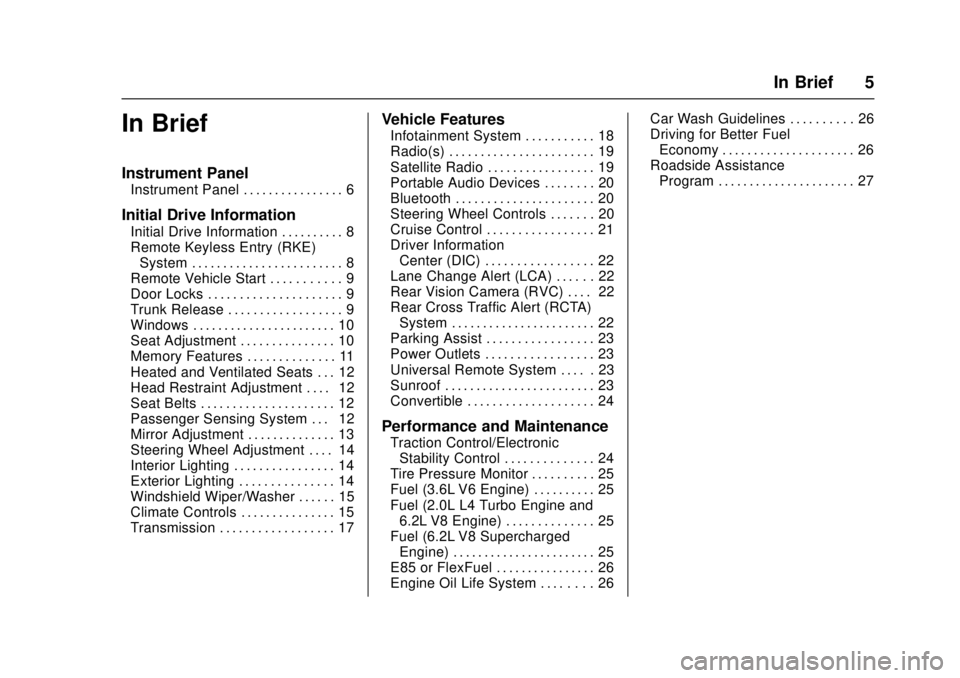
In Brief 5
In Brief
Instrument Panel
Instrument Panel . . . . . . . . . . . . . . . . 6
Initial Drive Information
Initial Drive Information . . . . . . . . . . 8
Remote Keyless Entry (RKE)System . . . . . . . . . . . . . . . . . . . . . . . . 8
Remote Vehicle Start . . . . . . . . . . . 9
Door Locks . . . . . . . . . . . . . . . . . . . . . 9
Trunk Release . . . . . . . . . . . . . . . . . . 9
Windows . . . . . . . . . . . . . . . . . . . . . . . 10
Seat Adjustment . . . . . . . . . . . . . . . 10
Memory Features . . . . . . . . . . . . . . 11
Heated and Ventilated Seats . . . 12
Head Restraint Adjustment . . . . 12
Seat Belts . . . . . . . . . . . . . . . . . . . . . 12
Passenger Sensing System . . . 12
Mirror Adjustment . . . . . . . . . . . . . . 13
Steering Wheel Adjustment . . . . 14
Interior Lighting . . . . . . . . . . . . . . . . 14
Exterior Lighting . . . . . . . . . . . . . . . 14
Windshield Wiper/Washer . . . . . . 15
Climate Controls . . . . . . . . . . . . . . . 15
Transmission . . . . . . . . . . . . . . . . . . 17
Vehicle Features
Infotainment System . . . . . . . . . . . 18
Radio(s) . . . . . . . . . . . . . . . . . . . . . . . 19
Satellite Radio . . . . . . . . . . . . . . . . . 19
Portable Audio Devices . . . . . . . . 20
Bluetooth . . . . . . . . . . . . . . . . . . . . . . 20
Steering Wheel Controls . . . . . . . 20
Cruise Control . . . . . . . . . . . . . . . . . 21
Driver Information Center (DIC) . . . . . . . . . . . . . . . . . 22
Lane Change Alert (LCA) . . . . . . 22
Rear Vision Camera (RVC) . . . . 22
Rear Cross Traffic Alert (RCTA) System . . . . . . . . . . . . . . . . . . . . . . . 22
Parking Assist . . . . . . . . . . . . . . . . . 23
Power Outlets . . . . . . . . . . . . . . . . . 23
Universal Remote System . . . . . 23
Sunroof . . . . . . . . . . . . . . . . . . . . . . . . 23
Convertible . . . . . . . . . . . . . . . . . . . . 24
Performance and Maintenance
Traction Control/Electronic Stability Control . . . . . . . . . . . . . . 24
Tire Pressure Monitor . . . . . . . . . . 25
Fuel (3.6L V6 Engine) . . . . . . . . . . 25
Fuel (2.0L L4 Turbo Engine and 6.2L V8 Engine) . . . . . . . . . . . . . . 25
Fuel (6.2L V8 Supercharged Engine) . . . . . . . . . . . . . . . . . . . . . . . 25
E85 or FlexFuel . . . . . . . . . . . . . . . . 26
Engine Oil Life System . . . . . . . . 26 Car Wash Guidelines . . . . . . . . . . 26
Driving for Better Fuel
Economy . . . . . . . . . . . . . . . . . . . . . 26
Roadside Assistance Program . . . . . . . . . . . . . . . . . . . . . . 27
Page 20 of 386
Chevrolet Camaro Owner Manual (GMNA-Localizing-U.S./Canada/Mexico-
11348325) - 2018 - crc - 4/11/17
In Brief 19
The infotainment system has built-in
features intended to help avoid
distraction by disabling some
functions when driving. These
functions may gray out when they
are unavailable. Many infotainment
features are also available through
the instrument cluster and steering
wheel controls.
Before driving:
.Become familiar with the
operation, center stack controls,
and infotainment display
controls.
. Set up the audio by presetting
favorite stations, setting the
tone, and adjusting the
speakers.
. Set up phone numbers in
advance so they can be called
easily by pressing a single
control or by using a single voice
command if equipped with
Bluetooth phone capability.
See Defensive Driving 0195.
To play the infotainment system with
the ignition off, see Retained
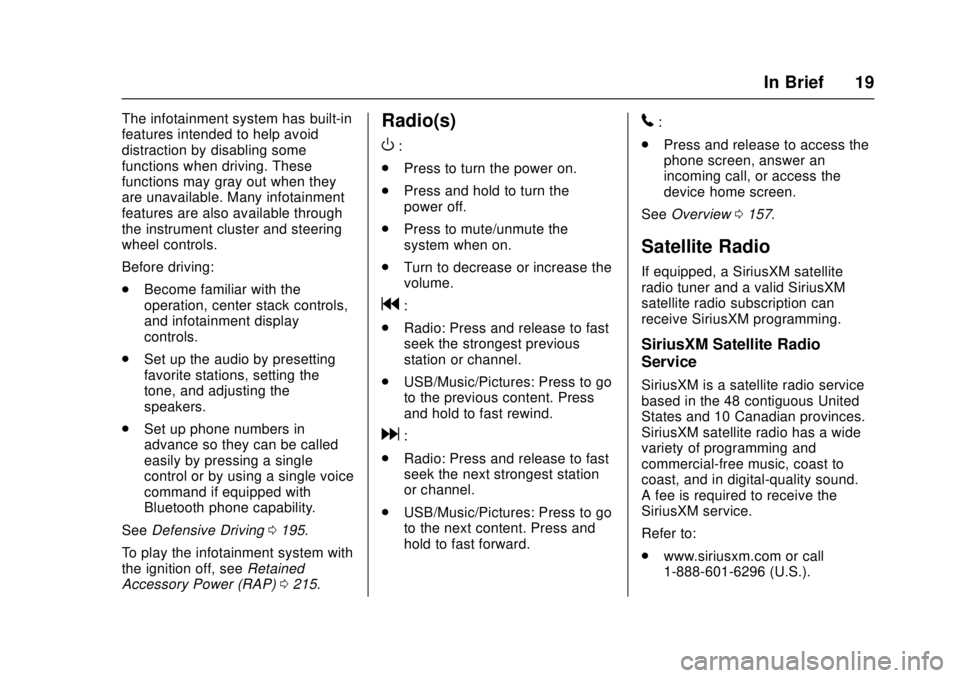
Accessory Power (RAP) 0215.Radio(s)
O
:
. Press to turn the power on.
. Press and hold to turn the
power off.
. Press to mute/unmute the
system when on.
. Turn to decrease or increase the
volume.
g:
. Radio: Press and release to fast
seek the strongest previous
station or channel.
. USB/Music/Pictures: Press to go
to the previous content. Press
and hold to fast rewind.
d:
. Radio: Press and release to fast
seek the next strongest station
or channel.
. USB/Music/Pictures: Press to go
to the next content. Press and
hold to fast forward.
5:
. Press and release to access the
phone screen, answer an
incoming call, or access the
device home screen.
See Overview 0157.
Satellite Radio
If equipped, a SiriusXM satellite
radio tuner and a valid SiriusXM
satellite radio subscription can
receive SiriusXM programming.
SiriusXM Satellite Radio
Service
SiriusXM is a satellite radio service
based in the 48 contiguous United
States and 10 Canadian provinces.
SiriusXM satellite radio has a wide
variety of programming and
commercial-free music, coast to
coast, and in digital-quality sound.
A fee is required to receive the
SiriusXM service.
Refer to:
.
www.siriusxm.com or call
1-888-601-6296 (U.S.).
Page 21 of 386
Chevrolet Camaro Owner Manual (GMNA-Localizing-U.S./Canada/Mexico-
11348325) - 2018 - crc - 4/11/17
20 In Brief
.www.siriusxm.ca or call
1-877-438-9677 (Canada).
See Satellite Radio 0161.
Portable Audio Devices
This vehicle has a 3.5 mm (1/8 in)
auxiliary input and two USB ports in
the center console. External devices
such as iPods, MP3 players, and
USB storage devices may be
connected.
See Auxiliary Devices 0170 and
USB Port 0164.
Bluetooth
The Bluetooth system allows users
with a Bluetooth-enabled cell phone
to make and receive hands-free
calls using the vehicle audio system
and controls.
The Bluetooth-enabled cell phone
must be paired with the in-vehicle
Bluetooth system before it can be
used in the vehicle. Not all phones
will support all functions.
See Bluetooth (Overview) 0176 or
Bluetooth (Infotainment Controls)
0 177.
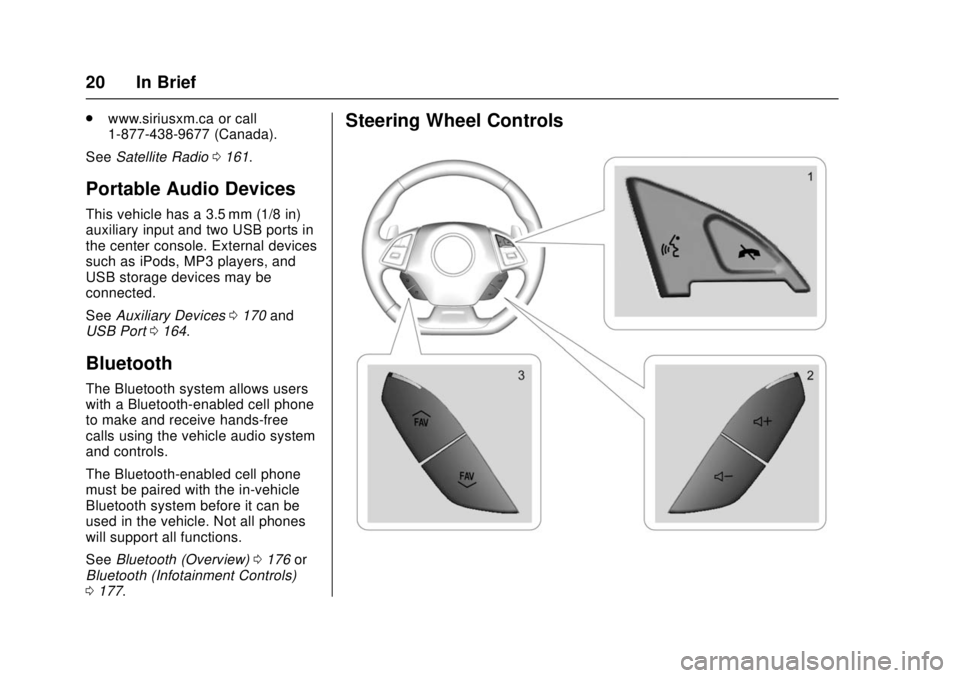
Steering Wheel Controls
Page 22 of 386
Chevrolet Camaro Owner Manual (GMNA-Localizing-U.S./Canada/Mexico-
11348325) - 2018 - crc - 4/11/17
In Brief 21
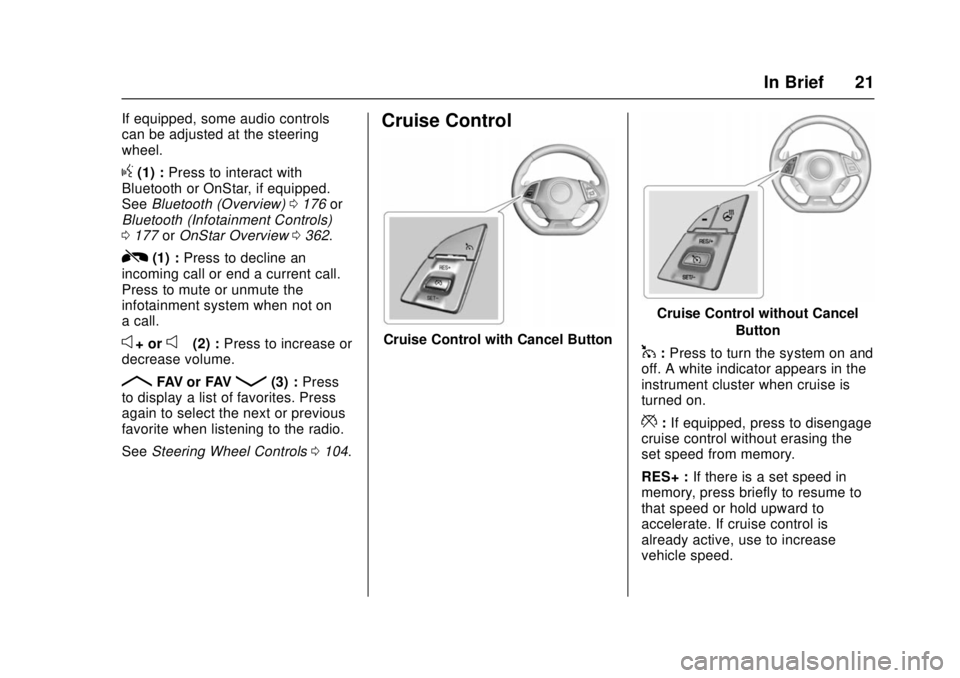
If equipped, some audio controls
can be adjusted at the steering
wheel.
g(1) :Press to interact with
Bluetooth or OnStar, if equipped.
See Bluetooth (Overview) 0176 or
Bluetooth (Infotainment Controls)
0 177 orOnStar Overview 0362.
R(1) : Press to decline an
incoming call or end a current call.
Press to mute or unmute the
infotainment system when not on
a call.
e+ ore− (2) : Press to increase or
decrease volume.
RFAV or FAVQ(3) : Press
to display a list of favorites. Press
again to select the next or previous
favorite when listening to the radio.
See Steering Wheel Controls 0104.
Cruise Control
Cruise Control with Cancel Button
Cruise Control without Cancel
Button
1:Press to turn the system on and
off. A white indicator appears in the
instrument cluster when cruise is
turned on.
*: If equipped, press to disengage
cruise control without erasing the
set speed from memory.
RES+ : If there is a set speed in
memory, press briefly to resume to
that speed or hold upward to
accelerate. If cruise control is
already active, use to increase
vehicle speed.
Page 106 of 386
Chevrolet Camaro Owner Manual (GMNA-Localizing-U.S./Canada/Mexico-
11348325) - 2018 - crc - 4/11/17
Instruments and Controls 105
If equipped, some audio controls
can be adjusted at the steering
wheel.
g(1) :Press to interact with
Bluetooth or OnStar, if equipped.
See Bluetooth (Overview) 0176 or
Bluetooth (Infotainment Controls)
0 177 orOnStar Overview 0362.
R(1) : Press to decline an
incoming call or end a current call.
Press to mute or unmute the
infotainment system when not on
a call.
e+ ore− (2) : Press to increase or
decrease volume.
RFAV or FAVQ(3) : Press
to display a list of favorites. Press
again to select the next or previous
favorite when listening to the radio.
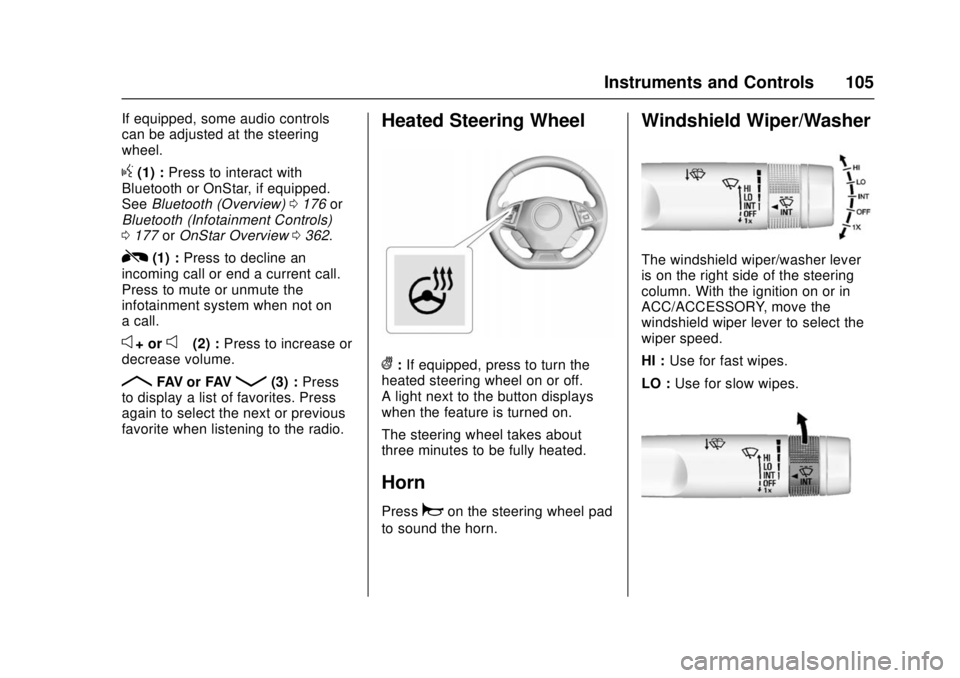
Heated Steering Wheel
(: If equipped, press to turn the
heated steering wheel on or off.
A light next to the button displays
when the feature is turned on.
The steering wheel takes about
three minutes to be fully heated.
Horn
Pressaon the steering wheel pad
to sound the horn.
Windshield Wiper/Washer
The windshield wiper/washer lever
is on the right side of the steering
column. With the ignition on or in
ACC/ACCESSORY, move the
windshield wiper lever to select the
wiper speed.
HI : Use for fast wipes.
LO : Use for slow wipes.
Page 108 of 386
Chevrolet Camaro Owner Manual (GMNA-Localizing-U.S./Canada/Mexico-
11348325) - 2018 - crc - 4/11/17
Instruments and Controls 107
will automatically determine when
the GPS signal is restored and
provide a heading again.
Clock
Base Radio
The infotainment system controls
are used to access the time and
date settings through the menu
system. SeeOperation0158 on
how to use the menu system.
Setting the Time and Date
When Auto Set is enabled the time
cannot be manually set.
1. Press
{, then touch
SETTINGS.
2. Touch Time and Date, then Set Time or Set Date.
3. Touch + or −to adjust the
value.
4. Touch
RorQto adjust AM or
PM for 12 hour format.
5. Touch
0.
Using Auto Set
1. Press{, then touch
SETTINGS.
2. Touch Time and Date, then Auto Set.
3. Select from the available selections.
4. Touch
0.
Setting the 12/24 Hour Format
1. Press{, then touch
SETTINGS.
2. Touch Time and Date, then select 12h or 24h format.
3. Touch
0.
Setting the Month and Day
Format
1. Press{, then touch
SETTINGS.
2. Touch Time and Date, then Set Date Format. 3. Select DD/MM/YYYY (day/
month/year), MM/DD/YYYY
(month/day/year), or YYYY/
MM/DD (year/month/day)
format.
4. Touch
0.
Uplevel Radio Using Center
Stack Controls
The infotainment system controls
are used to access the time and
date settings through the menu
system. See “Using the System”
under “Introduction” in the
infotainment manual.
To set the time or date:
1. Press
{, then select
SETTINGS.
2. Select Time and Date, then the desired function.
3. Turn the MENU knob to increase or decrease the value.
4. Press the MENU knob to go to the next value. After the last
value is selected, the system
will update and return to the
Page 109 of 386
Chevrolet Camaro Owner Manual (GMNA-Localizing-U.S./Canada/Mexico-
11348325) - 2018 - crc - 4/11/17
108 Instruments and Controls
Settings menu. PressoBACK
to go to the last menu and
save the changes.
Auto Set requires an OnStar
subscription.
If auto timing is set, the time
displayed on the clock may not
update immediately when driving
into a new time zone.
To set the clock display: 1. Select SETTINGS from the Home Page, then select Time
and Date.
2. Select Clock Display.
3. Turn the MENU knob to Off or On.
4. Press the MENU knob to select.
Press
oBACK to go to the last
menu and save the changes.
Uplevel Radio Using
Infotainment Display Controls
To set the time:
1. Touch SETTINGS from the Home Page, then touch Time
and Date.
2. Touch Set Time and touch
«
orªto increase or decrease
hours, minutes, and AM or PM.
Touch 12–24 Hr for 12 or
24 hour clock.
3. Touch
}to go back to the
previous menu.
Auto Set requires an OnStar
subscription.
If auto timing is set, the time
displayed on the clock may not
update immediately when driving
into a new time zone.
To set the date:
1. Touch SETTINGS from the Home Page, then touch Time
and Date. 2. Touch Set Date and touch
«
orªto increase or decrease
month, day, or year.
3. Touch
}to go back to the
previous menu.
To set the clock display:
1. Touch SETTINGS and touch Time and Date.
2. Touch Clock Display and touch OFF or ON to turn the clock
display off or on.
3. Touch
}to go back to the
previous menu.
The clock settings can also be
accessed by touching the time
display, then touching Set.
Power Outlets
The vehicle has an accessory
power outlet on the center floor
console in front of the cupholders.
It can be used to plug in electrical
equipment, such as a cell phone or
an MP3 player.
Page 110 of 386
Chevrolet Camaro Owner Manual (GMNA-Localizing-U.S./Canada/Mexico-
11348325) - 2018 - crc - 4/11/17
Instruments and Controls 109
The accessory power outlet does
not work when the ignition is turned
off and the driver door is opened.
This helps to preserve the battery
life of the vehicle.
Certain power accessory plugs may
not be compatible with the
accessory power outlet and could
overload vehicle and adapter fuses.
If a problem is experienced, see
your dealer.
Caution
Adding any electrical equipment
to the vehicle may damage it or
keep other components from
working as they should. The
repairs would not be covered by
the vehicle warranty. Do not use
equipment exceeding
maximum amperage rating of
15 amperes. Check with your
dealer before adding electrical
equipment.When adding electrical equipment,
be sure to follow the proper
installation instructions included with
the equipment. See
Add-On
Electrical Equipment 0247.
Caution
Hanging heavy equipment from
the power outlet can cause
damage not covered by the
vehicle warranty. The power
outlets are designed for
accessory power plugs only, such
as cell phone charge cords.
Wireless Charging
If equipped, the vehicle has wireless
charging in the storage bin at the
back of the floor console. The
system operates at 145 kHZ and
wirelessly charges one PMA or Qi
compatible mobile device. The
power output of the system is
capable of charging at a rate up to
1 amp (5W), as requested by the
compatible mobile device. See
Radio Frequency Statement 0358 To check for phone or other device
compatibility:
.
In the U.S., see
my.chevrolet.com/learn.
. In Canada, see
gmtotalconnect.ca.
. Or, see your dealer for details.
{Warning
Wireless charging can affect the
operation of an implanted
pacemaker or other medical
devices. If you have one, it is
recommended to consult with
your doctor before using the
wireless charging system.
The vehicle must be on, in ACC/
ACCESSORY, or Retained
Accessory Power (RAP) must be
active. The wireless charging
feature may not correctly indicate
charging when the vehicle is in RAP.
See Retained Accessory Power
(RAP) 0215.
Page 116 of 386
Chevrolet Camaro Owner Manual (GMNA-Localizing-U.S./Canada/Mexico-
11348325) - 2018 - crc - 4/11/17
Instruments and Controls 115
will record the time. To reset the
timer, highlight Reset on the
performance timer menu and
press SEL.
G-Force :Gives the driver an
indication of the vehicle
performance in cornering. The
G-force is displayed in the center of
the DIC as a numerical value.
Lap Timer : Use to start, stop,
or reset the lap timer. A stopwatch
icon will be displayed when the lap
timer is active. Press SEL while the
Lap Timer page is active to start the
timer. If the lamp timer is active,
pressing SEL on any page will stop
the current lap timer and start a new
lap. Also, pressing and holding SEL
on any page will stop the lap timer.
Oil Temperature : Shows the
current oil temperature in either
degrees Celsius (°C) or degrees
Fahrenheit (°F).
Oil Pressure : Shows the current oil
pressure in either kilopascal (kPa) or
in pounds per square inch (psi). Transmission Fluid
Temperature :
Shows the
temperature of the transmission fluid
in either degrees Celsius (°C) or
degrees Fahrenheit (°F).
Audio
If equipped, while the audio app is
open, use
worxto change the
radio station or seek to the next or
previous track, depending on the
current audio source. Press
pto
enter the Audio menu. In the Audio
menu browse for music, select from
the favorites, or change the audio
source.
Phone
If equipped, press
pto enter the
Phone menu. In the Phone menu,
if there is no active phone call, view
recent calls, or scroll through
contacts. If there is an active call,
mute or unmute the phone or switch
to handset or hands-free operation. Navigation
If equipped, press
pto enter the
Navigation menu. This displays a
map or turn by turn directions.
If there is no active route, press
p
to resume the last route and turn the
voice prompts on/off. If there is an
active route, press SEL to cancel
route guidance or turn the voice
prompts on/off.
Options
Press SEL to enter the Options
menu. Use
worxto scroll
through items in the menu.
Units : Press
pwhile Units is
displayed to enter the Units menu.
Choose US or Metric units by
pressing SEL while the desired item
is highlighted.
Speed Warning : The Speed
Warning display allows the driver to
set a speed that they do not want to
exceed. To set the Speed Warning,
press
pwhen Speed Warning is
displayed. Enable the speed
warning and then use
worxto
Page 121 of 386
Chevrolet Camaro Owner Manual (GMNA-Localizing-U.S./Canada/Mexico-
11348325) - 2018 - crc - 4/11/17
120 Instruments and Controls
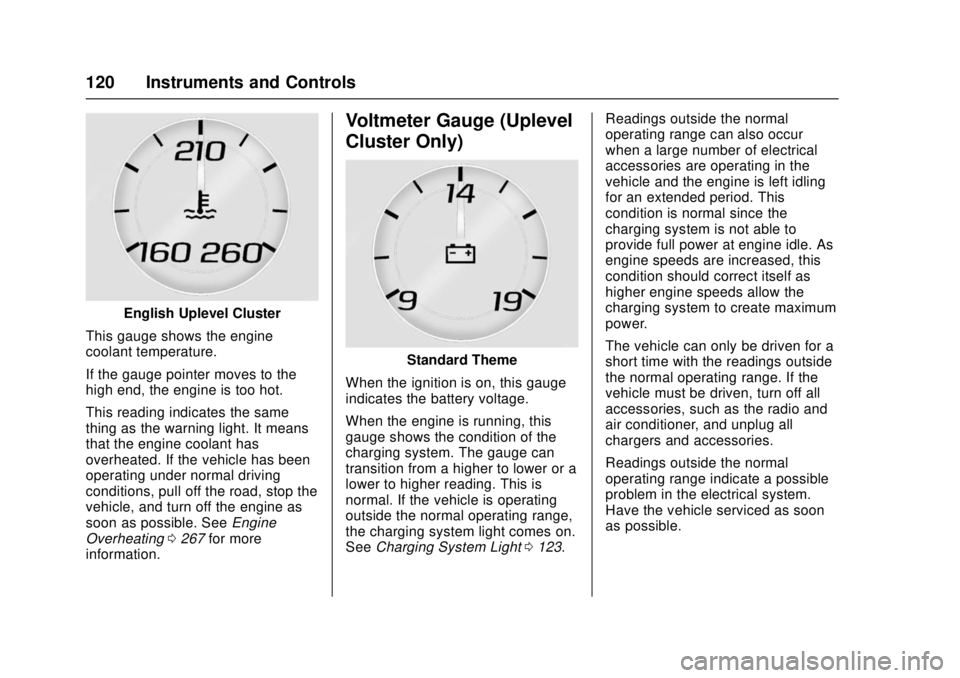
English Uplevel Cluster
This gauge shows the engine
coolant temperature.
If the gauge pointer moves to the
high end, the engine is too hot.
This reading indicates the same
thing as the warning light. It means
that the engine coolant has
overheated. If the vehicle has been
operating under normal driving
conditions, pull off the road, stop the
vehicle, and turn off the engine as
soon as possible. See Engine
Overheating 0267 for more
information.
Voltmeter Gauge (Uplevel
Cluster Only)
Standard Theme
When the ignition is on, this gauge
indicates the battery voltage.
When the engine is running, this
gauge shows the condition of the
charging system. The gauge can
transition from a higher to lower or a
lower to higher reading. This is
normal. If the vehicle is operating
outside the normal operating range,
the charging system light comes on.
See Charging System Light 0123. Readings outside the normal
operating range can also occur
when a large number of electrical
accessories are operating in the
vehicle and the engine is left idling
for an extended period. This
condition is normal since the
charging system is not able to
provide full power at engine idle. As
engine speeds are increased, this
condition should correct itself as
higher engine speeds allow the
charging system to create maximum
power.
The vehicle can only be driven for a
short time with the readings outside
the normal operating range. If the
vehicle must be driven, turn off all
accessories, such as the radio and
air conditioner, and unplug all
chargers and accessories.
Readings outside the normal
operating range indicate a possible
problem in the electrical system.
Have the vehicle serviced as soon
as possible.