audio CHEVROLET CAPTIVA SPORT 2013 User Guide
[x] Cancel search | Manufacturer: CHEVROLET, Model Year: 2013, Model line: CAPTIVA SPORT, Model: CHEVROLET CAPTIVA SPORT 2013Pages: 374, PDF Size: 6.66 MB
Page 160 of 374
Black plate (12,1)Chevrolet Captiva Sport Owner Manual - 2013 - crc - 11/12/12
7-12 Infotainment System display and artist information
displays on the bottom line. When
information is not available, NO
INFO displays.
f (Tune): Turn to select tracks on
the CD currently playing.
© SEEK: Press to go to the start of
the current track, if more than
10 seconds on the CD have played.
Press to go to the previous track if
less than 10 seconds on the CD
have played.
Press and hold, or press multiple
times to continue moving backward
through the tracks on the CD.
¨ SEEK: Press to go to the next
track.
Press and hold, or press multiple
times to continue moving forward
through the tracks on the CD.
s REV (Fast Reverse): Press
and hold to reverse playback quickly
within a track. \ FWD (Fast Forward): Press
and hold to advance playback
quickly within a track.
RDM (Random): Press to listen to
tracks in random, rather than
sequential order. To use random:
1. Press the softkey under the
RDM tab until Random Current
Disc displays.
2. Press the softkey again to turn
off random play.
MP3 Supported Files Format
Radios that have the capability of
playing MP3s can play .mp3 or .wma
files that were recorded onto a
CD-R or CD-RW disc. The files can
be recorded with the following fixed
bit rates: 32 kbps, 40 kbps, 56 kbps,
64 kbps, 80 kbps, 96 kbps, 112 kbps,
128 kbps, 160 kbps, 192 kbps,
224 kbps, 256 kbps, and 320 kbps or
a variable bit rate. Compressed Audio or Mixed Mode
Discs
The radio can play discs that
contain both uncompressed CD
audio and MP3 files. If both formats
are on the disc, the radio reads all
MP3 files first, then the
uncompressed CD audio files.
CD-R or CD-RW Supported File
and Folder Structure
The radio supports: .
Up to 50 folders. .
Up to eight folders in depth. .
Up to 50 playlists. .
Up to 255 files. .
Playlists with an .m3u or .wpl
extension. .
Files with an .mp3, .wma, or .cda
extension.
Root Directory
The root directory is treated as a
folder. Files are stored in the root
directory when the disc or storage
device does not contain folders.
Page 161 of 374
Black plate (13,1)Chevrolet Captiva Sport Owner Manual - 2013 - crc - 11/12/12
Infotainment System 7-13Files accessed from the root
directory of a CD display as
F1 ROOT.
Empty Folder
Folders that do not contain files are
skipped, and the player advances to
the next folder that contains files.
Order of Play
Compressed audio files are
accessed in the following order: .
Playlists (Px). .
Files stored in the root directory. .
Files stored in folders in the root
directory.
Tracks are played in the following
order: .
Play begins from the first track in
the first playlist and continues
sequentially through all tracks in
each playlist. When the last
track of the last playlist has
played, play continues from the
first track of the first playlist. .
Play begins from the first track in
the first folder and continues
sequentially through all tracks in
each folder. When the last track
of the last folder has played,
play continues from the first
track of the first folder.
File System and Naming
The song name that displays is the
song name contained in the ID3 tag.
If the song name is not present in
the ID3 tag, then the radio displays
the file name without the extension
(such as .mp3) as the track name.
Track names longer than 32
characters or 4 pages are
shortened. The display does not
show parts of words on the last
page of text and the extension of
the file name is not displayed.
Preprogrammed Playlists
CDs that have preprogrammed
playlists that were created using
WinAmp ™ , MusicMatch ™ , or Real
Jukebox ™ software can be
accessed; however, there is no playlist editing capability using the
radio. These playlists are treated as
special folders containing
compressed audio song files.
Playlists that have an .m3u or .pls
file extension and are stored on a
USB device may be supported by
the radio with a USB port.
Playlists can be changed by using
the softkeys below the
S c and
c T tabs, the
f knob, the
© SEEK
button, or the
¨ SEEK button. An
MP3 CD-R or CD-RW that has been
recorded without using file folders
can be played. If a CD-R or CD-RW
contains more than the maximum of
50 folders, 15 playlists, and
512 folders and files, the player
allows access and navigates up to
the maximum, but all items over the
maximum are not accessible.
Playing an MP3
4 (Information): Press to display
additional text information related to
the current song. If information is
available, the song title information
Page 165 of 374

Black plate (17,1)Chevrolet Captiva Sport Owner Manual - 2013 - crc - 11/12/12
Infotainment System 7-17Compressed Audio
The radio also plays discs that
contain both uncompressed CD
audio (.CDA files) and MP3 files. By
default the radio reads only the
uncompressed audio and ignores
the MP3 files. Pressing the CAT
(category) button toggles between
compressed and uncompressed
audio format.
MP3 Supported File and Folder
Structure
To burn an MP3 disc on a personal
computer: .
Make sure the MP3 files are
recorded on a CD-R or
CD-RW disc. .
Do not mix standard audio and
MP3 files on one disc. .
The CD player is able to read
and play a maximum of
50 folders, 50 playlists, and
255 files. .
Create a folder structure that
makes it easy to find songs
while driving. Organize songs by
albums using one folder for each
album. Each folder or album
should contain 18 songs or less. .
Avoid subfolders. The system
can support up to
eight subfolders deep; however,
keep the total number of folders
to a minimum in order to reduce
the complexity and confusion in
trying to locate a particular folder
during playback. .
Make sure playlists have a .m3u
or .wpl extension; other file
extensions may not work. .
Minimize the length of the file,
folder, or playlist names. Long
file, folder, or playlist names,
or a combination of a large
number of files, folders,
or playlists can cause the player
to be unable to play up to the
maximum number of files,
folders, playlists, or sessions. To
play a large number of files,
folders, playlists or sessions, minimize the length of the file,
folder, or playlist name. Long
names also take up more space
on the display, potentially getting
cut off. .
Finalize the audio disc before
burning it. Trying to add music to
an existing disc can cause the
disc not to function in the player.
Playlists can be changed by using
S c and
c T , the tune knob,
or the SEEK arrows. An MP3 CD-R
or CD-RW that was recorded using
no file folders can also be played.
If a CD-R or CD-RW contains more
than the maximum of 50 folders, 50
playlists, and 255 files, the player
can access and navigate up to the
maximum, but all items over the
maximum are not accessible.
Root Directory
The root directory of the CD-R or
CD-RW is treated as a folder. If the
root directory has compressed audio
files, the directory displays as F1
ROOT. All files contained directly
under the root directory are
Page 166 of 374
Black plate (18,1)Chevrolet Captiva Sport Owner Manual - 2013 - crc - 11/12/12
7-18 Infotainment System accessed prior to any root directory
folders. However, playlists (Px) are
always accessed before root folders
or files.
Empty Directory or Folder
If a root directory or a folder exists
somewhere in the file structure that
contains only folders/subfolders and
no compressed files directly
beneath them, the player advances
to the next folder in the file structure
that contains compressed audio
files. The empty folder does not
display.
No Folder
When the CD contains only
compressed files, the files are under
the root folder. The next and
previous folder functions do not
display on a CD that was recorded
without folders or playlists. When
displaying the name of the folder,
the radio displays ROOT.
When the CD contains only playlists
and compressed audio files, but no
folders, all files are under the root folder. The folder down and up
buttons search playlists (Px) first
and then go to the root folder. When
the radio displays the name of the
folder the radio displays ROOT.
Order of Play
Tracks recorded to the CD-R or
CD-RW are played in the following
order: .
Play begins from the first track in
the first playlist and continues
sequentially through all tracks in
each playlist. When the last
track of the last playlist has
played, play continues from the
first track of the first playlist. .
Play begins from the first track in
the first folder and continues
sequentially through all tracks in
each folder. When the last track
of the last folder has been
played, play continues from the
first track of the first folder.
When play enters a new folder, the
display does not automatically show
the new folder name unless the folder mode is chosen as the default
display. The new track name
displays.
File System and Naming
The song name displayed is the
song name contained in the ID3 tag.
If the song name is not present in
the ID3 tag, then the radio displays
the file name without the extension
(such as .mp3) as the track name.
Track names longer than 32
characters or four pages are
shortened. Parts of words on the
last page of text and the extension
of the file name do not display.
Preprogrammed Playlists
Preprogrammed playlists created by
WinAmp ™ , MusicMatch ™ , or Real
Jukebox ™ software can be
accessed; however, they cannot be
edited using the radio. These
playlists are treated as special
folders containing compressed
audio song files.
Page 167 of 374
Black plate (19,1)Chevrolet Captiva Sport Owner Manual - 2013 - crc - 11/12/12
Infotainment System 7-19
Auxiliary Devices Using the Auxiliary Input Jack Radios with an auxiliary input jack
on the lower right side of the
faceplate can connect to an external
audio device such as an iPod ®
,
MP3 player, or CD player, for use as
another source for audio listening.
This input jack is not an audio
output; do not plug headphones into
the front auxiliary input jack.
To use a portable audio player,
connect a 3.5 mm (1/8 in) cable to
the radio's front auxiliary input jack.
When a device is connected, press
the radio CD/AUX button to begin
playing audio from the device over
the vehicle speakers.
For optimal sound quality, increase
the portable audio device's volume
to the loudest level.
It is always best to power the
portable audio device through its
own battery while playing. O (Power/Volume): Turn clockwise
or counterclockwise to increase or
decrease the volume of the portable
player. Additional volume
adjustments might have to be made
from the portable device if the
volume is not loud or soft enough.
BAND: Press to listen to the radio
when a portable audio device is
playing. The portable audio device
continues playing.
CD/AUX (CD/Auxiliary): Press to
play a CD when a portable audio
device is playing. Press again and
the system begins playing audio
from the connected portable audio
player. If a portable audio player is
not connected, No Input Device
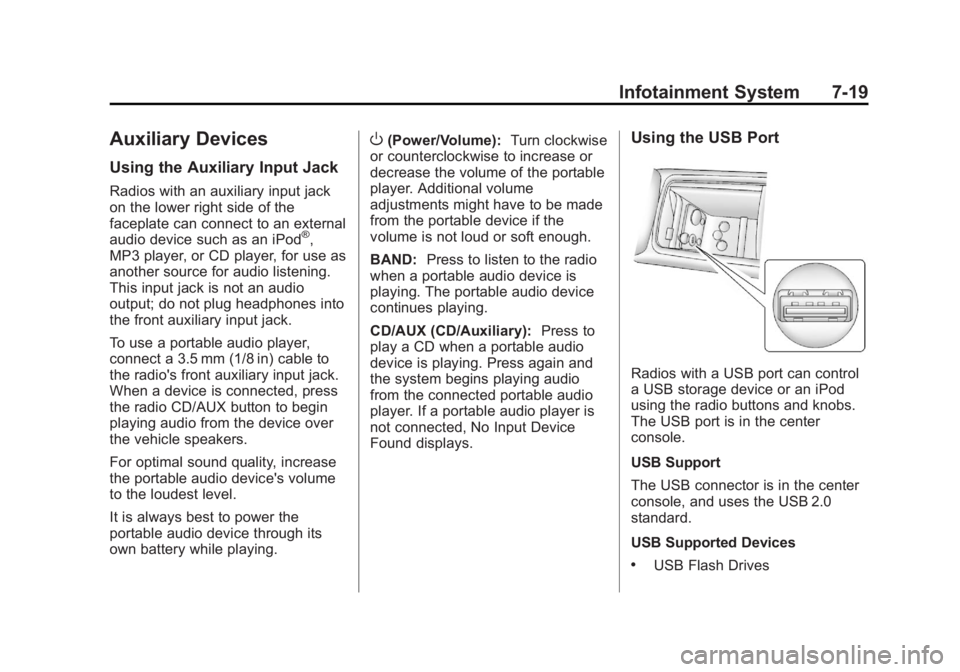
Found displays. Using the USB Port
Radios with a USB port can control
a USB storage device or an iPod
using the radio buttons and knobs.
The USB port is in the center
console.
USB Support
The USB connector is in the center
console, and uses the USB 2.0
standard.
USB Supported Devices .
USB Flash Drives
Page 172 of 374
Black plate (24,1)Chevrolet Captiva Sport Owner Manual - 2013 - crc - 11/12/12
7-24 Infotainment System A Bluetooth system can use a
Bluetooth-capable cell phone with a
Hands-Free Profile to make and
receive phone calls. The system
can be used while the key is in the
ON/RUN or ACC/ACCESSORY
position. The range of the Bluetooth
system can be up to 9.1 m (30 ft).
Not all phones support all functions,
and not all phones work with the
in-vehicle Bluetooth system. See
www.gm.com/bluetooth for more
information on compatible phones.
Voice Recognition The Bluetooth system uses voice
recognition to interpret voice
commands to dial phone numbers
and name tags.
For additional information, say
“ Help ” while you are in a voice
recognition menu.
Noise: Keep interior noise levels to
a minimum. The system may not
recognize voice commands if there
is too much background noise. When to Speak: A short tone
sounds after the system responds
indicating when it is waiting for a
voice command. Wait until the tone
and then speak.
How to Speak: Speak clearly in a
calm and natural voice.
Audio System When using the in-vehicle Bluetooth
system, sound comes through the
vehicle's front audio system
speakers and overrides the audio
system. Use the audio system
volume knob, during a call, to
change the volume level. The
adjusted volume level remains in
memory for later calls. To prevent
missed calls, a minimum volume
level is used if the volume is turned
down too low.
Bluetooth Controls
Use the buttons on the steering
wheel to operate the in-vehicle
Bluetooth system. See Steering
Wheel Controls on page 5 ‑ 2 .J /
0 (Call/Mute): Press to answer
incoming calls, confirm system
information, and start speech
recognition.
K (End Call): Press to end a call,
reject a call, or cancel an operation.
Pairing A Bluetooth-enabled cell phone
must be paired to the Bluetooth
system and then connected to the
vehicle before it can be used. See
the cell phone manufacturer's user
guide for Bluetooth functions before
pairing the cell phone. If a Bluetooth
phone is not connected, calls will be
made using OnStar Hands-Free
Calling, if equipped. See OnStar
Overview on page 14 ‑ 1 .
Pairing Information .
A Bluetooth phone with MP3
capability cannot be paired to
the vehicle as a phone and an
MP3 player at the same time. .
Up to five cell phones can be
paired to the Bluetooth system.
Page 175 of 374
Black plate (27,1)Chevrolet Captiva Sport Owner Manual - 2013 - crc - 11/12/12
Infotainment System 7-27repeats back the digit it heard
followed by a tone. After the last
digit has been entered, say
“ Store, ” and then follow the
directions given by the system to
save a name tag for this number.
Using the “ Delete ” Command
1. Press and hold
J /
0 for
two seconds.
2. Say “ Delete. ”
3. Say the name tag you want to
delete.
Using the “ Delete All Name Tags ”
Command
This command deletes all stored
name tags in the Hands-Free
Calling Directory and the OnStar
Turn-by-Turn Destinations Directory,
if equipped.
To delete all name tags:
1. Press and hold
J /
0 for
two seconds.
2. Say “ Delete all name tags. ” Listing Stored Numbers The list command will list all stored
numbers and name tags.
Using the “ List ” Command
1. Press and hold
J /
0 for
two seconds.
2. Say “ Directory. ”
3. Say “ Hands-Free Calling. ”
4. Say “ List. ”
Making a Call Calls can be made using the
following commands.
Dial or Call: The dial or call
command can be used
interchangeably to dial a phone
number or a stored name tag.
Digit Dial: This command allows a
phone number to be dialed by
entering the digits one at a time.
Re-dial: This command is used to
dial the last number used on the cell
phone. Using the “ Dial ” or “ Call ”
Command
1. Press and hold
J /
0 for
two seconds.
2. Say “ Dial ” or “ Call. ”
3. Say the entire number without
pausing, or say the name tag.
Once connected, the person called
will be heard through the audio
speakers.
Calling 911 Emergency
1. Press and hold
J /
0 for
two seconds.
2. Say “ Dial ” or “ Call. ”
3. Say “ 911. ”
4. Say “ Dial ” or “ Call. ”
Once connected, the person called
will be heard through the audio
speakers.
Using the “ Digit Dial ” Command
The digit dial command allows a
phone number to be dialed by
entering the digits one at a time.
Page 176 of 374
Black plate (28,1)Chevrolet Captiva Sport Owner Manual - 2013 - crc - 11/12/12
7-28 Infotainment System After each digit is entered, the
system repeats back the digit it
heard followed by a tone.
If an unwanted number is
recognized by the system, say
“ Clear ” at any time to clear the last
number.
To hear all of the numbers
recognized by the system, say
“ Verify ” at any time.
1. Press and hold
J /
0 for
two seconds.
2. Say “ Digit Dial. ”
3. Say each digit, one at a time,
that you want to dial. After each
digit is entered, the system
repeats back the digit it heard
followed by a tone. After the last
digit has been entered,
say “ Dial. ”
Once connected, the person called
will be heard through the audio
speakers. Using the “ Re-dial ” Command
1. Press and hold
J /
0 for
two seconds.
2. After the tone, say “ Re-dial. ”
Once connected, the person called
will be heard through the audio
speakers.
Receiving a Call When an incoming call is received,
the audio system mutes and a ring
tone is heard in the vehicle. .
Press
J /
0 to answer the call. .
Press
K to ignore a call.
Call Waiting Call waiting must be supported on
the cell phone and enabled by the
wireless service carrier. .
Press
J /
0 to answer an
incoming call when another call
is active. The original call is
placed on hold. .
Press
J /
0 again to return to
the original call. .
To ignore the incoming call, no
action is required. .
Press
K to disconnect the
current call and switch to the call
on hold.
Three-Way Calling Three-way calling must be
supported on the cell phone and
enabled by the wireless service
carrier.
1. While on a call, press
J /
0 .
2. Say “ Three-way call. ”
3. Use the dial or call command to
dial the number of the third party
to be called.
4. Once the call is connected,
press
J /
0 to link all callers
together.
Page 177 of 374
Black plate (29,1)Chevrolet Captiva Sport Owner Manual - 2013 - crc - 11/12/12
Infotainment System 7-29Ending a Call Press
K to end a call.
Muting a Call During a call, all sounds from inside
the vehicle can be muted so that the
person on the other end of the call
cannot hear them. .
To mute a call, press
J /
0 , and
then say “ Mute call. ”.
To cancel mute, press
J /
0 ,
and then say “ Un-mute call. ”
Transferring a Call Audio can be transferred between
the Bluetooth system and the cell
phone.
The cell phone must be paired and
connected with the Bluetooth
system before a call can be
transferred. The connection process
can take up to two minutes after the
ignition is turned to ON/RUN. Transferring Audio from the
Bluetooth System to a Cell Phone
During a call with the audio in the
vehicle:
1. Press
J /
0 .
2. Say “ Transfer Call. ”
Transferring Audio to the
Bluetooth System from a Cell
Phone
During a call with the audio on the
cell phone, press
J /
0 . The audio
transfers to the vehicle. If the audio
does not transfer to the vehicle, use
the audio transfer feature on the cell
phone. See your cell phone
manufacturer's user guide for more
information.
Voice Pass-Thru
Voice pass-thru allows access to the
voice recognition commands on the
cell phone. See your cell phone
manufacturer's user guide to see if
the cell phone supports this feature. To access contacts stored in the cell
phone:
1. Press and hold
J /
0 for
two seconds.
2. Say “ Bluetooth. ” This command
can be skipped.
3. Say “ Voice. ” The system
responds “ OK, accessing
The cell phone's normal prompt
messages will go through their cycle
according to the phone's operating
instructions.
Dual Tone Multi-Frequency
(DTMF) Tones The Bluetooth system can send
numbers and the numbers stored as
name tags during a call. You can
use this feature when calling a
menu-driven phone system.
Account numbers can also be
stored for use.
Page 363 of 374
Black plate (1,1)Chevrolet Captiva Sport Owner Manual - 2013 - crc - 11/12/12
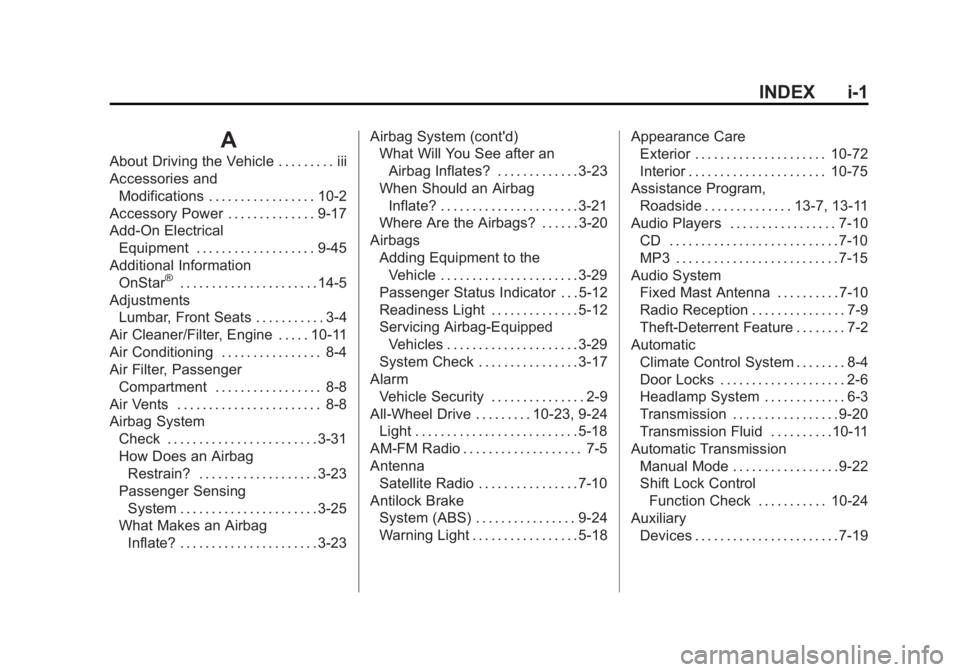
INDEX i-1
AAbout Driving the Vehicle . . . . . . . . . iii
Accessories and
Modifications . . . . . . . . . . . . . . . . . 10-2
Accessory Power . . . . . . . . . . . . . . 9-17
Add-On Electrical
Equipment . . . . . . . . . . . . . . . . . . . 9-45
Additional Information
OnStar ®
. . . . . . . . . . . . . . . . . . . . . . 14-5
Adjustments
Lumbar, Front Seats . . . . . . . . . . . 3-4
Air Cleaner/Filter, Engine . . . . . 10-11
Air Conditioning . . . . . . . . . . . . . . . . 8-4
Air Filter, Passenger
Compartment . . . . . . . . . . . . . . . . . 8-8
Air Vents . . . . . . . . . . . . . . . . . . . . . . . 8-8
Airbag System
Check . . . . . . . . . . . . . . . . . . . . . . . . 3-31
How Does an Airbag
Restrain? . . . . . . . . . . . . . . . . . . . 3-23
Passenger Sensing
System . . . . . . . . . . . . . . . . . . . . . . 3-25
What Makes an Airbag
Inflate? . . . . . . . . . . . . . . . . . . . . . . 3-23 Airbag System (cont'd)
What Will You See after an
Airbag Inflates? . . . . . . . . . . . . . 3-23
When Should an Airbag
Inflate? . . . . . . . . . . . . . . . . . . . . . . 3-21
Where Are the Airbags? . . . . . . 3-20
Airbags
Adding Equipment to the
Vehicle . . . . . . . . . . . . . . . . . . . . . . 3-29
Passenger Status Indicator . . . 5-12
Readiness Light . . . . . . . . . . . . . . 5-12
Servicing Airbag-Equipped
Vehicles . . . . . . . . . . . . . . . . . . . . . 3-29
System Check . . . . . . . . . . . . . . . . 3-17
Alarm
Vehicle Security . . . . . . . . . . . . . . . 2-9
All-Wheel Drive . . . . . . . . . 10-23, 9-24
Light . . . . . . . . . . . . . . . . . . . . . . . . . . 5-18
AM-FM Radio . . . . . . . . . . . . . . . . . . . 7-5
Antenna
Satellite Radio . . . . . . . . . . . . . . . . 7-10
Antilock Brake
System (ABS) . . . . . . . . . . . . . . . . 9-24
Warning Light . . . . . . . . . . . . . . . . . 5-18 Appearance Care
Exterior . . . . . . . . . . . . . . . . . . . . . 10-72
Interior . . . . . . . . . . . . . . . . . . . . . . 10-75
Assistance Program,
Roadside . . . . . . . . . . . . . . 13-7, 13-11
Audio Players . . . . . . . . . . . . . . . . . 7-10
CD . . . . . . . . . . . . . . . . . . . . . . . . . . . 7-10
MP3 . . . . . . . . . . . . . . . . . . . . . . . . . . 7-15
Audio System
Fixed Mast Antenna . . . . . . . . . . 7-10
Radio Reception . . . . . . . . . . . . . . . 7-9
Theft-Deterrent Feature . . . . . . . . 7-2
Automatic
Climate Control System . . . . . . . . 8-4
Door Locks . . . . . . . . . . . . . . . . . . . . 2-6
Headlamp System . . . . . . . . . . . . . 6-3
Transmission . . . . . . . . . . . . . . . . . 9-20
Transmission Fluid . . . . . . . . . .10-11
Automatic Transmission
Manual Mode . . . . . . . . . . . . . . . . . 9-22
Shift Lock Control
Function Check . . . . . . . . . . . 10-24
Auxiliary
Devices . . . . . . . . . . . . . . . . . . . . . . . 7-19